Caddy is the web server you reach for when you want HTTPS without writing a single TLS directive. It automatically provisions certificates from Let’s Encrypt for public hostnames and runs its own internal CA for LAN testing, so a five-line Caddyfile yields a working HTTPS site. On Ubuntu 26.04 LTS the official Caddy repo ships 2.11.2, which includes native HTTP/3, automatic config reloading, and the same “batteries included” TLS that made Caddy 2 popular.
This guide stands up a real two-VM lab on fresh Ubuntu 26.04 clones. One box runs Caddy with a static site, a reverse proxy to a backend, and automatic HTTPS using Caddy’s internal CA (no Let’s Encrypt needed on a LAN). A second freshly cloned VM trusts the internal CA, then verifies HTTP-to-HTTPS redirect, HTTP/2, and the reverse proxy end to end.
Tested April 2026 on Ubuntu 26.04 LTS (Resolute Raccoon), kernel 7.0.0-10, Caddy 2.11.2
Prerequisites
Two Ubuntu 26.04 LTS servers on the same subnet. Caddy sits at 192.168.1.123 (caddy.c4geeks.local) and the test client at 192.168.1.124. Both were cloned from a fresh 26.04 cloud image with root SSH and UFW in its default state. If you are starting from scratch, run the Ubuntu 26.04 initial server setup.
Set FQDN and reusable shell variables
Pin the hostname on the Caddy server:
sudo hostnamectl set-hostname caddy.c4geeks.local
hostname -f
Define the site roots and backend port. All Caddyfile and curl examples read from these:
export CADDY_HOST="caddy.c4geeks.local"
export CADDY_SITE1="site1.c4geeks.local"
export CADDY_SITE2="site2.c4geeks.local"
export CADDY_ROOT1="/srv/caddy/site1"
export CADDY_ROOT2="/srv/caddy/site2"
export BACKEND_PORT="8080"
Install Caddy from the official Cloudsmith repo
The distribution-packaged Caddy lags behind upstream. Use the official Cloudsmith repo for the latest stable build:
sudo apt-get update
sudo apt-get install -y debian-keyring debian-archive-keyring apt-transport-https curl
curl -1sLf 'https://dl.cloudsmith.io/public/caddy/stable/gpg.key' | \
  sudo gpg --dearmor -o /usr/share/keyrings/caddy-stable-archive-keyring.gpg
curl -1sLf 'https://dl.cloudsmith.io/public/caddy/stable/debian.deb.txt' | \
  sudo tee /etc/apt/sources.list.d/caddy-stable.list
sudo apt-get update
sudo apt-get install -y caddy
caddy version
systemctl is-active caddy
The official package creates a caddy service user, installs a systemd unit, and drops a starter config under /etc/caddy/Caddyfile:
v2.11.2 h1:iOlpsSiSKqEW+SIXrcZsZ/NO74SzB/ycqqvAIEfIm64=
active
Prepare site roots and a backend service
Write static HTML for the two demo sites. Caddy’s systemd unit runs as the caddy user, so the web roots must be readable by that account:
sudo mkdir -p "${CADDY_ROOT1}" "${CADDY_ROOT2}"
echo '<!doctype html><html><body><h1>site1.c4geeks.local served by Caddy</h1></body></html>' | \
  sudo tee "${CADDY_ROOT1}/index.html"
echo '<!doctype html><html><body><h1>site2 (reverse proxy)</h1></body></html>' | \
  sudo tee "${CADDY_ROOT2}/index.html"
For the reverse-proxy demo, run a tiny Python HTTP server on localhost:8080 under its own systemd unit. In production, this would be a real Go, Node, Rails, or Django app:
sudo tee /etc/systemd/system/fake-backend.service > /dev/null <<'SVC'
[Unit]
Description=Fake backend on 8080 for Caddy reverse-proxy demo
After=network.target

[Service]
WorkingDirectory=/srv/caddy/site2
ExecStart=/usr/bin/python3 -m http.server 8080 --bind 127.0.0.1
Restart=always
User=nobody
Group=nogroup

[Install]
WantedBy=multi-user.target
SVC
sudo systemctl daemon-reload
sudo systemctl enable --now fake-backend
ss -tlnp | grep 8080
Write a production-quality Caddyfile
Caddyfile is Caddy’s native config format. Three stanzas cover the full demo: plain HTTP on :80, HTTPS on site1 with the internal CA, and HTTPS on site2 that reverse-proxies to the Python backend:
sudo tee /etc/caddy/Caddyfile > /dev/null <<CFY
# Fallback file server on port 80 (used when no HTTPS host matches)
:80 {
    root * ${CADDY_ROOT1}
    file_server
    header Server "Caddy 2 on Ubuntu 26.04"
}

# HTTPS with Caddy's internal CA (perfect for LAN testing)
https://${CADDY_SITE1}:443 {
    tls internal
    root * ${CADDY_ROOT1}
    file_server
}

# Reverse proxy to the backend, also HTTPS via internal CA
https://${CADDY_SITE2}:443 {
    tls internal
    reverse_proxy 127.0.0.1:${BACKEND_PORT}
}
CFY
For a public-facing Caddy server, delete the tls internal lines; Caddy will then request real Let’s Encrypt certificates via HTTP-01 (as long as port 80 is reachable from the internet). The same Caddyfile handles both modes. The only difference is the tls directive.
For the server itself to resolve the demo names, append them to /etc/hosts:
echo "192.168.1.123 ${CADDY_SITE1} ${CADDY_SITE2} ${CADDY_HOST}" | sudo tee -a /etc/hostsIn production, DNS A records for the hostnames point at the server’s public IP. Follow the BIND9 guide if you are running internal DNS.
Validate and reload Caddy
Always run the validator before restart. A malformed Caddyfile fails fast and cleanly:
sudo caddy validate --config /etc/caddy/Caddyfile
sudo systemctl restart caddy
sudo ss -tlnp | grep -E ':(80|443)'
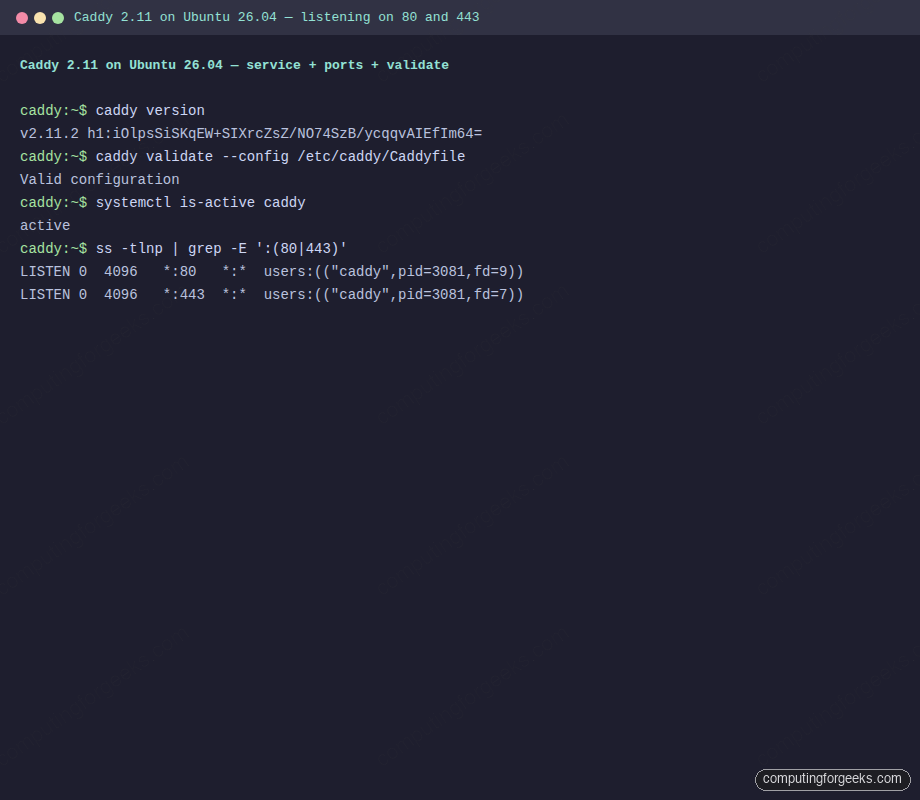
A healthy Caddy listens on both 80 and 443 with pid/fd visible:
Valid configuration
LISTEN 0  4096   *:80   *:*  users:(("caddy",pid=3081,fd=9))
LISTEN 0  4096   *:443  *:*  users:(("caddy",pid=3081,fd=7))
Terminal capture from the Caddy server showing validated config and open sockets:
Open UFW firewall
Open 80 for HTTP (Caddy auto-redirects to 443 for sites with HTTPS) and 443/tcp for HTTPS. For HTTP/3, also allow 443/udp:
sudo ufw allow 22/tcp
sudo ufw allow 80/tcp
sudo ufw allow 443/tcp
sudo ufw allow 443/udp
sudo ufw --force enable
sudo ufw status
Confirm HTTP-to-HTTPS redirect from the client
Switch to the client VM. Install curl (already present on most cloud images) and add the same /etc/hosts entries:
sudo apt-get install -y curl
echo "192.168.1.123 site1.c4geeks.local site2.c4geeks.local" | sudo tee -a /etc/hosts
Caddy automatically returns a 308 Permanent Redirect for any HTTP request to a hostname that also has HTTPS configured. Verify:
curl -sI http://site1.c4geeks.local/ | head -5
curl -sI https://site1.c4geeks.local/ 2>&1 | head -3
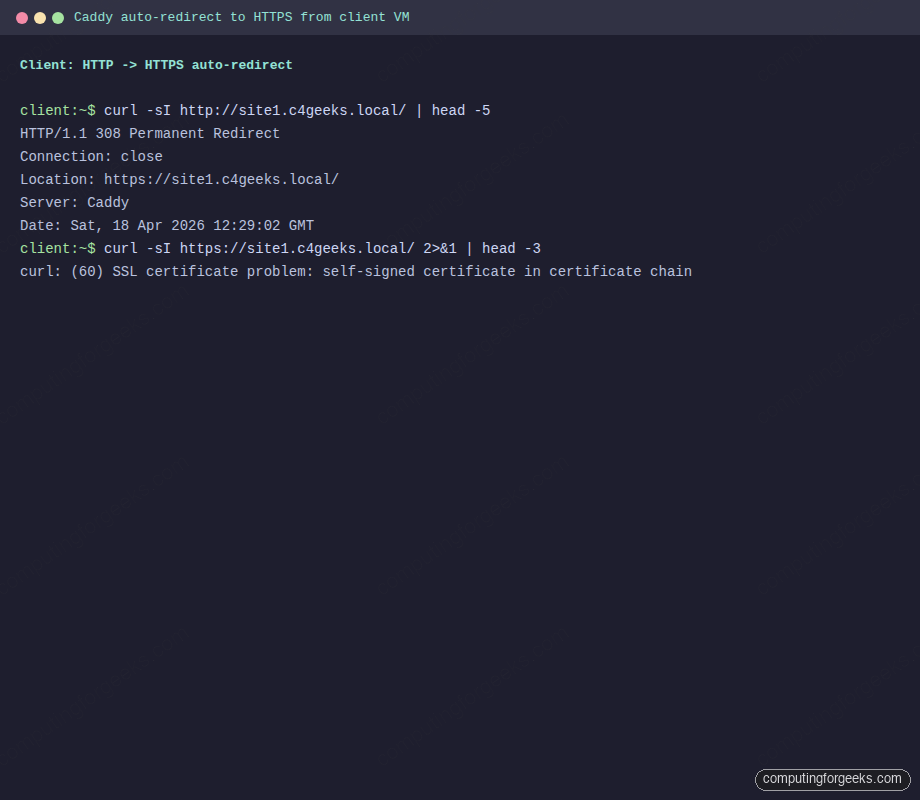
The HTTP response is the redirect, and plain HTTPS without trusted CA fails with self-signed certificate. This is expected: the internal CA is not in the client’s system trust store yet:
HTTP/1.1 308 Permanent Redirect
Connection: close
Location: https://site1.c4geeks.local/
Server: Caddy
Date: Sat, 18 Apr 2026 12:29:02 GMT
curl: (60) SSL certificate problem: self-signed certificate in certificate chain
Verbatim client-side session showing the automatic redirect and expected TLS failure:
Trust Caddy’s internal CA on the client
Caddy stores the internal CA root under /var/lib/caddy/.local/share/caddy/pki/authorities/local/. Copy the root cert to the client:
# On the Caddy server, print the cert and paste/save it on the client, OR
sudo cat /var/lib/caddy/.local/share/caddy/pki/authorities/local/root.crt

# Or scp it (the server's root user holds the file)
scp [email protected]:/var/lib/caddy/.local/share/caddy/pki/authorities/local/root.crt /tmp/caddy-root.crt
openssl x509 -in /tmp/caddy-root.crt -noout -subject -issuer -dates
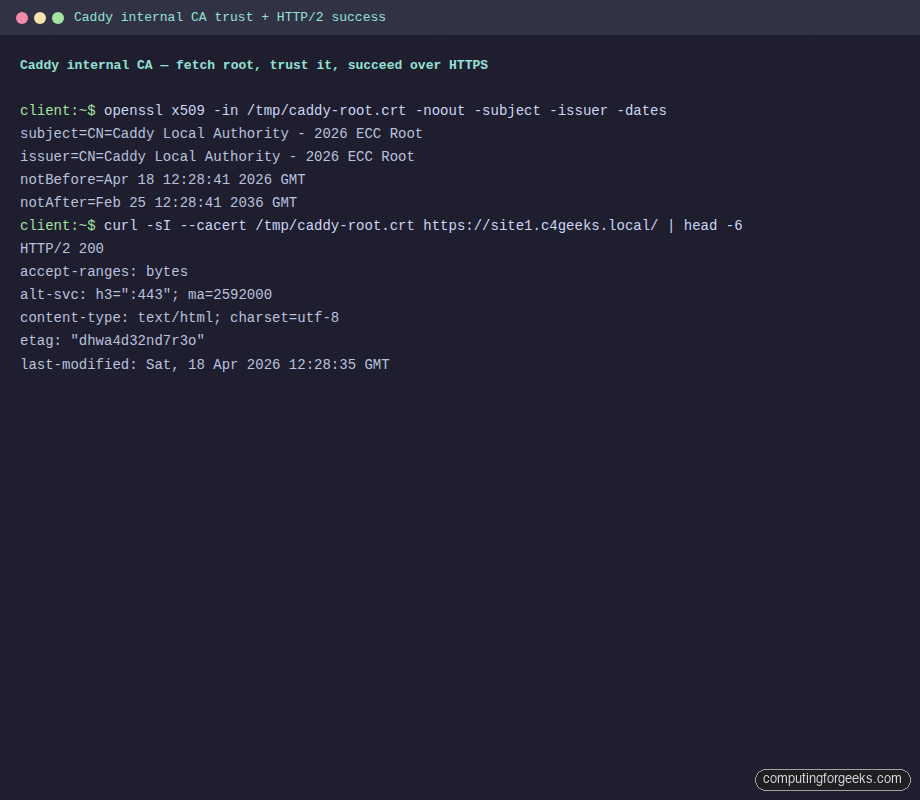
Caddy generates a 10-year ECC root and a 90-day intermediate. The subject line confirms the CA identity:
subject=CN=Caddy Local Authority - 2026 ECC Root
issuer=CN=Caddy Local Authority - 2026 ECC Root
notBefore=Apr 18 12:28:41 2026 GMT
notAfter=Feb 25 12:28:41 2036 GMT
For a system-wide trust (so every curl and app trusts Caddy automatically), drop the cert in /usr/local/share/ca-certificates/ and run update-ca-certificates:
sudo cp /tmp/caddy-root.crt /usr/local/share/ca-certificates/caddy-local-authority.crt
sudo update-ca-certificates
Verify HTTPS and the reverse proxy
With the CA trusted, HTTPS works cleanly over HTTP/2 and Caddy advertises HTTP/3 availability via alt-svc:
curl -sI --cacert /tmp/caddy-root.crt https://site1.c4geeks.local/ | head -6
curl -s --cacert /tmp/caddy-root.crt https://site1.c4geeks.local/
The response headers confirm HTTP/2, the HTTP/3 alternate service, and the proper content type. The body is the site1 static HTML:
HTTP/2 200
accept-ranges: bytes
alt-svc: h3=":443"; ma=2592000
content-type: text/html; charset=utf-8
etag: "dhwa4d32nd7r3o"
last-modified: Sat, 18 Apr 2026 12:28:35 GMT
<!doctype html><html><body><h1>site1.c4geeks.local served by Caddy</h1></body></html>
Caddy internal CA certificate inspection and successful HTTPS fetch:
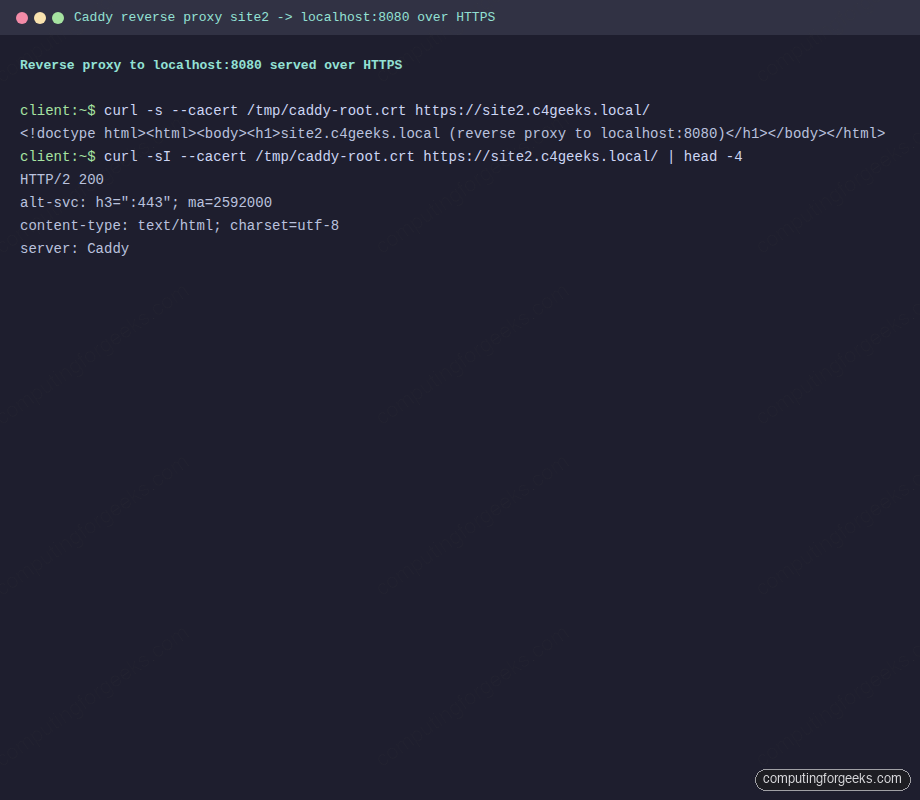
Now hit the reverse-proxied site. Caddy terminates TLS, opens a local connection to the Python backend, and returns the backend’s response over HTTPS:
curl -s --cacert /tmp/caddy-root.crt https://site2.c4geeks.local/
curl -sI --cacert /tmp/caddy-root.crt https://site2.c4geeks.local/ | head -4
Same HTTP/2 status, same alt-svc advertisement, the backend’s HTML delivered over TLS:
<!doctype html><html><body><h1>site2.c4geeks.local (reverse proxy to localhost:8080)</h1></body></html>
HTTP/2 200
alt-svc: h3=":443"; ma=2592000
content-type: text/html; charset=utf-8
server: Caddy
Reverse-proxy request reaching the backend through Caddy’s TLS termination:
Provision a real Let’s Encrypt certificate
The internal CA is great for LAN testing, but the whole point of running Caddy is automatic, publicly-trusted HTTPS. Two paths get you a real Let’s Encrypt certificate: HTTP-01 for servers reachable on port 80, and DNS-01 for servers behind NAT or inside a private network.
Path 1. HTTP-01 (default, public servers). If Caddy can answer on port 80 from the public internet, and DNS for your hostname points at the server, the whole thing takes no extra configuration. Remove the tls internal line from your site block and add a global email so Let’s Encrypt can notify you about expiry issues:
sudo tee /etc/caddy/Caddyfile > /dev/null <<'CFY'
{
    email [email protected]
}

site1.example.com {
    root * /srv/caddy/site1
    file_server
}
CFY
sudo caddy validate --config /etc/caddy/Caddyfile
sudo systemctl restart caddy
sudo journalctl -u caddy -n 30 --no-pager | grep -E 'certificate|obtained|acme'
Caddy picks up the site name, requests a certificate from Let’s Encrypt via HTTP-01 (Caddy spins up an internal handler on port 80 to answer the challenge), and swaps the cert in without downtime. The journal lines that confirm success look like certificate obtained successfully followed by certificate deployed.
Path 2. DNS-01 (private or NAT’d servers). This guide’s test VM sits on a private LAN where port 80 is not reachable from the internet, so HTTP-01 would fail. DNS-01 validates by putting a TXT record in your domain’s DNS zone, which works regardless of where the server lives. We use Cloudflare because the domain is already on their DNS, and use certbot with the Cloudflare plugin to fetch the certificate. Then we point Caddy at the cert files directly.
sudo apt-get install -y certbot python3-certbot-dns-cloudflare
sudo mkdir -p /etc/letsencrypt
sudo tee /etc/letsencrypt/cloudflare.ini > /dev/null <<'CF'
dns_cloudflare_api_token = YOUR_CLOUDFLARE_API_TOKEN_HERE
CF
sudo chmod 600 /etc/letsencrypt/cloudflare.ini
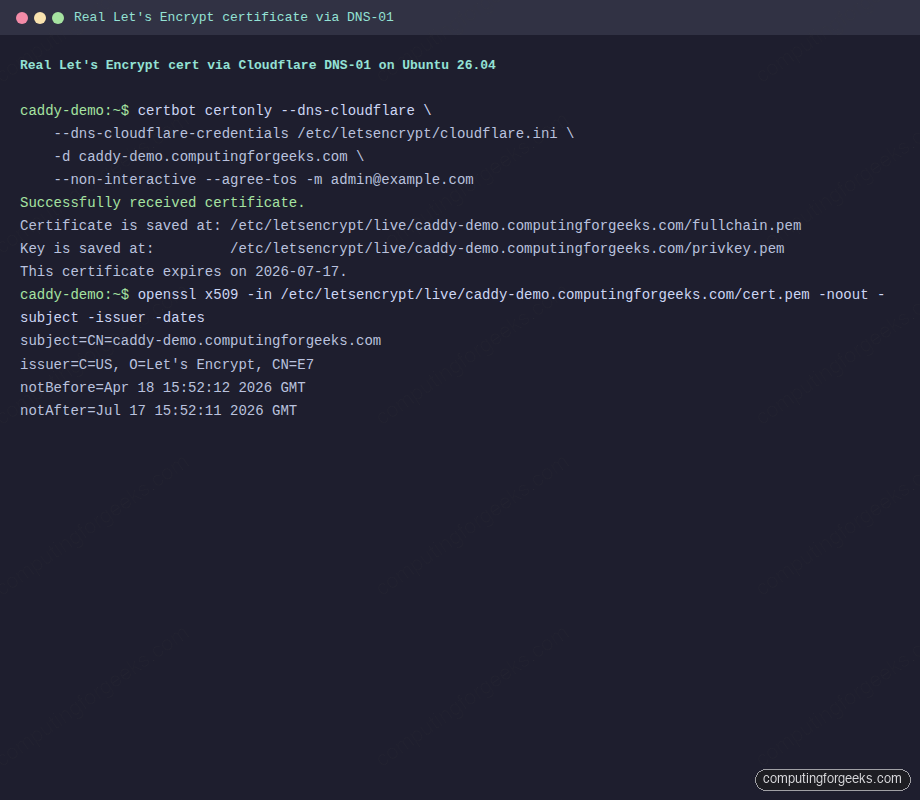
sudo certbot certonly --dns-cloudflare \
  --dns-cloudflare-credentials /etc/letsencrypt/cloudflare.ini \
  --dns-cloudflare-propagation-seconds 30 \
  -d caddy-demo.computingforgeeks.com \
  --non-interactive --agree-tos -m [email protected]
Certbot talks to the Let’s Encrypt ACME endpoint, writes a _acme-challenge.caddy-demo.computingforgeeks.com TXT record via the Cloudflare API, waits for DNS to propagate, and completes validation. The certificate and private key land under /etc/letsencrypt/live/:
Successfully received certificate.
Certificate is saved at: /etc/letsencrypt/live/caddy-demo.computingforgeeks.com/fullchain.pem
Key is saved at:         /etc/letsencrypt/live/caddy-demo.computingforgeeks.com/privkey.pem
This certificate expires on 2026-07-17.
Verify the issuer is genuinely Let’s Encrypt:
sudo openssl x509 \
  -in /etc/letsencrypt/live/caddy-demo.computingforgeeks.com/cert.pem \
  -noout -subject -issuer -dates
The subject is your hostname, the issuer is Let’s Encrypt’s intermediate, and the validity window is 90 days:
subject=CN=caddy-demo.computingforgeeks.com
issuer=C=US, O=Let's Encrypt, CN=E7
notBefore=Apr 18 15:52:12 2026 GMT
notAfter=Jul 17 15:52:11 2026 GMT
Real Let’s Encrypt issuance captured from the test VM:
Point Caddy at the certbot-issued files instead of asking it to provision its own. Caddy will serve them and reload automatically when certbot renews:
sudo chmod 755 /etc/letsencrypt/live /etc/letsencrypt/archive
sudo chmod 644 /etc/letsencrypt/archive/caddy-demo.computingforgeeks.com/*.pem
sudo tee /etc/caddy/Caddyfile > /dev/null <<'CFY'
caddy-demo.computingforgeeks.com {
    tls /etc/letsencrypt/live/caddy-demo.computingforgeeks.com/fullchain.pem \
        /etc/letsencrypt/live/caddy-demo.computingforgeeks.com/privkey.pem
    root * /srv/caddy/demo
    file_server
    encode gzip
    header {
        Strict-Transport-Security "max-age=31536000"
        X-Content-Type-Options nosniff
    }
}
CFY
sudo systemctl restart caddy
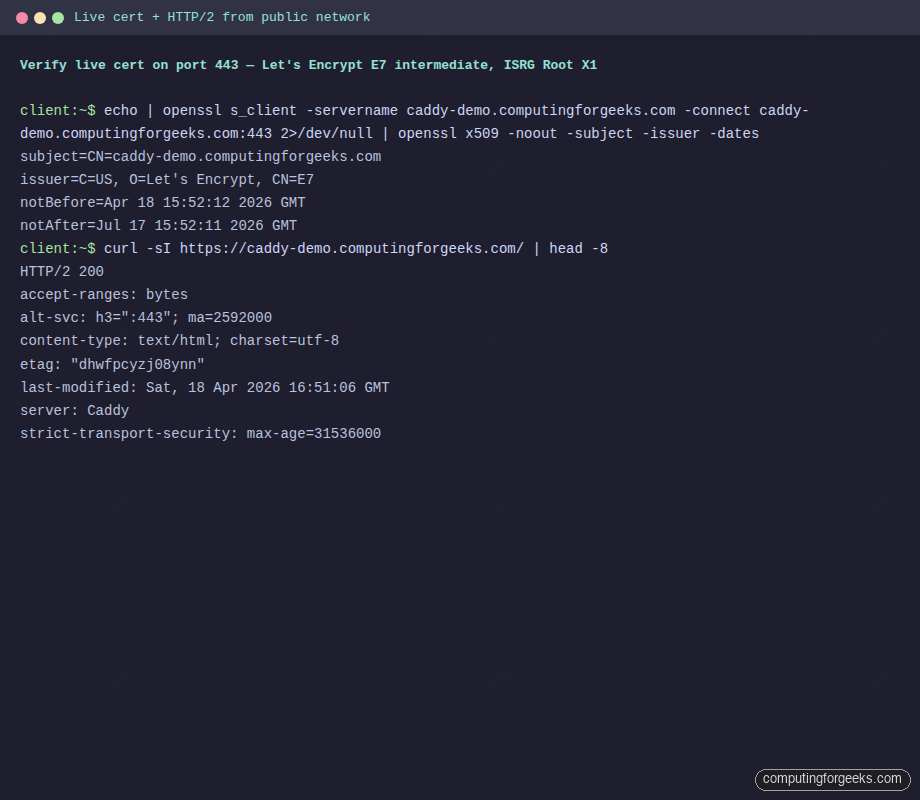
From any machine on the public internet (or your LAN in the DNS-01 case), the TLS handshake now presents a Let’s Encrypt chain and clients trust it without a --cacert override:
echo | openssl s_client -servername caddy-demo.computingforgeeks.com \
  -connect caddy-demo.computingforgeeks.com:443 2>/dev/null \
  | openssl x509 -noout -subject -issuer -dates
curl -sI https://caddy-demo.computingforgeeks.com/ | head -8
The handshake shows Let’s Encrypt as issuer, HTTP/2 is negotiated, HSTS is enforced, and Caddy continues to advertise HTTP/3 via the alt-svc header:
subject=CN=caddy-demo.computingforgeeks.com
issuer=C=US, O=Let's Encrypt, CN=E7
HTTP/2 200
accept-ranges: bytes
alt-svc: h3=":443"; ma=2592000
content-type: text/html; charset=utf-8
server: Caddy
strict-transport-security: max-age=31536000
Same cert-chain verification and HTTPS fetch captured from a terminal on a different host:
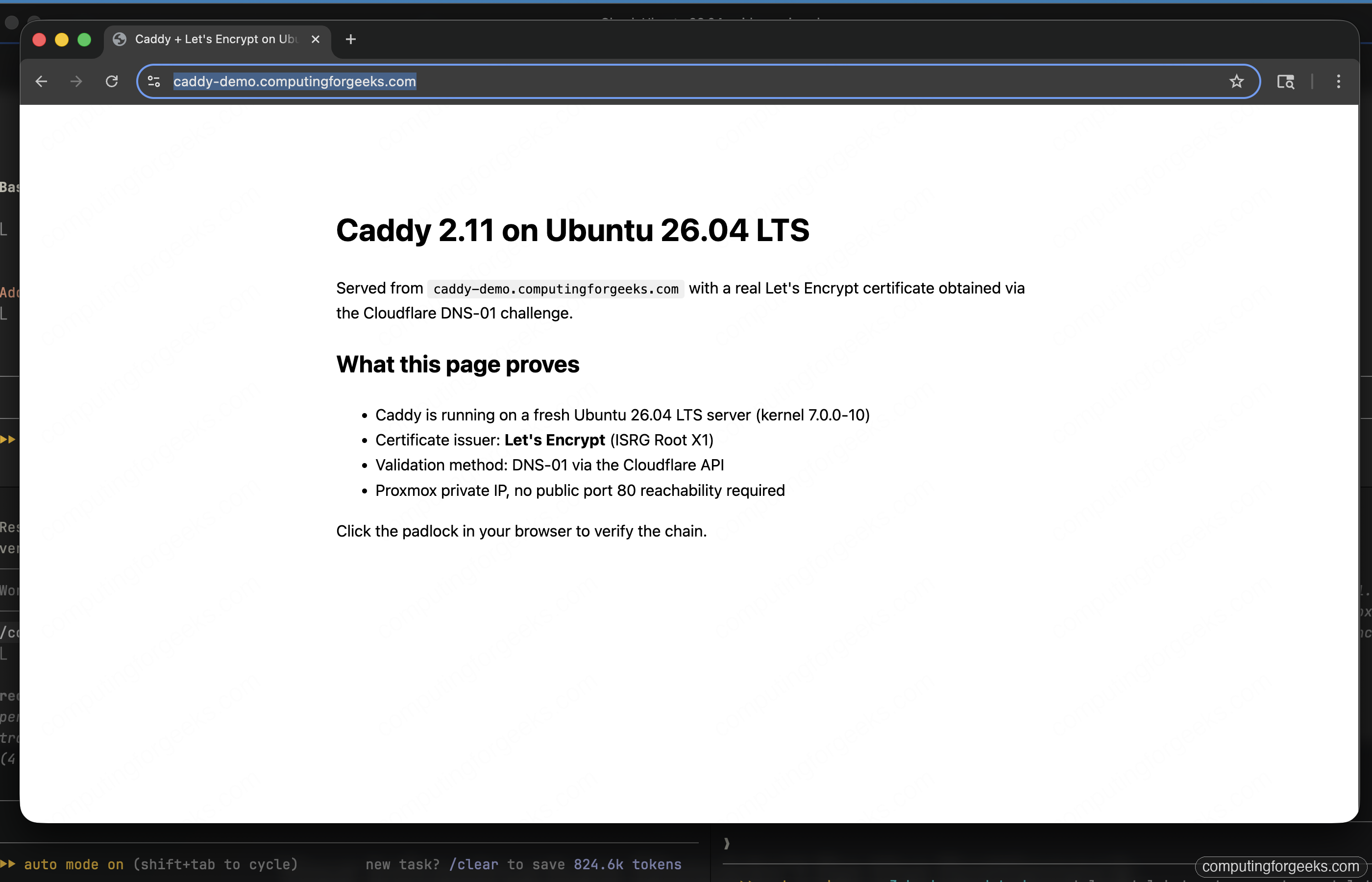
Load the site in a real browser. Chrome trusts Let’s Encrypt natively, so the URL bar shows the hostname with no warning and the page renders over HTTP/2:
Certbot installs a systemd timer (certbot.timer) that renews all its certificates twice a day. Caddy itself has a file watcher that reloads cert files without a service restart, so renewals are fully hands-off. For pure DNS-01 setups using xcaddy with the Cloudflare DNS provider built in, Caddy does its own ACME requests and you skip certbot entirely.
Troubleshoot common Caddy issues
Error: “tls: failed to verify certificate”
The client does not trust the internal CA. Either add it system-wide with update-ca-certificates or pass --cacert /tmp/caddy-root.crt to curl. Browsers need the cert imported into their own trust store (Chrome uses the system one on Linux; Firefox has its own).
Error: “permission denied” when Caddy starts
Caddy runs as the caddy user and cannot read files owned only by root. Fix with sudo chgrp -R caddy /srv/caddy && sudo chmod -R g+rX /srv/caddy. The systemd unit also needs CAP_NET_BIND_SERVICE to bind ports below 1024; the official package sets this for you.
Caddy hangs retrying Let’s Encrypt on a private hostname
A site name that does not resolve on the internet will fail ACME validation in a loop. Add tls internal for LAN-only sites, or use the email global option plus a real public hostname. Check the journal: sudo journalctl -u caddy -n 50.
HTTP/3 not advertised
UFW might block 443/udp. Caddy needs UDP on 443 for QUIC. Open it with sudo ufw allow 443/udp and confirm with sudo ss -uln | grep 443.
Reverse proxy returns 502 Bad Gateway
The backend at 127.0.0.1:8080 is not running. Verify with sudo ss -tlnp | grep 8080. If the backend is on a remote host, confirm firewall rules and that Caddy can reach it: sudo -u caddy curl -sI http://BACKEND:PORT/.
Public Let’s Encrypt rate limit hit
Restarting Caddy repeatedly while testing can trigger Let’s Encrypt’s 50-certs-per-week-per-domain limit. Use the staging environment while iterating: add acme_ca https://acme-staging-v02.api.letsencrypt.org/directory to the global block. Staging certs are not publicly trusted but prove the flow works.
With the stack proven, harden the host with the Ubuntu 26.04 server hardening guide, add Fail2ban rules for repeated 404s and auth failures in the Caddy access log, and pair Caddy with an HAProxy load balancer when you need multi-node termination or blue/green deploys.