Most Jenkins guides target Linux, but FreeBSD handles it just as well. The jenkins-lts package is in the FreeBSD ports tree, which means no manual WAR downloads or custom init scripts. One pkg install, one sysrc line, and it’s running.
This guide walks through installing Jenkins LTS on FreeBSD 15.0-RELEASE with OpenJDK 21, enabling the service via rc.conf, and unlocking the initial setup wizard. If you need a FreeBSD system first, the FreeBSD 15 on Proxmox/KVM guide covers that.
Tested April 2026 on FreeBSD 15.0-RELEASE, Jenkins LTS 2.541.3, OpenJDK 21.0.10
Prerequisites
You need a FreeBSD 15.0-RELEASE system with root access and an active internet connection for package downloads. This was tested on a clean install with ZFS as the root filesystem. Familiarity with FreeBSD’s package and service management will help, though every command is shown below.
- FreeBSD 15.0-RELEASE (amd64)
- Root or sudo access
- At least 1 GB free RAM (Jenkins needs it for the JVM)
Install OpenJDK 21
Jenkins requires Java 17 or newer. FreeBSD’s package repo includes OpenJDK 21, which is the current LTS release and what the jenkins-lts port depends on.
pkg install -y openjdk21After the install finishes, mount procfs if it’s not already mounted. OpenJDK on FreeBSD requires /proc for certain runtime features:
mount -t procfs proc /procMake the mount persistent across reboots by adding this line to /etc/fstab:
proc /proc procfs rw 0 0Verify Java is working:
java -versionThe output confirms OpenJDK 21 is installed and operational:
openjdk version "21.0.10" 2026-01-20
OpenJDK Runtime Environment (build 21.0.10+7-1)
OpenJDK 64-Bit Server VM (build 21.0.10+7-1, mixed mode, sharing)
Install Jenkins LTS
The FreeBSD ports collection ships both a rolling Jenkins release and an LTS branch. Stick with LTS for stability:
pkg install -y jenkins-ltsThis installs the Jenkins WAR file to /usr/local/share/jenkins/jenkins.war and creates a dedicated jenkins user (UID 818) with its home directory at /usr/local/jenkins. The package also drops an rc script at /usr/local/etc/rc.d/jenkins, so FreeBSD’s service framework handles start/stop/restart.
Enable and Start Jenkins
FreeBSD services are controlled through /etc/rc.conf. Enable Jenkins so it starts on boot:
sysrc jenkins_enable=YESConfirm the entry was added:
jenkins_enable: -> YESStart the service:
service jenkins startJenkins takes 10 to 15 seconds to extract the WAR and initialize. Check the status once it settles:
service jenkins statusYou should see the process running:
jenkins is running as pid 3661.The startup log lives at /var/log/jenkins.log. Tail it to confirm Jenkins finished initializing without errors:
tail -5 /var/log/jenkins.logLook for the “fully up and running” message:
2026-04-16 08:00:37.297+0000 [id=30] INFO hudson.lifecycle.Lifecycle#onReady: Jenkins is fully up and runningVerify Jenkins Version
Jenkins exposes its version in the HTTP response headers. Use curl to confirm (install it first if you haven’t):
pkg install -y curl
curl -sI http://localhost:8080/ | grep X-Jenkins:
The version header confirms LTS 2.541.3:
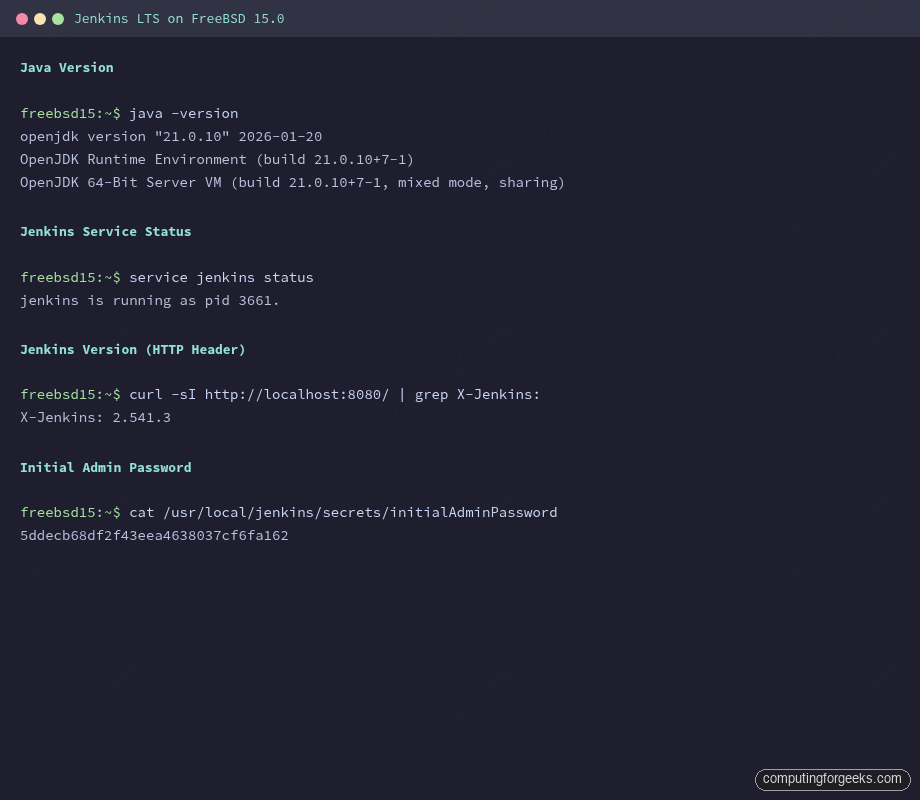
X-Jenkins: 2.541.3Here is a summary of the Java version, Jenkins service status, and initial admin password on the test system:
Retrieve the Initial Admin Password
On first launch, Jenkins generates a one-time password for the setup wizard. The file is inside JENKINS_HOME, which on FreeBSD defaults to /usr/local/jenkins:
cat /usr/local/jenkins/secrets/initialAdminPasswordCopy this password. You’ll need it when you open http://10.0.1.50:8080 in a browser to complete the setup wizard, where you choose plugins and create your admin account.
FreeBSD-Specific Configuration
The rc script supports several tunable variables through /etc/rc.conf. Here are the most useful ones for production setups.
Increase the JVM heap size (the default is usually too small for anything beyond a few jobs):
sysrc jenkins_java_opts="-Xms512m -Xmx1024m"Change the listen port from 8080 to something else:
sysrc jenkins_args="--webroot=/usr/local/jenkins/war --httpPort=9090"Point Jenkins to a different Java version if you have multiple installed:
sysrc jenkins_java_home="/usr/local/openjdk21"After any rc.conf change, restart the service:
service jenkins restartThe full list of tunables is documented in /usr/local/etc/rc.d/jenkins. Key paths on FreeBSD differ from Linux:
| Item | FreeBSD Path | Linux (Debian/Ubuntu) |
|---|---|---|
| JENKINS_HOME | /usr/local/jenkins | /var/lib/jenkins |
| WAR file | /usr/local/share/jenkins/jenkins.war | /usr/share/java/jenkins.war |
| Log file | /var/log/jenkins.log | /var/log/jenkins/jenkins.log |
| Service config | /etc/rc.conf (sysrc) | /etc/default/jenkins |
| Init system | rc.d (rc.conf) | systemd |
Firewall (PF) Configuration
If you’re running PF on this system, add a rule to allow inbound traffic on the Jenkins port. Edit /etc/pf.conf:
pass in on vtnet0 proto tcp from any to any port 8080Reload the ruleset:
pfctl -f /etc/pf.confIf PF is not active on your system (the default for a fresh FreeBSD install), no firewall changes are needed. You can check with pfctl -s info, which returns an error when PF is disabled. For a full walkthrough of PF rules, NAT, and traffic shaping, see the FreeBSD 15 PF firewall guide.
Access Jenkins Over HTTPS (Nginx + Let’s Encrypt)
Jenkins listens on HTTP port 8080 by default, which is fine for initial setup but not for anything beyond a lab. This section puts Nginx in front of Jenkins as a reverse proxy, terminating TLS with a Let’s Encrypt certificate obtained via DNS-01 challenge. DNS-01 works even when the server has no public IP (common with Proxmox VMs on a private network).
Install Nginx
Install the package and enable the service:
pkg install -y nginx
sysrc nginx_enable=YES
Don’t start Nginx yet. It needs configuration first.
Install Certbot with Cloudflare DNS Plugin
The Cloudflare DNS plugin lets certbot prove domain ownership by creating a TXT record through the Cloudflare API, so no inbound HTTP traffic is required on port 80 during certificate issuance:
pkg install -y py311-certbot py311-certbot-dns-cloudflareCreate the credentials file with your Cloudflare API token. This token needs Zone:DNS:Edit permissions for your domain:
mkdir -p /usr/local/etc/letsencrypt
vi /usr/local/etc/letsencrypt/cloudflare.ini
Add a single line with your token:
dns_cloudflare_api_token = YOUR_CLOUDFLARE_API_TOKENLock down the file so only root can read it:
chmod 600 /usr/local/etc/letsencrypt/cloudflare.iniObtain the SSL Certificate
Request a certificate for your Jenkins domain. Certbot creates the DNS TXT record, waits for propagation, and cleans it up automatically:
certbot certonly --dns-cloudflare \
  --dns-cloudflare-credentials /usr/local/etc/letsencrypt/cloudflare.ini \
  -d jenkins.example.com \
  --non-interactive --agree-tos -m [email protected]
On success, the certificate files land at:
/usr/local/etc/letsencrypt/live/jenkins.example.com/fullchain.pem/usr/local/etc/letsencrypt/live/jenkins.example.com/privkey.pem
Note the FreeBSD-specific path: /usr/local/etc/letsencrypt/ instead of /etc/letsencrypt/ on Linux.
Configure Nginx as a Reverse Proxy
First, create the conf.d directory for virtual host configs:
mkdir -p /usr/local/etc/nginx/conf.dEdit the main Nginx config to include files from that directory. Open /usr/local/etc/nginx/nginx.conf:
vi /usr/local/etc/nginx/nginx.confInside the http {} block, add the include directive and remove (or comment out) the default server {} block that listens on port 80. The relevant part should look like this:
http {
    include       mime.types;
    default_type  application/octet-stream;
    sendfile      on;
    keepalive_timeout  65;

    include /usr/local/etc/nginx/conf.d/*.conf;
}
Now create the Jenkins reverse proxy config:
vi /usr/local/etc/nginx/conf.d/jenkins.confAdd the following configuration. Nginx 1.28+ uses http2 on; as a standalone directive rather than appending it to the listen line:
upstream jenkins_backend {
    server 127.0.0.1:8080;
    keepalive 32;
}

server {
    listen 443 ssl;
    server_name jenkins.example.com;
    http2 on;

    ssl_certificate     /usr/local/etc/letsencrypt/live/jenkins.example.com/fullchain.pem;
    ssl_certificate_key /usr/local/etc/letsencrypt/live/jenkins.example.com/privkey.pem;
    ssl_protocols       TLSv1.2 TLSv1.3;
    ssl_ciphers         HIGH:!aNULL:!MD5;

    location / {
        proxy_pass http://jenkins_backend;
        proxy_set_header Host $host;
        proxy_set_header X-Real-IP $remote_addr;
        proxy_set_header X-Forwarded-For $proxy_add_x_forwarded_for;
        proxy_set_header X-Forwarded-Proto $scheme;
        proxy_http_version 1.1;
        proxy_request_buffering off;
    }
}

server {
    listen 80;
    server_name jenkins.example.com;
    return 301 https://$host$request_uri;
}
The proxy_request_buffering off directive is important for Jenkins because it handles large file uploads (plugins, artifacts) and long-running HTTP connections for build consoles.
Test the config and start Nginx:
nginx -t
service nginx start
A successful config test shows:
nginx: the configuration file /usr/local/etc/nginx/nginx.conf syntax is ok
nginx: configuration file /usr/local/etc/nginx/nginx.conf test is successful
Verify the SSL Certificate
Confirm the certificate is served correctly:
openssl s_client -connect 127.0.0.1:443 -servername jenkins.example.com /dev/null | openssl x509 -noout -subject -issuer -datesThe output should show your domain and the Let’s Encrypt issuer:
subject=CN=jenkins.example.com
issuer=C=US, O=Let's Encrypt, CN=E8
notBefore=Apr 16 08:30:00 2026 GMT
notAfter=Jul 15 08:30:00 2026 GMT
Also verify that HTTP redirects to HTTPS:
curl -sI http://jenkins.example.com/ | head -3You should see a 301 redirect to the HTTPS URL:
HTTP/1.1 301 Moved Permanently
Server: nginx/1.28.0
Location: https://jenkins.example.com/
Bind Jenkins to Localhost
Now that Nginx handles external traffic, restrict Jenkins to only accept connections from localhost. This prevents anyone from bypassing the reverse proxy:
sysrc jenkins_args="--webroot=/usr/local/jenkins/war --httpListenAddress=127.0.0.1"
service jenkins restart
Set Up Certificate Auto-Renewal
Let’s Encrypt certificates expire every 90 days. Add a cron job to renew them automatically and reload Nginx with the new certificate:
echo '0 3 * * * root certbot renew --quiet --deploy-hook "service nginx reload"' | tee -a /etc/crontabTest that renewal works before relying on it:
certbot renew --dry-runIf the dry run succeeds, you’re set. For a more detailed walkthrough of Nginx with SSL on FreeBSD 15, including cipher tuning and OCSP stapling, see the dedicated guide.
Update the Jenkins URL
Jenkins needs to know its own URL for links in emails, build notifications, and webhook callbacks. After logging in, go to Manage Jenkins > System and change the Jenkins URL field to https://jenkins.example.com/.
If PF is active, open port 443 (and keep port 80 for the redirect):
pass in on vtnet0 proto tcp from any to any port { 80, 443 }Reload PF after adding the rule: pfctl -f /etc/pf.conf.
Access the Jenkins Web UI
Open your browser and navigate to https://jenkins.example.com (or http://10.0.1.50:8080 if you skipped the SSL section above). Jenkins presents the “Unlock Jenkins” page on first access. Paste the initial admin password from the earlier step to proceed.
The setup wizard then offers two plugin options: “Install suggested plugins” (recommended for most setups) or “Select plugins to install” for a minimal footprint. After plugins install, create your admin user and configure the Jenkins URL.
Troubleshooting
Jenkins fails to start with “java: not found”
The rc script defaults to /usr/local/openjdk21/bin/java. If you installed a different Java version, set the correct path:
sysrc jenkins_java_home="/usr/local/openjdk21"
service jenkins restart
Port 8080 is already in use
Check what’s listening on that port:
sockstat -l | grep 8080If another service is using it, change Jenkins to a different port with sysrc jenkins_args="--webroot=/usr/local/jenkins/war --httpPort=9090" and restart.
Missing /proc causes JVM errors
OpenJDK on FreeBSD needs procfs mounted. If Jenkins crashes with obscure JVM errors, verify the mount:
mount | grep procfsIf nothing shows, mount it and add the /etc/fstab entry as shown in the OpenJDK section above.
Production Hardening
The SSL reverse proxy section above covers the Nginx and certificate setup. A few more things to lock down before exposing Jenkins beyond a lab:
- Set up the Jenkins “Security Realm” to use LDAP or your identity provider instead of the built-in user database.
- Keep Java and Jenkins updated. FreeBSD makes this easy:
pkg upgrade jenkins-lts openjdk21 - For build agents running on FreeBSD, the same Node.js and Go packages from the ports tree work fine as build tool dependencies.
If you’re coming from a Linux Jenkins setup (Ubuntu, for example), the Jenkins on Ubuntu 26.04 guide on this site covers the systemd side. The Jenkins configuration itself (jobs, pipelines, plugins) is identical across platforms once the server is running.