FreeBSD ships with pf, jails, and ZFS out of the box, but it won’t serve a single HTTPS request until you wire up Nginx and a certificate. This guide covers exactly that: install Nginx from ports via pkg, obtain a Let’s Encrypt certificate using Cloudflare DNS-01 challenge (no public IP needed), configure a hardened SSL server block, and lock down the stack for production use.
DNS-01 is the right choice here because FreeBSD VMs are often on private networks or behind NAT. You don’t need port 80 open to the internet, and you can issue wildcard certificates if needed. The same workflow applies whether your server has a public IP or lives entirely on an internal VLAN. If you need a base system before starting, see how to install FreeBSD 15 on Proxmox/KVM first.
Tested April 2026 on FreeBSD 15.0-RELEASE with Nginx 1.28.3, certbot 4.2.0, Let’s Encrypt TLS 1.3
Prerequisites
This guide assumes:
- FreeBSD 15.0-RELEASE (also works on 14.x with identical steps)
- root access via SSH
- A domain name with DNS managed by Cloudflare
- A Cloudflare API token with
Zone:DNS:Editpermission on the target zone - No firewall blocking outbound HTTPS from the FreeBSD host
If you’re running a fresh install and haven’t configured networking yet, the FreeBSD hostname and static IP configuration guide covers that in under five minutes.
Install Nginx
The FreeBSD ports tree packages Nginx via pkg. The nginx package includes the standard modules. Install it:
pkg install -y nginxConfirm the installed version:
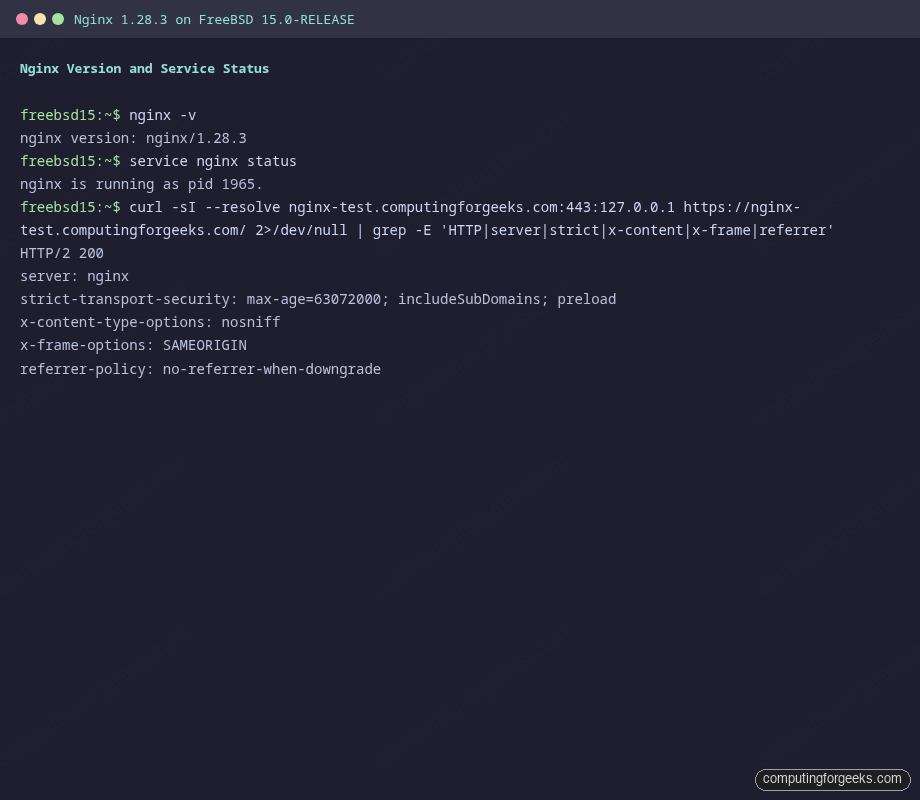
nginx -vThe output confirms 1.28.3:
nginx version: nginx/1.28.3Enable Nginx at boot and start it:
sysrc nginx_enable=YES
service nginx start
Verify it’s up:
service nginx statusYou should see:
nginx is running as pid 1965.Open Firewall Ports
FreeBSD uses pf as the default packet filter. If pf is active on your system, add rules to allow HTTP and HTTPS traffic. A minimal /etc/pf.conf block for a web server:
ext_if = "vtnet0"

block in all
pass out all keep state

# SSH
pass in on $ext_if proto tcp to port 22

# HTTP and HTTPS
pass in on $ext_if proto tcp to port { 80, 443 }

# ICMP
pass in on $ext_if proto icmp
Replace vtnet0 with your actual interface name (check with ifconfig). Load the ruleset with pfctl -f /etc/pf.conf. If pf isn’t enabled yet, add pf_enable="YES" to /etc/rc.conf.
Install certbot with Cloudflare DNS Plugin
The DNS-01 challenge proves domain ownership by placing a TXT record in DNS. Certbot handles this automatically when you give it a Cloudflare API token. Install both packages:
pkg install -y py311-certbot py311-certbot-dns-cloudflareConfirm the version:
certbot --versionThe output confirms certbot 4.2.0:
certbot 4.2.0Create the credentials file. This is the only place your API token lives on disk:
vi /usr/local/etc/cloudflare.iniAdd your Cloudflare API token with DNS edit permissions:
dns_cloudflare_api_token = your-cloudflare-api-token-hereLock down the file. Certbot refuses to run if the credentials file is world-readable:
chmod 600 /usr/local/etc/cloudflare.iniObtain the Let’s Encrypt Certificate
Request the certificate via DNS-01. Certbot creates a temporary _acme-challenge TXT record in Cloudflare, waits for it to propagate, and retrieves a signed certificate from Let’s Encrypt:
certbot certonly --dns-cloudflare \
  --dns-cloudflare-credentials /usr/local/etc/cloudflare.ini \
  -d your.domain.com \
  -m [email protected] --agree-tos --non-interactive \
  --server https://acme-v02.api.letsencrypt.org/directory
On success you’ll see:
Successfully received certificate.
Certificate is saved at: /usr/local/etc/letsencrypt/live/your.domain.com/fullchain.pem
Key is saved at:         /usr/local/etc/letsencrypt/live/your.domain.com/privkey.pem
This certificate expires on 2026-07-14.
The certificate chain path on FreeBSD uses /usr/local/etc/letsencrypt/ rather than /etc/letsencrypt/ as on Linux. Keep that difference in mind when copying configs from Linux guides.
Configure Nginx with SSL
Replace the default nginx.conf with a configuration that handles the HTTP-to-HTTPS redirect, TLS 1.2/1.3, and production-grade hardening. Open the config:
vi /usr/local/etc/nginx/nginx.confReplace the contents with the following. This is the complete working configuration verified on FreeBSD 15.0-RELEASE:
worker_processes  auto;
error_log  /var/log/nginx/error.log warn;
pid        /var/run/nginx.pid;

events {
    worker_connections  1024;
}

http {
    include       mime.types;
    default_type  application/octet-stream;

    log_format  main  '$remote_addr - $remote_user [$time_local] "$request" '
                      '$status $body_bytes_sent "$http_referer" '
                      '"$http_user_agent"';

    access_log  /var/log/nginx/access.log  main;

    sendfile        on;
    tcp_nopush      on;
    tcp_nodelay     on;
    keepalive_timeout  65;
    server_tokens   off;

    gzip  on;
    gzip_types text/plain text/css application/json application/javascript
               text/xml application/xml text/javascript;
    gzip_comp_level 5;
    gzip_min_length 256;

    # Rate limiting zones
    limit_req_zone $binary_remote_addr zone=general:10m rate=20r/s;
    limit_req_zone $binary_remote_addr zone=strict:10m rate=5r/s;

    # HTTP to HTTPS redirect
    server {
        listen       80;
        server_name  your.domain.com;
        return 301 https://$host$request_uri;
    }

    server {
        listen       443 ssl;
        http2        on;
        server_name  your.domain.com;

        ssl_certificate      /usr/local/etc/letsencrypt/live/your.domain.com/fullchain.pem;
        ssl_certificate_key  /usr/local/etc/letsencrypt/live/your.domain.com/privkey.pem;

        ssl_protocols TLSv1.2 TLSv1.3;
        ssl_ciphers ECDHE-ECDSA-AES128-GCM-SHA256:ECDHE-RSA-AES128-GCM-SHA256:ECDHE-ECDSA-AES256-GCM-SHA384:ECDHE-RSA-AES256-GCM-SHA384:ECDHE-ECDSA-CHACHA20-POLY1305:ECDHE-RSA-CHACHA20-POLY1305:DHE-RSA-AES128-GCM-SHA256;
        ssl_prefer_server_ciphers off;

        ssl_session_cache    shared:SSL:10m;
        ssl_session_timeout  1d;
        ssl_session_tickets  off;

        ssl_stapling on;
        ssl_stapling_verify on;
        ssl_trusted_certificate /usr/local/etc/letsencrypt/live/your.domain.com/chain.pem;
        resolver 1.1.1.1 8.8.8.8 valid=300s;
        resolver_timeout 5s;

        add_header Strict-Transport-Security "max-age=63072000; includeSubDomains; preload" always;
        add_header X-Content-Type-Options "nosniff" always;
        add_header X-Frame-Options "SAMEORIGIN" always;
        add_header Referrer-Policy "no-referrer-when-downgrade" always;
        add_header Content-Security-Policy "default-src 'self'; script-src 'self'; style-src 'self' 'unsafe-inline'; img-src 'self' data:; frame-ancestors 'none';" always;
        add_header Permissions-Policy "geolocation=(), microphone=(), camera=()" always;

        limit_req zone=general burst=40 nodelay;

        root   /usr/local/www/nginx;
        index  index.html index.htm;

        location / {
            try_files $uri $uri/ =404;
        }

        location ~ ^/(api|login|auth)/ {
            limit_req zone=strict burst=10 nodelay;
            try_files $uri $uri/ =404;
        }

        location ~ /\. {
            deny all;
            access_log off;
            log_not_found off;
        }

        error_page 500 502 503 504 /50x.html;
        location = /50x.html {
            root /usr/local/www/nginx-dist;
        }
    }
}
Create the log directory if it doesn’t exist, then test and reload:
mkdir -p /var/log/nginx
nginx -t
service nginx reload
The test should report:
nginx: the configuration file /usr/local/etc/nginx/nginx.conf syntax is ok
nginx: configuration file /usr/local/etc/nginx/nginx.conf test is successful
Verify TLS 1.3 and Security Headers
Check the response headers. Every security header should appear in the output:
curl -sI https://your.domain.com/The response confirms TLS 1.3, HTTP/2, and all configured headers:
HTTP/2 200
server: nginx
strict-transport-security: max-age=63072000; includeSubDomains; preload
x-content-type-options: nosniff
x-frame-options: SAMEORIGIN
referrer-policy: no-referrer-when-downgrade
content-security-policy: default-src 'self'; script-src 'self'; style-src 'self' 'unsafe-inline'; img-src 'self' data:; frame-ancestors 'none';
permissions-policy: geolocation=(), microphone=(), camera=()
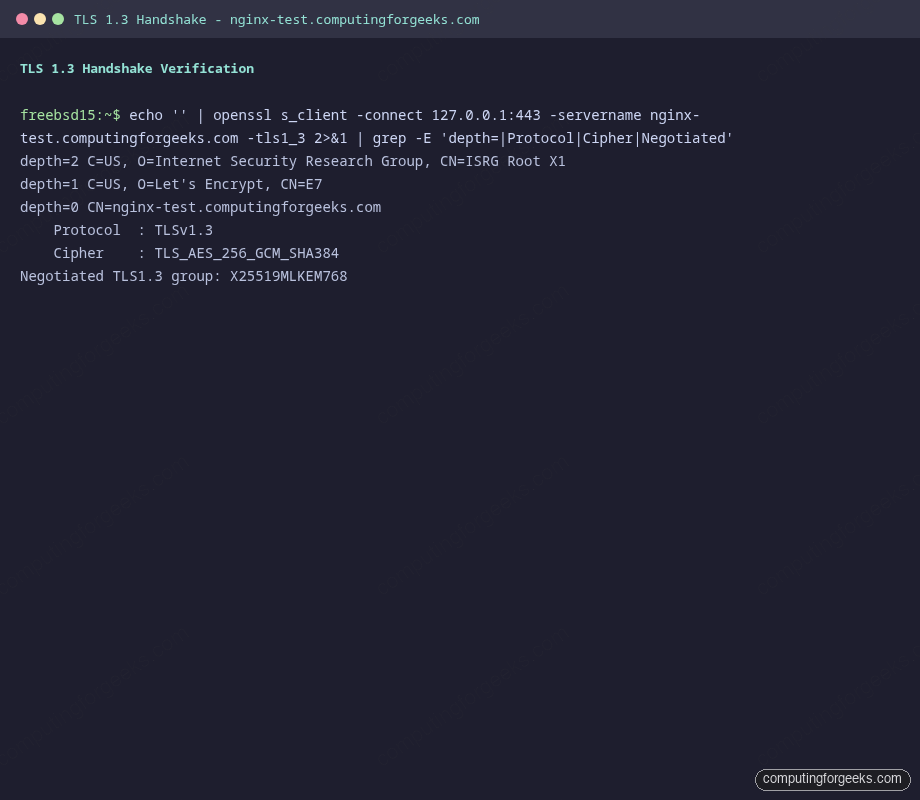
Verify the TLS handshake directly with openssl to confirm the protocol version and cipher suite:
echo '' | openssl s_client -connect your.domain.com:443 -servername your.domain.com -tls1_3 2>&1 | grep -E 'Protocol|Cipher|depth'The output shows the full certificate chain and TLS 1.3 negotiation:
depth=2 C=US, O=Internet Security Research Group, CN=ISRG Root X1
depth=1 C=US, O=Let's Encrypt, CN=E7
depth=0 CN=your.domain.com
    Protocol  : TLSv1.3
    Cipher    : TLS_AES_256_GCM_SHA384
On FreeBSD 15, OpenSSL negotiates TLS 1.3 with X25519MLKEM768 (post-quantum hybrid key exchange) by default when both sides support it. The cipher TLS_AES_256_GCM_SHA384 is one of the three mandatory TLS 1.3 cipher suites defined in RFC 8446.
Configure Auto-Renewal
FreeBSD’s certbot package ships a weekly periodic script at /usr/local/etc/periodic/weekly/500.certbot-3.11. Enable it by adding two lines to /etc/periodic.conf:
vi /etc/periodic.confAdd the following. The post hook reloads Nginx after each successful renewal without dropping connections:
weekly_certbot_enable="YES"
weekly_certbot_post_hook="service nginx onereload"
Test that the renewal machinery works without actually renewing:
certbot renew --dry-runA “Congratulations, all simulated renewals succeeded” output means the Cloudflare credentials and DNS challenge flow are operational. The certificate will now renew automatically each week, 30 days before expiry.
Production Hardening
The base configuration above is functional but there are several additional controls worth enabling before this faces real traffic.
HSTS Preload
The HSTS header is already configured with max-age=63072000; includeSubDomains; preload. The preload directive tells browsers to ship your domain in their hardcoded HSTS preload list, eliminating the window between a user’s first visit and receiving the header. Submit the domain at hstspreload.org after verifying the site works cleanly over HTTPS. Once listed, removing HSTS becomes a months-long process, so only enable preload on domains you intend to serve over HTTPS permanently.
OCSP Stapling
OCSP stapling caches the certificate revocation response in Nginx, so clients don’t need to make a separate request to Let’s Encrypt’s OCSP servers. The configuration above includes it. On a server with public internet access, it works without changes. On a private-network server, the Nginx process must be able to reach ocsp.int-x3.letsencrypt.org on port 80. If the server is behind a restrictive outbound firewall, open outbound TCP/80 to Let’s Encrypt’s OCSP responders.
Verify stapling is active after Nginx has been running for a minute:
echo '' | openssl s_client -connect your.domain.com:443 -status 2>&1 | grep -A 10 'OCSP Response'A “OCSP Response Status: successful” line confirms it’s working.
Rate Limiting
The configuration defines two zones. general allows 20 requests/second with a burst of 40 for normal content. strict drops this to 5 requests/second with a burst of 10 for authentication or API endpoints. Tune these values to your traffic patterns. A 20 r/s limit per IP is generous enough for legitimate users but cuts off most brute-force and scraping attacks.
Add rate limiting to specific sensitive locations that aren’t already covered:
location = /wp-login.php {
    limit_req zone=strict burst=5 nodelay;
    # ... existing config
}
Session Tickets Disabled
TLS session tickets are disabled with ssl_session_tickets off. When enabled, session tickets allow session resumption without a full handshake, but they use a server-side key that doesn’t rotate unless you explicitly manage it. A static ticket key breaks forward secrecy because an attacker who later obtains the key can decrypt past sessions. Disabling tickets avoids this, and modern clients handle the minor performance hit via TLS 1.3’s built-in 0-RTT session resumption if you choose to enable it.
Log Rotation
Nginx on FreeBSD writes logs to /var/log/nginx/. FreeBSD’s newsyslog handles rotation. Add entries to /etc/newsyslog.conf:
vi /etc/newsyslog.confAdd these two lines at the end of the file to rotate logs when they reach 100 MB, keep 7 rotations, compress old logs, and send Nginx a USR1 signal to reopen its log files:
/var/log/nginx/access.log  www:wheel  640  7  100  *  JC  /var/run/nginx.pid  30
/var/log/nginx/error.log   www:wheel  640  7  100  *  JC  /var/run/nginx.pid  30
The J flag enables bzip2 compression. The C flag creates the file if it doesn’t exist. The 30 at the end is SIGUSR1, which tells Nginx to reopen its log files without dropping in-flight connections.
Cipher Suite Notes
The cipher list targets TLS 1.2 clients that don’t support TLS 1.3 (older browsers, curl built against older OpenSSL). For TLS 1.3 connections, the cipher suite is always negotiated from the three RFC 8446 mandatory suites regardless of what you put in ssl_ciphers. The ssl_prefer_server_ciphers off directive lets the client pick its preferred cipher from the intersection, which is usually the right call because modern clients have better knowledge of their own hardware AES acceleration capabilities.
If you need a database backend for your application, installing PostgreSQL on FreeBSD follows a similar pkg-based workflow. For MariaDB, the FreeBSD MariaDB install guide covers the MySQL-compatible path. If you’ve upgraded from FreeBSD 14, verify that the Nginx configuration still applies cleanly after the upgrade by reviewing the FreeBSD 14 to 15 upgrade process. For deeper network security on FreeBSD, the FreeBSD jails with VNET networking guide shows how to isolate services into separate network stacks.