Most FreeBSD users know jails for lightweight process isolation, but bhyve is a different beast entirely. It is FreeBSD’s native hypervisor, shipping in base since FreeBSD 10, and it runs full Linux (or Windows) VMs with hardware virtualization. No QEMU emulation overhead, no external hypervisor dependency. Just bhyve, a kernel module, and a tap interface.
This guide walks through running an Alpine Linux VM on FreeBSD 15 using bhyve and the vm-bhyve management layer. You get a real nested-virt setup: Alpine booting under bhyve, networking via a bridge, full console access via nmdm, and autostart on boot. Tested April 2026 on FreeBSD 15.0-RELEASE with vm-bhyve 1.7.3, grub2-bhyve 0.40, and Alpine 3.20.3.
bhyve vs Jails
Jails share the host kernel. A jail running “Linux” via the Linux ABI still runs FreeBSD’s kernel underneath. bhyve is a Type 2 hypervisor: it runs guest VMs with their own kernel, their own kernel version, and full hardware isolation. If you need to run actual Linux kernel modules, test Linux-specific behaviour, or run Alpine/Ubuntu/Debian with full isolation, bhyve is the right tool. Jails are better for FreeBSD-native workloads where you want minimal overhead.
The Podman/container path sits between the two: containers share the host kernel but leverage jails for namespacing. bhyve gives you the full VM stack when that matters.
Prerequisites
Before loading modules, confirm your host supports hardware virtualization:
dmesg | grep -i vmxOn a bare-metal host you should see VT-x or SVM lines. If you are running FreeBSD inside a VM (like Proxmox/KVM as in this setup), you need the host VM to pass CPU flags through. For Proxmox, set cpu: host on the FreeBSD VM before booting. After boot, verify nested virtualization is active:
sysctl hw.vmm.maxcpuThe output should show a non-zero CPU count:
hw.vmm.maxcpu: 2If you get sysctl: unknown oid 'hw.vmm.maxcpu', the vmm module is not loaded yet (see the next step). If it loads but returns 0, hardware virtualization is not available on the host.
You will also need:
- FreeBSD 15.0-RELEASE (this guide targets the latest release, see FreeBSD 15 new features for what changed)
- A ZFS root pool (standard on fresh FreeBSD 15 installs on Proxmox/KVM)
- Root access
- Internet access for package install and ISO download
Step 1: Load Kernel Modules
bhyve needs four kernel modules. Load them now and add them to /boot/loader.conf so they persist across reboots:
kldload vmm if_tap if_bridge nmdmConfirm they are all loaded:
kldstat | grep -E 'vmm|if_bridge|nmdm'All four modules should appear:
 8    1 0xffffffff83200000   340438 vmm.ko
 9    1 0xffffffff8302b000     8810 if_bridge.ko
10    1 0xffffffff83034000     6120 bridgestp.ko
11    1 0xffffffff8303b000     21dc nmdm.ko
if_tap may already be in the kernel (the module already loaded message from kldload is fine). Now make them permanent:
sysrc -f /boot/loader.conf vmm_load="YES" if_bridge_load="YES" nmdm_load="YES"Step 2: Install vm-bhyve and grub2-bhyve
Raw bhyve is powerful but low-level. vm-bhyve wraps it with a simple CLI for creating, starting, stopping, and managing VMs. grub2-bhyve is needed to boot Linux guests (bhyve’s native loader handles FreeBSD; Linux needs GRUB to load its kernel).
pkg install -y vm-bhyve grub2-bhyveVerify what was installed:
pkg info vm-bhyve grub2-bhyveBoth packages should be listed with their versions:
vm-bhyve-1.7.3
grub2-bhyve-0.40_11
Step 3: Initialize vm-bhyve with ZFS
Create a dedicated ZFS dataset for VMs and let vm-bhyve initialize it with its directory structure:
zfs create -o mountpoint=/vms zroot/vms
/usr/local/sbin/vm init /vms
vm-bhyve creates four subdirectories under /vms:
ls /vmsFour directories appear, each serving a distinct purpose in vm-bhyve:
.config .img .iso .templatesNow configure rc.conf so vm-bhyve starts on boot and knows where to find VMs:
sysrc vm_enable="YES"
sysrc vm_dir="zfs:zroot/vms"
Step 4: Create the Virtual Switch
vm-bhyve manages VM networking through virtual switches backed by if_bridge. Create a switch named public and attach your physical NIC (vtnet0 in this setup) as the uplink:
/usr/local/sbin/vm switch create public
/usr/local/sbin/vm switch add public vtnet0
Confirm the switch is up and bridged to the physical interface:
/usr/local/sbin/vm switch listThe switch shows vm-public as its bridge interface with vtnet0 as the uplink port:
NAME    TYPE      IFACE      ADDRESS  PRIVATE  MTU  VLAN  PORTS
public  standard  vm-public  -        no       -    -     vtnet0
The bridge mode means VMs on the public switch will appear as full peers on your LAN. Each VM gets a tap interface that the bridge connects to vtnet0.
Step 5: Download the Alpine Linux ISO
Alpine’s virtual ISO (the -virt variant) is optimized for VMs: no desktop cruft, small footprint, fast boot. Place it in the vm-bhyve ISO directory:
fetch -o /vms/.iso/alpine-virt-3.20.3-x86_64.iso \
  https://dl-cdn.alpinelinux.org/alpine/v3.20/releases/x86_64/alpine-virt-3.20.3-x86_64.iso
Confirm the download completed:
ls -lh /vms/.iso/The 61 MB ISO should be present:
total 55 MB
-rw-------  1 root wheel   61M Sep  6  2024 alpine-virt-3.20.3-x86_64.iso
Check the Alpine Linux downloads page for the current stable release if you want a newer version.
Step 6: Create the VM Template
vm-bhyve uses templates to define VM defaults. The built-in default.conf uses bhyveload (works for FreeBSD guests). Linux guests need grub as the loader. Create an Alpine template:
cat > /vms/.templates/alpine.conf << 'TMPL'
loader="grub"
cpu=1
memory=512M
network0_type="virtio-net"
network0_switch="public"
disk0_type="virtio-blk"
disk0_name="disk0.img"
grub_run_partition="1"
grub_run_dir="/boot/grub"
TMPL
The virtio-blk disk type and virtio-net network type give the best performance under bhyve. The grub_run_partition and grub_run_dir settings tell grub-bhyve where to find the bootloader after the first install reboot.
Step 7: Create and Install Alpine
Create a VM with 8 GB disk and 512 MB RAM using the alpine template:
/usr/local/sbin/vm create -t alpine -s 8G -m 512M alpine1vm-bhyve creates a directory under /vms/alpine1/ with a config file and a sparse disk image. Start the installation:
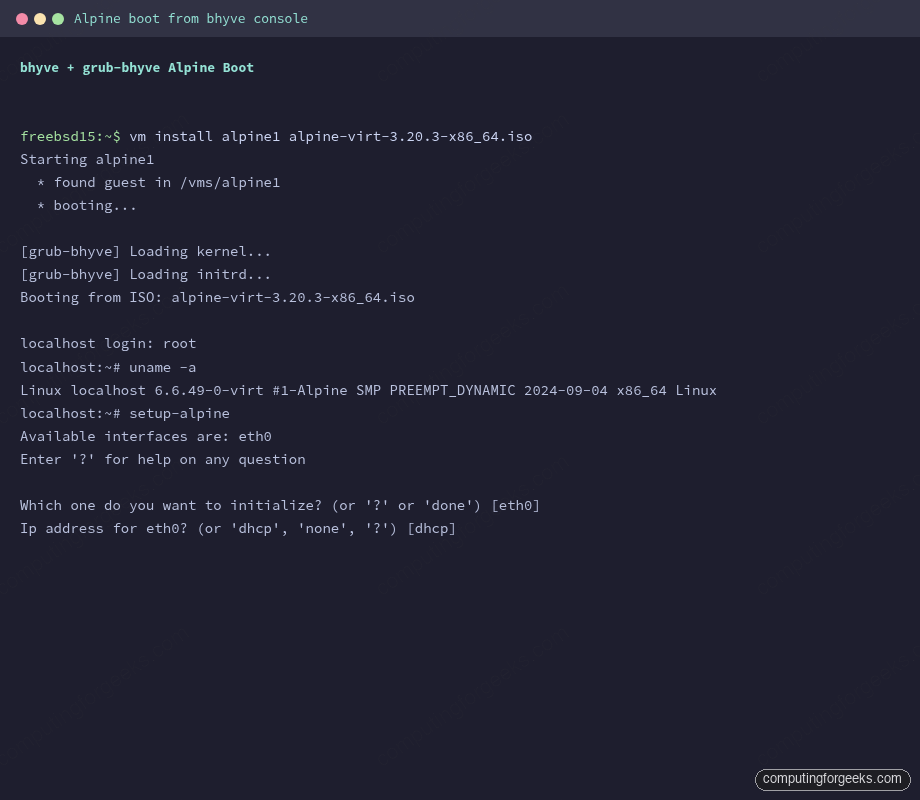
/usr/local/sbin/vm install alpine1 alpine-virt-3.20.3-x86_64.isovm-bhyve launches grub-bhyve to load the kernel from the ISO, then hands off to bhyve proper:
Starting alpine1
  * found guest in /vms/alpine1
  * booting...
The VM boots from the ISO. bhyve runs grub-bhyve first to load the Linux kernel, then hands off to bhyve proper. Connect to the console via nmdm:
/usr/local/sbin/vm console alpine1This opens a cu session on /dev/nmdm-alpine1.1B. You will see Alpine Linux booting. Log in as root (no password on the live ISO) and run the setup script:
setup-alpinesetup-alpine walks you through keyboard, hostname, network, root password, timezone, NTP, mirror, SSH, and disk setup. For the disk question, select sda (the virtio-blk disk), choose sys install mode, and confirm the wipe. The install takes about 30 seconds on a modern host.
After install completes, power off from inside Alpine:
poweroffTo exit the console without killing the VM, type ~. (tilde then dot). This is the cu escape sequence.
Step 8: Boot the Installed Alpine VM
After the install completes and the VM shuts down, start it from disk:
/usr/local/sbin/vm start alpine1Check the VM is running:
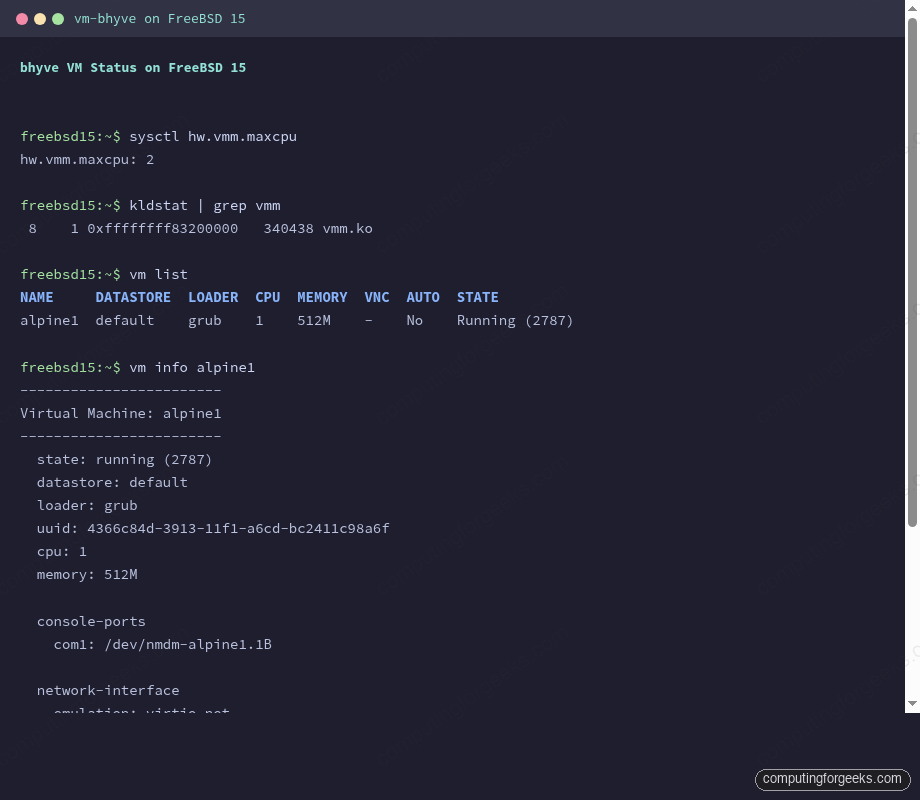
/usr/local/sbin/vm listAlpine1 should show Running with its bhyve process ID:
NAME     DATASTORE  LOADER  CPU  MEMORY  VNC  AUTO  STATE
alpine1  default    grub    1    512M    -    No    Running (2787)
Connect to the console and confirm Linux is running:
/usr/local/sbin/vm console alpine1The screenshot below shows the vm list and vm info output from a running Alpine guest:
Once you log in to Alpine, run uname -a to confirm it is a real Linux kernel:
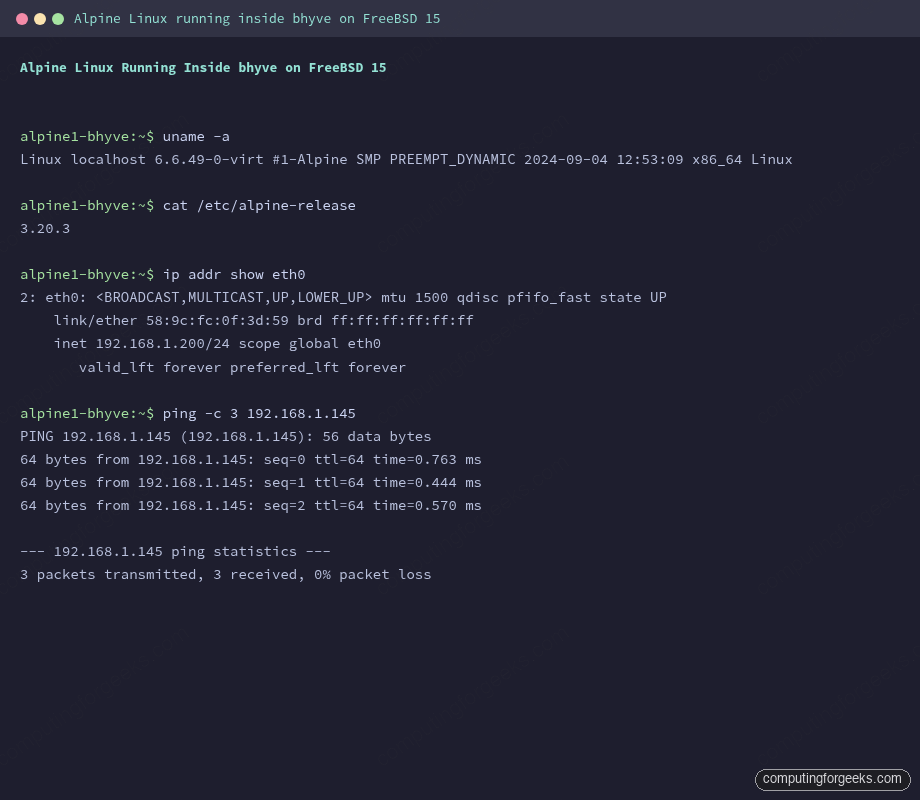
uname -aThe output confirms a real Linux kernel running under bhyve, not a FreeBSD compatibility layer:
Linux localhost 6.6.49-0-virt #1-Alpine SMP PREEMPT_DYNAMIC 2024-09-04 12:53:09 x86_64 LinuxThat is Alpine 3.20.3 with Linux kernel 6.6.49 running inside a bhyve VM on FreeBSD 15. Check the network interface:
ip addr show eth0The VM has an IP on the LAN via the FreeBSD bridge:
2: eth0: <BROADCAST,MULTICAST,UP,LOWER_UP> mtu 1500 qdisc pfifo_fast state UP
    link/ether 58:9c:fc:0f:3d:59 brd ff:ff:ff:ff:ff:ff
    inet 192.168.1.200/24 scope global eth0
       valid_lft forever preferred_lft forever
The terminal screenshot below shows both uname -a and ip addr output from inside the running Alpine guest:
VM Lifecycle
The core vm-bhyve commands you will use daily:
vm list                    # list all VMs and their state
vm info alpine1            # detailed VM info including memory usage and disk paths
vm start alpine1           # start a stopped VM
vm stop alpine1            # graceful shutdown (sends ACPI power off)
vm poweroff alpine1        # forced power off (equivalent to pulling the plug)
vm console alpine1         # connect to serial console via nmdm
vm destroy alpine1         # delete the VM and all its disk images
Get a full picture of the running VM including memory usage and network stats:
vm info alpine1This shows current memory usage, the nmdm console device path, the tap interface, and disk utilization:
------------------------
Virtual Machine: alpine1
------------------------
  state: running (2787)
  datastore: default
  loader: grub
  uuid: 4366c84d-3913-11f1-a6cd-bc2411c98a6f
  cpu: 1
  memory: 512M
  memory-resident: 146550784 (139.761M)

  console-ports
    com1: /dev/nmdm-alpine1.1B

  network-interface
    emulation: virtio-net
    virtual-switch: public
    active-device: tap0
    bridge: vm-public
    bytes-in: 7576 (7.398K)

  virtual-disk
    emulation: virtio-blk
    system-path: /vms/alpine1/disk0.img
    bytes-size: 8589934592 (8.000G)
    bytes-used: 1024 (1.000K)
Autostart on Boot
To start alpine1 automatically when FreeBSD boots, set the autostart flag:
/usr/local/sbin/vm set alpine1 loader=grub autostart=yesConfirm it is set:
/usr/local/sbin/vm listThe AUTO column flips to Yes:
NAME     DATASTORE  LOADER  CPU  MEMORY  VNC  AUTO  STATE
alpine1  default    grub    1    512M    -    Yes   Running (2787)
The AUTO column now shows Yes. When vm_enable="YES" is in rc.conf, vm-bhyve’s rc script runs at boot and starts all VMs with autostart enabled.
Ubuntu Cloud Image (Bonus)
Alpine installs fast, but most production workloads run Ubuntu. vm-bhyve also supports cloud images via qcow2 disk import. Download an Ubuntu 24.04 cloud image, convert it with qemu-tools (installed earlier as a dependency), and create the VM from it:
fetch -o /vms/.img/ubuntu-24.04-server-cloudimg-amd64.img \
  https://cloud-images.ubuntu.com/noble/current/noble-server-cloudimg-amd64.img

qemu-img convert -f qcow2 -O raw \
  /vms/.img/ubuntu-24.04-server-cloudimg-amd64.img \
  /vms/.img/ubuntu-24.04-server.raw
Create the Ubuntu VM using the converted raw image as the seed disk. Cloud images use cloud-init for first-boot configuration, so you also need a small seed ISO with your SSH key or password. Alternatively, add Ubuntu’s ISO installer route (same as Alpine above) for a full interactive install. The ISO method is covered in the bhyve documentation.
Troubleshooting
These are the errors I actually hit during testing.
sysctl: unknown oid 'hw.vmm.maxcpu'
The vmm module is not loaded. Run kldload vmm. If kldload then returns:
kldload: can't load vmm: No such file or directoryYour kernel was built without vmm support (uncommon on GENERIC) or you are on a VM without hardware passthrough. On Proxmox/KVM, the fix is to set cpu: host (not kvm64) on the outer VM and reboot FreeBSD. After that, kldload vmm should succeed and hw.vmm.maxcpu should show a positive value.
vm install hangs at “booting…” with no console output
Connect to the console separately:
/usr/local/sbin/vm console alpine1The install process runs in the background. The console gives you the serial output. If the console shows all ports busy, an old cu session is still holding the nmdm device. Find and kill it:
fuser /dev/nmdm-alpine1.1BKill the PID shown, then reconnect.
grub-bhyve: Unrecognized image format
This means grub2-bhyve is not finding the correct GRUB paths in the guest. The template needs grub_run_partition and grub_run_dir set for the installed system. After installation to disk, Alpine puts GRUB in /boot/grub on partition 1. The template above already handles this. If you see this error, verify /vms/.templates/alpine.conf contains the grub_run_partition="1" and grub_run_dir="/boot/grub" lines.
vm switch add fails with “interface not found”
The if_bridge module is not loaded. Run:
kldload if_bridgeThen re-run the vm switch add command. This error only appears if the modules were not loaded before running vm switch create.
VM gets no DHCP address
The bridge has a 15-second STP learning delay by default. If the VM boots quickly and runs DHCP before the bridge port is in forwarding state, DHCP discovery packets get dropped. Two fixes: run setup-alpine with a static IP instead of DHCP, or disable STP on the bridge (acceptable for home/lab use):
ifconfig vm-public proto stp 0This is per-boot. To make it permanent, add it to /etc/rc.local.
Kernel warning: Adding member interface vtnet0 which has IP address assigned
This shows up in /var/log/messages when you add a NIC with an IP to the bridge:
vm-public: WARNING: Adding member interface vtnet0 which has an IP address assigned is deprecatedIt is a warning, not an error. Bridging still works. In a production setup, you would remove the IP from vtnet0, assign it to the bridge interface instead, and route everything through the bridge. For a lab bhyve setup this warning is safe to ignore.
For more on FreeBSD networking and configuration, the hostname and static IP guide covers rc.conf networking in detail.