Centralized logging stops being a luxury the moment you run more than a couple of servers. Tailing files over SSH works until it doesn’t, and when an incident lands at 2 AM you want every log line from every host in one searchable place. That’s the job the ELK Stack has done well for over a decade, and version 8 makes it secure by default.
This guide walks through installing Elasticsearch 8, Logstash 8, and Kibana 8 on Ubuntu 26.04 LTS. You’ll add Filebeat to ship /var/log/syslog into the pipeline, configure a Logstash grok filter, put Nginx with a Let’s Encrypt certificate in front of Kibana, and verify real syslog events flowing into Kibana Discover. The steps assume a single-node lab, but every piece is the same on a multi-node production cluster.
Tested April 2026 on Ubuntu 26.04 LTS (Resolute Raccoon) with Elasticsearch 8.19.14, Logstash 8.19.14, Kibana 8.19.14, Filebeat 8.19.14, Nginx 1.28.3
Prerequisites
Elastic 8.x is memory-hungry and file-descriptor hungry. Under-spec the host and the cluster either refuses to start or crashes under load.
- Ubuntu 26.04 LTS server (fresh install is fine). If you’re starting from scratch, our Ubuntu 26.04 initial server setup guide covers the basics
- Minimum 4 GB RAM for a lab (8 GB is better, which is what we tested with)
- At least 20 GB free disk space; indices grow fast
- 2 CPU cores
- A user with sudo privileges
- A DNS name you can point at the server for HTTPS (we use
elk-lab.computingforgeeks.com)
Elasticsearch ships its own bundled JDK and runs against it regardless of what’s installed on the host. You don’t need a separate Java install for the stack to work. If you’re running other JVM apps on the same box and want system OpenJDK, follow our Java OpenJDK on Ubuntu 26.04 guide, but nothing here requires it.
Step 1: Kernel and system tuning
Elasticsearch refuses to start with the default vm.max_map_count. Bump it now and make the change persistent:
sudo sysctl -w vm.max_map_count=262144
echo "vm.max_map_count=262144" | sudo tee /etc/sysctl.d/elk.conf
Raise the open-file limit so Elasticsearch and Logstash can open the thousands of segment files they need:
echo "* soft nofile 65536" | sudo tee -a /etc/security/limits.conf
echo "* hard nofile 65536" | sudo tee -a /etc/security/limits.conf
Log out and back in for the limits to take effect on your shell. Systemd service units inherit their own limits from the Elastic packages, so the services themselves pick this up automatically on start.
Step 2: Add the Elastic 8.x APT repository
Import the Elastic signing key and add the 8.x APT source:
sudo apt update
sudo apt install -y curl gnupg apt-transport-https ca-certificates wget
wget -qO - https://artifacts.elastic.co/GPG-KEY-elasticsearch | \
  sudo gpg --dearmor -o /usr/share/keyrings/elastic-keyring.gpg
echo "deb [signed-by=/usr/share/keyrings/elastic-keyring.gpg] https://artifacts.elastic.co/packages/8.x/apt stable main" | \
  sudo tee /etc/apt/sources.list.d/elastic-8.x.list
sudo apt update
All four components (Elasticsearch, Kibana, Logstash, Filebeat) come from this one repo. Elastic has a separate 9.x channel, but 8.x is still the actively maintained LTS line and is what most production deployments run.
Step 3: Install and start Elasticsearch
Install the Elasticsearch package:
sudo apt install -y elasticsearchThe installer auto-generates TLS certificates for the HTTP and transport layers, creates all built-in users, and prints the password for the elastic superuser. Copy this password and the enrollment token section from the installer output immediately. You will need them in the next step and Elasticsearch does not print them again.
The relevant section looks like this:
--------------------------- Security autoconfiguration information ------------------------------

Authentication and authorization are enabled.
TLS for the transport and HTTP layers is enabled and configured.

The generated password for the elastic built-in superuser is : StrongPass123

You can complete the following actions at any time:

Reset the password of the elastic built-in superuser with
'/usr/share/elasticsearch/bin/elasticsearch-reset-password -u elastic'.

Generate an enrollment token for Kibana instances with
 '/usr/share/elasticsearch/bin/elasticsearch-create-enrollment-token -s kibana'.
Lost the password? Reset it with sudo /usr/share/elasticsearch/bin/elasticsearch-reset-password -u elastic: it prints a fresh one.
Tune the JVM heap before the first start. Elasticsearch auto-sizes heap to roughly half of system RAM, which is fine on a dedicated box but wasteful on a shared lab VM. For an 8 GB host with all four ELK components on the same machine, pin Elasticsearch to 1 GB:
sudo tee /etc/elasticsearch/jvm.options.d/heap.options > /dev/null <<'OPTS'
-Xms1g
-Xmx1g
OPTS
Enable and start the service:
sudo systemctl daemon-reload
sudo systemctl enable --now elasticsearch.service
First start takes 30 to 60 seconds while Elasticsearch writes its security state to disk. Verify it answers on the HTTPS port using the password from the installer output:
curl -sk -u elastic:StrongPass123 https://localhost:9200A healthy node returns its name and version:
{
  "name" : "elk-lab",
  "cluster_name" : "elasticsearch",
  "cluster_uuid" : "CmHzu1ehRQuOvH5AWLhVPQ",
  "version" : {
    "number" : "8.19.14",
    "build_flavor" : "default",
    "build_type" : "deb",
    "lucene_version" : "9.12.2"
  },
  "tagline" : "You Know, for Search"
}
The -k flag skips certificate validation because the auto-generated CA isn’t in the system trust store. That’s fine for internal calls from the same host.
Step 4: Install and enroll Kibana
Install Kibana:
sudo apt install -y kibanaKibana 8 needs an enrollment token to wire itself up to Elasticsearch. Generate one on the Elasticsearch node:
sudo /usr/share/elasticsearch/bin/elasticsearch-create-enrollment-token -s kibanaThe command prints a long base64 blob. That blob is a time-limited credential Kibana will use to connect, fetch the CA, and create its own service account. Feed it directly to the Kibana setup helper:
sudo /usr/share/kibana/bin/kibana-setup --enrollment-token "<PASTE-TOKEN-HERE>"A successful run looks like this:
- Configuring Kibana...
✔ Kibana configured successfully.

To start Kibana run:
  bin/kibana
Bind Kibana to localhost so only Nginx talks to it, and tell it its public URL so generated links work correctly:
sudo sed -i 's|^#server.host: .*|server.host: "127.0.0.1"|' /etc/kibana/kibana.yml
sudo sed -i 's|^#server.publicBaseUrl: .*|server.publicBaseUrl: "https://elk-lab.computingforgeeks.com"|' /etc/kibana/kibana.yml
sudo systemctl enable --now kibana
Kibana takes around 30 seconds to finish its first bootstrap. Tail the log if you’re impatient: sudo journalctl -u kibana -f.
Error: “Kibana server is not ready yet”
If the browser sits on this message for more than 60 seconds, Kibana couldn’t reach Elasticsearch. Three common causes: the elastic password rotated and Kibana still holds a stale kibana_system credential, the CA path in /etc/kibana/kibana.yml points to a file that doesn’t exist, or Elasticsearch failed to start. Check them in that order with sudo journalctl -u kibana -n 100.
Step 5: Install and configure Logstash
Install the Logstash package:
sudo apt install -y logstashLogstash needs to talk HTTPS to Elasticsearch using the same CA Elasticsearch generated. Copy the CA cert into the Logstash config directory:
sudo cp /etc/elasticsearch/certs/http_ca.crt /etc/logstash/http_ca.crt
sudo chmod 644 /etc/logstash/http_ca.crt
Trim the Logstash heap too. 512 MB is plenty for a single-node lab:
sudo sed -i 's|^-Xms.*|-Xms512m|; s|^-Xmx.*|-Xmx512m|' /etc/logstash/jvm.optionsCreate a pipeline that accepts Beats input, parses syslog lines with a grok pattern, and ships the result into Elasticsearch:
sudo nano /etc/logstash/conf.d/syslog-pipeline.confPaste this configuration. Replace the password with the one from Step 3:
input {
  beats {
    port => 5044
  }
}

filter {
  if [fileset][name] == "syslog" {
    grok {
      match => { "message" => "%{SYSLOGTIMESTAMP:syslog_timestamp} %{SYSLOGHOST:syslog_host} %{DATA:syslog_program}(?:\[%{POSINT:syslog_pid}\])?: %{GREEDYDATA:syslog_message}" }
    }
  }
}

output {
  elasticsearch {
    hosts => ["https://localhost:9200"]
    index => "logstash-syslog-%{+YYYY.MM.dd}"
    user => "elastic"
    password => "StrongPass123"
    ssl_certificate_authorities => ["/etc/logstash/http_ca.crt"]
  }
}
For production, swap the elastic superuser credentials for a dedicated role. The quickest path is to create a role with write and create_index on logstash-*, assign it to a new user, and reference that user here. Using elastic in a pipeline config is a lab shortcut, not a pattern to keep.
Start Logstash:
sudo systemctl enable --now logstashFirst start is slow. Logstash takes up to 45 seconds just to compile its pipeline and open port 5044. Tail the log once and wait for “Successfully started Logstash API endpoint”:
sudo journalctl -u logstash -fStep 6: Install Filebeat to ship syslog
Filebeat is the lightweight shipper that tails files and forwards them to Logstash. Install it from the same repo:
sudo apt install -y filebeatReplace the default config with one that tails syslog and sends to the Logstash Beats input:
sudo tee /etc/filebeat/filebeat.yml > /dev/null <<'YAML'
filebeat.inputs:
- type: filestream
  id: syslog
  enabled: true
  paths:
    - /var/log/syslog
    - /var/log/auth.log
  fields:
    fileset:
      name: syslog
  fields_under_root: true

output.logstash:
  hosts: ["localhost:5044"]

logging.level: info
YAML
Enable and start the service:
sudo systemctl enable --now filebeatGenerate a test log line and wait a few seconds for the full pipeline (Filebeat to Logstash to Elasticsearch) to pick it up:
logger "Hello from the ELK Stack test"
sleep 10
curl -sk -u elastic:StrongPass123 "https://localhost:9200/_cat/indices/logstash*?v"
A new index dated today confirms the pipeline is working end to end:
health status index                      pri rep docs.count store.size
yellow open   logstash-syslog-2026.04.14   1   1       2542      1.3mb
The yellow health is normal on a single-node cluster. Yellow means primary shards are allocated but replicas can’t be (there’s only one node to host them). A second node turns it green automatically.
Step 7: Nginx reverse proxy with Let’s Encrypt SSL
Kibana listens on plain HTTP on 127.0.0.1:5601. Put Nginx in front of it with a real certificate so you can reach it securely from anywhere. If Nginx is new territory, our full Nginx on Ubuntu 26.04 with Let’s Encrypt guide has the details.
Install Nginx and certbot with the Cloudflare DNS plugin. The DNS challenge works even when the server has no public IP, which is handy for lab VMs behind NAT:
sudo apt install -y nginx certbot python3-certbot-dns-cloudflareCreate a credentials file with your Cloudflare API token and lock it down:
echo "dns_cloudflare_api_token = your-cloudflare-token-here" | sudo tee /etc/letsencrypt/cloudflare.ini
sudo chmod 600 /etc/letsencrypt/cloudflare.ini
Point elk-lab.computingforgeeks.com at the server’s IP in Cloudflare DNS (proxy off, grey cloud), then issue the certificate:
sudo certbot certonly --dns-cloudflare \
  --dns-cloudflare-credentials /etc/letsencrypt/cloudflare.ini \
  -d elk-lab.computingforgeeks.com \
  --non-interactive --agree-tos -m [email protected]
Certbot writes the cert and key to /etc/letsencrypt/live/elk-lab.computingforgeeks.com/. Wire up an Nginx vhost that terminates TLS there and proxies the rest to Kibana:
sudo nano /etc/nginx/sites-available/elk-labPaste the following configuration:
server {
    listen 80;
    server_name elk-lab.computingforgeeks.com;
    return 301 https://$host$request_uri;
}

server {
    listen 443 ssl;
    http2 on;
    server_name elk-lab.computingforgeeks.com;

    ssl_certificate /etc/letsencrypt/live/elk-lab.computingforgeeks.com/fullchain.pem;
    ssl_certificate_key /etc/letsencrypt/live/elk-lab.computingforgeeks.com/privkey.pem;

    location / {
        proxy_pass http://127.0.0.1:5601;
        proxy_http_version 1.1;
        proxy_set_header Host $host;
        proxy_set_header X-Real-IP $remote_addr;
        proxy_set_header X-Forwarded-For $proxy_add_x_forwarded_for;
        proxy_set_header X-Forwarded-Proto $scheme;
        proxy_set_header Upgrade $http_upgrade;
        proxy_set_header Connection "upgrade";
        proxy_read_timeout 300s;
    }
}
Enable the site and reload Nginx:
sudo ln -sf /etc/nginx/sites-available/elk-lab /etc/nginx/sites-enabled/elk-lab
sudo rm -f /etc/nginx/sites-enabled/default
sudo nginx -t
sudo systemctl reload nginx
Open ports 80 and 443 on UFW:
sudo ufw allow 'Nginx Full'Certbot drops a systemd timer that renews the cert twice a day. Confirm it works without actually renewing anything:
sudo certbot renew --dry-runStep 8: Log into Kibana and explore the data
Browse to https://elk-lab.computingforgeeks.com. You’ll land on the Elastic login screen:

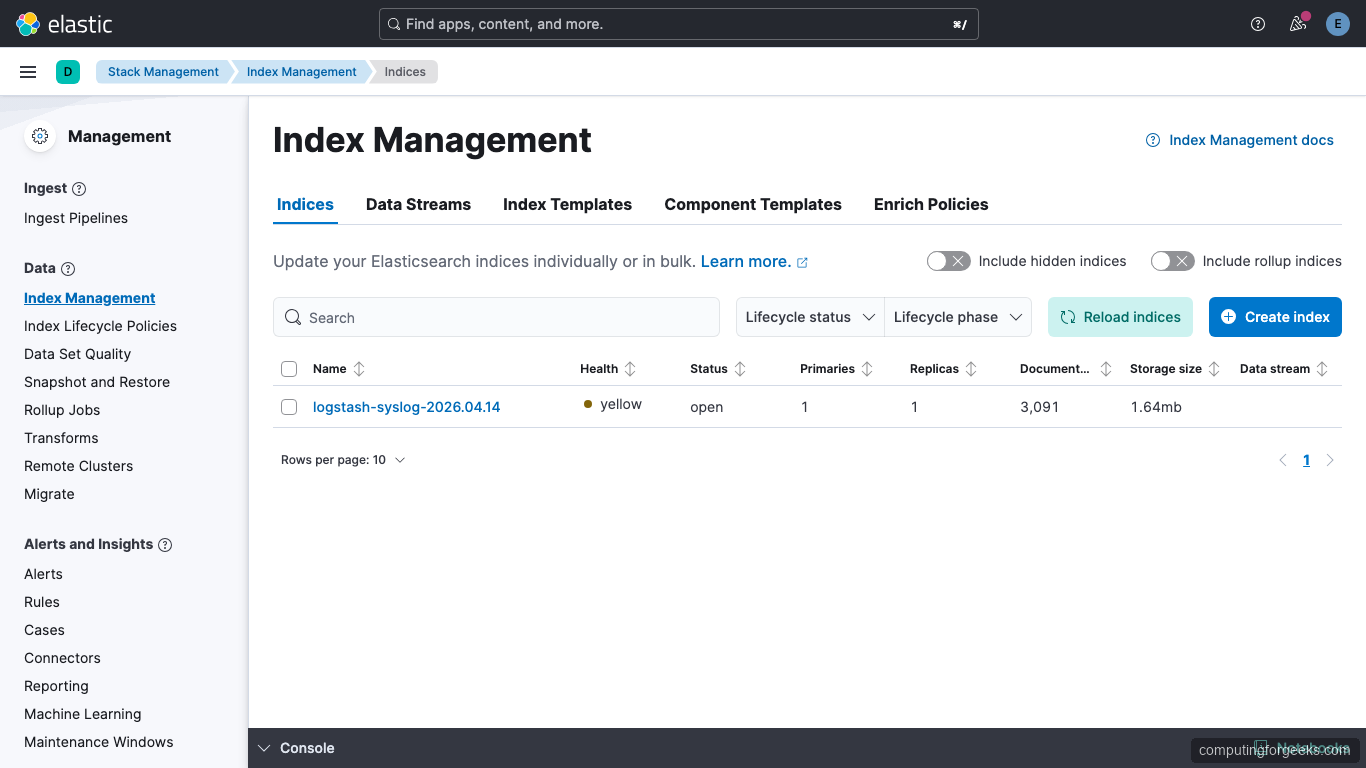
Log in with username elastic and the password from Step 3. On first login Kibana will offer to set up sample data: skip that and head to Management → Stack Management → Index Management. You should see the logstash-syslog-* index with real document counts and storage size:
Next create a data view so Discover can query the logs. Go to Stack Management → Data Views → Create data view, set the name to Syslog, the index pattern to logstash-*, and the timestamp field to @timestamp. Save it.
Open the hamburger menu and click Discover. Set the time picker to “Last 24 hours” if the default 15-minute range shows nothing. Events from /var/log/syslog stream in with host.name, message, and all the grok fields:
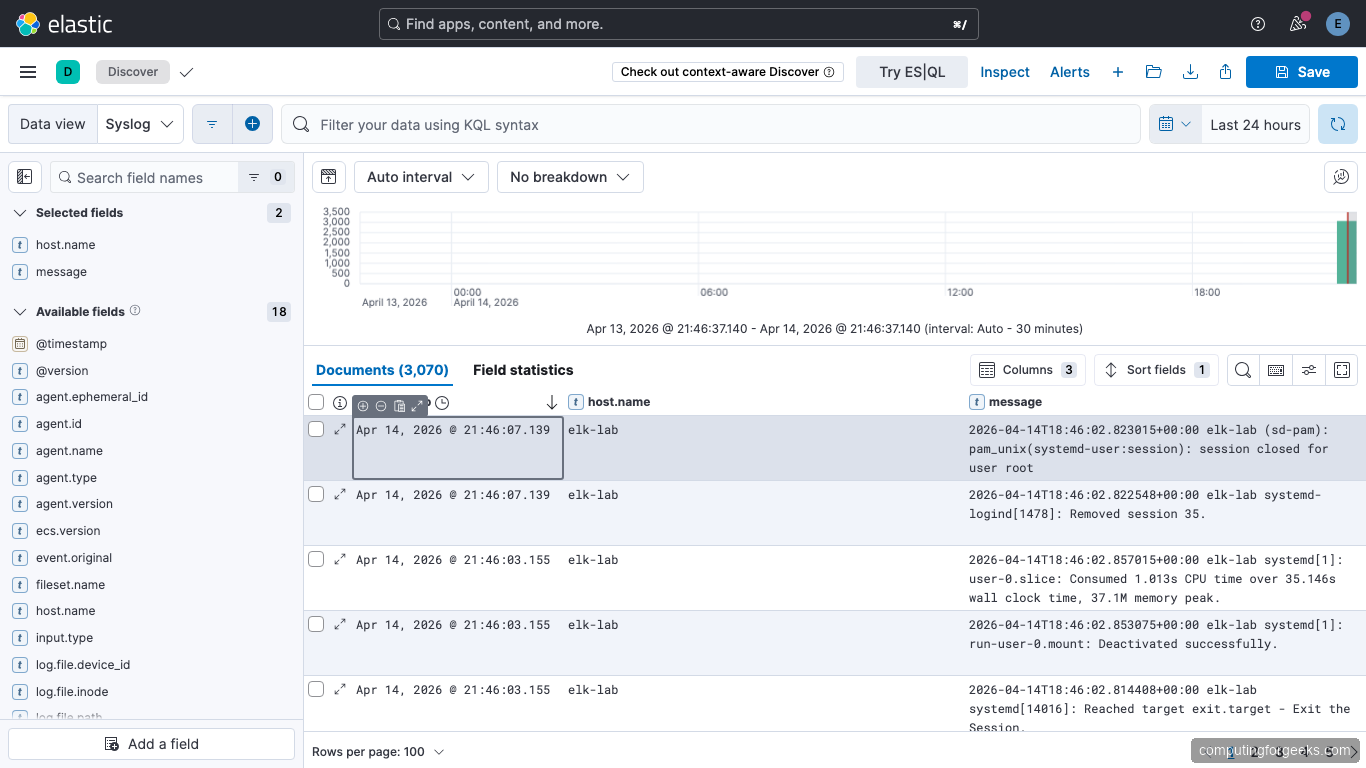
The histogram at the top shows the ingest rate over time. In our test run Filebeat pushed about 3,970 documents in the first hour after enabling the pipeline. That includes the usual systemd, cron, and sshd chatter plus whatever authentication events the host generated.
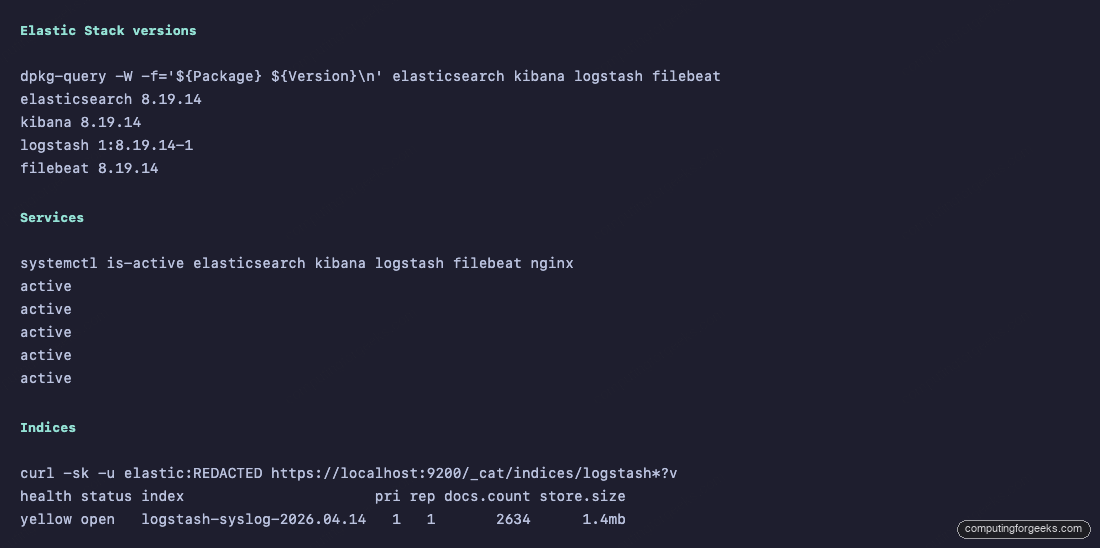
A quick status check from the terminal confirms all four services are active:
From here you can build dashboards in Analytics → Dashboard, create saved searches, or wire up alerts under Stack Management → Rules.
Production hardening
The single-node lab above is great for learning the stack. Before putting this in front of production workloads, tighten a few things.
Rotate the elastic superuser out of Logstash. Create a role with manage_index_templates, monitor, and write/create_index on logstash-*. Assign it to a new user called logstash_writer. Update /etc/logstash/conf.d/syslog-pipeline.conf to use that user. The elastic account should exist for emergencies only.
Move to three Elasticsearch nodes. A single node cluster can’t have replicas, so any disk or host failure means data loss. Three master-eligible nodes is the minimum for production. Elastic’s docs call this out as a cluster formation requirement, not a suggestion.
Set up index lifecycle management. Syslog volumes grow fast. Create an ILM policy that rolls indices over at 50 GB or 30 days, moves older indices to warm tier after 7 days, and deletes them after 90. Kibana has a UI for this under Stack Management → Index Lifecycle Policies.
Add snapshot backups. Configure an S3 or shared NFS repository and schedule daily snapshots through SLM (Snapshot Lifecycle Management). Losing an index to a bad mapping change happens more often than hardware failure.
Monitor the stack itself. Enable Elastic’s built-in Stack Monitoring and point it at a separate small cluster so self-monitoring survives a cluster outage. If you prefer an external view, Prometheus on Ubuntu 26.04 scrapes the Elasticsearch exporter cleanly, and Grafana renders the dashboards. For a simpler alternative, Netdata watches JVM heap and GC behavior out of the box.
If you’re considering shipping logs from containerized workloads too, Filebeat has an autodiscover mode that pairs nicely with Docker on Ubuntu 26.04. For host-level and application metrics side-by-side with logs, Zabbix or Nagios cover what ELK doesn’t.