Netdata gives you per-second metrics with zero configuration. Install it, open port 19999, and you’re monitoring everything the kernel exposes: CPU, memory, disk I/O, network interfaces, running processes, even individual containers if Docker is present.
This guide walks through installing Netdata on Ubuntu 26.04 LTS, configuring email alerts, setting up Nginx as a reverse proxy, and tuning data retention. Netdata auto-discovers services like Nginx, PostgreSQL, and Docker out of the box, so you get dashboards without writing a single line of config.
Tested April 2026 | Ubuntu 26.04 LTS (Resolute Raccoon), Netdata v2.10.0, Nginx 1.28.3
Prerequisites
Before starting, make sure you have the following:
- Ubuntu 26.04 LTS server with root or sudo access (initial server setup guide)
- At least 1 CPU core and 512 MB RAM (Netdata is lightweight, but more RAM means longer data retention)
- Tested on: Ubuntu 26.04 LTS, kernel 7.0.0, 2 vCPUs, 4 GB RAM
Install Netdata on Ubuntu 26.04
Netdata provides a one-line installer that handles everything: dependency resolution, binary download, systemd service creation, and auto-updates. As of April 2026, native packages for Ubuntu 26.04 are not yet published in Netdata’s repository, so the installer falls back to a static build, which works identically.
bash <(curl -SsL https://my-netdata.io/kickstart.sh) --non-interactive --install-type staticThe installer downloads the latest static binary (~180 MB), extracts it to /opt/netdata/, creates the netdata system user, and starts the service. This takes about two minutes depending on your connection speed.
Verify the installed version:
/opt/netdata/bin/netdata -vThe output confirms v2.10.0:
netdata v2.10.0-25-nightlyCheck that the service is active and enabled on boot:
systemctl status netdataYou should see active (running) and enabled:
● netdata.service - Netdata, X-Ray Vision for your infrastructure!
     Loaded: loaded (/usr/lib/systemd/system/netdata.service; enabled; preset: enabled)
     Active: active (running) since Tue 2026-04-14 10:22:34 UTC; 8min ago
   Main PID: 5079 (netdata)
      Tasks: 109 (limit: 3522)
     Memory: 104.7M (peak: 107.1M)
     CGroup: /system.slice/netdata.service
             ├─5079 /opt/netdata/bin/srv/netdata -P /run/netdata/netdata.pid -D
             ├─5466 /opt/netdata/usr/libexec/netdata/plugins.d/network-viewer.plugin 1
             ├─5470 /opt/netdata/usr/libexec/netdata/plugins.d/go.d.plugin 1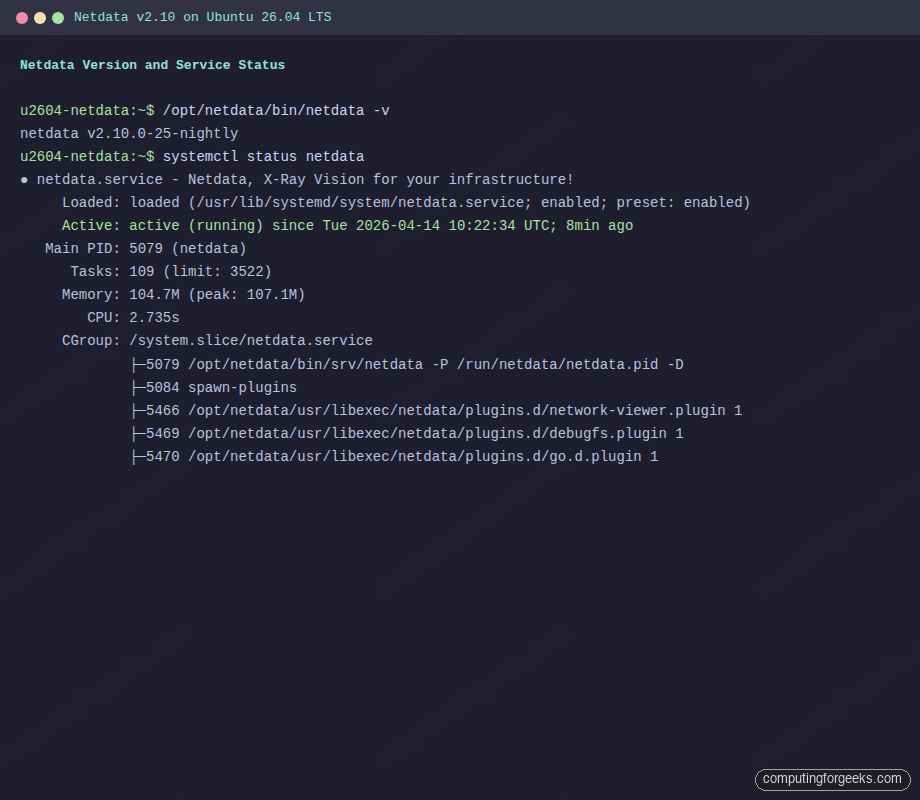
Open the Firewall
Netdata’s built-in web server listens on port 19999. If UFW is active, allow traffic to this port:
sudo ufw allow 19999/tcpConfirm the rule was added:
sudo ufw statusPort 19999 should appear in the output:
Status: active

To                         Action      From
--                         ------      ----
22/tcp                     ALLOW       Anywhere
19999/tcp                  ALLOW       Anywhere
22/tcp (v6)                ALLOW       Anywhere (v6)
19999/tcp (v6)             ALLOW       Anywhere (v6)
Access the Netdata Dashboard
Open your browser and navigate to http://10.0.1.50:19999/ (replace with your server’s IP). Netdata v2 shows a welcome page on first access with the option to sign in to Netdata Cloud or use the dashboard anonymously. Click “Skip and use the dashboard anonymously” if you prefer to keep everything local.
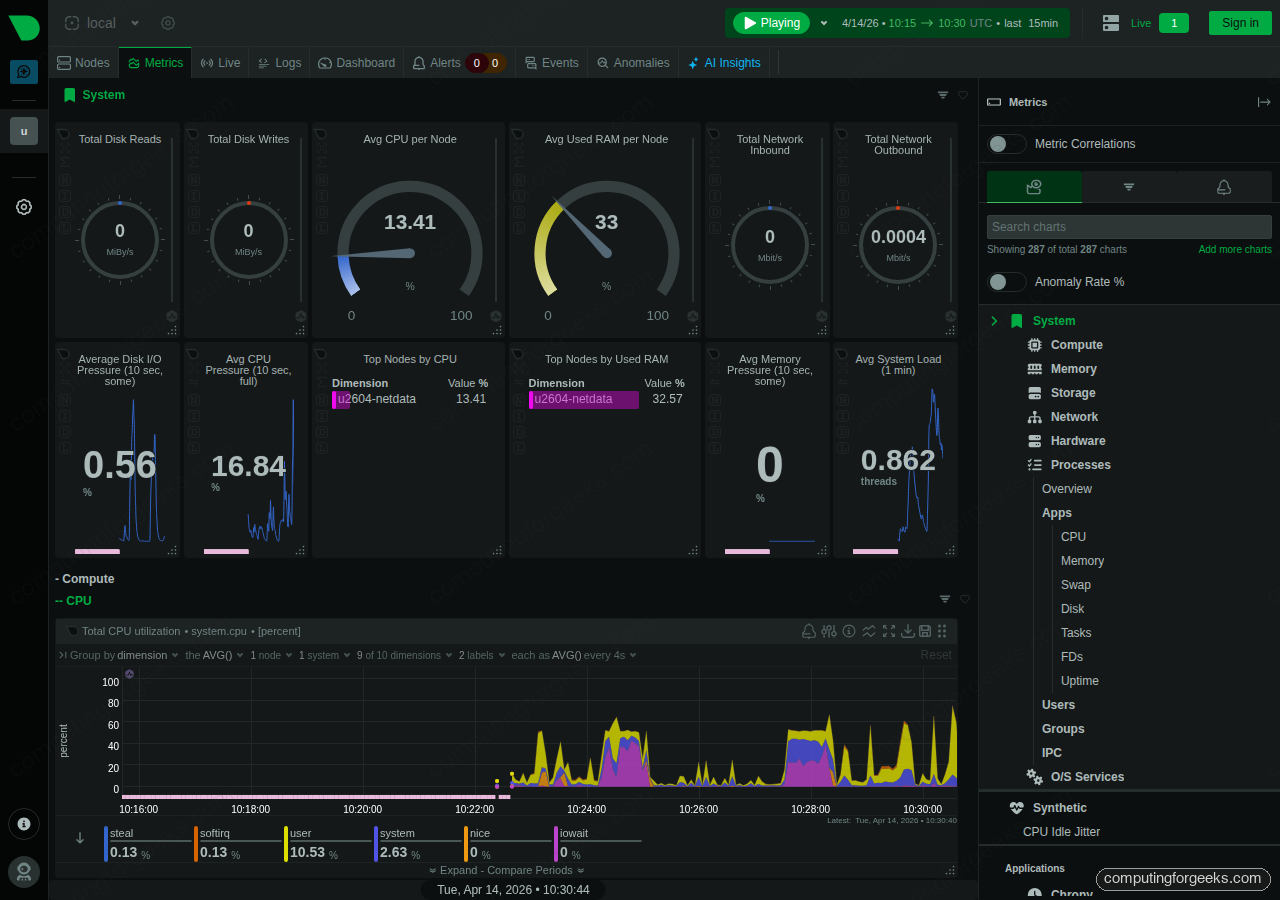
The dashboard immediately shows real-time gauges for CPU usage, total disk reads/writes, memory utilization, and network bandwidth. Every metric updates once per second by default, which is Netdata’s defining characteristic. No other monitoring tool gives you this granularity out of the box. For more advanced dashboarding with custom queries and multi-source data, pair it with Grafana.
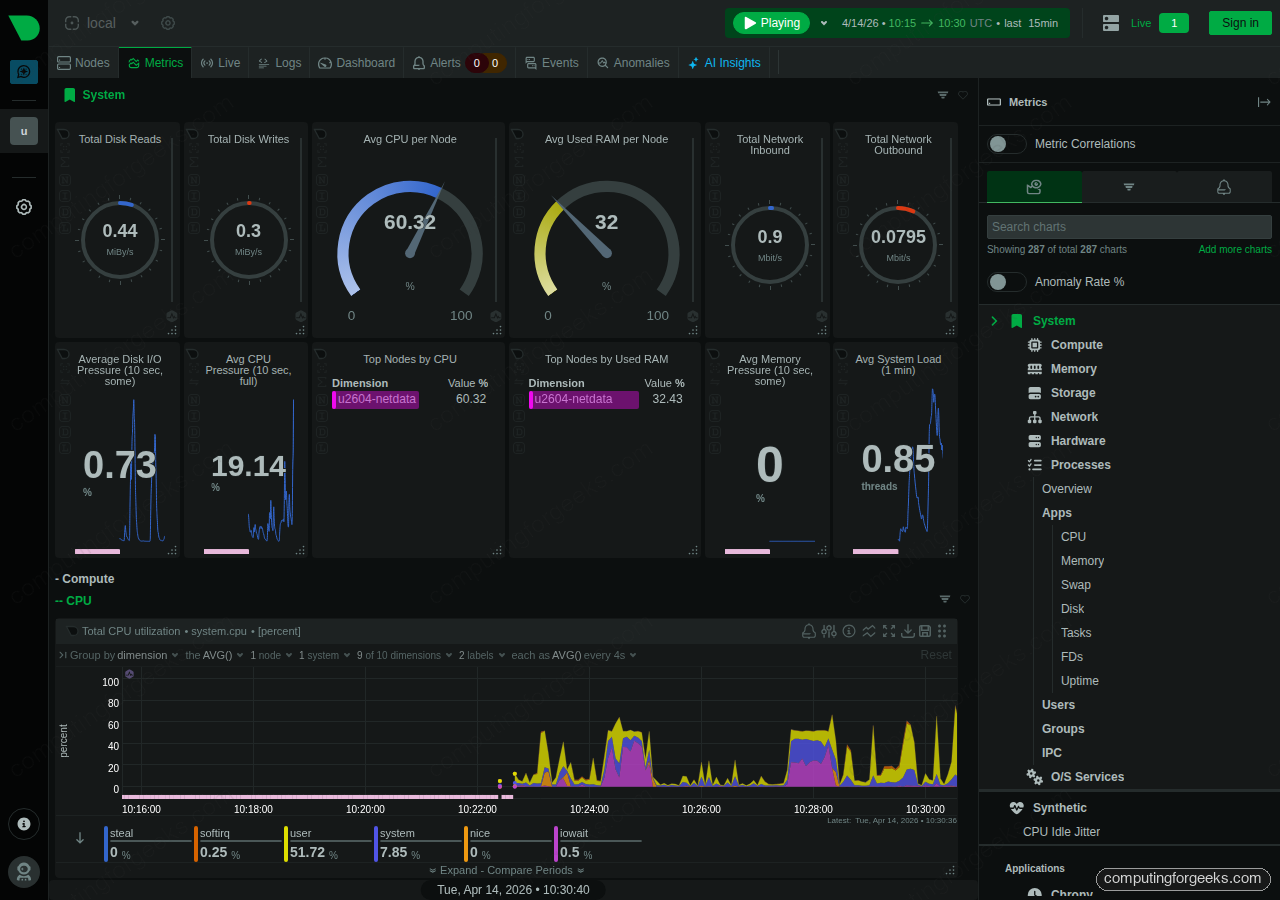
Scroll down to explore individual chart sections. Netdata auto-discovers and creates charts for system CPU, interrupts, softirqs, memory (RAM, swap, kernel slabs), disk I/O per device, network traffic per interface, and much more. The metric count typically starts around 4,000 on a basic server and grows as you add services.
Query the Netdata API
Netdata exposes a REST API on the same port (19999) that you can use for automation, external dashboards, or health checks. Query the /api/v1/info endpoint to get system metadata:
curl -s http://localhost:19999/api/v1/info | python3 -m json.tool | head -20This returns the Netdata version, OS details, hardware specs, and alarm status in JSON:
{
    "version": "v2.10.0-25-nightly",
    "uid": "95b37743-ccac-4abd-9f36-c31df3b5576d",
    "hosts-available": 1,
    "alarms": {
        "normal": 107,
        "warning": 0,
        "critical": 0
    },
    "os_name": "Ubuntu",
    "os_version": "26.04 (Resolute Raccoon)",
    "cores_total": "2",
    "ram_total": "4100751360"
}
To pull the latest value for a specific chart (for example, system CPU), use the data endpoint:
curl -s "http://localhost:19999/api/v1/data?chart=system.cpu&after=-1&format=json" | python3 -m json.toolThis is useful for scripts that need to check server load, trigger custom alerts, or feed metrics into external systems.
Monitor Nginx with Netdata
Netdata auto-discovers many services, but Nginx requires enabling the stub_status module so Netdata can scrape connection metrics. Install Nginx first if you haven’t already:
sudo apt install -y nginxStart and enable the service:
sudo systemctl enable --now nginxCreate a stub_status endpoint that Netdata can poll. This exposes basic connection metrics on a local-only URL:
sudo vi /etc/nginx/conf.d/stub_status.confAdd the following configuration:
server {
    listen 127.0.0.1:80;
    server_name 127.0.0.1;

    location /basic_status {
        stub_status;
        allow 127.0.0.1;
        deny all;
    }
}
Test the Nginx configuration and reload:
sudo nginx -t && sudo systemctl reload nginxVerify the stub_status endpoint works:
curl http://127.0.0.1/basic_statusYou should see active connections and request counters:
Active connections: 1
server accepts handled requests
 3 3 3
Reading: 0 Writing: 1 Waiting: 0
Now enable the Nginx collector in Netdata. Create the configuration file:
sudo vi /opt/netdata/etc/netdata/go.d/nginx.confAdd the following:
jobs:
  - name: local
    url: http://127.0.0.1/basic_status
Restart Netdata to pick up the new collector:
sudo systemctl restart netdataAfter a few seconds, an “Nginx” section appears in the dashboard showing active connections, requests per second, and connection status breakdown. For a full Nginx setup with SSL and Let’s Encrypt, see the Nginx installation guide for Ubuntu 26.04.
Configure Email Alerts
Netdata ships with over 100 pre-configured health alarms covering CPU usage, disk space, memory pressure, and more. By default, alerts trigger but notifications go nowhere. To get email notifications, configure the alarm notification script.
Copy the default alarm notification config to the editable location:
sudo cp /opt/netdata/usr/lib/netdata/conf.d/health_alarm_notify.conf /opt/netdata/etc/netdata/health_alarm_notify.confEdit the config file:
sudo vi /opt/netdata/etc/netdata/health_alarm_notify.confFind the email section and set the sender and recipient. Uncomment and modify these lines:
# email global notification options
EMAIL_SENDER="[email protected]"
SEND_EMAIL="YES"
DEFAULT_RECIPIENT_EMAIL="[email protected]"
This requires a working MTA on the server (postfix, sendmail, or msmtp). Install one if needed:
sudo apt install -y msmtp msmtp-mtaTest the notification pipeline with Netdata’s built-in test command:
sudo /opt/netdata/usr/libexec/netdata/plugins.d/alarm-notify.sh testNetdata also supports Slack, Discord, Telegram, PagerDuty, and many other notification channels. Check the health_alarm_notify.conf file for the full list of supported integrations.
Tune Data Retention
Netdata v2 uses a tiered storage engine (dbengine) with three tiers by default. Tier 0 stores per-second data, Tier 1 stores per-minute aggregates, and Tier 2 stores per-hour aggregates. The default retention gives you about 14 days of per-second data.
To adjust retention, download the running configuration and edit it:
curl -o /opt/netdata/etc/netdata/netdata.conf http://localhost:19999/netdata.confEdit the configuration:
sudo vi /opt/netdata/etc/netdata/netdata.confUnder the [db] section, adjust the retention settings. The key parameters are disk space allocation per tier and time-based retention limits:
[db]
    dbengine tier 0 retention size = 2048MiB
    dbengine tier 0 retention time = 30d
    dbengine tier 1 retention size = 1024MiB
    dbengine tier 1 retention time = 6mo
    dbengine tier 2 retention size = 1024MiB
    dbengine tier 2 retention time = 2y
This configuration allocates 2 GB for per-second data (roughly 30 days on a typical server), 1 GB for per-minute data, and 1 GB for per-hour data. Netdata is efficient with storage because it uses gorilla compression by default.
To limit Netdata’s memory footprint on constrained systems, adjust the page cache size in the same [db] section:
[db]
    dbengine page cache size = 64MiB
Restart Netdata to apply changes:
sudo systemctl restart netdataConfigure Nginx Reverse Proxy for Netdata
Exposing port 19999 directly is fine for testing, but in production you’ll want Netdata behind Nginx with proper access control. This also lets you serve Netdata on port 443 with SSL if you have a domain pointed at the server.
Create a new Nginx server block:
sudo vi /etc/nginx/sites-available/netdataAdd the reverse proxy configuration:
upstream netdata_backend {
    server 127.0.0.1:19999;
    keepalive 64;
}

server {
    listen 80;
    server_name netdata.example.com;

    location / {
        proxy_set_header X-Forwarded-Host $host;
        proxy_set_header X-Forwarded-Server $host;
        proxy_set_header X-Forwarded-For $proxy_add_x_forwarded_for;
        proxy_pass http://netdata_backend;
        proxy_http_version 1.1;
        proxy_pass_request_headers on;
        proxy_set_header Connection "keep-alive";
        proxy_store off;
    }
}
Enable the site and reload Nginx:
sudo ln -s /etc/nginx/sites-available/netdata /etc/nginx/sites-enabled/
sudo nginx -t && sudo systemctl reload nginx
Once the reverse proxy is active, you can close port 19999 in the firewall and restrict Netdata to listen only on localhost. Edit /opt/netdata/etc/netdata/netdata.conf and set:
[web]
    bind to = 127.0.0.1
Restart Netdata after the change:
sudo systemctl restart netdata
sudo ufw delete allow 19999/tcp
Netdata is now accessible only through the Nginx reverse proxy. For enterprise environments that need templates, triggers, and host grouping, consider Zabbix as a complementary tool. For production deployments, add SSL using Let’s Encrypt and basic authentication to protect the dashboard.
Netdata Cloud (Optional)
Netdata Cloud is a free SaaS layer that lets you view dashboards from multiple Netdata agents in a single interface. The agent sends metadata and metric queries to the cloud, but the raw data stays on your server. No metrics are stored in the cloud.
To connect your agent, you need a Netdata Cloud account. The claiming process uses a token and generates a private key:
sudo /opt/netdata/bin/netdata-claim.sh -token=YOUR_CLOUD_TOKEN -rooms=YOUR_ROOM_ID -url=https://app.netdata.cloudIf you prefer to keep monitoring entirely on-premises with no cloud connection, skip this step. The local dashboard at port 19999 (or behind your reverse proxy) provides the same visualization capabilities.
Streaming: Parent-Child Setup
Netdata supports a streaming architecture where child nodes forward their metrics to a parent node. This is useful when you have many servers and want a single dashboard that shows all of them, without using Netdata Cloud.
On the parent (central server), edit the stream config:
sudo vi /opt/netdata/etc/netdata/stream.confAdd a section to accept streams with an API key:
[NETDATA_STREAM_API_KEY]
    enabled = yes
    default memory mode = dbengine
    health enabled by default = auto
    allow from = *
Replace NETDATA_STREAM_API_KEY with a UUID you generate:
uuidgenOn each child node, edit the same file and configure it to stream to the parent:
[stream]
    enabled = yes
    destination = 10.0.1.50:19999
    api key = YOUR_GENERATED_UUID
Restart Netdata on both parent and child after making changes. The parent’s dashboard will show metrics from all connected child nodes, giving you centralized monitoring without any external dependencies.
Netdata vs Prometheus
Both Netdata and Prometheus are popular open-source monitoring tools, but they solve different problems. Here’s how they compare:
| Feature | Netdata | Prometheus |
|---|---|---|
| Collection interval | 1 second (per-second by default) | 15 seconds (configurable, typically 10-30s) |
| Configuration required | Zero config, auto-discovers everything | Manual scrape targets in YAML |
| Built-in dashboard | Yes, real-time web UI included | No (needs Grafana or similar) |
| Data model | Per-host, local storage | Pull-based, centralized TSDB |
| Alerting | Built-in with 100+ pre-configured alarms | Alertmanager (separate component) |
| Storage engine | dbengine (tiered, compressed) | Custom TSDB with WAL |
| Memory usage (idle) | ~100 MB | ~200-500 MB (varies with cardinality) |
| Best for | Real-time troubleshooting, single-server visibility | Fleet-wide metrics, long-term storage, Kubernetes |
| Exporters needed | No (built-in collectors for 800+ sources) | Yes (node_exporter, mysqld_exporter, etc.) |
| Kubernetes support | Helm chart available, per-node DaemonSet | Native with kube-state-metrics, strong ecosystem |
| Query language | Simple API (weight, group, time range) | PromQL (powerful, steep learning curve) |
Use Netdata when you need instant per-second visibility on individual servers without spending time on configuration. Use Prometheus when you’re running a fleet of servers or Kubernetes clusters and need centralized querying with PromQL. Many teams run both: Netdata on each host for real-time debugging and Prometheus for long-term metrics, alerting, and Grafana dashboards. You can also configure Netdata to export metrics to Prometheus, combining the best of both approaches.
If you’re running containers on this server, Netdata auto-discovers Docker containers and shows per-container CPU, memory, and I/O metrics without any extra configuration.