

Most FreeIPA guides walk you through a bare-metal install that takes over DNS, Kerberos, and LDAP on the host. Running FreeIPA in a container keeps all that contained (literally) while giving you the same identity management stack. If you need centralized authentication for your Linux infrastructure without dedicating an entire VM to it, this is the fastest path.
This guide covers deploying FreeIPA Server 4.12 in Podman containers on Rocky Linux 10, complete with SSL/TLS via Let’s Encrypt, user and group management, password policies, HBAC rules, and sudo integration. The same steps work on AlmaLinux 10, RHEL 10, and Fedora 42 with minor package name differences. Docker commands are included where they differ from Podman.
Tested March 2026 on Rocky Linux 10.1 (kernel 6.12, SELinux enforcing) with Podman 5.6.0, FreeIPA 4.12.2 (AlmaLinux 10 container image), Nginx 1.26.3
What FreeIPA Gives You
FreeIPA bundles several identity and access management components into a single integrated solution:
- 389 Directory Server – LDAP directory for storing users, groups, hosts, and policies
- MIT Kerberos KDC – Single sign-on and strong authentication across your Linux infrastructure
- Dogtag Certificate System – Built-in PKI for issuing and managing certificates
- SSSD integration – Client-side authentication that works even when the server is temporarily unreachable
- Web UI and CLI – Manage everything from a browser or the
ipacommand line tool - Host-Based Access Control (HBAC) – Control which users can access which servers
- Sudo rules – Centrally manage sudo privileges across all enrolled hosts
The container approach gives you all of this without touching the host’s DNS, NTP, or Kerberos configuration. Everything runs inside Podman with persistent storage on a bind-mounted volume.
Prerequisites
- Rocky Linux 10, AlmaLinux 10, or RHEL 10 (also works on Fedora 42)
- Minimum 6 GB RAM (8 GB recommended, the Dogtag CA is memory-hungry during initial setup)
- 4 vCPUs
- 30 GB disk space
- A fully qualified hostname set on the host (e.g.,
ipa.example.com) - Tested on: Rocky Linux 10.1, Podman 5.6.0, FreeIPA 4.12.2 (AlmaLinux 10 container)
Install Podman
Podman is available in the default Rocky Linux 10 repositories. Install it along with podman-docker which provides Docker CLI compatibility:
sudo dnf install -y podman podman-dockerVerify the installation:
podman --versionYou should see the Podman version confirmed:
podman version 5.6.0If you prefer Docker, install it from the official Docker repository. See our guide on installing Podman on CentOS/Fedora or Podman on Rocky/AlmaLinux for detailed setup instructions.
Configure the Host
Set the hostname to a fully qualified domain name. The hostname must be different from the IPA domain name, otherwise the installer rejects it.
sudo hostnamectl set-hostname ipa.example.comAdd the hostname to /etc/hosts:
echo "$(hostname -I | awk '{print $1}') ipa.example.com ipa" | sudo tee -a /etc/hostsFreeIPA containers run systemd internally, which requires the container_manage_cgroup SELinux boolean:
sudo setsebool -P container_manage_cgroup 1The -P flag makes this persistent across reboots.
Pull the FreeIPA Container Image
Pre-built FreeIPA server images are published to both Docker Hub and Quay.io. Available tags include almalinux-10, almalinux-9, rocky-9, fedora-42, and centos-9-stream.
sudo podman pull docker.io/freeipa/freeipa-server:almalinux-10The image is approximately 900 MB. For Docker, replace podman with docker in all commands.
Verify the image was pulled:
sudo podman imagesThe output lists the FreeIPA server image:
REPOSITORY                        TAG           IMAGE ID      CREATED     SIZE
docker.io/freeipa/freeipa-server  almalinux-10  37c495f8f6f0  2 days ago  899 MB
You can also build the image from source by cloning the freeipa-container repository and running podman build -t freeipa-server -f Dockerfile.almalinux-10 . but the pre-built images are updated frequently and work well for most deployments.
Deploy FreeIPA Server Container
Create the persistent data directory. FreeIPA stores all configuration, certificates, LDAP data, and Kerberos databases here:
sudo mkdir -p /var/lib/ipa-dataLaunch the container with an unattended installation. Replace the passwords and domain name with your own values:
sudo podman run --name freeipa-server -d \
  -h ipa.example.com \
  --read-only \
  -v /var/lib/ipa-data:/data:Z \
  -p 8443:443 -p 8080:80 \
  -p 389:389 -p 636:636 \
  -p 88:88 -p 464:464 \
  -p 88:88/udp -p 464:464/udp \
  -e DEBUG_NO_EXIT=1 \
  freeipa/freeipa-server:almalinux-10 \
  ipa-server-install -U \
  --realm EXAMPLE.COM \
  --domain example.com \
  --ds-password=YourDirManagerPass \
  --admin-password=YourAdminPass \
  --no-ntp \
  --no-host-dns
Here is what the key flags do:
--read-only– Runs the container filesystem as read-only (recommended by the FreeIPA container project)-v /var/lib/ipa-data:/data:Z– Bind-mounts persistent storage with proper SELinux label (:Z)-p 8443:443 -p 8080:80– Maps HTTPS/HTTP to non-standard host ports so Nginx can use 443/80 for SSL termination-e DEBUG_NO_EXIT=1– Prevents the container from shutting down on installation failure, making troubleshooting easier--no-ntp– Skips NTP configuration (the container uses the host’s clock)--no-host-dns– Skips DNS resolution checks for the hostname
The installation takes 5 to 10 minutes depending on your hardware. The Dogtag CA component takes the longest. Monitor progress with:
sudo podman logs -f freeipa-serverWhen the install completes, you’ll see this output:
The IPA Master Server will be configured with:
Hostname:       ipa.computingforgeeks.com
IP address(es): 192.168.1.136
Domain name:    computingforgeeks.com
Realm name:     COMPUTINGFORGEEKS.COM

Configuring directory server (dirsrv). Estimated time: 30 seconds
  [1/42]: creating directory server instance
  ...
  [42/42]: restarting directory server
Done configuring directory server (dirsrv).
Configuring Kerberos KDC (krb5kdc)
  ...
Done configuring Kerberos KDC (krb5kdc).
Configuring certificate server (pki-tomcatd). Estimated time: 3 minutes
  [1/33]: configuring certificate server instance
  ...
  [33/33]: restarting certificate server
Done configuring certificate server (pki-tomcatd).
  ...
Setup complete

Next steps:
	1. You must make sure these network ports are open:
		TCP Ports:
		  * 80, 443: HTTP/HTTPS
		  * 389, 636: LDAP/LDAPS
		  * 88, 464: kerberos
	2. You can now obtain a kerberos ticket using the command: 'kinit admin'

FreeIPA server configured.
Verify the container is running:
sudo podman psTest that FreeIPA is functional by getting a Kerberos ticket:
sudo podman exec freeipa-server bash -c 'echo YourAdminPass | kinit admin && ipa user-find'A successful response confirms the admin user exists and FreeIPA is operational:
--------------
1 user matched
--------------
  User login: admin
  Last name: Administrator
  Home directory: /home/admin
  Login shell: /bin/bash
  Principal name: [email protected]
  UID: 334400000
  GID: 334400000
  Account disabled: False
----------------------------
Number of entries returned 1
----------------------------
Docker equivalent: Replace sudo podman with sudo docker in all the commands above. Docker handles the cgroup and systemd setup slightly differently, but the FreeIPA container image supports both runtimes.
Configure SSL with Let’s Encrypt
FreeIPA generates its own self-signed CA during installation. For production use, you’ll want a trusted certificate from Let’s Encrypt so browsers don’t show certificate warnings. The cleanest approach is running Nginx on the host as a reverse proxy with SSL termination.
Install Certbot and Nginx
Enable the EPEL repository (certbot lives there on RHEL-family systems) and install everything needed:
sudo dnf install -y epel-release
sudo dnf install -y certbot python3-certbot-dns-cloudflare nginx
If your server has a public IP, you can use the simpler HTTP-01 challenge with certbot certonly --standalone. For private networks, the DNS challenge works without inbound HTTP access.
Obtain the Certificate
Create a Cloudflare API credentials file (if using DNS validation):
sudo mkdir -p /etc/letsencrypt
echo "dns_cloudflare_api_token = YOUR_CF_API_TOKEN" | sudo tee /etc/letsencrypt/cloudflare.ini
sudo chmod 600 /etc/letsencrypt/cloudflare.ini
Request the certificate:
sudo certbot certonly --dns-cloudflare \
  --dns-cloudflare-credentials /etc/letsencrypt/cloudflare.ini \
  -d ipa.example.com \
  --non-interactive --agree-tos -m [email protected]
Certbot stores the certificate at /etc/letsencrypt/live/ipa.example.com/. For servers with public IP addresses, use the standalone method instead:
sudo certbot certonly --standalone -d ipa.example.com \
  --non-interactive --agree-tos -m [email protected]
Configure Nginx Reverse Proxy
Create the Nginx configuration for FreeIPA. Nginx terminates SSL on port 443 and proxies requests to the container’s HTTPS port (8443):
sudo vi /etc/nginx/conf.d/freeipa.confAdd this configuration:
server {
    listen 443 ssl;
    http2 on;
    server_name ipa.example.com;

    ssl_certificate /etc/letsencrypt/live/ipa.example.com/fullchain.pem;
    ssl_certificate_key /etc/letsencrypt/live/ipa.example.com/privkey.pem;
    ssl_protocols TLSv1.2 TLSv1.3;
    ssl_ciphers HIGH:!aNULL:!MD5;

    location / {
        proxy_pass https://127.0.0.1:8443;
        proxy_ssl_verify off;
        proxy_set_header Host $host;
        proxy_set_header X-Real-IP $remote_addr;
        proxy_set_header X-Forwarded-For $proxy_add_x_forwarded_for;
        proxy_set_header X-Forwarded-Proto $scheme;
        proxy_set_header Referer $http_referer;
        proxy_buffer_size 128k;
        proxy_buffers 4 256k;
        proxy_busy_buffers_size 256k;
    }
}

server {
    listen 80;
    server_name ipa.example.com;
    return 301 https://$host$request_uri;
}
The proxy_ssl_verify off directive tells Nginx to accept the FreeIPA container’s self-signed certificate on the backend connection. The frontend connection to users is secured with the Let’s Encrypt certificate.
SELinux blocks Nginx from making network connections by default. Enable it:
sudo setsebool -P httpd_can_network_connect 1Test the configuration and start Nginx:
sudo nginx -t
sudo systemctl enable --now nginx
Verify Nginx is running and certificate auto-renewal works:
sudo systemctl status nginx
sudo certbot renew --dry-run
Open firewall ports for HTTPS and the FreeIPA services:
sudo firewall-cmd --permanent --add-service={http,https,ldap,ldaps,kerberos,kpasswd}
sudo firewall-cmd --reload
Access the FreeIPA Web UI
Open https://ipa.example.com in your browser. With the Let’s Encrypt certificate in place, you’ll see a valid padlock icon instead of a certificate warning.
Log in with username admin and the admin password you set during installation.
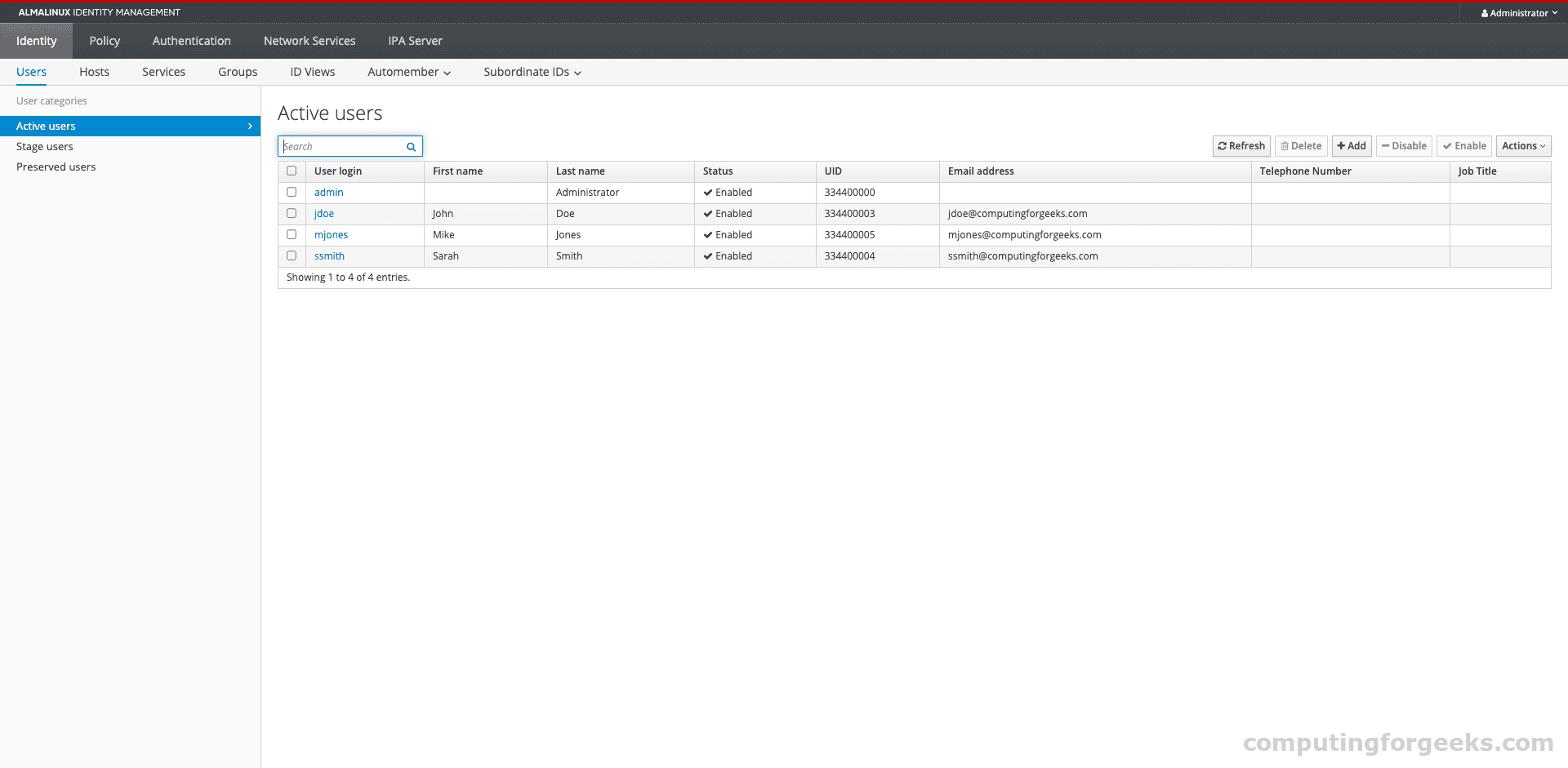
After logging in, FreeIPA lands on the Active Users view where you can see all user accounts:
Manage Users
FreeIPA provides both a web interface and CLI for user management. The CLI is generally faster for batch operations, while the web UI is better for exploring user details and settings.
Create Users from the CLI
All ipa commands run inside the container. Get a Kerberos ticket first, then create users:
sudo podman exec freeipa-server bash -c '
echo YourAdminPass | kinit admin
ipa user-add jdoe --first=John --last=Doe [email protected] --password
'
The --password flag prompts for an initial password. The user must change it on first login.
Create multiple users at once:
sudo podman exec freeipa-server bash -c '
echo YourAdminPass | kinit admin
ipa user-add ssmith --first=Sarah --last=Smith [email protected]
ipa user-add mjones --first=Mike --last=Jones [email protected]
'
Create Users from the Web UI
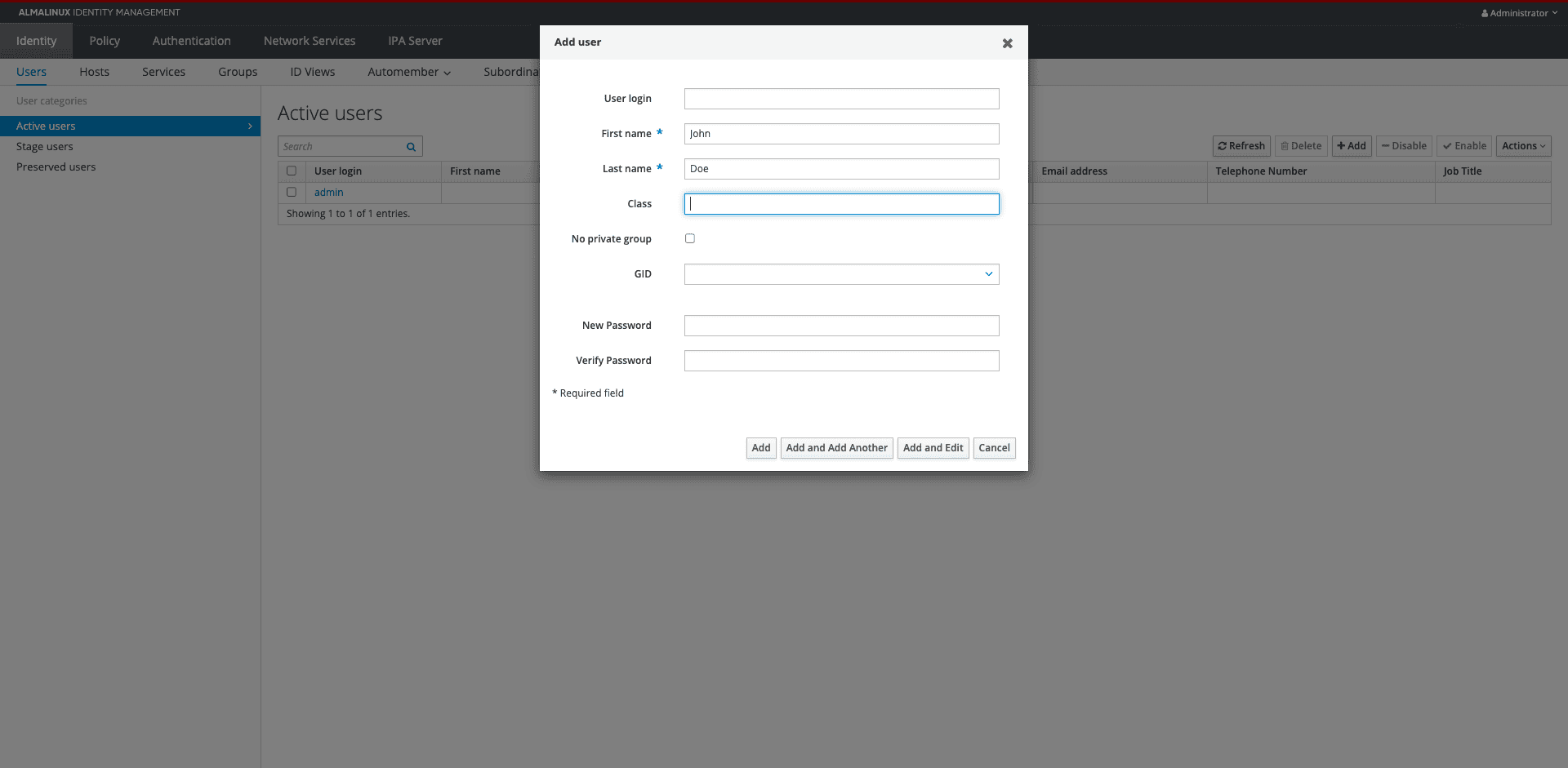
Navigate to Identity > Users > Active users and click Add. Fill in the user details:
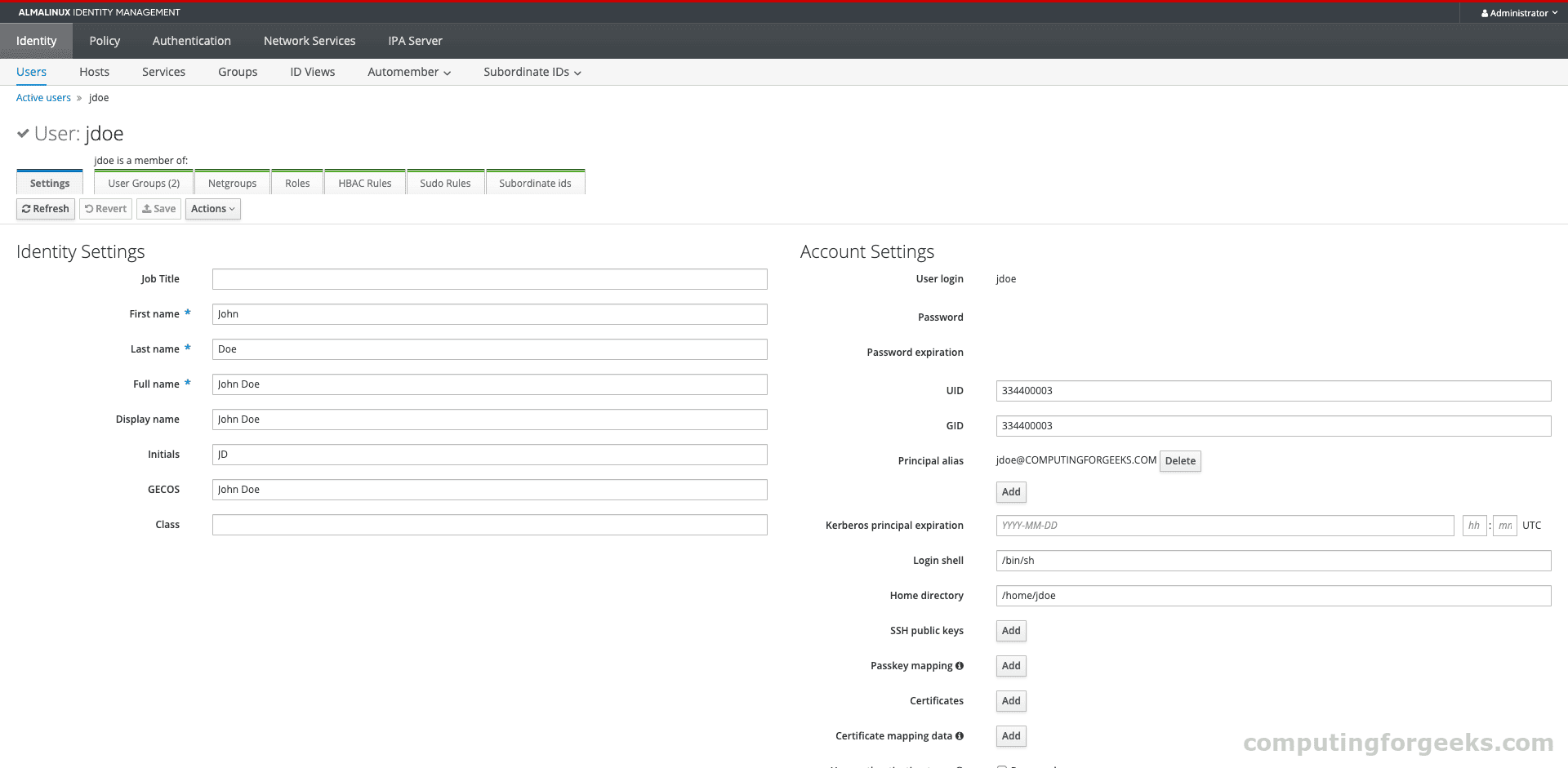
Click on any user to see their full profile, group memberships, and account settings:
See our detailed guide on managing users and groups in FreeIPA using CLI for bulk operations and advanced user attributes.
Manage Groups
Groups in FreeIPA control access to services, hosts, and sudo privileges. Create groups and add members:
sudo podman exec freeipa-server bash -c '
echo YourAdminPass | kinit admin
ipa group-add developers --desc="Development team"
ipa group-add sysadmins --desc="System Administrators"
ipa group-add-member developers --users=jdoe,ssmith
ipa group-add-member sysadmins --users=mjones
'
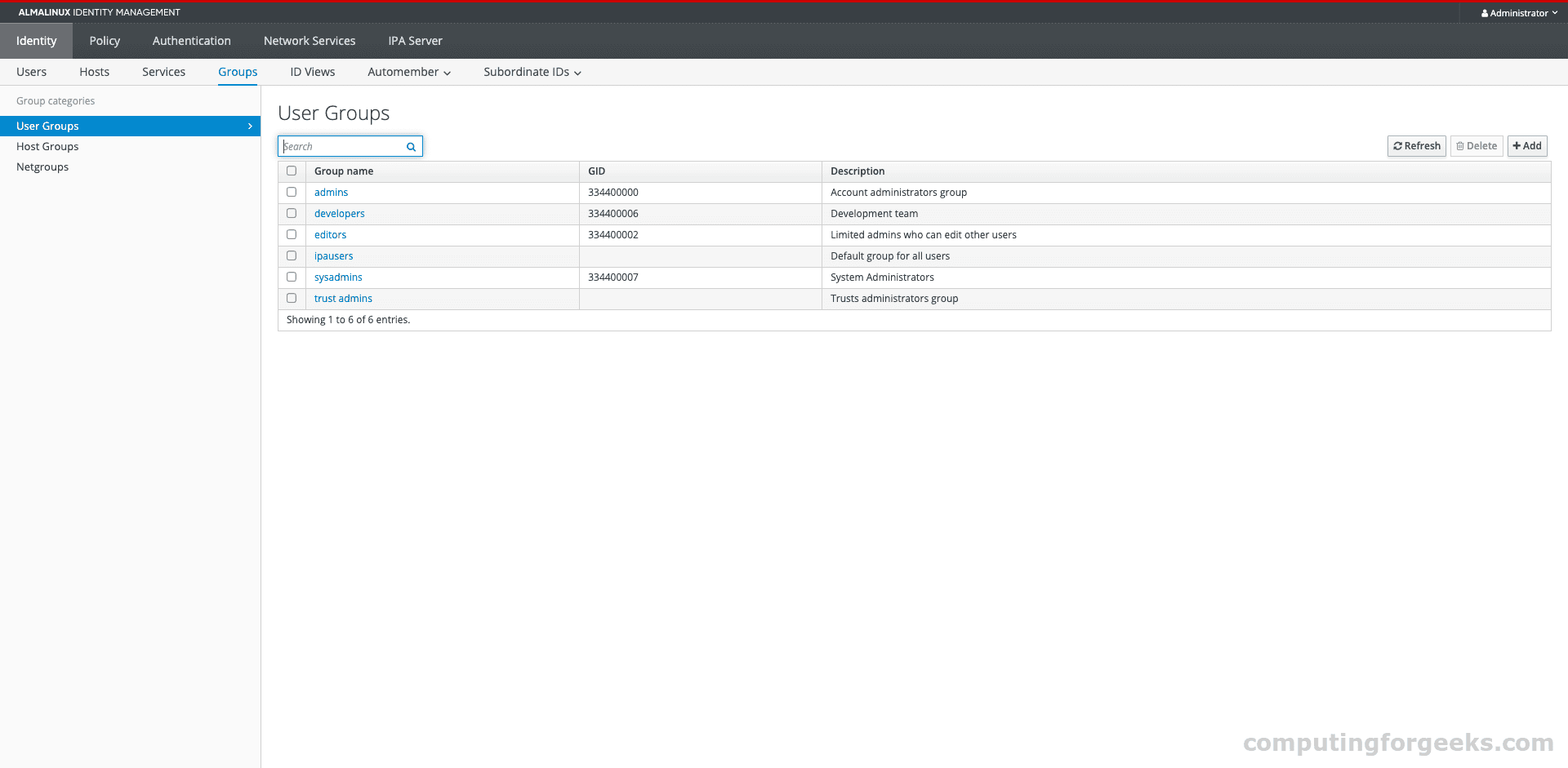
Verify the group membership:
sudo podman exec freeipa-server bash -c 'echo YourAdminPass | kinit admin && ipa group-show developers'The groups show up in the web UI under Identity > User Groups:
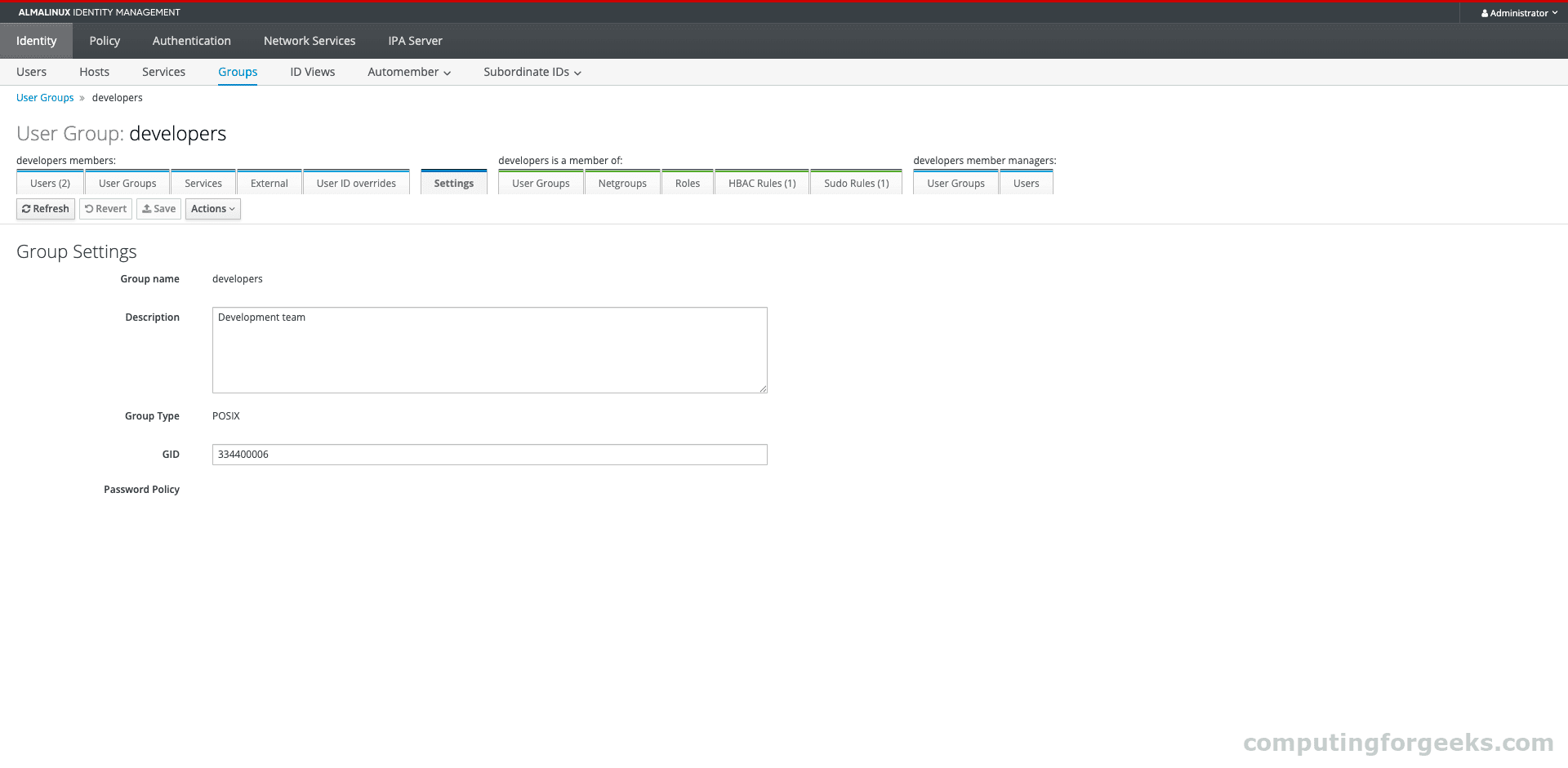
Click on a group to see its members and settings:
Configure Password Policies
FreeIPA ships with a default global password policy. Tighten it for production use:
sudo podman exec freeipa-server bash -c '
echo YourAdminPass | kinit admin
ipa pwpolicy-mod global_policy \
  --maxlife=90 \
  --minlife=1 \
  --history=5 \
  --minlength=12 \
  --minclasses=3
'
This sets passwords to expire after 90 days, require at least 12 characters with 3 different character classes (uppercase, lowercase, digits, special), and remember the last 5 passwords to prevent reuse.
You can also create group-specific password policies. A group policy with a higher priority number takes precedence over the global policy:
sudo podman exec freeipa-server bash -c '
echo YourAdminPass | kinit admin
ipa pwpolicy-add sysadmins --maxlife=60 --minlength=16 --minclasses=4 --priority=1
'
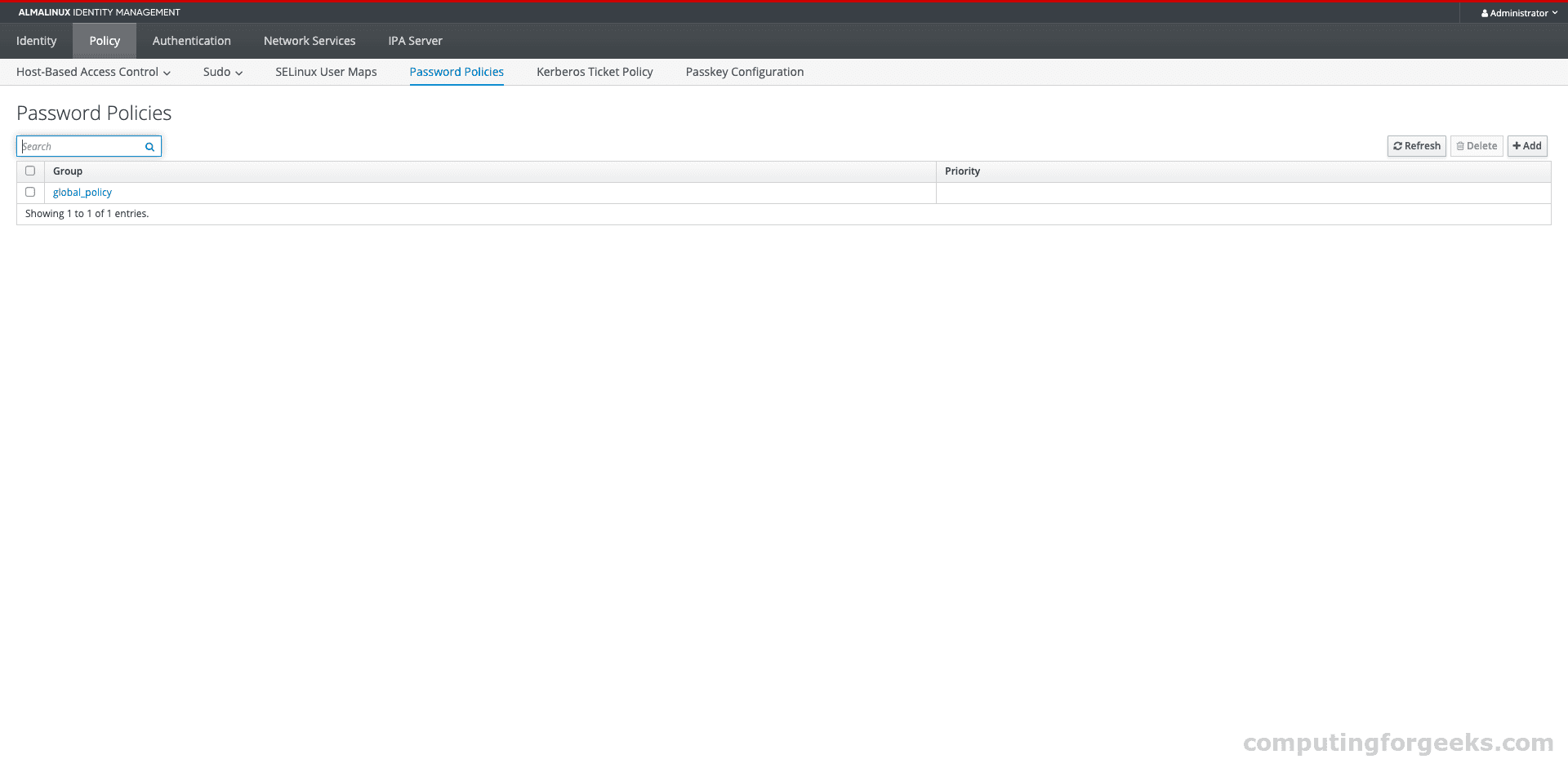
The password policy configuration in the web UI under Policy > Password Policies:
For more on password management, see managing FreeIPA users and groups.
Set Up Host-Based Access Control (HBAC)
HBAC rules let you control which users or groups can access which hosts via specific services. FreeIPA comes with a default allow_all rule that grants everyone access everywhere. In production, you’ll want to disable that and create targeted rules.
Create a rule that allows the developers group to SSH into development servers:
sudo podman exec freeipa-server bash -c '
echo YourAdminPass | kinit admin
ipa hbacrule-add allow_developers --desc="Allow developers to access dev servers"
ipa hbacrule-add-user allow_developers --groups=developers
ipa hbacrule-add-service allow_developers --hbacsvcs=sshd
'
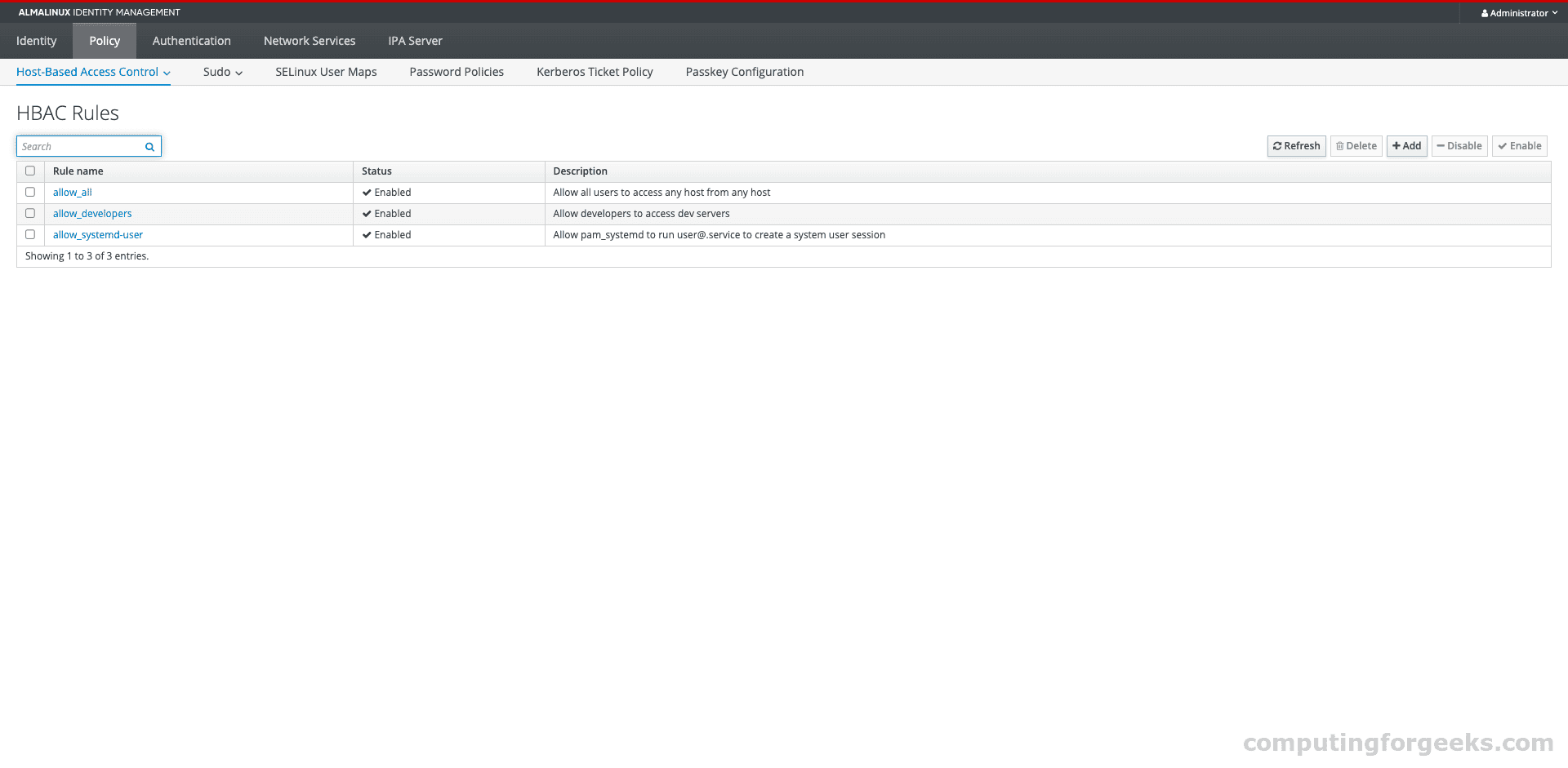
HBAC rules appear under Policy > Host Based Access Control > HBAC Rules:
The rule details page shows who the rule applies to, which services, and which hosts:
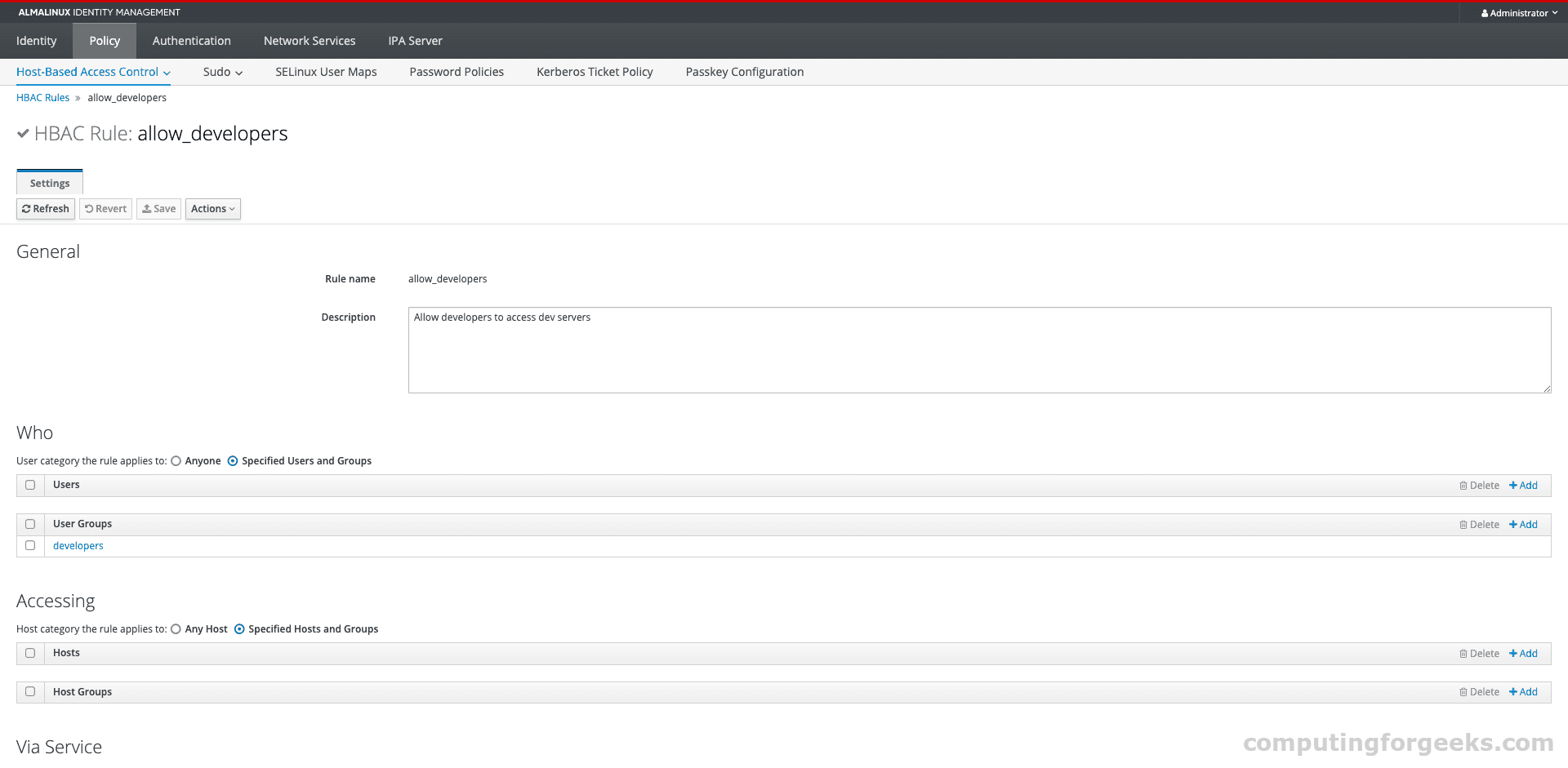
Test an HBAC rule before enforcing it:
sudo podman exec freeipa-server bash -c '
echo YourAdminPass | kinit admin
ipa hbactest --user=jdoe --host=ipa.computingforgeeks.com --service=sshd
'
Configure Centralized Sudo Rules
Instead of editing /etc/sudoers on every server individually, FreeIPA lets you define sudo rules centrally. All enrolled clients pick them up automatically.
sudo podman exec freeipa-server bash -c '
echo YourAdminPass | kinit admin
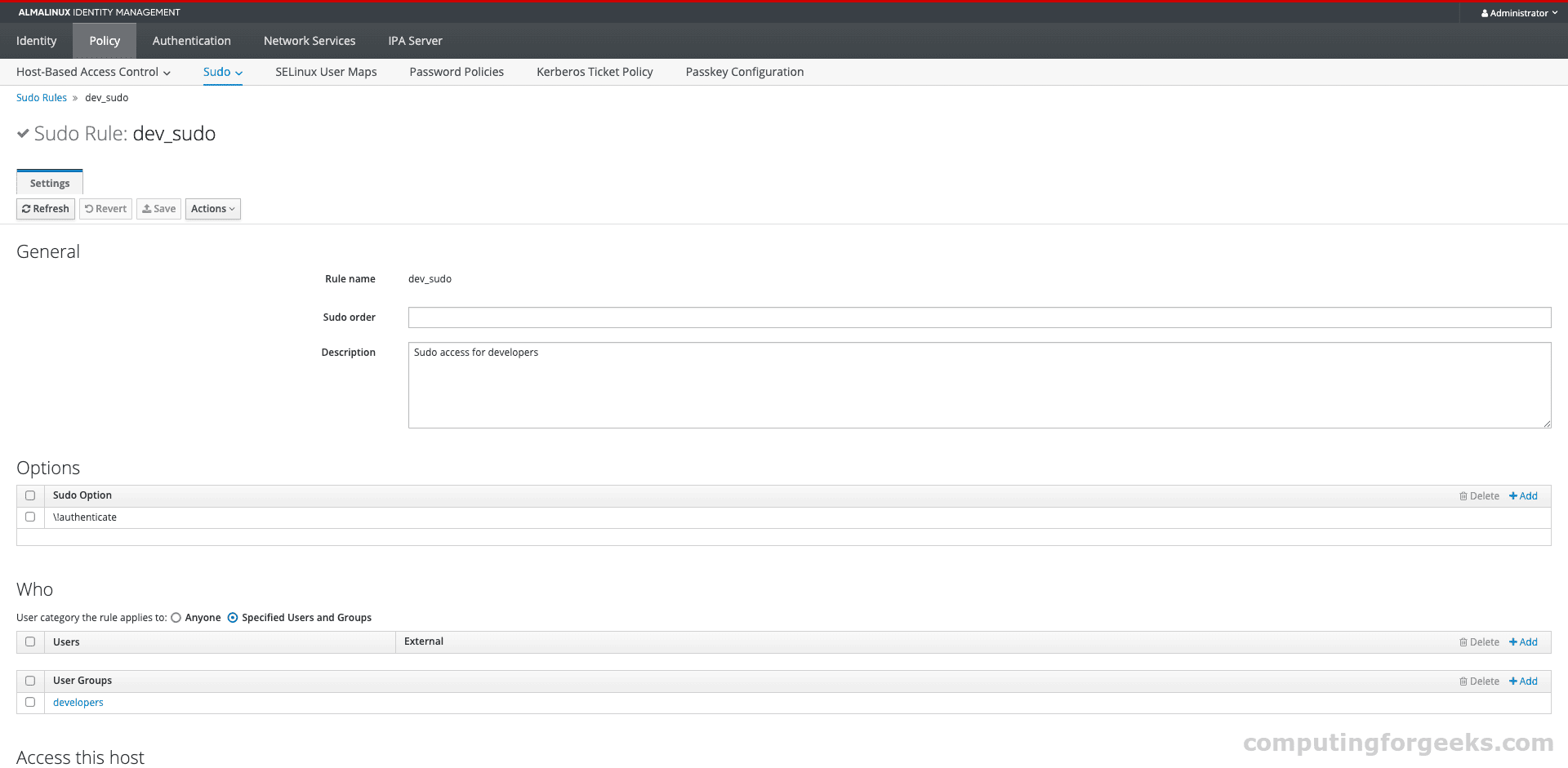
ipa sudorule-add dev_sudo --desc="Sudo access for developers"
ipa sudorule-add-user dev_sudo --groups=developers
ipa sudorule-mod dev_sudo --cmdcat=all --hostcat=all
ipa sudorule-add-option dev_sudo --sudooption="!authenticate"
'
This grants all developers passwordless sudo on all hosts. In practice, you’d scope the commands and hosts more tightly.
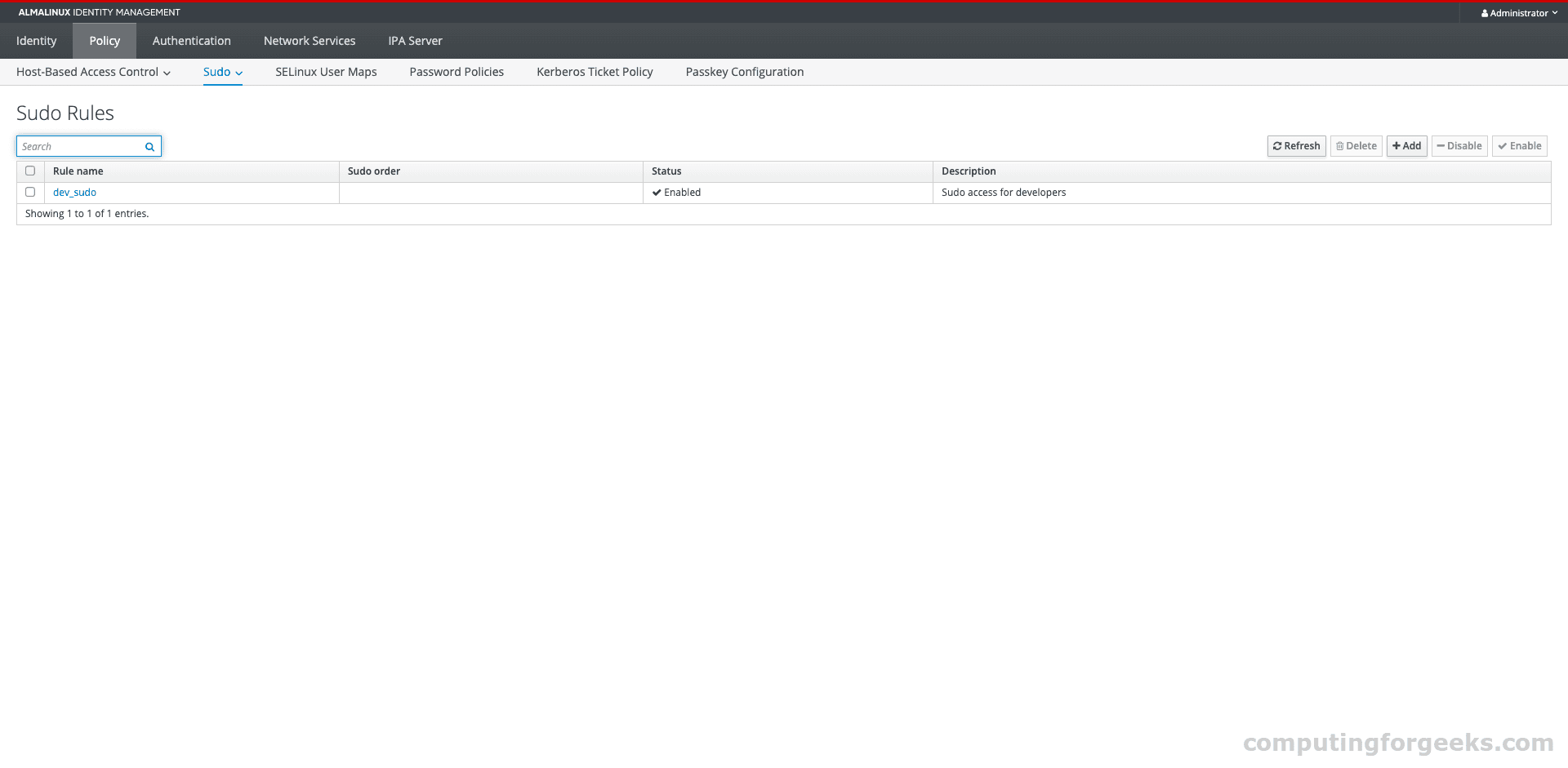
The rule details show the full configuration including user groups, command categories, and sudo options:
Enroll Client Machines
The real value of FreeIPA comes when you enroll client machines. Any Linux system can join the FreeIPA domain and get centralized authentication, HBAC, and sudo policies automatically.
On the client machine (Rocky/AlmaLinux 10):
sudo dnf install -y freeipa-clientRun the enrollment:
sudo ipa-client-install \
  --server=ipa.example.com \
  --domain=example.com \
  --realm=EXAMPLE.COM \
  --principal=admin \
  --password=YourAdminPass \
  --mkhomedir \
  --unattended
After enrollment, verify that FreeIPA users can authenticate on the client:
id jdoeIf the user exists in FreeIPA, you’ll see their UID, GID, and group memberships:
uid=334400003(jdoe) gid=334400003(jdoe) groups=334400003(jdoe),334400007(developers)The enrolled host appears in the FreeIPA web UI under Identity > Hosts:
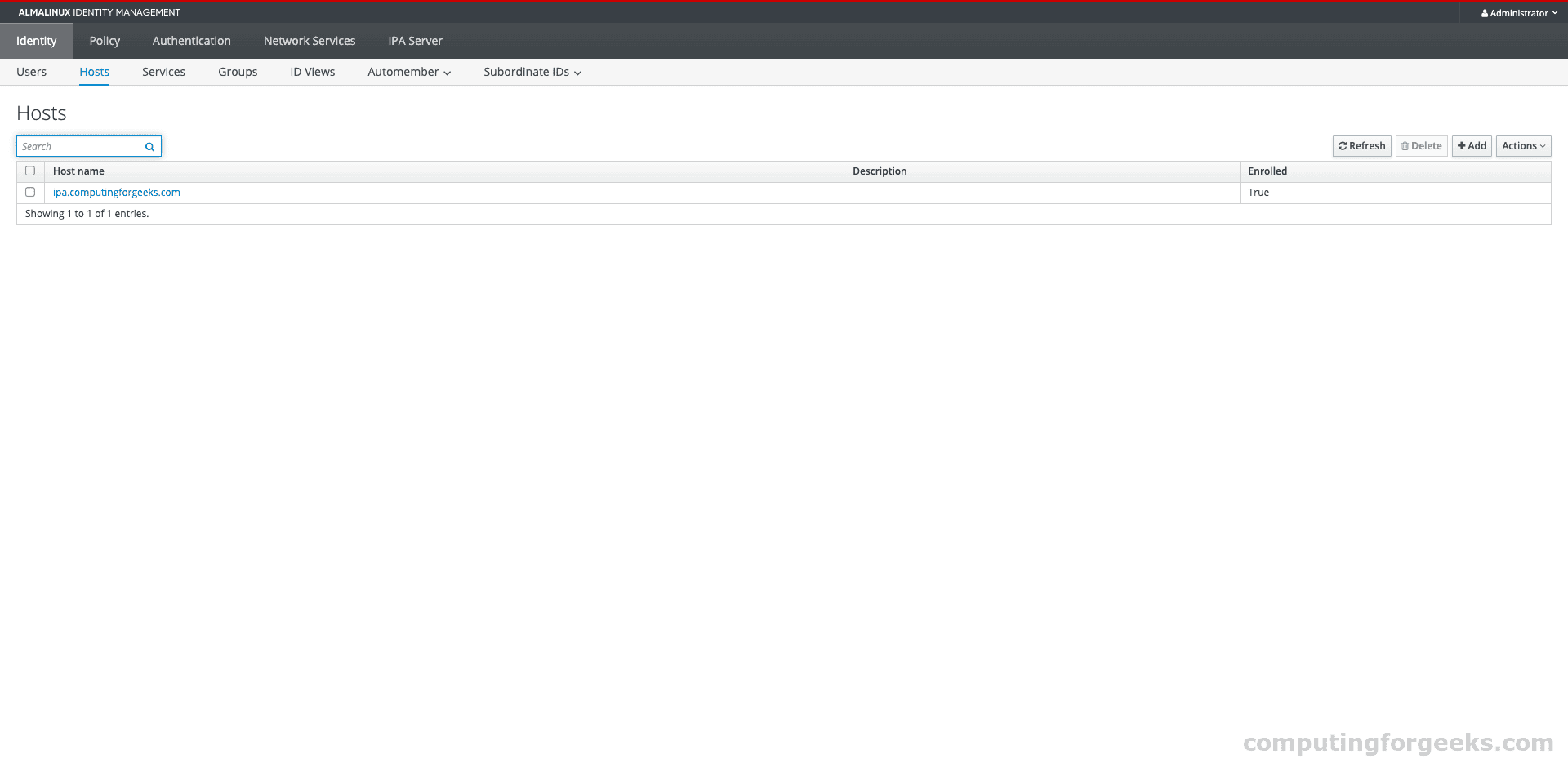
For a complete client setup walkthrough, see our guide on installing FreeIPA Server on Rocky/AlmaLinux/RHEL 10 which includes client enrollment steps.
Certificate Management
FreeIPA includes a full PKI (Dogtag Certificate System) that issues certificates for enrolled hosts and services. The certificates page in the web UI under Authentication > Certificates shows all issued certificates:
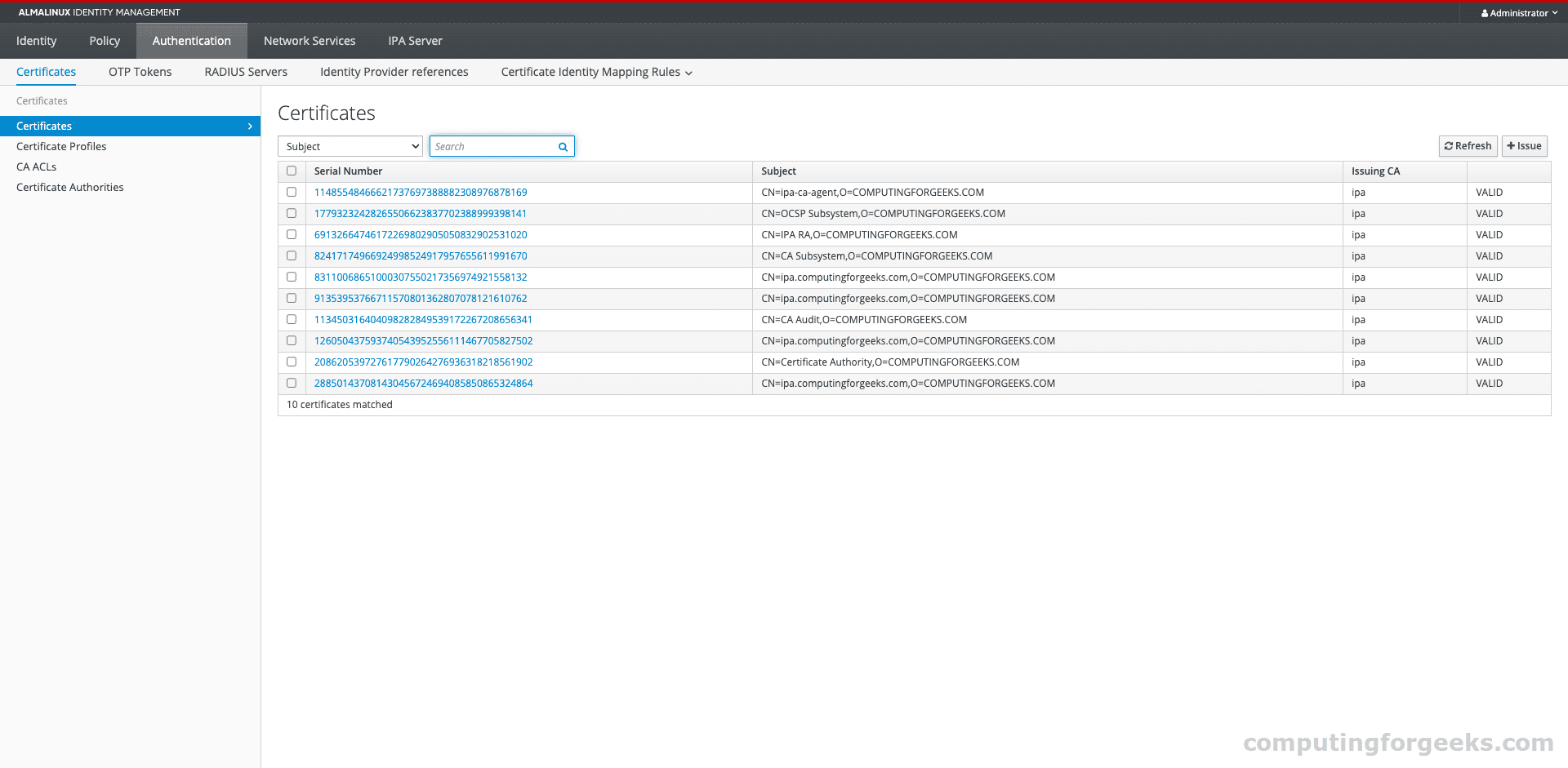
You can request certificates for services, manage revocation, and configure certificate profiles from the CLI:
sudo podman exec freeipa-server bash -c '
echo YourAdminPass | kinit admin
ipa cert-find
'
For SSL certificate management on the FreeIPA server itself, see securing FreeIPA Server with Let’s Encrypt SSL.
Container Management and Persistence
After the initial install, the container starts much faster on subsequent runs. All FreeIPA data persists in the /var/lib/ipa-data volume.
Start the Container on Boot
Generate a systemd service unit to auto-start the FreeIPA container:
sudo podman generate systemd --name freeipa-server --new --files
sudo mv container-freeipa-server.service /etc/systemd/system/
sudo systemctl daemon-reload
sudo systemctl enable container-freeipa-server.service
Backup and Restore
Backing up a containerized FreeIPA is simpler than a bare-metal install. The entire state lives in one directory:
sudo podman stop freeipa-server
sudo tar czf /backup/ipa-data-$(date +%Y%m%d).tar.gz /var/lib/ipa-data
sudo podman start freeipa-server
To restore, stop the container, extract the backup to /var/lib/ipa-data, and start the container again.
View Logs
Container logs show the FreeIPA server output:
sudo podman logs --tail 100 freeipa-serverFor detailed LDAP or Kerberos logs, check the log files inside the data volume:
sudo ls /var/lib/ipa-data/var/log/
sudo cat /var/lib/ipa-data/var/log/ipaserver-install.log
Troubleshooting
Error: “hostname cannot be the same as the domain name”
FreeIPA requires the hostname and domain name to be different. If your hostname is ipa.example.com, your domain must be example.com (not ipa.example.com). The hostname must be a subdomain of the IPA domain.
Error: “CA configuration failed” or Container Exits During Install
The Dogtag CA component needs significant memory. If the container exits during the “Configuring certificate server” step, increase the VM’s RAM to at least 8 GB. The PKI Tomcat server times out after 90 seconds if it can’t start, and with insufficient memory it won’t make it in time.
Use -e DEBUG_NO_EXIT=1 when starting the container to prevent it from shutting down on failure, then check /var/lib/ipa-data/var/log/ipaserver-install.log for the root cause.
Error: “Failed to set RLIMIT_CORE: Operation not permitted”
This is a harmless warning from systemd inside the container. It appears because containers typically can’t change resource limits. It does not affect FreeIPA operation.
Container Exits Immediately with Code 123
Exit code 123 means systemd inside the container shut down due to a service failure. The FreeIPA install service is configured to power off the container if installation fails. Add -e DEBUG_NO_EXIT=1 to the run command and check the install log to find the actual error.
FreeIPA Container vs Bare-Metal Installation
| Aspect | Container (Podman/Docker) | Bare-Metal |
|---|---|---|
| Installation time | 5 to 10 minutes | 10 to 15 minutes |
| Host impact | Minimal (only port bindings) | Takes over DNS, NTP, Kerberos on the host |
| Backup | tar the /data volume | ipa-backup + config files |
| Upgrade path | Pull new image, restart | dnf update + ipa-server-upgrade |
| OS isolation | Container OS can differ from host | Must match host OS |
| DNS server | Not included by default | Optional integrated BIND DNS |
| Multi-replica | Supported via ipa-replica-install | Same procedure |
| SELinux | Host SELinux enforcing + container labels | Host SELinux enforcing |
For a traditional bare-metal installation, see our guides for Rocky/AlmaLinux/RHEL 10 or Rocky/AlmaLinux 9. To set up a FreeIPA replica for high availability, follow our replica configuration guide.
Available Container Image Tags
| Tag | FreeIPA Version | Architecture |
|---|---|---|
| almalinux-10 | 4.12.2 | amd64, arm64 |
| almalinux-9 | 4.12.2 | amd64, arm64 |
| rocky-9 | 4.12.2 | amd64, arm64 |
| fedora-42 | 4.12.5 | amd64 |
| fedora-43 | 4.13.1 | amd64 |
| centos-9-stream | 4.13.1 | amd64 |
All images are published to both docker.io/freeipa/freeipa-server and quay.io/freeipa/freeipa-server. Check Docker Hub for the latest tags and build dates.
Related guides you might find useful:
- Install FreeIPA Server on Rocky Linux 10 / AlmaLinux 10 / RHEL 10
- Manage Users and Groups in FreeIPA using CLI
- Secure FreeIPA Server With Let’s Encrypt SSL Certificate
- Configure FreeIPA Server Replica on Rocky / AlmaLinux
- Reset FreeIPA admin Password as root user
- Join Windows System to FreeIPA Realm without Active Directory

My man! Great tutorial!
Thanks with welcome.
NOT SUITABLE FOR PRODUCTION
This is a terrible guide for anyone outside those wanting to test the latest source which doesn’t follow best practice in pretty much everything it does. It disables security and involves additional unnecessary configuration which long term makes docker and the container itself harder to patch and manage.
Docker/podman:
Just install from the repositories. It’s not some cutting edge container that needs the latest and greatest. Maintainability and security is more important. If this was originally written when docker didn’t allow for userspace containers except in source than ignore this – but that reasoning should have been included.
Container:
FreeIPA’s container is available from multiple registries. Again, those should be used so the container is patched/maintained
SELinux:
Telling people to disable SELinux or make it permissive instead of taking 5 seconds to include how to configure it is absolutely terrible practice. Additionally setenforce only works til next boot which is not mentioned. As there was no further config here, any new user would just disable it.
Why recommend disabling SELinux by omission and then say to setsebool? This makes no sense.
Networking:
… why not mention port mapping in the first instance?
It seems like an incredibly inefficient route was taken just to allow for more ads.
I have no doubt the author is very knowledgeable and this might be useful if retitled as being for installation from source alongside mentioning it shouldn’t be used in production without scripts to automate the extra steps needed for patching.
Hello,
I have yet to attempt this tutorial, but since Podman 2.0 setting the container_manage_cgroup boolean to true is **no longer required** (and is not desirable from a security standpoint), see the troubleshooting.md on Podman’s github repo.
dosn’t work in 2023. I use freeipa-centos7:latest Dockerfile and get this error:
Failed to mount cgroup at /sys/fs/cgroup/systemd: Operation not permitted
[!!!!!!] Failed to mount API filesystems, freezing.