

Kubernetes Dashboard gives you a web UI to inspect workloads, pods, services, and nodes without juggling kubectl output in a terminal. This guide installs the current Dashboard (v7.14.0) release via Helm, exposes the Kong gateway it now ships with through a NodePort on port 30443, and walks through logging in with a bearer token tied to a ServiceAccount. It is tested end-to-end on a fresh K3s cluster.
One important thing to flag up front: the kubernetes/dashboard GitHub repository was archived in January 2026 and the old kubernetes.github.io/dashboard/ Helm index now returns 404. The charts moved to kubernetes-retired.github.io/dashboard/, which is what this guide uses. Many other guides on the internet still point to the broken URL. The Kubernetes project now recommends Headlamp for new installs, but Dashboard v7.14.0 is stable, widely deployed, and covered here for everyone running it today.
Last verified: April 2026 | Tested on Rocky Linux 10.1 with K3s v1.34.6+k3s1, Helm v3.20.2, Kubernetes Dashboard v7.14.0, Kong gateway
Prerequisites
- A working Kubernetes cluster. Any distro works: K3s, kubeadm, RKE2, EKS, AKS, GKE. This guide was tested on K3s on Rocky Linux 10.1.
kubectlconfigured to reach the cluster, with cluster-admin rights.- Helm 3.x installed on the workstation running the install commands.
- One node with a routable IP on the trusted network. NodePort exposes the dashboard on every node, so pick your firewall boundary accordingly.
Confirm the cluster is reachable before going further:
kubectl cluster-info
kubectl get nodes -o wide
If either command hangs or errors, fix kubeconfig first. A misconfigured cluster will surface later as mystery Kong proxy errors, and that is a bad debugging path.
Step 1: Set reusable shell variables
Export a few values up front so every later command stays copy-paste clean. Change the node IP to your actual cluster node and pick a NodePort that is not already in use on your cluster.
export DASH_NS="kubernetes-dashboard"
export DASH_NODEPORT="30443"
export DASH_NODE_IP="10.0.1.50"
export DASH_SA="dashboard-admin"
Confirm the variables exported cleanly:
echo "ns:       ${DASH_NS}"
echo "nodePort: ${DASH_NODEPORT}"
echo "nodeIP:   ${DASH_NODE_IP}"
echo "sa:       ${DASH_SA}"
These variables hold only for the current shell. If you open a new terminal or jump into sudo -i, re-export them.
Step 2: Add the Kubernetes Dashboard Helm repo (new URL)
Because the upstream repo was archived, the chart index now lives under kubernetes-retired.github.io. The old URL returns HTTP 404. Run:
helm repo add kubernetes-dashboard https://kubernetes-retired.github.io/dashboard/
helm repo update
List available chart versions. The latest at the time of writing is 7.14.0:
helm search repo kubernetes-dashboard --versions | head -5You should see chart versions 7.14.0 through 7.11.x listed. If helm repo add fails with a 404, you are probably still hitting the old URL. Remove and re-add with the corrected path.
Step 3: Install Kubernetes Dashboard via Helm
Install the chart into its own namespace. The release runs five pods: api, auth, web, kong (the API gateway that fronts everything), and metrics-scraper.
helm upgrade --install kubernetes-dashboard kubernetes-dashboard/kubernetes-dashboard \
  --create-namespace \
  --namespace "${DASH_NS}"
Watch the pods come up. The first pull takes 30-60 seconds on a decent connection, and the API pod may restart once or twice while Kong boots:
kubectl -n "${DASH_NS}" get pods -wPress Ctrl+C once all five pods read 1/1 Running. Here is the verified output on the test K3s cluster:
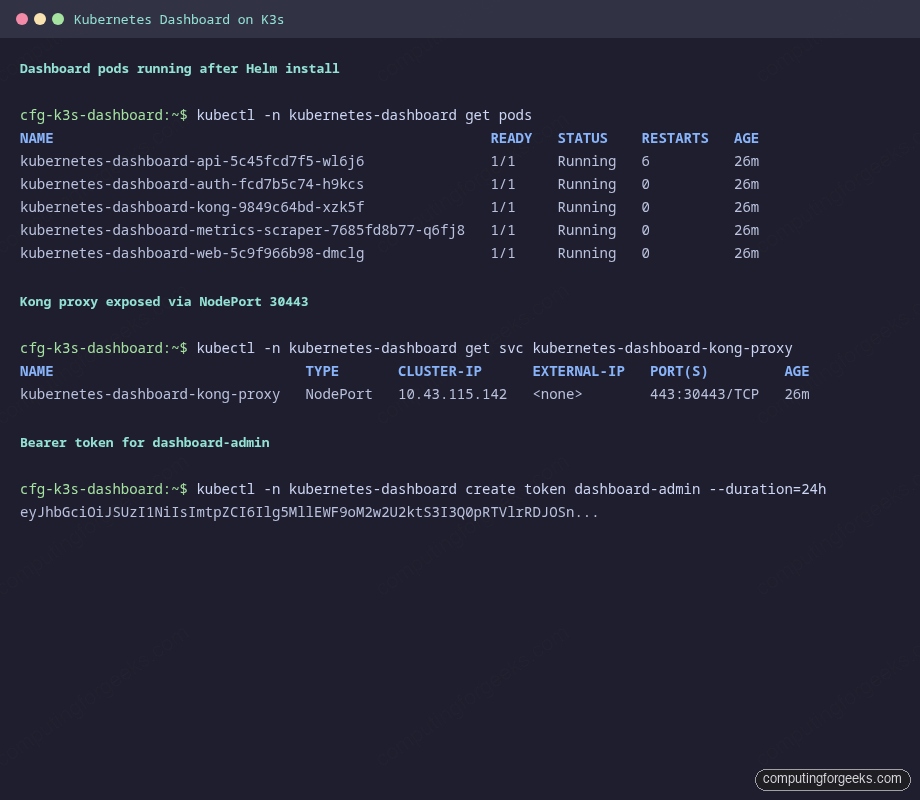
If any pod is stuck in ImagePullBackOff, your node cannot reach the Docker Hub mirror. If a pod is CrashLoopBackOff, check for missing kernel modules with journalctl -u k3s | grep iptables. On Rocky Linux 10.1, kernel-modules-extra is sometimes a separate install.
Step 4: Create a cluster-admin ServiceAccount and token
The chart does not create an admin user. Dashboard authenticates with a Kubernetes bearer token, so you need a ServiceAccount that the API server accepts. Build one with a ClusterRoleBinding to cluster-admin for lab use. Write the manifest to a file rather than piping a heredoc, since WordPress and several terminal emulators mangle heredoc paste:
sudo tee /tmp/dashboard-admin.yaml >/dev/null << 'YAML'
apiVersion: v1
kind: ServiceAccount
metadata:
  name: dashboard-admin
  namespace: kubernetes-dashboard
---
apiVersion: rbac.authorization.k8s.io/v1
kind: ClusterRoleBinding
metadata:
  name: dashboard-admin-binding
roleRef:
  apiGroup: rbac.authorization.k8s.io
  kind: ClusterRole
  name: cluster-admin
subjects:
  - kind: ServiceAccount
    name: dashboard-admin
    namespace: kubernetes-dashboard
YAML
Apply it:
kubectl apply -f /tmp/dashboard-admin.yamlFor shared or production clusters, scope the role down. Bind the ServiceAccount to a namespace-only Role instead of cluster-admin, or use the project’s Access Control wiki as a starting point. A leaked cluster-admin dashboard token is a cluster takeover.
Generate a 24-hour bearer token:
kubectl -n "${DASH_NS}" create token "${DASH_SA}" --duration=24hCopy the long JWT string that prints. You paste it into the dashboard login page in Step 6. A 24-hour duration is enough for a full working day without leaving a long-lived credential around.
If you want a stable token for a lab scratchpad, create a Secret bound to the ServiceAccount. Kubernetes will never auto-rotate this one, so treat it carefully:
kubectl -n "${DASH_NS}" apply -f - << 'YAML'
apiVersion: v1
kind: Secret
metadata:
  name: dashboard-admin-token
  namespace: kubernetes-dashboard
  annotations:
    kubernetes.io/service-account.name: dashboard-admin
type: kubernetes.io/service-account-token
YAML
kubectl -n "${DASH_NS}" get secret dashboard-admin-token -o jsonpath='{.data.token}' | base64 -d; echo
Step 5: Expose the Dashboard via NodePort on 30443
The chart installs kubernetes-dashboard-kong-proxy as a ClusterIP Service listening on 443 inside the cluster. To reach it from a workstation on the same network, flip that service to NodePort and pin the node port at 30443 for a predictable URL:
kubectl -n "${DASH_NS}" patch svc kubernetes-dashboard-kong-proxy \
  --type='json' \
  -p='[{"op":"replace","path":"/spec/type","value":"NodePort"},
       {"op":"add","path":"/spec/ports/0/nodePort","value":30443}]'
Verify the service type flipped and the node port landed on 30443:
kubectl -n "${DASH_NS}" get svc kubernetes-dashboard-kong-proxyThe output should show TYPE: NodePort and PORT(S): 443:30443/TCP. If you picked a port already in use, kubectl returns an AlreadyExists error. Pick a different port in the 30000-32767 range and retry.
Open the NodePort on every node’s host firewall. On RHEL/Rocky/AlmaLinux with firewalld:
sudo firewall-cmd --permanent --add-port="${DASH_NODEPORT}/tcp"
sudo firewall-cmd --reload
On Ubuntu/Debian with ufw:
sudo ufw allow "${DASH_NODEPORT}/tcp"K3s and minimal Rocky images often ship without a host firewall service, so these commands may be no-ops. That is fine. Confirm the port is reachable from the node itself first:
curl -sk -o /dev/null -w 'HTTP %{http_code}\n' "https://${DASH_NODE_IP}:${DASH_NODEPORT}/"An HTTP 200 means Kong is listening and serving the login HTML. An HTTP 000 with connection refused usually means kube-proxy did not program iptables. The common root cause on Rocky 10 is missing kernel modules. Install them, load them, and restart K3s:
sudo dnf install -y "kernel-modules-extra-$(uname -r)"
sudo modprobe xt_comment xt_conntrack xt_mark xt_nat iptable_nat iptable_mangle
echo -e 'xt_comment\nxt_conntrack\nxt_mark\nxt_nat\niptable_nat\niptable_mangle' \
  | sudo tee /etc/modules-load.d/k3s.conf
sudo systemctl restart k3s
Step 6: Log in to the Dashboard
Open a browser on a machine that can reach the node’s IP. Accept the self-signed certificate warning once. The URL is:
https://NODE_IP:30443/The login page loads. There are two fields: Bearer token and Kubeconfig. Use the bearer token one: paste the JWT from Step 4 and click Sign in.
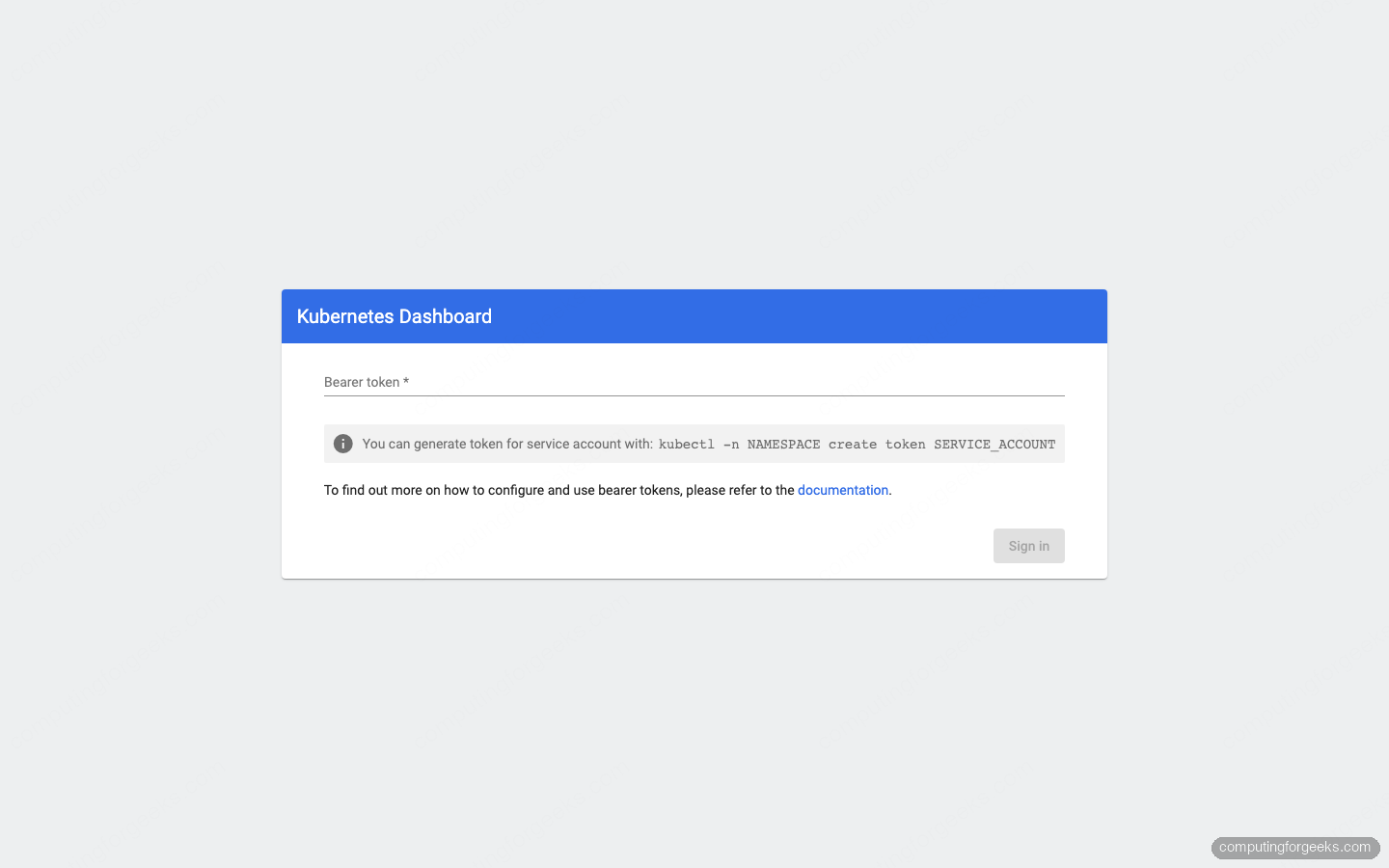
Wrong token? Dashboard shows “Invalid credentials provided” under the input. Re-run the kubectl -n "${DASH_NS}" create token command and paste the new JWT. Short-lived tokens expire; that is a feature, not a bug.
Step 7: Deploy a demo workload and verify the UI
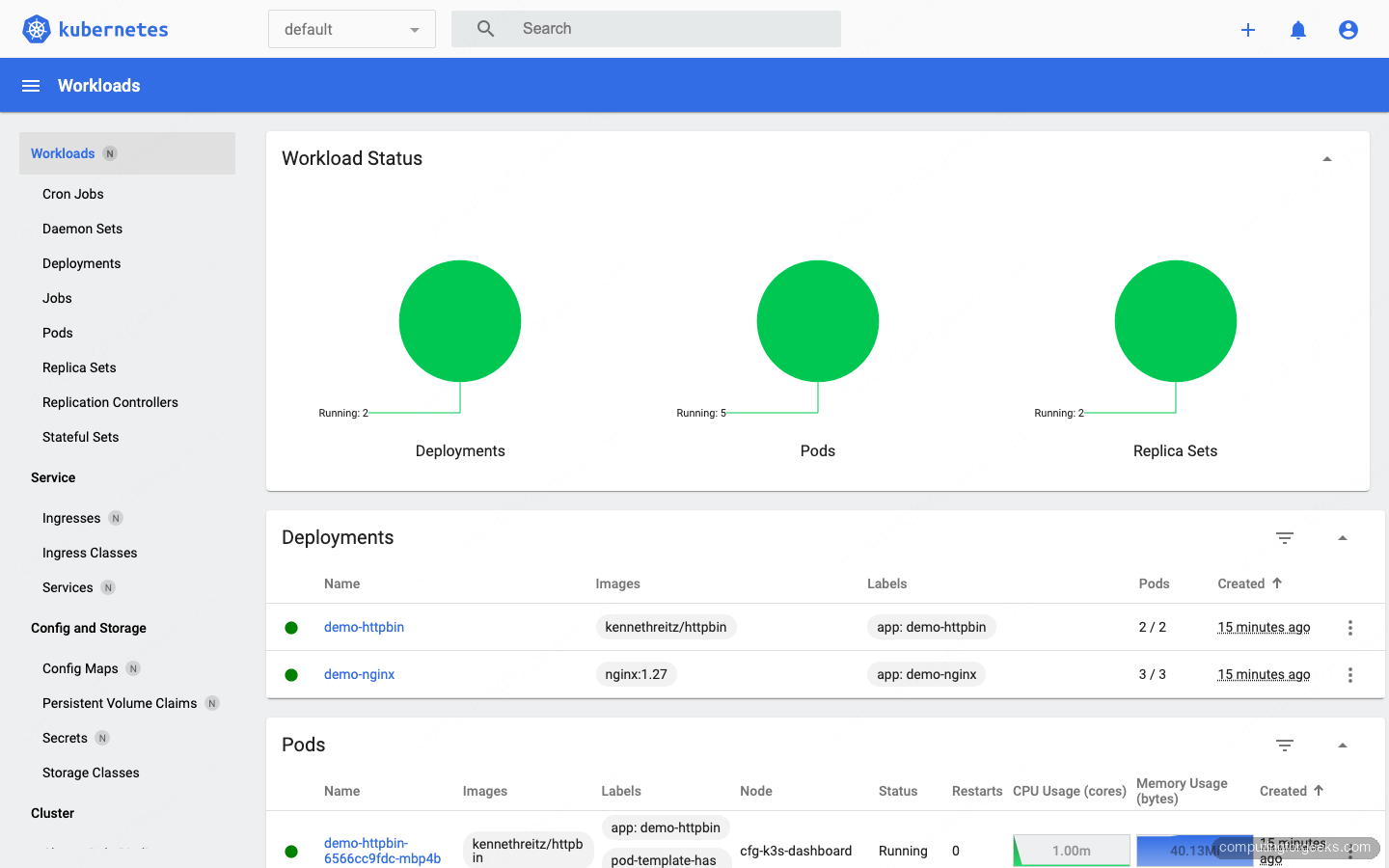
An empty dashboard is not very convincing. Drop a couple of demo deployments into the default namespace so the charts and tables light up:
kubectl create deployment demo-nginx --image=nginx:1.27 --replicas=3
kubectl expose deployment demo-nginx --port=80
kubectl create deployment demo-httpbin --image=kennethreitz/httpbin --replicas=2
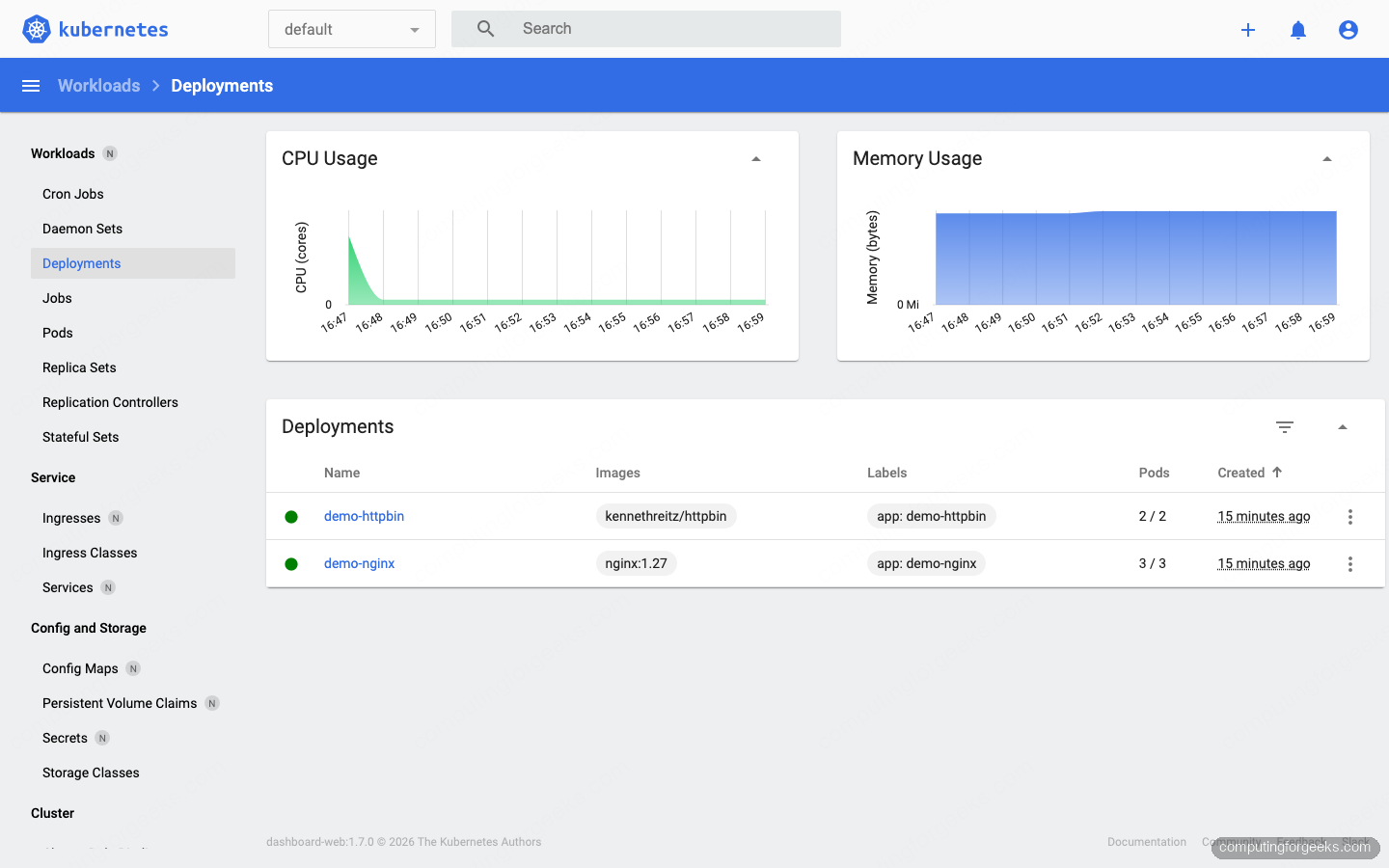
Wait a few seconds for pods to move to Running, then refresh the dashboard. Pick default in the top namespace selector. The Workloads view shows the two new deployments, their ReplicaSets, and five running pods:
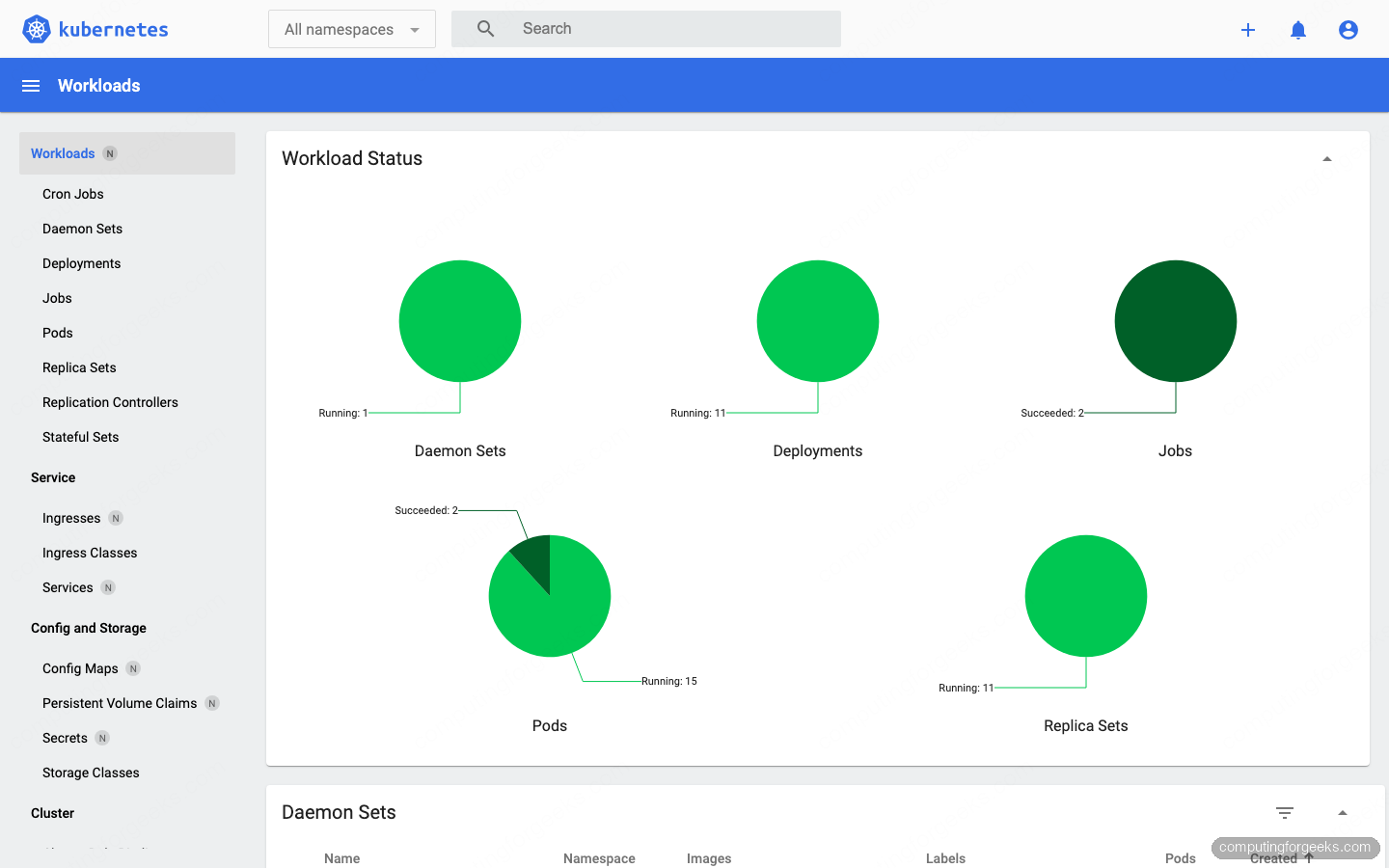
Switch the namespace selector to All namespaces. The Workload Status circles now include the Traefik ingress, CoreDNS, metrics-server, local-path-provisioner, and the dashboard itself. This is the fastest way to scan a fresh cluster for anything stuck pending or crash-looping:
Click into Workloads → Deployments. The detail view embeds CPU and Memory charts sourced from metrics-server, so they only render if kubectl top pod already works on the cluster. On K3s that is enabled by default:
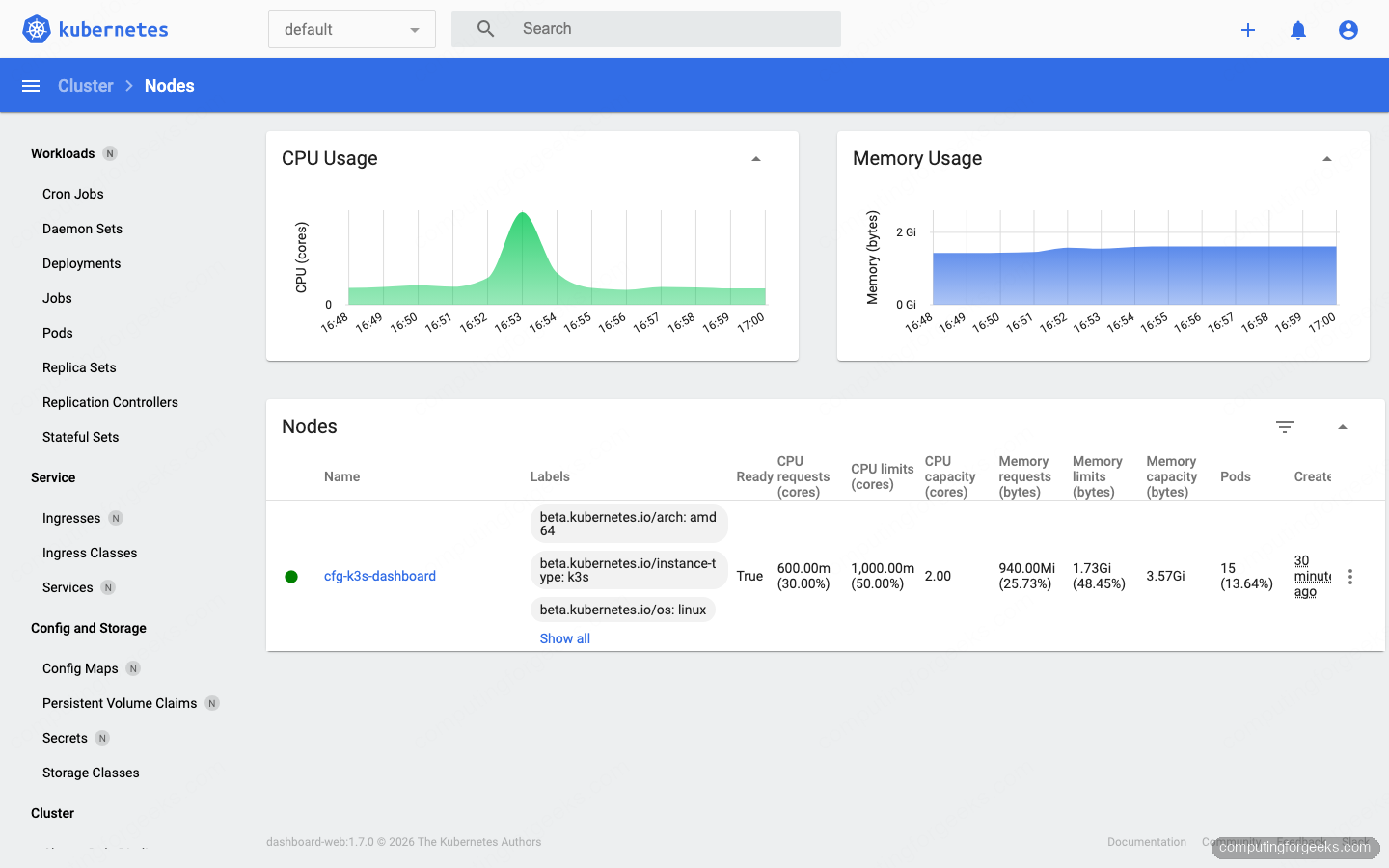
Jump to Cluster → Nodes to see per-node resource requests, limits, and capacity. On a single-node K3s lab the numbers are small, but the layout is the same on a 50-node production cluster:
Alternative exposure methods
NodePort is the simplest option for a single-team cluster on a trusted network. For other situations, two alternatives are worth knowing.
kubectl port-forward (laptop access only)
If the dashboard only needs to be reachable from the workstation running kubectl, skip NodePort entirely and tunnel through the Kubernetes API server:
kubectl -n "${DASH_NS}" port-forward svc/kubernetes-dashboard-kong-proxy 8443:443Open https://localhost:8443 in the browser. Nothing is exposed on the node itself, so this is the safest option for a dashboard you only use occasionally.
Ingress with TLS (production)
For a stable URL with a real TLS cert, front the Kong proxy with an Ingress controller and cert-manager. The backend service name is kubernetes-dashboard-kong-proxy on port 443:
kubectl -n "${DASH_NS}" apply -f - << 'YAML'
apiVersion: networking.k8s.io/v1
kind: Ingress
metadata:
  name: kubernetes-dashboard
  annotations:
    nginx.ingress.kubernetes.io/backend-protocol: "HTTPS"
    cert-manager.io/cluster-issuer: "letsencrypt-prod"
spec:
  ingressClassName: nginx
  tls:
    - hosts: ["dashboard.example.com"]
      secretName: dashboard-tls
  rules:
    - host: dashboard.example.com
      http:
        paths:
          - path: /
            pathType: Prefix
            backend:
              service:
                name: kubernetes-dashboard-kong-proxy
                port:
                  number: 443
YAML
Once cert-manager issues the Let’s Encrypt cert, the dashboard is reachable at https://dashboard.example.com/ with a valid TLS chain. Protect it with an auth proxy (OAuth2 Proxy, Authelia, Pomerium) because the bearer-token form alone is not a production front door.
Differences from Dashboard v2 (what changed)
Guides written before 2024 frequently reference the old kubernetes-dashboard single-container deployment with the --enable-skip-login flag. That is gone. Here is what actually moved:
- Helm-only installation. The
recommended.yamlstatic manifest is no longer shipped. You must use Helm. - Multi-pod architecture. v7 splits the old single binary into
api,auth,web,kong(gateway), andmetrics-scraper. The first three pods can restart independently, which makes debugging cleaner. - Kong gateway in front. External traffic hits the
kubernetes-dashboard-kong-proxyservice, notkubernetes-dashboard. Old NodePort or Ingress manifests that target thekubernetes-dashboardservice break silently. - No skip-login option. A bearer token or kubeconfig is required. Anonymous access is gone.
- Repo URL change. The chart moved from
kubernetes.github.io/dashboard/tokubernetes-retired.github.io/dashboard/after the January 2026 archive.
Hardening checklist for a shared cluster
- Drop cluster-admin for human users. Bind per-user ServiceAccounts to a namespace Role that only lets them view the workloads they own.
- Put the dashboard behind a VPN or auth proxy. OAuth2 Proxy + OIDC in front of the Ingress is the common pattern. NodePort on a public-facing node is not acceptable even with a short-lived token.
- Use short-lived tokens everywhere.
kubectl create token --duration=4hfor day-to-day use. Do not commit long-lived ServiceAccount tokens to a password manager. - Enable Kubernetes audit logging. Every dashboard action becomes an API call against the API server. Audit logs are the only way to see who edited which workload through the UI.
- Review the NodePort scope. NodePort opens the port on every node. If the cluster spans multiple VLANs or cloud subnets, firewall each node accordingly, not just the one you usually hit.
Alternatives worth knowing
Dashboard v7 is the last release from the archived upstream. Several mature projects have taken its place for different audiences:
- Headlamp. The Kubernetes project’s recommended successor. Installs in-cluster like Dashboard or as a desktop app. Active development, plugin system, multi-cluster out of the box.
- K9s. Terminal-based, not a web UI. Once you learn the keybindings, triaging a 200-pod namespace is faster than clicking in a browser.
- Lens / OpenLens. Desktop application. Connects directly with your kubeconfig, no in-cluster deployment, useful when you manage many clusters.
- Rancher. Heavier, for teams running dozens of clusters and wanting RBAC, UI, and catalog tooling bundled.
If you are starting a greenfield setup today, Headlamp is the safer long-term bet. If you already run Dashboard v7, the guide above keeps it working.
Troubleshooting
Error: “looks like "https://kubernetes.github.io/dashboard/" is not a valid chart repository”
The old URL stopped serving index.yaml after the repo was archived. Remove the broken entry and add the retired URL:
helm repo remove kubernetes-dashboard 2>/dev/null || true
helm repo add kubernetes-dashboard https://kubernetes-retired.github.io/dashboard/
helm repo update
Error: “Invalid credentials provided”
The token you pasted is either expired, belongs to a ServiceAccount without a ClusterRoleBinding, or was truncated on copy. Regenerate cleanly:
kubectl -n "${DASH_NS}" create token "${DASH_SA}" --duration=24h | tr -d '\n' > ~/dashboard-token.txt
wc -c ~/dashboard-token.txt
A valid JWT is around 900-1100 bytes. If you see something much shorter, the ServiceAccount or binding is missing.
Error: “iptables v1.8.11 (nf_tables): Warning: Extension comment revision 0 not supported”
Seen on fresh Rocky Linux 10.1 with K3s. kube-proxy cannot program NodePort rules because xt_comment and other xt_* kernel modules are missing. Install the matching kernel-modules-extra package, load the modules, and restart K3s:
sudo dnf install -y "kernel-modules-extra-$(uname -r)"
sudo modprobe xt_comment xt_conntrack xt_mark xt_nat iptable_nat iptable_mangle
sudo systemctl restart k3s
After this, curl -sk https://NODE_IP:30443/ returns HTTP 200 within a few seconds.
Dashboard loads but all pages show “forbidden” or “Unauthorized”
The token works but the ServiceAccount does not have the required RBAC. Double-check the ClusterRoleBinding subject matches the token’s ServiceAccount exactly:
kubectl get clusterrolebinding dashboard-admin-binding -o yaml | grep -A3 subjectsIf the namespace or name under subjects does not match what you used with kubectl create token, the API server rejects every action. Re-apply the ServiceAccount manifest from Step 4 and regenerate the token.
Uninstalling the Dashboard
Removal is a single Helm command plus the namespace. Delete the ServiceAccount and binding too, or they stick around:
helm uninstall kubernetes-dashboard -n "${DASH_NS}"
kubectl delete clusterrolebinding dashboard-admin-binding
kubectl delete ns "${DASH_NS}"
Confirm nothing is left:
kubectl get ns "${DASH_NS}" 2>&1 | grep -E 'NotFound|not found' && echo "cleaned"That is the full loop: install the chart from the new retired URL, expose the Kong proxy on NodePort 30443, generate a token, and use the web UI with real data in front of you. If you were running the old Dashboard v2 or hitting the dead Helm URL, you now have a current, tested path forward while the ecosystem shifts to Headlamp.




kubectl apply -f https://raw.githubusercontent.com/kubernetes/dashboard/master/aio/deploy/recommended.yaml
error: unable to read URL “https://raw.githubusercontent.com/kubernetes/dashboard/master/aio/deploy/recommended.yaml”, server reported 404 Not Found, status code=404
Use this to apply the latest version:
# VER=$(curl -s https://api.github.com/repos/kubernetes/dashboard/releases/latest|grep tag_name|cut -d ‘”‘ -f 4)
#kubectl apply -f https://raw.githubusercontent.com/kubernetes/dashboard/$VER/aio/deploy/recommended.yaml