Data work on a fresh Rocky Linux 10 box starts the same way every time. You need R, a handful of common packages, and a browser-based IDE the team can reach without messing around with X11 forwarding. This guide walks the full path on Rocky Linux 10.1: R 4.5 from EPEL, RStudio Server from Posit’s official RPM, a test user, the firewalld rule, and the SELinux posture checks you actually want to run before handing the URL to anyone.
The steps apply identically to AlmaLinux 10 and RHEL 10 since all three share the same AppStream and EPEL channel. Rocky 9 and AlmaLinux 9 still work with the same flow if you pull the RStudio Server RPM built for rhel9. The command flow below is identical except for the dotted versions you’ll see in R --version and rstudio-server version.
Tested April 2026 on Rocky Linux 10.1 (kernel 6.12) with R 4.5.3 from EPEL, RStudio Server 2025.09 from the Posit rhel9 build, firewalld, and SELinux enforcing. Same flow verified on AlmaLinux 10 and RHEL 10.
What you’ll end up with
R installed from EPEL with its full development headers so packages with native code (Rcpp, data.table, sf) compile cleanly. RStudio Server 2025.09 listening on TCP 8787, backed by PAM for user login so you manage access with standard useradd rather than a separate credential store. A firewalld port rule on 8787 and, optionally, an nginx reverse proxy that terminates Let’s Encrypt TLS in front of the IDE.
The Posit-built RPM targets rhel9 and installs cleanly on Rocky 10 because the ABI stayed compatible between RHEL 9 and 10 for the glibc and Qt dependencies RStudio uses. There is no dedicated rhel10 build yet, and there does not need to be one.
Prerequisites
- Rocky Linux 10.1, AlmaLinux 10, or RHEL 10 with sudo/root access. A DigitalOcean droplet with 4 GB RAM ($24/month) is enough for a single-user RStudio Server plus the tidyverse.
- At least 2 GB RAM for R alone. Give it 4 GB if you plan to install tidyverse, which compiles a lot of native code.
- 10 GB free disk space. R plus system packages plus a few CRAN libraries averages 1.5 GB. Users’ projects and cached datasets will be on top.
- TCP port 8787 reachable from the workstations that need web access. If the server is on a public IP, you will want TLS in front of it.
- A password manager for the user credentials you’re about to create. 1Password Business handles team sharing cleanly; avoid plain text notes.
Step 1: Set reusable shell variables
Most commands below repeat the same RStudio username, port, and download URL. Export them once at the top of your SSH session so you can paste the rest verbatim:
export RSTUDIO_USER="rstudiouser"
export RSTUDIO_PASS="ChangeMe#Strong2026"
export RSTUDIO_PORT="8787"
export RSTUDIO_RPM_URL="https://download2.rstudio.org/server/rhel9/x86_64/rstudio-server-rhel-2025.09.0-387-x86_64.rpm"
Swap the password for something random, then confirm the variables resolve:
echo "User:  ${RSTUDIO_USER}"
echo "Port:  ${RSTUDIO_PORT}"
echo "RPM:   ${RSTUDIO_RPM_URL}"
Variables only live for this shell. If you drop into sudo -i or reconnect, re-export before continuing. For the RStudio Server RPM URL, Posit publishes the latest stable on posit.co/download/rstudio-server. The rhel9 build runs on Rocky 10, and later point releases keep the same URL shape.
Step 2: Enable EPEL and CRB
The R metapackage lives in EPEL. EPEL pulls a handful of build dependencies from CRB (CodeReady Builder), which is disabled by default on Rocky 10. Enable both:
sudo dnf install -y epel-release
sudo dnf config-manager --set-enabled crb
sudo dnf makecache
On RHEL 10 the equivalent commands are subscription-manager repos --enable codeready-builder-for-rhel-10-$(arch)-rpms plus the epel-release install. AlmaLinux 10 is identical to Rocky 10. If this box will also host a local Python stack for handing CSVs between pandas and R, the Python on Rocky Linux guide covers 3.12 and 3.13 from the same AppStream.
Step 3: Install R from EPEL
With EPEL and CRB enabled, the R metapackage and dev headers are a single dnf transaction:
sudo dnf install -y R R-develThe transaction pulls around 200 packages the first time, mostly LaTeX and JRE runtime bits required by R’s help and javareconf. Once it finishes, confirm the version:
R --versionYou should see the current R from EPEL with the platform line showing x86_64-redhat-linux-gnu:
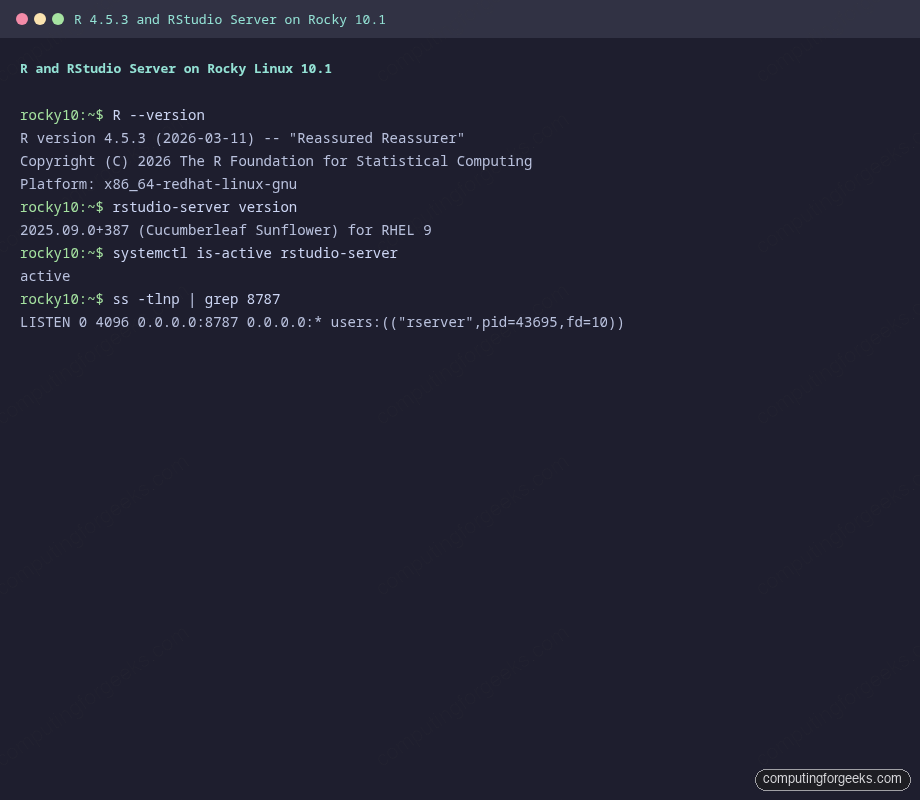
R version 4.5.3 (2026-03-11) -- "Reassured Reassurer"
Copyright (C) 2026 The R Foundation for Statistical Computing
Platform: x86_64-redhat-linux-gnu
Check the session info from a non-interactive R invocation. This is the exact output you’d want attached to a bug report, so it’s worth running once to confirm everything links cleanly:
echo 'print(R.version.string); sessionInfo()' | R --no-save --quietThe BLAS/LAPACK line shows FlexiBLAS with the OpenBLAS backend on Rocky 10, which matters for anyone running heavy linear algebra:
R version 4.5.3 (2026-03-11)
Platform: x86_64-redhat-linux-gnu
Running under: Rocky Linux 10.1 (Red Quartz)

Matrix products: default
BLAS/LAPACK: FlexiBLAS OPENBLAS-OPENMP;  LAPACK version 3.11.0

locale:
 [1] LC_CTYPE=en_US.UTF-8       LC_NUMERIC=C
 [3] LC_TIME=en_US.UTF-8        LC_COLLATE=en_US.UTF-8
 [5] LC_MONETARY=en_US.UTF-8    LC_MESSAGES=en_US.UTF-8

time zone: Africa/Nairobi
tzcode source: system (glibc)
FlexiBLAS lets you swap BLAS backends at runtime with flexiblas switch, which is useful when a specific workload needs MKL or reference BLAS for reproducibility.
Step 4: Install common R packages
Most data teams want ggplot2 and dplyr available from day one. A minimal sanity install also confirms the build toolchain pulled by CRB is intact:
sudo R -e 'install.packages(c("ggplot2","dplyr"), repos="https://cloud.r-project.org")'Running this as root puts the libraries under /usr/lib64/R/library where every user on the box can read them. If you prefer per-user libraries, drop the sudo and R will offer to create ~/R/x86_64-redhat-linux-gnu-library/4.5.
A quick end-to-end test confirms both libraries load and the data frame pipeline works:
R -e 'library(ggplot2); library(dplyr); df <- data.frame(x=1:5, y=c(2,4,6,8,10)); df %>% mutate(z = x + y)'The output shows dplyr attaching its masked operators and the mutated frame:
Attaching package: 'dplyr'

The following objects are masked from 'package:stats':

    filter, lag

  x  y  z
1 1  2  3
2 2  4  6
3 3  6  9
4 4  8 12
5 5 10 15
For tidyverse as a whole, run sudo R -e 'install.packages("tidyverse", repos="https://cloud.r-project.org")'. The first install of tidyverse compiles around 110 source packages and runs 10 to 20 minutes on a 2 vCPU box. If that timing matters, allocate a bigger VM for the initial setup and scale back once the libraries are cached.
Step 5: Install RStudio Server from Posit
RStudio Server isn’t in EPEL. Posit ships an official .rpm per RHEL major version. The rhel9 build installs cleanly on Rocky 10 because glibc and Qt ABI compatibility carried through from RHEL 9 to 10.
Download the package the same way you’d download any release binary, using wget for the retry and progress behavior:
cd /tmp
wget "${RSTUDIO_RPM_URL}" -O rstudio-server.rpm
ls -lh rstudio-server.rpm
The file is around 140 MB. Install it with dnf so all transitive dependencies from EPEL resolve in one shot:
sudo dnf install -y /tmp/rstudio-server.rpmThe RPM post-install script creates the rstudio-server systemd unit, drops config files in /etc/rstudio/, and starts the service. Confirm the install:
rstudio-server versionOutput shows the Posit build with its codename and target distro. The codename changes per release, which is handy for matching against release notes:
2025.09.0+387 (Cucumberleaf Sunflower) for RHEL 9Step 6: Enable and verify the service
The post-install already started the service, but enable it so it survives a reboot:
sudo systemctl enable --now rstudio-server
sudo systemctl status rstudio-server --no-pager
Expected output shows the rserver process running and listening:
● rstudio-server.service - RStudio Server
     Loaded: loaded (/usr/lib/systemd/system/rstudio-server.service; enabled; preset: disabled)
     Active: active (running) since Sat 2026-04-18 21:16:38 EAT; 10s ago
    Process: 43694 ExecStart=/usr/lib/rstudio-server/bin/rserver (code=exited, status=0/SUCCESS)
   Main PID: 43695 (rserver)
      Tasks: 8 (limit: 10852)
     Memory: 9.1M (peak: 50.7M)
     CGroup: /system.slice/rstudio-server.service
             └─43695 /usr/lib/rstudio-server/bin/rserver
You may spot an ERROR system error 2 (No such file or directory) [path: /etc/rstudio/database.conf] line in the startup log. This is harmless on a default install: RStudio Server tries to write back defaults to database.conf on first start, falls back to SQLite under /var/lib/rstudio-server, and runs fine. To silence the log line, uncomment the sqlite block in /etc/rstudio/database.conf and restart the service.
Confirm the listener is on TCP 8787:
ss -tlnp | grep 8787Output shows rserver bound to all interfaces:
LISTEN 0 4096 0.0.0.0:8787 0.0.0.0:* users:(("rserver",pid=43695,fd=10))A real-browser-simulating curl returns a redirect to the login page (the unsupported_browser.htm redirect on the bare curl call is expected because RStudio parses User-Agent):
curl -sI -H 'User-Agent: Mozilla/5.0' http://localhost:8787/ | head -3The response confirms the sign-in page is reachable:
HTTP/1.1 200 OK
Content-Type: text/html
On Rocky 10 with SELinux enforcing, RStudio Server runs with context unconfined_service_t by default and writes its session data under /var/lib/rstudio-server, which already has the correct context. Check for AVC denials to confirm:
sudo ausearch -m avc -ts recent 2>&1 | grep -i rstudioEmpty output is the result you want. If you later move /var/lib/rstudio-server to a non-default path, run sudo semanage fcontext -a -t var_lib_t "/new/path(/.*)?" followed by sudo restorecon -Rv /new/path before restarting the service.
Step 7: Create a login user
RStudio Server authenticates against PAM, so any Unix user with a valid shell and password can log in. Create one for testing:
sudo useradd -m -s /bin/bash "${RSTUDIO_USER}"
echo "${RSTUDIO_USER}:${RSTUDIO_PASS}" | sudo chpasswd
id "${RSTUDIO_USER}"
The output confirms the user has its own UID/GID:
uid=1001(rstudiouser) gid=1001(rstudiouser) groups=1001(rstudiouser)To restrict RStudio login to a specific group instead of every local user, edit /etc/rstudio/rserver.conf and add auth-required-user-group=rstudio-users, then sudo groupadd rstudio-users and sudo usermod -aG rstudio-users "${RSTUDIO_USER}". The default (all users) is fine on a single-team box, but shared infrastructure benefits from the group gate.
Step 8: Open port 8787 in firewalld
Rocky 10 ships firewalld running and enforcing. Add the RStudio Server port permanently and reload:
sudo firewall-cmd --add-port=${RSTUDIO_PORT}/tcp --permanent
sudo firewall-cmd --reload
sudo firewall-cmd --list-ports
The open ports list now includes 8787. If you only want access from specific source IPs, drop the broad port rule and use a rich rule instead:
sudo firewall-cmd --permanent --add-rich-rule='rule family="ipv4" source address="10.0.1.0/24" port protocol="tcp" port="8787" accept'
sudo firewall-cmd --reload
From another box on the network, reach the IDE at http://SERVER_IP:8787/ and log in with the user you just created. The default UI greets you with a session pane, a file browser on the home directory, and the R console attached to the system R.
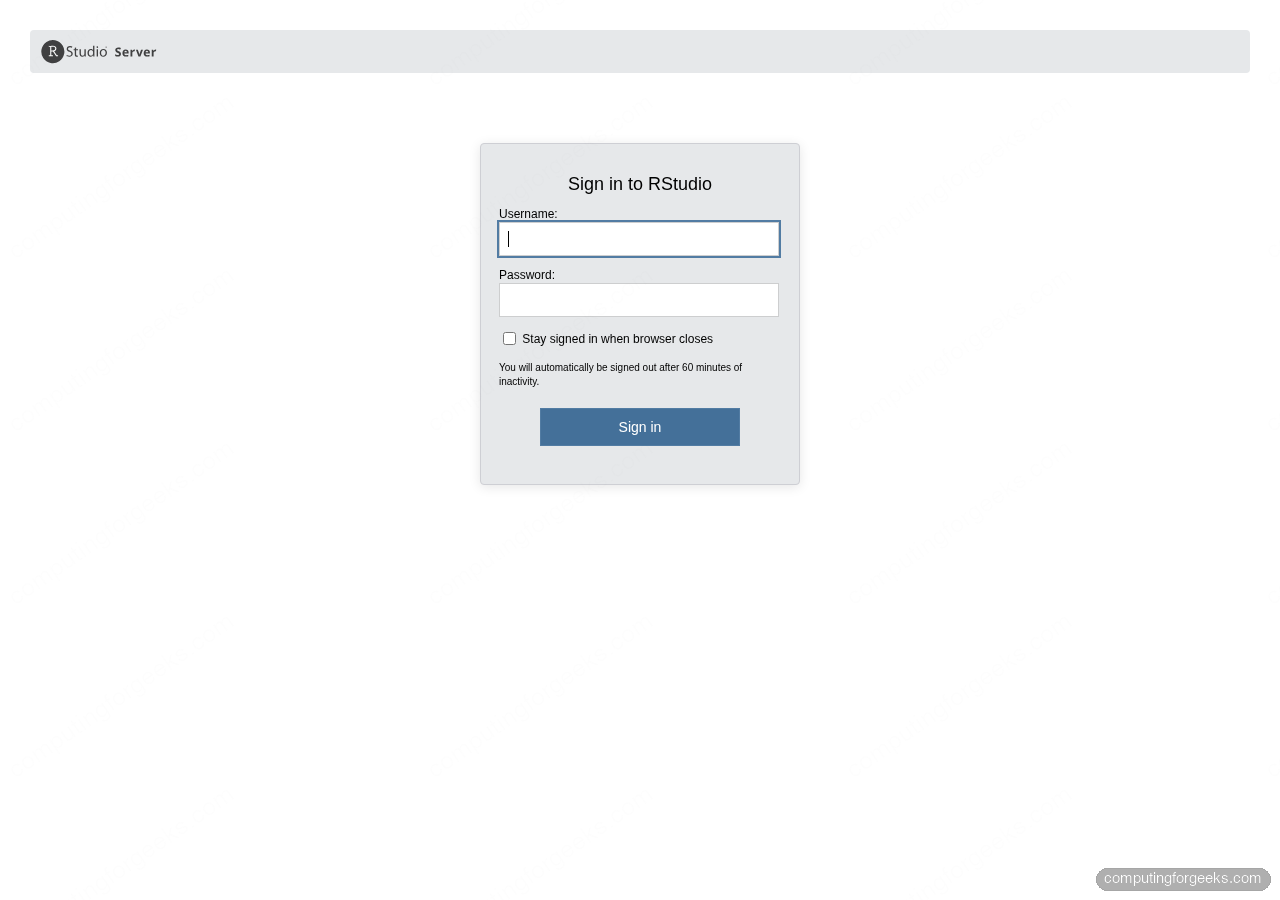
The sign-in page itself is minimal: a username field, a password field, and a “Stay signed in” checkbox. PAM decides what to do with the credentials, so any Unix account that can open a login shell gets in:
Step 9: Harden access with TLS or an SSH tunnel
An exposed RStudio Server on plain HTTP is fine on a lab VLAN and unacceptable on the open internet. Two practical options:
Option A: SSH tunnel (simplest, no cert needed)
From your workstation, forward local port 8787 to the server’s RStudio:
ssh -N -L 8787:localhost:8787 [email protected]Leave that session open and browse to http://localhost:8787 on your laptop. Traffic is encrypted by SSH and the server never needs to listen on a public interface. For a jump-host audience, Tailscale replaces the public-IP-plus-SSH-tunnel dance with zero-config WireGuard.
Option B: Nginx reverse proxy with Let’s Encrypt TLS
For a multi-user setup with a proper hostname, front RStudio with nginx and let certbot handle the cert. Install nginx first:
sudo dnf install -y nginx certbot python3-certbot-nginx
sudo systemctl enable --now nginx
sudo firewall-cmd --add-service={http,https} --permanent
sudo firewall-cmd --reload
Open a new server block for the RStudio hostname:
sudo vi /etc/nginx/conf.d/rstudio.confPaste the following, swapping the server name for your own A record:
server {
    listen 80;
    server_name rstudio.example.com;

    location / {
        proxy_pass http://127.0.0.1:8787;
        proxy_http_version 1.1;
        proxy_set_header Upgrade $http_upgrade;
        proxy_set_header Connection "upgrade";
        proxy_read_timeout 20d;
        proxy_set_header Host $host;
        proxy_set_header X-Real-IP $remote_addr;
        proxy_set_header X-Forwarded-For $proxy_add_x_forwarded_for;
        proxy_set_header X-Forwarded-Proto $scheme;
    }
}
The Upgrade and Connection headers are required for RStudio’s WebSocket connection; without them the IDE loads but fails on every keystroke. Reload nginx and run certbot:
sudo nginx -t
sudo systemctl reload nginx
sudo certbot --nginx -d rstudio.example.com --non-interactive --agree-tos -m [email protected] --redirect
Certbot issues a cert via the HTTP-01 challenge, rewrites the nginx block to add listen 443 ssl, and installs a 301 redirect from port 80. The renewal hook is already wired up by the certbot.timer systemd unit. For a deeper tour of the nginx + Let’s Encrypt flow on Rocky, the Graylog reverse proxy guide covers every dial including SELinux booleans and tighter cipher suites.
Step 10: Tune rserver.conf
The default /etc/rstudio/rserver.conf is empty. For a shared server you want to cap concurrent sessions, set an idle timeout so orphaned R sessions don’t pin memory, and lock the listen address:
sudo vi /etc/rstudio/rserver.confAdd a practical starter set:
# Listen only on loopback when you run nginx in front of it
www-address=127.0.0.1
www-port=8787

# Restrict login to one group
auth-required-user-group=rstudio-users

# Session limits
auth-timeout-minutes=30
auth-stay-signed-in-days=14
rsession-memory-limit-mb=2048

# Let R's gc be aggressive when idle
rsession-which-r=/usr/bin/R
Restart for the change to take effect:
sudo systemctl restart rstudio-serverThe full directive list is in the Posit admin guide. For team deployments, the directives worth knowing beyond the above are auth-pam-sessions-use-password (affects how child processes inherit credentials), server-daemonize (change only when debugging), and the rsession-ld-preload escape hatch for forcing a specific BLAS implementation.
Version notes for Rocky 9 and AlmaLinux 9
Rocky 9 and AlmaLinux 9 take the exact same flow with two tweaks. The crb repo is there by default and just needs enabling, same as Rocky 10. The RStudio Server RPM URL is identical because rhel9 is the native build for those distros. R from EPEL on 9 is the same 4.5 line at the time of writing.
If you’re still on Rocky 8 or AlmaLinux 8, EPEL ships R 4.1 and the Posit rhel8 RPM installs. Rocky 8 reaches end of maintenance soon, so plan the jump to Rocky 10.1 or a fresh install with this guide rather than a distro upgrade.
Troubleshooting
Error: “system error 2 (No such file or directory) [path: /etc/rstudio/database.conf]”
This appears in systemctl status on a fresh install and is cosmetic. RStudio tries to write defaults back to database.conf, can’t because the file is a comments-only template, and falls back to SQLite under /var/lib/rstudio-server. Uncomment the three lines under the sqlite section of /etc/rstudio/database.conf to silence it:
provider=sqlite
directory=/var/lib/rstudio-server
Restart the service. The warning disappears and nothing else changes.
Browser loads the sign-in page but “stays offline” after login
This is a WebSocket issue and happens when nginx is in front of RStudio without the Upgrade/Connection headers. Confirm the headers are in your nginx server block (Step 9 Option B shows the correct ones). If you’re using Cloudflare in front of nginx, the WebSocket also needs to pass through: in the Cloudflare dashboard, Network → WebSockets = On.
Error: “unable to connect to service” on first load
Check systemctl status rstudio-server first. If it reports exited with a non-zero code, run rstudio-server verify-installation (stop the service first because verify-installation won’t run against a live server). The tool exits with a line-by-line diagnostic and identifies the most common problem, which is PAM rejecting the test login because the user has no valid shell.
R package install fails with “ERROR: compilation failed for package ‘xml2′”
Native compiles need the dev headers for whatever system library the CRAN package binds to. Install the dev packages for the most common offenders upfront:
sudo dnf install -y libxml2-devel libcurl-devel openssl-devel fontconfig-devel \
  harfbuzz-devel fribidi-devel freetype-devel libpng-devel libtiff-devel \
  libjpeg-turbo-devel cairo-devel libgit2-devel
That set covers xml2, curl, openssl, systemfonts, textshaping, ragg, png, tiff, jpeg, cairo, and gert. Most CRAN installs that fail on a fresh Rocky box are missing one of these. For the full tidyverse build, add libicu-devel for stringi and openblas-devel if you plan to run heavy linear algebra.
Where to go from here
RStudio Server is now running, reachable, and PAM-backed. Two natural follow-ups from here: if the team is comfortable in Python as well as R, the Jupyter-for-data-science case explains why many shops run both side by side on the same box. If you need Java on this server for an H2O cluster or a Scala-based Spark driver, the OpenJDK on Rocky Linux 10 guide walks through the 21 LTS and 25 LTS builds that ship in the current AppStream. And if this is your first Rocky 10 box, the Rocky 10 post-install checklist has the remaining base-server hardening worth running once.
For heavier analysis loads, the FlexiBLAS default means you can switch to Intel MKL or reference BLAS with one command per session; this matters more than the R version for linear-algebra-heavy work. Benchmark your actual workload before spending time tuning. A Hetzner CCX33 dedicated-core instance runs most shared-team RStudio Server workloads well under $50/month.