

DSpace powers most of the world’s institutional repositories: universities, research libraries, museums, and government archives all run on it. Version 9.x ships a major rework with Solr 9, Angular 20, Spring Boot 6, and a hard cut of every Java 11 to 16 deployment. Any Ubuntu guide written for DSpace 7 or 8 is now stale enough to actively break a fresh install.
This guide walks through a complete DSpace 9.2 install on Ubuntu 26.04 LTS and Ubuntu 24.04 LTS. Same OpenJDK 21, same Solr 9.10, same Tomcat 10.1, same Angular 20 frontend behind Nginx and Let’s Encrypt SSL. Every command was executed top-to-bottom on a fresh VM of each release.
Last verified: May 2026 | Tested on Ubuntu 26.04 (PostgreSQL 18.4, Nginx 1.28.3) and Ubuntu 24.04 LTS (PostgreSQL 16.14, Nginx 1.24.0). Common stack: DSpace 9.2, OpenJDK 21, Solr 9.10.1, Tomcat 10.1.55, Node 22 LTS, Maven 3.9, Ant 1.10
Prerequisites
- A clean Ubuntu 26.04 or 24.04 LTS server with at least 4 vCPU and 12 GB RAM. Walk through the initial Ubuntu server setup first if this is a fresh install. The Maven backend build needs 2 GB and the Angular SSR build peaks at ~8 GB while PostgreSQL, Solr, and Tomcat are already running. An 8 GB VM OOM-killed the SSR build during testing on a sibling install, so size up before kicking off Step 11
- 50 GB free disk under
/optfor source, build artefacts, the assetstore, the Solr indexes, and the PostgreSQL data directory - A non-root user with
sudoprivileges - A domain or subdomain with an A record pointing at the server’s public IP for the SSL step (any DNS provider works because the article uses certbot’s HTTP-01 challenge)
- Tested on: Ubuntu 26.04 LTS (kernel 7.0, PostgreSQL 18.4) and Ubuntu 24.04.4 LTS (kernel 6.8, PostgreSQL 16.14)
Step 1: Set reusable shell variables
Every command below uses shell variables so you change one block at the top and paste the rest as-is. Export them at the start of your SSH session:
export DSPACE_DOMAIN="dspace.example.com"
export DSPACE_ADMIN_EMAIL="[email protected]"
export DSPACE_DB_NAME="dspace"
export DSPACE_DB_USER="dspace"
export DSPACE_DB_PASS="ChangeMe#Strong2026"
export DSPACE_INSTALL="/opt/dspace"
export DSPACE_SRC="/opt/dspace/src"
export DSPACE_UI="/opt/dspace-ui"

export DSPACE_VERSION="9.2" #https://github.com/DSpace/DSpace/releases
export SOLR_VERSION="9.10.1" #https://solr.apache.org/downloads.html
export TOMCAT_VERSION="10.1.55" #https://tomcat.apache.org/download-10.cgi
Swap the placeholder values for your real domain, admin email, and a strong database password, then confirm they are set before running anything else:
echo "Domain:   ${DSPACE_DOMAIN}"
echo "Admin:    ${DSPACE_ADMIN_EMAIL}"
echo "DB:       ${DSPACE_DB_NAME} / ${DSPACE_DB_USER}"
echo "Install:  ${DSPACE_INSTALL}"
echo "Versions: DSpace ${DSPACE_VERSION}, Solr ${SOLR_VERSION}, Tomcat ${TOMCAT_VERSION}"
Variables hold only for the current shell. If you reconnect, re-run the export block. For long-running installs you can also append the same lines to ~/.bashrc on a dedicated install user.
Step 2: Update the system and create the dspace user
Bring the box current and add a dedicated unprivileged user to own the DSpace install. Running services as the system root is the wrong default for a long-lived public repository.
sudo apt-get update
sudo DEBIAN_FRONTEND=noninteractive apt-get -y upgrade
sudo useradd -m -s /bin/bash dspace
echo "dspace:ChangeMe#Strong2026" | sudo chpasswd
sudo mkdir -p "${DSPACE_INSTALL}" /opt/downloads
sudo chown -R dspace:dspace "${DSPACE_INSTALL}"
The /opt/downloads directory keeps the Solr and Tomcat tarballs out of /tmp, which gets cleaned on every reboot.
Step 3: Install OpenJDK 21, Maven, Ant, and base packages
Both Ubuntu 26.04 and 24.04 LTS ship OpenJDK 21 in the default repos, which clears DSpace 9’s mandatory JDK 17+ requirement. Maven and Ant are also packaged: 26.04 ships Maven 3.9.12, Ant 1.10.15; 24.04 ships Maven 3.8.7 and Ant 1.10.14. Both clear the DSpace minimums (Maven 3.8.x, Ant 1.10.x).
If you need a different JDK build (Corretto, Temurin, Zulu) see the broader Java install guide for Ubuntu.
sudo apt-get -y install \
  openjdk-21-jdk maven ant git wget curl unzip tar \
  nginx ufw lsof procps \
  postgresql postgresql-contrib
Set JAVA_HOME system-wide so Tomcat, Solr, Maven, and Ant all use the same runtime:
sudo tee /etc/profile.d/java-home.sh >/dev/null <<'EOF'
export JAVA_HOME=/usr/lib/jvm/java-21-openjdk-amd64
export PATH=$JAVA_HOME/bin:$PATH
EOF
sudo chmod +x /etc/profile.d/java-home.sh
source /etc/profile.d/java-home.sh
Verify all four tools resolve and report the right versions:
java -version
mvn -v | head -3
ant -version
echo "JAVA_HOME=${JAVA_HOME}"
Expected output on Ubuntu 26.04 (versions on 24.04 differ slightly per the freshness block above):
openjdk version "21.0.11-ea" 2026-04-21
OpenJDK Runtime Environment (build 21.0.11-ea+8-Ubuntu-1)
OpenJDK 64-Bit Server VM (build 21.0.11-ea+8-Ubuntu-1, mixed mode, sharing)
Apache Maven 3.9.12
Maven home: /usr/share/maven
Java version: 21.0.11-ea, vendor: Ubuntu, runtime: /usr/lib/jvm/java-21-openjdk-amd64
Apache Ant(TM) version 1.10.15 compiled on January 13 2026
JAVA_HOME=/usr/lib/jvm/java-21-openjdk-amd64
The -ea suffix on the JDK on 26.04 means “early access”. Ubuntu ships the latest 21.x build under that label, and DSpace builds and runs cleanly against it.
Step 4: Configure PostgreSQL
DSpace 9 officially supports PostgreSQL 14.x through 17.x. Ubuntu 24.04 ships PostgreSQL 16.14 which is squarely in that range. Ubuntu 26.04 ships PostgreSQL 18.4, which is newer than the documented range; DSpace 9.2 still runs against it cleanly in testing, but if you want to stay inside the supported matrix add the upstream PostgreSQL APT repo and install postgresql-17 on either Ubuntu release. DSpace 9 no longer needs the pgcrypto extension because PostgreSQL 13 and later support native UUID generation.
The default package install already started the cluster and initialised the data directory under /etc/postgresql/<version>/main/. Confirm it’s running:
sudo systemctl is-active postgresql
psql --version
Verify the previous command completed successfully before moving on.
Create the DSpace database and user
The DSpace install assistant expects a database owner with full CRUD on a database of the same name. Create both as the postgres superuser:
sudo -u postgres psql -c "CREATE USER ${DSPACE_DB_USER} WITH PASSWORD '${DSPACE_DB_PASS}';"
sudo -u postgres createdb --owner="${DSPACE_DB_USER}" --encoding=UNICODE "${DSPACE_DB_NAME}"
sudo -u postgres psql -c "\l ${DSPACE_DB_NAME}"
Ubuntu’s PostgreSQL package ships scram-sha-256 as the default auth method for TCP loopback connections, which is what the DSpace JDBC driver needs. No pg_hba.conf editing required. Confirm the connection works:
PGPASSWORD="${DSPACE_DB_PASS}" psql -h 127.0.0.1 -U "${DSPACE_DB_USER}" -d "${DSPACE_DB_NAME}" -c '\conninfo'You should see a successful connection line confirming the database, user, host, port, and TLS (Ubuntu enables PostgreSQL TLS by default):
You are connected to database "dspace" as user "dspace" on host "127.0.0.1" at port "5432".
SSL connection (protocol: TLSv1.3, cipher: TLS_AES_256_GCM_SHA384, compression: off)
If the connection fails with FATAL: password authentication failed, double-check the CREATE USER step picked up the right password and that ${DSPACE_DB_PASS} is set in the current shell.
Step 5: Install Apache Solr 9
DSpace 9 requires Solr 9.x; Solr 8.x is end of life. There is no Solr 9 package in the Ubuntu repos, so download the official tarball from the Apache mirror. Use the full solr-9.10.1.tgz (~371 MB), NOT the slim variant: DSpace’s search, qaevent, and suggestion cores all depend on the analysis-extras module (specifically ICUFoldingFilterFactory), which is only included in the full distribution.
cd /opt/downloads
sudo curl -fsSLO "https://dlcdn.apache.org/solr/solr/${SOLR_VERSION}/solr-${SOLR_VERSION}.tgz"
sudo tar xzf "solr-${SOLR_VERSION}.tgz" -C /opt/
sudo ln -sfn "/opt/solr-${SOLR_VERSION}" /opt/solr
sudo useradd -r -d /var/solr -s /bin/bash solr
sudo mkdir -p /var/solr
sudo chown -R solr:solr "/opt/solr-${SOLR_VERSION}" /var/solr
The solr user needs a real shell (/bin/bash) so the bundled installer can switch to it later. Run Solr’s own install script next; it writes /etc/default/solr.in.sh and a SysV init script. We will swap the init script for a proper systemd unit in a moment:
sudo bash "/opt/solr/bin/install_solr_service.sh" \
  "/opt/downloads/solr-${SOLR_VERSION}.tgz" \
  -d /var/solr -s solr -u solr -p 8983 -n -f
sudo chmod 644 /etc/default/solr.in.sh
Solr 9.8 and later require the solr.config.lib.enabled flag to load DSpace’s custom Solr config sets. Also bind Solr to localhost only because Nginx never proxies to Solr; only the DSpace backend talks to it:
sudo tee -a /etc/default/solr.in.sh >/dev/null <<'EOF'
SOLR_OPTS="-Dsolr.config.lib.enabled=true"
SOLR_JETTY_HOST=127.0.0.1
EOF
Raise the file descriptor and process limits for the solr user. The Ubuntu defaults of 1024 / 30000 trigger warnings and become hard limits under load:
sudo tee /etc/security/limits.d/95-solr.conf >/dev/null <<'EOF'
solr  soft  nofile  65535
solr  hard  nofile  65535
solr  soft  nproc   65535
solr  hard  nproc   65535
EOF
Replace the installer’s SysV init script with a foreground systemd unit. SysV-style su - solr handling does not play well with nologin shells and modern systemd timeout handling, and a Type=simple unit gives cleaner restart semantics:
sudo rm -f /etc/init.d/solr
sudo tee /etc/systemd/system/solr.service >/dev/null <<'EOF'
[Unit]
Description=Apache Solr
After=network.target

[Service]
Type=simple
User=solr
Group=solr
Environment=JAVA_HOME=/usr/lib/jvm/java-21-openjdk-amd64
EnvironmentFile=/etc/default/solr.in.sh
ExecStart=/opt/solr/bin/solr start -f
ExecStop=/opt/solr/bin/solr stop
LimitNOFILE=65535
LimitNPROC=65535
TimeoutStartSec=180
Restart=on-failure
SuccessExitStatus=143

[Install]
WantedBy=multi-user.target
EOF

sudo systemctl daemon-reload
sudo systemctl enable --now solr
Confirm Solr is up and is serving on port 8983:
sudo systemctl is-active solr
curl -fsS 'http://127.0.0.1:8983/solr/admin/info/system?wt=json' | head -c 250
The response should include "solr-spec-version":"9.10.1" and "mode":"std", confirming Solr is running in standalone (user-managed) mode rather than SolrCloud, which is what DSpace expects.
Step 6: Install Apache Tomcat 10.1
DSpace 9 requires a Jakarta EE 9+ servlet container. Tomcat 10.1.x is the reference choice. Ubuntu does not package Tomcat 10 on either 24.04 or 26.04, so install from the Apache binary tarball. If you want the Tomcat install isolated as its own bare-metal service for other apps too, see the standalone Tomcat 10 install guide.
cd /opt/downloads
sudo curl -fsSLO "https://dlcdn.apache.org/tomcat/tomcat-10/v${TOMCAT_VERSION}/bin/apache-tomcat-${TOMCAT_VERSION}.tar.gz"
sudo tar xzf "apache-tomcat-${TOMCAT_VERSION}.tar.gz" -C /opt/
sudo mv "/opt/apache-tomcat-${TOMCAT_VERSION}" "/opt/tomcat-${TOMCAT_VERSION}"
sudo ln -sfn "/opt/tomcat-${TOMCAT_VERSION}" /opt/tomcat
sudo useradd -r -d /opt/tomcat -s /usr/sbin/nologin tomcat
sudo chown -R tomcat:tomcat "/opt/tomcat-${TOMCAT_VERSION}"
Point Tomcat’s app base at the DSpace webapps directory instead of the default $CATALINA_HOME/webapps, and bind only to localhost since Nginx is in front:
sudo cp /opt/tomcat/conf/server.xml /opt/tomcat/conf/server.xml.bak
sudo sed -i 's|appBase="webapps"|appBase="/opt/dspace/webapps"|' /opt/tomcat/conf/server.xml
sudo sed -i 's|<Connector port="8080" protocol="HTTP/1.1"|<Connector port="8080" protocol="HTTP/1.1" address="127.0.0.1"|' /opt/tomcat/conf/server.xml
Do NOT pre-create /opt/dspace/webapps with tomcat ownership. The Ant install in Step 7 needs to write there as the dspace user; if the directory exists with the wrong ownership, the install completes silently with an empty webapps directory and Tomcat serves no DSpace REST API. Step 7’s ant fresh_install creates the directory with the right ownership for you.
Create a systemd unit for Tomcat with the DSpace-recommended JVM tuning:
sudo tee /etc/systemd/system/tomcat.service >/dev/null <<'EOF'
[Unit]
Description=Apache Tomcat 10.1 for DSpace 9
After=network.target postgresql.service solr.service

[Service]
Type=forking
User=tomcat
Group=tomcat
Environment=JAVA_HOME=/usr/lib/jvm/java-21-openjdk-amd64
Environment=CATALINA_PID=/opt/tomcat/temp/tomcat.pid
Environment=CATALINA_HOME=/opt/tomcat
Environment=CATALINA_BASE=/opt/tomcat
Environment=CATALINA_OPTS=-Xmx1024m -Xms512m -server -XX:+UseParallelGC
Environment=JAVA_OPTS=-Djava.awt.headless=true -Dfile.encoding=UTF-8
ExecStart=/opt/tomcat/bin/startup.sh
ExecStop=/opt/tomcat/bin/shutdown.sh
Restart=on-failure
RestartSec=10

[Install]
WantedBy=multi-user.target
EOF

sudo systemctl daemon-reload
sudo systemctl enable tomcat
Tomcat will start after the DSpace backend webapp is deployed in Step 10. Leave it enabled but stopped for now.
Step 7: Download and build the DSpace 9.2 backend
DSpace ships the backend as a Maven multi-module project. Clone the 9.2 tag straight from GitHub and put the source under ${DSPACE_SRC} owned by the dspace user:
sudo -u dspace git clone --depth 1 --branch "dspace-${DSPACE_VERSION}" \
  https://github.com/DSpace/DSpace.git "${DSPACE_SRC}"
cd "${DSPACE_SRC}"
sudo -u dspace cp dspace/config/local.cfg.EXAMPLE dspace/config/local.cfg
The example config gives you commented templates for every DSpace setting. You only need to override a handful before building.
Edit local.cfg with your install settings
The dspace/config/local.cfg file controls every runtime path, DB credential, Solr URL, and base URL. Open it and replace the placeholders with your real values:
sudo -u dspace tee "${DSPACE_SRC}/dspace/config/local.cfg" >/dev/null <<EOF
dspace.dir = ${DSPACE_INSTALL}
dspace.server.url = https://${DSPACE_DOMAIN}/server
dspace.ui.url = https://${DSPACE_DOMAIN}
dspace.name = My DSpace 9 Repository

solr.server = http://127.0.0.1:8983/solr

db.url = jdbc:postgresql://localhost:5432/${DSPACE_DB_NAME}
db.driver = org.postgresql.Driver
db.dialect = org.hibernate.dialect.PostgreSQLDialect
db.username = ${DSPACE_DB_USER}
db.password = ${DSPACE_DB_PASS}

mail.server = localhost
mail.from.address = dspace-noreply@${DSPACE_DOMAIN}
feedback.recipient = ${DSPACE_ADMIN_EMAIL}
mail.admin = ${DSPACE_ADMIN_EMAIL}

rest.cors.allowed-origins = https://${DSPACE_DOMAIN}
EOF
The rest.cors.allowed-origins entry is non-negotiable in production: without it, the Angular frontend’s REST calls hit a CORS wall and the UI silently fails to load any data. Add every public origin that should be allowed to call the backend.
Build the backend with Maven
The Maven package phase compiles every module and produces the deployable webapp WAR plus a deployment bundle. Expect 20 to 30 minutes on 4 cores because Maven has to download a few hundred MB of dependencies on first run:
cd "${DSPACE_SRC}"
sudo -u dspace bash -c 'JAVA_HOME=/usr/lib/jvm/java-21-openjdk-amd64 MAVEN_OPTS="-Xmx2048m" mvn -B -DskipTests -Denforcer.skip=true package'
The build succeeds when the final lines show BUILD SUCCESS. The deployable bundle lands at ${DSPACE_SRC}/dspace/target/dspace-installer/.
Install with Ant
DSpace ships an Ant target that copies the runtime artefacts into ${DSPACE_INSTALL}:
cd "${DSPACE_SRC}/dspace/target/dspace-installer"
sudo -u dspace ant fresh_install
The runtime artefacts (config, lib, solr, webapps) all land under /opt/dspace/, ready for Tomcat and Solr to pick up.
Step 8: Deploy Solr cores and run database migrations
DSpace ships its own Solr config sets for the search, statistics, authority, qaevent, suggestion, and OAI cores. Copy them into Solr’s home directory and restart Solr so it picks them up:
sudo cp -r "${DSPACE_INSTALL}/solr/"* /var/solr/data/
sudo chown -R solr:solr /var/solr/data
sudo systemctl restart solr
sleep 10
curl -fsS 'http://127.0.0.1:8983/solr/admin/cores?wt=json' | python3 -m json.tool | head -40
You should see six cores listed: search, statistics, authority, oai, qaevent, and suggestion. If initFailures is non-empty, re-check that you downloaded the FULL Solr tarball, not the slim variant.
Now run the DSpace database migration. This creates the schema, sequences, and seeds the default groups and metadata schemas:
sudo -u dspace "${DSPACE_INSTALL}/bin/dspace" database migrate
sudo -u dspace "${DSPACE_INSTALL}/bin/dspace" database info | tail -10
Verify the previous command completed successfully before moving on.
Step 9: Create the administrator account
Create the first administrator interactively. The script prompts for email, first/last name, and a password:
sudo -u dspace "${DSPACE_INSTALL}/bin/dspace" create-administratorFor an unattended install, pass the values on the command line:
sudo -u dspace "${DSPACE_INSTALL}/bin/dspace" create-administrator \
  -e "${DSPACE_ADMIN_EMAIL}" -f Admin -l User -p 'ChangeMe#Strong2026' -c en
Verify the previous command completed successfully before moving on.
Step 10: Deploy the backend webapp to Tomcat
The Ant install in Step 7 wrote the Spring Boot webapp into /opt/dspace/webapps/server. Hand ownership over to the tomcat user so the servlet container can read it, then start Tomcat:
sudo chown -R tomcat:tomcat /opt/dspace/webapps
sudo systemctl restart tomcat
sleep 25
sudo systemctl is-active tomcat
curl -fsS http://127.0.0.1:8080/server/api | head -c 300
A 200 response with a JSON body describing the DSpace REST API tells you the backend is live and talking to PostgreSQL and Solr. If you see a 404 instead, check the Ant install completed without errors and that /opt/dspace/webapps/server/ exists.
Step 11: Install Node.js 22 and build the Angular frontend
DSpace 9.2 ships the user interface as a separate Angular 20 application maintained at DSpace/dspace-angular. The frontend needs Node 20.19+, 22.x, or 24.x and is pinned to npm 10.9 (not yarn). The Ubuntu-packaged nodejs is too old; install Node 22 LTS from NodeSource. If you also tune the host for production traffic, the Ubuntu server performance tuning guide covers ulimits, sysctl, and IO scheduler defaults that pair well with this stack.
curl -fsSL https://deb.nodesource.com/setup_22.x | sudo -E bash -
sudo apt-get -y install nodejs
sudo npm install -g pm2
node -v && npm -v && pm2 -v
Clone the dspace-angular 9.2 tag and install the dependencies with npm ci so the install honours the committed package-lock.json. The install runs against a lockfile and takes 5 to 10 minutes:
sudo mkdir -p "${DSPACE_UI}"
sudo chown -R dspace:dspace "${DSPACE_UI}"
sudo -u dspace git clone --depth 1 --branch "dspace-${DSPACE_VERSION}" \
  https://github.com/DSpace/dspace-angular.git "${DSPACE_UI}"
cd "${DSPACE_UI}"
sudo -u dspace npm ci --no-audit --no-fund
The clone places ~580 MB of source and assets under ${DSPACE_UI}. The npm install then pulls another ~1 GB of node_modules under the same path.
Configure the frontend to point at your backend
Create a production config that tells Angular where the REST API lives and what hostname to bind. The UI binds 0.0.0.0 so Nginx (or your load balancer) can reach it:
sudo -u dspace tee "${DSPACE_UI}/config/config.prod.yml" >/dev/null <<EOF
ui:
  ssl: false
  host: 0.0.0.0
  port: 4000
  nameSpace: /
rest:
  ssl: true
  host: ${DSPACE_DOMAIN}
  port: 443
  nameSpace: /server
production: true
cache:
  msToLive:
    default: 900000
EOF
The clone places ~580 MB of source and assets under ${DSPACE_UI}; npm ci then pulls another ~1 GB of node_modules under the same path.
Build the production bundle
The SSR compile peaks at ~6 to 8 GB of RAM and takes 8 to 15 minutes on 4 cores. Critical: set NODE_ENV=production in the same command. Without it, the webpack CopyWebpackPlugin skips the asset-hashing step and the runtime fails to load translations (the UI then renders i18n keys like login.form.header instead of human text):
cd "${DSPACE_UI}"
sudo -u dspace bash -c 'NODE_ENV=production NODE_OPTIONS=--max_old_space_size=8192 DSPACE_REST_NAMESPACE=/server npm run build:prod'
The two-phase build wipes dist/browser during the server-render phase, so re-run the browser-only build immediately after. Without this second pass, the SSR runtime crashes on the first request looking for dist/browser/assets/config.json:
sudo -u dspace bash -c 'cd /opt/dspace-ui && NODE_ENV=production NODE_OPTIONS=--max_old_space_size=8192 DSPACE_REST_NAMESPACE=/server ./node_modules/.bin/ng build --configuration production'The compiled bundle lands under ${DSPACE_UI}/dist/browser (client bundles, ~200 chunked .js files plus hashed translation JSON) and ${DSPACE_UI}/dist/server (SSR entry point at main.js).
Run the frontend with PM2
DSpace 9 does not ship a PM2 ecosystem file, so write one. The Angular SSR entry point lives at dist/server/main.js after a production build:
sudo -u dspace tee "${DSPACE_UI}/ecosystem.config.cjs" >/dev/null <<'EOF'
module.exports = {
  apps: [{
    name: "dspace-ui",
    cwd: "/opt/dspace-ui",
    script: "dist/server/main.js",
    instances: 1,
    autorestart: true,
    watch: false,
    max_memory_restart: "1G",
    env: {
      NODE_ENV: "production",
      DSPACE_REST_NAMESPACE: "/server"
    }
  }]
}
EOF
Start it under PM2, save the process list, and register the systemd boot script:
cd "${DSPACE_UI}"
sudo -iu dspace pm2 start /opt/dspace-ui/ecosystem.config.cjs
sudo -iu dspace pm2 save
sudo env PATH=$PATH:/usr/bin pm2 startup systemd -u dspace --hp /home/dspace
sudo -iu dspace pm2 status
The PM2 process list should show dspace-ui in the online state. Confirm the frontend serves locally:
curl -fsS http://127.0.0.1:4000/ | head -c 200Verify the previous command completed successfully before moving on.
Step 12: Configure Nginx as a reverse proxy
Nginx fronts both the Angular UI on port 4000 and the REST backend on port 8080 under a single hostname. The REST API lives at /server and everything else routes to the UI. Ubuntu’s Nginx package uses the sites-available / sites-enabled split, which is the cleanest place to drop the vhost:
sudo tee "/etc/nginx/sites-available/${DSPACE_DOMAIN}" >/dev/null <<EOF
server {
    listen 80;
    server_name ${DSPACE_DOMAIN};
    return 301 https://\$host\$request_uri;
}

server {
    listen 443 ssl http2;
    server_name ${DSPACE_DOMAIN};

    ssl_certificate /etc/letsencrypt/live/${DSPACE_DOMAIN}/fullchain.pem;
    ssl_certificate_key /etc/letsencrypt/live/${DSPACE_DOMAIN}/privkey.pem;

    client_max_body_size 512M;

    location /server/ {
        proxy_pass http://127.0.0.1:8080/server/;
        proxy_http_version 1.1;
        proxy_set_header Host \$host;
        proxy_set_header X-Real-IP \$remote_addr;
        proxy_set_header X-Forwarded-For \$proxy_add_x_forwarded_for;
        proxy_set_header X-Forwarded-Proto \$scheme;
        proxy_read_timeout 180;
    }

    location / {
        proxy_pass http://127.0.0.1:4000/;
        proxy_http_version 1.1;
        proxy_set_header Upgrade \$http_upgrade;
        proxy_set_header Connection 'upgrade';
        proxy_set_header Host \$host;
        proxy_set_header X-Real-IP \$remote_addr;
        proxy_set_header X-Forwarded-For \$proxy_add_x_forwarded_for;
        proxy_set_header X-Forwarded-Proto \$scheme;
        proxy_cache_bypass \$http_upgrade;
        proxy_read_timeout 180;
    }
}
EOF

sudo ln -sfn "/etc/nginx/sites-available/${DSPACE_DOMAIN}" "/etc/nginx/sites-enabled/${DSPACE_DOMAIN}"
sudo rm -f /etc/nginx/sites-enabled/default
sudo nginx -t
sudo systemctl enable --now nginx
Ubuntu’s AppArmor profile for Nginx is permissive enough to allow outbound TCP to the backend; no profile changes are required, which is one fewer step than the equivalent on a SELinux distro.
Step 13: Issue a Let’s Encrypt certificate
Install certbot from the Ubuntu repos and use its Nginx plugin with the HTTP-01 challenge. This works with any DNS provider because the validation happens over port 80:
sudo apt-get -y install certbot python3-certbot-nginx
sudo certbot --nginx -d "${DSPACE_DOMAIN}" \
  --non-interactive --agree-tos -m "${DSPACE_ADMIN_EMAIL}" --redirect
Certbot auto-rewrites the Nginx vhost to enable SSL and adds a systemd timer that renews the certificate twice daily. Verify renewal works as a dry run:
sudo certbot renew --dry-runIf your DSpace server is on a private network with no public port 80, swap HTTP-01 for a DNS-01 challenge instead. The certbot DNS plugins for Cloudflare, Route 53, DigitalOcean, Google Cloud DNS, Linode, OVH, and RFC2136 all work the same way. The Nginx + Let’s Encrypt walkthrough covers the broader reverse-proxy pattern in more depth. Cloudflare example:
sudo apt-get -y install python3-certbot-dns-cloudflare
sudo tee /etc/letsencrypt/cloudflare.ini >/dev/null <<EOF
dns_cloudflare_api_token = YOUR_CLOUDFLARE_API_TOKEN
EOF
sudo chmod 600 /etc/letsencrypt/cloudflare.ini
sudo certbot certonly --dns-cloudflare \
  --dns-cloudflare-credentials /etc/letsencrypt/cloudflare.ini \
  -d "${DSPACE_DOMAIN}" --non-interactive --agree-tos -m "${DSPACE_ADMIN_EMAIL}"
Verify the previous command completed successfully before moving on.
Step 14: Open the firewall
Ubuntu ships UFW (uncomplicated firewall). Allow HTTP for certbot’s renewal challenges, HTTPS for the live site, and SSH so you don’t lock yourself out:
sudo ufw allow OpenSSH
sudo ufw allow 'Nginx Full'
sudo ufw --force enable
sudo ufw status verbose
Nginx Full is a UFW application profile shipped with the nginx package; it opens both ports 80 and 443 in one line.
Step 15: Verify the running stack
Before jumping into the UI, run a quick stack health check on the box. All five services should be active and the REST API should report DSpace 9.2:
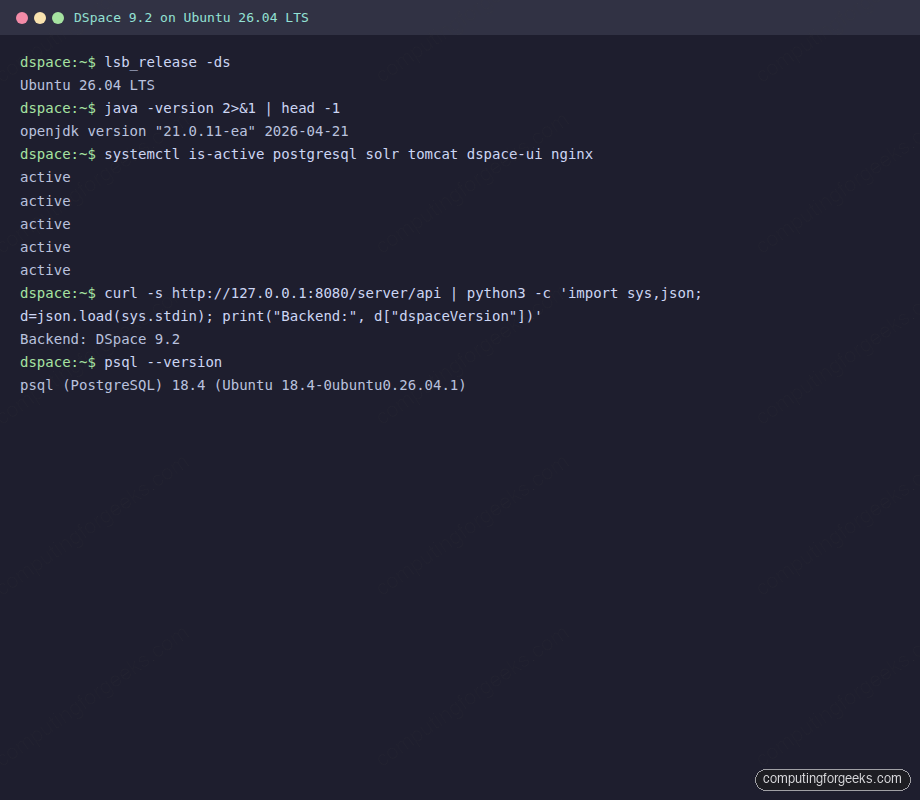
If any service prints inactive or failed, jump back to the matching step before opening the browser, otherwise the UI will throw 502 or empty-page errors that look more confusing than the underlying problem.
Step 16: Access DSpace and create your first community
Open https://${DSPACE_DOMAIN} in a browser. DSpace 9 lands on a clean repository home page with a search bar, the top-level communities panel, and the configured site administrators listed in the intro:
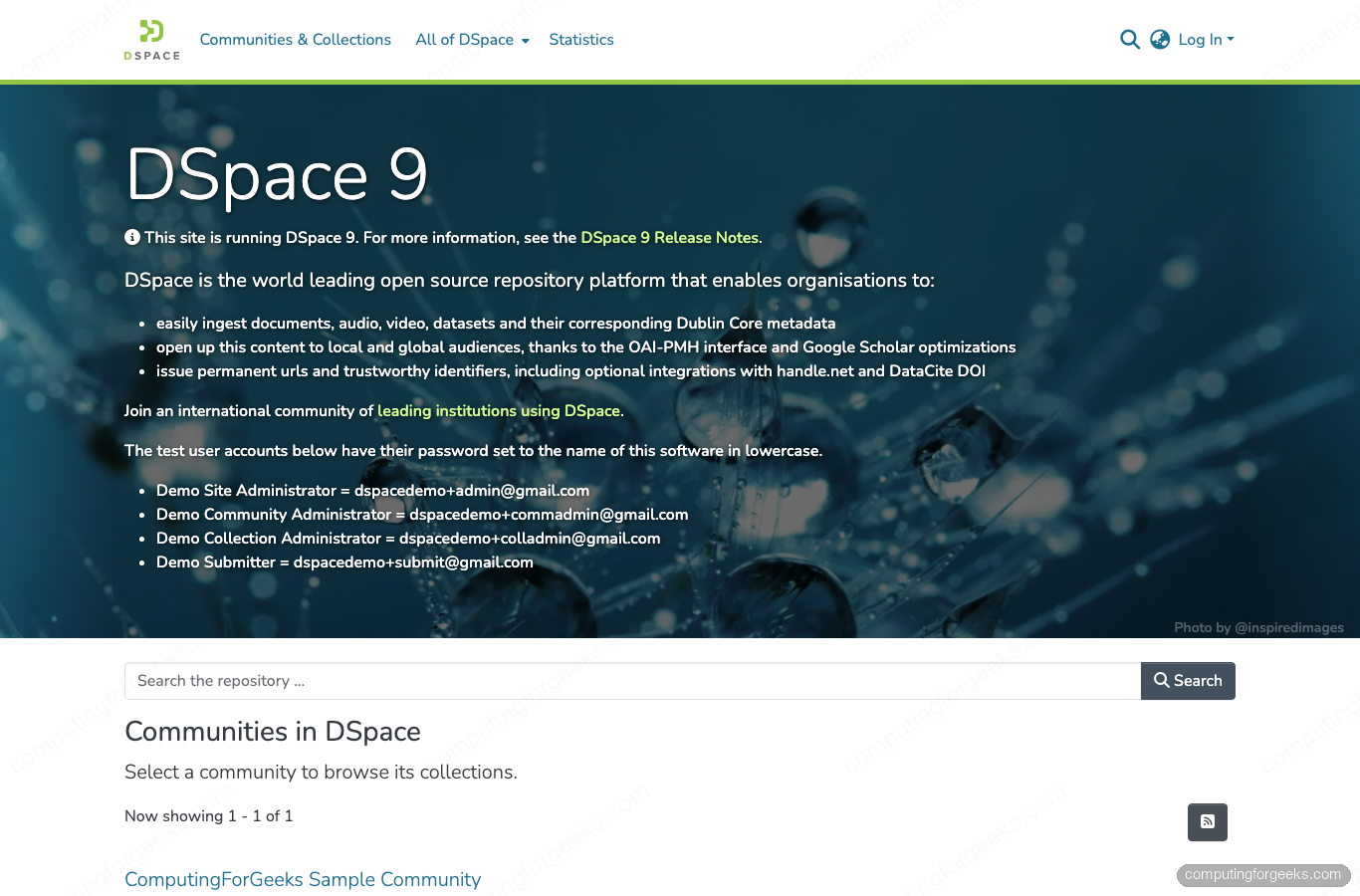
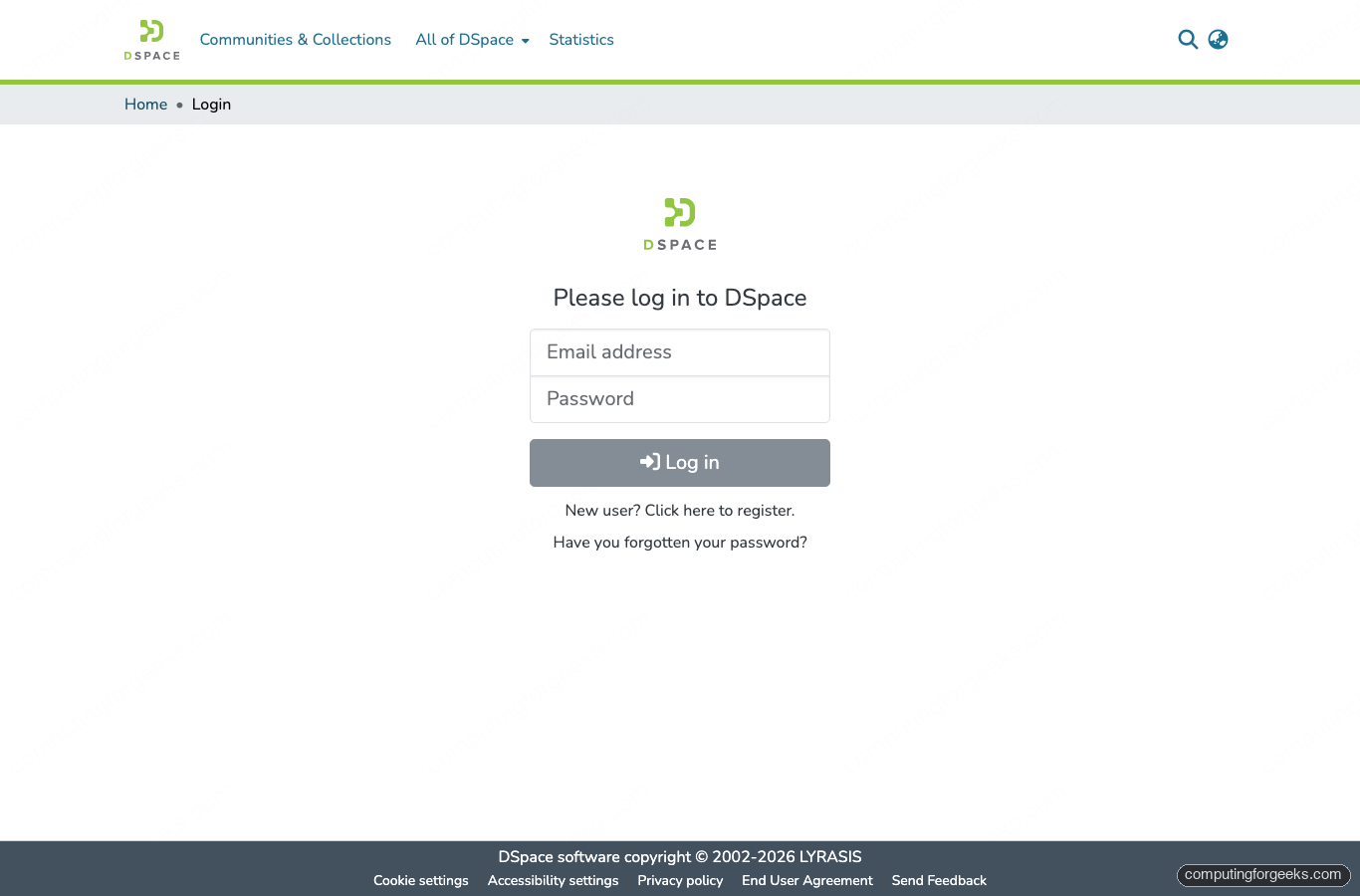
Click Log In in the top right to sign in with the administrator email and password you set in Step 9:
Once signed in, the + New > Community action appears in the user menu. Communities own collections, collections own items. The browse navigation under Communities & Collections shows everything that exists in the repository:
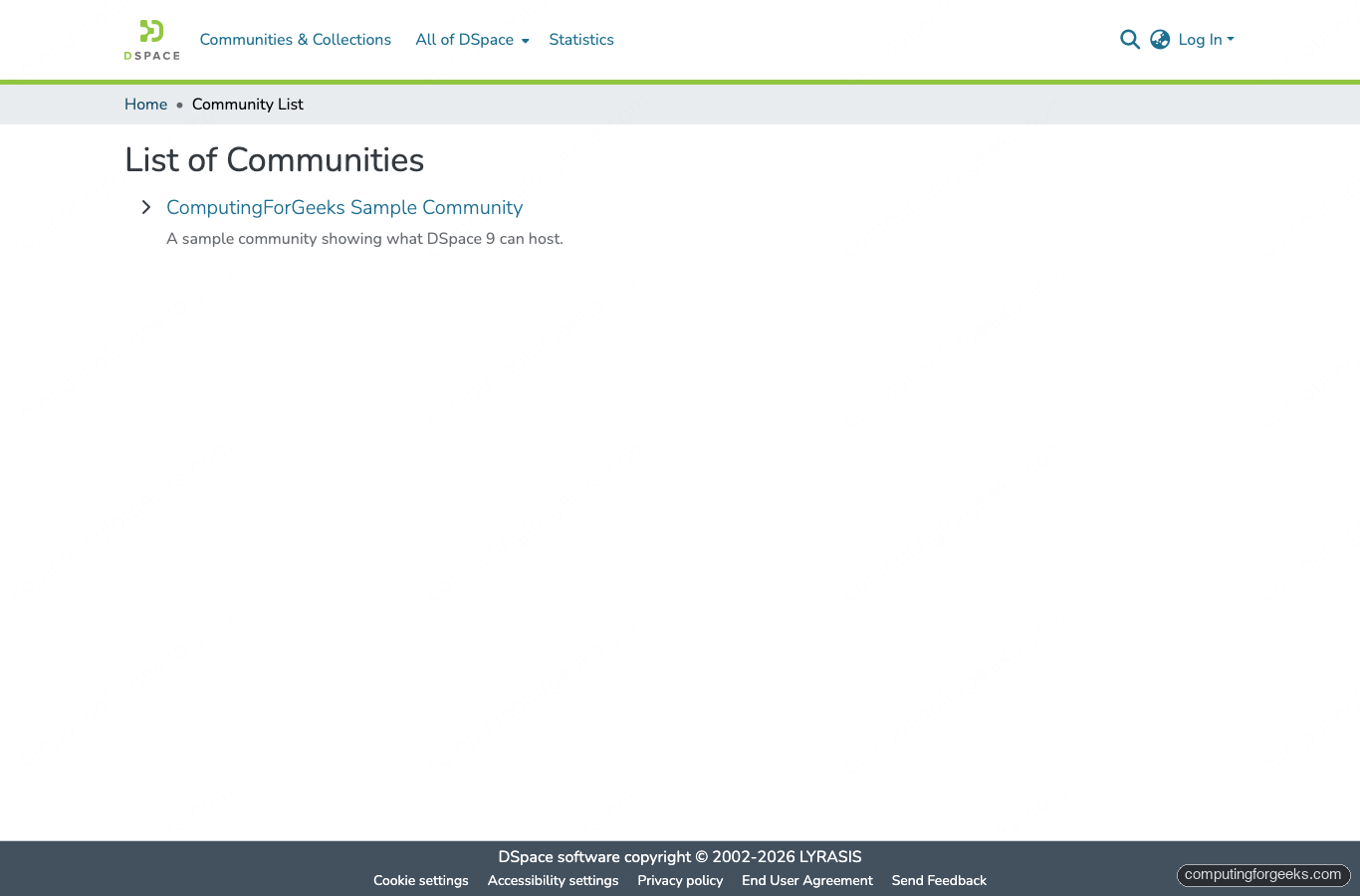
Open the community to land on its detail page. The permanent URI under the title is a Handle that survives URL changes, which is the point of using a repository instead of a flat web server:
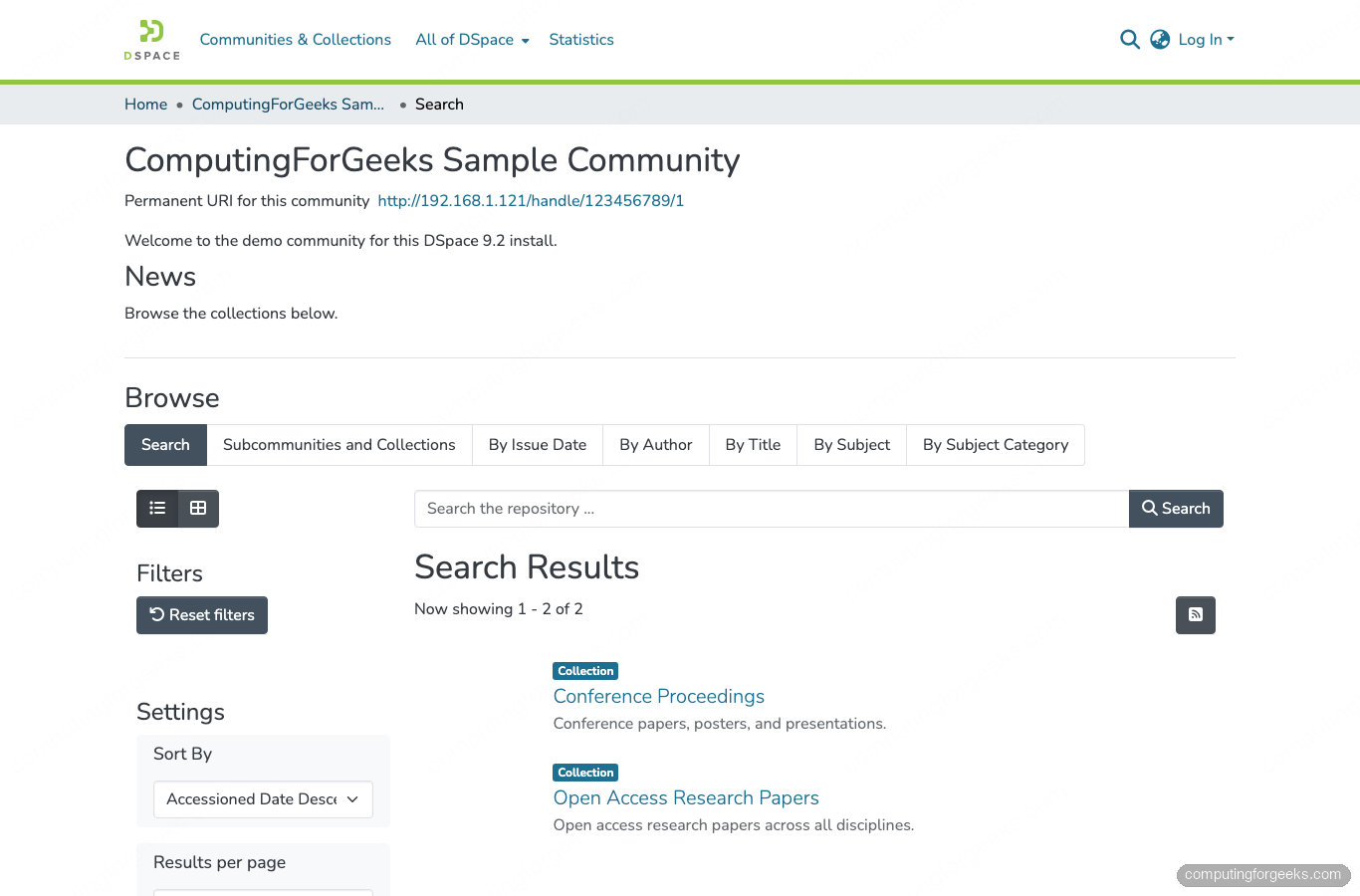
Inside the community, click + New > Collection to add a sub-container that actually holds items. A collection lets you set the metadata schema, submission workflow, and access policies independently of its parent. To submit an item, open the collection page and click New submission. The submission wizard walks through metadata, file upload, license, and review. Dublin Core fields are the default metadata schema.
Site-wide search runs over every community, collection, and item once Solr finishes indexing:
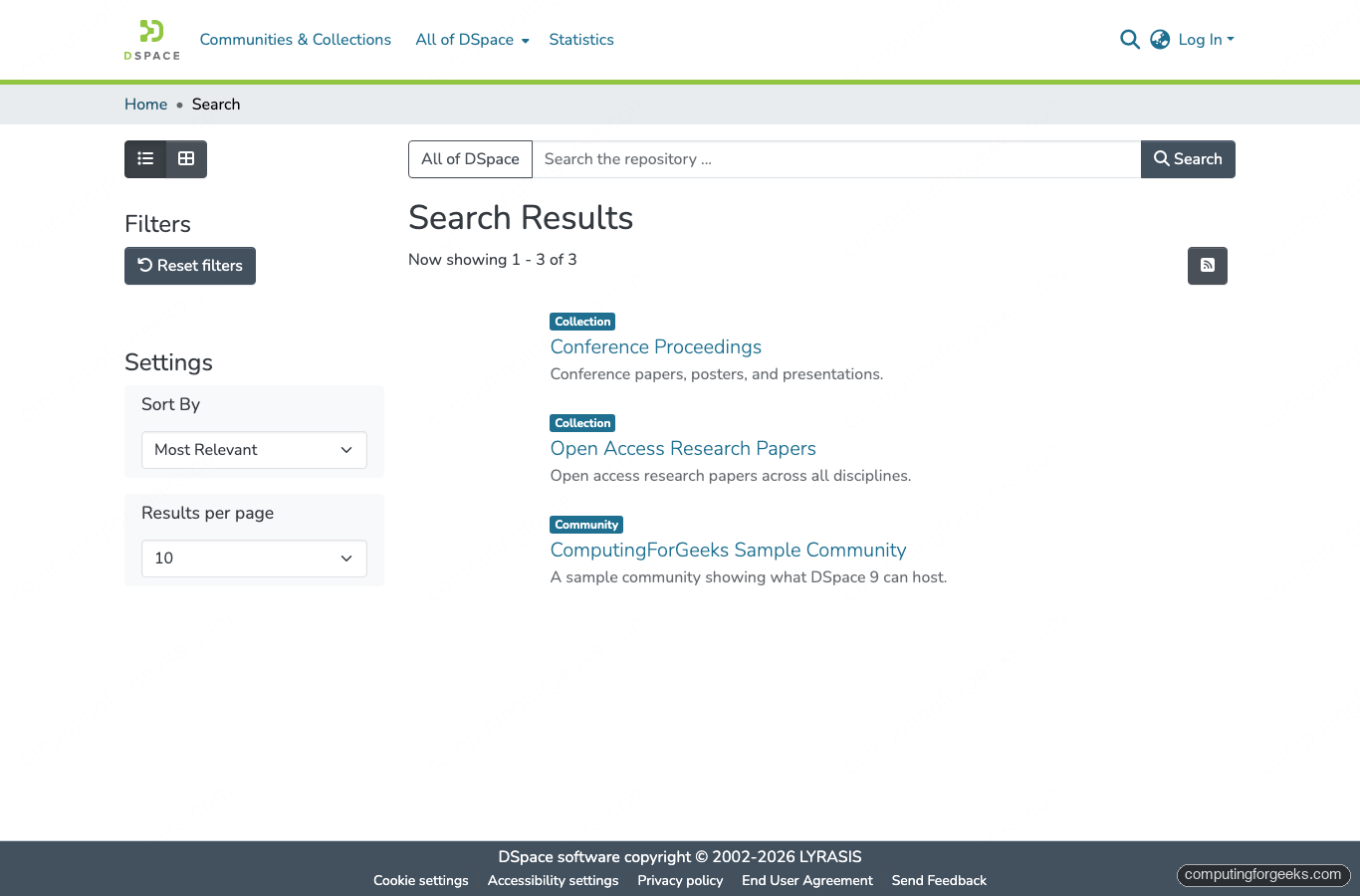
If Solr 9 was loaded fresh, the first submission takes ~10 to 15 seconds to appear in search. Subsequent updates land in under a second on the default discover.indexing.batch.size setting.
Step 17: Back up DSpace
A DSpace install has three things to back up: the PostgreSQL database, the assetstore (the actual uploaded files), and the Solr indexes. The first two are mandatory because they hold the canonical data. Solr indexes can be rebuilt from the database, but a backup speeds disaster recovery from hours to minutes.
Database backup
A single pg_dump in the custom format gives you a compressed, restorable snapshot. Schedule it during off-peak hours since it acquires a brief read lock on busy tables:
sudo -u postgres pg_dump -Fc "${DSPACE_DB_NAME}" \
  -f "/var/backups/dspace-db-$(date +%Y%m%d-%H%M%S).dump"
Restore with pg_restore -d ${DSPACE_DB_NAME} /var/backups/dspace-db-STAMP.dump after stopping Tomcat.
Assetstore backup
The assetstore lives under ${DSPACE_INSTALL}/assetstore. Rsync is the cheapest incremental option:
sudo rsync -a --delete "${DSPACE_INSTALL}/assetstore/" /var/backups/dspace-assetstore/Point the destination at a remote NFS mount or push it off-box with rclone if you want true disaster-recovery isolation.
Automate with cron
Combine both into a nightly cron entry:
sudo tee /etc/cron.daily/dspace-backup >/dev/null <<'EOF'
#!/bin/bash
set -euo pipefail
STAMP=$(date +%Y%m%d-%H%M%S)
sudo -u postgres pg_dump -Fc dspace -f "/var/backups/dspace-db-${STAMP}.dump"
rsync -a --delete /opt/dspace/assetstore/ /var/backups/dspace-assetstore/
find /var/backups -name 'dspace-db-*.dump' -mtime +14 -delete
EOF
sudo chmod +x /etc/cron.daily/dspace-backup
Verify the previous command completed successfully before moving on.
Troubleshooting
Error: “FATAL: password authentication failed for user dspace”
Either the password mismatch from a typo in the CREATE USER step, or the ${DSPACE_DB_PASS} shell variable is empty. Re-run echo "${DSPACE_DB_PASS}" to confirm it’s set, then ALTER the role: sudo -u postgres psql -c "ALTER USER dspace WITH PASSWORD '${DSPACE_DB_PASS}';".
Error: “Could not find or load main class $SOLR_OPTS”
The /etc/default/solr.in.sh file has a line like SOLR_OPTS="$SOLR_OPTS ...". Systemd’s EnvironmentFile does not expand $SOLR_OPTS, so it passes the literal string to Java. Rewrite the line to use only literal values, drop the $SOLR_OPTS reference, and restart Solr.
Solr fails with “This account is currently not available”
Ubuntu’s Solr install script uses su - solr which refuses to switch to a user with nologin shell. Either keep the systemd unit from Step 5 (which bypasses the issue) or change the shell with sudo usermod -s /bin/bash solr. The systemd unit approach is cleaner.
Angular UI renders i18n keys like “login.form.header” instead of real text
The production build needs NODE_ENV=production set during the build step, not just at runtime. Without it, the webpack CopyWebpackPlugin skips the asset-hashing step and the runtime tries to fetch a hashed translation file that doesn’t exist. Re-run the build with NODE_ENV=production NODE_OPTIONS=--max_old_space_size=8192 npm run build:prod.
Tomcat returns 404 for /server/api after restart
The Ant install in Step 7 silently skipped writing /opt/dspace/webapps/server/ because the directory existed with the wrong owner. Run sudo ls /opt/dspace/webapps/: if it’s empty, copy the bundle directly with sudo cp -r /opt/dspace/src/dspace/target/dspace-installer/webapps/* /opt/dspace/webapps/ && sudo chown -R tomcat:tomcat /opt/dspace/webapps, then restart Tomcat.
Angular SSR build runs out of memory and the SSH session drops
The Angular 20 SSR compile peaks at ~6 to 8 GB. On a VM with 8 GB total RAM plus running Tomcat and Solr, the kernel OOM-kills the build and often the sshd process with it. Either size the VM at 12 GB or stop Solr and Tomcat for the duration of the build with sudo systemctl stop solr tomcat, then re-run the build with NODE_OPTIONS=--max_old_space_size=8192 npm run build:prod. The runtime needs only ~512 MB once built, so you can size back down after the first deploy.
Now that DSpace 9.2 is up and serving traffic, the next steps depend on your collection. Most institutions wire OAI-PMH harvesters, configure SAML or Shibboleth login, set up Handle.net persistent identifiers, and integrate ORCID. The DSpace 9 documentation at wiki.lyrasis.org/spaces/DSDOC9x covers each of those in depth.






Hi
i got an HTTP 404 ERROR after i finished DSPace Backed
I tried accessing URL http://IP_Address:8080/server
Any solution?
Hello @henry
Did you use the exact IP in the dspace/config/local.cfg? If not, try using the exact address or domain name provided there.
Great guide. It’s the only one which worked for me. Though I had to stop and start tomcat again to get the backend working. Is there a guide or a way to install SSL too? Thanks!
Hi,
Thank you for this detailed guide. I could finish the installations without errors. But I cannot login to Dspace frontend page from http://dspace.domain.url/home. This page gives Invalid email or password error immediately by pressing login button.
I can login http://server-ip:8080/server/ Hal login page with the same information.
I tried to add
proxies.trusted.ipranges = [IP-address-of-UI-server] row in to local.cfg and restart tomcat but not worked.
Buen tutorial. Me funcionó todo menos agregar el SSL y los problemas de contenido mixto que detectan los navegadores