You want to automate a few openSUSE boxes without hand-editing config on each one. Ansible is the clean way to do it: agentless, push over SSH, and the control node is the only machine that needs anything installed. This guide covers how to install Ansible on openSUSE Leap 16, run an ad-hoc command, and execute a real playbook, with the actual output from a Leap 16 control node.
Leap 16 carries Ansible in its own repositories, so there is no PPA or pip dance to get a working setup. Every command below was run on a Leap 16 machine before writing it up.
Ran through this on openSUSE Leap 16 in June 2026; the playbook is idempotent end to end.
1. Install Ansible
The package is in repo-oss, the default repository, so a single zypper command pulls in Ansible and its dependencies:
sudo zypper install ansibleThis installs two things worth knowing about: ansible-core (the engine and CLI) and the larger ansible package (the community bundle of collections on top). Confirm what you got:
ansible --versionThe control node reports the core version and the Python it will use:
ansible [core 2.18.3]
  config file = None
  python version = 3.13
With the control node ready, give it something to do.
2. Run your first ad-hoc command
Before writing a playbook, prove Ansible can reach a host and run a module. The simplest target is the control node itself with a local connection. The ping module here is not ICMP; it checks that Ansible can log in and run Python on the target:
ansible -i 'localhost,' localhost -m ping -c localYou get a green SUCCESS with a pong, alongside a warning about Python interpreter discovery that we come back to in troubleshooting:
[WARNING]: Platform linux on host localhost is using the discovered Python
interpreter at /usr/bin/python3.13, but future installation of another Python
interpreter could change the meaning of that path.
localhost | SUCCESS => {
    "changed": false,
    "ping": "pong"
}
For real work you point Ansible at remote hosts over SSH instead of a local connection. That means an inventory file listing the hosts and an SSH key the control node can use to reach them, which is exactly what the next step sets up.
3. Write and run a playbook
Create a working directory and an inventory file. For this walkthrough the inventory points at the local machine, but the same file scales to a list of remote hosts under a group:
mkdir -p ~/ansible-demo && cd ~/ansible-demo
printf '[local]\nlocalhost ansible_connection=local\n' > inventory.ini
Now the playbook. Open a new file:
vim site.ymlAdd a play with two tasks: one that prints a fact Ansible gathered about the host, and one that writes a file. The file task is the kind of thing you will use constantly:
---
- name: Demo play on openSUSE Leap 16
  hosts: local
  gather_facts: true
  tasks:
    - name: Show the distribution
      ansible.builtin.debug:
        msg: "Running on {{ ansible_distribution }} {{ ansible_distribution_version }}"

    - name: Create a marker file
      ansible.builtin.copy:
        content: "Managed by Ansible on openSUSE Leap 16\n"
        dest: "{{ ansible_env.HOME }}/ansible-demo/managed.txt"
        mode: '0644'
Run it against the inventory:
ansible-playbook -i inventory.ini site.ymlAnsible gathers facts, prints the distribution from a variable, creates the file, and ends with a recap. The changed=1 is the marker file being written:
TASK [Show the distribution] ***************************************************
ok: [localhost] => {
    "msg": "Running on openSUSE Leap 16.0"
}

TASK [Create a marker file] ****************************************************
changed: [localhost]

PLAY RECAP *********************************************************************
localhost  : ok=3  changed=1  unreachable=0  failed=0
The thing that makes Ansible worth using is idempotency. Run the exact same playbook again and the file task reports no change, because the file already matches what you asked for:
PLAY RECAP *********************************************************************
localhost  : ok=3  changed=0  unreachable=0  failed=0
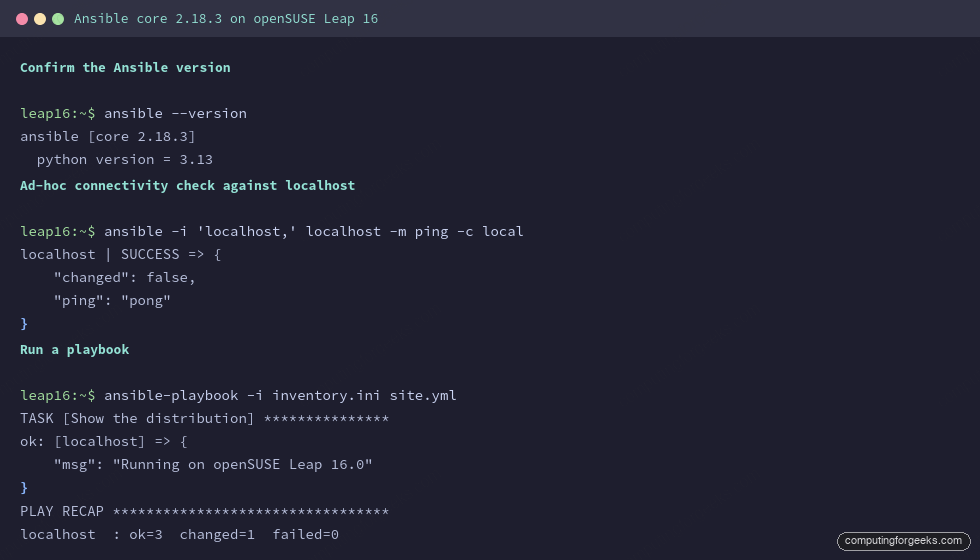
The screenshot below shows the version check, the ad-hoc ping, and the playbook run together.
Modules like the copy task come from collections, and the full install ships a large set of them.
4. Use Ansible Galaxy collections
The big advantage of installing the full ansible package rather than just ansible-core is that it ships hundreds of modules grouped into collections. List what came bundled:
ansible-galaxy collection listYou already have the workhorses, including the Docker and general-purpose collections:
ansible.posix       1.6.2
ansible.utils       5.1.2
community.docker    4.4.0
community.general   10.4.0
When you need something not bundled, pull it from Galaxy. This installs the cryptography collection used for managing certificates and keys:
ansible-galaxy collection install community.cryptoIf a collection is already part of the bundle, Galaxy tells you there is nothing to do rather than reinstalling it. That is why the community.docker collection pairs cleanly with a Docker setup on the same host.
Troubleshooting
Two snags come up on a fresh Leap 16 control node, and both are quick.
The Python interpreter discovery warning
Every run prints a warning that Ansible discovered Python at /usr/bin/python3.13 and that a future install could change that path. It is harmless, but it clutters output. Silence it by telling Ansible exactly which interpreter to use, either per-host in the inventory or globally. Add this line to the host or group in inventory.ini:
localhost ansible_connection=local ansible_python_interpreter=/usr/bin/python3.13The second snag is about defaults rather than noise.
No config file by default
On a fresh install, ansible --version shows config file = None. Ansible runs fine without one, but you lose a place to set sensible defaults. Drop a project-local ansible.cfg in your working directory so it is picked up automatically:
vim ansible.cfgA minimal config that points at your inventory and quiets the interpreter warning for the whole project:
[defaults]
inventory = ./inventory.ini
interpreter_python = /usr/bin/python3.13
host_key_checking = False
With that in place you can drop the -i inventory.ini from every command. From here, point the inventory at your real fleet and Ansible manages them all from this one control node. If you are still setting up the box, the initial server setup guide covers the SSH keys those remote hosts will need.