A server that gets its address from DHCP is fine until the lease changes and every firewall rule, DNS record, and SSH config that pointed at it goes stale. For anything other hosts connect to, you want a fixed address. On openSUSE Leap 16 the network is managed by NetworkManager, so the clean way to set a static IP is nmcli, editing the connection profile rather than dropping ifcfg files the way older SUSE releases did.
We ran every command below on a Leap 16 host in June 2026, so the output is real. The approach is the same whether this is a bare-metal server, a VM, or a cloud instance with a NetworkManager-managed NIC.
Find the interface and its connection profile
NetworkManager separates the physical device from the connection profile applied to it, and nmcli edits the profile, not the device. So start by listing both:
nmcli device statusThe output pairs each device with the profile currently bound to it:
DEVICE   TYPE      STATE      CONNECTION
enp6s18  ethernet  connected  Wired connection 1
Here the device is enp6s18 and the profile is Wired connection 1. That profile name has spaces in it, which is the single most common reason these commands fail, so it must be quoted every time it appears below. Your device and profile names will differ; use what this command reports.
Decide static at the host or a reservation at the DHCP server
There are two ways to give a host a fixed address, and the right one depends on where you want the source of truth. Pinning the address on the host, which is what this guide does, keeps the configuration with the machine and works even on a network you do not control. A DHCP reservation instead binds the address to the NIC’s MAC at the DHCP server, which centralizes management across many hosts but means the address lives in someone else’s config. In practice, pin it on the host for servers you administer directly, and use reservations when a central team owns the network. The trade-off is autonomy versus central control.
Set the static address
One nmcli connection modify call sets the address, gateway, DNS servers, and switches the profile from DHCP to manual. Pick an address outside your DHCP pool so the server cannot hand it to another machine:
sudo nmcli connection modify "Wired connection 1" ipv4.addresses 192.168.1.50/24 ipv4.gateway 192.168.1.1 ipv4.dns "1.1.1.1,8.8.8.8" ipv4.method manualA few details matter here. The address carries its prefix as /24, not a separate netmask. Multiple DNS servers go in one quoted, comma-separated value. And ipv4.method manual is the switch that tells NetworkManager to stop asking DHCP; set the addresses but forget this and the profile stays on DHCP. The command writes the profile but does not apply it yet.
Apply and verify
Bring the connection up to activate the change. If you are setting the static address to the same value the host already holds, the session continues uninterrupted. If you are switching to a different address while connected over SSH, run this from the console instead, or expect to reconnect on the new IP:
sudo nmcli connection up "Wired connection 1"NetworkManager confirms the activation:
Connection successfully activatedConfirm the profile now holds the values you set:
nmcli -f ipv4.method,ipv4.addresses,ipv4.gateway connection show "Wired connection 1"The method reads manual and the address is fixed:
ipv4.method:     manual
ipv4.addresses:  192.168.1.50/24
ipv4.gateway:    192.168.1.1
The clearest proof is the routing table, where the default route flips from proto dhcp to proto static once the change applies:
ip route | grep defaultThe origin field reads static instead of dhcp, which is the definitive sign the change is live:
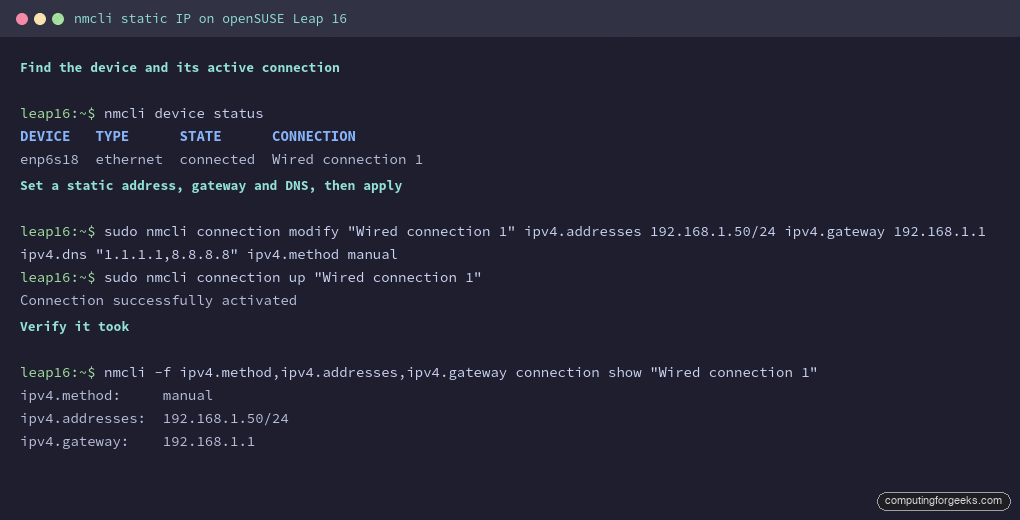
default via 192.168.1.1 dev enp6s18 proto static metric 100The screenshot below shows the device lookup, the modify command, and the verification together.
Switching back is a single profile change when a host no longer needs a fixed address.
Revert to DHCP if you need to
If you need to hand the address selection back to DHCP, switch the method to auto and clear the manual values so they do not linger in the profile:
sudo nmcli connection modify "Wired connection 1" ipv4.method auto ipv4.addresses "" ipv4.gateway "" ipv4.dns ""
sudo nmcli connection up "Wired connection 1"
The method returns to auto and the default route goes back to proto dhcp. Clearing the values matters: leave a stale ipv4.gateway behind and you can end up with a host that pulls a DHCP address but still tries to route through an old gateway.
What to watch in production
Two things bite once a static host is live. First, the DNS you set on the profile is the only resolver the host has; if it points at a single internal server and that server is down, name resolution fails completely, so give it a second resolver as we did with the two addresses above. Second, a static address only helps if nothing else on the network can claim it, so confirm the address sits outside the DHCP pool and document it wherever you track host addresses. From here, lock the host down with the initial server setup and hardening steps, and if you prefer a browser over the terminal, Cockpit can edit the same NetworkManager profile from its Networking page.