How can I perform an upgrade from Fedora 42 to Fedora 43 Server / Workstation Linux system?. If this is a question you have in mind, then you’re in the right place. If you’re a Fedora die-hard fan, you must be eager to upgrade from your Fedora Linux system. The process should work on both Server and Workstation editions.
For most users, it makes sense to perform an in-place upgrade of the OS and all packages installed as opposed to a clean installation. Retaining files and Documents on your system is key, to enjoy new features while being productive. We shall also highlight key features in Fedora 43 release.
Fedora 43 New Features
Some key features shipped in Fedora 43 release are as listed below.
- GNOME 49: Fedora 43 workstation comes with GNOME 49 with the latest features and benefit from an array of system enhancements!. Fedora 34 also completely removes the GNOME X11 packages from the repositories, and all users will be migrated to the GNOME Wayland session.
- RPM 6.0: In Fedora 43, RPM is updated to version 6.0, with major security improvements as OpenPGP Keys which are now referred to using fingerprints rather then Key IDs. It’s important to note that while RPM 6.0 supports v6 packages, Fedora still uses v4 by default.
- Python 3.14: With Fedora 43, Python feature a major ugrade to version 3.14, which is the latest major release of Python at the time of writing this article.
- Linux Kernel 6.17: Fedora 43 features the Linux Kernel 6.17, which brings major updates to the supported hardware and improves performance.
- Anaconda WebUI: Anaconda WebUI is now the default installer for Fedora Spins, and Editions. It’s been in use by previous Fedora editions but in Fedora 43, it’s been upgraded to default installer.
Upgrade to Fedora 43 from Fedora 42 Server / Workstation
Now that we’ve captured key highlights on what’s new, we can now put our attention on the actual upgrade your Fedora system.
1. Update Fedora 42 system
Confirm the Fedora release you are running on:
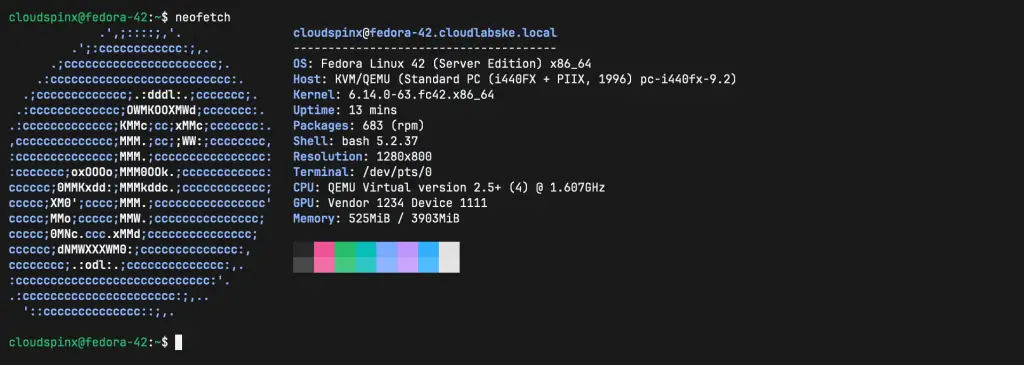
Before we initiate upgrade, ensure all system packages are up-to-date
sudo dnf -y upgradeOnce it has been updated, reboot your machine.
sudo systemctl rebootValidate the system you’re working on is Fedora 🙂
$ cat /etc/redhat-release
Fedora release 42 (Adams)
2. Backup the System
It is highly recommended you perform a system backup of your Documents and files before a major upgrade. Backups can be done to an external drive or another system in your Network.
Refer to the official backup series on Fedora Magazine.
3. Upgrade from Fedora 42 to Fedora 43
Check if any new updates are available.
sudo dnf upgrade --refreshApply any updates that maybe available then install DNF plugin.
sudo dnf -y install dnf-plugin-system-upgradeWith dnf-plugin-system-upgrade installed, begin an upgrade of your Fedora system. Execute commands below in your terminal as root or user with sudo privileges.
sudo dnf system-upgrade download --releasever=43Change the --releasever= number if you want to upgrade to a different release of Fedora.
Press to y to accept upgrade of the system.
...
Upgrading environmental groups:
 Fedora Server Edition

Transaction Summary:
 Installing:        25 packages
 Upgrading:        688 packages
 Replacing:        689 packages

Total size of inbound packages is 878 MiB. Need to download 878 MiB.
After this operation, 285 MiB extra will be used (install 2 GiB, remove 1 GiB).
Is this ok [y/N]: y
The command we just executed will download all of the upgrades for your machine locally as it prepares for the actual upgrade.
NB: If you have broken dependencies or retired packages blocking the upgrade, the use the command.
sudo dnf system-upgrade download --releasever=43 --allowerasingA number of packages are downloaded, ensure you have a stable internet connection.
...
--------------------------------------------------------------------------------------------------------------------------------------------------------------------------------------------------------------------------
[713/713] Total                                                                                                                                                                   100% |   4.6 MiB/s | 877.6 MiB |  03m12s
Testing offline transaction
Importing OpenPGP key 0x31645531:
 UserID     : "Fedora (43) <[email protected]>"
 Fingerprint: C6E7F081CF80E13146676E88829B606631645531
 From       : file:///etc/pki/rpm-gpg/RPM-GPG-KEY-fedora-43-x86_64
Is this ok [y/N]: y
The key was successfully imported.
Transaction stored to be performed offline. Run `dnf5 offline reboot` to reboot and run the transaction. To cancel the transaction and delete the downloaded files, use `dnf5 offline clean`.
Complete!
After the packages are downloaded locally trigger the upgrade process with the following commands:
sudo dnf system-upgrade reboot
The system will be rebooted and upgrade process is finalized.
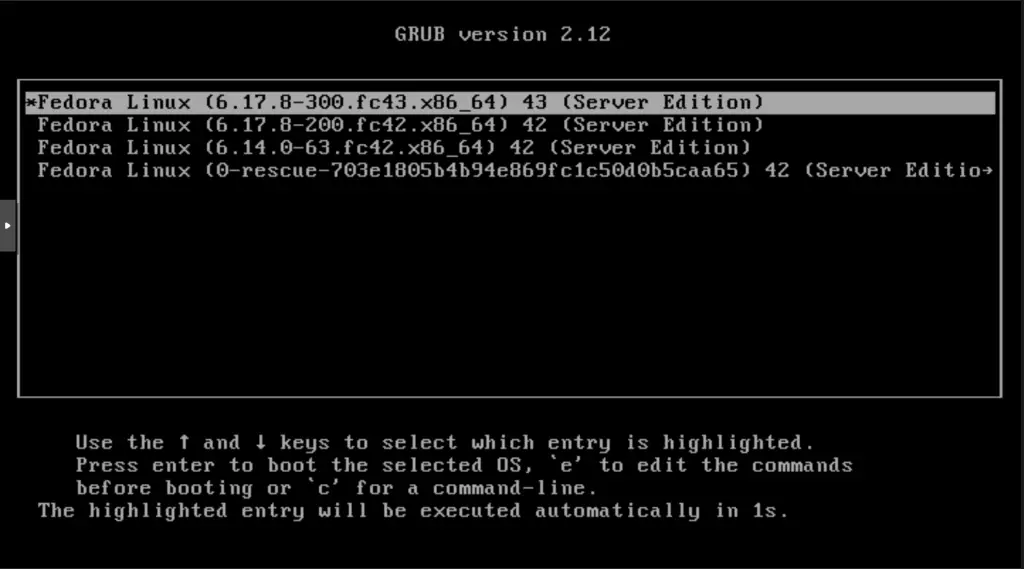
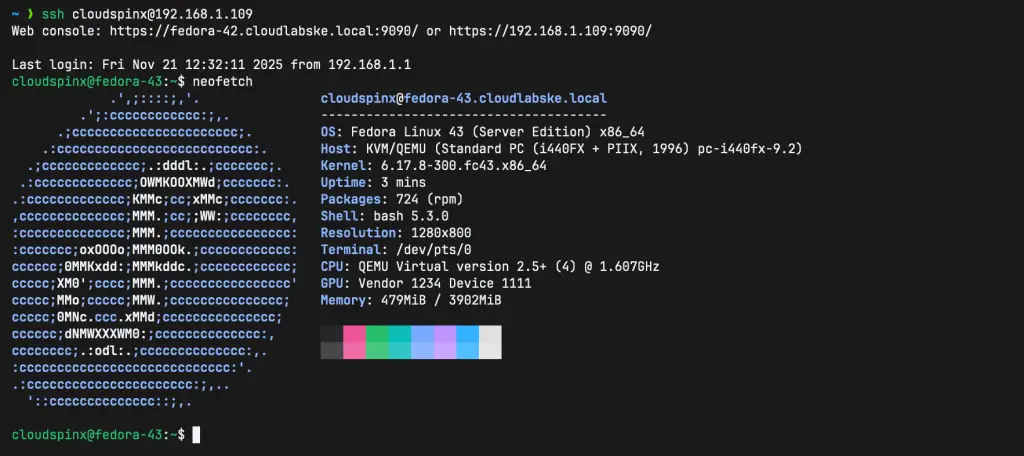
Once the upgrade process completes, the system is rebooted a second time into the new OS release of Fedora.
4. Updating configuration files (optional)
The rpmconf command line tool can help you to search for .rpmnew, .rpmsave and .rpmorig files and asks you what to do with them. You can choose to;
- Keep the current version (new package maintainer’s version)
- Replace with the previous version (return original file), or
- Review the differences between the versions
Install rpmconf package by entering the commands;
sudo dnf -y install rpmconfThen use it to check changed configuration files
sudo rpmconf -aThe -a, --all command options allow you to check configuration files of all packages updated.
See example below:
Configuration file '/boot/efi/EFI/fedora/grub.cfg'
..
 ==> Package distributor has shipped an updated version.
 ==> Maintainer forced upgrade. Your old version has been backed up.
   What would you like to do about it?  Your options are:
    Y or I  : install (keep) the package maintainer's version
    N or O  : return back to your original file
      D     : show the differences between the versions
      M     : merge configuration files
      Z     : background this process to examine the situation
      S     : skip this file
 The default action is to keep package maintainer's version.
*** aliases (Y/I/N/O/M/D/Z/S) [default=Y] ?
Your choice: Y
5. Deleting retired packages (optional)
With any major release of Fedora, a few packages are retired for a number of reasons. It is highly recommend to remove these packages.
Install remove-retired-packages package
sudo dnf install remove-retired-packagesRun the command to remove retired packages
sudo remove-retired-packagesEnjoy your new Fedora 43 Server / Workstation release. We have more guides you can check on Fedora system.
- Run Fedora CoreOS (FCOS) on VMware Workstation
- Install and Use Mysql Workbench on Fedora
- Install and Use Android Studio on Fedora