Every GNS3 or EVE-NG lab hits the same wall, and it is almost always RAM. You start with three routers and a couple of switches, it feels instant, then you add a firewall, a pair of layer-3 switches, and a Windows host to test a VPN, and suddenly nodes refuse to boot. That is the whole game. Picking the right mini PC for GNS3 (or EVE-NG) comes down to memory first, cores second, and almost nothing else.
The trap is that “how many nodes fit” has no single answer, because a node is not a node. A VPCS host costs a few megabytes. A Cisco vIOS switch costs a few hundred. A CSR1000v costs gigabytes. So a spec sheet that says “16 GB” tells you nothing until you know what a node actually weighs. To fix that, I measured it. Every per-node memory figure in this guide was captured on a real 6-core, 24 GB GNS3 host in July 2026, not copied off a forum post, and the mini-PC picks are sized against those numbers.
The quick picks
Four boxes cover every realistic lab, from a first CCNA study rig to a multi-user EVE-NG server. Each pick names the trade-off it makes, and the deep sections below explain why.
- Best value, the one to buy: Beelink SER8 (Ryzen 7, 32 GB). Eight cores and 32 GB that upgrades to far more. Handles a full CCNA lab without noticing and pushes into CCNP. Check price on Amazon.
- Budget CCNA: Beelink EQ14 (Intel N150, 16 GB). The cheapest honest entry. Fine for CCNA, but the 16 GB ceiling is a hard wall. Check price on Amazon.
- Big labs (CCNP, CCIE, data center): Minisforum MS-A2 (Ryzen 9, up to 96 GB). Sixteen cores and a 96 GB memory ceiling. Barebone, so you add your own RAM and SSD. Check price on Amazon.
- Doubles as a Proxmox host: Minisforum MS-01 (i9, dual 10GbE). Real 10GbE and a PCIe slot, so the same box runs your lab and your production VMs. Check price on Amazon.
How I tested and picked
The node-count numbers here are first-party. I ran GNS3 2.2.59 on a headless 6-core, 24 GB Linux host and drove its REST API to drop batches of identical nodes, boot them fully, and record how much memory the host actually committed. Per-node cost is the delta divided by the count, taken at steady state. The heavy outlier, the CSR1000v, is the one figure I did not bench and instead cite from Cisco’s own documentation.
EVE-NG is not benched separately, and it does not need to be, because it runs the same node images: the same vIOS, the same Dynamips IOS, the same CSR1000v qcow2. A vIOS switch weighs the same whether GNS3 or EVE-NG starts the QEMU process, so the per-node math transfers directly. The only difference is base overhead, and EVE-NG’s own guides land in the same place these measurements do. The mini PCs themselves are chosen on published manufacturer specs and live retailer listings, sized against the measured node weights, not individually bench-tested.
RAM is the one spec that decides your GNS3 mini PC
Here is what a node actually costs, measured on the lab host. The spread is enormous, and it is the single most important thing to understand before you spend money.
| Node type | What it is | Measured RAM per node |
|---|---|---|
| VPCS | Lightweight end host / ping tester | ~2.6 MB |
| Dynamips (c7200) | Classic Cisco IOS router | ~235 MB |
| vIOS-L2 (IOSvL2) | Cisco layer-2 switch VM (VLANs, STP) | ~319 MB |
| CSR1000v | Modern IOS-XE router (cited, Cisco) | ~4 GB |
Two things jump out. A VPCS host is free for all practical purposes, so never let anyone tell you a topology is “too big” because of the PCs in it. And a single CSR1000v costs more memory than a dozen vIOS switches combined, which is why data-center and SD-WAN labs need real RAM while a pure CCNA switching lab barely registers.
One measurement caught me out and is worth passing on: vIOS memory keeps climbing for about four minutes after boot as IOS brings up its processes. Sample too early and you will badly undercount. The ~319 MB figure is the plateau, and here is the run that produced it, alongside the idle baseline and the lab environment.
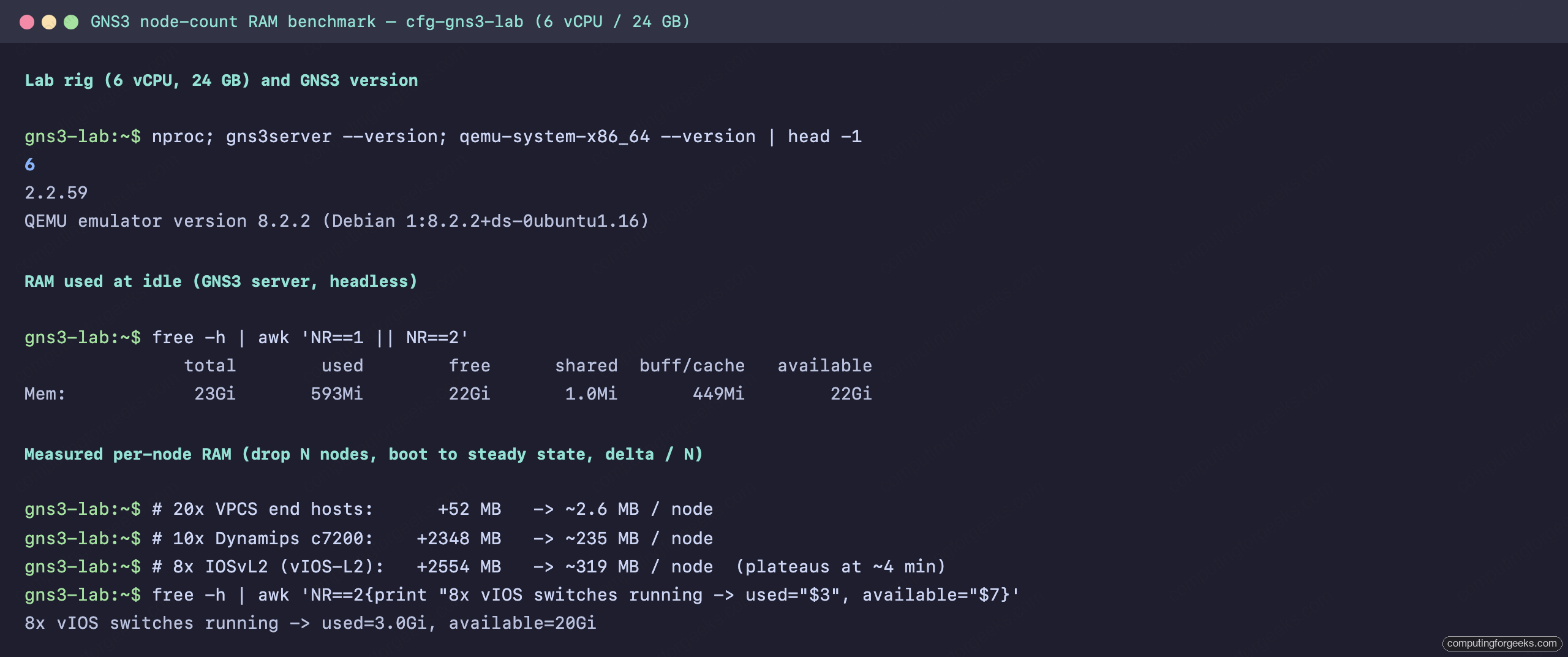
Turn those weights into buying advice and the RAM tiers fall out cleanly. Reserve two to three gigabytes for the operating system, the GNS3 GUI, and a browser, then divide what is left by roughly 320 MB for a typical vIOS router or switch.
| Installed RAM | Roughly how many vIOS nodes | What that means in practice |
|---|---|---|
| 8 GB | ~17 | A full CCNA topology with room to spare |
| 16 GB | ~40 | Comfortable CCNA, light CCNP |
| 32 GB | ~85, or ~6 CSR1000v | Serious CCNP self-study, small DC labs |
| 64 GB | ~180, or ~14 CSR1000v | CCIE-scale and multi-user EVE-NG |
To put the entry tier in perspective, the standard CCNA topology of four switches, four routers, and a handful of PCs measured out to about 2.8 GB total on the lab host. An 8 GB box runs that comfortably. RAM only becomes the constraint when you move into large CCNP and CCIE work or start stacking CSR1000v and Nexus images. That reframes the whole purchase: for CCNA you are buying cores and quiet, not memory, and for anything heavier you are buying memory above all.
Cores, boot storms, and the virtualization setting nobody checks
RAM sets how many nodes fit. Cores set how fast the lab comes up and how many nodes can push traffic at once. The difference shows during a boot storm. Starting eight vIOS switches at the same time on the six-core host drove the one-minute load average from under five to nearly eleven, a run queue almost double the core count. Once booted, idle switches sip CPU and the load drops back down. So four cores is a floor that works but boots slowly, and eight or more cores is the difference between waiting thirty seconds and waiting three minutes every time you open a lab.
None of this matters if hardware virtualization is off, and it ships off on plenty of mini PCs. Before you install anything, confirm the CPU exposes its virtualization flags:
grep -oE 'vmx|svm' /proc/cpuinfo | sort -uAn Intel chip prints vmx, an AMD chip prints svm. If it prints nothing, virtualization is disabled in firmware. Reboot into the BIOS, turn on Intel VT-x or AMD SVM, and check again. EVE-NG names this as a hard requirement, and GNS3’s QEMU nodes crawl or refuse to start without it.
There is a second gotcha if you run GNS3 or EVE-NG inside a virtual machine rather than on bare metal, which is common when the mini PC already runs Proxmox. The host has to pass virtualization through to the guest, and nested virtualization is often off by default. Check it on the Proxmox host:
cat /sys/module/kvm_intel/parameters/nested   # Intel
cat /sys/module/kvm_amd/parameters/nested      # AMD
A Y means nested virtualization is on. An N means your emulated routers will run at a fraction of their speed until you enable it and set the guest CPU type to host. Our guide to running the GNS3 VM on KVM walks through that path end to end.
One last thing that saves money: for a pure emulation box, the physical network card and the GPU do nothing. Every link in your lab is virtual, so the dual 10GbE ports on the pricier picks below add nothing to GNS3 itself. They only earn their keep if the same machine also carries real traffic, for example when it doubles as a Proxmox host. Do not pay for 10GbE to run routers that exist only in software.
The picks at a glance
| Mini PC | CPU / cores | RAM (default, ceiling) | Best for | Price band |
|---|---|---|---|---|
| Beelink EQ14 | Intel N150, 4C/4T | 16 GB, hard 16 GB cap | Budget CCNA | ~$180 to $230 |
| Beelink SER8 | Ryzen 7 8745HS, 8C/16T | 32 GB, up to 96 GB | Best all-round value | ~$400 to $500 |
| Minisforum MS-A2 | Ryzen 9 9955HX, 16C/32T | barebone, up to 96 GB | CCNP, CCIE, DC labs | ~$650 to $750 |
| Minisforum MS-01 | Core i9-13900H, 14C/20T | up to 64 GB, dual 10GbE | Lab plus Proxmox host | ~$800 to $950 |
Prices drift, especially on DDR5 right now, so treat the bands as a guide and check the live price before you buy. The sections below cover who each box is for and, just as important, who should skip it.
1. Beelink SER8: the best value mini PC for GNS3
The SER8 is the box I would hand to almost anyone building a network lab. Its Ryzen 7 8745HS gives you eight cores and sixteen threads, so boot storms clear fast, and it ships with 32 GB of DDR5 across two SODIMM slots that you can push much higher later. That combination runs a full CCNA topology without breaking a sweat and takes you well into CCNP territory.
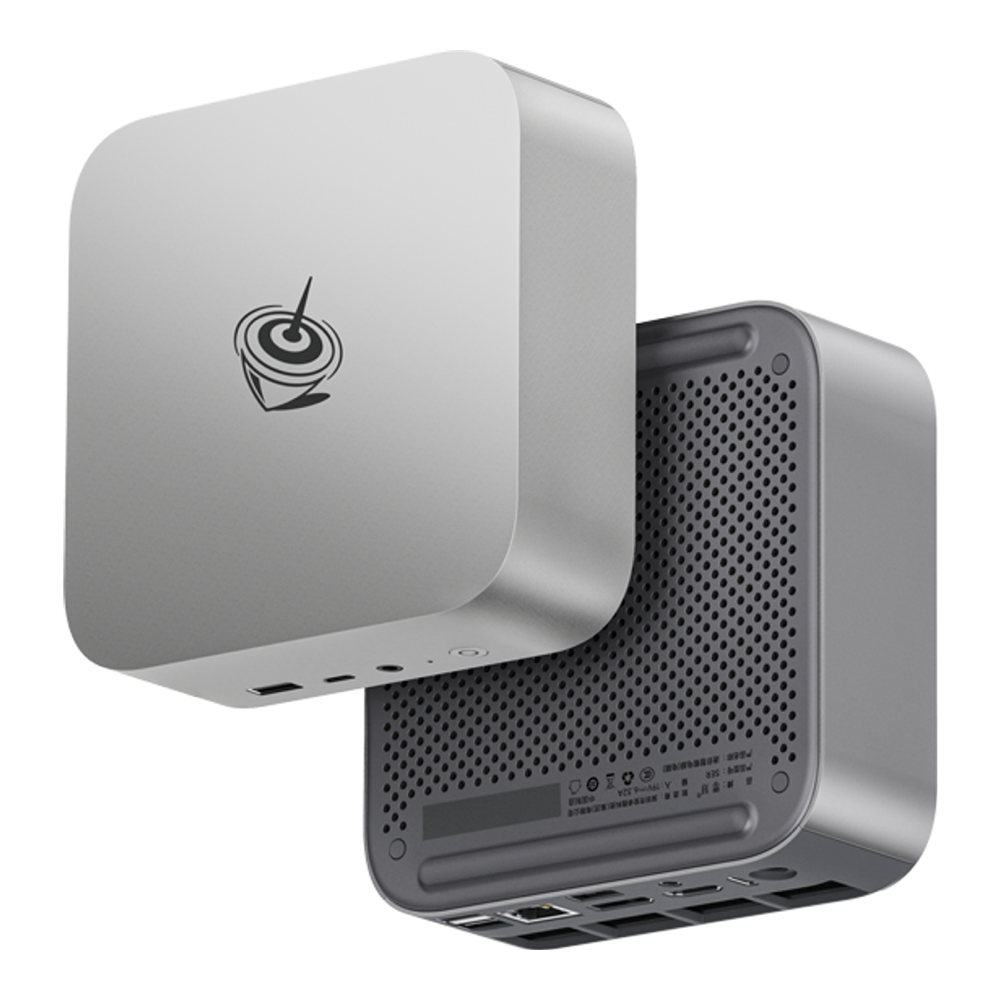
Who it is for: anyone serious about CCNA or CCNP who wants one box that will not need replacing in six months. The upgrade path is the real selling point. Start at 32 GB, drop in bigger SODIMMs when your labs grow, and you have a machine that spans the whole certification track.
Skip it if: you only ever plan to run a small CCNA lab, in which case the cheaper EQ14 does the job, or you already know you need CSR1000v-heavy data-center topologies, where the sixteen-core MS-A2 is the better spend. Confirm the exact 8745HS, 32 GB, 1 TB variant is the one in stock, since Beelink lists several near-identical SKUs. Check the current price on Amazon.
2. Beelink EQ14: the budget CCNA box
If the goal is to pass CCNA and the budget is tight, the EQ14 is the honest entry point. Its Intel N150 is a modest quad-core, and it comes with 16 GB of DDR4. As the footprint math showed, a standard CCNA topology needs under three gigabytes, so 16 GB is genuinely enough to work through the switching, routing, and security CCNA exam topics.
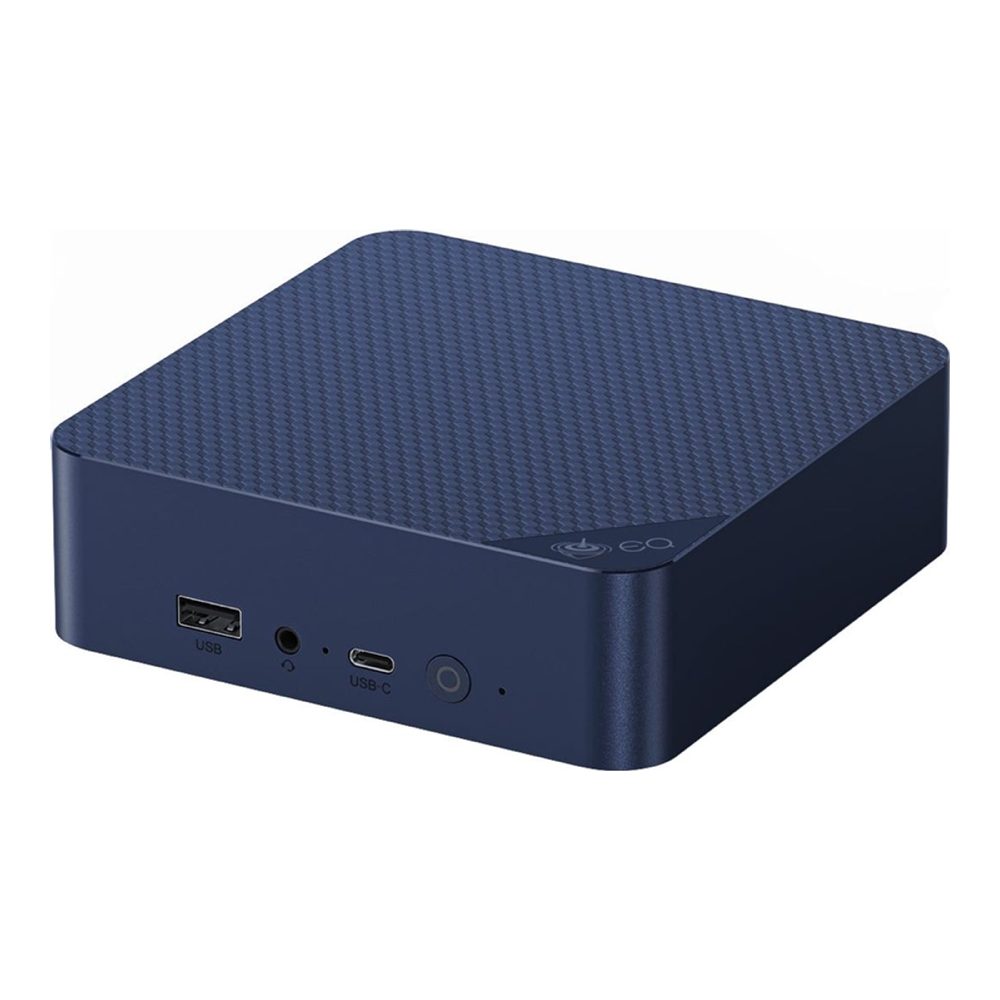
Who it is for: the CCNA candidate who wants a dedicated, silent lab box for the price of a few textbooks and does not want to tie up a main laptop. It sips power and tucks behind a monitor.
Skip it if: you expect to keep going past CCNA. That 16 GB is a single-channel hard ceiling, not a starting point, and four cores mean boot storms are slow when a lab grows. It is a box you will outgrow on purpose, which is fine if you know that going in. For anything beyond the basics, spend up to the SER8. If you are weighing it against other small boxes for general homelab use, our mini PC as a DIY NAS guide covers the same chassis family. Check the current price on Amazon.
3. Minisforum MS-A2: for CCNP, CCIE, and data-center labs
When your topologies fill with CSR1000v routers, Nexus switches, and firewalls, node weight becomes the enemy and the MS-A2 answers it with brute force. The Ryzen 9 9955HX brings sixteen Zen 5 cores and thirty-two threads, and the platform takes up to 96 GB of DDR5. At roughly four gigabytes per CSR1000v, that is around twenty-two heavy routers on one small box, or close to three hundred vIOS nodes. Push past even that and you are into rackmount server territory rather than a mini PC.
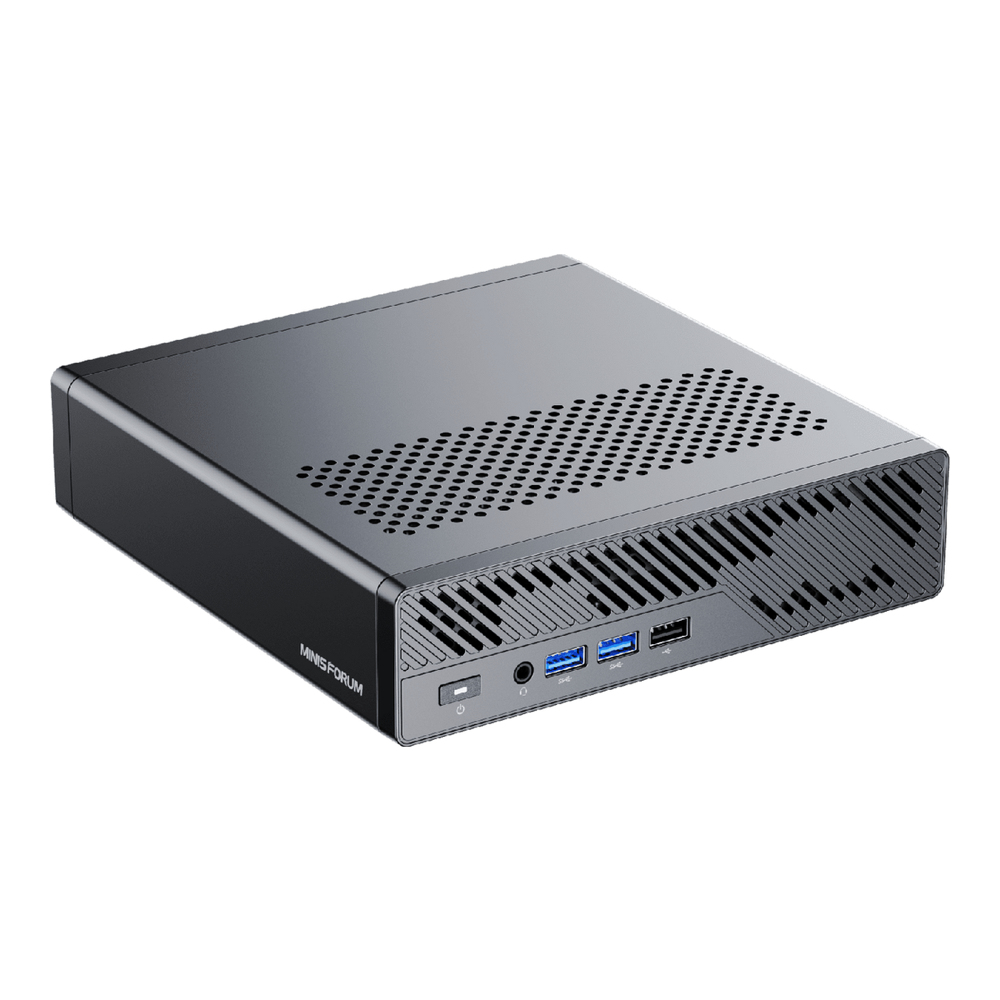
Who it is for: CCIE candidates, anyone running data-center or SD-WAN labs, and instructors hosting a shared EVE-NG server for a class. The sixteen cores also mean large topologies boot in a fraction of the time a small box needs.
Skip it if: you are on the CCNA or early CCNP track, where you will never touch its ceiling and the SER8 saves you real money. Note that this is the barebone model, so budget for two DDR5 SODIMMs and an NVMe drive on top of the sticker price. Buy the RAM to match your labs: 48 GB is plenty for most, 96 GB for the truly large. Check the current price on Amazon.
4. Minisforum MS-01: when the lab box doubles as a Proxmox host
The MS-01 is the pick for people who do not want a single-purpose lab machine. Its Core i9-13900H has fourteen cores, it takes up to 64 GB of DDR5, and it carries two 10GbE SFP+ ports, three NVMe slots, and a PCIe slot. For pure GNS3 that networking is wasted, as covered above, but the moment the box also runs real virtual machines it becomes the reason to buy it.
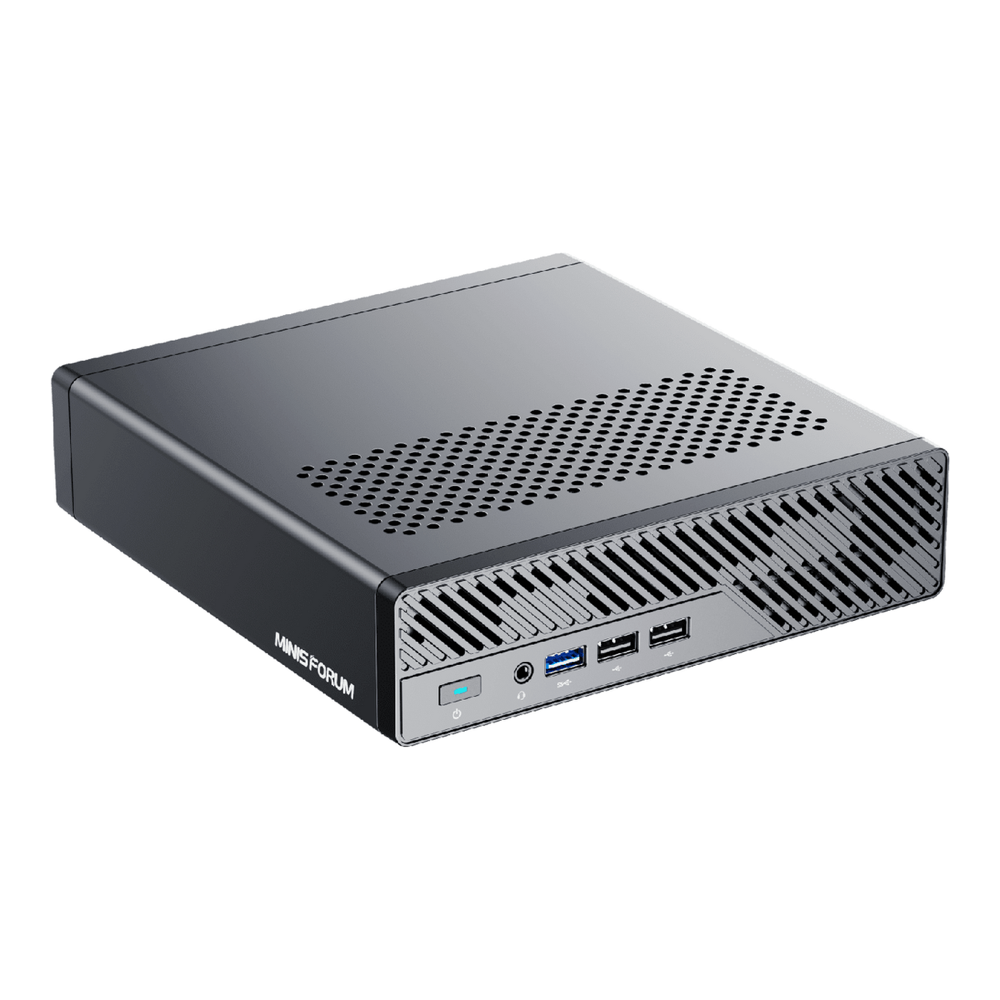
Who it is for: homelabbers who want one machine to run Proxmox, a few production VMs, and a GNS3 or EVE-NG VM alongside them. The 10GbE and three NVMe slots make it a legitimate hypervisor, and nested virtualization lets the emulator live inside a guest without a speed penalty.
Skip it if: the box will only ever run a network emulator. You would be paying for 10GbE and expansion that GNS3 cannot use, and the MS-A2 gives you more cores and a higher memory ceiling for less. Its 64 GB limit is also lower than the MS-A2’s 96 GB, so pick it for the connectivity, not the raw capacity. Check the current price on Amazon.
What to look for in a GNS3 or EVE-NG mini PC
If you are cross-shopping beyond these four, the priorities are the same every time, and they are not the specs the marketing leads with.
Buy upgradeable RAM, and lots of headroom. Memory is the ceiling on lab size, so a box whose memory you can grow beats one capped low every time. The EQ14’s 16 GB is a platform limit on the N150 chip, not a starting point you can upgrade past, and that fixed ceiling is exactly the wall you want to avoid if you plan to keep studying.
Get more cores than you think you need. Cores do not raise the node ceiling, but they decide whether a big lab boots in seconds or minutes, and whether nodes stay responsive when traffic flows. Four is a floor, eight is comfortable, sixteen is luxury.
Confirm virtualization support and turn it on. Any modern Intel or AMD chip has it, but it ships disabled often enough that the grep vmx check above should be your first step. If the emulator will run inside a VM, enable nested virtualization on the host too.
Ignore the GPU and the network ports. A network lab is entirely virtual, so integrated graphics and a single gigabit port are fine. Spend the money you save on RAM instead. A modest 250 to 500 GB NVMe is plenty, since the node images are small and the workload is memory and CPU bound.
Match the box to the exam
Strip away the spec sheets and the decision is short. For CCNA on a budget, the EQ14 is enough, and if you want a box that will not hold you back later, the SER8 is the smart buy at a modest premium. For CCNP and CCIE, or for hosting EVE-NG for a group, the MS-A2’s sixteen cores and 96 GB ceiling are worth every dollar. And if the machine has to earn its keep as more than a lab, the MS-01 turns into a proper Proxmox host the day you are done studying. Whichever you pick, size the RAM to the nodes you actually run, not the ones the box could theoretically hold, and pair it with a solid set of CCNA practice labs to put the hardware to work.