There are two honest reasons to build your own kernel. Either your distro ships something older than the hardware or feature you need, or you want a lean kernel that compiles only the drivers your machine actually loads. Both are solved the same way: fetch the source from kernel.org, point the build at your current config, and compile. This guide walks the whole thing on Ubuntu and Debian, and on Rocky Linux and AlmaLinux, with the package names that differ between the two families called out where they matter.
If you only want a newer kernel and do not care about compiling it yourself, that is a different (and faster) job: grab a prebuilt one instead, either by installing a prebuilt kernel on Ubuntu or through the ELRepo route on RHEL-based systems. This guide is for the case where you genuinely want to build it. For context on what the current release brings, it is worth reading up on what is new in Linux 7.1 before you commit to building it.
I ran this end to end on Ubuntu 26.04 in June 2026, building Linux 7.1 on an 8 core box. It takes one real gotcha to get past on current kernels, and it is in step 1.
What you need
Compiling a kernel is CPU and disk heavy, not RAM heavy. The build itself scales with cores, so more cores means a shorter wait, and a full source tree plus object files lands around 15 to 25 GB. A practical setup:
- A 64-bit Ubuntu 26.04 / 24.04, Debian 13 / 12, or Rocky Linux / AlmaLinux 10 / 9 system you can reboot
- 4 or more CPU cores (the build time roughly halves each time you double cores) and at least 4 GB RAM
- 30 GB of free disk for the source tree and build output
- A non-root user with sudo, and console or out-of-band access in case the new kernel does not boot
Do not do your first build on a box you cannot afford to reboot blind. Use a VM or a machine with a keyboard attached so you can pick the old kernel from the GRUB menu if something goes wrong.
1. Install the build dependencies
The toolchain is the part that differs between distros. On Debian and Ubuntu, install the compiler, the config-menu libraries, and the parsers the build needs:
sudo apt update
sudo apt install -y build-essential libncurses-dev bison flex libssl-dev \
  libelf-dev libdw-dev bc rsync dwarves zstd cpio kmod fakeroot
On Rocky Linux and AlmaLinux, pull in the development group and the matching headers. On current releases every package below is in the default baseos and appstream repositories, so there is no extra repo to enable:
sudo dnf group install -y "Development Tools"
sudo dnf install -y ncurses-devel bison flex elfutils-libelf-devel elfutils-devel \
  openssl-devel bc rsync dwarves zstd cpio
If dnf reports that it cannot find one of these (RHEL proper and the odd minor release move a development header into the CodeReady Builder repo), enable CRB and run the install again:
sudo dnf config-manager --set-enabled crbHere is the gotcha, and it bites on current distro configs: the libdw-dev package on Debian/Ubuntu (and elfutils-devel on Rocky/Alma) is not optional anymore. Recent kernels build a tool called gendwarfksyms that reads DWARF debug info to generate module symbol versions, and it needs the dwarf.h header those packages ship. Leave it out and the build dies partway through with a fatal error pointing at dwarf.h. It trips people who copied an older dependency list that predates this tool. Install it now and you skip the whole detour.
2. Download and extract the kernel source
Set the version you want once as a shell variable so the rest of the commands follow it, then pull the tarball straight from the kernel.org CDN. Check kernel.org for the current stable number and change KVER to match:
export KVER="7.1"   #https://kernel.org
MAJOR="${KVER%%.*}"
cd ~
wget -c "https://cdn.kernel.org/pub/linux/kernel/v${MAJOR}.x/linux-${KVER}.tar.xz"
The ${MAJOR}.x part is derived from your version automatically, so the same block works whether you build a 7.x or a 6.x kernel. Extract it and move in:
tar -xf "linux-${KVER}.tar.xz"
cd "linux-${KVER}"
make kernelversion
That last command echoes the version the tree will build, a quick sanity check before you spend an hour compiling:
7.1.03. Configure the kernel
You do not write a kernel config from scratch. Start from the one your running system already uses, which the distro stores in /boot, and let the build trim and update it. Copy it in as the base:
cp -v "/boot/config-$(uname -r)" .configA stock distro config enables thousands of drivers for hardware you do not have, and building all of them is what turns a kernel compile into an all-day affair. The fix is localmodconfig, which scans the modules currently loaded on your machine and disables everything else:
yes '' | make localmodconfigThe yes '' pipe just accepts the default for any new option it asks about. This is the single biggest time saver in the whole process, often cutting the build down to a fraction of a full compile. The trade is that the kernel only supports hardware that was plugged in when you ran it, so if you later add a device whose driver was not loaded, rebuild or load the module by hand.
Distro configs also sign their modules against a certificate you do not have a copy of. On Ubuntu that points at debian/canonical-certs.pem, and if you leave it set the build stops looking for a file that is not there. Clear the trusted-key options and the module signing flag so the build owns its own keys:
scripts/config --disable SYSTEM_TRUSTED_KEYS
scripts/config --disable SYSTEM_REVOCATION_KEYS
scripts/config --disable MODULE_SIG
scripts/config --disable DEBUG_INFO
scripts/config --disable DEBUG_INFO_BTF
Turning off the debug info keeps the build smaller and faster, and you do not need it unless you are debugging the kernel itself. Now normalize the config so any option that is new in this release gets a sane default instead of an interactive prompt:
make olddefconfigIf you would rather hand-pick options through a menu instead of inheriting your current config, run make menuconfig here. For a first build, the copied-and-trimmed config is the reliable path.
4. Build the kernel
Compile with one job per core. The nproc substitution sets the parallelism to your core count automatically:
make -j"$(nproc)"This is the long step. On an 8 core VM a trimmed localmodconfig build finishes in well under an hour; a full config on the same box can run several times longer. When it completes, the build prints the line you are waiting for:
Kernel: arch/x86/boot/bzImage is ready (#1)That bzImage is your compiled kernel. The next step gets it and its modules into place.
5. Install the modules, kernel, and bootloader entry
Install the modules first. They land under /lib/modules/${KVER}.0:
sudo make modules_installThen install the kernel itself, which copies the image and builds the initramfs:
sudo make installThe last piece is the bootloader entry, and this is where the two families diverge. On Debian and Ubuntu, regenerate the GRUB config:
sudo update-grubIt picks up both the new kernel and the one you booted from, so you always have a fallback:
Found linux image: /boot/vmlinuz-7.1.0
Found initrd image: /boot/initrd.img-7.1.0
Found linux image: /boot/vmlinuz-7.0.0-15-generic
Found initrd image: /boot/initrd.img-7.0.0-15-generic
done
On Rocky Linux and AlmaLinux the boot entry is handled by grubby and the BootLoaderSpec, and make install should register the new kernel. Do not take that on faith. Confirm the entry exists before you reboot:
sudo grubby --info=ALL | grep -E "^kernel=|^index="If the new kernel is not in that list, register it by hand:
sudo kernel-install add "${KVER}.0" "/boot/vmlinuz-${KVER}.0"Once the entry is present, set it as the default to boot:
sudo grubby --set-default "/boot/vmlinuz-${KVER}.0"If grubby still does not show it, regenerate the GRUB config directly with sudo grub2-mkconfig -o /boot/grub2/grub.cfg. While you are in the bootloader, it is worth taking a minute to password-protect GRUB on any machine others can reach.
6. Reboot and verify
Reboot into the kernel you just built:
sudo rebootOnce it comes back, confirm the running kernel is the one you compiled. The handy command to check your kernel version is uname -r:
uname -rIt should report the version you built, with no distro suffix because this is a vanilla kernel.org tree:
7.1.0Here it is on the test box, freshly built and booted, with the old distro kernel still parked in the boot menu as a fallback:
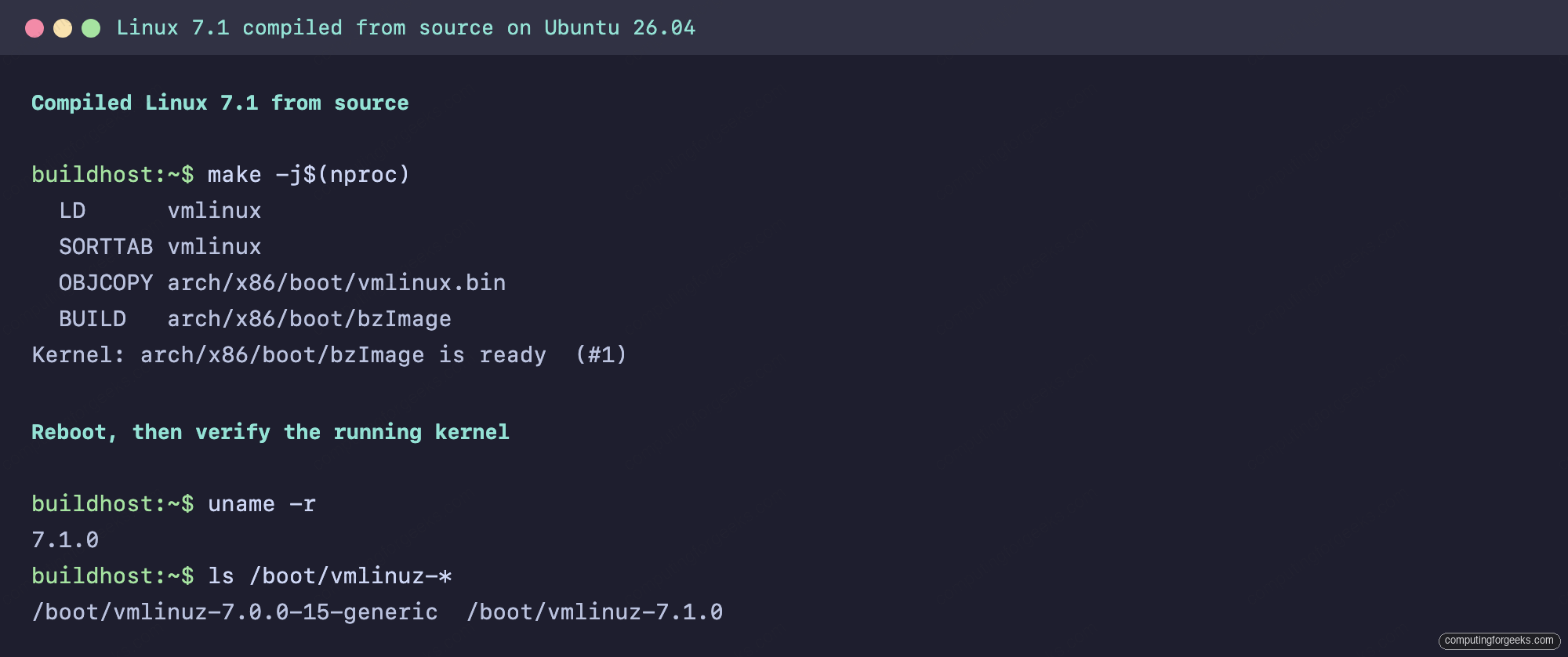
That is a kernel you built from source running as your live system. From here you can rebuild any time with make -j"$(nproc)" after editing the config, and reuse the already-compiled objects so only what changed gets recompiled.
Errors you might hit
fatal error: dwarf.h: No such file or directory
The build stops with this while compiling its own helper tools:
scripts/gendwarfksyms/gendwarfksyms.h:6:10: fatal error: dwarf.h: No such file or directory
    6 | #include <dwarf.h>
The dwarf.h header is missing. Install libdw-dev on Debian/Ubuntu or elfutils-devel on Rocky/Alma, then run make again. The compile resumes from where it stopped.
No rule to make target ‘debian/canonical-certs.pem’
This shows up on Ubuntu when the copied config still references a signing certificate you do not have. It means step 3 was skipped. Run the three scripts/config --disable lines for the trusted keys and module signing, then make olddefconfig, and rebuild.
Rolling back to your previous kernel
Because update-grub and grubby both keep the old kernel, recovery is a reboot away. If the new kernel panics or a driver you needed is missing, reboot and pick the previous entry from the GRUB menu (on Ubuntu it lives under “Advanced options”). To make the old kernel the permanent default again, set it on Debian/Ubuntu with sudo grub-set-default pointing at its menu entry, or on Rocky/Alma with sudo grubby --set-default /boot/vmlinuz-<old-version>.
To remove the compiled kernel entirely once you are back on a known-good one, delete its image, initramfs, and modules, then regenerate the boot menu:
sudo rm -f "/boot/vmlinuz-${KVER}.0" "/boot/initrd.img-${KVER}.0" \
  "/boot/System.map-${KVER}.0" "/boot/config-${KVER}.0"
sudo rm -rf "/lib/modules/${KVER}.0"
sudo update-grub   # use grub2-mkconfig -o /boot/grub2/grub.cfg on Rocky/Alma
That leaves your system exactly as it was before the build, running the kernel your distro shipped. Keep the source tree around if you plan to rebuild; incremental compiles are quick once the objects exist.