A laptop that joins a network gets its IP address, subnet mask, default gateway, and DNS server in a couple of seconds, and nobody typed any of it. DHCP, the Dynamic Host Configuration Protocol, is what hands those settings out. On a Cisco network the router itself can be the DHCP server, and when clients sit on a different subnet from that server, a second router relays their requests across the hop. This guide configures both, a Cisco IOS DHCP server serving two LANs and a DHCP relay agent, then reads the real leases off the server.
The CCNA 200-301 exam expects you to configure and verify a Cisco DHCP server and to recognise the role of a relay agent. Both are everyday tasks: most small networks let a router or firewall lease addresses, and the relay is what lets one central server cover subnets it is not directly attached to. The pairing also sits alongside DNS as the two services that make a freshly connected client just work.
Configured and captured on two Cisco IOS 15.2 routers in GNS3, June 2026; the bindings below are real leases.
Why DHCP, and what a lease carries
Static addressing does not scale. The moment a network has more than a handful of devices, or any that come and go, assigning addresses by hand becomes a source of typos, duplicates, and wasted time. DHCP automates it. A client that needs an address runs a four-step exchange with the server, often called DORA: the client broadcasts a Discover, the server sends an Offer, the client broadcasts a Request for that offer, and the server returns an Acknowledgement.
The lease the client receives is more than an address. It carries the IP address and subnet mask, the default gateway, the DNS server, often a domain name, and a lease time after which the client must renew. Get any of those wrong and the symptom differs: a bad gateway breaks off-subnet traffic, a bad DNS server breaks name resolution while pings to IPs still work. Knowing how to verify the settings a client received is half of troubleshooting DHCP.
The lab topology
R1 is the DHCP server and holds a pool for each of the two LANs. Client A sits on R1’s own LAN and leases directly. Client B sits behind R2 on a different subnet, so R2 relays its requests back to R1.
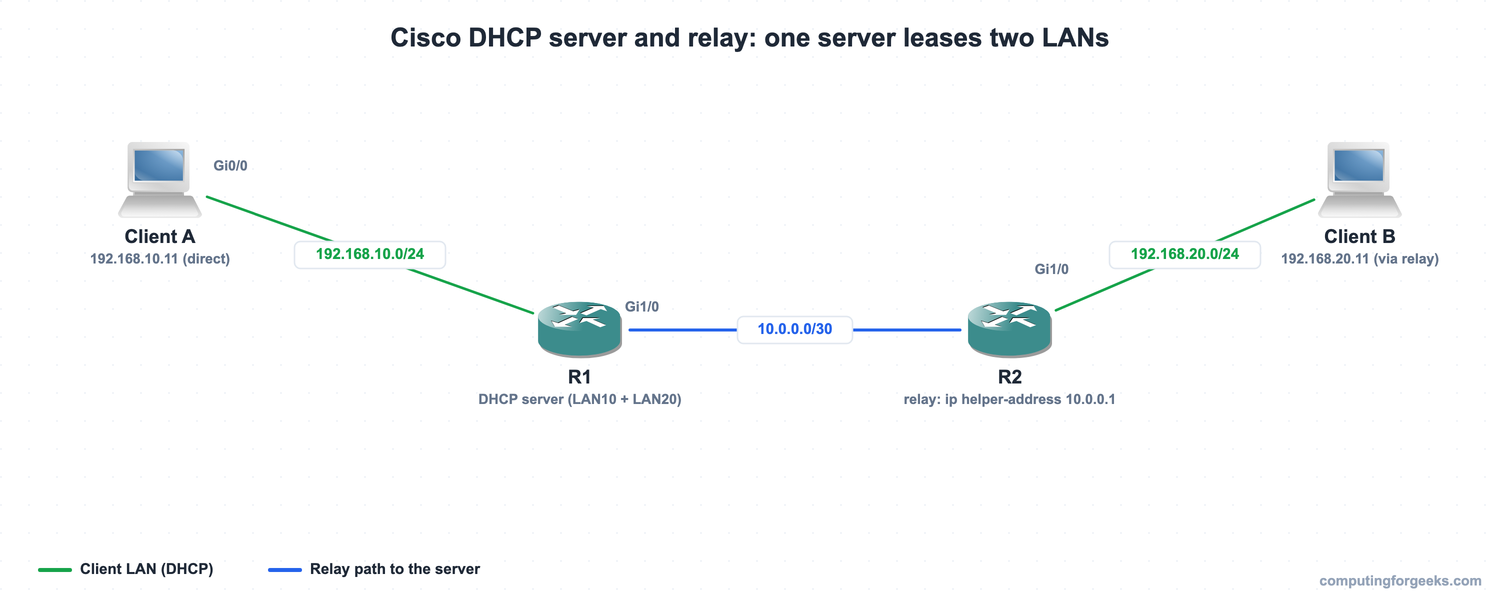
R1 serves 192.168.10.0/24 directly and 192.168.20.0/24 through the relay, with a route to the remote LAN via R2. R2 carries the relay configuration on its client-facing interface. Here is the same lab in GNS3:
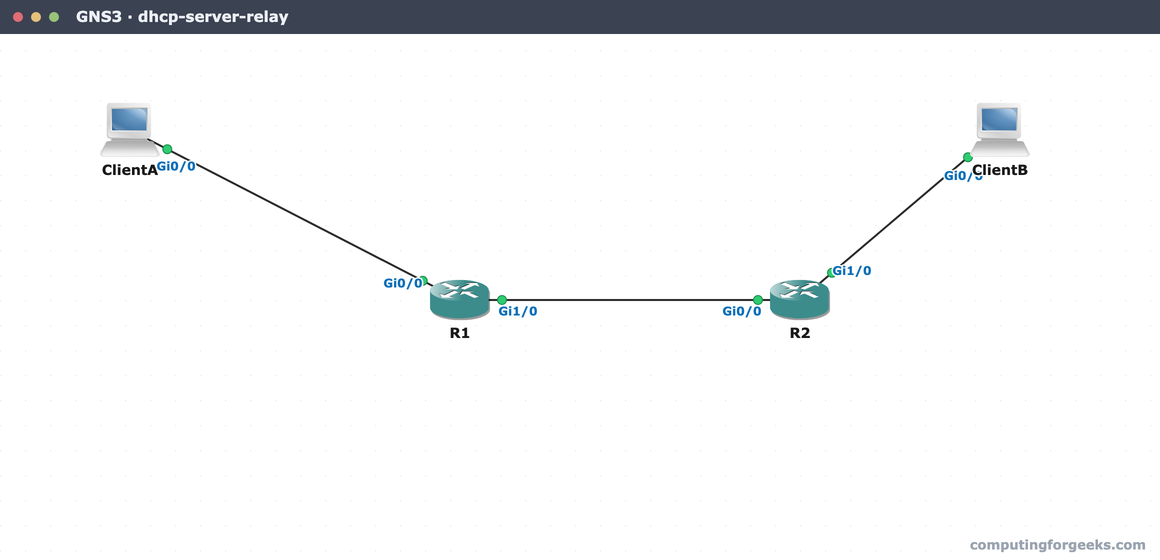
Every device config in this lab is paste-ready in the companion repo, c4geeks/ccna-labs/dhcp-server-relay.
Configure the Cisco DHCP server
Start by reserving the addresses you do not want handed out. The router’s own interface addresses, plus any static servers or printers, go in an excluded range so the pool never offers them:
ip dhcp excluded-address 192.168.10.1 192.168.10.10
ip dhcp excluded-address 192.168.20.1 192.168.20.10
Now define a pool per subnet. The network statement sets which subnet the pool serves, and the rest of the options become the lease the client receives:
ip dhcp pool LAN10
 network 192.168.10.0 255.255.255.0
 default-router 192.168.10.1
 dns-server 8.8.8.8
 domain-name lab.example.com
 lease 0 8
ip dhcp pool LAN20
 network 192.168.20.0 255.255.255.0
 default-router 192.168.20.1
 dns-server 8.8.8.8
 lease 0 8
The router matches an incoming request to a pool by subnet. A client on 192.168.10.0/24 draws from LAN10, and a request that arrives carrying a gateway address of 192.168.20.1 draws from LAN20, which is exactly how the relayed clients get the right settings. The lease 0 8 sets an eight-hour lease; the default is one day. For R1 to reach the remote LAN it also needs a route back through R2:
ip route 192.168.20.0 255.255.255.0 10.0.0.2With the pools defined, the clients can boot and pick up their addresses. Check what the server actually handed out before trusting that it worked.
Verify leases on the server
The server’s record of who has what is show ip dhcp binding. After both clients booted, R1 shows two active leases:
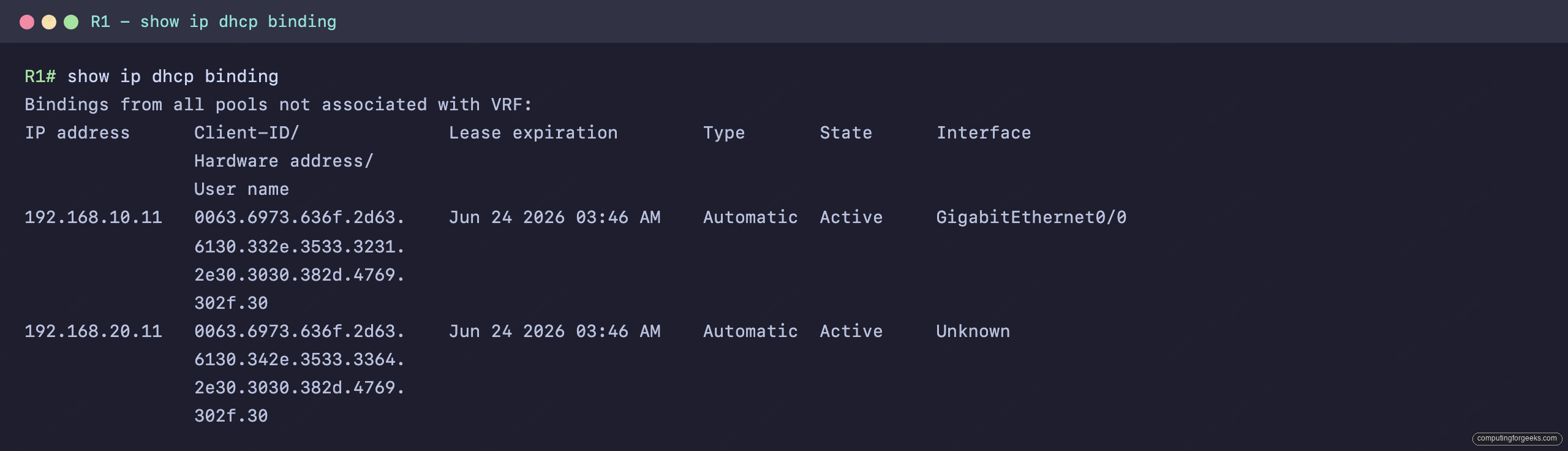
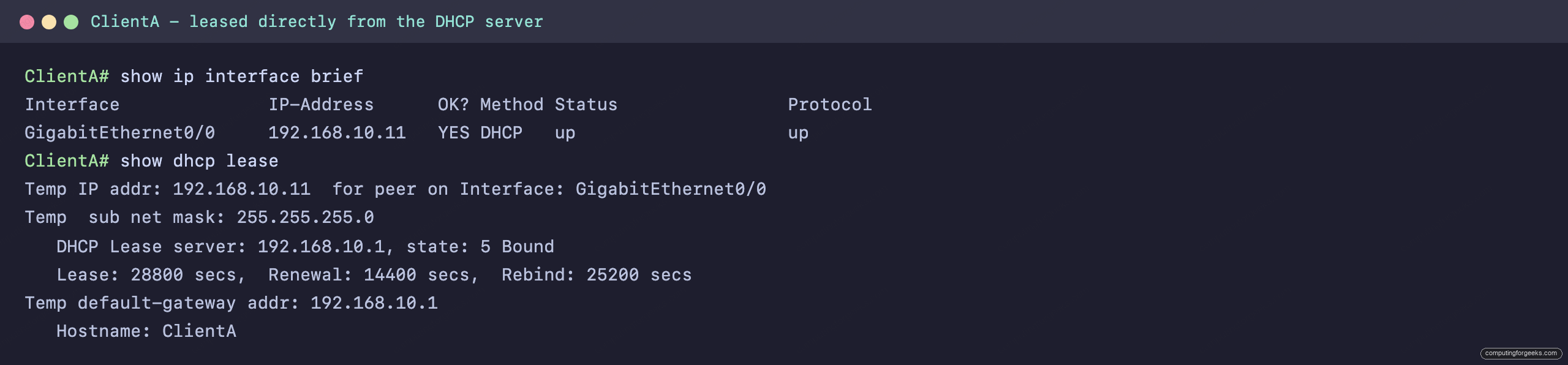
The 192.168.10.11 binding lists GigabitEthernet0/0 as its interface, because that client is directly attached. The 192.168.20.11 binding shows the interface as Unknown, the tell that it arrived through a relay rather than off a connected segment. On the client side, Client A confirms it leased an address straight from the local server at 192.168.10.1:
Both pools report one leased address, ten excluded, and 254 total under show ip dhcp pool, which is the quick way to spot a pool that is filling up or sitting unused.
DHCP across a router: the relay agent
The Discover and Request messages in DORA are broadcasts, and a router does not forward broadcasts between subnets. So a client on R2’s LAN would never reach a server on R1’s LAN on its own. The fix is the relay agent: the ip helper-address command tells R2 to catch those DHCP broadcasts and forward them as a unicast to the server’s address. Put it on the interface facing the clients:
interface GigabitEthernet1/0
 ip address 192.168.20.1 255.255.255.0
 ip helper-address 10.0.0.1
When R2 relays the request, it stamps in the gateway address of the receiving interface (192.168.20.1). That value, the giaddr, is how R1 knows to lease from the LAN20 pool even though the request reached it as a unicast across the link. Client B ends up with a correct 192.168.20.0/24 address, and its lease record names the server it came from:
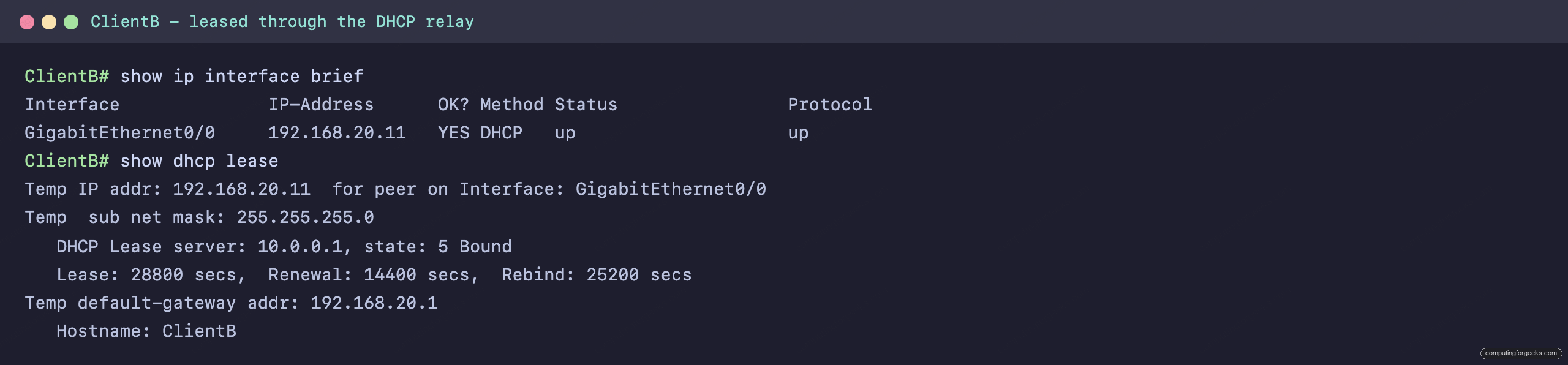
Notice the lease server reads 10.0.0.1, R1’s address on the link, not the local gateway 192.168.20.1. That is the proof the request crossed the relay: Client B is on a subnet with no local DHCP server, yet it leased from one a hop away. The same ip helper-address also forwards a short default list of other broadcast UDP services (DNS, TFTP, TACACS, Time, BOOTP, and the NetBIOS name services), which is worth knowing so you are not surprised when it relays more than DHCP.
Practice DHCP
Run the quiz, then the flashcards, reading the explanation on anything you miss. The DORA steps, the difference between the server and the relay, and what ip helper-address actually does are the points exam questions return to.
Drill the server options and the relay until they are automatic:
When clients do not get a lease
When a client comes up with no address, or a Windows machine shows a 169.254.x.x APIPA address, the DHCP path has broken somewhere. Work it in order. First, on a remote subnet, confirm the relay: the client-facing interface needs ip helper-address pointing at the server, and a missing helper is the usual reason an off-subnet client fails while the local one works. Second, check the pool actually matches the subnet, because a network statement that does not line up with the client’s segment (or the relay’s giaddr) leaves the server with no pool to answer from. Third, make sure the server has a route back toward the relayed subnet, since the server has to reach the giaddr to deliver its reply. Fourth, look at the excluded ranges and the pool size; a pool that has handed out every free address simply stops answering until a lease expires. The NAT and PAT guide covers the next IP service on most edge routers, the DNS server lab pairs with this one as the other half of “a client that just works,” and the CCNA 200-301 study roadmap maps the rest of IP Services.