Mageia 10 landed on June 30, 2026, almost three years after Mageia 9, and the question that matters is whether the wait produced a distribution you would actually run. Three years is an eternity in Linux time. In that gap KDE shipped a whole new Plasma major version, Wayland went from optional to expected, and most of Mageia’s user base either sat patiently on an aging system or drifted to Fedora and openSUSE.
This review looks at what Mageia 10 actually delivers: the kernel 6.18 LTS base, KDE Plasma 6.5 on Wayland, the Mageia Control Center that remains the project’s best argument, and dnf now preinstalled alongside urpmi. Everything here was checked on a clean install, the same system we used for the Mageia 10 install walkthrough. If you want a broader sense of how smaller distributions are holding up in 2026, our Azure Linux 4.0 review makes a good companion read.
Spent a few days on a clean Mageia 10 install in July 2026 for this one; every screenshot and version below comes from that system.
1. The version jump: three years of catching up in one release
The headline story is arithmetic. Mageia 9 shipped in August 2023 on kernel 6.4, Plasma 5.27, and GCC 12. Mageia 10 clears the backlog in a single release, and the gap between the two columns below is the whole review in miniature.
| Component | Mageia 9 (Aug 2023) | Mageia 10 (Jun 2026) |
|---|---|---|
| Kernel | 6.4 | 6.18.35 (LTS) |
| KDE Plasma | 5.27.5 on X11, KDE Frameworks 5.105 | 6.5.5 on Wayland, Frameworks 6.22, Qt 6.10 |
| GNOME | 44.2 | 49 |
| Xfce | 4.18 | 4.20 |
| Mesa | 23.1 | 26.0.8 |
| GCC | 12.3 | 15.2 |
| RPM | 4.18 | 4.20.1 |
| Package tools | urpmi (dnf optional) | urpmi plus dnf 5 preinstalled |
The server and developer side is equally current: the release media carry PostgreSQL 18.4, Apache 2.4.67, Docker 28.5.2, Rust 1.95, Git 2.52, Python 3.13, and glibc 2.42 with systemd 258. Nothing in the repos felt stale during testing, which is remarkable for a project that was fielding “is Mageia dead?” threads a year ago. Picking the 6.18 LTS kernel line was the right call for a distribution with long release cycles, because it keeps hardware enablement and security fixes flowing upstream for years rather than months.
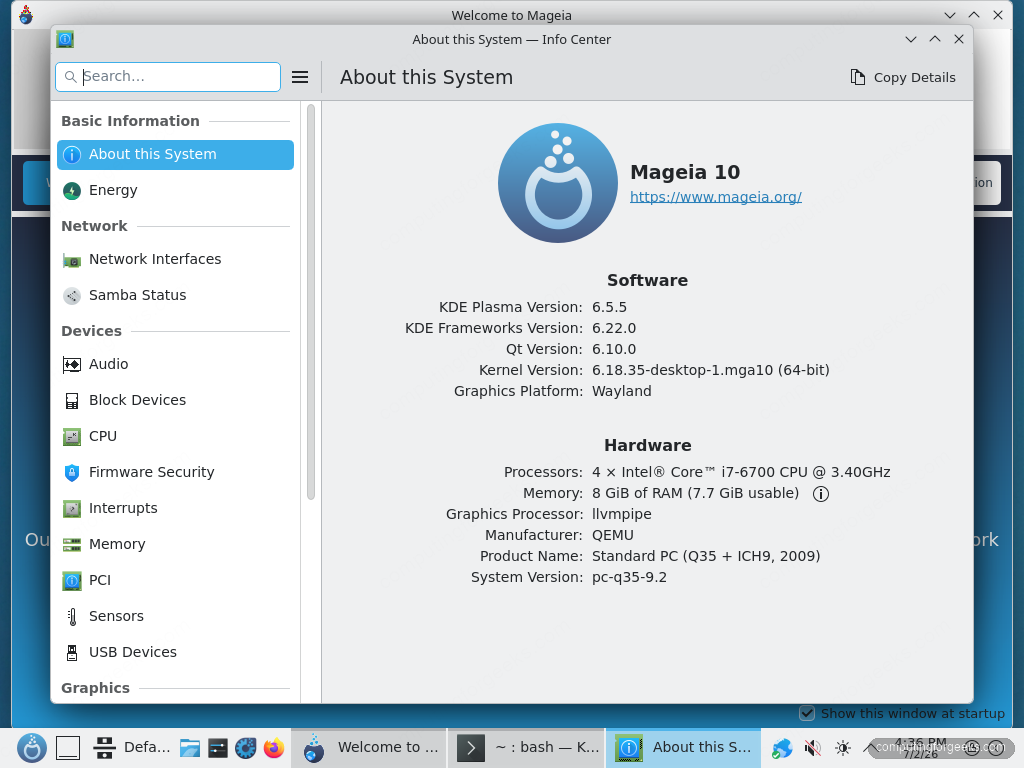
The versions above are not copied from a press release; here is the installed system reporting them:
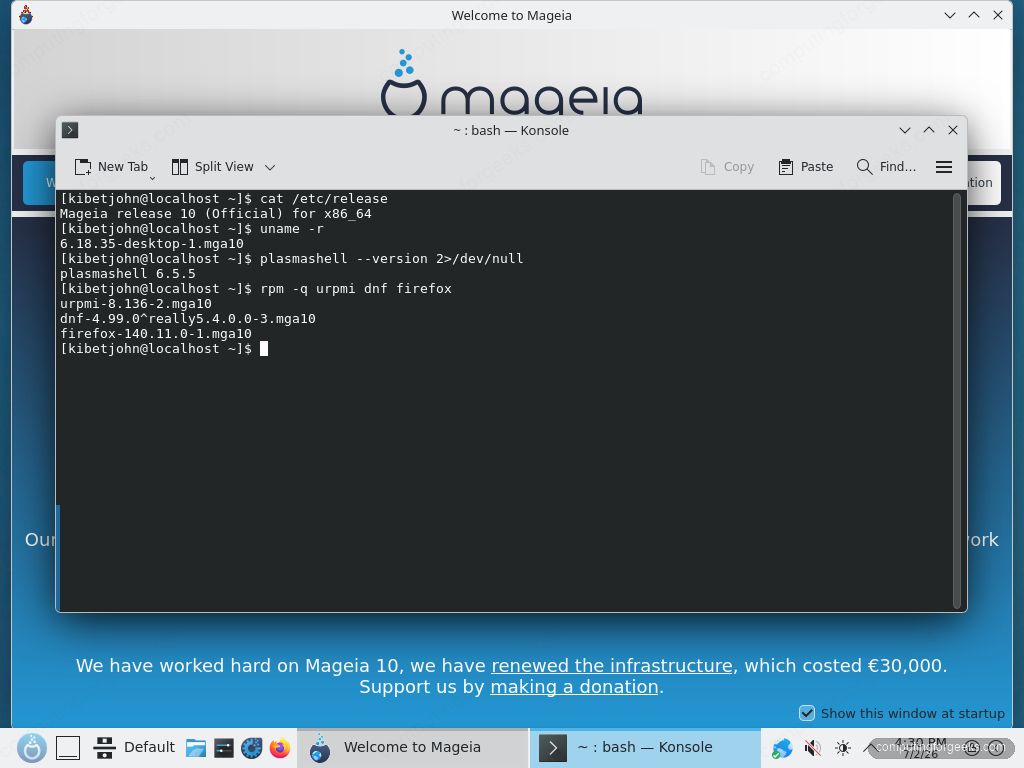
The one oddity in that output is dnf’s version string, which the packagers literally named 4.99.0^really5.4.0.0, a wink at the dnf 4 to dnf 5 transition happening mid-cycle.
2. Plasma 6.5 on Wayland is the flagship, and it holds up
The Plasma edition is what most Mageia users will install, and it boots into a Wayland session by default with X11 still selectable from the login screen. On our test system the session was stable through a full day of poking: no crashes, no rendering glitches, working screen sharing, even though the VM only had virtual graphics to work with and Plasma fell back to software rendering without complaint.
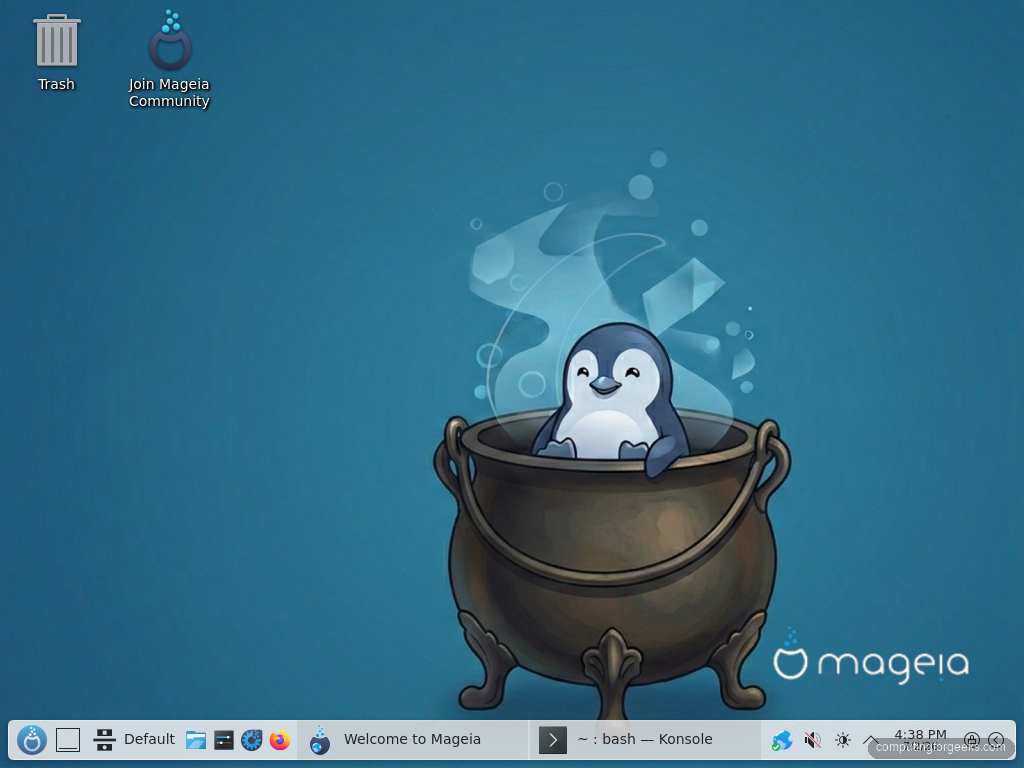
The default desktop is restrained: a single panel, the penguin-in-a-cauldron wallpaper, and two icons. System Settings and Info Center confirm the stack underneath, Plasma 6.5.5 on KDE Frameworks 6.22 and Qt 6.10, which is within one point release of what Fedora and openSUSE were shipping the same week.
If Plasma is your daily desktop and you like tweaking it, the Plasma 6.6 tour on Fedora and our guide to customizing Plasma with themes and extensions apply to Mageia almost unchanged.
3. A desktop that still does things its own way
Mageia does not ship a stock Plasma. The application launcher is a compact cascading menu rather than the default Kickoff grid, closer to the classic menu old Mandriva users remember. Whether that reads as charming or dated depends on you; it took us two days to stop hunting for the search-first launcher, though typing still filters applications the moment the menu is open.
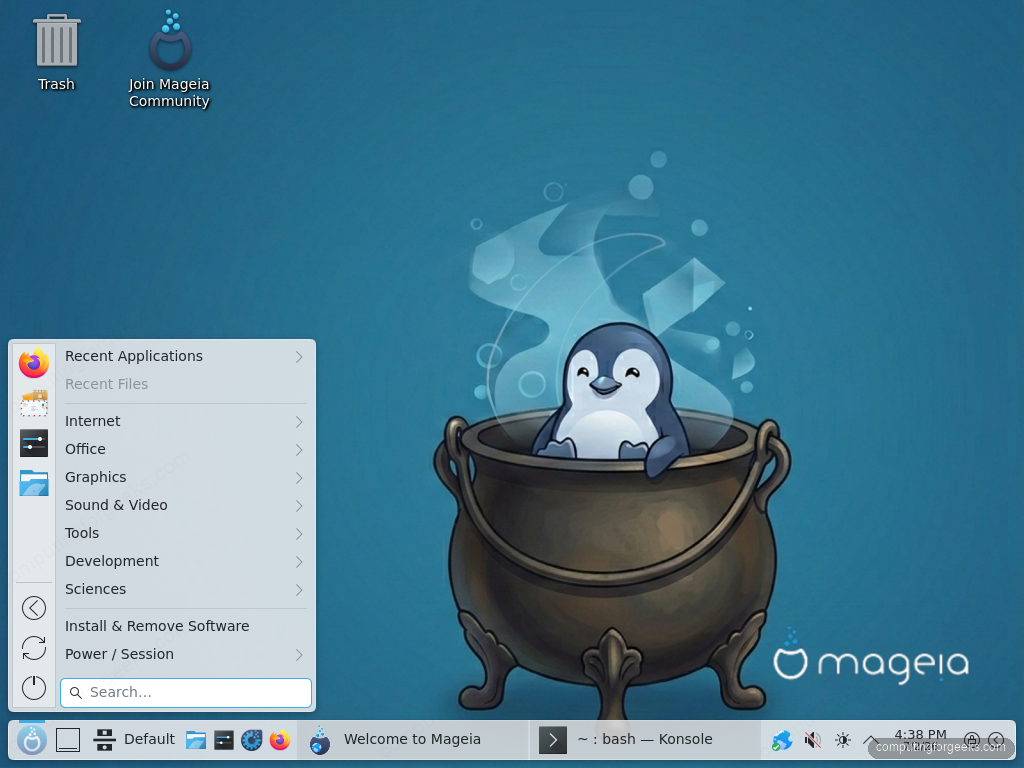
First login opens MageiaWelcome, and it is one of the better onboarding tools in any distribution. It walks a new user through enabling media sources, applying updates, and installing common applications, with buttons that launch the real tools instead of documentation pages. The same window is candid about the project itself: the team spent about 30,000 euros renewing its build infrastructure for this release, which explains part of the long gap between versions.

Several of those MageiaWelcome buttons hand off to the same place, the tool this distribution is really known for.
4. Mageia Control Center remains the best reason to run it
Twenty years after its Mandriva ancestor, the Mageia Control Center is still the most complete graphical admin tool shipped by any distribution. One window covers software management, hardware probing, network configuration, disk partitioning, NFS and Samba sharing, firewall rules, authentication, and boot options. We counted 45 drak tools on a default install, all reachable without touching a terminal.
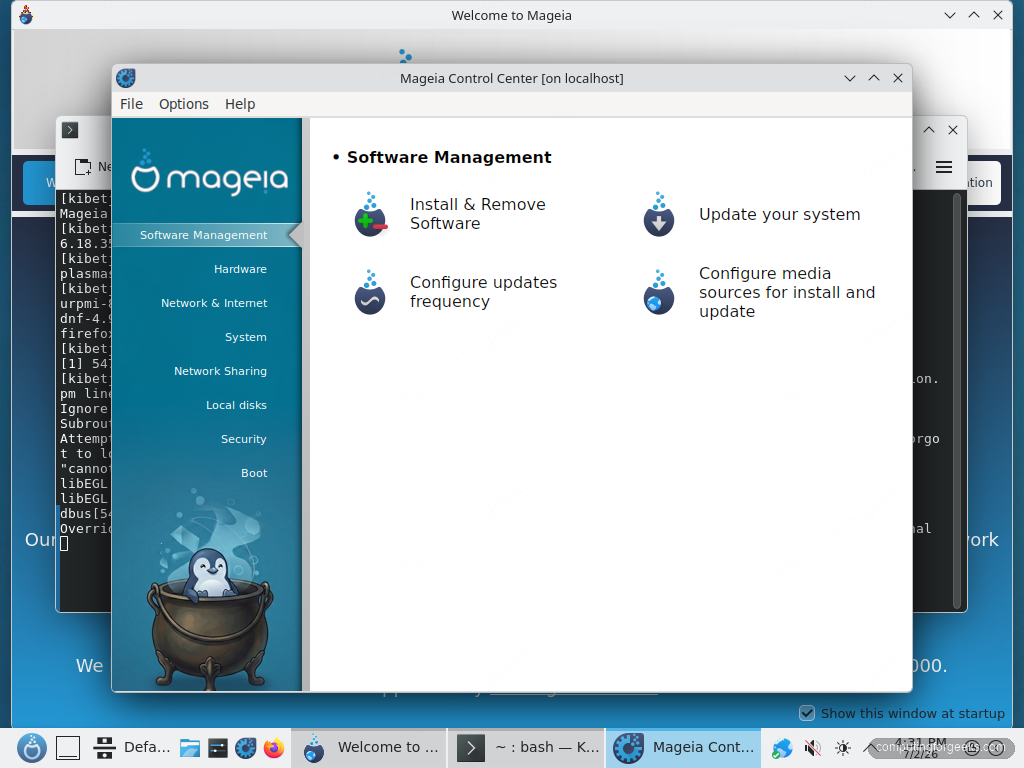
This matters more than it sounds. On most distributions, the honest answer to “how do I configure the firewall graphically” is a third-party app or a web console. On Mageia it is built in, consistent, and maintained. The hardware section identified every device on the test machine, and the security section exposes the firewall and system permission levels through the same interface.
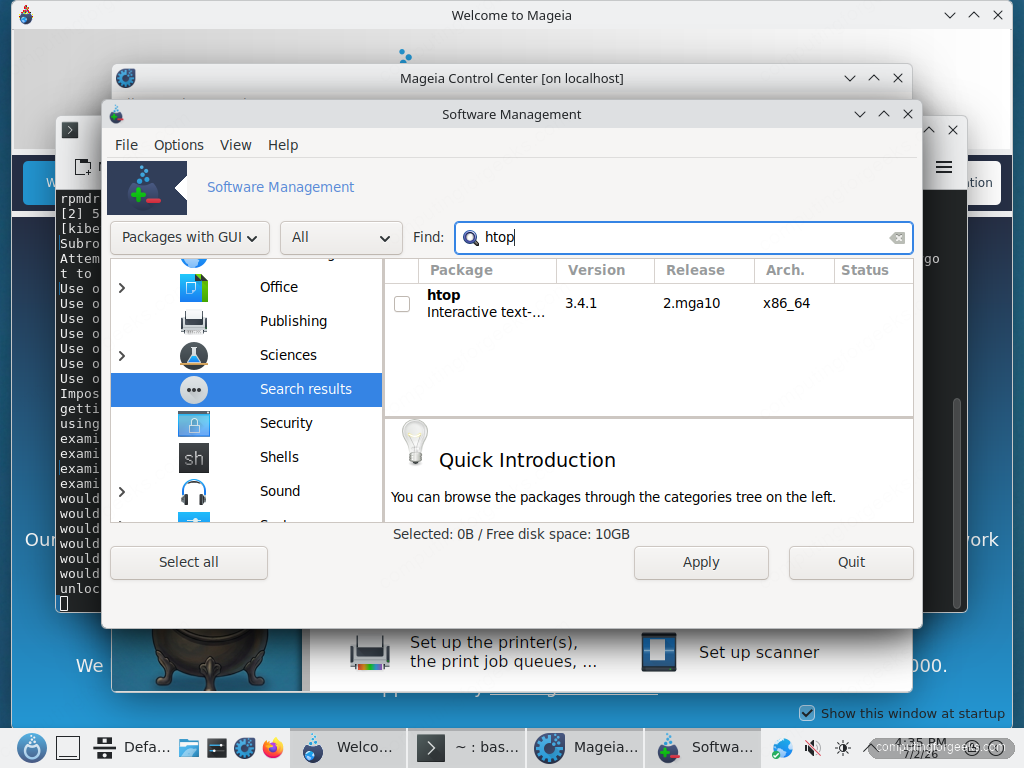
For everyday software installs, rpmdrake gives you category browsing and search over the full repository set. It is visually plain next to KDE Discover or GNOME Software, and it is also faster and more precise than either, showing exact package versions, media sources, and dependency chains before you commit.
The graphical tools are only half of the software story; the command line is where this release makes its most pragmatic change.
5. Package management: urpmi stays, dnf rides along
Mageia 10 installs both of its command-line package managers on every system. urpmi remains the native default and behaves exactly as it has for two decades. The news is that dnf 5 now comes preinstalled beside it, sharing the same RPM database, so anyone arriving from Fedora, RHEL, or Rocky can use the muscle memory they already have.
sudo urpmi htop
sudo dnf install htop
Both commands resolve against the same Core and Nonfree media and end in the same installed package. In testing we defaulted to urpmi because the Mageia tools, MageiaWelcome, and every wiki page assume it, but dnf handled installs, removals, and queries without conflict. A default Plasma install lands at around 2,300 packages, and the DrakX partitioner gives the system a separate /home by default, which pays off at upgrade time.
6. Locked-down defaults: no SSH server, firewall on
Mageia’s security posture is more conservative than most desktop distributions, and it shows up the first time you try to reach the machine over the network. The desktop install does not include an SSH server at all:
sudo systemctl enable --now sshdOn a fresh install that command fails, because the unit is simply not there:
Failed to enable unit: Unit sshd.service does not existInstalling openssh-server fixes it in one line, and the shorewall firewall is enabled by default, so inbound connections stay blocked until you open ports through the Control Center’s security section. One real trap we hit: stopping shorewall with systemctl does not open the firewall. Shorewall’s stopped state still drops traffic by design. If you genuinely need the firewall out of the way for a moment, the command is different:
sudo shorewall clearThat behavior will surprise anyone coming from firewalld or ufw, and it is exactly the kind of thing worth knowing before you spend twenty minutes blaming the network. For a desktop, though, deny-by-default with no remote daemons listening is the right starting point, and we would rather explain shorewall’s quirk than review another distribution that ships with everything open.
7. Editions, hardware reach, and the 32-bit outlier
The classic installer image covers Plasma, GNOME 49, and Xfce 4.20 from one 5.7 GB ISO, with live images available per desktop for new installs only. Beyond the big three, the repositories carry over twenty desktops and window managers, including LXQt with a Wayland option, sway, hyprland, and labwc. Hardware demands stay modest, with 2 GB of RAM comfortable for the full desktops, and Mageia is now one of the last major distributions still producing 32-bit install media, with the Xfce edition covering i686 hardware that everyone else abandoned years ago.
Two hard limits to know before you commit. Mageia still has no Secure Boot support, so firmware with Secure Boot enabled will refuse to boot the media until you switch it off. And there is no supported upgrade path from a live image, so upgraders from Mageia 9 use the classic ISO or the online method. Both limits are documented, but the Secure Boot gap especially feels overdue in 2026 when even niche distributions have shim working.
Where Mageia 10 wins and where it falls short
Mageia 10 is a better release than a three-year-old project snapshot had any right to be. The software is genuinely current, Plasma 6.5 on Wayland is stable, the Control Center remains unmatched as an integrated admin tool, and the dnf addition quietly removes the biggest friction for RPM-world newcomers. For most people who liked Mandriva-family distributions, this is the best version of that idea in a decade.
Where it falls short: no Secure Boot in 2026 is a real barrier on retail laptops, the three-year release gap means you should assume slow cadence going forward, and the custom menu plus older-looking drak tools give the desktop a dated first impression that the solid internals do not deserve. If you want the same KDE stack with faster updates and Secure Boot, openSUSE Leap 16 is the closer comparison than anything from the Debian side.
Our verdict: worth installing if you value integrated graphical administration, run older or Secure Boot-free hardware, or want a calm distribution that does not reinvent itself every six months. Mageia 9 users should not wait, because support for it ends on September 30, 2026. Start with the step-by-step install guide, and if you are still weighing alternatives, our ParrotOS vs Kali comparison shows how we stack distributions against each other when the choice is genuinely close.