A fresh Peppermint OS install is deliberately lean. You boot into a quick Xfce desktop, the LibreWolf browser, a file manager, and almost nothing else. That restraint is exactly why it flies on old hardware, but it also means the first hour after install is on you.
These are the things to do after installing Peppermint OS to turn that bare install into a daily workstation. We will finish the system update, add a graphical software manager, wire up Flatpak and Flathub, pull in media codecs and real fonts, pick a browser, and lock the machine down with a firewall and automatic security updates. Every command below was run on a real install. If you have not installed it yet, follow the Peppermint OS installation guide first, then come back here.
Current as of June 2026, tested on Peppermint OS with the Debian Trixie base and Xfce 4.20.
1. Finish the system update
Peppermint runs an online update at the end of the installer, and on a slow connection that step often times out before it finishes. So the very first thing to do is bring the system fully current. Open a terminal and run:
sudo apt update
sudo apt full-upgrade -y
On a brand new install this pulls a few hundred packages, including a newer kernel. When it finishes, confirm there is nothing left:
apt list --upgradableOn a fully patched system the list comes back empty:
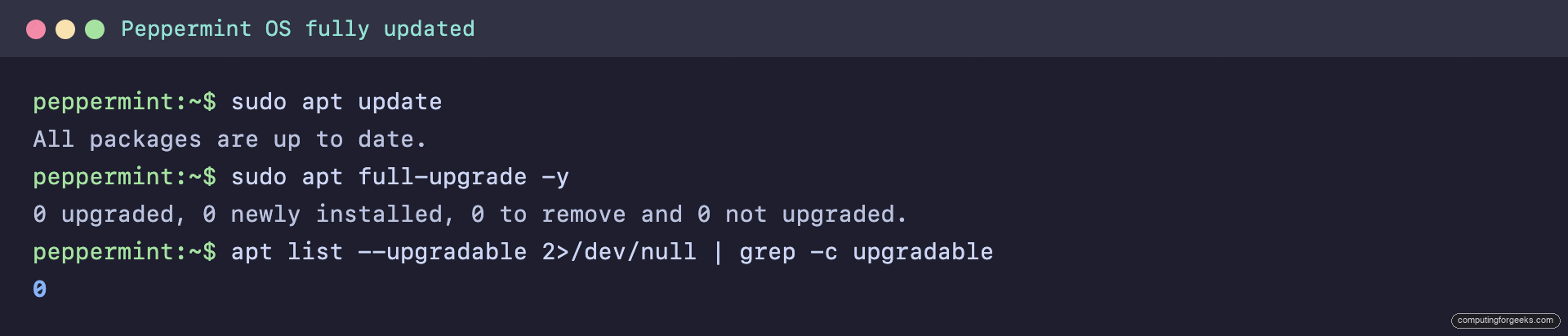
If the upgrade installed a new kernel, reboot once so you are running it. Everything after this assumes a fully patched system.
2. Install a graphical software manager
Peppermint ships no app store by default. The expectation is that you install with apt from the terminal, which is fine once you are comfortable, but a graphical browser for packages is worth having. Synaptic is the lightweight pick that suits Xfce, and it is one command away:
sudo apt install -y synapticSynaptic searches every package in the Debian repositories, shows dependencies before you commit, and handles bulk installs cleanly. For graphical Flatpak browsing as well, the next step adds a second, more modern store.
3. Set up Flatpak and Flathub
This is the single most useful thing on the list. The Debian repositories are stable but old, so apps like Spotify, recent OBS Studio, or the latest Blender either lag or are missing. Flatpak fills that gap, and Peppermint does not ship it, so you add it yourself:
sudo apt install -y flatpak gnome-software-plugin-flatpak
flatpak remote-add --if-not-exists flathub https://flathub.org/repo/flathub.flatpakrepo
Log out and back in once so the Flatpak paths register, then verify the remote is wired up:
flatpak remotesFlathub shows up as a configured remote:
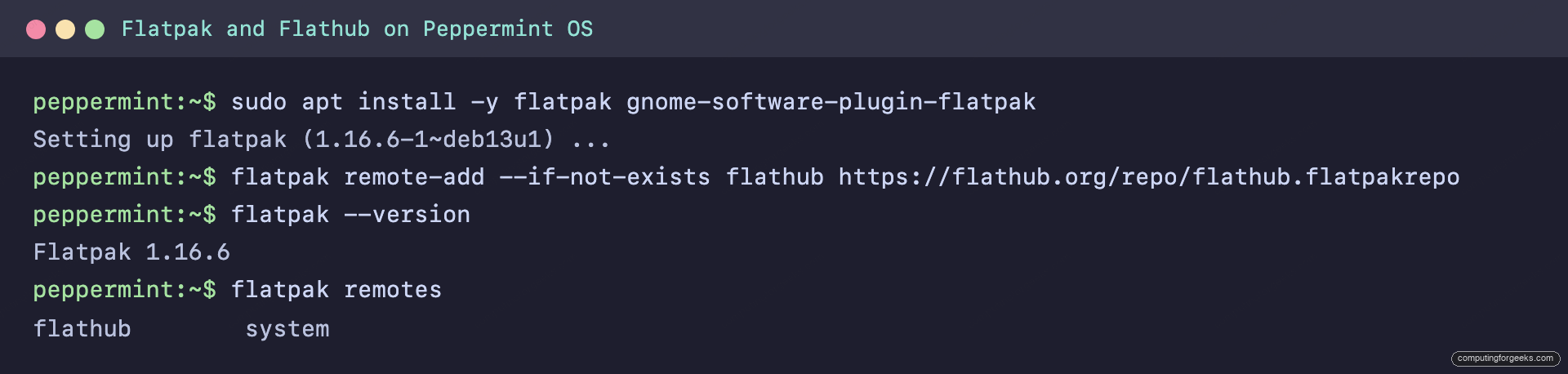
From here, installing a modern app is one line, for example:
flatpak install flathub com.spotify.ClientThe first install also downloads a runtime, so it takes a minute. If you would rather keep apps in your home directory and skip the admin prompt, add --user to both the remote and install commands. Our guide on managing Flatpak applications covers updates and cleanup in more depth.
4. Add media codecs and Microsoft fonts
Here is where Peppermint saves you a step that trips up plain Debian users. A stock Debian install ships with only the main repository, so you normally have to enable contrib and non-free by hand before codecs will install. Peppermint already enables contrib, non-free, and non-free-firmware out of the gate, so you only need the packages themselves:
sudo apt install -y libavcodec-extra ttf-mscorefonts-installerThe font package shows a licence prompt during install, accept it to continue. After this, streaming sites, MP4 and MKV playback, and documents that expect Arial or Times New Roman all behave the way people expect.
5. Install a web browser you actually like
Peppermint ships LibreWolf, a privacy-hardened Firefox fork. It is a genuinely good default, and if you want Firefox behavior with the tracking turned off, you are already done. For most people switching from Windows or a Chromebook, though, a Chromium browser is the easier fit, and Brave is the standout: Chrome-compatible, fast on weak hardware, with tracker blocking built in. Add its official repository, using the modern .sources format that Debian 13 now expects:
sudo curl -fsSLo /usr/share/keyrings/brave-browser-archive-keyring.gpg https://brave-browser-apt-release.s3.brave.com/brave-browser-archive-keyring.gpg
sudo curl -fsSLo /etc/apt/sources.list.d/brave-browser-release.sources https://brave-browser-apt-release.s3.brave.com/brave-browser.sources
sudo apt update && sudo apt install -y brave-browser
Prefer Google Chrome or vanilla Chromium instead? Chrome offers a .deb download, and Chromium is just sudo apt install -y chromium. Pick one, set it as default in Settings, and move on.
6. Install your everyday apps
This is the core of a daily driver: an office suite, a media player that plays anything, an image editor, and a mail client. All four live in the Debian repositories, so one command covers them:
sudo apt install -y libreoffice vlc gimp thunderbirdOnce they finish, they show up in the Whisker menu under their categories, ready to launch.
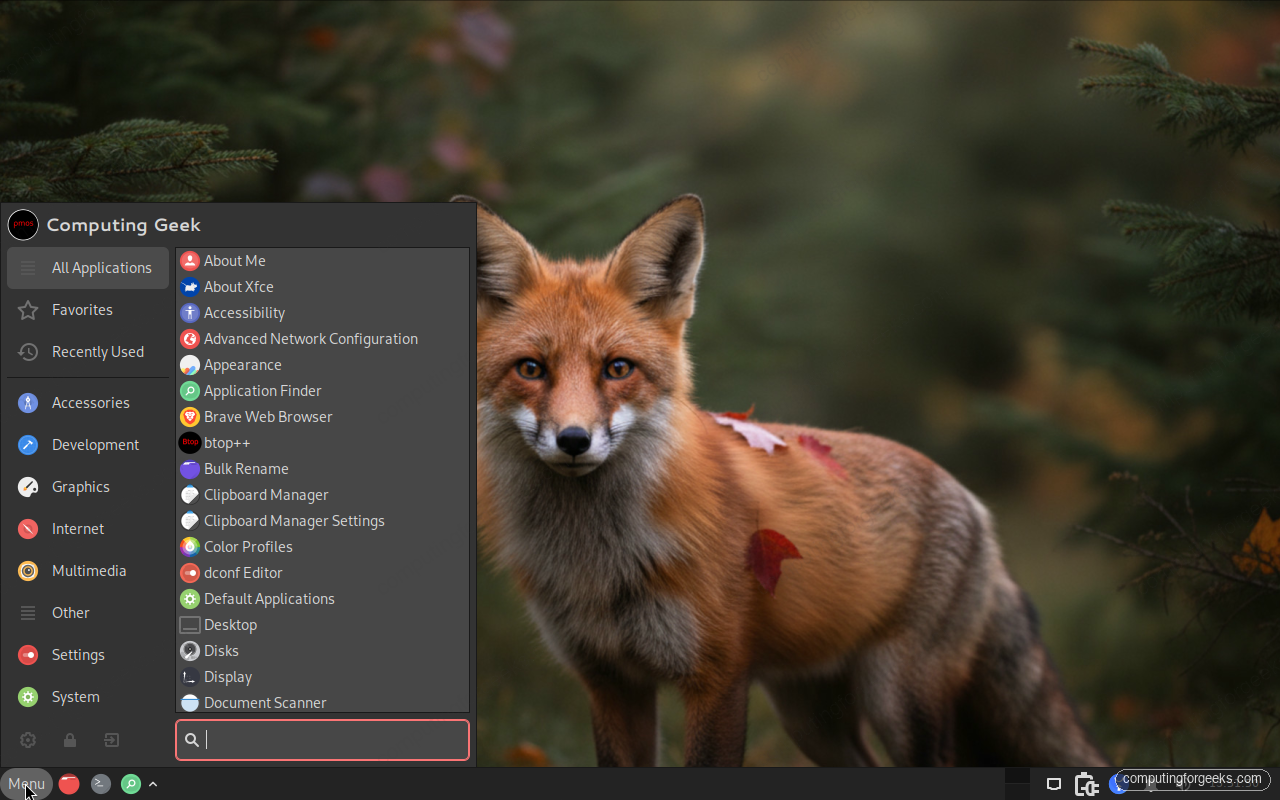
The apt versions are rock solid but conservative. When you want the newest release of something visual like VLC or GIMP, grab the Flatpak build from Flathub instead, which is exactly what step 3 set up. For VLC specifically, the VLC on Debian notes apply directly since Peppermint shares the same base.
7. Turn websites into apps with Kumo
This is Peppermint’s signature trick, and almost no other distro has it built in. Kumo is a small tool that wraps any website in its own standalone window with its own launcher, so a web service like Gmail, WhatsApp Web, or Google Docs behaves like a native app instead of one more browser tab you keep losing.
Open the menu, launch Kumo, give the site a name, paste its URL, choose an icon, and pick which browser backs it. Kumo creates a menu entry that opens that site in a clean, chromeless window. On a low-RAM laptop this is far lighter than running a heavy Electron app for every service, and it is reason enough on its own to give Peppermint a look.
8. Set up your developer tools
Peppermint already ships git and the build-essential toolchain, so a lot of the usual post-install dev setup is done for you. Confirm what you have:
git --version
gcc --version
What is missing is an editor. Visual Studio Code installs cleanly from Microsoft’s repository, again in the .sources format:
sudo apt install -y wget gpg
wget -qO- https://packages.microsoft.com/keys/microsoft.asc | gpg --dearmor | sudo tee /usr/share/keyrings/microsoft.gpg > /dev/null
printf 'Types: deb\nURIs: https://packages.microsoft.com/repos/code\nSuites: stable\nComponents: main\nArchitectures: amd64,arm64,armhf\nSigned-By: /usr/share/keyrings/microsoft.gpg\n' | sudo tee /etc/apt/sources.list.d/vscode.sources > /dev/null
sudo apt update && sudo apt install -y code
The same repository feeds VS Code updates through your normal apt upgrade, so it stays current with the rest of the system. If you would rather not add Microsoft’s repo, the VS Code install guide shows the Flatpak and .deb routes too.
9. Turn on the firewall
Peppermint installs without an active firewall. For a desktop that is not a crisis, but enabling one takes thirty seconds and closes the door on anything probing the machine. Install ufw and its Xfce-friendly GUI gufw:
sudo apt install -y ufw gufw
sudo ufw default deny incoming
sudo ufw default allow outgoing
sudo ufw enable
One warning from experience: if you ever reach this machine over SSH, run sudo ufw allow OpenSSH before you enable the firewall. Skip it and the default deny rule locks out your own session the moment it reloads. On a normal desktop you do not need that rule, so leave incoming closed. Check the result:
sudo ufw status verboseThe firewall reports active with incoming traffic denied by default:
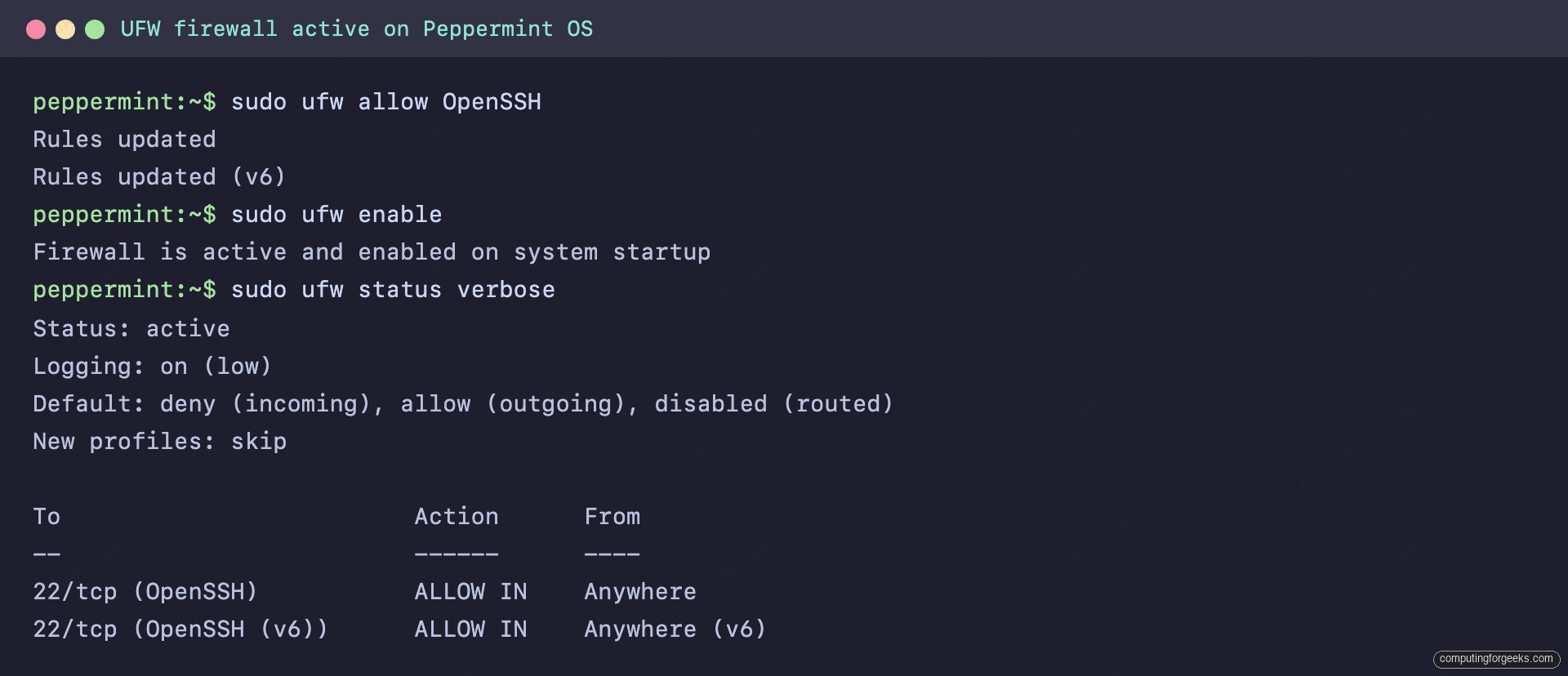
For day-to-day rule changes you can use the gufw window instead of the command line. The common UFW commands reference is handy when you start opening ports for specific services.
10. Enable automatic security updates
A daily machine should patch its own security holes without you remembering to. The unattended-upgrades package handles that, applying Debian security fixes in the background:
sudo apt install -y unattended-upgrades
sudo dpkg-reconfigure -plow unattended-upgrades
Choose Yes when the dialog asks whether to download and install stable updates automatically. This covers security patches only, so it will not surprise you with a major version jump. You still run apt full-upgrade yourself for everything else.
11. Tune Peppermint for an older laptop
Peppermint earns its name on aging laptops, and two packages squeeze more out of that hardware. TLP manages power to stretch battery life with zero configuration:
sudo apt install -y tlp tlp-rdw
sudo systemctl enable --now tlp
If you are working with 4 GB of RAM or less, compressed swap in memory keeps the system responsive when it fills up. Install the helper:
sudo apt install -y zram-toolsOpen its config to set the compression algorithm and how much RAM it may use:
sudo vim /etc/default/zramswapSet these two values:
ALGO=zstd
PERCENT=50
Then restart the service to apply it:
sudo systemctl restart zramswap12. Personalize the Xfce desktop
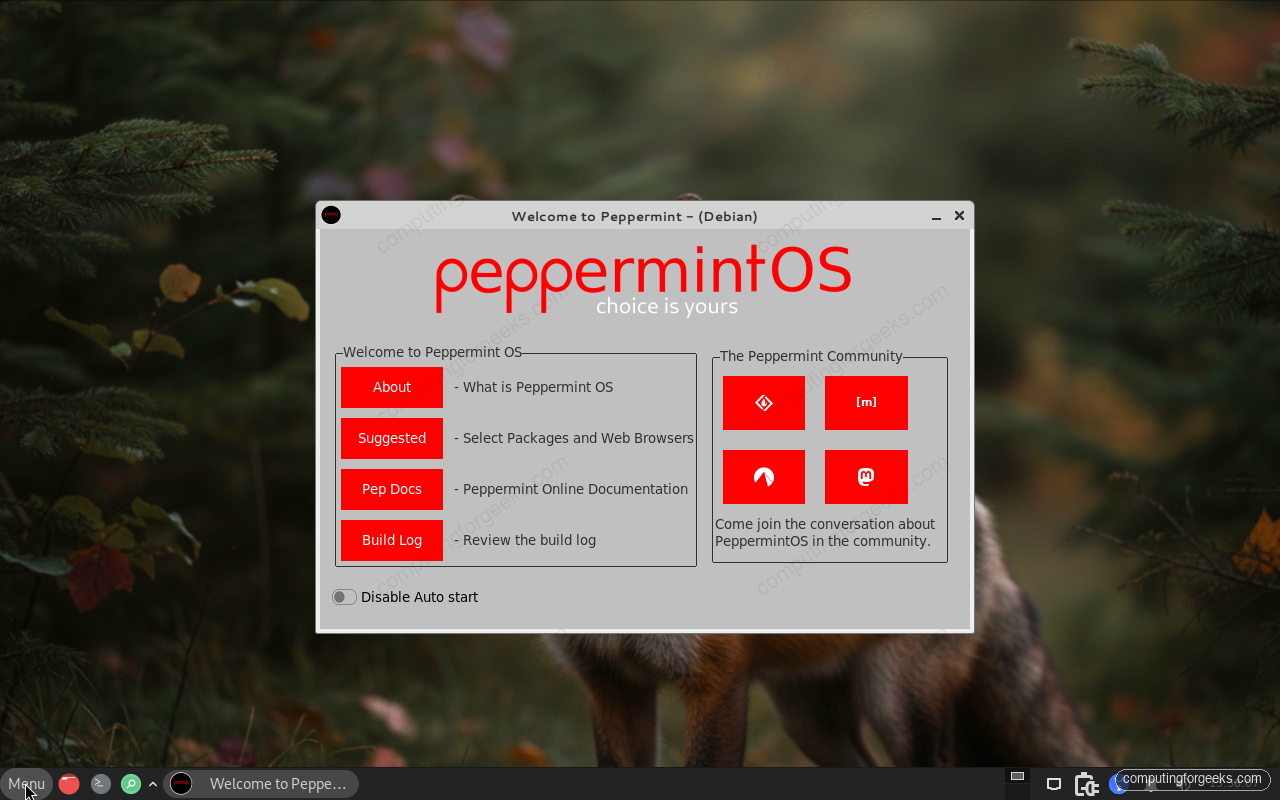
Peppermint puts a friendly front door on all of this. The Welcome app, in the menu under its own name, links the documentation, a suggested-apps installer, and the build log in one place, and it is worth a look before you go hunting through menus.
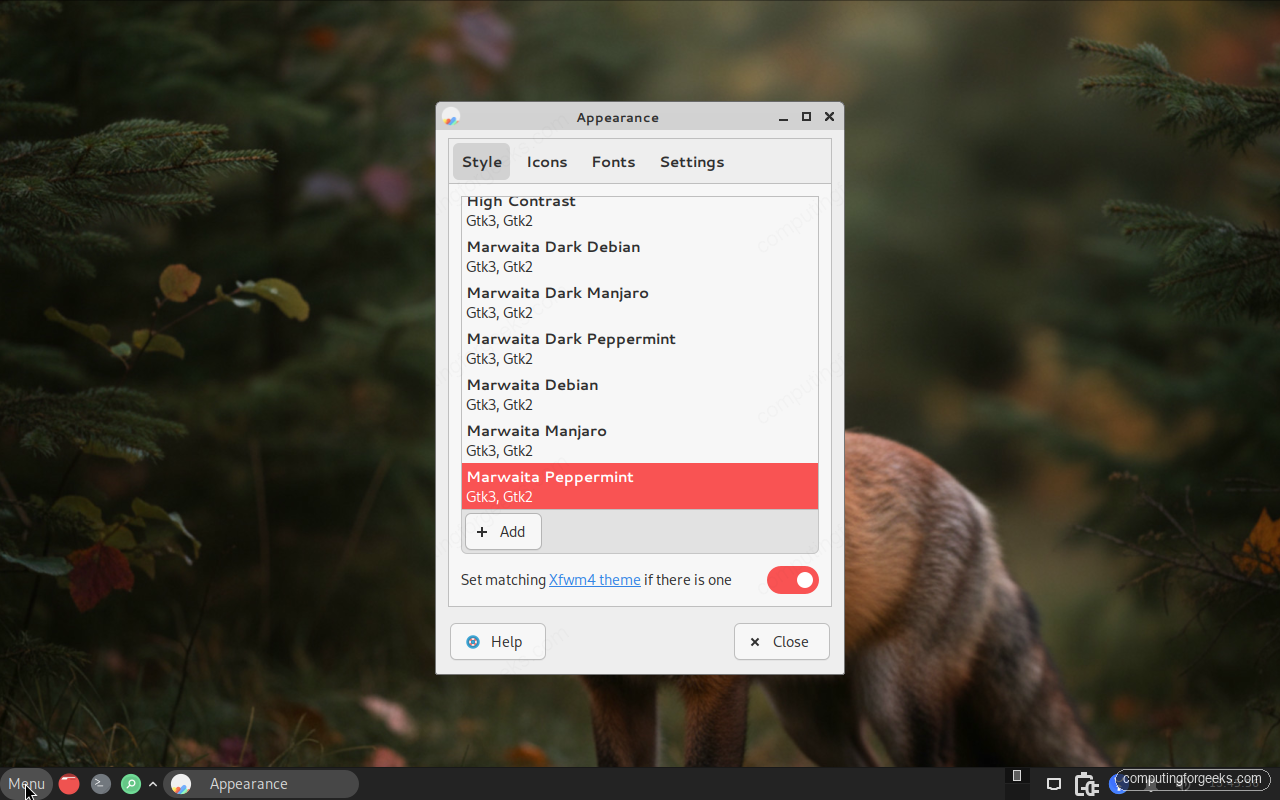
For the look itself, open Settings then Appearance. Peppermint ships the Marwaita theme family in light and dark variants, including one tuned to its own green accent. Switch themes, icons, and fonts here until it feels like yours.
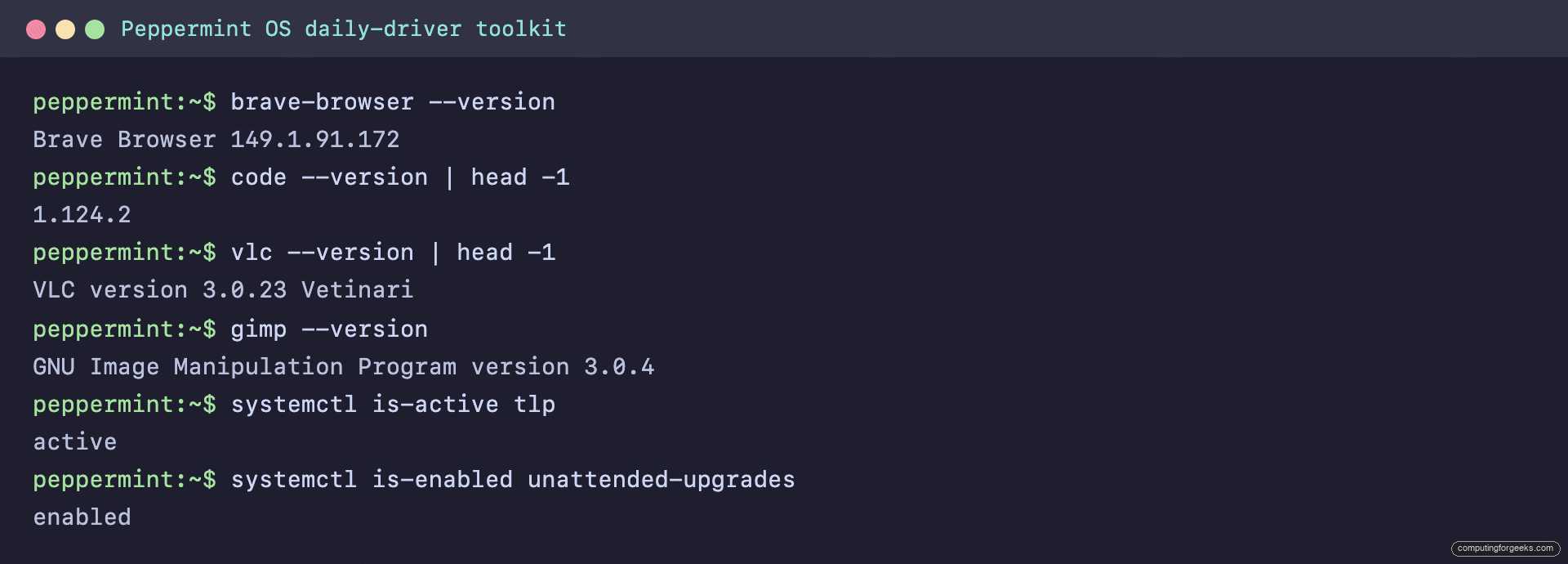
The Plank dock at the edge of the screen is fully configurable, the panel can move or hide, and the Whisker menu accepts your own favorites. With the tools installed and the desktop dialed in, a quick version check confirms the daily-driver kit is in place:
Where to start, by what you use the PC for
You do not have to do all twelve in one sitting. The update, Flatpak, codecs, and firewall steps apply to everyone. Beyond those, pick the rows that match how you actually use the machine:
| If you mostly | Do these next |
|---|---|
| Browse and stream | Brave or Chrome, codecs, Kumo web apps |
| Write and do office work | LibreOffice, Microsoft fonts, Thunderbird |
| Code or tinker | VS Code, confirm git and build-essential |
| Run an old laptop | TLP and zram, a light Flatpak app diet |
| Care about privacy | Keep LibreWolf, enable the firewall, automatic updates |
Whatever the use case, the first four steps are the ones that take a bare install and make it feel like a finished, modern desktop. The rest is shaping Peppermint around the way you work.