Twenty minutes is roughly what separates a blank machine from a finished Ultramarine Linux 44 desktop. Ultramarine is Fedora with the tedious first hour already done for you: RPM Fusion enabled, media codecs one toggle away, Flathub preconfigured, and a friendly setup wizard in place of Fedora’s initial setup screens.
This guide covers a clean install of Ultramarine Linux 44, the Flying Fish release, using the recommended KDE Plasma edition: downloading and verifying the ISO, writing a bootable USB, running the installer, and completing the Taidan first boot setup with its new CachyOS kernel toggle. Every step below was run on a fresh machine in July 2026, two days after the release landed, with Plasma 6.7 and kernel 7.0.
What is new in Ultramarine 44
Ultramarine 44 tracks Fedora 44 and ships four desktop editions: KDE Plasma 6.7 (the recommended pick), GNOME 50, Xfce 4.20, and Budgie 10.10, which has now moved to Wayland with SDDM as its login manager. The release announcement also marks a shift in how the project ships: feature updates now roll out through the year instead of waiting for the next Fedora rebase.
The changes you actually touch during installation live in Taidan, the first boot wizard. It can now set a hostname, enable the CachyOS performance kernel, and turn on MTU probing, all from the setup flow. The um command line tool gained a Nix installer too (um tweaks enable nix). If you would rather run stock Fedora, the Fedora 44 install guide covers that path.
What you need
The project recommends these specs for a comfortable desktop. Ultramarine technically boots on 1 GB of RAM and 10 GB of disk, but nobody enjoys that.
- A 64-bit x86_64 or aarch64 machine that can boot from USB
- 4 GB RAM minimum, 8 GB or more recommended
- 20 GB free disk space, 32 GB or more recommended
- A USB drive for the installer (8 GB holds the 4.3 GB image comfortably)
- An internet connection for codecs and updates during setup
Download the Ultramarine Linux 44 ISO
Grab your edition from the official download page. Four desktops are on offer, all built on the same Fedora 44 base:
| Edition | Desktop | Best for |
|---|---|---|
| KDE Plasma | Plasma 6.7 | General use, the project’s recommended edition |
| GNOME | GNOME 50 | A simple, extension-rich workflow |
| Xfce | Xfce 4.20 | Older or low-spec hardware |
| Budgie | Budgie 10.10 | A familiar layout with some flair, now on Wayland |
To pull the Plasma edition straight from the terminal:
wget https://ultramarine-linux.org/fyra-images/isos/ultramarine/44/ultramarine-plasma-44-live-anaconda-x86_64.isoThe image is about 4.3 GB. Check its integrity before writing it anywhere:
sha256sum ultramarine-plasma-44-live-anaconda-x86_64.isoThe hash must match the one published next to the download link. For this release of the Plasma edition:
691cae729456003107e33f8f96e9f72a8b6a20fbae48ad157ba283a7cc499a92 ultramarine-plasma-44-live-anaconda-x86_64.isoWrite the ISO to a USB drive
Plug in the USB drive and identify it first. Getting this wrong overwrites the wrong disk, so look twice:
lsblk -d -o NAME,SIZE,MODELWrite the image to the device, replacing sdX with your actual USB device name:
sudo dd if=ultramarine-plasma-44-live-anaconda-x86_64.iso of=/dev/sdX bs=4M status=progress oflag=syncOn Windows or macOS, Fedora Media Writer and balenaEtcher both handle the same job with a GUI. Ventoy works too if you keep several ISOs on one stick.
Boot the live session
Boot the target machine from the USB drive. The one-time boot menu key is usually F12, F11, or Esc depending on the vendor. Ultramarine boots into a full Plasma live session, and a Welcome Center opens with a single obvious action:
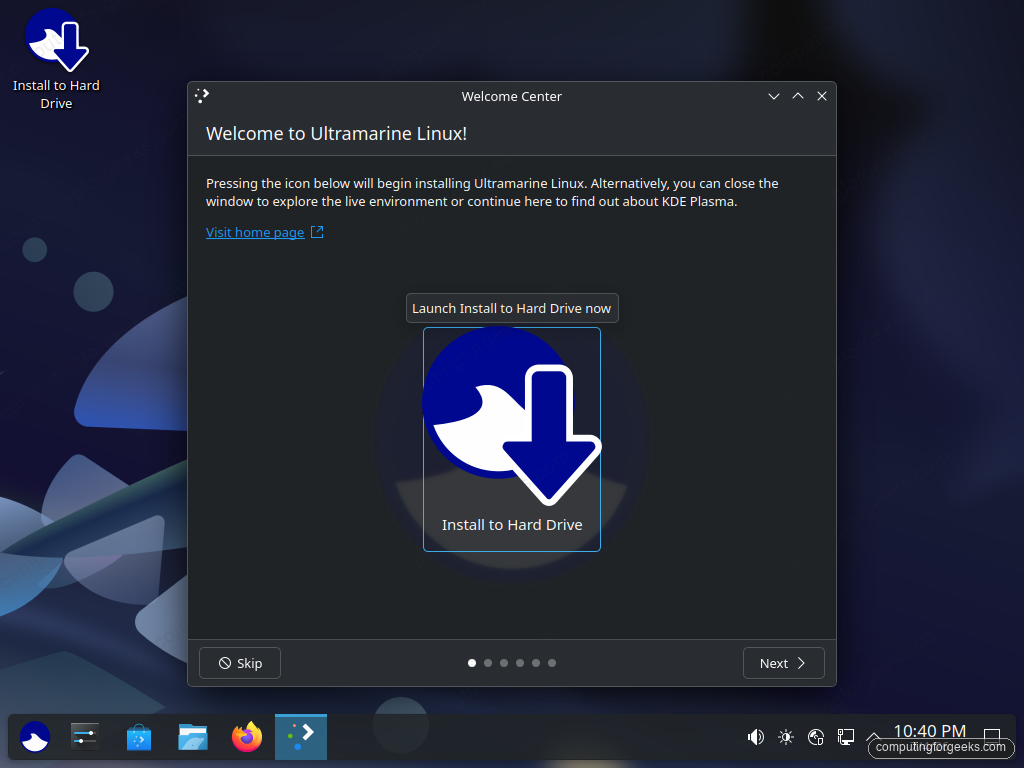
You can close this window and test the desktop first. Hardware checks done in the live session save you a reinstall later. When ready, click Install to Hard Drive.
Run the installer
Ultramarine 44 uses the Anaconda web interface, trimmed down to four steps in the left sidebar: Welcome, Installation method, Storage configuration, and Review. None of them take more than a minute.
Pick your language
The installer geolocates and may preselect a regional language for you (on our run it guessed a Kenyan locale from the network). Type in the search box and pick the one you actually want:
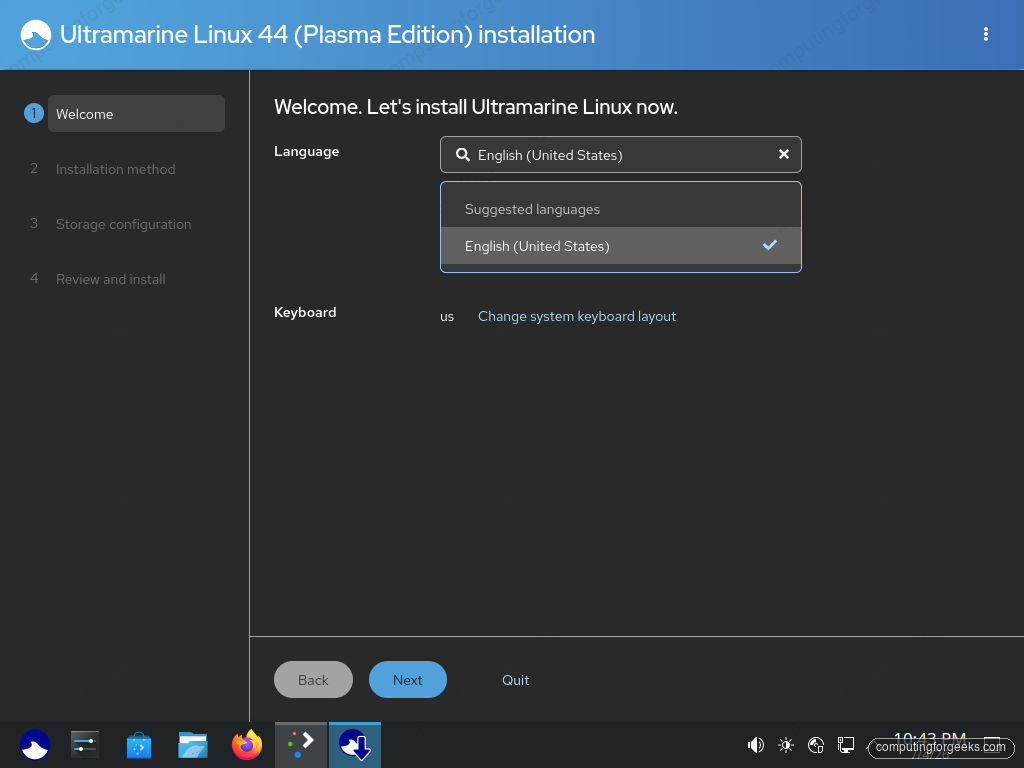
The keyboard layout is shown just below the language field. Click Next.
Choose the destination disk
The Installation method step lists the detected disks. On a blank disk the offered method is Use entire disk, which removes every partition on the selected device, including other operating systems. Back up anything you care about before this point.
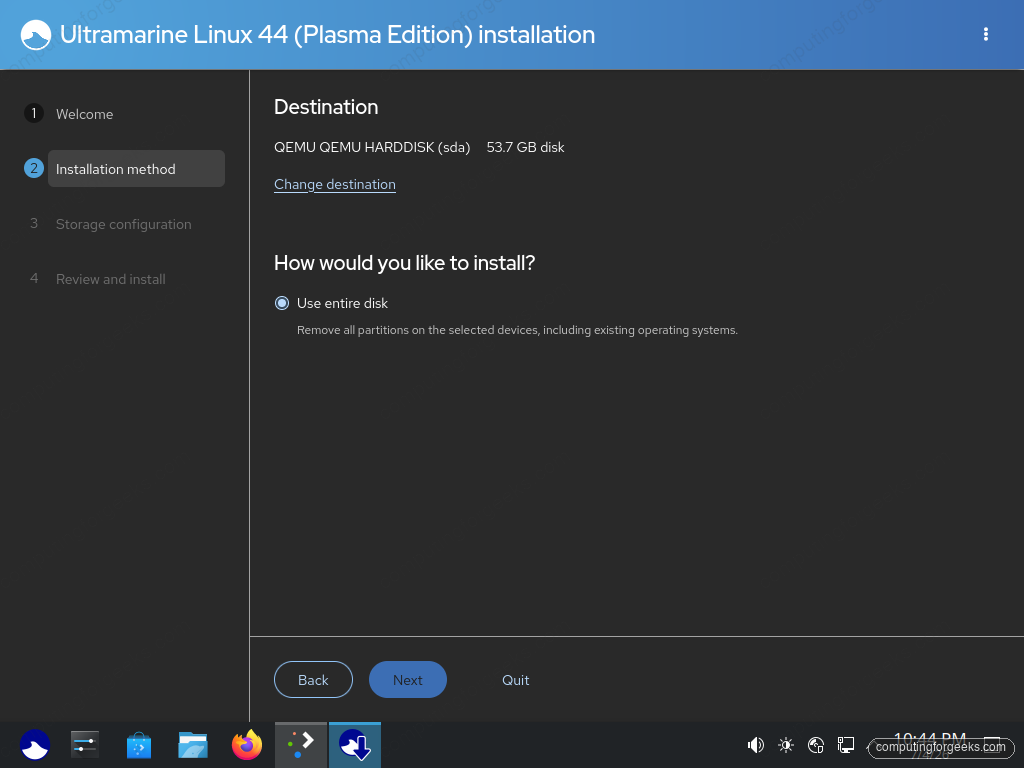
Multiple disks in the machine? Change destination lets you pick which one gets wiped.
Encryption, if you want it
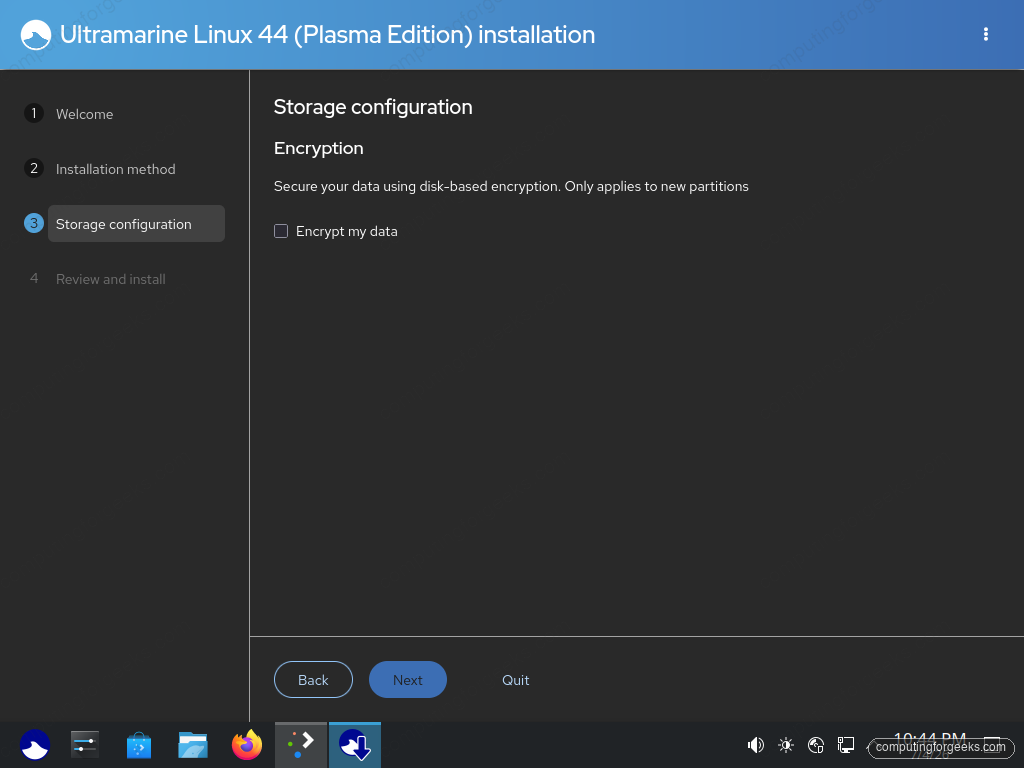
Storage configuration holds exactly one decision: whether to encrypt the new partitions with LUKS. On a laptop that leaves the house, check it. You will type the passphrase at every boot.
Review and install
The review screen shows the partition plan before anything is written. Ultramarine defaults to a small EFI partition, an ext4 /boot, and Btrfs subvolumes for / and /home on the rest of the disk. Snapshots and transparent compression come with that layout for free.
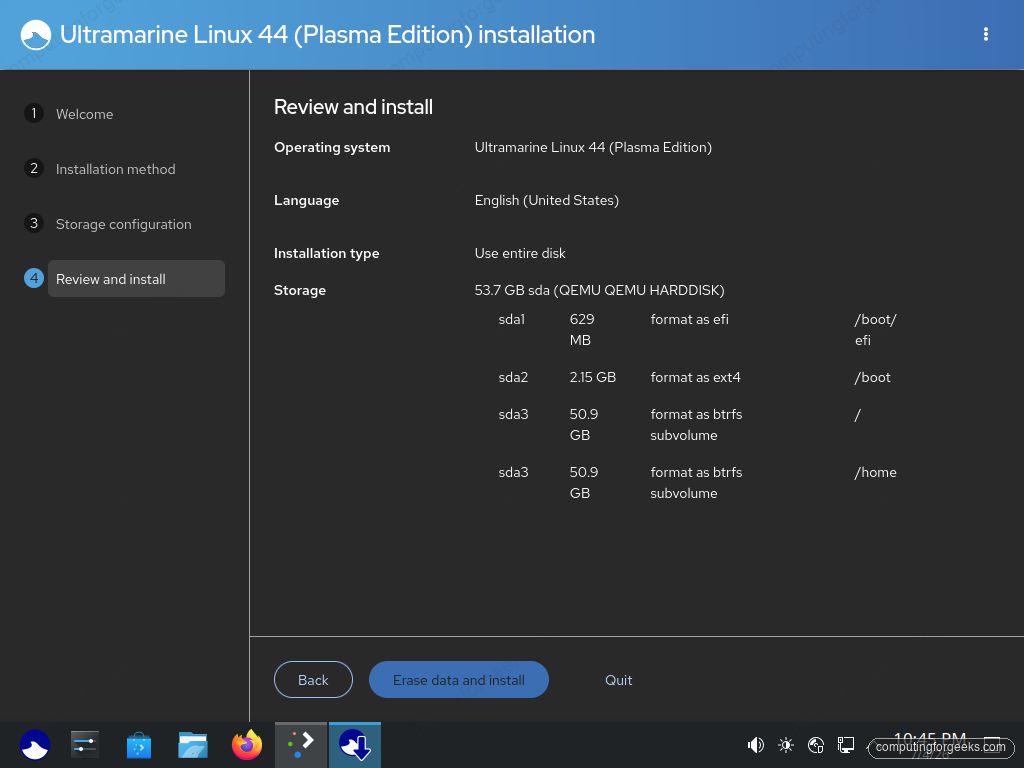
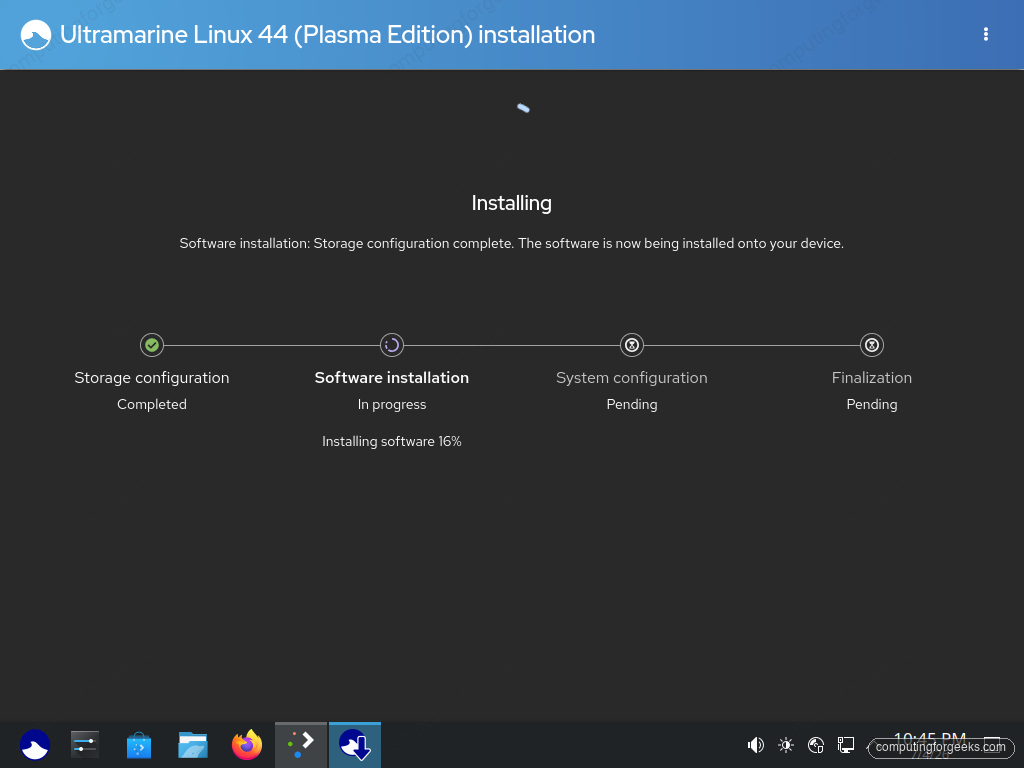
Click Erase data and install. This is the point of no return for the selected disk. The copy runs in four phases and finished in about five minutes on our test machine:
When the green check appears, the system is on disk:
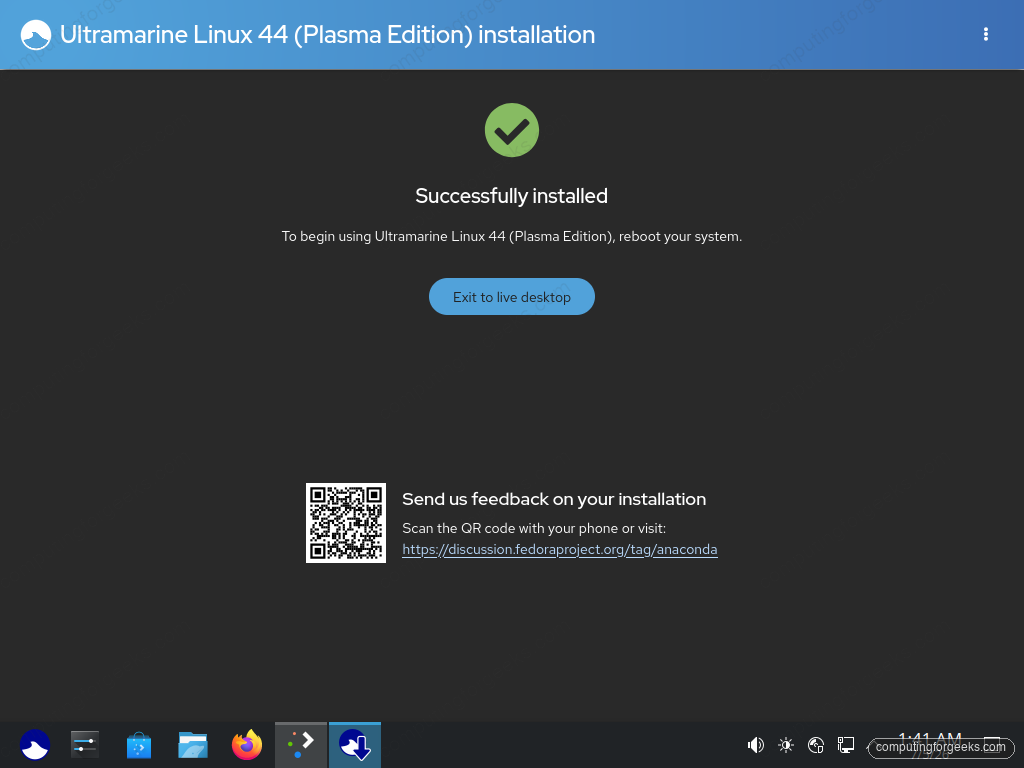
Reboot and pull the USB drive out when the screen goes dark.
First boot: the Taidan setup wizard
Unlike Fedora, the installer never asked for a user account. That happens now. The first boot lands in Taidan, Ultramarine’s own setup wizard, starting with language and locale:
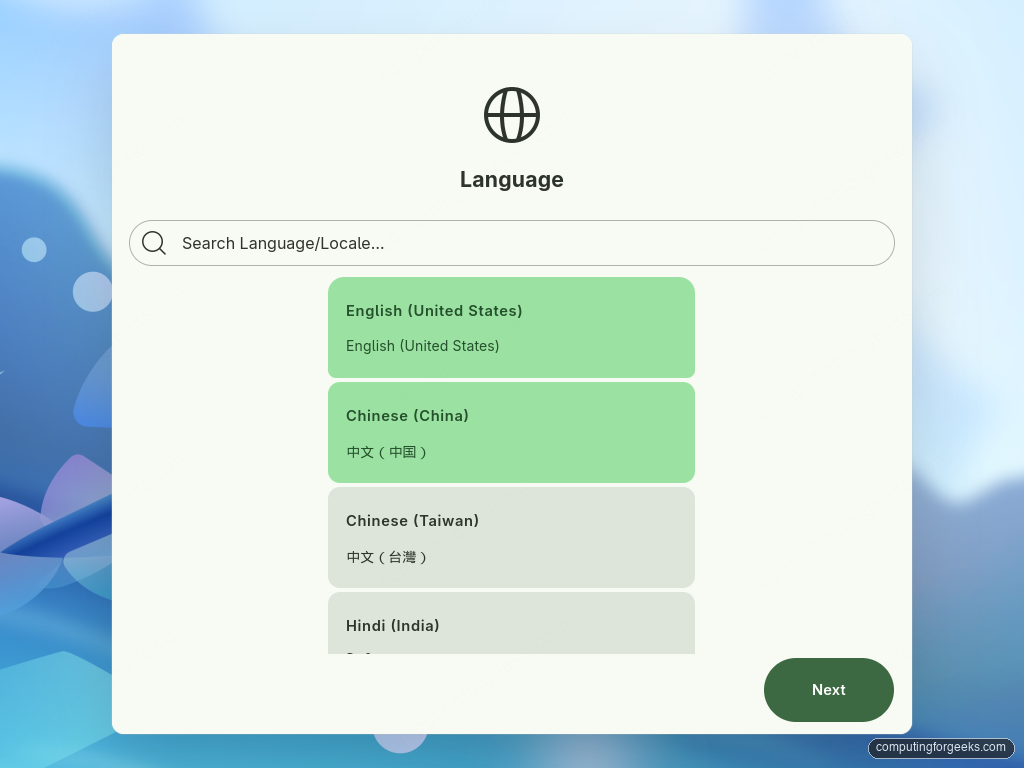
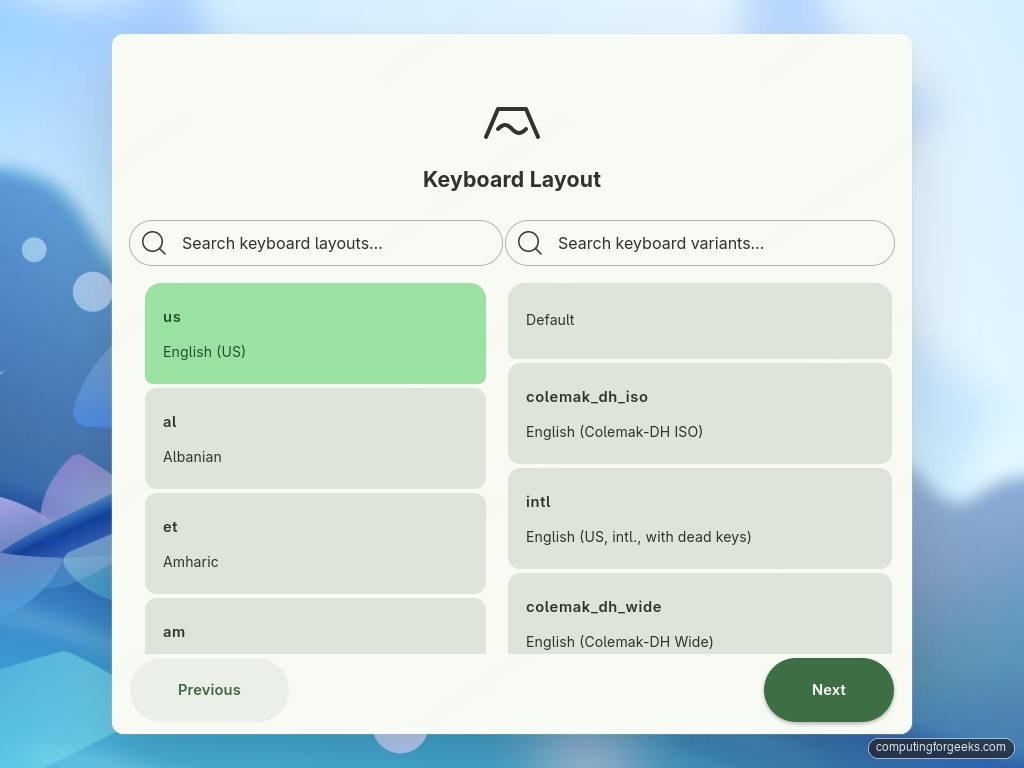
After a short welcome card, the keyboard step offers layouts on the left and variants like Colemak or US international on the right:
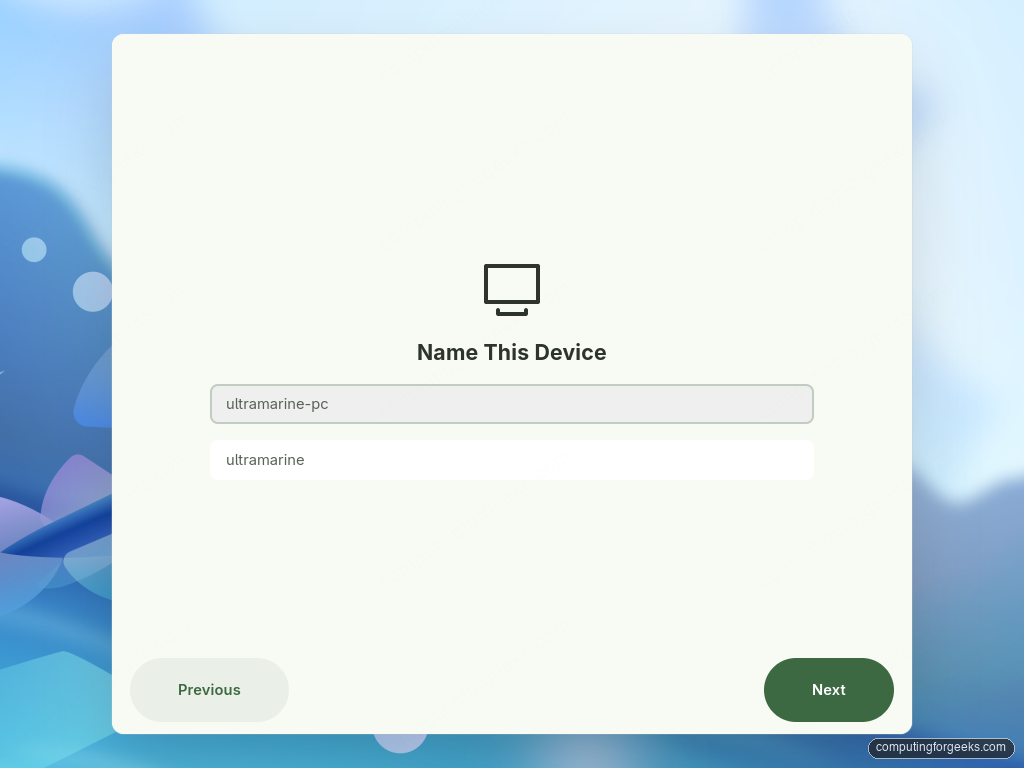
Next comes the device name, new in this release. The friendly name on top becomes the network hostname below it, so what you type here is what shows up in your router and in ssh targets:
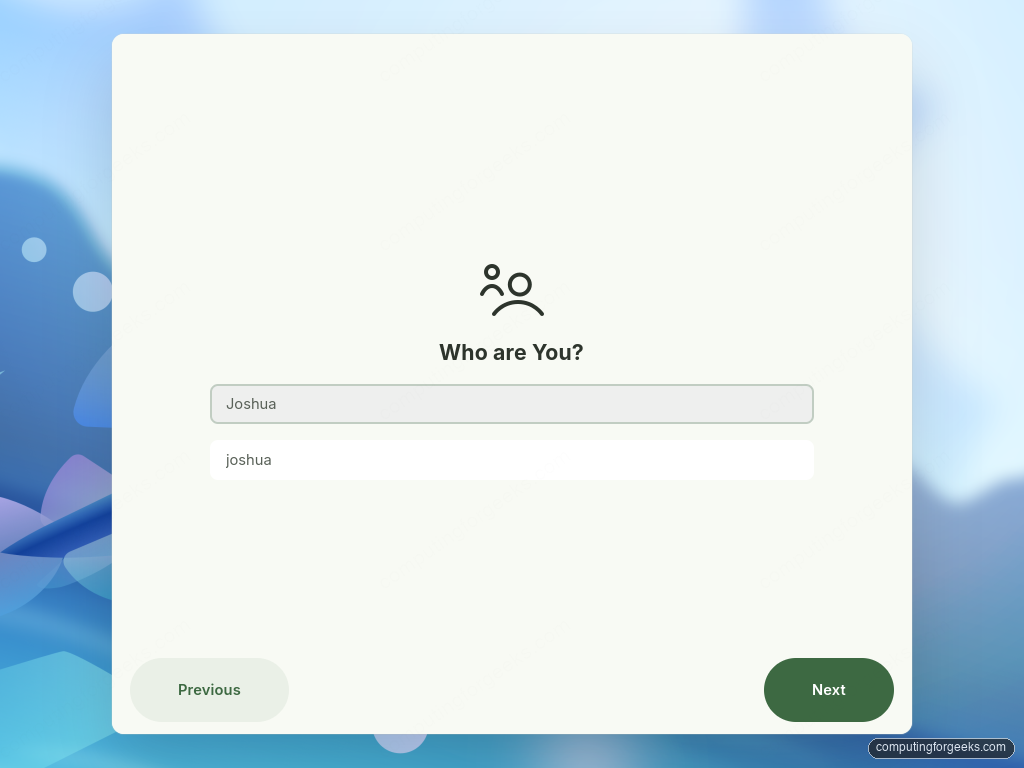
Then your user account. The username is derived from the full name automatically, and this account gets sudo rights:
Set a password, confirm the network connection, and you reach System Tweaks. Click Show advanced configurations to reveal the two toggles this screen hides:
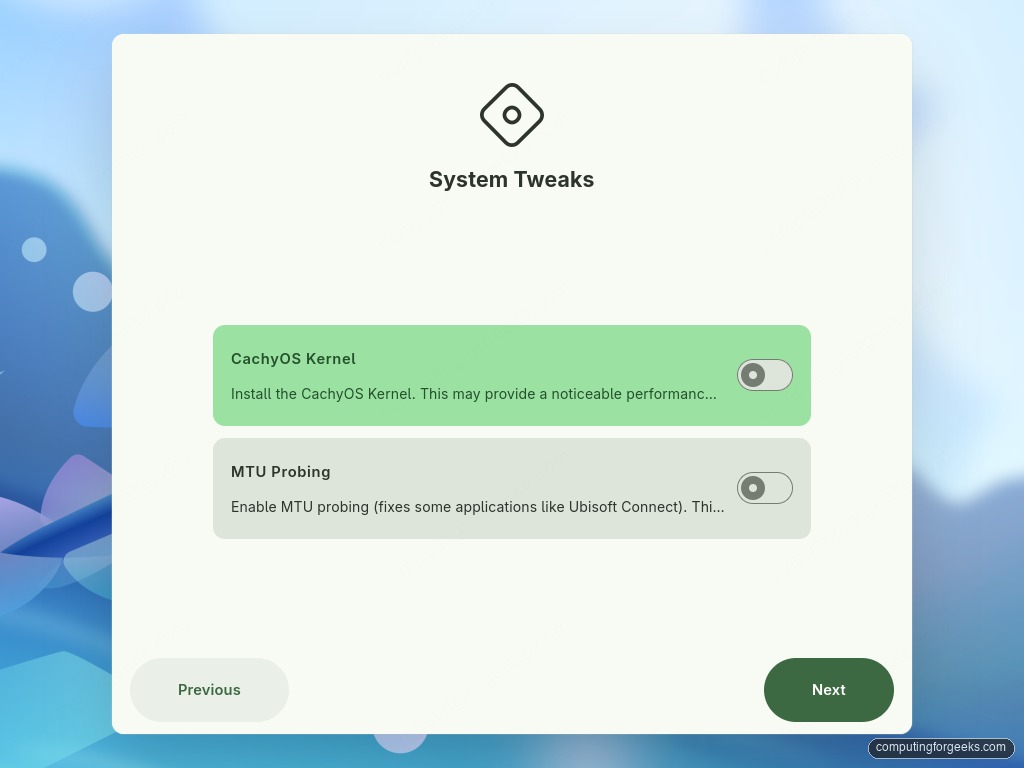
The CachyOS kernel toggle installs a performance-tuned kernel that gaming-focused distros ship by default; MTU probing fixes connectivity in a handful of applications such as Ubisoft Connect. Both stay off unless you flip them, and both exist as toggles you can apply later (sudo um tweaks enable cachyos-kernel and sudo um tweaks enable mtu-probing), so skipping them here costs nothing.
The codecs step is different. Its toggle is on by default and pulls in proprietary media codecs and drivers, the thing every fresh Fedora user otherwise sets up by hand:
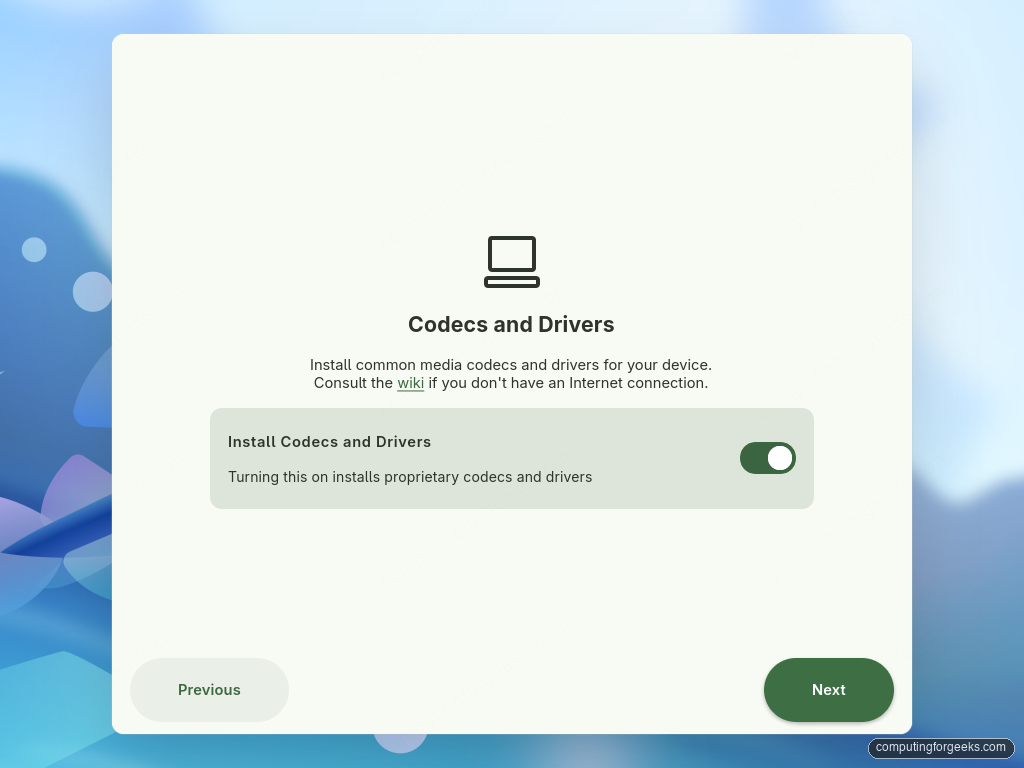
Leave it on. After an optional input method page, click Confirm and Setup System and Taidan downloads and applies everything in one pass:

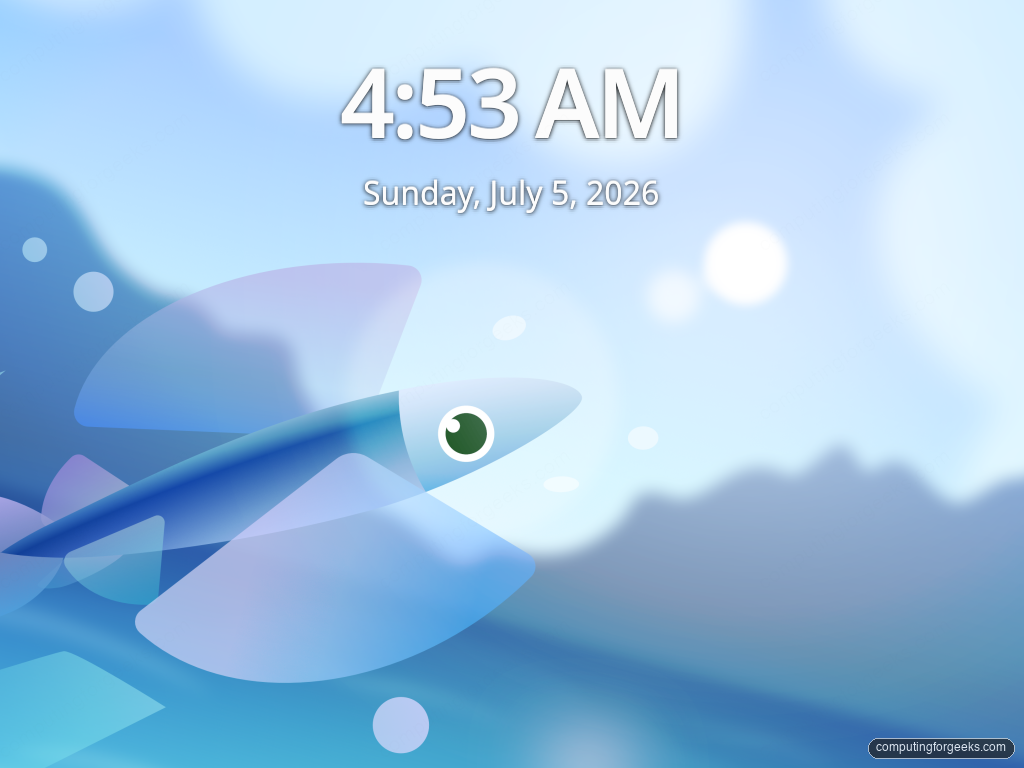
Three minutes later it hands you over to the SDDM login screen, complete with the Flying Fish wallpaper the release is named after:
Log in and check the system
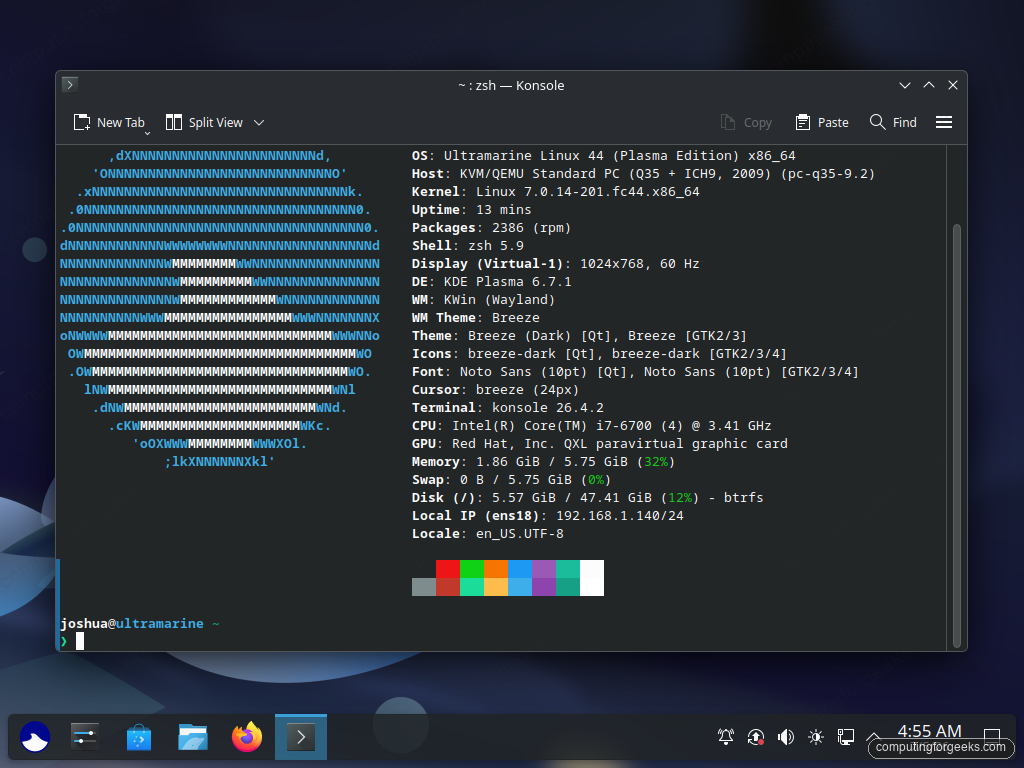
Log in with the account you created. The default shell is zsh with the Starship prompt already installed, a small touch that tells you who this distro is aimed at. A quick fastfetch in Konsole confirms what you are running:
The repo setup is where Ultramarine earns its keep. Check what is enabled:
dnf repolistFedora, RPM Fusion free and nonfree, the project’s own Terra repos, and the Ultramarine repo are all active out of the gate:
repo id                   repo name
fedora                    Fedora 44 - x86_64
fedora-cisco-openh264     Fedora 44 openh264 (From Cisco) - x86_64
rpmfusion-free            RPM Fusion for Fedora 44 - Free
rpmfusion-free-updates    RPM Fusion for Fedora 44 - Free - Updates
rpmfusion-nonfree         RPM Fusion for Fedora 44 - Nonfree
rpmfusion-nonfree-updates RPM Fusion for Fedora 44 - Nonfree - Updates
terra                     Terra 44
terra-extras              Terra 44 (Extras)
terra-mesa                Terra 44 (Mesa)
ultramarine               Ultramarine Linux 44
updates                   Fedora 44 - x86_64 - Updates
Flathub is preconfigured as a system-wide Flatpak remote as well, so Discover searches it immediately. The Flatpak and Flathub guide covers managing those apps in more depth. Firefox, LibreOffice, and the system76-scheduler for desktop responsiveness are preinstalled.
Update the system
First job on any new install. Ultramarine uses dnf5, so it is quick:
sudo dnf upgrade --refreshTwo days after release, our install pulled 15 updated packages, including a newer Taidan and firmware tooling, and ended clean:
[ 7/32] Upgrading taidan-0:0.2.6-1.fc44 100% |  94.1 MiB/s |  19.1 MiB |  00m00s
[ 8/32] Upgrading system76-scheduler-0: 100% |  32.9 MiB/s |   4.5 MiB |  00m00s
...
Complete!
If dnf5 syntax is new to you, keep the dnf5 cheat sheet nearby; every command in it works the same here. Because the base is Fedora 44, most of the Fedora 44 post-install checklist applies directly too, minus the codec and RPM Fusion steps Ultramarine already did for you.
Coming from Fedora? Convert instead
An existing Fedora machine does not need a reinstall at all. The project ships a migration script that switches a running Fedora system over to Ultramarine in place, and as of this release it handles Fedora Asahi Remix on Apple Silicon too. It converts your whole system, so read through the script before you run it, the same advice the project itself gives:
bash <(curl -s https://ultramarine-linux.org/migrate.sh)Either road ends in the same place: a Fedora base that works fully on first login. Give the desktop a weekend before you start theming; if you do want to tune it, the KDE Plasma customization guide is the natural next stop.