A fresh openSUSE Leap 16 server is already running firewalld, and that is the first thing to verify rather than assume. Unlike many distributions where the firewall ships disabled, Leap 16 enables firewalld by default with a public zone that permits SSH and Cockpit. That default is sane, but the moment you add a database, an application port, or a second interface, you are making security decisions, and the failure mode is a port you opened for a quick test that stays open for a year. This guide shows how to configure firewalld on openSUSE Leap 16 deliberately: read the live state, open only what you need, scope rules to the sources that should reach them, and verify the result.
The distinction that causes the most production incidents is runtime versus permanent rules, so that gets its own step with the exact behavior captured on a live box.
Tested June 2026 on openSUSE Leap 16.0 with firewalld 2.1.2 active and SELinux enforcing.
Step 1: Read the live firewall state first
Before changing anything, look at what is already allowed. Here is the first Leap 16 quirk worth knowing: the informational firewall-cmd calls go through polkit, so even --state and --version fail for a normal user with an authorization error. Run them with sudo:
sudo firewall-cmd --state
sudo firewall-cmd --version
You should see the daemon running on version 2.1.2:
running
2.1.2
Now read the default zone in full. This is the single most useful command in firewalld, because it shows exactly what is exposed:
sudo firewall-cmd --list-allOn a default Leap 16 install the public zone is active on your main interface and already permits SSH and Cockpit:
public (default, active)
  target: default
  ingress-priority: 0
  egress-priority: 0
  icmp-block-inversion: no
  interfaces: enp6s18
  sources:
  services: cockpit dhcpv6-client ssh
  ports:
  protocols:
  forward: yes
  masquerade: no
  forward-ports:
  source-ports:
  icmp-blocks:
  rich rules: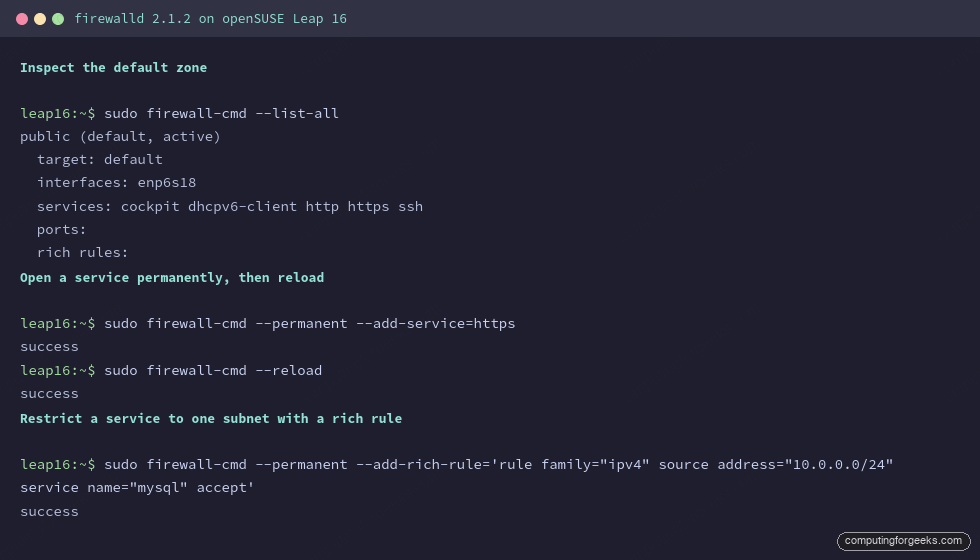
Step 2: Understand zones before you touch a rule
firewalld groups rules into zones, and each network interface sits in exactly one zone. List the zones that ship with Leap 16:
sudo firewall-cmd --get-zonesLeap 16 ships the standard set plus container and virtualization zones:
block dmz docker drop external home internal libvirt libvirt-routed nm-shared public trusted workCheck which zone owns your interfaces. On a box running Docker you will see two active zones, because the Docker daemon places docker0 in its own zone:
sudo firewall-cmd --get-active-zonesThe output names each zone and the interfaces bound to it:
docker
  interfaces: docker0
public (default)
  interfaces: enp6s18
The practical rule: the zone applied to traffic is the zone of the interface it arrived on. Put your public-facing interface in public and a trusted management interface in internal, and the zone names stop being abstract.
Step 3: Open a service or a port the right way
Prefer named services over raw port numbers. A service definition carries the protocol and port together and reads clearly in an audit. Add HTTPS and reload to apply it:
sudo firewall-cmd --permanent --add-service=https
sudo firewall-cmd --reload
Confirm the rule landed:
sudo firewall-cmd --list-servicesThe service now appears in the active set alongside the defaults:
cockpit dhcpv6-client https sshWhen an application has no predefined service, open the port directly. This opens TCP 8080 for a custom app:
sudo firewall-cmd --permanent --add-port=8080/tcp
sudo firewall-cmd --reload
sudo firewall-cmd --list-ports
The port shows in the list:
8080/tcpStep 4: Runtime versus permanent, the rule that bites people
Every firewall-cmd change is either runtime or permanent. A change without --permanent takes effect immediately but lives only in memory; a reload or reboot erases it. A change with --permanent is written to disk but does not apply until you reload. Confusing the two is how a rule you thought you saved vanishes after a reboot, and how a rule you thought you removed comes back.
Add a runtime-only port and compare the two views. The runtime list shows it; the permanent list does not:
sudo firewall-cmd --add-port=9999/tcp
sudo firewall-cmd --list-ports
sudo firewall-cmd --permanent --list-ports
Runtime carries both ports, permanent carries only the one saved earlier:
8080/tcp 9999/tcp
8080/tcp
Reload, and the runtime-only port is gone, because reload re-reads the permanent configuration:
sudo firewall-cmd --reload
sudo firewall-cmd --list-ports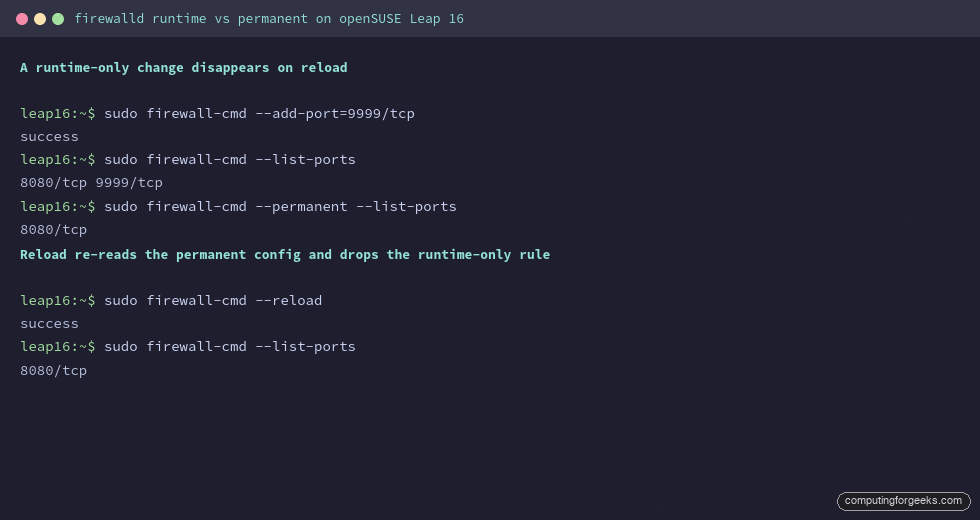
The safe workflow is to test a rule in runtime, confirm it does what you expect, then promote the whole runtime state to permanent in one move:
sudo firewall-cmd --runtime-to-permanentStep 5: Scope access with rich rules
Opening a database port to the whole internet is the kind of default that ends in a breach report. A rich rule lets you allow a service only from the network that should reach it. This permits MySQL from a single subnet and from nowhere else:
sudo firewall-cmd --permanent --add-rich-rule='rule family="ipv4" source address="10.0.0.0/24" service name="mysql" accept'
sudo firewall-cmd --reload
List the rich rules to confirm the scope:
sudo firewall-cmd --list-rich-rulesThe rule is now in force. Because MySQL is not opened anywhere else in the zone, the subnet in the rule is the only source that can reach it; a connection to that port from any other address matches no allow rule and is dropped:
rule family="ipv4" source address="10.0.0.0/24" service name="mysql" acceptThis is least privilege applied to the network: the port is reachable only by the hosts that have a reason to reach it.
Step 6: Block ping and trim the defaults
If policy says the host should not answer ICMP echo, block it without disabling the rest of ICMP, which carries useful path-MTU messages. Add it permanently so it survives a reboot, then reload:
sudo firewall-cmd --permanent --add-icmp-block=echo-request
sudo firewall-cmd --reload
sudo firewall-cmd --list-icmp-blocks
Equally, remove anything in the default zone you do not use. If a host is not a Cockpit management node, drop the Cockpit service so the port is not even listening to the firewall:
sudo firewall-cmd --permanent --remove-service=cockpit
sudo firewall-cmd --reload
Firewall audit checklist
Before you call the host done, run through this list. Each item is a command you have already used above, now turned into a verification.
- Confirm firewalld is enabled at boot:
systemctl is-enabled firewalldshould returnenabled, not justactive. A firewall that does not survive a reboot is not a firewall. - Audit the open services and ports:
sudo firewall-cmd --list-all. Every entry underservicesandportsmust map to something actually running. If you cannot name what listens behind a rule, remove the rule. - Check the interface-to-zone mapping:
sudo firewall-cmd --get-active-zones. A public-facing NIC must not be sitting intrusted. - Verify sensitive ports are scoped:
sudo firewall-cmd --list-rich-rules. Database, cache, and admin ports should be source-restricted, never open to0.0.0.0/0. - Persist the working state: after testing in runtime, run
sudo firewall-cmd --runtime-to-permanentso a reboot keeps exactly what you verified.
With the firewall scoped, the next layer is the services behind it, whether that is an nginx web server or a Kubernetes node. The initial server setup and hardening guide covers SSH and SELinux on the same host, and Cockpit can show the firewall and active services from the browser once you decide a host should be a management node.