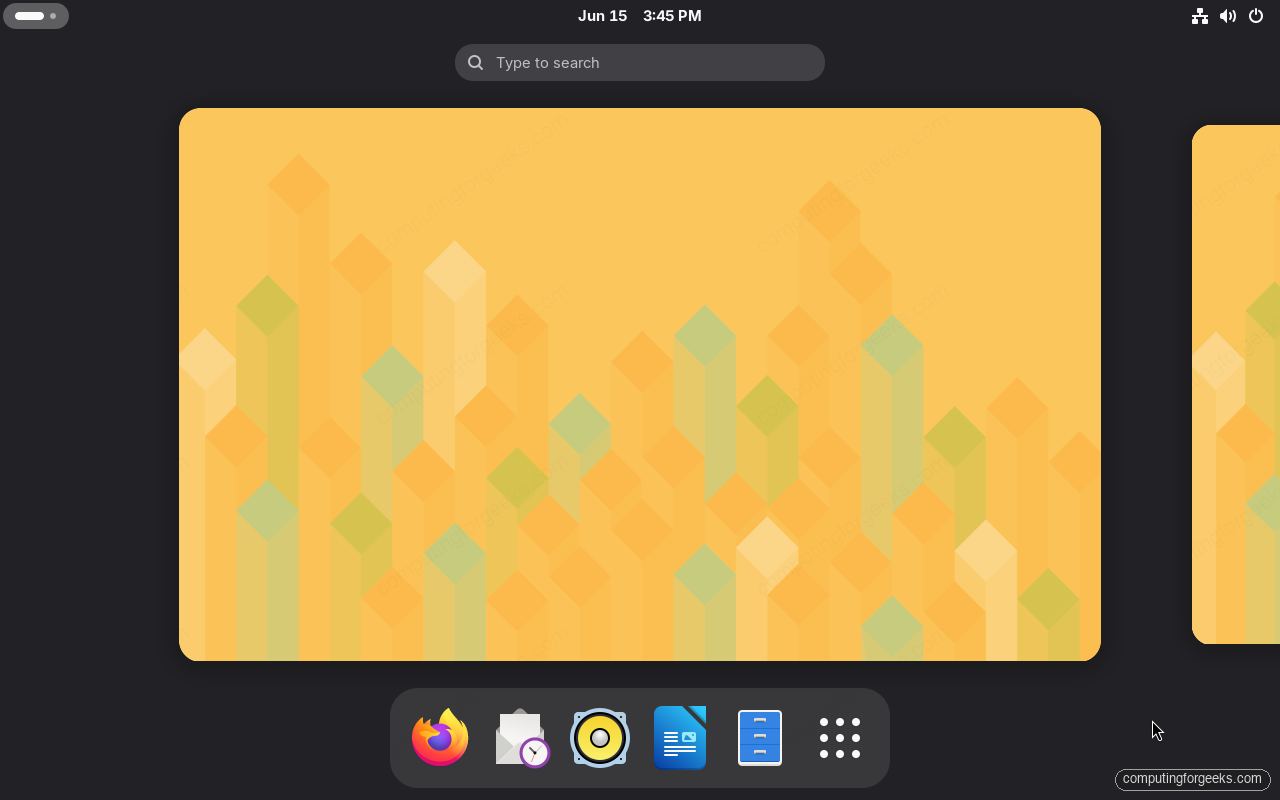
You just finished the openSUSE Leap 16 install and you are staring at a clean GNOME desktop. Before it becomes your daily driver, a handful of things to do after installing openSUSE Leap 16 turn the stock install into something that plays your media, keeps you safe when an update goes sideways, and gives you the new Leap 16 tools worth knowing. None of this is hard, and you can do most of it from one terminal session.
The steps below are ordered the way you would actually do them on a fresh machine: update first, then media and software, then the safety and admin pieces. Everything here was run on a fresh openSUSE Leap 16 install with GNOME in June 2026.
Update your system first
Always start here. The install media is a snapshot in time, so there are already patches waiting. Refresh the repositories and apply every available update:
sudo zypper refresh
sudo zypper update
On Leap you use zypper update (or zypper patch) for day-to-day updates within the release. Save zypper dup for moving to the next Leap version, not for routine patching. If a kernel update lands, reboot before moving on.
Turn on the non-OSS repository
Leap ships the non-OSS repository defined but disabled. It holds freely-redistributable but non-open packages a lot of people want, such as certain firmware and browser bits. Enable it and refresh:
sudo zypper modifyrepo --enable openSUSE:repo-non-oss
sudo zypper refresh
That is the part that trips people up later when a package “isn’t found”; it was sitting in non-OSS the whole time.
Add the Packman repository and install codecs
Out of a fresh install, Leap cannot play many common formats like H.264 video or MP3 because of patent and licensing restrictions. The community Packman repository fills that gap. Add it for Leap 16:
sudo zypper addrepo -cfp 90 https://ftp.gwdg.de/pub/linux/misc/packman/suse/openSUSE_Leap_16.0/ packman
sudo zypper refresh
Now switch your installed multimedia packages over to the Packman versions, which carry the full codec support. The vendor change is expected here, so accept it:
sudo zypper dist-upgrade --from packman --allow-downgrade --allow-vendor-changeFrom here, VLC, the GNOME video player, and browsers will play the formats that were silent before.
Set up Flatpak and Flathub
Flatpak is already installed on a GNOME Leap 16 system, but the Flathub remote is what gives you the large catalog of desktop apps. Add it:
flatpak remote-add --if-not-exists flathub https://dl.flathub.org/repo/flathub.flatpakrepoLog out and back in once so GNOME Software picks up the new remote, then you can install and manage Flatpak apps from the store or the command line. This is the easy way to get apps that are not packaged in the openSUSE repositories. If you are weighing it against other formats, the Snap vs Flatpak vs AppImage comparison breaks down when each one makes sense.
Install your everyday applications
With Packman and Flathub in place, pull in the basics. From the repositories:
sudo zypper install vlc fastfetch htop gitPick whatever fits your workflow. The point is that codecs are sorted, so media apps like VLC just work.
Confirm your Snapper safety net
This is the openSUSE feature that saves you. On the default Btrfs root, Snapper takes a snapshot before and after every change you make with zypper, so a broken update is one reboot away from being undone. Confirm it is active:
sudo snapper listYou will see the snapshots zypper has already created, including a pre/post pair for every operation you have run:
  # | Type   | Pre # | Date                        | User | Cleanup | Description
----+--------+-------+-----------------------------+------+---------+-----------------------
 0  | single |       |                             | root |         | current
 1* | single |       | Mon 15 Jun 2026 01:14:23 AM | root |         | first root filesystem
 2  | pre    |       | Mon 15 Jun 2026 03:25:44 PM | root | number  | zypp(zypper)
 3  | post   |     2 | Mon 15 Jun 2026 03:34:56 PM | root | number  |
If an update ever breaks the system, reboot, and in the GRUB menu pick Start bootloader from a read-only snapshot to boot a working state. You don’t have to set anything up; on the default install this is already running. The companion guide on automatic rollback with Snapper covers managing snapshots day to day.
Open only the ports you need
firewalld runs by default on Leap 16. If this is a desktop you probably want it closed to the world; if it is a server, open just the services you actually run. To allow SSH, for example:
sudo firewall-cmd --add-service=ssh --permanent
sudo firewall-cmd --reload
sudo firewall-cmd --list-all
The zone listing confirms what is open. On this machine only SSH and Cockpit are allowed in:
public (default, active)
  target: default
  interfaces: enp6s18
  services: cockpit dhcpv6-client ssh
  ports:
  forward: yes
Add a service per app you expose (http, https, and so on) rather than opening the firewall wide. SELinux is already enforcing on Leap 16, so between the two you start with sane defaults.
Install Cockpit for web-based administration
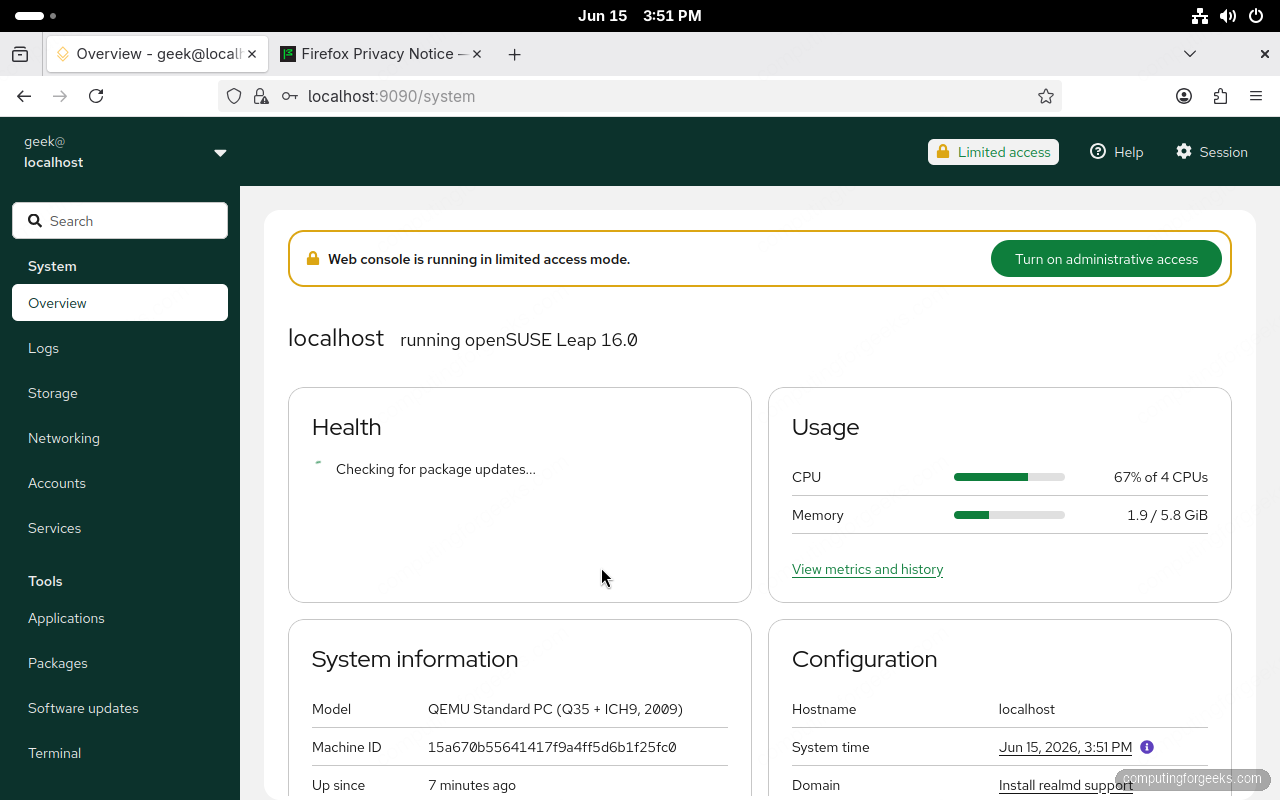
Cockpit is the browser-based admin console openSUSE leans on now that YaST is retired. It gives you a graphical view of services, storage, logs, networking, and updates without leaving the browser. Install and enable it:
sudo zypper install cockpit
sudo systemctl enable --now cockpit.socket
sudo firewall-cmd --add-service=cockpit --permanent
sudo firewall-cmd --reload
Open https://localhost:9090 (or the machine’s IP from another computer) and log in with your system user. Accept the self-signed certificate warning on first visit.
Meet Myrlyn, the new package manager
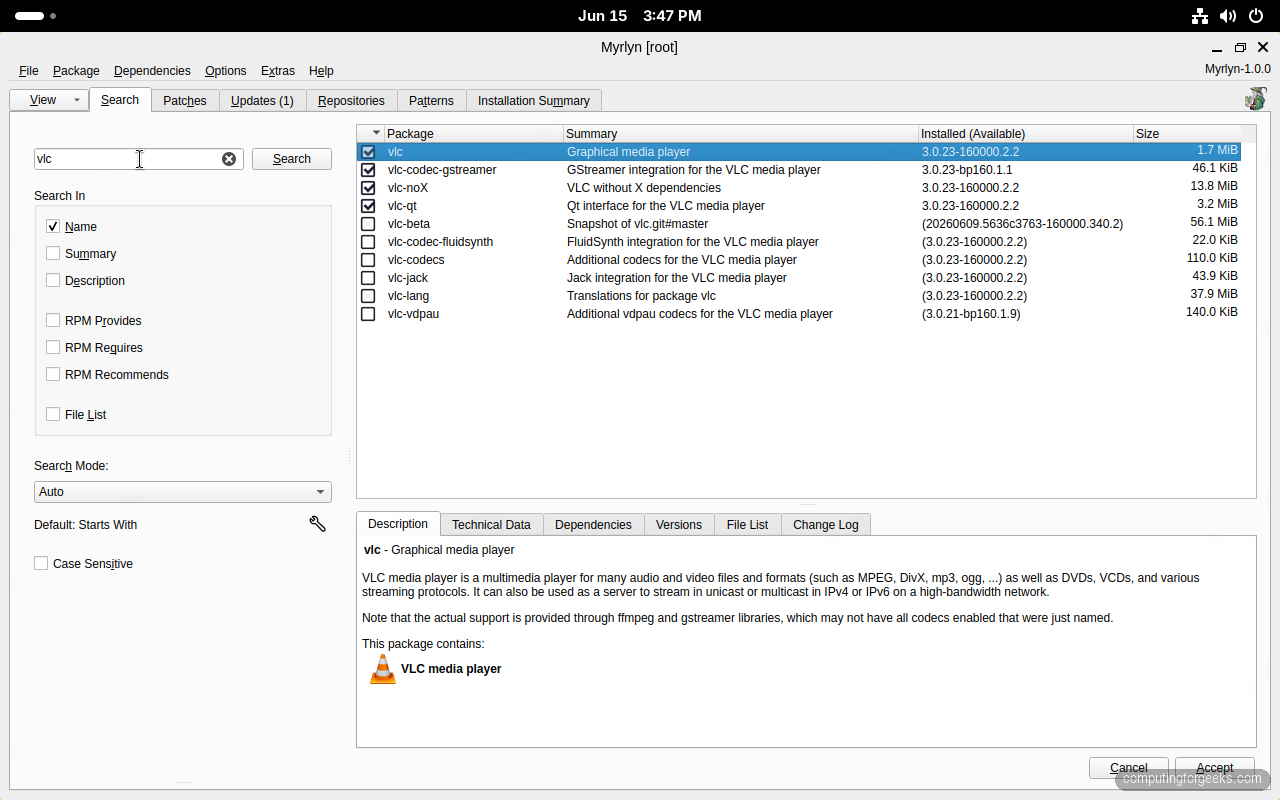
Leap 16 retired the YaST software module and replaced it with Myrlyn, a graphical package manager built on the same libzypp backend zypper uses. If you liked clicking through packages in YaST, this is its replacement. Install it:
sudo zypper install myrlynLaunch it from the application grid or with sudo myrlyn. You get the familiar package list, patterns, and repository views for installing and removing software graphically.
Add GNOME Tweaks and extensions
The stock GNOME desktop is deliberately minimal. GNOME Tweaks unlocks fonts, window-button layout, and startup options, and the Extensions app lets you add features like a dock or system tray:
sudo zypper install gnome-tweaksOpen Tweaks to set your fonts and titlebar buttons. The GNOME browser connector already ships with the desktop, so head to extensions.gnome.org in Firefox and toggle extensions on directly, or pull curated ones from the repository such as gnome-shell-extension-user-theme. This is where a fresh GNOME starts feeling like yours.
Install the NVIDIA driver if you have an NVIDIA GPU
If your machine has an NVIDIA card, the proprietary driver gives you proper acceleration. openSUSE ships a repository definition for it, so you do not have to add URLs by hand:
sudo zypper install openSUSE-repos-Leap-NVIDIA
sudo zypper refresh
sudo zypper install-new-recommends --repo repo-non-free
The first command installs the repository definition, which openSUSE registers under the alias repo-non-free, and the last pulls the matching driver for your card. On a Secure Boot system the driver creates and enrolls a signing key during install, so follow the blue MOK enrollment screen on the next reboot. If you are on Intel or AMD graphics, skip this entirely; those drivers are already in the kernel.
Set your hostname and time
Two small things that are easy to forget. Give the machine a real name and confirm time sync is on:
sudo hostnamectl set-hostname leap-desktop
timedatectl
With updates applied, codecs in place, your safety net confirmed, and Cockpit and Myrlyn ready, Leap 16 is set up the way it should have shipped for your machine. From here it stays out of your way, which is the whole point of running Leap. If you are coming from an older release, the upgrade from Leap 15 guide walks through moving an existing system across.