Valkey is a drop-in replacement for Redis, and on Ubuntu the install is a three-way choice with very different version outcomes. The Ubuntu archive gives you a Canonical-supported package that lags upstream, the official Docker image gives you the latest release in seconds, and a source build gives you that same latest release as a native service. This guide shows how to install Valkey on Ubuntu all three ways, then proves it works by wiring it into a real application: a Python API that caches a slow database query, rate-limits requests, and stores sessions, with the live command traffic captured straight off the server.
The latency and throughput numbers here were measured on a 2-vCPU Ubuntu 26.04 test box in June 2026, on Valkey 9.1.0 built from source.
Beyond the install, the guide covers a tested cache-aside integration with real latency numbers, the new database-level ACLs in the 9.1 line, a live Redis to Valkey migration with no downtime, and a throughput benchmark measured on the test box. If you are coming from Redis, you already know most of the commands. Every standard Redis command, the RESP wire protocol, and the on-disk formats are identical, so existing clients connect without code changes.
Prerequisites
- An Ubuntu 26.04 or 24.04 LTS server with sudo access (the commands are identical on both; version differences are noted where they matter)
- Outbound internet access for package downloads
- Around 512 MB of free RAM for a cache instance; more if you plan to hold a large dataset
- Familiarity with Redis concepts helps but is not required. If you have run Redis on Ubuntu before, this will feel familiar
Step 1: Pick an install method
There is no first-party Valkey apt or dnf repository. The project ships through distribution packages, an official Docker image, and source tarballs. That matters because the version you get depends entirely on which path you take, and most guides on the web pick one path and never mention the trade-off. Here is what each method actually gave on the test boxes:
| Method | Version installed | Native service | Best for |
|---|---|---|---|
| apt on Ubuntu 24.04 (universe) | 7.2.12 | Yes (systemd) | Distro-supported, older line |
| apt on Ubuntu 26.04 (main) | 9.0.3 | Yes (systemd) | Canonical-supported, current-ish |
Docker valkey/valkey | Latest (9.1 line) | Container | Fastest to the newest release |
| Build from source | Latest (9.1 line) | Yes (systemd) | Newest release, native, with TLS |
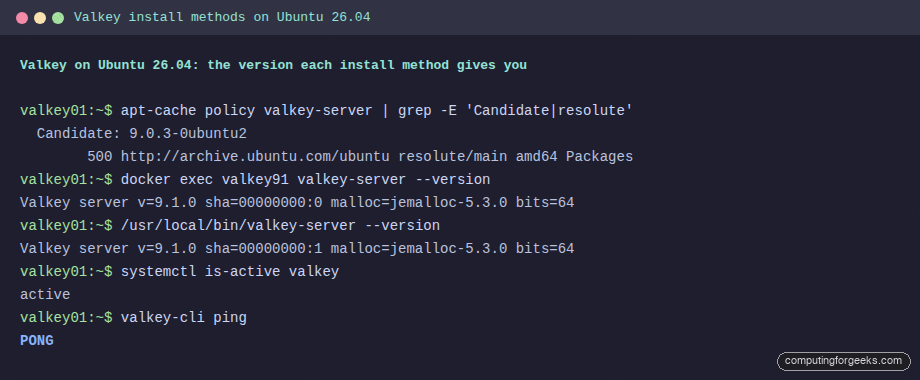
The short version: on 24.04 the archive package is from the Redis 7.2 era and predates the 9.x feature set. On 26.04 it jumps to the 9.0 line and moves into main, so Canonical security support applies. For the absolute latest, Docker and a source build are the only first-party options. The screenshot below shows the same box reporting three different versions depending on how Valkey was installed:
Step 2: Install Valkey from the Ubuntu repositories
This is the simplest path and the right one if you want a systemd-managed service with security updates from Ubuntu. The package set split into a daemon and a tools package. Install both:
sudo apt update
sudo apt install -y valkey-server valkey-tools
valkey-server is the daemon, valkey-tools ships valkey-cli. The old valkey metapackage no longer exists on 26.04, so install the two explicitly. The service starts and enables itself. Confirm the version and that it answers:
valkey-server --version
systemctl is-active valkey-server
valkey-cli ping
On Ubuntu 26.04 this reports version 9.0.3 and a PONG, with the package coming from the resolute/main component. On Ubuntu 24.04 the same command installs 7.2.12 from universe, which is wire-compatible with Redis 7.2 but predates the 9.x performance and ACL work. If you only need a cache or session store and want zero maintenance, the archive package is enough. If you need the newest engine, use Docker or a source build below.
The configuration file lives at /etc/valkey/valkey.conf and the service is valkey-server, so sudo systemctl restart valkey-server applies any change you make.
Step 3: Run the latest Valkey with Docker
The official image is the fastest way to the current release. It is also the cleanest way to run a specific version alongside whatever the distro ships. Pull and run it, mapping the default port:
docker run -d --name valkey -p 6379:6379 valkey/valkey:9.1Check the running version from inside the container and confirm it responds:
docker exec valkey valkey-server --version
docker exec valkey valkey-cli ping
This returns version 9.1.0 and PONG. One detail worth knowing: valkey-cli INFO server reports both a valkey_version (9.1.0) and a redis_version (7.2.4). The Redis version is the compatibility level Valkey advertises to clients that check it, which is how unmodified Redis tooling keeps working. For persistence, mount a volume at /data. If you run all your services this way, the same pattern as the Redis container guide applies, swapping the image name.
Step 4: Build Valkey from source with systemd
A source build gives you the latest release as a native service, with TLS compiled in. Install the build dependencies first:
sudo apt install -y build-essential pkg-config libssl-dev libsystemd-dev curllibsystemd-dev matters more than it looks, and skipping it is the single most common reason a hand-built Valkey fails to start under systemd. More on that in a moment. Detect the latest release tag from the GitHub API so this does not go stale, then download and unpack it:
VER=$(curl -fsSL https://api.github.com/repos/valkey-io/valkey/releases/latest | grep -oP '"tag_name":\s*"\K[^"]+')
echo "Building Valkey ${VER}"
cd /usr/local/src
sudo curl -fsSL "https://github.com/valkey-io/valkey/archive/refs/tags/${VER}.tar.gz" -o "valkey-${VER}.tar.gz"
sudo tar xzf "valkey-${VER}.tar.gz"
cd "valkey-${VER}"
Build with TLS and systemd notification support, then install the binaries to /usr/local/bin:
sudo make BUILD_TLS=yes USE_SYSTEMD=yes -j"$(nproc)"
sudo make install
Create a dedicated system user and the directories the service needs:
sudo useradd --system --home-dir /var/lib/valkey --shell /usr/sbin/nologin valkey
sudo mkdir -p /etc/valkey /var/lib/valkey /var/log/valkey
sudo chown -R valkey:valkey /var/lib/valkey /var/log/valkey
Create the configuration file at /etc/valkey/valkey.conf with a sane cache-oriented baseline:
bind 127.0.0.1 -::1
protected-mode yes
port 6379
supervised systemd
daemonize no
pidfile /run/valkey/valkey.pid
dir /var/lib/valkey
logfile /var/log/valkey/valkey.log
loglevel notice
log-format json
save 900 1
save 300 10
appendonly yes
appendfsync everysec
maxmemory 256mb
maxmemory-policy allkeys-lru
The log-format json directive is new in the 9.1 line and makes the logs parseable by tools like Loki or the Elastic stack without custom regex. Now create the unit file at /etc/systemd/system/valkey.service:
[Unit]
Description=Valkey in-memory data store
After=network-online.target
Wants=network-online.target

[Service]
Type=notify
ExecStart=/usr/local/bin/valkey-server /etc/valkey/valkey.conf
User=valkey
Group=valkey
RuntimeDirectory=valkey
RuntimeDirectoryMode=0750
Restart=on-failure
LimitNOFILE=65535

[Install]
WantedBy=multi-user.target
Reload systemd, then enable and start the service:
sudo systemctl daemon-reload
sudo systemctl enable --now valkey
systemctl is-active valkey
valkey-cli ping
This should report active and PONG. Here is the gotcha promised earlier. The unit uses Type=notify, which means systemd waits for the daemon to send a readiness signal before declaring the service started. Valkey only sends that signal if it was compiled with USE_SYSTEMD=yes. Build it without that flag and the server runs fine, the log even says “Ready to accept connections”, but systemd never gets the signal, times out after 90 seconds, kills the process, and loops. If you hit a start timeout on a source build, rebuild with USE_SYSTEMD=yes (and make sure libsystemd-dev was installed first) or change the unit to Type=simple.
Step 5: Secure the basics
Valkey listens only on localhost by default, which is correct for a cache that sits next to your application. Keep it that way unless you have a reason not to. The defaults that matter are already in the config above: bind 127.0.0.1 and protected-mode yes. If an application on another host genuinely needs access, require authentication rather than opening it up blind. Set a password:
valkey-cli CONFIG SET requirepass 'a-long-random-secret'
valkey-cli -a 'a-long-random-secret' --no-auth-warning ping
To persist it, add requirepass to the config file and restart. If you do expose the port, open it on the firewall only to the application host:
sudo ufw allow from 10.0.1.20 to any port 6379 proto tcpFor traffic that leaves the host, enable TLS. The 9.1 line added automatic certificate reloading, so a renewed certificate is picked up without a restart. Point the tls-port, tls-cert-file, and tls-key-file directives at your certificate and connect with valkey-cli --tls. For a cache talking to a co-located app over loopback, plain localhost is fine and TLS is unnecessary overhead.
Use Valkey as a cache in a real app
This is where Valkey earns its place. The pattern is cache-aside: the application checks Valkey first, and only falls through to the slow source of truth on a miss, writing the result back so the next request is fast. To make the speedup honest rather than theoretical, the demo below runs the slow path as a real Postgres query that takes half a second (a pg_sleep stands in for an expensive aggregation or an upstream API call), and the fast path as a real Valkey lookup.
The application is a small FastAPI service. It connects to Valkey with the standard redis Python client, unchanged, which is the drop-in compatibility claim demonstrated rather than asserted. Here is the core of it:
import time, psycopg2, redis
from fastapi import FastAPI, Request, HTTPException

# redis-py talks to Valkey unchanged (RESP2/RESP3 wire-compatible)
cache = redis.Redis(host="127.0.0.1", port=6379, db=0, decode_responses=True)

def db():
    return psycopg2.connect(host="127.0.0.1", dbname="shop",
                            user="shopapp", password="shoppass")

app = FastAPI()
CACHE_TTL = 60

@app.get("/products/{pid}")
def get_product(pid: int):
    t0 = time.perf_counter()
    key = f"product:{pid}"
    cached = cache.hgetall(key)
    if cached:
        ms = (time.perf_counter() - t0) * 1000
        return {"source": "valkey-cache", "elapsed_ms": round(ms, 2), "product": cached}
    # MISS: pg_sleep(0.5) makes this a genuinely expensive query
    conn = db(); cur = conn.cursor()
    cur.execute("SELECT id,name,price,stock,pg_sleep(0.5) FROM products WHERE id=%s", (pid,))
    row = cur.fetchone(); cur.close(); conn.close()
    if not row:
        raise HTTPException(404, "product not found")
    product = {"id": row[0], "name": row[1], "price": str(row[2]), "stock": row[3]}
    cache.hset(key, mapping=product)
    cache.expire(key, CACHE_TTL)
    ms = (time.perf_counter() - t0) * 1000
    return {"source": "postgres-db", "elapsed_ms": round(ms, 2), "product": product}
Set up the Python environment and start it:
python3 -m venv .venv && . .venv/bin/activate
pip install fastapi "uvicorn[standard]" redis psycopg2-binary
uvicorn app:app --host 127.0.0.1 --port 8000
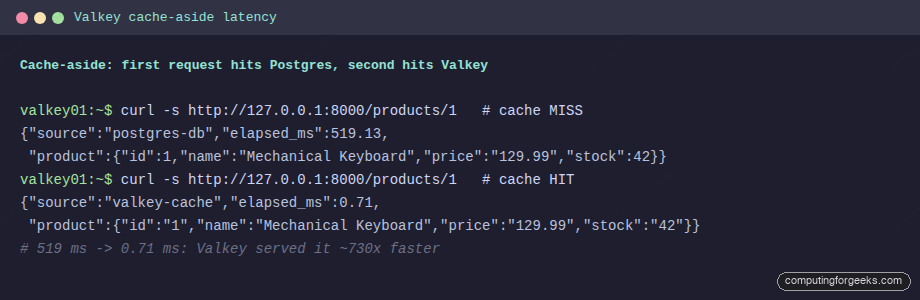
Now hit the same product twice. The first request misses the cache and pays the full Postgres cost. The second is served from Valkey:
curl -s http://127.0.0.1:8000/products/1
curl -s http://127.0.0.1:8000/products/1
The numbers on the test box tell the whole story. The first call returned in 519 milliseconds from postgres-db; the second returned in 0.71 milliseconds from valkey-cache. That is the same data served roughly 730 times faster, and it is measured, not estimated:
To see that Valkey is genuinely doing the work and not some local trick, run valkey-cli monitor in a second terminal while the app serves traffic. Every command the application issues streams past in real time:
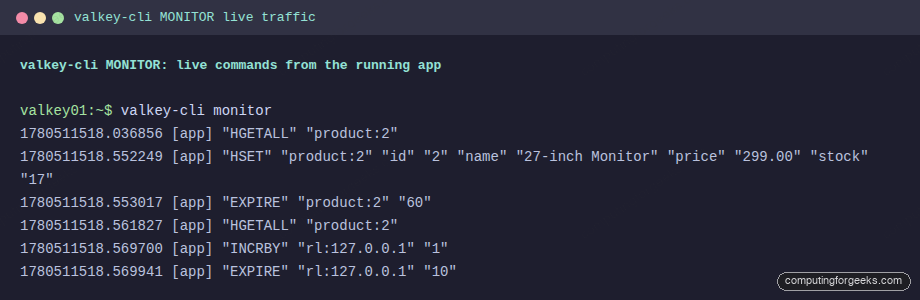
You can read the cache-aside cycle directly: an HGETALL that misses, the HSET that fills the cache after the database read, the EXPIRE that sets the 60-second TTL, then a second HGETALL that hits. The INCRBY and EXPIRE on the rl: key are the rate limiter, covered next.
Rate limiting and sessions on the same instance
The same Valkey instance does double duty. A fixed-window rate limiter is four lines: increment a per-client counter, set an expiry on the first hit, reject once it crosses the limit.
@app.get("/limited")
def limited(request: Request):
    key = f"rl:{request.client.host}"
    count = cache.incr(key)
    if count == 1:
        cache.expire(key, 10)      # 10-second window
    if count > 5:                  # 5 requests per window
        raise HTTPException(429, f"rate limit exceeded, retry in {cache.ttl(key)}s")
    return {"ok": True, "request": count, "limit": 5}
Fire seven quick requests and the sixth gets refused with a 429 and a real retry hint, because the counter and its TTL live in Valkey:
req 5 -> HTTP 200  {"ok":true,"request":5,"limit":5}
req 6 -> HTTP 429  {"detail":"rate limit exceeded, retry in 10s"}
Sessions are just keys with a TTL: cache.set(token, user, ex=30) on login, cache.get(token) on each request, and the session expires on its own when the TTL runs out. No cron, no cleanup job.
Drop it into your existing stack
You rarely write the client code by hand. Because Valkey speaks the Redis protocol, the cache backend in every major framework points at it unchanged. Use the same host, port, and (optional) password you configured above:
| Stack | Where it plugs in |
|---|---|
| Django | CACHES with BACKEND = django.core.cache.backends.redis.RedisCache, LOCATION = redis://127.0.0.1:6379 |
| Laravel | .env: CACHE_STORE=redis, REDIS_HOST=127.0.0.1, REDIS_PORT=6379 |
| Node.js | ioredis or node-redis: new Redis(6379, '127.0.0.1') |
| Spring Boot | spring.data.redis.host=127.0.0.1, spring.data.redis.port=6379 |
None of these know or care that the server is Valkey rather than Redis. The full demo application, including the rate limiter, session endpoints, and a Compose file, is published as a companion repo at github.com/c4geeks/valkey-demo.
Isolate tenants with database-level ACLs
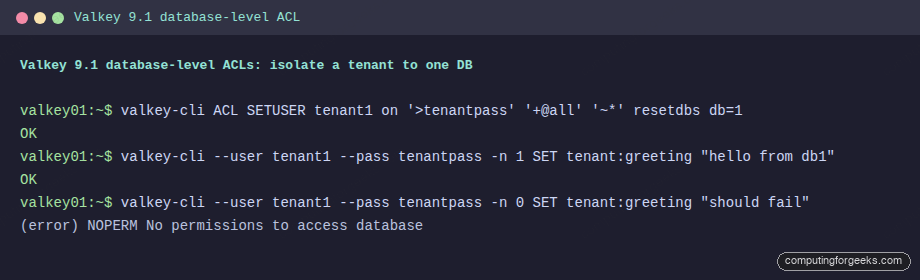
The 9.1 line added a genuinely useful access-control feature: you can scope a user to specific numbered databases. Before this, an ACL user with key access could touch every logical database on the instance. Now you can hand each tenant its own database and forbid the rest, which makes a single Valkey safe to share across tenants. Create a user allowed only on database 1:
valkey-cli ACL SETUSER tenant1 on '>tenantpass' '+@all' '~*' resetdbs db=1The resetdbs keyword clears the default “all databases” grant, and db=1 allows exactly one. Now that user can work in database 1 but is refused everywhere else:
valkey-cli --user tenant1 --pass tenantpass -n 1 SET tenant:greeting "hello from db1"
valkey-cli --user tenant1 --pass tenantpass -n 0 SET tenant:greeting "should fail"
The write to database 1 returns OK. The write to database 0 is rejected with NOPERM No permissions to access database. The default user keeps its alldbs grant, so your admin connection is unaffected:
This is not a substitute for separate instances when tenants are truly untrusted, but for internal multi-tenant separation it removes a real footgun.
Migrate from Redis to Valkey with no downtime
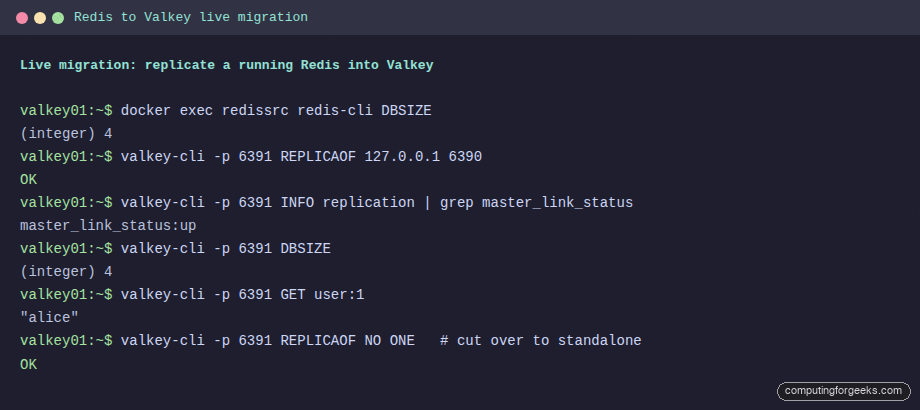
Because Valkey forked from Redis and kept the replication protocol, you can migrate a live Redis instance by making Valkey a replica of it, letting it sync, then promoting it. No dump files, no application downtime. With a Redis instance running on port 6390 and an empty Valkey on 6391, point one at the other:
valkey-cli -p 6391 REPLICAOF 127.0.0.1 6390Valkey connects, pulls a full copy of the dataset, and then streams ongoing changes. Watch the link come up and confirm the keys arrived:
valkey-cli -p 6391 INFO replication | grep master_link_status
valkey-cli -p 6391 DBSIZE
valkey-cli -p 6391 GET user:1
Once master_link_status reads up, the replica holds the same key count as the source, and every type came across intact: strings, hashes, and lists all replicated. When you are ready to cut over, point your application at Valkey and promote it to a standalone primary:
valkey-cli -p 6391 REPLICAOF NO ONEThe full sequence on the test box ran source database size of four keys, link up, matching size on the replica, the user:1 value intact, then a clean promotion to primary:
One caveat on compatibility: standard data structures, Lua scripts, pub/sub, streams, and ACLs all carry over cleanly. What does not are the proprietary closed-source Redis modules (RediSearch, RedisJSON, RedisTimeSeries, RedisBloom), which are not part of Valkey. If your application leans on those specific modules, audit that first. For the far more common case of Redis as a cache, session store, queue, or rate limiter, the migration is genuinely a drop-in. Existing pages like the Redis monitoring with Prometheus and Grafana setup keep working against Valkey, because the metrics exporter speaks the same protocol.
Tune Valkey for production throughput
Before tuning anything, get a baseline from the box you will actually run on. valkey-benchmark ships with the install. On the 2-vCPU test VM, single-operation throughput held around 80,000 SET and GET per second at a p50 under 0.33 milliseconds; with pipelining enabled it reached 568,000 SET and 952,000 GET per second:
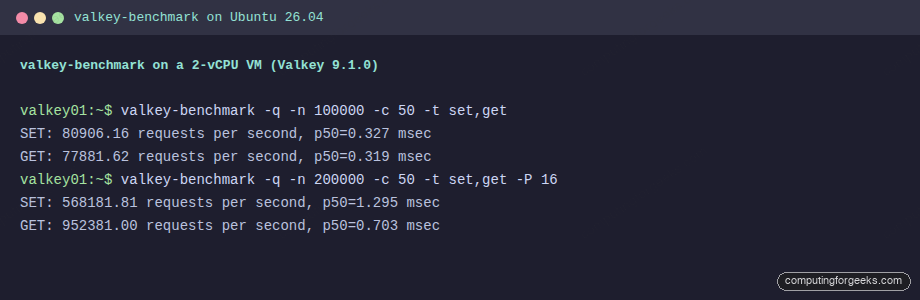
The marketing figure of 2.1 million requests per second is real but earned on much larger hardware: nine I/O threads, small payloads, and many cores. The two levers that close most of the gap are visible above. Pipelining batches round trips, so if your workload can send commands in groups, it is the single biggest win. The second lever is I/O threads, which default to 1. On a host with spare cores, raise it to match:
valkey-cli CONFIG SET io-threads 4Make it permanent in valkey.conf and restart. The threading redesign in the 9.x line is where the per-instance throughput gains come from, but it only helps when there are cores to use, so do not set it above your core count on a small VM.
Three settings decide behaviour under real load. maxmemory caps memory; pair it with maxmemory-policy allkeys-lru for a pure cache so old keys are evicted instead of writes failing. appendfsync everysec is the durability sweet spot, flushing the append-only file once a second rather than on every write; switch to always only if losing one second of writes is unacceptable, and accept the throughput cost. For a cache where the data also lives in a database, you can turn persistence off entirely and let Valkey rebuild from the source of truth. The metrics worth watching are used_memory against your maxmemory ceiling, evicted_keys (steady growth means the cache is too small), and the keyspace hit ratio from INFO stats, which is the number that tells you whether the cache is actually earning its keep.