FreeIPA quietly stops working in three places: an expired CA cert, a corrupted replication agreement, and a stopped service nobody noticed. ipa-healthcheck finds all three in 283 checks that run in under ten seconds, and it has shipped in the box with FreeIPA since 4.8. The catch is that ipa-healthcheck dumps a wall of JSON. Nobody reads it. The right move is to feed it into Prometheus, surface the results in Grafana, and alert on the four signals that actually correlate with an outage: services down, certificates expiring, replication conflicts, and the healthcheck itself going stale.
This walkthrough builds the full pipeline end to end. We install ipa-healthcheck on a fresh FreeIPA 4.12 server, wire the built-in --output-type prometheus emitter through node_exporter‘s textfile collector, scrape it from a separate Prometheus host, light it up in a Grafana dashboard with per-check granularity, and add five alert rules that fire on real failures. To prove the loop works, we stop named and httpd on the IPA server and watch three alerts go red in Prometheus within thirty seconds. Every screenshot is from the lab. Every metric value is what the system actually emitted.
If the FreeIPA realm itself is not in place yet, work through the server install guide first. The monitoring story makes sense once there is a live realm to monitor.
What ipa-healthcheck checks for you
The ipa-healthcheck command runs every module under /usr/lib/python3*/site-packages/ipahealthcheck/ and emits one item per check. On a fresh Rocky Linux 10.1 FreeIPA 4.12.2 install, that is 283 items spanning ten categories.
- meta.services: certmonger, dirsrv, gssproxy, httpd, ipa_custodia, ipa_otpd, kadmin, krb5kdc, named, ipa_dnskeysyncd, pki_tomcatd, sssd, chronyd. Each one a one-line systemd unit probe.
- meta.connectivity: TCP reachability to Dogtag’s CA, KRA, OCSP, TKS, TPS subsystems on their internal ports.
- ipa.certs: certmonger tracking, IPA-issued cert revocation status, CA renewal status.
- ipa.dns: PTR records, SOA serials, IPA system records (Kerberos SRV, LDAP SRV).
- ipa.files: ownership and permissions on every IPA-managed config file plus key contents like CS.cfg admin tokens.
- ipa.host: kerberos keytabs for hostnames, principal aliases, host enrollment state.
- ds: 389-DS backends, replication conflicts, DSE config, NSSSL TLS settings.
- pki.server: Dogtag system cert expiry, trust flags, cert chain validation.
- ipa.replication: replica agreements, last_init_status, last_update_status.
- ipa.idns: DNS forwarder reachability, DNSSEC delegation.
Run it once to see what your install looks like:
sudo dnf -y install ipa-healthcheck
sudo ipa-healthcheck --output-type human --severity WARNING
The --severity WARNING filter keeps the output to anything that is not a clean pass. On a healthy lab realm the result is usually one WARNING about a Dogtag CS.cfg admin token reference, which is a noisy upstream quirk you can ignore.
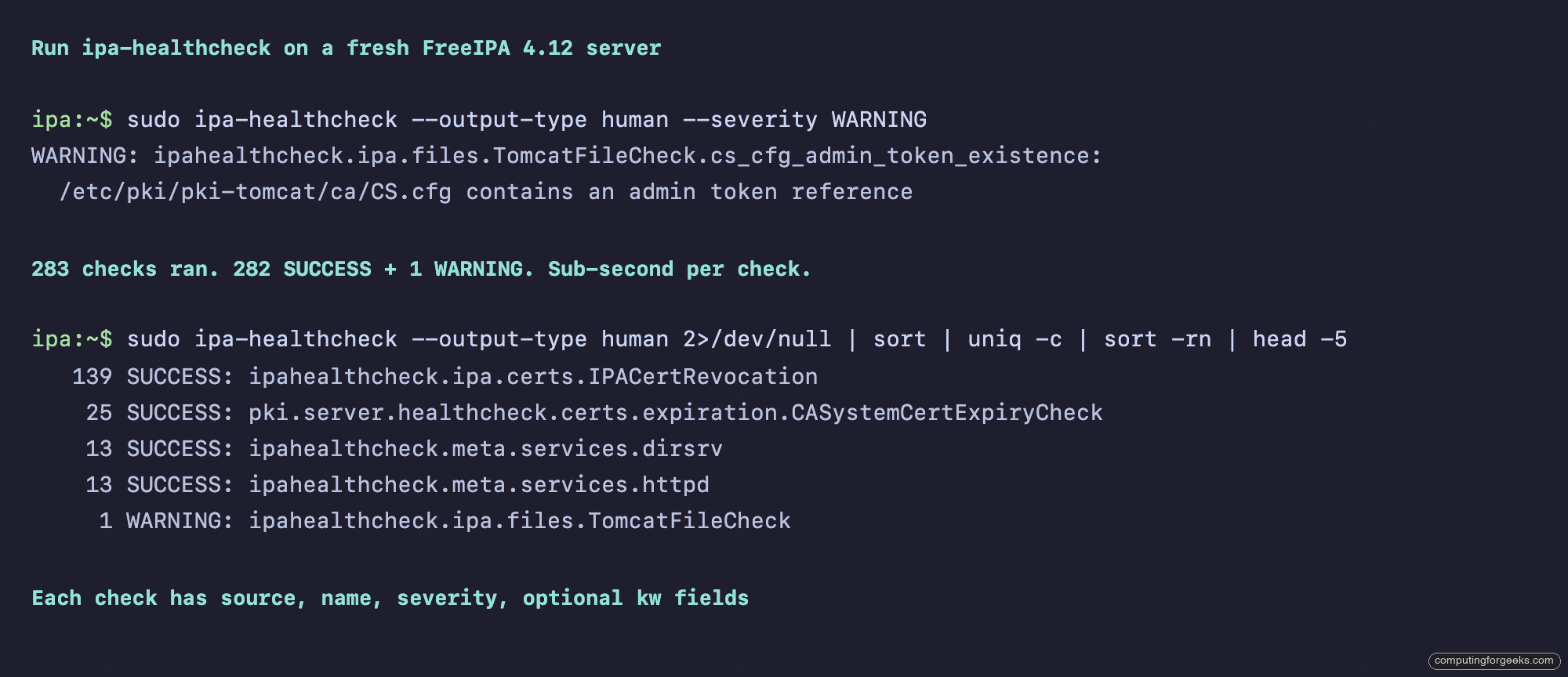
What you do not want to do is run the human output in a cron job and grep the result. The 283 lines are structured data, and treating them as text loses the per-check labels you need for proper alerting.
The built-in Prometheus emitter
ipa-healthcheck ships with --output-type prometheus as of release 0.10. It emits a small handful of aggregate metrics in the Prometheus text exposition format:
sudo ipa-healthcheck --output-type prometheus | head -20The output is two metrics: ipa_healthcheck{result="..."} counts items by severity, and ipa_service_state{service="..."} reports a 0 or 1 per monitored systemd unit. Together they tell you “are all 13 IPA daemons up” and “did anything fail or warn in the last run”. This is enough to alert on for 80% of operational issues.
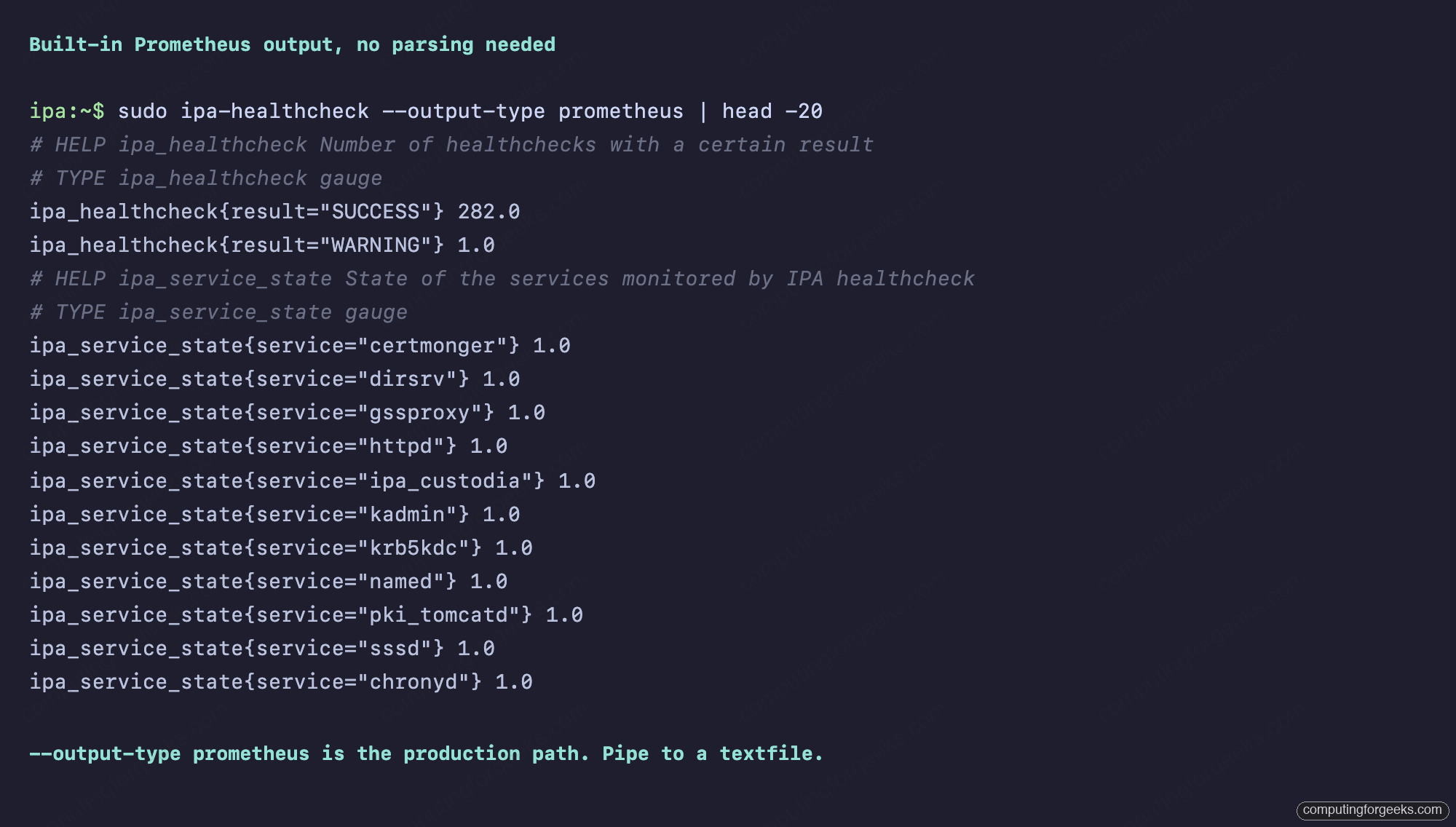
What the built-in output does not give you is per-check granularity. If you want to know exactly which of the 283 items failed, not just the aggregate count, you have to parse the JSON output and emit your own metrics. We do both: take the built-in output as-is, then layer a custom ipa_healthcheck_result{source=...,check=...} metric on top for the per-item view.
node_exporter with the textfile collector
Prometheus scrapes HTTP endpoints. ipa-healthcheck is a CLI. The bridge is node_exporter‘s textfile collector: a directory that node_exporter polls and re-exposes whatever .prom files it finds. A systemd timer runs ipa-healthcheck, writes a textfile, and node_exporter serves it on port 9100.
# Detect architecture and resolve the latest node_exporter release tag
ARCH="$(uname -m | sed 's/x86_64/amd64/;s/aarch64/arm64/')"
LATEST="$(curl -fsSL https://api.github.com/repos/prometheus/node_exporter/releases/latest   | grep '"tag_name"' | cut -d'"' -f4)"
VERSION="${LATEST#v}"
NAME="node_exporter-${VERSION}.linux-${ARCH}"

# Download, extract, install
sudo useradd -rs /bin/false node_exporter 2>/dev/null || true
TMP=$(mktemp -d) && cd "$TMP"
curl -sLO "https://github.com/prometheus/node_exporter/releases/download/${LATEST}/${NAME}.tar.gz"
tar -xzf "${NAME}.tar.gz"
sudo install -m 0755 "${NAME}/node_exporter" /usr/local/bin/
cd / && rm -rf "$TMP"

sudo mkdir -p /var/lib/node_exporter/textfile_collector
sudo chown -R node_exporter:node_exporter /var/lib/node_exporter
/usr/local/bin/node_exporter --version | head -1

sudo tee /etc/systemd/system/node_exporter.service >/dev/null <<UNIT
[Unit]
Description=Prometheus node_exporter
After=network-online.target

[Service]
User=node_exporter
Group=node_exporter
ExecStart=/usr/local/bin/node_exporter \
  --collector.textfile.directory=/var/lib/node_exporter/textfile_collector \
  --collector.systemd \
  --web.listen-address=:9100
Restart=on-failure

[Install]
WantedBy=multi-user.target
UNIT
sudo systemctl enable --now node_exporter
The --collector.systemd flag is a bonus: it also exposes node_systemd_unit_state for every systemd unit on the box, so you get both ipa-healthcheck’s view and the raw systemd view for cross-checking. Use whichever signal is cleaner for a given alert.
The exporter script
One bash script runs ipa-healthcheck twice (once for the built-in prometheus output, once for JSON), appends a Python parser that expands the JSON into per-check metrics, then writes the combined file atomically with mv so node_exporter never sees a partial scrape. Create the file with a here-document, mark it executable, and run it once to seed the textfile:
sudo tee /usr/local/bin/ipa-healthcheck-export.sh >/dev/null <<'SCRIPT'
#!/usr/bin/env bash
OUT="/var/lib/node_exporter/textfile_collector/ipa_healthcheck.prom"
TMP=$(mktemp)
JSON=$(mktemp)

START=$(date +%s)
ipa-healthcheck --output-type json > "$JSON" 2>/dev/null || true
END=$(date +%s)

# Built-in aggregates
ipa-healthcheck --output-type prometheus >> "$TMP" 2>/dev/null || true

# Custom per-check expansion + cert expiry
python3 - "$JSON" "$START" "$END" <<'PY' >> "$TMP"
import json, sys, re
path, start, end = sys.argv[1], int(sys.argv[2]), int(sys.argv[3])
levels = {"SUCCESS": 0, "WARNING": 1, "ERROR": 2, "CRITICAL": 3}
data = json.load(open(path))

print(f"ipa_healthcheck_last_run_timestamp_seconds {end}")
print(f"ipa_healthcheck_duration_seconds {end-start}")
print(f"ipa_healthcheck_checks_total {len(data)}")

seen = {}
for c in data:
    key = (c["source"], c["check"])
    res = levels.get(c.get("result","SUCCESS"), -1)
    if key not in seen or seen[key] < res:
        seen[key] = res
for (src, chk), res in seen.items():
    print(f'ipa_healthcheck_result{{source="{src}",check="{chk}"}} {res}')

for c in data:
    if "expir" in c.get("check","").lower():
        days = c.get("kw",{}).get("days")
        if isinstance(days, int):
            key = c["kw"].get("key","unknown")
            print(f'ipa_certificate_days_until_expiry{{cert="{key}"}} {days}')
PY

mv "$TMP" "$OUT"
chmod 0644 "$OUT"
SCRIPT

# Make the script executable and run it once to seed the textfile
sudo chmod +x /usr/local/bin/ipa-healthcheck-export.sh
sudo /usr/local/bin/ipa-healthcheck-export.sh

# Confirm the textfile landed and node_exporter is picking it up
ls -la /var/lib/node_exporter/textfile_collector/ipa_healthcheck.prom
curl -s http://localhost:9100/metrics | grep -E '^ipa_' | head -5
The atomic mv inside the script is important. node_exporter reads the directory on every scrape, and a half-written file produces parse errors that show up as node_textfile_scrape_error in Prometheus. mv on the same filesystem is a rename syscall, which is atomic. Writing directly to $OUT with > would not be.
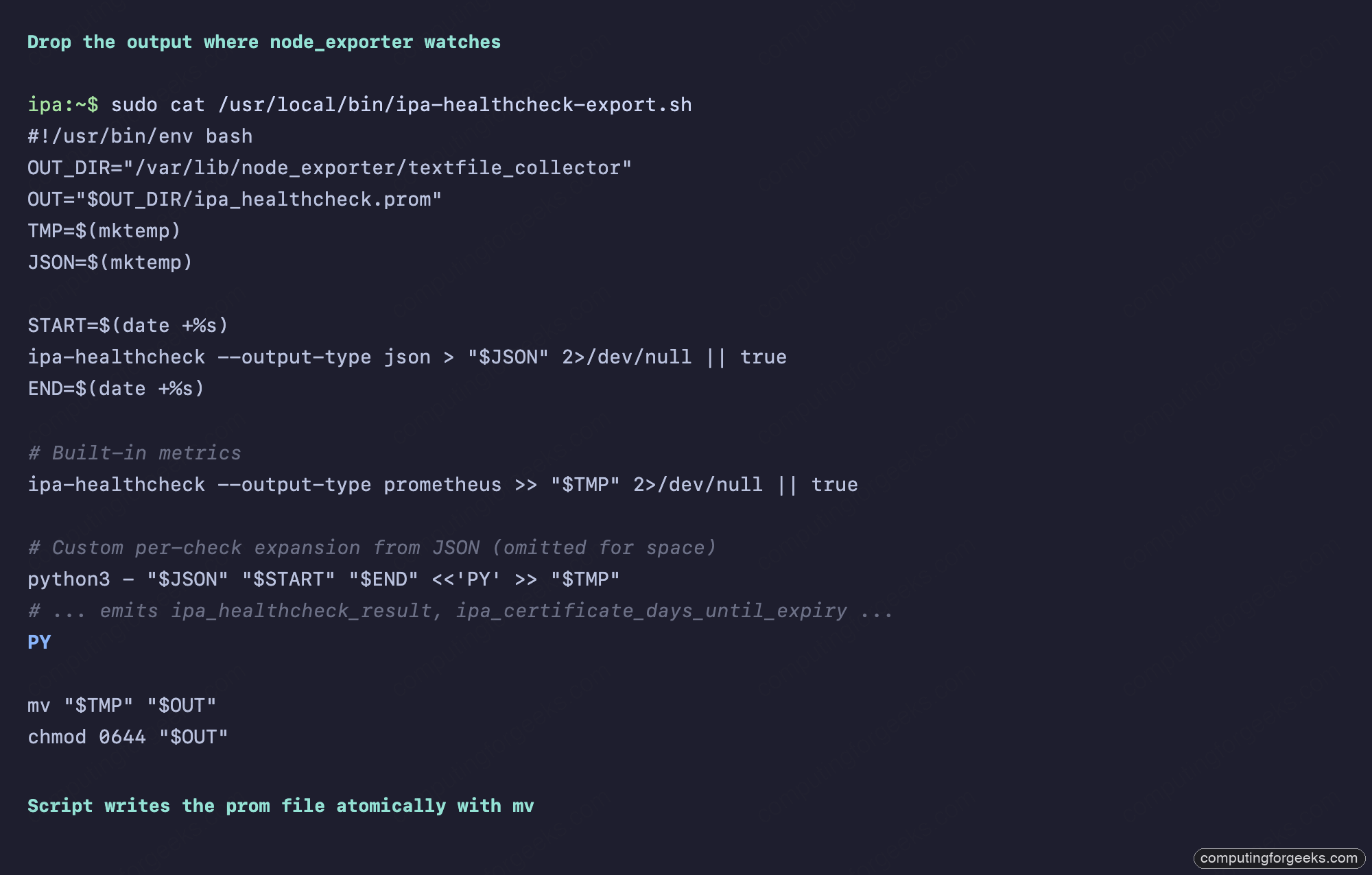
The curl at the end should print three or four lines starting with ipa_healthcheck and ipa_service_state. If you see no lines, the script ran but the textfile is empty: re-run with bash -x /usr/local/bin/ipa-healthcheck-export.sh to trace the failure. With the script in place, wire it to a systemd timer so it refreshes every five minutes.
systemd timer at 5-minute cadence
A pair of unit files: a oneshot service that runs the exporter, and a timer that fires it. Five minutes is the sweet spot. Faster than that and you waste CPU on a 283-check sweep that barely changes. Slower than that and you risk hitting an outage window before the alert fires.
sudo tee /etc/systemd/system/ipa-healthcheck-export.service >/dev/null <<UNIT
[Unit]
Description=Export ipa-healthcheck results as Prometheus textfile
After=ipa.service

[Service]
Type=oneshot
ExecStart=/usr/local/bin/ipa-healthcheck-export.sh
User=root
UNIT

sudo tee /etc/systemd/system/ipa-healthcheck-export.timer >/dev/null <<UNIT
[Unit]
Description=Run ipa-healthcheck export every 5 minutes

[Timer]
OnBootSec=2min
OnUnitActiveSec=5min
AccuracySec=15s
Persistent=true

[Install]
WantedBy=timers.target
UNIT

sudo systemctl enable --now ipa-healthcheck-export.timer
The Persistent=true means if the IPA host was off when a scheduled run was due, systemd fires the missed run on boot. OnBootSec=2min defers the first run until two minutes after boot so the IPA stack has time to come up before healthcheck queries it.
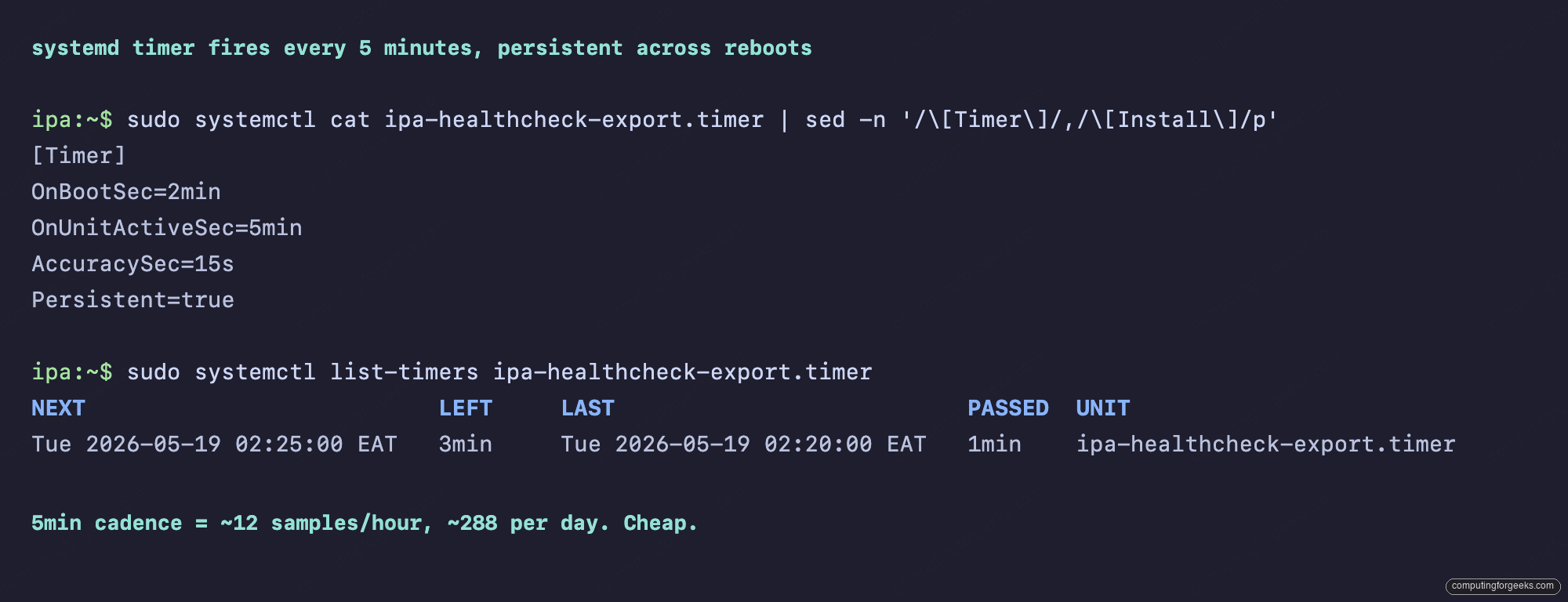
Verify the timer is actually firing with systemctl list-timers ipa-healthcheck-export.timer. The LAST column should be inside the last 5 minutes once the system has been up a while.
Prometheus + Grafana on a separate VM
Running Prometheus on the IPA server itself is fine for a tiny lab, but a real production setup keeps the monitoring stack on a separate host so a broken IPA does not break the observability that catches it. A 4 GB Ubuntu 24.04 VM is plenty for Prometheus + Grafana + the IPA scrape job:
# Prometheus
sudo useradd --no-create-home --shell /bin/false prometheus
curl -sLO https://github.com/prometheus/prometheus/releases/download/v2.55.0/prometheus-2.55.0.linux-amd64.tar.gz
tar -xzf prometheus-2.55.0.linux-amd64.tar.gz
sudo install prometheus-2.55.0.linux-amd64/prometheus /usr/local/bin/
sudo install prometheus-2.55.0.linux-amd64/promtool /usr/local/bin/
sudo mkdir -p /etc/prometheus /var/lib/prometheus
sudo cp -r prometheus-2.55.0.linux-amd64/consoles /etc/prometheus/

# Grafana from the official apt repo
sudo install -d /etc/apt/keyrings
curl -fsSL https://apt.grafana.com/gpg.key | sudo gpg --dearmor -o /etc/apt/keyrings/grafana.gpg
echo "deb [signed-by=/etc/apt/keyrings/grafana.gpg] https://apt.grafana.com stable main" | sudo tee /etc/apt/sources.list.d/grafana.list
sudo apt-get update -qq
sudo apt-get install -y grafana
sudo systemctl enable --now grafana-server
The Grafana repo wants its GPG key dearmored into the apt keyrings directory before the repo line will validate. The first time we set this up we hit the classic The following signatures couldn't be verified because the public key is not available error from skipping the gpg --dearmor step. The block above does it right.
The Prometheus scrape config is one job. Write it to /etc/prometheus/prometheus.yml (overwriting whatever default sample config the install dropped there), set ownership, and start Prometheus:
sudo tee /etc/prometheus/prometheus.yml >/dev/null <<'YAML'
global:
  scrape_interval: 30s
  evaluation_interval: 30s

rule_files:
  - "ipa-alerts.yml"

scrape_configs:
  - job_name: 'ipa-server'
    static_configs:
      - targets: ['ipa.cfg-lab.local:9100']
        labels:
          role: 'ipa-primary'
          realm: 'CFG-LAB.LOCAL'
YAML
sudo chown prometheus:prometheus /etc/prometheus/prometheus.yml

# Write a minimal systemd unit for Prometheus, then start it
sudo tee /etc/systemd/system/prometheus.service >/dev/null <<'UNIT'
[Unit]
Description=Prometheus
After=network-online.target
Wants=network-online.target

[Service]
User=prometheus
Group=prometheus
Type=simple
ExecStart=/usr/local/bin/prometheus \
  --config.file=/etc/prometheus/prometheus.yml \
  --storage.tsdb.path=/var/lib/prometheus \
  --web.console.templates=/etc/prometheus/consoles \
  --web.console.libraries=/etc/prometheus/console_libraries \
  --web.listen-address=0.0.0.0:9090 \
  --web.enable-lifecycle
Restart=on-failure

[Install]
WantedBy=multi-user.target
UNIT
sudo chown -R prometheus:prometheus /etc/prometheus /var/lib/prometheus
sudo systemctl daemon-reload
sudo systemctl enable --now prometheus

# Confirm Prometheus is up and the IPA target shows as healthy
sleep 5
curl -s http://localhost:9090/api/v1/targets | grep -o '"health":"[^"]*"'
The 30-second scrape interval is faster than the 5-minute textfile refresh, so most scrapes get the same data, but it keeps the up/down detection for node_exporter itself sub-minute. Adding the realm label means in a multi-realm shop you can group queries by realm rather than picking instance names out of a list. The --web.enable-lifecycle flag is what lets you reload alert rules with a POST to /-/reload later, instead of having to restart Prometheus and lose your retention window.
Five alert rules that catch real outages
The alerts file at /etc/prometheus/ipa-alerts.yml covers the four signals that matter plus a meta-alert for the healthcheck itself going stale. Write it with another here-document, fix ownership, then reload Prometheus so it picks up the new rules without a restart:
sudo tee /etc/prometheus/ipa-alerts.yml >/dev/null <<'YAML'
groups:
  - name: ipa-healthcheck
    interval: 30s
    rules:
      - alert: IPAHealthcheckFailure
        expr: max(ipa_healthcheck{result="ERROR"}) > 0
          or max(ipa_healthcheck{result="CRITICAL"}) > 0
        for: 2m
        labels: { severity: critical }
        annotations:
          summary: "ipa-healthcheck reporting ERROR or CRITICAL"

      - alert: IPAHealthcheckWarning
        expr: max(ipa_healthcheck{result="WARNING"}) > 0
        for: 5m
        labels: { severity: warning }
        annotations:
          summary: "ipa-healthcheck reporting WARNINGs"

      - alert: IPAServiceDown
        expr: ipa_service_state == 0
        for: 1m
        labels: { severity: critical }
        annotations:
          summary: "IPA service {{ $labels.service }} is DOWN"

      - alert: IPACertificateExpiringSoon
        expr: min(ipa_certificate_days_until_expiry) < 30
        for: 5m
        labels: { severity: warning }
        annotations:
          summary: "IPA cert {{ $labels.cert }} expires in <30 days"

      - alert: IPAHealthcheckStale
        expr: time() - ipa_healthcheck_last_run_timestamp_seconds > 900
        for: 5m
        labels: { severity: warning }
        annotations:
          summary: "ipa-healthcheck has not run in 15+ minutes"
YAML
sudo chown prometheus:prometheus /etc/prometheus/ipa-alerts.yml

# Validate the rules with promtool before reloading
sudo -u prometheus /usr/local/bin/promtool check rules /etc/prometheus/ipa-alerts.yml

# Hot-reload Prometheus to pick up the new rules
curl -s -X POST http://localhost:9090/-/reload
Running promtool check rules before the reload catches syntax errors before they hit the running Prometheus. A failed reload leaves the previous rules in place, but a syntax error caught early is one less production surprise. After the reload, browse to http://monitor.cfg-lab.local:9090/alerts in your browser and confirm all five rules show up under the ipa-healthcheck group (they will be Inactive green if the realm is healthy).
The for: 1m on IPAServiceDown is the shortest window. A daemon that flaps for 30 seconds during a config reload is not an outage. A daemon that has been down for 60 seconds is. Tune to taste, but resist the urge to alert on a single bad sample.
The IPAHealthcheckStale rule is the one most setups forget. If the timer dies or the disk fills up, you never get new metrics, and the dashboard happily shows the last-known-good state forever. The 15-minute window is three missed cycles, which is long enough to forgive a slow VM and short enough to catch a stopped timer before the next ops handoff.
The Grafana dashboard
Six panels at the top: total checks, SUCCESS count, WARNING count, ERROR count, CRITICAL count, and a “last run age” stat that turns red if the healthcheck has not produced fresh data in over 20 minutes. Below that, a time-series chart of all four severities over the last three hours, and a service-status table. At the bottom, a sortable table of every per-check result and a bar gauge of cert expiry days.
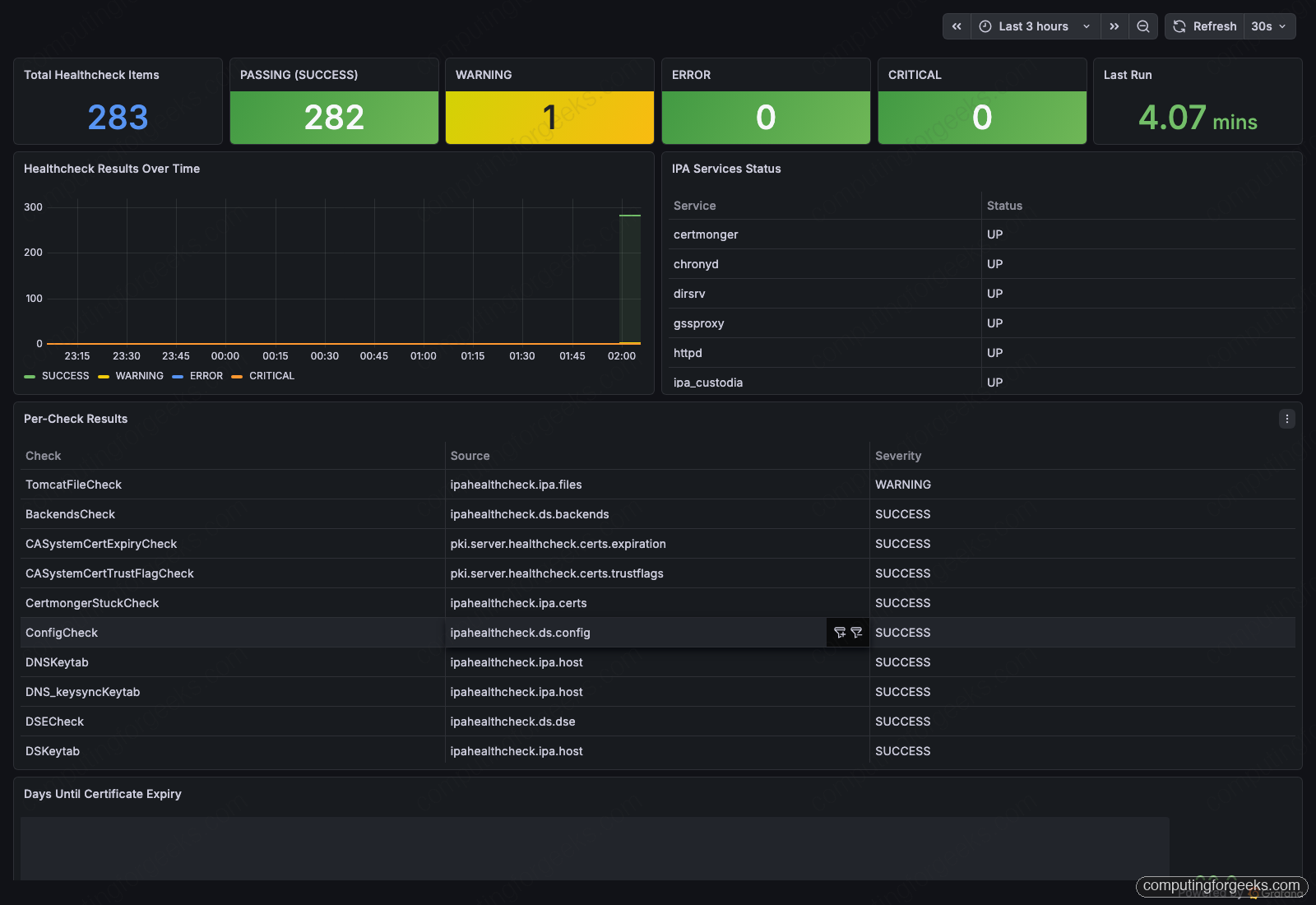
The dashboard ships as a single JSON file. Save the JSON locally as freeipa-dashboard.json first (this article links the full file in the resources block at the bottom). You can then import it two ways: through the Grafana web UI for a quick visual check, or through the HTTP API so the import becomes part of your provisioning runbook.
Option A. Through the Grafana web UI, step by step:
- Open
http://monitor.cfg-lab.local:3000in a browser (replace with your own monitor host). - Log in with username
adminand passwordadmin. The first login prompts you to change the password; for a lab you can click Skip, for production set a real one. - In the left navigation, hover the Dashboards icon (four squares) and click it.
- Click the blue New button in the top right, then choose Import from the dropdown.
- On the Import page, click Upload dashboard JSON file and select
freeipa-dashboard.jsonfrom your laptop. (Or paste the file’s contents into the textarea labelled Or paste JSON.) - Grafana parses the JSON and shows an Options screen. Leave Name as FreeIPA Health Overview, leave UID as freeipa-healthcheck, and pick your Prometheus data source from the Prometheus dropdown. If you have not added Prometheus as a data source yet, click Add new data source, choose Prometheus, set the URL to
http://localhost:9090, click Save & test, then come back to the import dialog. - Click the green Import button at the bottom. Grafana redirects you to the live dashboard.
Option B. Through the Grafana HTTP API. This is the right path when you provision Grafana with Ansible, Terraform, or any IaC tool. Give the data source a fixed UID at creation so the dashboard’s data-source input resolves cleanly, then import. Save the dashboard JSON next to your shell session, then:
GRAFANA="http://monitor.cfg-lab.local:3000"
GF_AUTH="admin:admin"   # Grafana factory default, change after first login

# Add Prometheus as a data source (one-time) with an explicit uid
curl -s -u "$GF_AUTH" -X POST "$GRAFANA/api/datasources" \
  -H "Content-Type: application/json" \
  -d '{"name":"Prometheus","uid":"prometheus","type":"prometheus","access":"proxy","url":"http://localhost:9090","isDefault":true}'

# Wrap the dashboard and map its data-source input to that uid
python3 -c 'import json; print(json.dumps({"dashboard": json.load(open("freeipa-dashboard.json")), "overwrite": True, "inputs": [{"name":"DS_PROMETHEUS","type":"datasource","pluginId":"prometheus","value":"prometheus"}]}))' > /tmp/dash-import.json

# POST to the import endpoint (it resolves the data-source input)
curl -s -u "$GF_AUTH" -X POST "$GRAFANA/api/dashboards/import" \
  -H "Content-Type: application/json" \
  --data @/tmp/dash-import.json
The dashboard uid freeipa-healthcheck is fixed in the JSON, so re-imports keep their URL and any deep links from runbooks stay valid. Browse to http://monitor.cfg-lab.local:3000/d/freeipa-healthcheck/freeipa-health-overview to confirm the dashboard rendered with live metrics from your IPA host.
Breaking something on purpose
The interesting case is the failure path. Stop named and httpd on the IPA server, trigger an out-of-cycle healthcheck so we do not wait for the timer, and watch the metrics react:
sudo systemctl stop named httpd
sudo systemctl start ipa-healthcheck-export.service

sudo grep -E 'result="(ERROR|WARNING)"|service_state.*0.0'
  /var/lib/node_exporter/textfile_collector/ipa_healthcheck.prom
The textfile reads back with WARNING count up to 13, ERROR count up from 0 to 1 (in the aggregate metric), and two services pinned at 0. Per-check granularity shows four ERROR items: httpd and named from meta.services, plus DogtagCertsConnectivityCheck and IPACertRevocation which fail because they cannot reach the now-stopped IPA web server.
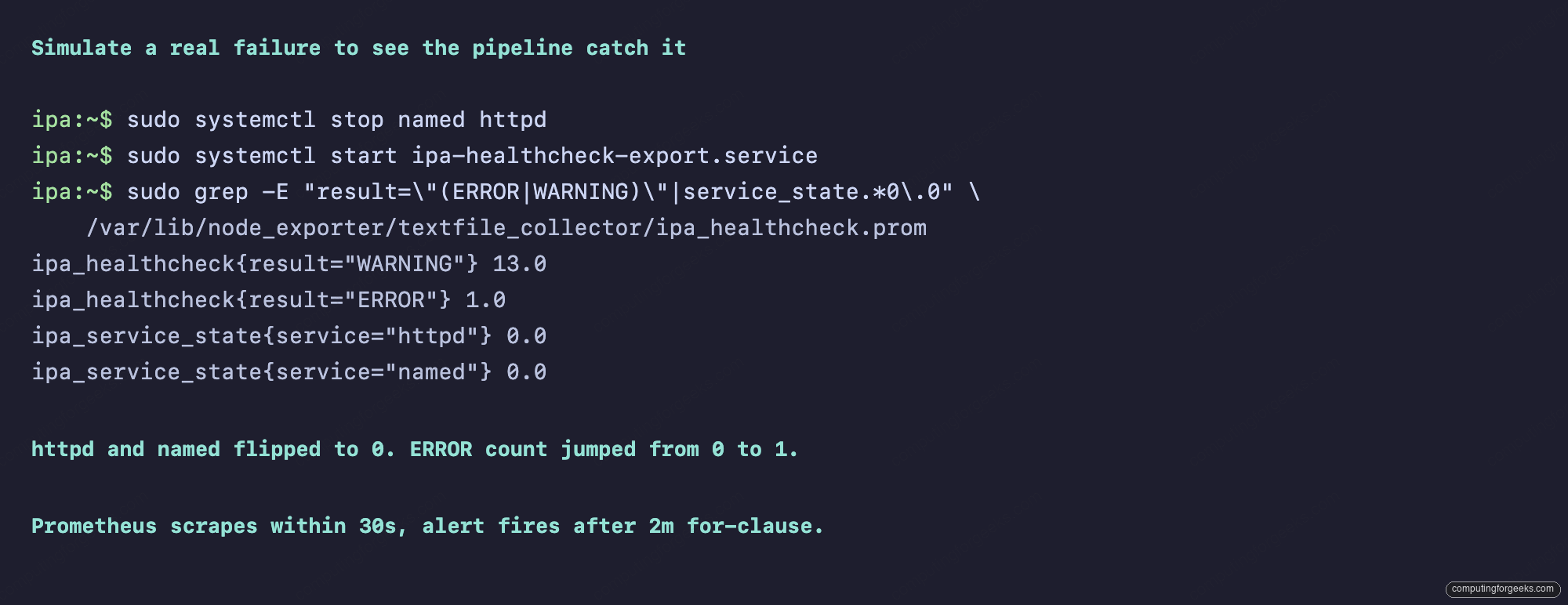
Prometheus scrapes on its 30-second interval, sees the new values, and the alert evaluator picks them up on the next 30-second tick. Within roughly one to two minutes of the failure (depending on which side of the scrape cycle you stopped the services), the alerts page lights up:
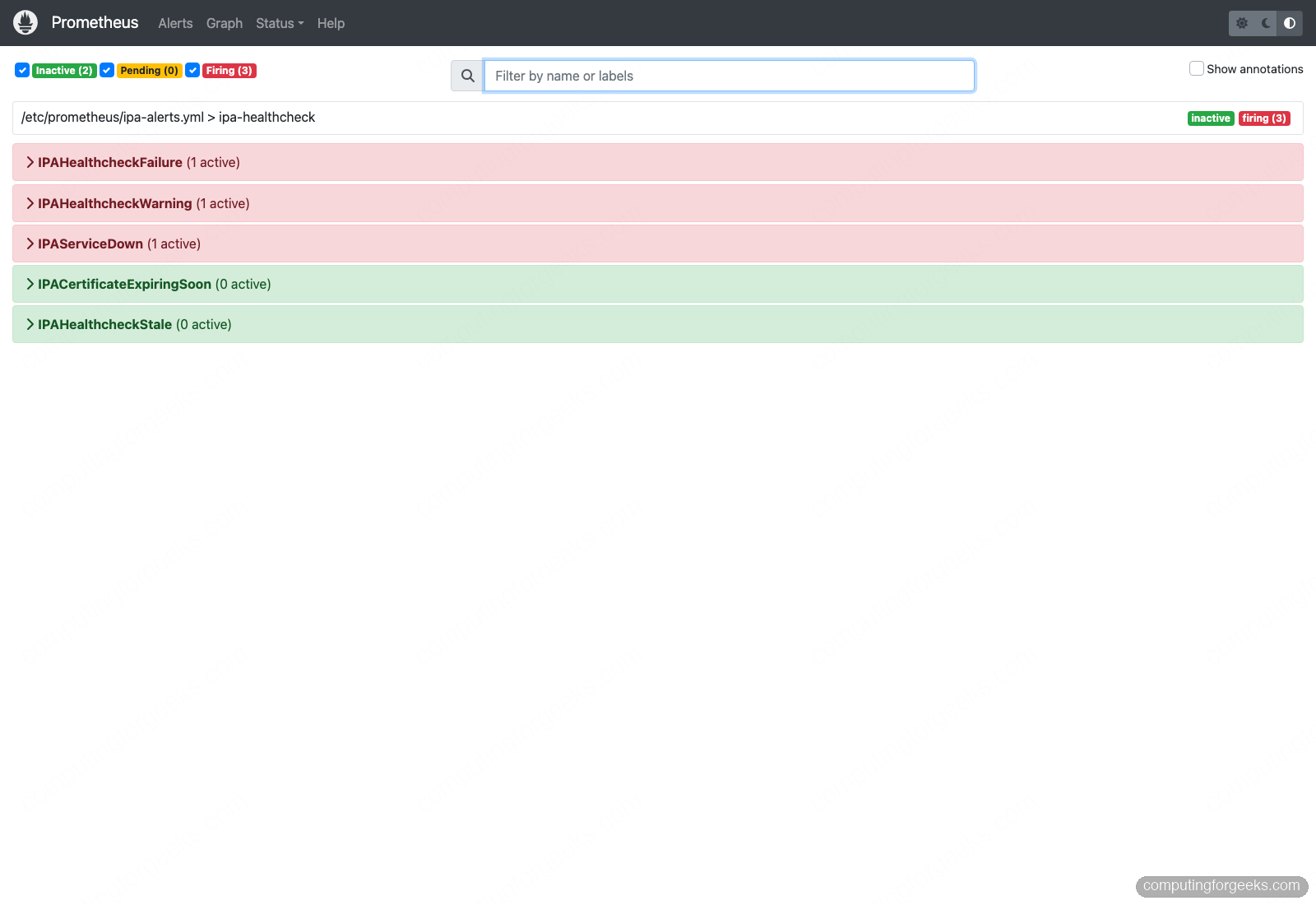
The dashboard mirrors the alerts. The ERROR count box flips from green 0 to orange 1, the WARNING box goes from yellow 1 to yellow 13, the time-series chart shows a step change at the moment the export ran, and the per-check table sorts the failures to the top:
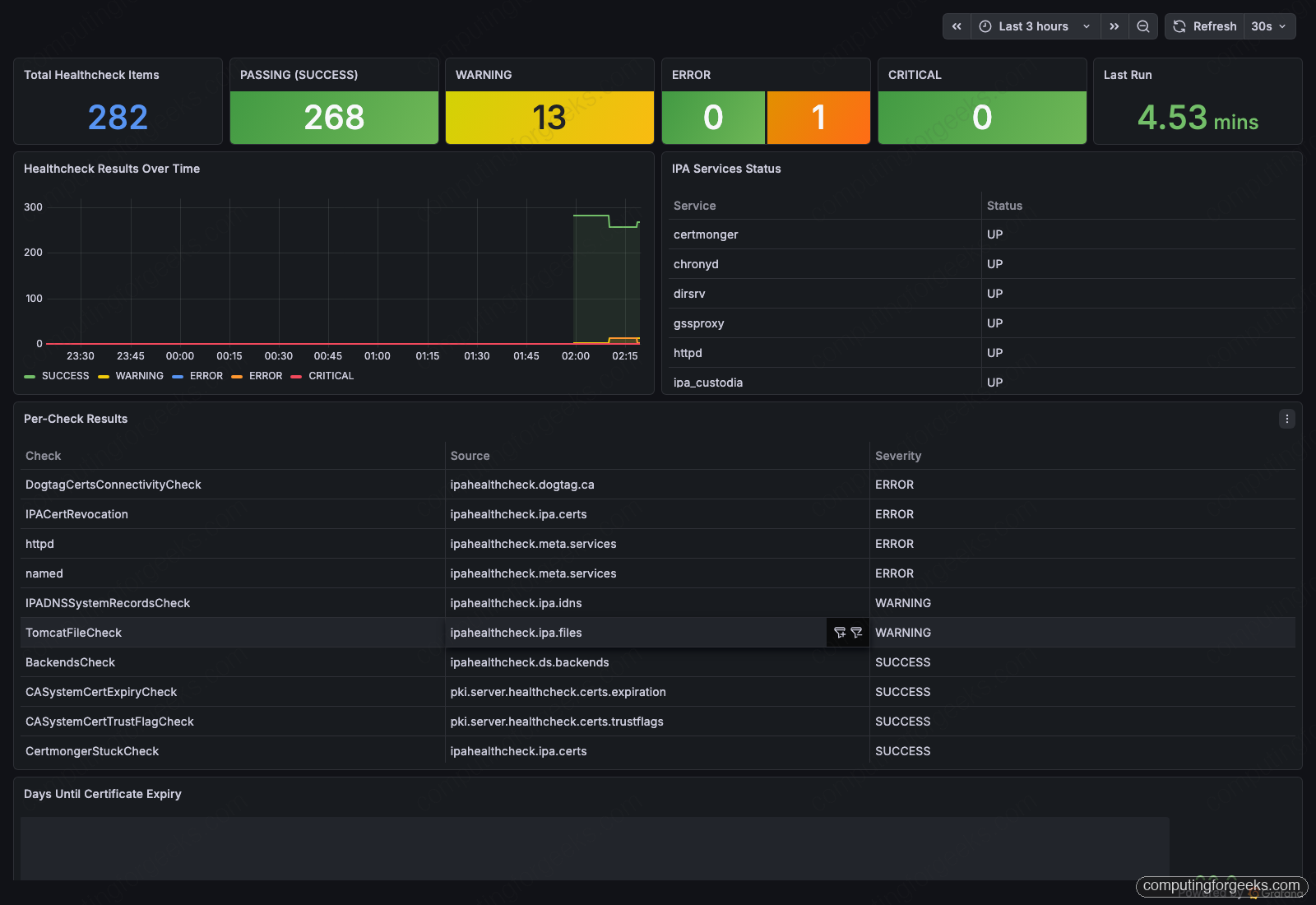
Restart the services with sudo systemctl start named httpd, force another export, and within two minutes the alerts clear and the dashboard goes back to baseline. The whole loop, from failure to alert to recovery, is observable end to end without anyone touching the IPA host.
What to wire into Alertmanager
Three routes by severity is the baseline:
- critical (IPAHealthcheckFailure, IPAServiceDown): page the on-call rotation. A dead IPA service means every Kerberos client in the realm is degraded or worse. PagerDuty, Opsgenie, or whatever SaaS you already have.
- warning (IPAHealthcheckWarning, IPACertificateExpiringSoon, IPAHealthcheckStale): Slack or email to the platform team channel. These need attention this week, not this minute.
- info (any new alert you add for “interesting but not actionable” signals): a low-volume Slack channel, or annotated on the Grafana dashboard via
grafana-image-renderer.
For the cert expiry alert specifically, for: 5m is intentional. The metric updates every five minutes from the timer, so a 5-minute pending window means the alert only fires after we have seen the value cross the threshold in two consecutive evaluations. That suppresses the rare case of a Prometheus rule evaluating a stale TSDB sample during a rolling Prometheus restart.
Adding replication and certmonger as alert sources
Three more alerts worth adding once you have replicas. Append them to the same /etc/prometheus/ipa-alerts.yml file under the existing rules: list (paste them right after the IPAHealthcheckStale rule, keeping the same indentation), then reload Prometheus with curl -X POST http://localhost:9090/-/reload:
- alert: IPAReplicationCheckFailing
  expr: ipa_healthcheck_result{source="ipahealthcheck.ipa.replication"} >= 2
  for: 5m
  labels: { severity: critical }
  annotations:
    summary: "Replication check {{ $labels.check }} reporting ERROR/CRITICAL"

- alert: IPACertmongerStuck
  expr: ipa_healthcheck_result{check="CertmongerStuckCheck"} >= 2
  for: 10m
  labels: { severity: warning }
  annotations:
    summary: "certmonger has a stuck cert request on {{ $labels.instance }}"

- alert: IPADNSCheckFailing
  expr: ipa_healthcheck_result{source="ipahealthcheck.ipa.idns"} >= 2
  for: 5m
  labels: { severity: warning }
  annotations:
    summary: "IPA DNS forwarder or delegation check failing"
The >= 2 threshold maps to “ERROR or CRITICAL” in the severity encoding (0=SUCCESS, 1=WARNING, 2=ERROR, 3=CRITICAL). The per-check metric labels survive aggregation, so the alert annotation can name the exact check that fired.
Scaling to multiple IPA replicas
A production IPA realm has at least three replicas. Each one gets its own node_exporter and its own export timer; the Prometheus scrape config grows to a list of targets, and the alert rules already use {{ $labels.instance }} so the same five rules cover every replica without modification. Replace the scrape_configs block in /etc/prometheus/prometheus.yml with the version below, then reload (curl -X POST http://localhost:9090/-/reload):
scrape_configs:
  - job_name: 'ipa-realm'
    static_configs:
      - targets:
          - 'ipa01.cfg-lab.local:9100'
          - 'ipa02.cfg-lab.local:9100'
          - 'ipa03.cfg-lab.local:9100'
        labels:
          realm: 'CFG-LAB.LOCAL'
    relabel_configs:
      - source_labels: [__address__]
        regex: '([^.]+).*'
        target_label: replica
        replacement: '${1}'
The relabel extracts a short replica label (ipa01, ipa02, ipa03) from the FQDN, which makes Grafana legend lines and alert summaries readable. The dashboard panels then use a replica variable so you can switch between replicas in the top-of-page selector, or hold it on “All” to see a stacked view of every node at once.
For the alert rules, change IPAServiceDown to min by (service, replica) (ipa_service_state) == 0 if you want a single page per (service, replica) tuple, or keep the current form and let Alertmanager group by instance. Either works; the per-tuple form is louder but more obvious during a partial-realm outage where one replica is down and the rest are fine.
Storage sizing for the metrics
Prometheus storage is cheap for this workload. The 283-item healthcheck plus the 13 service states plus a handful of cert expiry metrics produces roughly 320 unique time series per IPA replica. At a 30-second scrape interval that is about 86,400 samples per replica per day, or roughly 2 MB on disk per day after compression. A three-replica realm uses around 2 GB of TSDB storage per year, well inside the default --storage.tsdb.retention.time=15d footprint.
If you bump retention to 90 days for trending or compliance reporting, plan for around 12 GB per realm. If you keep raw samples for a year, plan for 50 GB and put the TSDB on real storage (not the same disk as your Prometheus binary). Anything beyond a year is the right time to look at Thanos or Mimir for downsampled long-term storage, but those are out of scope here.
When the pipeline itself breaks
Four failure modes that catch teams off guard:
The timer is firing but the textfile is stale. Check journalctl -u ipa-healthcheck-export.service --since "10 minutes ago". Common cause is httpd being down, which makes some healthcheck items hang past the systemd TimeoutStopSec. Add a TimeoutStartSec=120 to the service unit if your install regularly has long-running checks.
node_exporter ignores the file. The textfile collector silently skips files with the wrong owner or with parse errors. chmod 0644 and chown node_exporter:node_exporter the file, and verify node_textfile_scrape_error{collector="textfile"} in Prometheus is 0.
Prometheus shows the target DOWN. Either the firewall is blocking port 9100, the node_exporter systemd unit is failed, or DNS for the IPA hostname is not resolving from the monitor host. curl -s http://ipa.cfg-lab.local:9100/metrics | grep ipa_ from the monitor VM is the diagnostic.
Alerts not firing despite metrics showing failures. Almost always a typo in the alert expr or a for: window longer than your test patience. The Alerts page in Prometheus shows the current evaluator output for each rule, including how long it has been pending. Use that to debug, not the alert page in Alertmanager (which only shows already-firing alerts).
Get the files: dashboard JSON, exporter, and alert rules
Everything in this guide lives in a companion repository so you do not have to copy code out of the page. The Grafana dashboard ships as freeipa-dashboard.json, alongside the exporter script, the systemd units, the Prometheus scrape config, and all eight alert rules.
- github.com/c4geeks/freeipa-monitoring: the full repository, with a README that mirrors the quick-start commands here.
- freeipa-dashboard.json: the dashboard to import in the step above.
- ipa-healthcheck-export.sh: the exporter script that bridges ipa-healthcheck to node_exporter.
- ipa-alerts.yml: the eight Prometheus alert rules, ready for promtool.
To pull just the dashboard from a shell on your monitor host:
curl -O https://raw.githubusercontent.com/c4geeks/freeipa-monitoring/main/freeipa-dashboard.jsonImport it with either method from the dashboard section above, then browse to /d/freeipa-healthcheck/freeipa-health-overview on your Grafana host to confirm it rendered.
The complete FreeIPA series
This article is part 12 of an ongoing, end-to-end series on building and running FreeIPA in production. Read them in order if you are bootstrapping a new realm, or jump straight to a track that matches what you are stuck on. All articles target Rocky Linux 10.1 / AlmaLinux 10 / RHEL 10 with FreeIPA 4.12.
Foundations
- Install FreeIPA Server on Rocky Linux 10 / AlmaLinux 10 / RHEL 10: the foundation. Sets up the realm, integrated DNS, the admin user.
- Set Up FreeIPA Server and Enroll Linux Clients on Rocky Linux 10: the lab-style walkthrough with multiple enrolled clients.
- Configure FreeIPA Replication on Rocky Linux / AlmaLinux 10 and 9: how to add HA replicas to a running realm.
- Run FreeIPA Server in Docker or Podman Containers: container-based deployments for labs and CI.
Access control
- FreeIPA HBAC: From allow_all to Least Privilege with hbactest: lock down who can log in where, with the right tools.
- FreeIPA Sudo Rules Cookbook: 10 Real-World Patterns You Can Copy: production-ready sudo rule recipes for IdM users and groups.
Certificates and PKI
- FreeIPA Random Serial Numbers (RSNv3) on Fresh Installs: the new default in 4.12, what it means, how to verify.
- FreeIPA as an Internal ACME CA with certbot and acme.sh: turn FreeIPA into a Let’s Encrypt-style cert authority for your private services.
- FreeIPA ACME + cert-manager for Kubernetes Workloads: auto-provision TLS certs for every Kubernetes Ingress from your IdM CA.
Integration
- Configure oVirt FreeIPA LDAP Authentication on Rocky Linux 10: let oVirt admins authenticate against the IdM realm.
- Join Windows System to FreeIPA Realm without Active Directory: the SSSD-based path for Windows clients without setting up an AD trust.
Operations (you are here)
- Monitoring FreeIPA with ipa-healthcheck, Prometheus, and Grafana: this article. Real-time visibility into the realm’s health, with alerts that fire on real failures.
The next article in the series tackles backup and disaster recovery: how to run ipa-backup on a schedule, store the result somewhere safe, and restore into a freshly built replica when the original IPA server is gone. That is the failure mode this dashboard cannot prevent but which every production deployment eventually needs.



![Install Kali Linux 2026.1 Step by Step [Full Guide]](https://computingforgeeks.com/wp-content/uploads/2026/03/install-kali-linux-20261-step-by-step-768x403.png "Install Kali Linux 2026.1 Step by Step [Full Guide] 11")