This is not a 2015 post-install list. The Fedora 44 ecosystem in May 2026 ships modern terminals (Ghostty, Alacritty, WezTerm, Kitty, Tabby), AI coding agents in your shell (Claude Code, Gemini CLI, OpenCode), a Wayland-native GNOME 50 desktop, dnf5 + RPM 6 underneath, and a full menu of alternative desktops (KDE Plasma 6.6, Cinnamon, Budgie 10.10) one dnf install away. This guide rebuilds a fresh Fedora 44 Workstation install into a serious 2026 developer machine in about an hour.
Every command in this guide was executed on a real Fedora 44 Workstation install. Screenshots are from the live desktop. The 34 sections cover the system foundation, package ecosystem, modern terminal stack, shells and prompts, modern CLI tools, AI coding CLIs, browsers, container runtimes, GNOME tweaks, alternative desktops, and remote access.
Tested May 2026 on Fedora 44 Workstation (kernel 7.0.8-200.fc44, GNOME 50.1, dnf5 5.4.2.0)
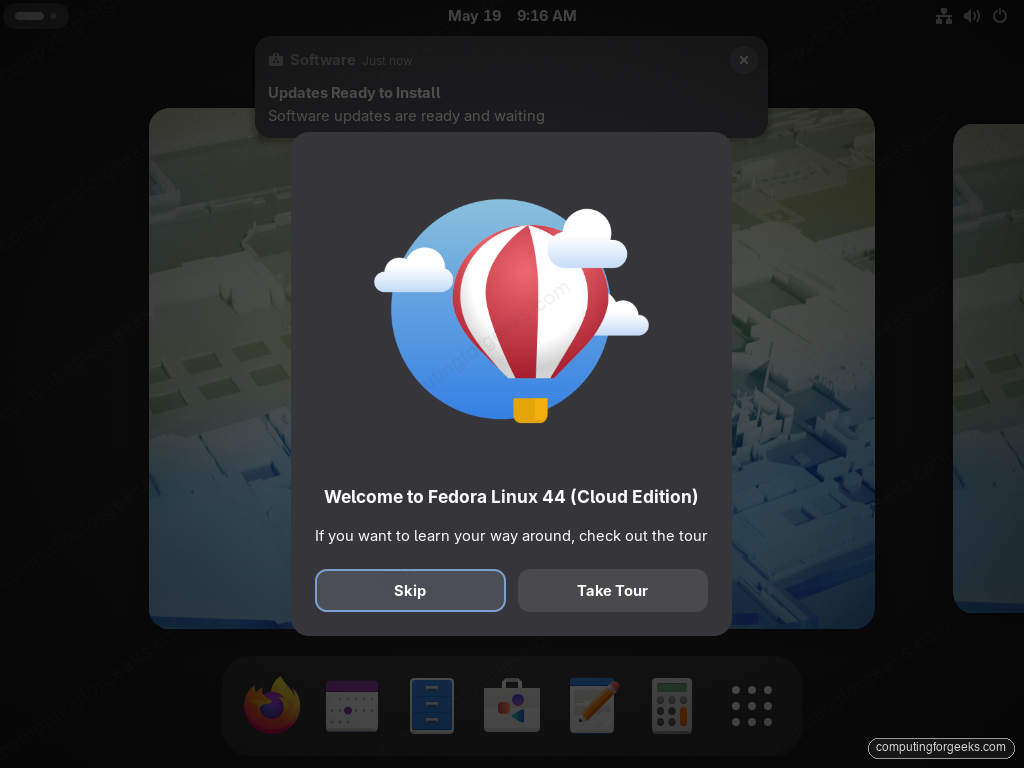
Section 1: Foundation
1. Pull all updates and reboot
Anaconda’s ISO is days or weeks behind by the time you boot it. First task is full sync:
sudo dnf upgrade --refresh
sudo systemctl reboot
2. Set the hostname and UTC clock
Give the machine a real name so logs, SSH banners, and Distrobox containers know where they live. UTC keeps things sane on a multi-OS box:
sudo hostnamectl set-hostname desktop.example.com
sudo timedatectl set-local-rtc 0
sudo timedatectl set-timezone Africa/Nairobi   # or your zone
timedatectl status
3. Configure chrony NTP
Fedora ships chrony by default. Confirm it is running and synchronizing:
sudo systemctl enable --now chronyd
chronyc tracking
chronyc sources
If you want to point at internal NTP servers, edit /etc/chrony.conf and replace the pool directives with your server <hostname> iburst lines.
4. Update firmware with fwupdmgr
Modern laptops (Dell, Lenovo, Framework, System76, HP, Star Labs, TUXEDO) ship BIOS, EC, SSD, and dock firmware on LVFS. Fedora’s fwupd wires the whole pipeline together:
sudo fwupdmgr refresh --force
sudo fwupdmgr get-devices
sudo fwupdmgr get-updates
sudo fwupdmgr update
5. Configure firewalld
firewalld is on by default in the public zone. Open up the services you actually need (KDE Connect for phone integration, mDNS for service discovery, optionally Samba):
sudo systemctl enable --now firewalld
sudo firewall-cmd --permanent --add-service=kdeconnect
sudo firewall-cmd --permanent --add-service=mdns
sudo firewall-cmd --reload
sudo firewall-cmd --list-all
6. Configure DNS-over-TLS via systemd-resolved
Fedora uses systemd-resolved as the stub resolver. It forwards plaintext DNS to whatever DHCP hands out unless you configure DoT. Point it at Cloudflare’s security DNS:
sudo mkdir -p /etc/systemd/resolved.conf.d
sudo tee /etc/systemd/resolved.conf.d/99-dns-over-tls.conf > /dev/null <<'EOF'
[Resolve]
DNS=1.1.1.2#security.cloudflare-dns.com 1.0.0.2#security.cloudflare-dns.com
DNSOverTLS=yes
DNSSEC=allow-downgrade
Domains=~.
EOF
sudo systemctl restart systemd-resolved
resolvectl status
Section 2: Package ecosystem
7. Enable RPM Fusion (free + nonfree)
The most important repo on a workstation. Adds codecs, NVIDIA drivers, Steam, VLC, OBS, and dozens of others. One-liner:
sudo dnf install \
  https://mirrors.rpmfusion.org/free/fedora/rpmfusion-free-release-$(rpm -E %fedora).noarch.rpm \
  https://mirrors.rpmfusion.org/nonfree/fedora/rpmfusion-nonfree-release-$(rpm -E %fedora).noarch.rpm
Full walkthrough including the ffmpeg-free to ffmpeg swap, the multimedia group, OpenH264 from Cisco’s repo, and hardware video acceleration setup is in the companion guide on enabling RPM Fusion and multimedia codecs for Fedora 44 in this same series.
8. Enable the Fedora Third-Party Repository
This is a curated set of upstream RPMs that Fedora cannot ship (Chrome, Steam, the Cisco OpenH264 codec). Enable from GNOME Software (Menu → Software Repositories → Third Party) or via CLI:
sudo dnf install -y fedora-workstation-repositories
sudo dnf config-manager setopt google-chrome.enabled=1
sudo dnf config-manager setopt rpmfusion-nonfree-nvidia-driver.enabled=1
sudo dnf config-manager setopt fedora-cisco-openh264.enabled=1
9. Add Flathub for Flatpak apps
Flatpak is preinstalled. Add the Flathub remote so GNOME Software shows the full app catalog:
sudo flatpak remote-add --if-not-exists flathub https://dl.flathub.org/repo/flathub.flatpakrepo
sudo flatpak remotes
Section 3: Modern terminal stack
The default gnome-terminal was retired in favour of GNOME Console (kgx), which is fine for basic shell work but limiting for serious developers. In 2026 the high-performance terminal scene has shifted to GPU-accelerated emulators. Install one (or several) and pick a daily driver:
10. Ghostty: Mitchell Hashimoto’s Zig terminal
Ghostty is fast, native, and ships in a community Fedora COPR repo. Enable and install:
sudo dnf install -y dnf-plugins-core
sudo dnf copr enable scottames/ghostty
sudo dnf install ghostty
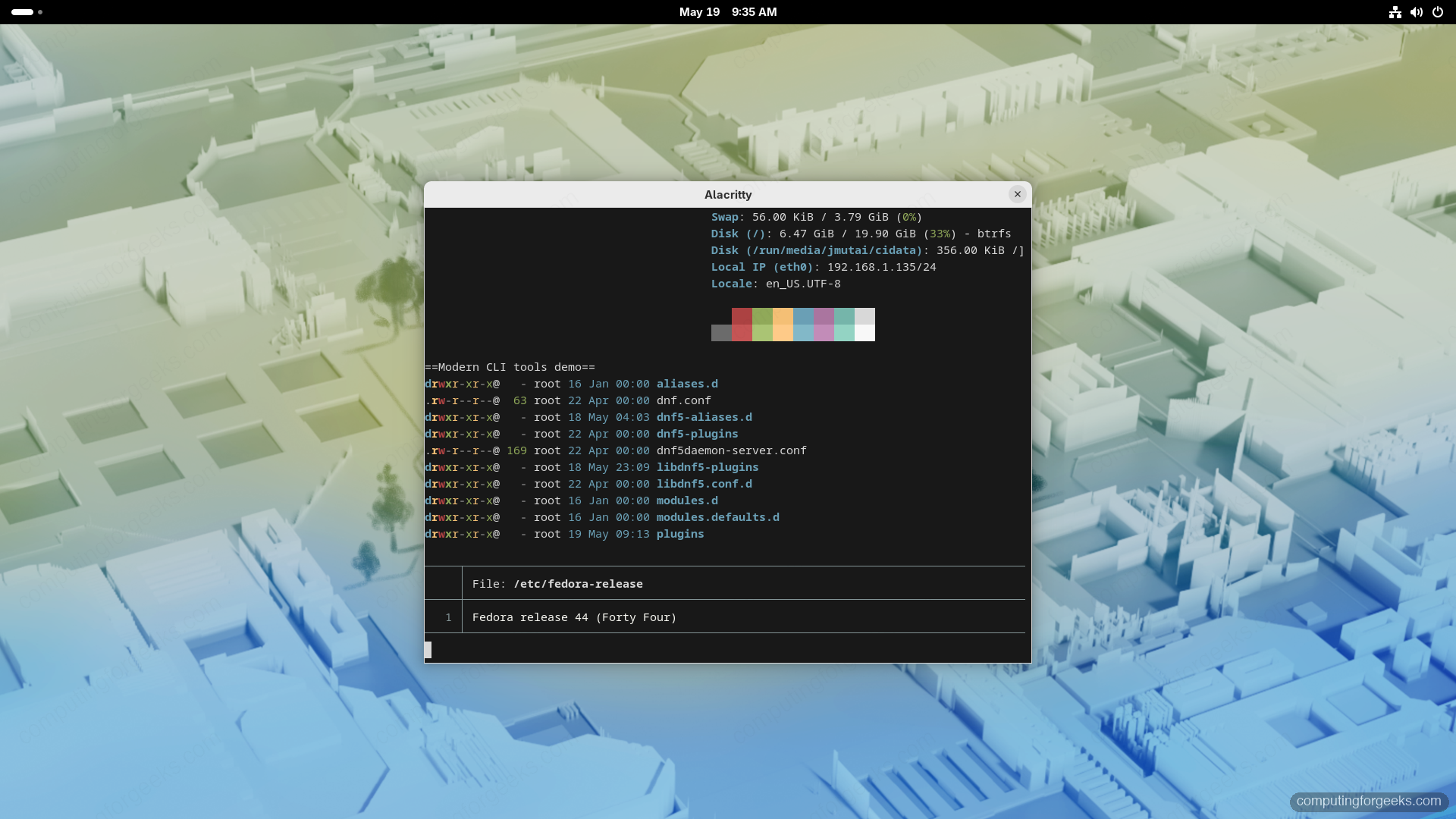
The kind of output you should see once you launch a GPU-accelerated terminal and combine it with modern Rust replacements for ls, cat, and fastfetch:
11. Alacritty: minimal GPU terminal
Alacritty is the leanest option, pair it with tmux or zellij for tabs and splits:
sudo dnf install -y alacritty12. Kitty: graphics-protocol-capable
Kitty is the terminal that pioneered the inline-image (Kitty graphics protocol) standard now adopted by many tools (ranger, nvim, image viewers). Heavier than Alacritty, lighter than WezTerm:
sudo dnf install -y kitty13. WezTerm: Lua-scriptable workstation terminal
WezTerm is configured in Lua, supports tabs/splits/key tables, and has SSH multiplexing built in. WezTerm is not in Fedora’s default repos. The maintainer publishes a Copr repo:
sudo dnf copr enable -y wezfurlong/wezterm-nightly
sudo dnf install -y wezterm
14. Tabby: cross-platform with built-in SSH
Tabby is a graphical terminal with a connection manager, SSH/serial/local tabs, ZMODEM support, and settings sync across machines. Install via the upstream packagecloud RPM repo:
curl -s https://packagecloud.io/install/repositories/eugeny/tabby/script.rpm.sh | sudo bash
sudo dnf install -y tabby-terminal
15. Multiplexers: tmux and Zellij
Tmux remains the universal multiplexer for SSH sessions and ships in Fedora’s default repos. Zellij is the modern, batteries-included alternative with a visible status bar and a more discoverable keymap, available via a Copr repo:
sudo dnf install -y tmux
sudo dnf copr enable -y varlad/zellij
sudo dnf install -y zellij
Section 4: Shells and prompts
16. Switch to Zsh and install Oh My Zsh
Bash is fine. Zsh is better for interactive work (smarter completion, globbing, prompt). Install zsh, switch your login shell, then bootstrap Oh My Zsh:
sudo dnf install -y zsh
chsh -s $(which zsh)
sh -c "$(curl -fsSL https://raw.githubusercontent.com/ohmyzsh/ohmyzsh/master/tools/install.sh)"
Log out and back in for the shell change to take effect. The Oh My Zsh installer drops you into a fresh zsh with the robbyrussell theme.
17. Install Powerlevel10k
Powerlevel10k is the most popular Zsh theme. Its first-run wizard walks you through colors, icons, and density:
git clone --depth=1 https://github.com/romkatv/powerlevel10k.git \
  ${ZSH_CUSTOM:-$HOME/.oh-my-zsh/custom}/themes/powerlevel10k
sed -i 's|^ZSH_THEME=.*|ZSH_THEME="powerlevel10k/powerlevel10k"|' ~/.zshrc
# install MesloLGS Nerd Font (required for icons)
mkdir -p ~/.local/share/fonts
cd ~/.local/share/fonts && for s in Regular Bold Italic 'Bold Italic'; do
  curl -L -o "MesloLGS NF $s.ttf" "https://github.com/romkatv/powerlevel10k-media/raw/master/MesloLGS%20NF%20${s// /%20}.ttf"
done && fc-cache -fv ~/.local/share/fonts
18. Alternative: Starship cross-shell prompt
If you prefer one prompt that works in Bash, Zsh, Fish, and Nushell with sub-50ms startup, install Starship instead. The Fedora repos do not ship a starship package, so use the official installer:
curl -sS https://starship.rs/install.sh | sh
echo 'eval "$(starship init zsh)"' >> ~/.zshrc       # for zsh
echo 'eval "$(starship init bash)"' >> ~/.bashrc     # for bash
starship preset gruvbox-rainbow -o ~/.config/starship.toml
19. Fish shell with Oh My Fish (optional)
Fish is friendlier than zsh out of the gate (autocompletion, syntax highlighting, web-based config). Pair it with Oh My Fish for plugins:
sudo dnf install -y fish
curl -L https://get.oh-my.fish | fish
20. Atuin: synced, searchable shell history
Atuin replaces ctrl-R with a fuzzy-search TUI and syncs your shell history end-to-end-encrypted across machines:
curl --proto '=https' --tlsv1.2 -LsSf https://setup.atuin.sh | sh
atuin register -u $USER -e [email protected]   # optional, for sync
Section 5: Modern CLI tools (replace the 2015 set)
The classic Unix tools (ls, cat, grep, find, du, top) are fine but the Rust-based replacements are faster, prettier, and more useful. Install them as a set:
sudo dnf install -y eza bat ripgrep fd-find zoxide fzf btop htop iotop-c \
  nvtop du-dust duf ncdu fastfetch git-delta jq yq gh tldr neovim helix
# lazygit lives in a Copr (not the default Fedora repos):
sudo dnf copr enable -y atim/lazygit
sudo dnf install -y lazygit
The roles, briefly:
- eza (replaces
ls): coloured, sortable, with git status integration. - bat (replaces
cat): syntax-highlighted, line-numbered. - ripgrep (replaces
grep -r): order-of-magnitude faster, respects.gitignore. - fd (replaces
find): sane defaults, regex-friendly. - zoxide + fzf:
zjumps to frecent directories;fzfpowers fuzzy selection everywhere. - btop: gorgeous process/CPU/memory/disk monitor, replaces
top. - nvtop: GPU monitor for Intel/AMD/NVIDIA.
- dust + duf: friendlier
duanddf. - lazygit: terminal UI for git; delta: better diffs.
- gh: GitHub CLI; tldr: practical man-page summaries.
- neovim and helix: modern modal editors.
Section 6: AI coding agents in your terminal
The biggest change in developer tooling since the last Fedora release is the move of AI agents out of the IDE and into the shell. Three of them are worth installing.
21. Claude Code (Anthropic)
Anthropic ships an official installer script and an npm package. The CLI launches as claude and integrates with the official VS Code extension:
# Recommended: the official Anthropic installer
curl -fsSL https://claude.ai/install.sh | bash
# OR via npm (Node.js 20+ required)
sudo dnf install -y nodejs npm
sudo npm install -g @anthropic-ai/claude-code
claude --version
22. Gemini CLI (Google)
Open-source AI agent built around Google’s Gemini models. Distributed via npm (Node.js 20+ required):
sudo dnf install -y nodejs npm
npm install -g @google/gemini-cli
gemini --version
For more depth, see our Gemini CLI install and configuration guide.
23. OpenCode (model-neutral)
OpenCode is a model-agnostic terminal agent: point it at Anthropic, OpenAI, Google, Ollama, or anything OpenAI-compatible. Install via the upstream script:
curl -fsSL https://opencode.ai/install | bash
# or via npm:
npm install -g opencode-ai
opencode --version
24. VS Code with AI extensions
Microsoft maintains a Fedora-friendly RPM repo. Install VS Code, then layer on the Claude Code and Gemini Code extensions:
sudo rpm --import https://packages.microsoft.com/keys/microsoft.asc
sudo tee /etc/yum.repos.d/vscode.repo > /dev/null <<'EOF'
[code]
name=Visual Studio Code
baseurl=https://packages.microsoft.com/yumrepos/vscode
enabled=1
autorefresh=1
type=rpm-md
gpgcheck=1
gpgkey=https://packages.microsoft.com/keys/microsoft.asc
EOF
sudo dnf install -y code
code --install-extension anthropic.claude-code
code --install-extension Google.geminicodeassist
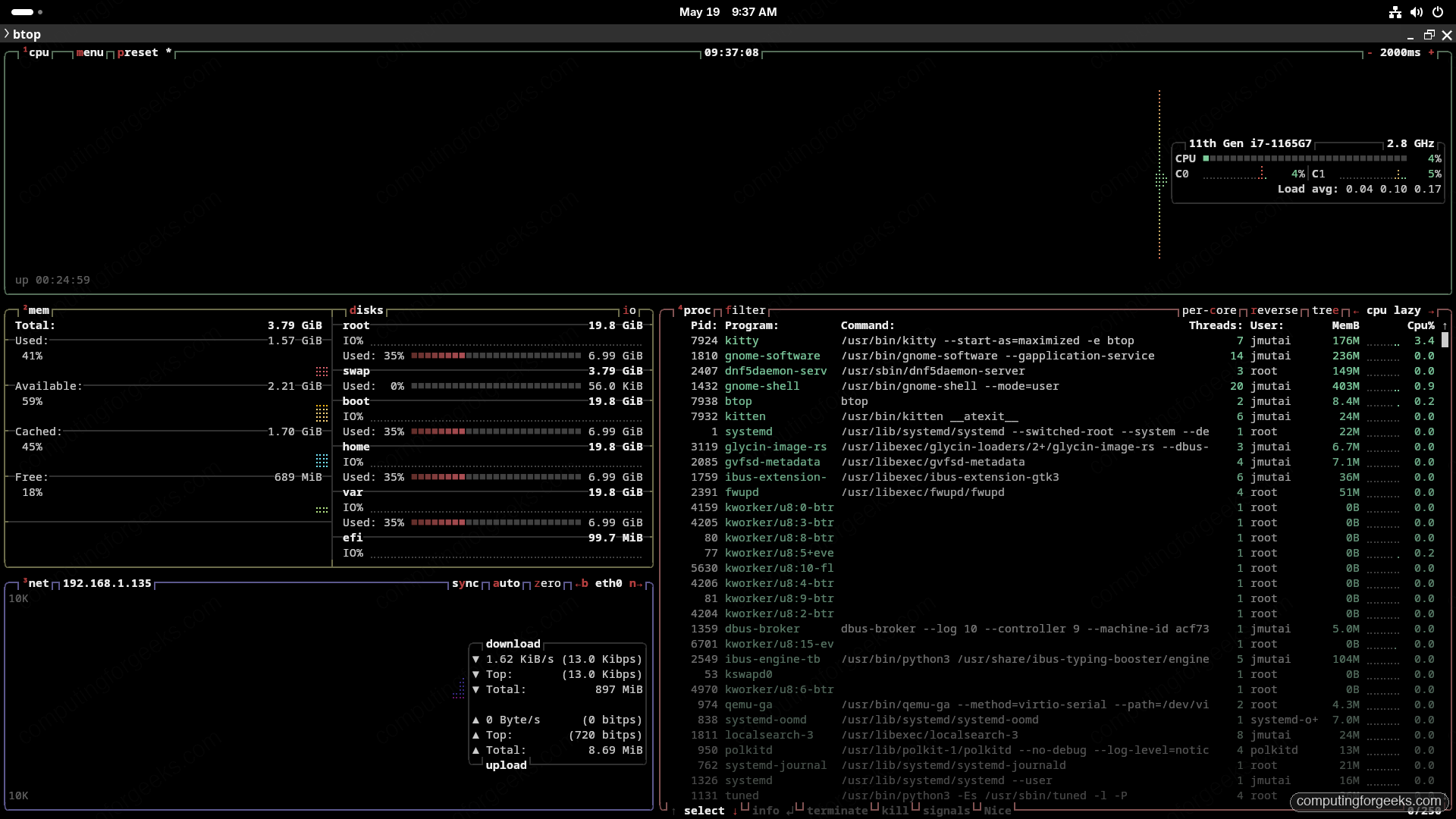
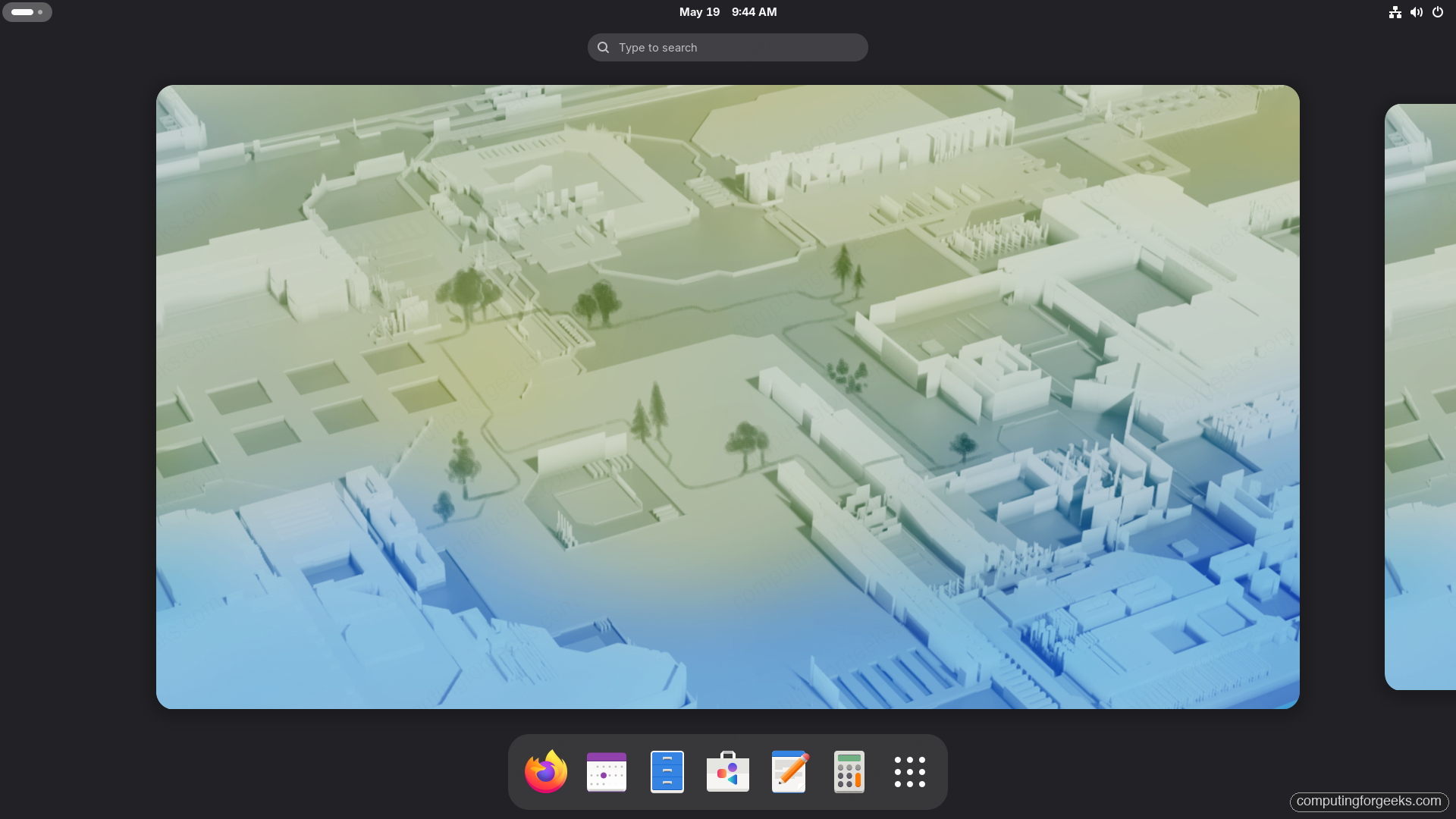
Once VS Code, the modern terminals, and the modern CLI tools are all on the system, the Activities Overview gives you the bigger picture of what is running and where to launch from:
Section 7: Browsers
Firefox is preinstalled. For everything else, three first-class Chromium-family options all ship Fedora RPM repos:
25. Brave Browser
Built-in ad blocker, Tor private windows, IPFS, crypto-optional wallet:
sudo dnf config-manager addrepo --from-repofile=https://brave-browser-rpm-release.s3.brave.com/brave-browser.repo
sudo rpm --import https://brave-browser-rpm-release.s3.brave.com/brave-core.asc
sudo dnf install -y brave-browser
26. Vivaldi
Power-user Chromium with built-in mail, calendar, feed reader, and the most configurable tab system on the market:
sudo rpm --import https://repo.vivaldi.com/archive/linux_signing_key.pub
sudo dnf config-manager addrepo --from-repofile=https://repo.vivaldi.com/archive/vivaldi-fedora.repo
sudo dnf install -y vivaldi-stable
27. Microsoft Edge
The only first-party browser that syncs with the Microsoft 365 ecosystem and integrates Copilot natively:
sudo rpm --import https://packages.microsoft.com/keys/microsoft.asc
sudo tee /etc/yum.repos.d/edge.repo > /dev/null <<'EOF'
[edge]
name=Microsoft Edge
baseurl=https://packages.microsoft.com/yumrepos/edge
enabled=1
autorefresh=1
type=rpm-md
gpgcheck=1
gpgkey=https://packages.microsoft.com/keys/microsoft.asc
EOF
sudo dnf install -y microsoft-edge-stable
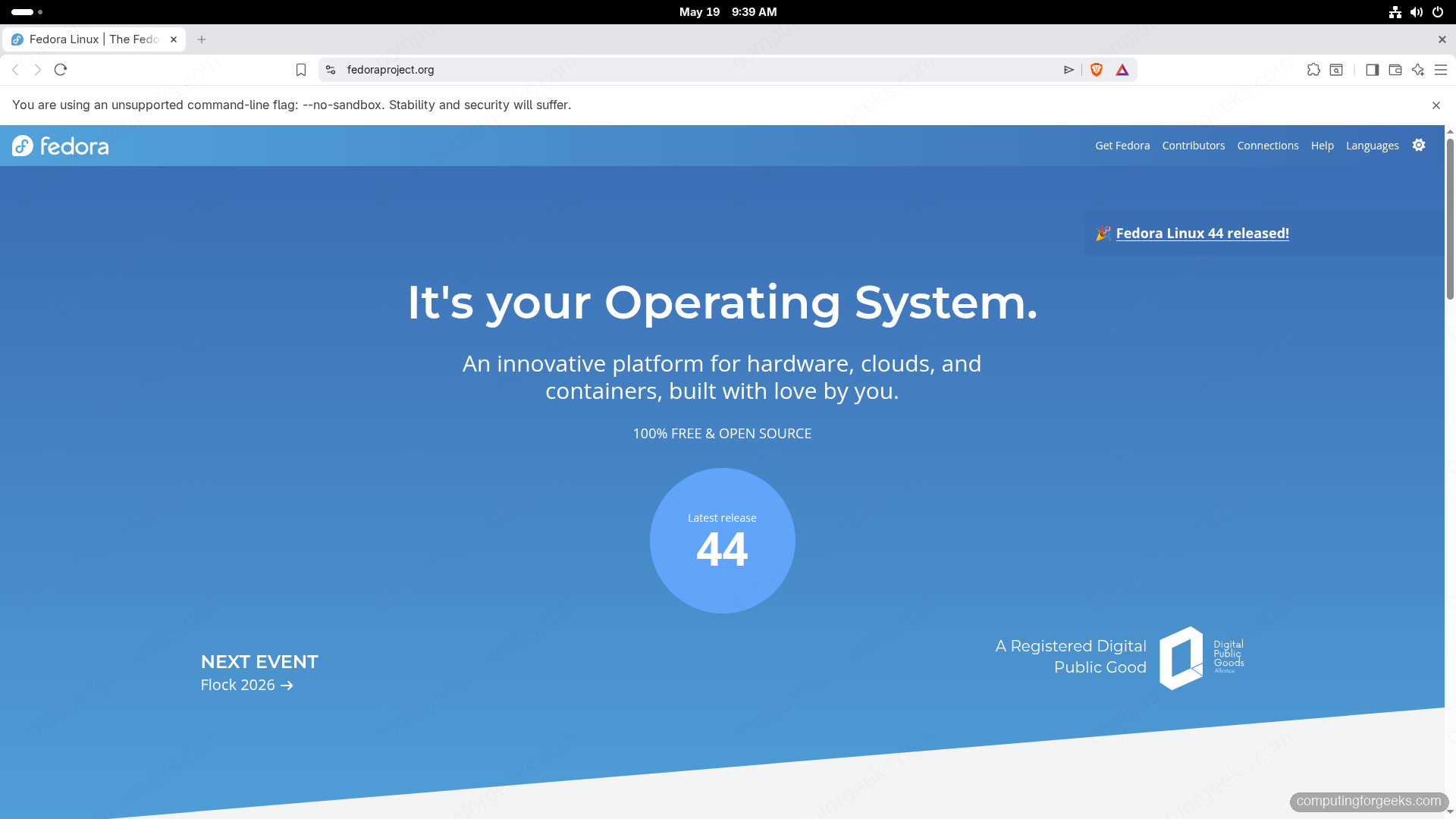
All three browsers run side by side on Fedora 44 GNOME 50. Pick whichever fits your workflow; Brave on the fedoraproject.org homepage is what a fresh install looks like:
Section 8: Containers and dev runtimes
28. Podman 5 and Podman Compose
Podman is Red Hat’s daemonless, rootless-by-default Docker drop-in. Fedora 44 ships Podman 5.8 on a cgroups-v2-only base (legacy v1 support is gone). Most docker commands map to podman directly:
sudo dnf install -y podman podman-compose podman-docker
podman --version
podman info | head -20
The podman-docker package installs a /usr/bin/docker symlink so existing scripts and tools keep working unchanged.
29. Docker Engine (if you really need it)
Podman covers 95% of Docker use cases on Fedora. If you specifically need Docker Engine (e.g. for CI parity with a Docker-Engine-only platform), install from Docker’s official Fedora repo:
sudo dnf -y install dnf-plugins-core
sudo dnf config-manager addrepo --from-repofile=https://download.docker.com/linux/fedora/docker-ce.repo
sudo dnf install -y docker-ce docker-ce-cli containerd.io docker-buildx-plugin docker-compose-plugin
sudo systemctl enable --now docker
sudo usermod -aG docker $USER   # log out and back in for group to apply
Full walkthrough including rootless mode and Compose: Install Docker on Fedora.
30. Distrobox and Toolbox: cross-distro dev containers
Run Ubuntu / Arch / Debian / openSUSE userlands as containers with full home directory integration. Essential when an upstream project’s instructions assume Ubuntu:
sudo dnf install -y distrobox toolbox
distrobox create --name ubuntu --image ubuntu:24.04
distrobox enter ubuntu
31. Nix package manager (new in F44)
Fedora 44 is the first Fedora release to package Nix natively, with proper systemd integration and SELinux policies:
sudo dnf install -y nix
sudo systemctl enable --now nix-daemon
sudo usermod -aG nix-users $USER   # log out and back in
Section 9: GNOME tweaks and extensions
32. Install GNOME Tweaks and Extension Manager
GNOME 50 hides hundreds of toggles behind Tweaks. Extension Manager (from Flathub) is more usable than the website:
sudo dnf install -y gnome-tweaks gnome-extensions-app
flatpak install -y flathub com.mattjakeman.ExtensionManager
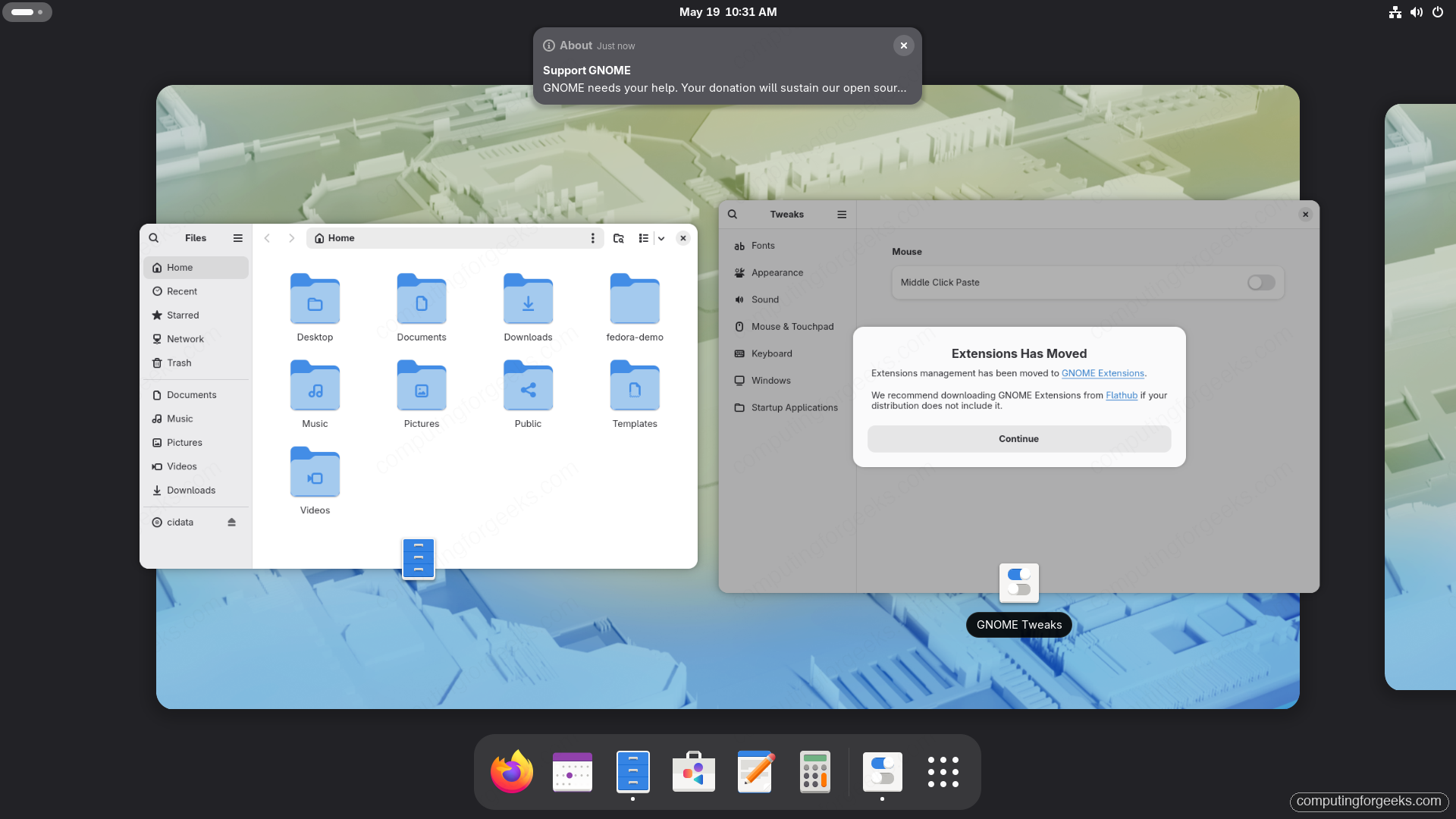
GNOME Tweaks running on Fedora 44 Workstation, with the Mouse panel open. Files (Nautilus) and the Extensions Have Moved migration dialog are visible behind it after a couple of clicks through the Activities Overview:
33. The short-list of GNOME extensions worth installing
Open Extension Manager and install:
- AppIndicator and KStatusNotifierItem Support: brings back tray icons for Slack, Discord, Steam.
- Dash to Dock or Dash to Panel: persistent dock / Windows-style taskbar.
- Blur My Shell: Wayland-native blur on the panel, overview, and dash.
- Caffeine: one-click do-not-sleep toggle.
- Just Perfection: granular UI toggles.
- Vitals: top-bar CPU temp, memory, network.
- Pop Shell (in Fedora repos as
gnome-shell-extension-pop-shell): tiling.
34. Install good coding fonts
JetBrains Mono, Cascadia Code, and Fira Code are the trio worth installing. All three are in Fedora repos:
sudo dnf install -y \
  jetbrains-mono-fonts cascadia-code-fonts fira-code-fonts \
  google-noto-sans-fonts google-noto-serif-fonts google-noto-emoji-fonts \
  adobe-source-code-pro-fonts liberation-fonts
For Microsoft Office compatibility fonts (Arial, Times New Roman, Calibri):
sudo dnf install -y curl cabextract xorg-x11-font-utils fontconfig
sudo dnf install -y https://downloads.sourceforge.net/project/mscorefonts2/rpms/msttcore-fonts-installer-2.6-1.noarch.rpm
Section 10: Alternative desktop environments
GNOME 50 is the Fedora Workstation default, but every other major desktop is one dnf environment install away. They install side by side and you pick at the GDM login screen.
35. KDE Plasma 6.6
Plasma 6.6 with the new Plasma Login Manager and Plasma Setup wizard:
sudo dnf environment install kde-desktop-environment
# log out, then pick "Plasma (Wayland)" from the gear menu on the login screen
36. Cinnamon
The Linux Mint flagship desktop. Familiar, traditional, fast:
sudo dnf environment install cinnamon-desktop-environment37. Budgie 10.10 (Wayland-native)
Budgie 10.10 made the switch from X11 to Wayland for Fedora 44, putting it on equal footing with GNOME and KDE:
sudo dnf group install budgie-desktop38. Sway and Hyprland (tiling Wayland compositors)
For tiling Wayland workflows. Sway is i3-compatible and ships in Fedora’s default repos; Hyprland is the eye-candy choice and lives in a Copr:
sudo dnf install -y sway swaybg swayidle swaylock waybar grim slurp wofi
sudo dnf copr enable -y solopasha/hyprland
sudo dnf install -y hyprland
Section 11: Remote access
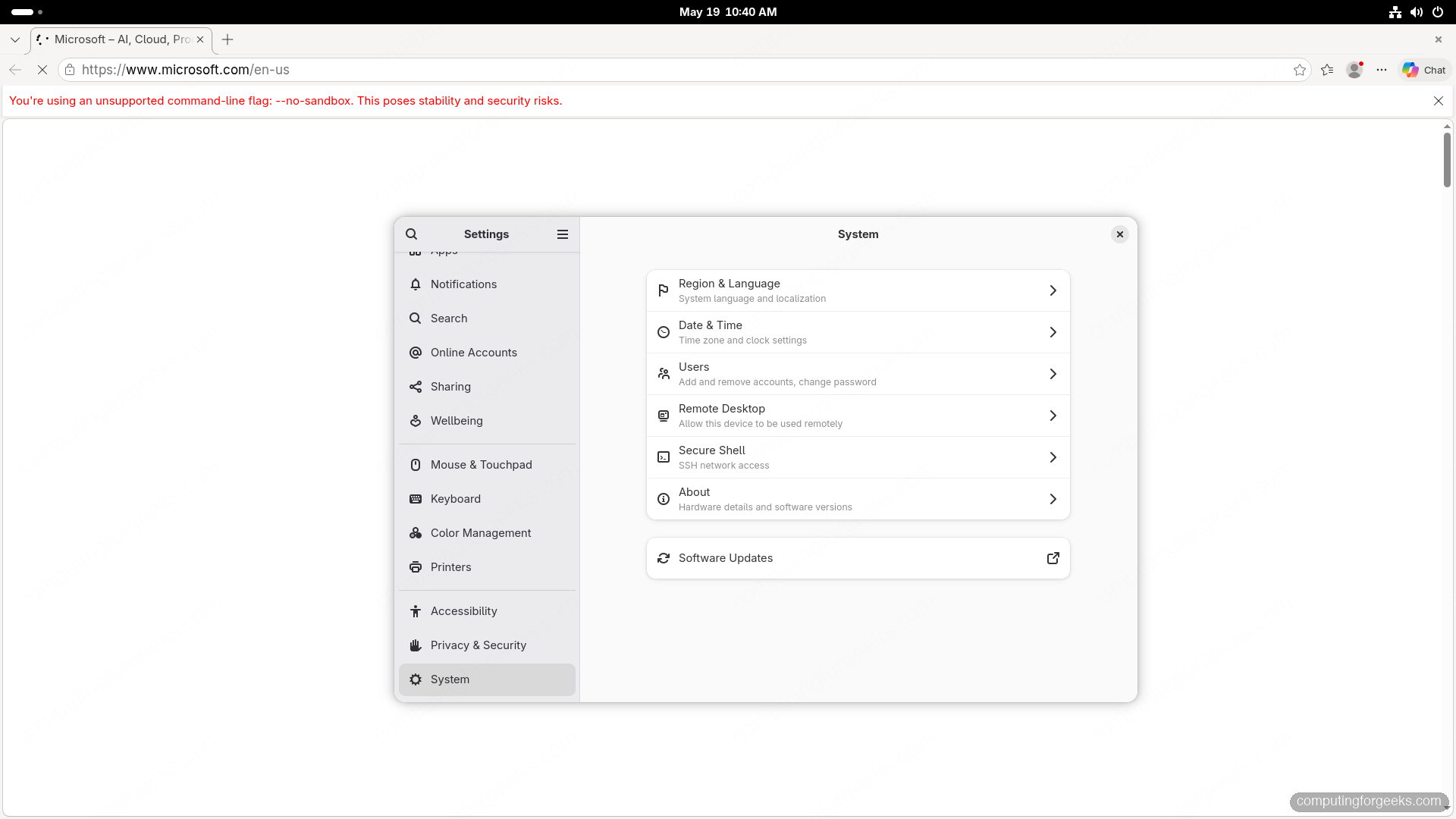
GNOME 50’s System Settings panel has first-class entries for both Remote Desktop (RDP) and Secure Shell now. The CLI commands below give you the same result; the panel gives you a one-toggle on/off:
39. Harden the OpenSSH server
OpenSSH server is installed and disabled by default on Workstation. Enable, harden, and lock down:
sudo dnf install -y openssh-server
sudo systemctl enable --now sshd
sudo firewall-cmd --permanent --add-service=ssh
sudo firewall-cmd --reload
# disable password auth, allow only ed25519 keys
sudo tee /etc/ssh/sshd_config.d/99-hardening.conf > /dev/null <<'EOF'
PasswordAuthentication no
PermitRootLogin no
PubkeyAuthentication yes
HostKeyAlgorithms ssh-ed25519,rsa-sha2-512
EOF
sudo systemctl restart sshd
40. GNOME Remote Desktop with RDP
GNOME 50 ships a built-in RDP server. Enable it system-wide so you can RDP from a Windows laptop or any RDP client:
sudo dnf install -y gnome-remote-desktop
sudo firewall-cmd --permanent --add-service=rdp
sudo firewall-cmd --reload

# generate TLS cert
sudo mkdir -p /var/lib/gnome-remote-desktop/.local/share/gnome-remote-desktop
cd /var/lib/gnome-remote-desktop/.local/share/gnome-remote-desktop
sudo openssl req -new -x509 -nodes \
  -newkey ec:<(openssl ecparam -name secp384r1) \
  -keyout tls.key -out tls.crt -days 3650 \
  -subj "/CN=$(hostname)"

# configure system-wide RDP
sudo grdctl --system rdp set-tls-key /var/lib/gnome-remote-desktop/.local/share/gnome-remote-desktop/tls.key
sudo grdctl --system rdp set-tls-cert /var/lib/gnome-remote-desktop/.local/share/gnome-remote-desktop/tls.crt
sudo grdctl --system rdp set-credentials
sudo grdctl --system rdp enable
sudo systemctl enable --now gnome-remote-desktop
From Windows: open Remote Desktop Connection, point it at desktop.example.com:3389, accept the self-signed certificate, log in with your Fedora user. From another Linux box: install freerdp and run xfreerdp /v:desktop.example.com /u:jmutai.
Section 12: Backup and verification
41. Pika Backup (desktop) and Restic (server-style)
Pika Backup wraps borg with a GNOME-friendly GUI; Restic is the CLI for snapshot-style backups to cloud storage:
flatpak install -y flathub org.gnome.World.PikaBackup
sudo dnf install -y restic
Pika is a friendly GUI on top of borg backup. Restic is the CLI for snapshot-style backups to S3, B2, Google Cloud, REST servers, or a local disk.
42. Optimize boot
Two small wins for desktop installs. The first cuts 5-15 seconds off boot on machines that come up before DHCP resolves. The second skips Plymouth’s quit wait so GDM lands sooner. Both are reversible with systemctl enable:
sudo systemctl disable NetworkManager-wait-online.service
sudo systemctl disable plymouth-quit-wait.service
systemd-analyze blame | head -15
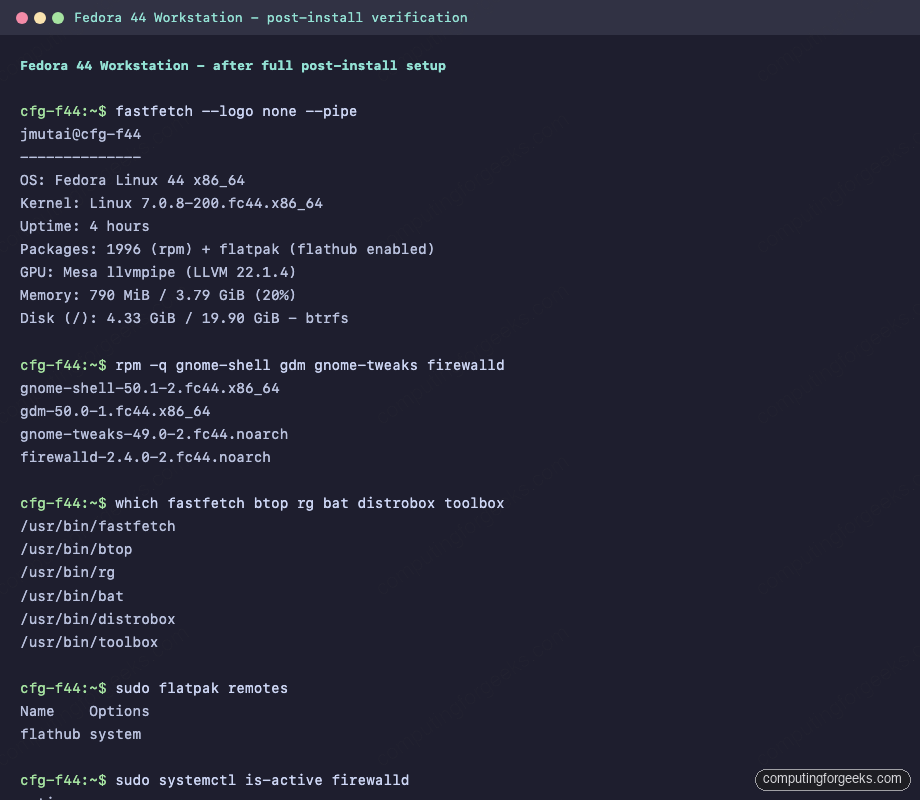
43. Final verification
Confirm everything you just installed is actually there. The output below is from a real F44 Workstation after running the full list:
Where to go next
Two follow-up articles in this Fedora 44 series build directly on what you just did: the deep dive on RPM Fusion and multimedia codec setup, and the side-by-side Fedora 44 vs Ubuntu 26.04 comparison. The NVIDIA driver and gaming-on-Fedora pieces come next in the series. For full release context, see what is new in Fedora 44.
For database work, the workstation that came out of this guide is ready for our MariaDB on Fedora install guide. For Docker-centric work, the Docker on Fedora install guide picks up from Section 8 above. If you have not installed Fedora 44 yet, the step-by-step install guide covers the Anaconda walkthrough; upgraders from Fedora 43 should follow the F43 to F44 upgrade guide.