

A freshly installed Ubuntu 26.04 server is reasonable out of the box, but it is not hardened. Default SSH settings, no firewall rules, no intrusion monitoring, no kernel tuning. Stick it on a public IP and you will see brute-force SSH attempts within minutes.
This guide walks through a practical hardening baseline for Ubuntu 26.04 LTS. You will create a sudo user, lock down SSH (OpenSSH 10.2 with post-quantum ML-KEM is the new default), enable UFW with rate limiting, install Fail2ban, apply kernel sysctl protections, verify AppArmor, set up auditd, and run a Lynis audit to measure the result. Every command was tested on a real VM. Pair this with our Ubuntu 26.04 initial server setup guide for the first 10 minutes of a new box.
Tested April 2026 on Ubuntu 26.04 LTS, OpenSSH 10.2p1, UFW 0.36.2, Fail2ban 1.1.0, AppArmor 5.0.0 beta1, auditd 4.1.2, Lynis 3.1.6
Prerequisites
- Ubuntu 26.04 LTS server with root or sudo access
- SSH access from your workstation (console fallback if you lock yourself out)
- An SSH keypair on your local machine (run
ssh-keygen -t ed25519if you don’t have one) - Server package sources already configured and reachable
If you are running a version older than 26.04, our upgrade guide from 24.04 to 26.04 covers the release-upgrade path. The hardening steps below assume a fresh 26.04 system.
Step 1: Patch the System First
Hardening a box with outdated packages is pointless. Update everything before touching any security config.
sudo apt update && sudo apt -y full-upgradeReboot if the kernel was updated:
[ -f /var/run/reboot-required ] && sudo rebootNow install unattended-upgrades so future security patches land automatically without anyone remembering to run apt.
sudo apt install -y unattended-upgrades apt-listchanges
sudo dpkg-reconfigure -plow unattended-upgrades
That writes the periodic config. If the interactive prompt skips, drop this file in place:
sudo tee /etc/apt/apt.conf.d/20auto-upgrades >/dev/null <<'EOF'
APT::Periodic::Update-Package-Lists "1";
APT::Periodic::Download-Upgradeable-Packages "1";
APT::Periodic::AutocleanInterval "7";
APT::Periodic::Unattended-Upgrade "1";
EOF
Test that unattended-upgrades parses the config without errors:
sudo unattended-upgrades --dry-run --debug 2>&1 | head -10You should see it enumerate allowed origins (security, updates) and list any pending upgrades. No errors means the periodic job will run cleanly.
Step 2: Create a Non-Root Sudo User With SSH Keys
Logging in as root over SSH is a liability. Create a regular user, give it sudo, and push your public key.
sudo adduser devops
sudo usermod -aG sudo devops
Set a strong password when prompted (pick something like StrongPass123 only for a lab, use a proper generated password in production).
From your local workstation, copy your SSH public key to the new user:
ssh-copy-id [email protected]Test the key login before you touch SSH config. If this fails, fix it before moving on, because the next step disables password auth.
ssh [email protected] idYou should see your UID and group list, including sudo. If you get a password prompt instead of a key login, your key was not accepted. Check ~/.ssh/authorized_keys permissions on the server (must be 600 owned by the user).
Step 3: Harden SSH
Ubuntu 26.04 ships OpenSSH 10.2, which enables the ML-KEM post-quantum key exchange by default alongside classical curve25519. The modern defaults are already strong. Your job is to lock down authentication, limit who can log in, and move away from noisy defaults.
Check the version first so you know what you are working with:
ssh -VOn a freshly patched Ubuntu 26.04 you will see something like this:
OpenSSH_10.2p1 Ubuntu-2ubuntu3, OpenSSL 3.5.5 27 Jan 2026Rather than editing the main /etc/ssh/sshd_config, use a drop-in file. It survives package upgrades cleanly and makes your changes obvious to the next person to log in.
sudo tee /etc/ssh/sshd_config.d/99-hardening.conf >/dev/null <<'EOF'
Port 2202
PermitRootLogin no
PasswordAuthentication no
KbdInteractiveAuthentication no
PubkeyAuthentication yes
MaxAuthTries 3
LoginGraceTime 20
AllowUsers devops
X11Forwarding no
AllowAgentForwarding no
AllowTcpForwarding no
ClientAliveInterval 300
ClientAliveCountMax 2
EOF
Each line matters. Changing the port does not provide real security, but it cuts automated bot noise by 99% and keeps your logs readable. MaxAuthTries 3 with LoginGraceTime 20 gives attackers 20 seconds and three attempts per connection, then the socket closes. AllowUsers is a whitelist. Even if a new account is created later, SSH will refuse logins from it unless you update this file.
Validate the syntax before reloading, because a broken config will kill sshd and kick you out.
sudo sshd -t && echo "config OK"If the output is just config OK, apply the changes. Ubuntu 26.04 uses socket activation for SSH, so you have to stop and disable the socket unit, then explicitly enable ssh.service for boot (it ships disabled by default — without this, SSH will not start after a reboot):
sudo systemctl stop ssh.socket 2>/dev/null
sudo systemctl disable ssh.socket 2>/dev/null
sudo systemctl enable ssh
sudo systemctl restart ssh
Confirm sshd is listening on the new port:
sudo ss -tlnp | grep sshdYou should see port 2202 in the listen column. Open a second terminal and verify you can still log in over the new port (keep the original session alive until you are sure):
ssh -p 2202 [email protected]Step 4: Enable UFW With Rate Limiting
Ubuntu ships ufw but leaves it disabled. Turn it on with a deny-by-default incoming policy. The limit verb adds connection rate limiting on top of the accept rule, which throttles brute-force attempts before Fail2ban even wakes up.
Install if missing, then set defaults:
sudo apt install -y ufw
sudo ufw default deny incoming
sudo ufw default allow outgoing
Allow your new SSH port with rate limiting. This caps new connections at 6 per 30 seconds from a single IP.
sudo ufw limit 2202/tcp comment "SSH"If you run a web server, add 80 and 443. Open only what you actually need.
sudo ufw allow 80/tcp comment "HTTP"
sudo ufw allow 443/tcp comment "HTTPS"
Enable the firewall:
sudo ufw enableVerify the active rule set:
sudo ufw status verboseThe output shows the policy and every rule with its IPv4 and IPv6 counterpart:
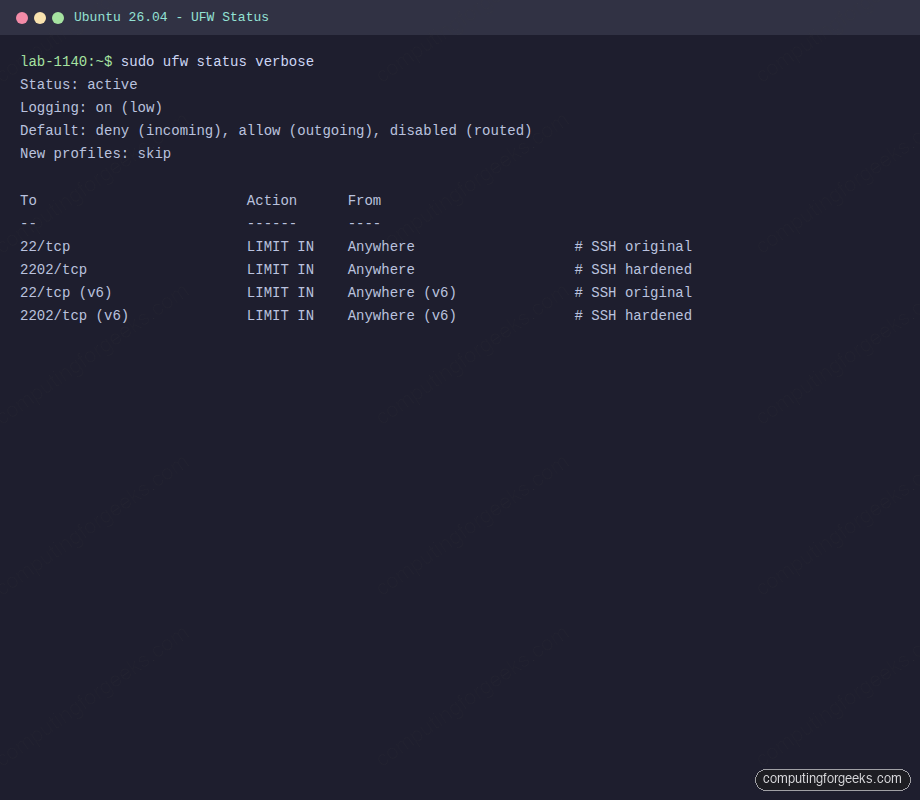
If you need to add a rule later, ufw allow from 10.0.1.0/24 to any port 5432 restricts a port to a specific subnet. That is far better than opening ports to the world.
Step 5: Install Fail2ban for SSH
UFW rate limits connections, but Fail2ban reads journald and bans IPs that trip authentication failures. The two work together well.
sudo apt install -y fail2banUbuntu’s Fail2ban defaults point at /var/log/auth.log, but journald is the source of truth on modern Ubuntu. Create a jail override that uses the systemd backend and watches the hardened SSH port:
sudo tee /etc/fail2ban/jail.d/sshd.local >/dev/null <<'EOF'
[sshd]
enabled = true
port    = 2202
maxretry = 3
findtime = 10m
bantime  = 1h
backend  = systemd
EOF
Enable and start the service:
sudo systemctl enable --now fail2banConfirm the jail is active:
sudo fail2ban-client status sshdThe output confirms the filter is reading journald and that no IPs are currently banned:
Status for the jail: sshd
|- Filter
|  |- Currently failed: 0
|  |- Total failed:     0
|  `- Journal matches:  _SYSTEMD_UNIT=ssh.service + _COMM=sshd
`- Actions
   |- Currently banned: 0
   |- Total banned:     0
   `- Banned IP list:
For more aggressive jails (web apps, mail, API endpoints), read our dedicated guides. The SSH jail alone stops 99% of drive-by attempts.
Step 6: Apply Kernel Sysctl Hardening
The Linux kernel has dozens of toggles that improve network and process security. Ubuntu sets some of them by default (ASLR is on, for example) but leaves many legacy options permissive for compatibility. Override them with a single drop-in file.
sudo tee /etc/sysctl.d/99-hardening.conf >/dev/null <<'EOF'
# IP spoofing and routing protections
net.ipv4.conf.default.rp_filter = 1
net.ipv4.conf.all.rp_filter = 1
net.ipv4.conf.all.accept_source_route = 0
net.ipv6.conf.all.accept_source_route = 0
net.ipv4.conf.all.send_redirects = 0
net.ipv4.conf.default.send_redirects = 0
net.ipv4.conf.all.accept_redirects = 0
net.ipv6.conf.all.accept_redirects = 0

# ICMP and SYN flood protection
net.ipv4.icmp_echo_ignore_broadcasts = 1
net.ipv4.tcp_syncookies = 1
net.ipv4.tcp_max_syn_backlog = 2048
net.ipv4.tcp_synack_retries = 2
net.ipv4.tcp_syn_retries = 5
net.ipv4.conf.all.log_martians = 1

# Kernel and process hardening
kernel.randomize_va_space = 2
kernel.kptr_restrict = 2
kernel.dmesg_restrict = 1
kernel.yama.ptrace_scope = 1
fs.protected_hardlinks = 1
fs.protected_symlinks = 1
fs.suid_dumpable = 0
EOF
Apply it without rebooting:
sudo sysctl --systemThe output lists every sysctl file loaded and each key applied. Scan it for any Invalid argument errors, which indicate a typo or an option that does not exist on your kernel.
A quick spot-check on key values:
sysctl kernel.randomize_va_space kernel.kptr_restrict fs.protected_symlinksEach must return its expected value (2, 2, 1 respectively). kernel.randomize_va_space = 2 is full ASLR for both stack and heap. kptr_restrict = 2 hides kernel pointers from /proc even for root, which blunts several kernel exploits. ptrace_scope = 1 means a process can only be attached to by its parent, which stops cross-session credential theft via gdb.
Step 7: Verify AppArmor Is Enforcing
AppArmor is the mandatory access control layer on Ubuntu. It ships enabled by default with a broad set of profiles for common services. Confirm it is loaded and check what is enforced:
sudo aa-status | head -8A freshly patched Ubuntu 26.04 shows roughly 180 loaded profiles, with the majority in enforce mode:
apparmor module is loaded.
184 profiles are loaded.
108 profiles are in enforce mode.
76 profiles are in complain mode.
0 profiles are in prompt mode.
0 profiles are in kill mode.
0 profiles are in unconfined mode.
Profiles in complain mode log violations but do not block. That is fine for profiles that are still being developed. If you install software that ships its own profile, check its mode and flip it to enforce once you have confirmed the service works:
sudo aa-enforce /etc/apparmor.d/usr.sbin.nginxCheck the status of hardened services all at once. This is a good periodic health check:

Step 8: Audit Listening Services
Every open port is an attack surface. Map what is actually listening on the box before you trust your firewall rules.
sudo ss -tlnpYou want to see only services you deliberately installed. On a minimal Ubuntu 26.04 server after these steps, that is sshd on 2202 and perhaps a DNS resolver on 127.0.0.53. If you find something unexpected (Avahi, CUPS, Samba from a desktop-flavored install), stop and disable it:
sudo systemctl disable --now cups avahi-daemon 2>/dev/nullFor a deeper view, check units that pull in network sockets:
systemctl list-units --type=socket --state=listeningStep 9: Enable auditd for Login and Privilege Tracking
Auditd records kernel-level events to /var/log/audit/audit.log. It is the backbone of most forensic and compliance workflows. Install it and add a small ruleset that covers the high-value events: changes to user and sudo config, SSH config edits, and every command executed as root by a non-root user.
sudo apt install -y auditd
sudo systemctl enable --now auditd
Drop the rules into the rules.d directory so they survive reboots:
sudo tee /etc/audit/rules.d/hardening.rules >/dev/null <<'EOF'
-w /etc/passwd -p wa -k passwd_changes
-w /etc/shadow -p wa -k shadow_changes
-w /etc/sudoers -p wa -k sudoers_changes
-w /etc/ssh/sshd_config -p wa -k sshd_config
-w /var/log/auth.log -p wa -k authlog
-a always,exit -F arch=b64 -S execve -F euid=0 -F auid>=1000 -F auid!=4294967295 -k root_cmds
EOF
sudo augenrules --load
Verify the rules loaded:
sudo auditctl -lTest the sudoers_changes watch by running a harmless edit. Open and save /etc/sudoers via visudo, then query the log:
sudo ausearch -k sudoers_changes -ts recent | head -20You should see a fresh record with the user, timestamp, and the syscall that touched the file. That is forensic gold when you need to answer “who changed this, and when”.
Step 10: Run a Lynis Audit to Measure the Result
Lynis is a free security auditing tool that scores how well your system is hardened and prints specific recommendations. Install it from the Ubuntu repos (recent enough for baseline use, though the upstream version is newer):
sudo apt install -y lynisRun a full audit. The first pass takes around 60 seconds on a small VM:
sudo lynis audit system --quickScroll to the summary block at the end. On the test VM after applying every step in this guide, Lynis reported a hardening index of 73 across 260 tests:
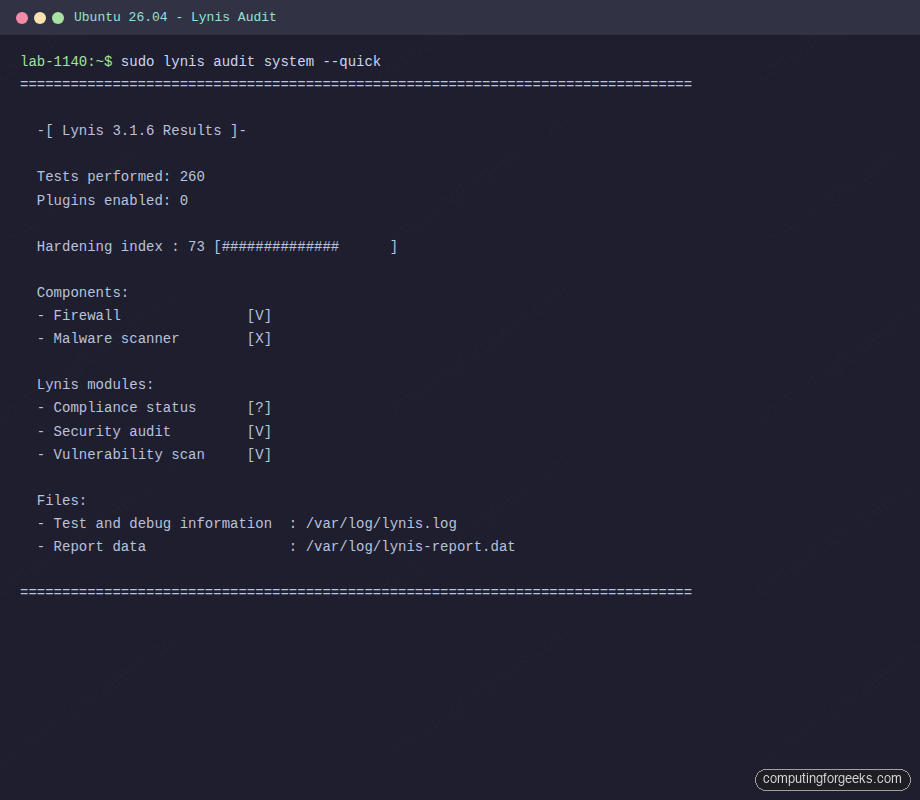
A hardening index of 73 on a baseline Ubuntu 26.04 is a solid starting point. Fresh installs typically land around 55 to 60. The remaining points come from things Lynis expects that are workload-dependent: a local mail relay, a second DNS resolver, PAM password quality rules, and disk encryption at rest. Review the suggestions:
sudo grep Suggestion /var/log/lynis-report.dat | head -20Apply the ones that make sense for your workload. Do not chase 100. An opinionated score of 80 on a machine that actually serves traffic beats a vanity 95 on a locked-down box that does nothing useful.
Step 11: Optional Extras Worth Adding
These are not strictly mandatory but come up repeatedly in production hardening reviews.
Process accounting logs every command run by every user to /var/log/account/pacct. Handy for incident review.
sudo apt install -y acct
sudo systemctl enable --now acct
lastcomm | head
Disable core dumps globally. Core files often contain secrets (tokens, passwords held in memory) and attackers harvest them from crash directories.
echo "* hard core 0" | sudo tee -a /etc/security/limits.conf
echo "fs.suid_dumpable = 0" | sudo tee /etc/sysctl.d/50-coredump.conf
sudo sysctl -p /etc/sysctl.d/50-coredump.conf
Block USB mass storage on servers with physical access risk. This prevents someone walking up with a thumb drive and copying data, or loading malware.
echo "blacklist usb-storage" | sudo tee /etc/modprobe.d/blacklist-usb-storage.conf
sudo modprobe -r usb-storage 2>/dev/null
Skip this one on laptops or workstations. It is only sensible on servers where USB is not a legitimate input path.
Troubleshooting: Issues I Hit During Testing
Error: “Connection refused” after changing the SSH port
On Ubuntu 26.04, ssh is socket-activated. Simply restarting ssh.service will not pick up a new Port directive because ssh.socket is still listening on the old one. Stop and disable the socket unit, enable ssh.service so it starts on boot (it ships disabled), then restart the service:
sudo systemctl stop ssh.socket
sudo systemctl disable ssh.socket
sudo systemctl enable ssh
sudo systemctl restart ssh
Confirm with ss -tlnp | grep sshd. If you still see the old port, your drop-in file is not being parsed, most commonly because of a typo or because Include is commented out in /etc/ssh/sshd_config. If SSH works in this session but the server cannot be reached after a reboot, you skipped systemctl enable ssh — the socket unit is disabled, so unless the service itself is enabled, nothing listens on port 22 (or your custom port) at boot.
Error: “Operation not permitted” from UFW after enabling
This usually means another firewall (nftables rules from a container runtime, or iptables-nft conflict) has claimed the tables. Flush existing rules and enable UFW fresh:
sudo ufw --force reset
sudo ufw default deny incoming
sudo ufw limit 2202/tcp
sudo ufw enable
If you run Docker, note that Docker manages its own iptables chains and its published ports bypass UFW by design. That is a separate topic covered in our Docker on Ubuntu 26.04 guide.
Fail2ban reports “No file(s) found for sshd”
This happens when the jail uses the default file backend on a system where rsyslog is not writing /var/log/auth.log. The fix is to set backend = systemd in the jail, which is what our config above already does. If you inherit an older setup, edit /etc/fail2ban/jail.d/sshd.local and add that line, then restart fail2ban.
Keep Going From Here
Hardening is a direction, not a destination. A few natural next steps once the baseline above is in place:
- Put your web apps behind HTTPS with the Nginx plus Let’s Encrypt setup on Ubuntu 26.04
- Stream auth and audit logs to a central collector. The Prometheus node exporter plus Grafana dashboards covers host metrics, and pairing auditd with a log shipper covers the security side
- Add host-level monitoring with Nagios on Ubuntu 26.04 or a similar tool so you actually notice when Fail2ban starts banning thousands of IPs at 3 AM
- Review the full Ubuntu 26.04 LTS feature list to understand what else changed in this release, especially the new default kernel and systemd versions
Re-run sudo lynis audit system every few months. Workload changes, new services, and package updates all shift the score. A server that scored 78 six months ago might be at 62 today because someone installed a service that exposes a new port without firewalling it. The tool is cheap to run and the output is specific enough to act on immediately.






Thanks, everything works fine, however untill you restart the Ubuntu server, there is no way back in using ssh
Confirmed bug. Ubuntu 26.04 ships SSH socket-activated, so disabling ssh.socket removes the boot trigger but leaves ssh.service disabled too. After the disable line, add: sudo systemctl enable ssh. The article has been updated to include this step.
Amazing guide