

You want a VPN that lives on your own box, terminates where you decide, and logs exactly what you tell it to log. An OpenVPN server is still the most flexible way to do that on Ubuntu: certificate authentication, a TLS-crypt control channel, an AES-256-GCM data channel, and a single .ovpn file you hand to a laptop or a phone. It runs the same way on the three Ubuntu LTS releases people actually have in production right now.
This guide builds a full deployment on Ubuntu Server and tests it end to end. We construct the PKI with Easy-RSA, write the server config, wire UFW with a NAT rule for the 10.8.0.0/24 pool, push DNS to clients, then connect real machines back over tun0: an Ubuntu client, a Windows client through the OpenVPN GUI, and notes for macOS, Android, and iOS. You also get certificate-based onboarding for extra users, CRL revocation, and the log commands that tell you why a client will not connect.
Tested June 2026 on Ubuntu 26.04, 24.04, and 22.04 (OpenVPN 2.7.0, 2.6.19, and 2.5.11). Every command below was run on real servers and verified with a connected client on each release.
What you need before you start
One Ubuntu server to host the VPN, with a public, routable IP that clients reach on UDP 1194. Any of the three current LTS releases works: 26.04 (Resolute Raccoon), 24.04 (Noble Numbat), or 22.04 (Jammy Jellyfish). You also want at least one machine to test from. Throughout the article the public endpoint is shown as 203.0.113.20 (RFC 5737 documentation range). Swap in your own public IP or DNS name wherever you see it.
- An Ubuntu 26.04, 24.04, or 22.04 server with root or sudo access
- A public IPv4 on the server, with UDP 1194 reachable from the internet
- UFW available (installed by default on the server images)
- At least one client device: Linux, Windows, macOS, Android, or iOS
- Basic familiarity with systemd units and
journalctl
If you have not done the baseline yet, run through the initial server setup and the server hardening guide first. Both are worth ten minutes before you expose anything on UDP 1194.
Step 1: Install OpenVPN and Easy-RSA
Both packages ship in the default Ubuntu archive on all three releases. No third-party PPA, no manual build.
sudo apt update
sudo apt install -y openvpn easy-rsa ufw
Confirm what landed. The version differs by release, which matters for one thing only (data channel offload, covered just below):
openvpn --version | head -1
dpkg-query -W -f='${Package} ${Version}\n' openvpn easy-rsa
Here is the same pair of commands run on each of the three LTS releases, side by side:
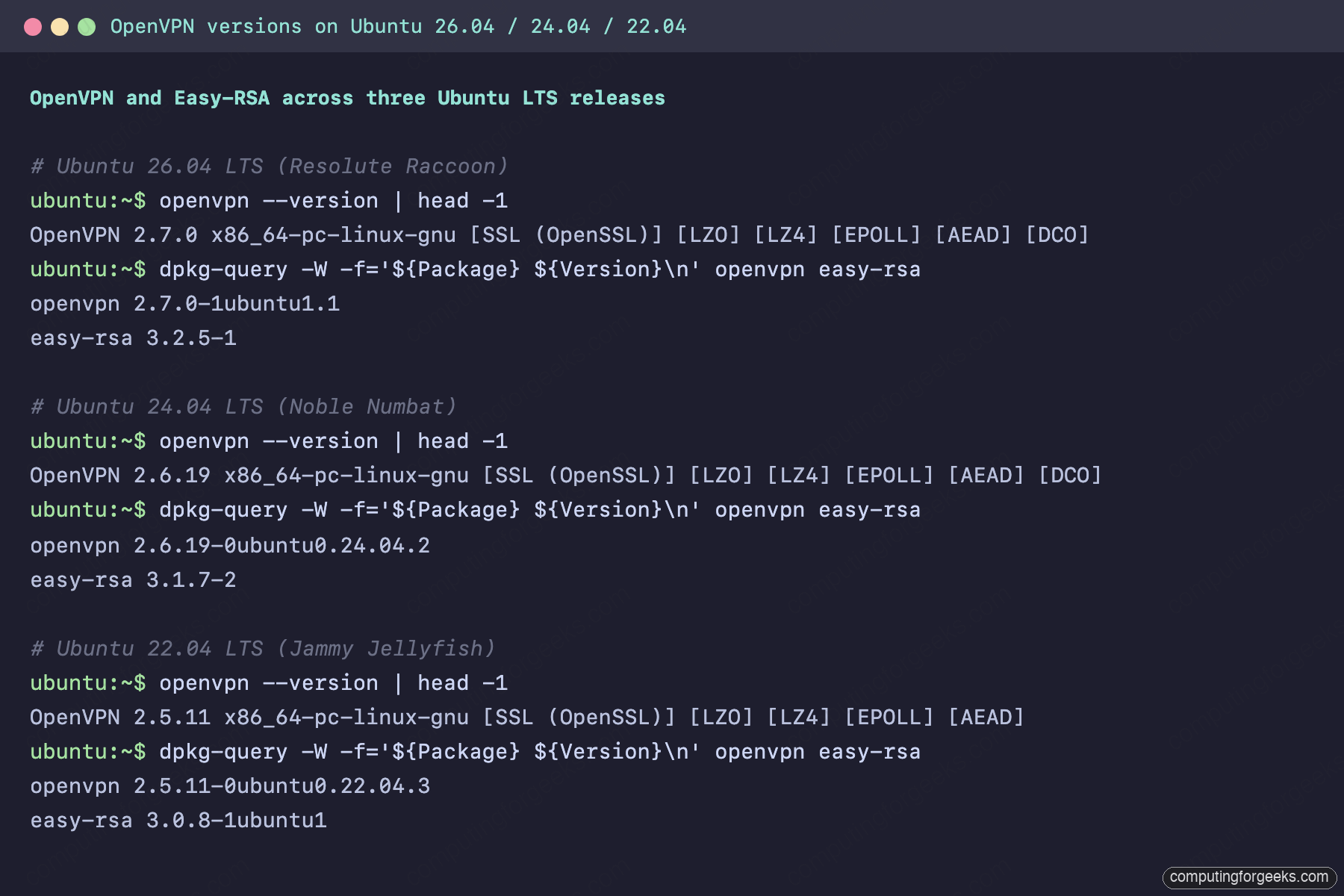
The numbers map cleanly to each release. This is the only place versions matter in the whole build:
| Ubuntu release | OpenVPN | Easy-RSA | Kernel data channel offload (DCO) |
|---|---|---|---|
| 26.04 LTS (Resolute Raccoon) | 2.7.0 | 3.2.5 | Yes, via the in-tree ovpn module |
| 24.04 LTS (Noble Numbat) | 2.6.19 | 3.1.7 | Yes, via the ovpn-dco module |
| 22.04 LTS (Jammy Jellyfish) | 2.5.11 | 3.0.8 | No, the data channel runs in userspace |
DCO (Data Channel Offload) moves the encrypted data path into the kernel instead of copying every packet up to the OpenVPN process. On 24.04 and 26.04 it is on by default and you will see an ovpn-dco device come up in the logs. On 22.04 the tunnel works exactly the same, it just runs the data channel in userspace, which costs you some throughput on a busy link. The configuration is identical regardless, so the rest of this guide is one set of commands for all three.
Step 2: Build the PKI with Easy-RSA
OpenVPN is certificate-authenticated. That means a small private CA, one server certificate, one certificate per client, and a TLS-crypt static key that gates the control channel before any TLS handshake starts. Easy-RSA 3 wraps all of it.
Create a working copy of Easy-RSA under /etc/openvpn/ so the scripts run with the right paths:
sudo mkdir -p /etc/openvpn/easy-rsa
sudo ln -sf /usr/share/easy-rsa/* /etc/openvpn/easy-rsa/
cd /etc/openvpn/easy-rsa
Easy-RSA reads its defaults from a vars file. Open one for editing:
sudo nano /etc/openvpn/easy-rsa/varsAdd the following. We pick ECDSA on the secp384r1 curve: it is faster than RSA, the keys are smaller, and every Easy-RSA version from 3.0.8 up supports it, so this block is identical on all three releases.
set_var EASYRSA_ALGO      ec
set_var EASYRSA_CURVE     secp384r1
set_var EASYRSA_REQ_COUNTRY    "US"
set_var EASYRSA_REQ_PROVINCE   "Example"
set_var EASYRSA_REQ_CITY       "ExampleCity"
set_var EASYRSA_REQ_ORG        "computingforgeeks"
set_var EASYRSA_REQ_EMAIL      "[email protected]"
set_var EASYRSA_REQ_OU         "VPN"
set_var EASYRSA_CERT_EXPIRE    3650
set_var EASYRSA_CA_EXPIRE      3650
Initialize the PKI and build the CA. The nopass flag leaves the CA private key unencrypted on disk, which is fine for a dedicated VPN box. On shared hardware, drop nopass and enter a passphrase.
sudo ./easyrsa init-pki
sudo EASYRSA_BATCH=1 ./easyrsa --req-cn="OpenVPN-CA" build-ca nopass
Easy-RSA prints the path to the CA certificate it just wrote:
Notice
------
CA creation complete. Your new CA certificate is at:
* /etc/openvpn/easy-rsa/pki/ca.crt

Build-ca completed successfully.
Issue the server certificate and the first client certificate, both signed by that CA:
sudo ./easyrsa --batch build-server-full server nopass
sudo ./easyrsa --batch build-client-full client1 nopass
Generate the certificate revocation list. Even if you never revoke anything, OpenVPN refuses to start with crl-verify pointing at a file that does not exist:
sudo ./easyrsa gen-crlFinally the TLS-crypt static key. This one key encrypts and authenticates every control-channel packet, so a network observer cannot even see the TLS handshake begin, let alone fingerprint it. The --genkey tls-crypt form works on OpenVPN 2.5, 2.6, and 2.7 alike:
sudo openvpn --genkey tls-crypt /etc/openvpn/easy-rsa/pki/tc.keyConfirm the PKI now holds everything the server and clients need:
sudo ls /etc/openvpn/easy-rsa/pki/issued /etc/openvpn/easy-rsa/pki/privateYou should see the server and client certificates alongside their private keys:
/etc/openvpn/easy-rsa/pki/issued:
client1.crt  server.crt

/etc/openvpn/easy-rsa/pki/private:
ca.key  client1.key  server.key
Running ./easyrsa show-ca prints the subject and validity of the authority every certificate chains back to, a quick sanity check before the server uses it:
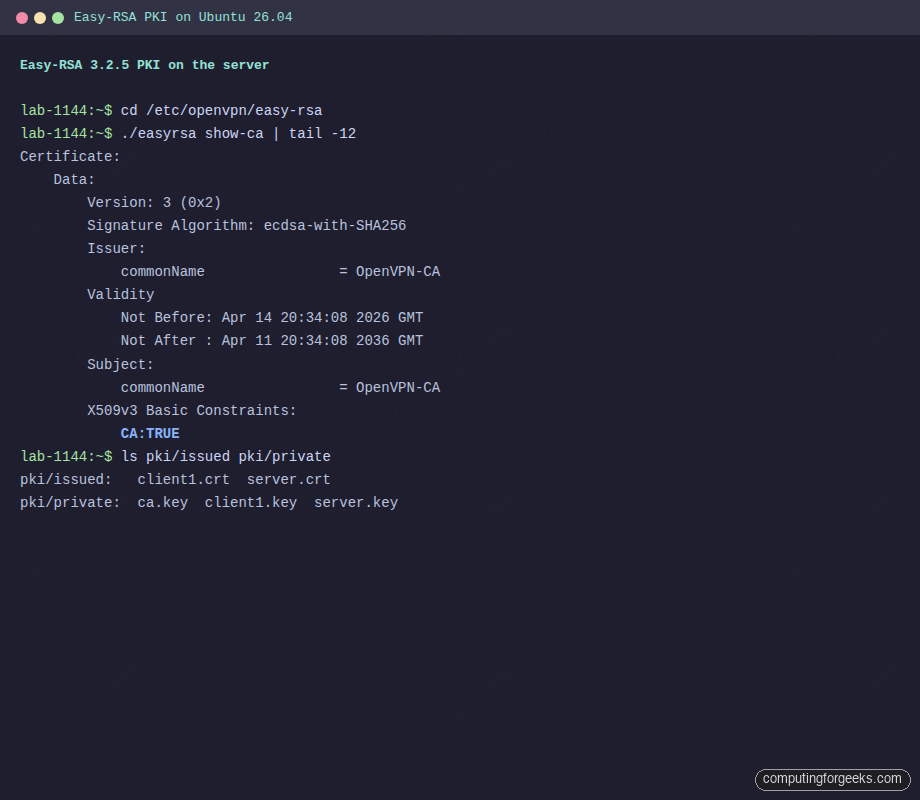
With the PKI in place, the server needs only a handful of those files to start.
Step 3: Write the OpenVPN server config
Copy only the files the server process needs into /etc/openvpn/server/. Keeping a clean copy (rather than symlinking into pki/) means you can back up or rotate the PKI without disturbing a running daemon:
cd /etc/openvpn/easy-rsa/pki
sudo mkdir -p /etc/openvpn/server /var/log/openvpn
sudo cp ca.crt issued/server.crt private/server.key tc.key crl.pem /etc/openvpn/server/
sudo chown nobody:nogroup /etc/openvpn/server/crl.pem
The crl.pem ownership matters: OpenVPN drops to the nobody user after startup and still has to read the CRL on every new connection.
Open the server config:
sudo nano /etc/openvpn/server/server.confPaste the following. This is a full-tunnel setup on 10.8.0.0/24 over UDP 1194 with modern ciphers and no legacy fallbacks. Each block maps to one decision: transport, addresses, what to push, authentication, logging.
port 1194
proto udp4
dev tun

ca   /etc/openvpn/server/ca.crt
cert /etc/openvpn/server/server.crt
key  /etc/openvpn/server/server.key
dh   none

topology subnet
server 10.8.0.0 255.255.255.0
ifconfig-pool-persist /var/log/openvpn/ipp.txt

push "redirect-gateway def1 bypass-dhcp"
push "dhcp-option DNS 1.1.1.1"
push "dhcp-option DNS 9.9.9.9"

keepalive 10 120
tls-crypt /etc/openvpn/server/tc.key
cipher AES-256-GCM
auth SHA256
data-ciphers AES-256-GCM:AES-128-GCM

user nobody
group nogroup
persist-key
persist-tun

crl-verify /etc/openvpn/server/crl.pem

status    /var/log/openvpn/openvpn-status.log
log-append /var/log/openvpn/openvpn.log
verb 3
explicit-exit-notify 1
A few directives earn their place. dh none is correct because the certificates are ECDSA, so there is no classic Diffie-Hellman exchange. tls-crypt both signs and encrypts control packets, which hides the OpenVPN fingerprint on the wire. data-ciphers is the negotiated list used by 2.6 and 2.7 clients; cipher stays for any older 2.5 client that might connect from 22.04.
Step 4: Enable IP forwarding and UFW NAT
OpenVPN does not route anything by itself. The kernel has to forward packets between tun0 and the public interface, and UFW has to masquerade them on the way out. Both pieces are required for clients to reach the internet through the tunnel.
Turn on IPv4 forwarding persistently:
echo 'net.ipv4.ip_forward=1' | sudo tee /etc/sysctl.d/99-openvpn.conf
sudo sysctl -p /etc/sysctl.d/99-openvpn.conf
The reload echoes the new value back:
net.ipv4.ip_forward = 1The masquerade rule needs the name of your public interface, which is not always eth0. Detect it and store it in a shell variable so the next commands stay copy-paste clean:
PUBLIC_NIC=$(ip route get 1.1.1.1 | awk '{print $5; exit}')
echo "Public interface: ${PUBLIC_NIC}"
Open the UFW before-rules file to add a POSTROUTING masquerade for the VPN subnet:
sudo nano /etc/ufw/before.rulesAt the very bottom of the file, add this stanza. Leave the literal PUBLIC_NIC placeholder in place for now; the next command rewrites it:
# START OPENVPN RULES
*nat
:POSTROUTING ACCEPT [0:0]
-A POSTROUTING -s 10.8.0.0/24 -o PUBLIC_NIC -j MASQUERADE
COMMIT
# END OPENVPN RULES
Substitute the real interface name from the variable into the file:
sudo sed -i "s/PUBLIC_NIC/${PUBLIC_NIC}/" /etc/ufw/before.rulesFlip the default forward policy so UFW stops dropping traffic that exits tun0:
sudo sed -i 's/DEFAULT_FORWARD_POLICY="DROP"/DEFAULT_FORWARD_POLICY="ACCEPT"/' /etc/default/ufwAllow SSH and the OpenVPN port, then enable the firewall:
sudo ufw allow 22/tcp
sudo ufw allow 1194/udp
sudo ufw --force enable
sudo ufw status verbose
UFW should report both ports allowed and the routed forward default:
Status: active
Logging: on (low)
Default: deny (incoming), allow (outgoing), allow (routed)
New profiles: skip

To                         Action      From
--                         ------      ----
22/tcp                     ALLOW IN    Anywhere
1194/udp                   ALLOW IN    Anywhere
For UFW profiles, application groups, and logging tiers in more depth, the UFW firewall setup walks through the rest.
Step 5: Start the OpenVPN server
Ubuntu ships a templated unit at [email protected]. The name after the @ matches the config filename under /etc/openvpn/server/. Ours is server.conf, so the unit is openvpn-server@server. This is identical on 22.04, 24.04, and 26.04.
sudo systemctl enable --now openvpn-server@server
sudo systemctl status openvpn-server@server --no-pager
The line you are looking for is Status: "Initialization Sequence Completed". It means the certificates loaded, the tun device came up, and the daemon is listening:
● [email protected] - OpenVPN service for server
     Loaded: loaded (/usr/lib/systemd/system/[email protected]; enabled)
     Active: active (running) since Mon 2026-06-08 18:00:46 UTC
   Main PID: 3533 (openvpn)
     Status: "Initialization Sequence Completed"
      Tasks: 1 (limit: 1499)
     Memory: 2.0M
Verify tun0 carries the first address in the VPN subnet and UDP 1194 is bound:
ip -brief addr show tun0
sudo ss -lun | grep 1194
The server side of the tunnel is up at 10.8.0.1 and the listener is open:
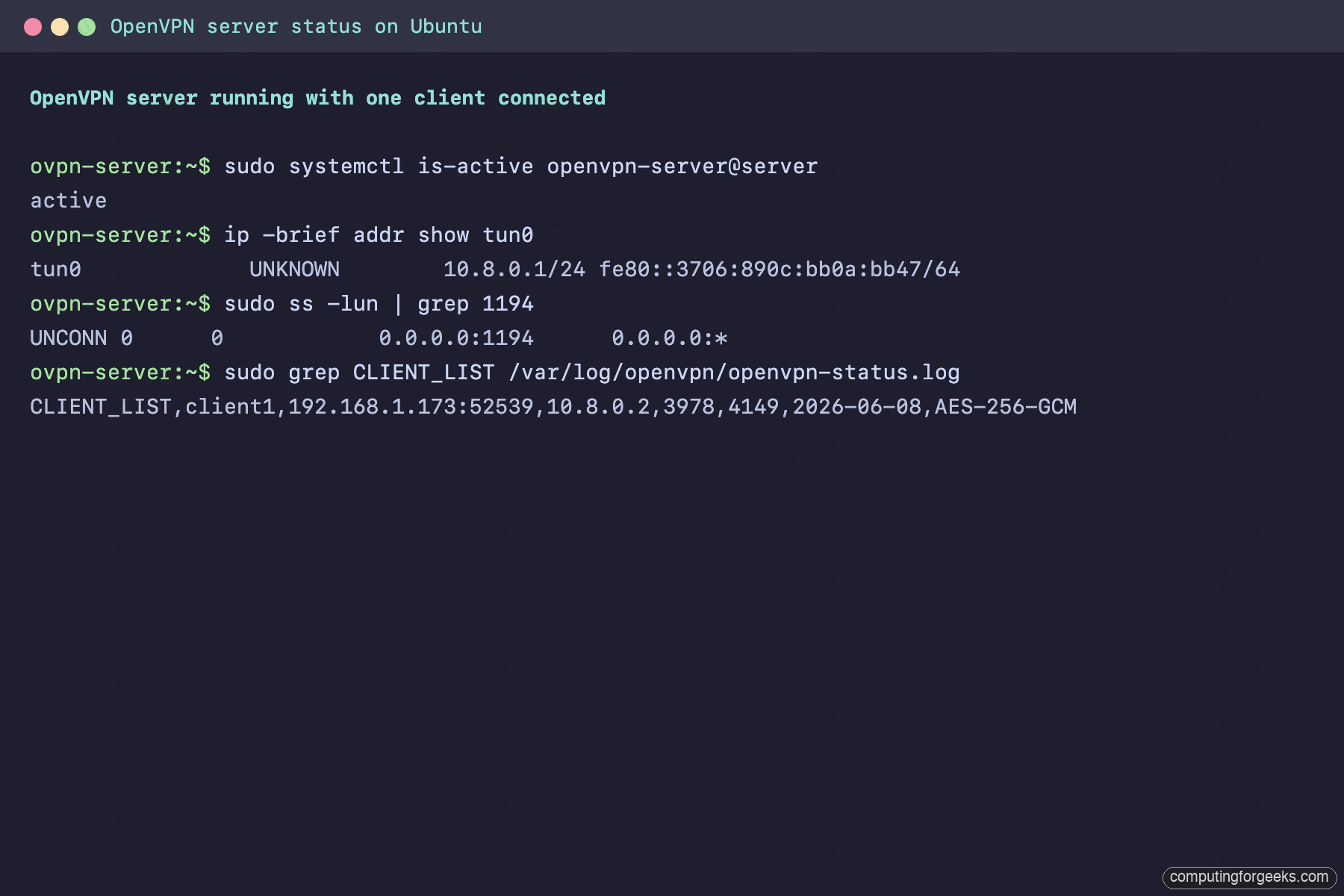
With the server listening, the last piece is a profile a client can import.
Step 6: Build the client profile
An inline .ovpn profile bundles the CA, the client certificate, the client key, and the TLS-crypt key into one text file. Clients import it without touching any other path. Build it on the server, where all the key material already lives.
First set a variable for the public endpoint your clients will dial. You use this value here and again when you copy the profile, so define it once:
VPN_ENDPOINT="203.0.113.20"Create a reusable header file that every client profile starts with. Open it:
sudo nano /etc/openvpn/client-common.txtPaste the client-side directives. The VPN_ENDPOINT token is a placeholder that the next command fills in:
client
dev tun
proto udp
remote VPN_ENDPOINT 1194
resolv-retry infinite
nobind
persist-key
persist-tun
remote-cert-tls server
cipher AES-256-GCM
auth SHA256
data-ciphers AES-256-GCM:AES-128-GCM
verb 3
Write your real endpoint into the header:
sudo sed -i "s/VPN_ENDPOINT/${VPN_ENDPOINT}/" /etc/openvpn/client-common.txtNow a small builder script that stitches the header together with one client’s certificate, key, and the TLS-crypt key. It takes the client name as an argument, so you reuse it for every future user. Open it:
sudo nano /etc/openvpn/make-client.shPaste the script. There are no here-documents here, just a brace group writing one file, which keeps it copy-paste safe:
#!/bin/bash
PKI=/etc/openvpn/easy-rsa/pki
OUT=/root
NAME="$1"

{
  cat /etc/openvpn/client-common.txt
  echo "<ca>";        cat "${PKI}/ca.crt";              echo "</ca>"
  echo "<cert>";      cat "${PKI}/issued/${NAME}.crt"; echo "</cert>"
  echo "<key>";       cat "${PKI}/private/${NAME}.key"; echo "</key>"
  echo "<tls-crypt>"; cat "${PKI}/tc.key";             echo "</tls-crypt>"
} > "${OUT}/${NAME}.ovpn"

echo "Wrote ${OUT}/${NAME}.ovpn"
Make it executable and run it for the first client:
sudo chmod +x /etc/openvpn/make-client.sh
sudo /etc/openvpn/make-client.sh client1
The finished profile lands at /root/client1.ovpn. That single file is the only thing you copy to a client device.
Step 7: Connect from an Ubuntu client
On a second Ubuntu machine, install the OpenVPN package:
sudo apt install -y openvpnCopy the profile from the server, rename it client.conf, and drop it under /etc/openvpn/client/ so the systemd template unit picks it up:
scp [email protected]:/root/client1.ovpn /tmp/client1.ovpn
sudo install -m 600 /tmp/client1.ovpn /etc/openvpn/client/client.conf
Start the matching unit:
sudo systemctl enable --now openvpn-client@client
sudo journalctl -u openvpn-client@client --no-pager | tail -6
On 24.04 and 26.04 you will see the ovpn-dco device open (the kernel offload from Step 1), followed by the line that confirms the handshake finished:
openvpn[2345]: ovpn-dco device [tun0] opened
openvpn[2345]: net_iface_up: set tun0 up
openvpn[2345]: net_addr_v4_add: 10.8.0.2/24 dev tun0
openvpn[2345]: Initialization Sequence Completed
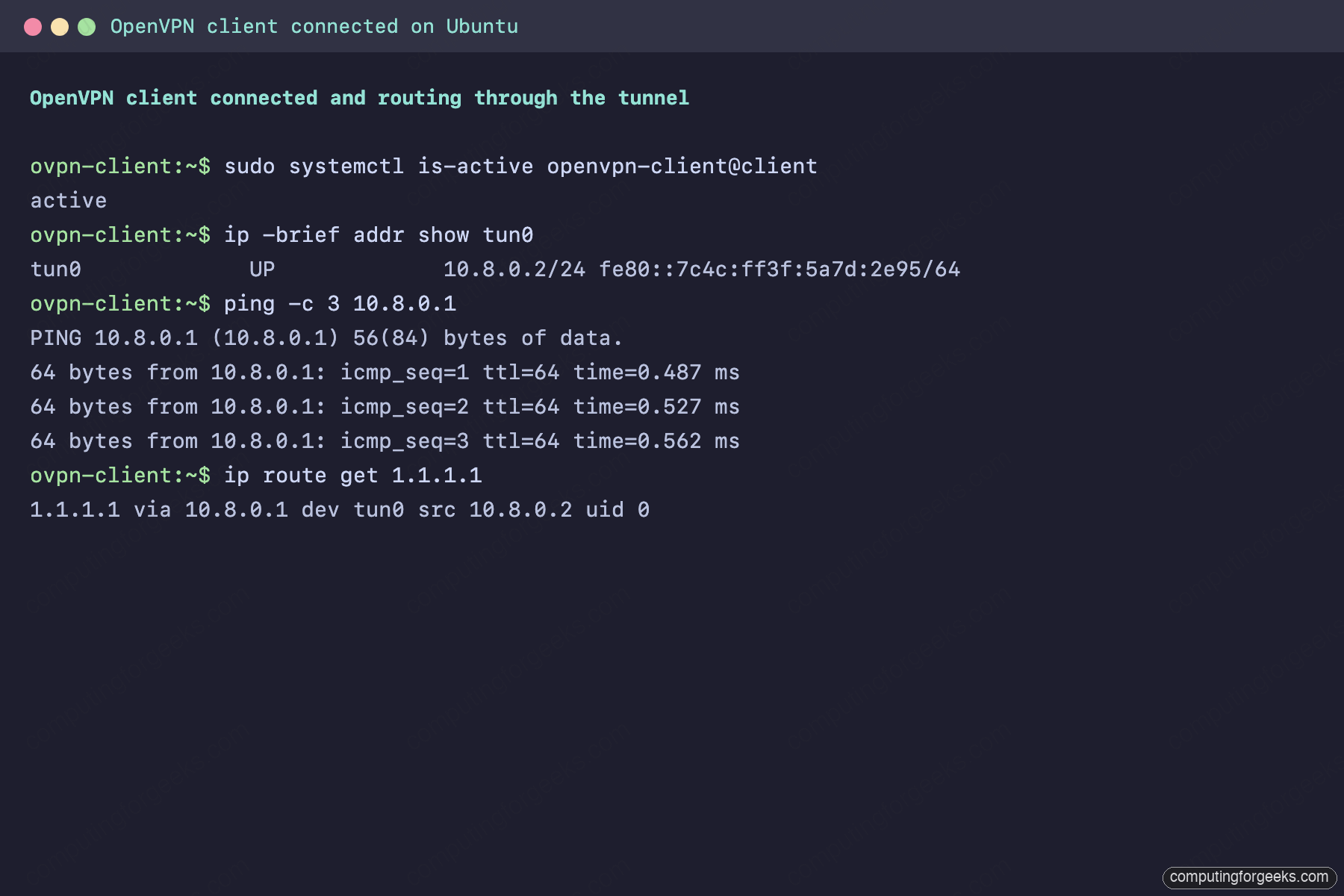
Now prove the tunnel actually carries traffic. The client takes the next free address from the pool, pings the server end, and points its default route at the tunnel:
ip -brief addr show tun0
ping -c 3 10.8.0.1
ip route get 1.1.1.1
The replies confirm encryption and routing end to end, and the route lookup shows internet-bound traffic leaving through 10.8.0.1 rather than the local gateway:
tun0             UP             10.8.0.2/24 fe80::7c4c:ff3f:5a7d:2e95/64
PING 10.8.0.1 (10.8.0.1) 56(84) bytes of data.
64 bytes from 10.8.0.1: icmp_seq=1 ttl=64 time=0.487 ms
64 bytes from 10.8.0.1: icmp_seq=2 ttl=64 time=0.527 ms
64 bytes from 10.8.0.1: icmp_seq=3 ttl=64 time=0.562 ms
1.1.1.1 via 10.8.0.1 dev tun0 src 10.8.0.2
The same client mid-session looks like this, with the tunnel address, the ping replies, and the default route all pointing through 10.8.0.1:
Back on the server, the live status log names every connected peer with its certificate common name, real address, virtual address, and the negotiated data cipher:
sudo grep CLIENT_LIST /var/log/openvpn/openvpn-status.logThe connected client shows up with its AES-256-GCM data channel:
CLIENT_LIST,client1,203.0.113.55:52539,10.8.0.2,3978,4149,2026-06-08 18:02:20,AES-256-GCMThat confirms the Linux side end to end. The same server accepts a Windows client with no changes at all.
Connect from Windows with the OpenVPN GUI
Windows has no built-in OpenVPN client, so install the official one. Download the community Windows installer from the OpenVPN downloads page and run it. The installer bundles the OpenVPN service and the OpenVPN GUI, a small tray application that imports .ovpn profiles and manages connections.
Copy client1.ovpn to the Windows machine (an SFTP client such as WinSCP, or a USB stick for an air-gapped box). Then right-click the OpenVPN GUI icon in the system tray and choose Import file, or drop the profile into C:\Users\YourName\OpenVPN\config\. Right-click the tray icon again and click Connect.
The GUI shows the handshake scrolling past, then the tray icon turns green and a balloon reports the assigned 10.8.0.x address. Confirm it from a Command Prompt:
ipconfig
ping 10.8.0.1
OpenVPN 2.7 on Windows installs the same kernel Data Channel Offload driver as Linux, so the tunnel shows up as the OpenVPN Data Channel Offload adapter holding 10.8.0.2, and the server answers on 10.8.0.1:
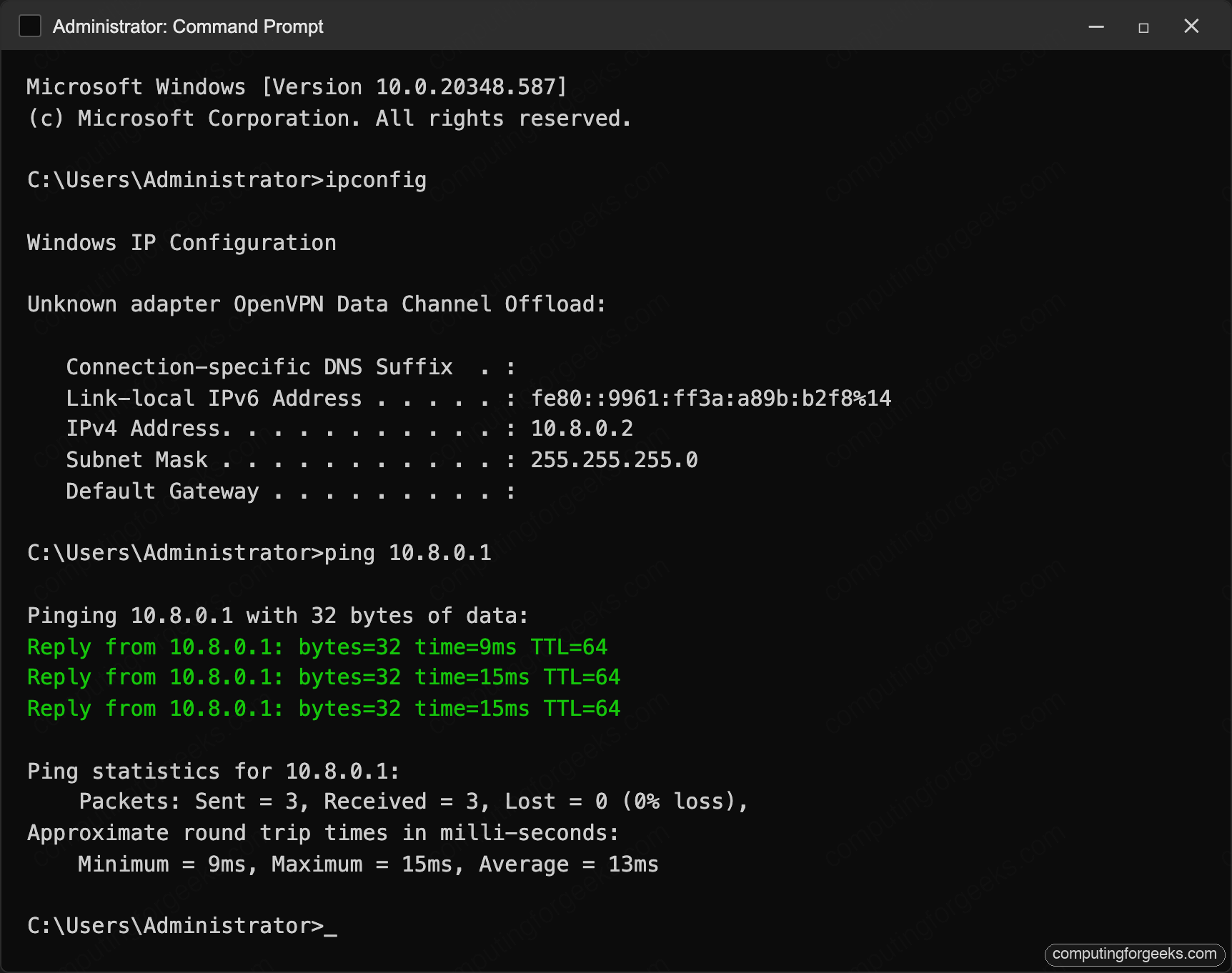
One Windows note worth knowing: the OpenVPN GUI needs the right to add routes, so if the tunnel connects but traffic does not flow, right-click the GUI shortcut and set it to Run as administrator, or let the bundled OpenVPN interactive service handle routing instead.
Connect from macOS, Android, and iOS
The same client1.ovpn profile works on every other platform. Generate a separate certificate per device in production (covered next), but for a quick test you can import the same file.
- macOS: Tunnelblick (free, open source) is the common choice. Install it, double-click
client1.ovpnto import, then connect from the menu-bar icon. The official OpenVPN Connect client works too. - Android: install OpenVPN Connect from the Play Store, tap Import Profile, point it at the
.ovpnfile, and toggle the connection on. Android shows a key icon in the status bar while the tunnel is up. - iOS and iPadOS: install OpenVPN Connect from the App Store, then share the
.ovpnfile to it (AirDrop, Files, or email) and tap Add. iOS prompts once to allow the VPN configuration.
On mobile, send the profile over a channel you trust. The file contains the client private key, so treat it like a password.
Adding more clients
You never rebuild the CA to onboard a user. Sign a new certificate against the existing PKI and render its profile with the same builder script from Step 6:
cd /etc/openvpn/easy-rsa
sudo ./easyrsa --batch build-client-full alice nopass
sudo /etc/openvpn/make-client.sh alice
Hand the resulting alice.ovpn to the user over a channel you trust, such as a password manager or a short-lived file share. The server needs no restart; it validates each client certificate against the CA and the current CRL at connect time.
Revoking a client
When a laptop is lost or a contract ends, revoke the certificate and refresh the CRL. The server reads the updated list on the next connection attempt:
cd /etc/openvpn/easy-rsa
sudo ./easyrsa --batch revoke alice
sudo ./easyrsa gen-crl
sudo cp pki/crl.pem /etc/openvpn/server/crl.pem
sudo chown nobody:nogroup /etc/openvpn/server/crl.pem
sudo systemctl restart openvpn-server@server
Easy-RSA confirms the revocation and reminds you to publish the refreshed CRL:
Revocation was successful. You must run 'gen-crl' and upload
a new CRL to your infrastructure in order to prevent the revoked
certificate from being accepted.
The CRL carries its own expiry (180 days by default on Easy-RSA 3.1 and 3.2). Set a reminder to regenerate it before that window closes, or the server starts rejecting every new connection.
One-command alternative: the openvpn-install script
If you want a working tunnel in two minutes and do not need to understand every directive, the community openvpn-install script automates the whole PKI-and-config flow this guide does by hand. It is well-maintained and uses the same Easy-RSA underneath.
wget https://raw.githubusercontent.com/angristan/openvpn-install/master/openvpn-install.sh -O openvpn-install.sh
sudo bash openvpn-install.sh
The script asks for the port, protocol, DNS resolver, and first client name, then drops a ready .ovpn in your home directory. Run it again later to add or revoke clients. The manual build above is still worth doing once, because when something breaks at 2 a.m. you want to know which file holds which key.
Logs and troubleshooting
OpenVPN writes to /var/log/openvpn/openvpn.log (from the log-append directive) and also to the systemd journal through the unit. When something breaks, check both.
The client hangs on “TLS handshake failed”
This almost always means UDP 1194 is not reaching the server. Watch the public interface with tcpdump while the client tries to connect:
sudo tcpdump -ni "${PUBLIC_NIC}" udp port 1194No packets at all means a cloud security group or an upstream firewall is dropping them before they arrive. Packets arriving but the client still timing out means UFW is blocking them (recheck Step 4) or the process is not bound (recheck sudo ss -lun | grep 1194).
Error: “VERIFY ERROR: depth=0, error=CRL has expired”
The CRL aged past its validity window. Regenerate it and copy it back into place:
cd /etc/openvpn/easy-rsa
sudo ./easyrsa gen-crl
sudo cp pki/crl.pem /etc/openvpn/server/crl.pem
sudo chown nobody:nogroup /etc/openvpn/server/crl.pem
sudo systemctl restart openvpn-server@server
The server accepts new connections again as soon as the refreshed CRL is in place.
Clients connect but cannot reach the internet
The tunnel is up but NAT is not. Confirm forwarding is on and the masquerade rule loaded:
sysctl net.ipv4.ip_forward
sudo iptables -t nat -L POSTROUTING -n -v
You want net.ipv4.ip_forward = 1 and a MASQUERADE line with source 10.8.0.0/24 leaving your public interface. If the rule is missing, UFW never loaded the before.rules stanza; run sudo ufw disable then sudo ufw enable to reload it.
Throughput is lower on Ubuntu 22.04
This is expected, not a misconfiguration. OpenVPN 2.5 on 22.04 has no kernel data channel offload, so encryption runs in userspace. If a single client needs maximum throughput, run the server on 24.04 or 26.04 where DCO is active, or move to WireGuard for that workload.
How OpenVPN compares to WireGuard on Ubuntu
OpenVPN is not the only option on modern Ubuntu. If you have not already, read the WireGuard guide. The short version, from running both in production:
| Concern | OpenVPN | WireGuard |
|---|---|---|
| Config model | Certificates, CA, and CRL | Static public/private keys per peer |
| Default port | UDP 1194 (configurable) | UDP 51820 (configurable) |
| Handshake visibility on the wire | Hidden behind tls-crypt | Silent, no reply to unsolicited packets |
| Throughput on a small VM | Good; DCO on 24.04/26.04 closes the gap | Excellent, kernel-level |
| Client availability | Desktop, mobile, routers, everywhere | Native on recent kernels, apps on all platforms |
| Per-user push (DNS, routes) | Rich, via server directives | Minimal, handled in PostUp scripts |
| Revocation | CRL-based, reversible through the PKI | Delete the peer and reload |
For a small personal tunnel between machines you control, WireGuard is faster to stand up and faster on the wire; the Tailscale mesh is easier still. When you need per-user authentication, centrally managed certificates, granular pushes, or a legacy client, OpenVPN is the one that does the job. A web-managed middle ground like Pritunl sits on top of OpenVPN if you want a dashboard instead of a CLI.
Which client app to use on each platform
The server you just built speaks standard OpenVPN, so any of these clients connect to it with the same .ovpn profile. Pick the one that matches each device and you are done:
| Platform | Recommended client | How it imports the profile |
|---|---|---|
| Ubuntu / Linux | openvpn package + systemd unit | Drop the profile in /etc/openvpn/client/ |
| Windows | OpenVPN GUI (community installer) | Tray icon, Import file |
| macOS | Tunnelblick or OpenVPN Connect | Double-click the .ovpn |
| Android | OpenVPN Connect | Import Profile, pick the file |
| iOS / iPadOS | OpenVPN Connect | Share the file to the app, Add |
Keep the CA offline once it is built, generate one certificate per device rather than sharing a single profile, and rotate the TLS-crypt key every year or two. That gives you a self-hosted VPN you can actually trust, on whichever Ubuntu LTS your server happens to run.




Hi, I’m following your tutorial to configure the VPN on my server. I don’t want to forward all my network traffic through the VPN because I’m using it to make the server accessible only through the VPN. For this reason, I skipped step 4 (Enable IP forwarding and UFW NAT). After completing all steps (except step 4), I couldn’t connect to the VPN, and the commands specified in step 5 to verify “tun0” didn’t show anything. What should I do differently to make it work?
I’m using OpenVPN Connect to connect to the VPN.
Two separate problems are tangled together here. tun0 missing on the server means the openvpn-server@server service never started, which is unrelated to step 4: IP forwarding and NAT only route client traffic out to the internet, they do not create tun0. Run sudo systemctl status openvpn-server@server and sudo journalctl -u openvpn-server@server -n 40 to see the real failure, usually a wrong cert path or a typo in the server config. Once tun0 shows 10.8.0.1 on the server, the client also needs UDP 1194 reachable, and step 4 is where the guide opens it with sudo ufw allow 1194/udp, so if UFW is on but you skipped that line the handshake gets dropped. For your goal of reaching only the server over the VPN rather than routing all traffic, drop the MASQUERADE rule and remove the push “redirect-gateway def1 bypass-dhcp” line from the server config, then restart the service; you can leave ip_forward as is.