

Python 3.14 ships as the default interpreter on Ubuntu 26.04 LTS. No PPAs, no deadsnakes repository, no compiling from source. A fresh install gives you Python 3.14.4 out of the box, complete with template strings (PEP 750), deferred annotation evaluation (PEP 649), and improved error messages.
This guide walks through the full Python development setup: pip and venv for package management, pyenv for running multiple Python versions side by side, pipx for CLI tools, and uv as the modern fast package manager. By the end you will have a clean, production-ready Python environment on Ubuntu 26.04.
Tested April 2026 | Ubuntu 26.04 LTS (Resolute Raccoon), Python 3.14.4, pip 25.1.1, uv 0.11.6
Prerequisites
Before getting started, make sure your Ubuntu 26.04 system is up to date. If you are working with a fresh server, the initial server setup guide for Ubuntu 26.04 covers the basics.
- Ubuntu 26.04 LTS server or desktop (tested on 26.04, codename Resolute Raccoon)
- Root or sudo access
- Internet connectivity for package downloads
Update the package index first:
sudo apt update && sudo apt upgrade -yVerify the Default Python Version
Ubuntu 26.04 includes Python 3.14 as the system interpreter. Confirm it is available:
python3 --versionThe output confirms Python 3.14.4:
Python 3.14.4For the full version string with build details:
python3 -c "import sys; print(sys.version)"You should see something like this:
3.14.4 (main, Apr 8 2026, 04:02:31) [GCC 15.2.0]Install pip, venv, and Development Headers
The base Python package does not include pip or venv. Install them along with the development headers (needed for compiling C extensions):
sudo apt install -y python3-pip python3-venv python3-devVerify pip is working:
pip3 --versionExpected output:
pip 25.1.1 from /usr/lib/python3/dist-packages/pip (python 3.14)Create a Virtual Environment
Virtual environments isolate project dependencies from the system Python packages. This prevents version conflicts between projects and keeps the system Python clean.
Create a new virtual environment for your project:
python3 -m venv /opt/myprojectActivate it:
source /opt/myproject/bin/activateYour shell prompt changes to show the active environment name. Now install packages inside the venv:
pip install flask requests numpyThe packages install into the virtual environment only, leaving the system Python untouched:
Successfully installed blinker-1.9.0 certifi-2026.2.25 charset_normalizer-3.4.7 click-8.3.2 flask-3.1.3 idna-3.11 itsdangerous-2.2.0 jinja2-3.1.6 markupsafe-3.0.3 numpy-2.4.4 requests-2.33.1 urllib3-2.6.3 werkzeug-3.1.8Check what is installed:
pip listYou will see the full list of packages in the environment:
Package            Version
------------------ ---------
blinker            1.9.0
certifi            2026.2.25
charset-normalizer 3.4.7
click              8.3.2
Flask              3.1.3
idna               3.11
itsdangerous       2.2.0
Jinja2             3.1.6
MarkupSafe         3.0.3
numpy              2.4.4
pip                25.1.1
requests           2.33.1
urllib3            2.6.3
Werkzeug           3.1.8
To leave the virtual environment:
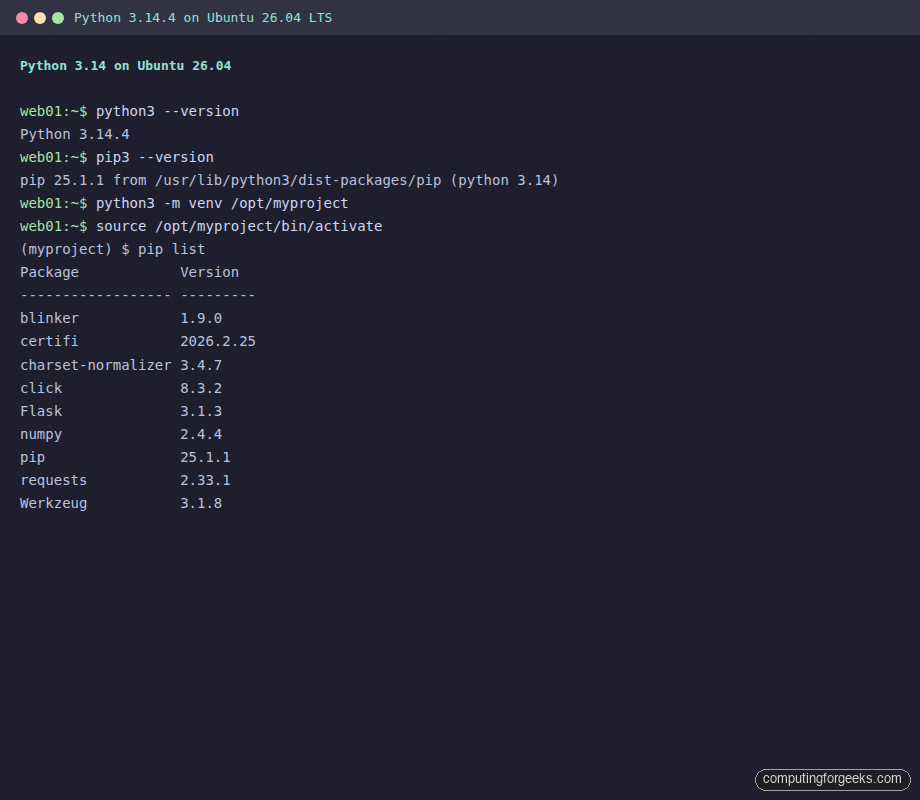
deactivateHere is the full setup confirmed on a fresh Ubuntu 26.04 server:
Run a Quick Flask Application
A fast way to verify everything works is to spin up a minimal Flask app. Create the file:
sudo vi /opt/app.pyAdd the following content:
from flask import Flask

app = Flask(__name__)

@app.route("/")
def hello():
    return "<h1>Hello from Python 3.14 on Ubuntu 26.04!</h1>"

if __name__ == "__main__":
    app.run(host="0.0.0.0", port=5000)
Run it inside the virtual environment:
source /opt/myproject/bin/activate
python3 /opt/app.py
Open a second terminal and test with curl:
curl http://localhost:5000/The response confirms Flask is running on Python 3.14:
<h1>Hello from Python 3.14 on Ubuntu 26.04!</h1>Press Ctrl+C in the first terminal to stop the server.
Install pyenv for Multiple Python Versions
Sometimes you need an older Python version for a specific project, or you want to test against multiple interpreters. pyenv handles this without touching the system Python.
Install Build Dependencies
pyenv compiles Python from source, so you need the build toolchain:
sudo apt install -y build-essential libssl-dev zlib1g-dev libbz2-dev \
  libreadline-dev libsqlite3-dev curl libncursesw5-dev xz-utils \
  tk-dev libxml2-dev libxmlsec1-dev libffi-dev liblzma-dev git
Install pyenv
The official installer pulls pyenv and its plugins in one step:
curl -fsSL https://pyenv.run | bashAdd pyenv to your shell. Append these lines to ~/.bashrc:
echo 'export PYENV_ROOT="$HOME/.pyenv"' >> ~/.bashrc
echo '[[ -d $PYENV_ROOT/bin ]] && export PATH="$PYENV_ROOT/bin:$PATH"' >> ~/.bashrc
echo 'eval "$(pyenv init - bash)"' >> ~/.bashrc
source ~/.bashrc
Confirm pyenv is installed:
pyenv --versionOutput:
pyenv 2.6.27Install Python 3.13 Alongside 3.14
Install Python 3.13 (this takes a few minutes as it compiles from source):
pyenv install 3.13.13Once compiled, list the available versions:
pyenv versionsBoth the system Python and the pyenv-managed 3.13 appear:
* system (set by /root/.pyenv/version)
  3.13.13
Switch to Python 3.13 for the current shell session:
pyenv shell 3.13.13
python3 --version
The version changes immediately:
Python 3.13.13Switch back to the system Python 3.14:
pyenv shell system
python3 --version
Output:
Python 3.14.4To set a default version for a specific project directory, use pyenv local 3.13.13 inside that directory. pyenv writes a .python-version file that automatically activates the correct interpreter whenever you cd into the project.
Install pipx for CLI Tools
pipx installs Python command-line applications in isolated environments so they do not interfere with your project dependencies. Think of it as apt for Python CLI tools.
sudo apt install -y pipxInstall a tool (using black as an example):
pipx install blackpipx creates an isolated venv for black and exposes the binary on your PATH:
  These apps are now globally available
    - black
    - blackd
List installed tools:
pipx listOutput:
venvs are in /root/.local/share/pipx/venvs
apps are exposed on your $PATH at /root/.local/bin
manual pages are exposed at /root/.local/share/man
   package black 26.3.1, installed using Python 3.14.4
    - black
    - blackd
Install uv (Fast Python Package Manager)
uv is a drop-in replacement for pip and venv, written in Rust. It resolves and installs packages 10 to 100 times faster than pip. If you are building containers or running CI pipelines, the speed difference is significant. It also handles project initialization and dependency locking, similar to what you would find in Node.js with npm.
Install uv with the official installer:
curl -LsSf https://astral.sh/uv/install.sh | shLoad the new PATH:
source $HOME/.local/bin/envVerify the installation:
uv --versionOutput:
uv 0.11.6 (x86_64-unknown-linux-gnu)Create a Project with uv
uv can scaffold a new Python project with a virtual environment and dependency tracking in one command:
mkdir -p /opt/uv-demo && cd /opt/uv-demo
uv init
This creates a pyproject.toml, a .python-version file, and a managed virtual environment. Add dependencies:
uv add flask requestsuv resolves and installs everything in under a second:
 + charset-normalizer==3.4.7
 + click==8.3.2
 + flask==3.1.3
 + idna==3.11
 + itsdangerous==2.2.0
 + jinja2==3.1.6
 + markupsafe==3.0.3
 + requests==2.33.1
 + urllib3==2.6.3
 + werkzeug==3.1.8
List installed packages:
uv pip listOutput:
Package            Version
------------------ ---------
blinker            1.9.0
certifi            2026.2.25
charset-normalizer 3.4.7
click              8.3.2
flask              3.1.3
idna               3.11
itsdangerous       2.2.0
jinja2             3.1.6
markupsafe         3.0.3
requests           2.33.1
urllib3            2.6.3
werkzeug           3.1.8
uv also generates a uv.lock file that pins exact versions for reproducible builds. When deploying to production or building Docker containers, this lockfile ensures identical environments everywhere.
Python 3.14 New Features Worth Knowing
Python 3.14 introduces several features that change how you write code. Here are the ones with the most practical impact.
Template Strings (PEP 750)
Template strings (t-strings) are the biggest language addition. They look like f-strings but use a t prefix and return a Template object instead of a string. This gives you access to the raw interpolation values before they become text, which is useful for building SQL queries, HTML, or any output where you need to sanitize user input.
python3 -c "
name = 'Ubuntu 26.04'
version = '3.14'
greeting = t'Python {version} on {name}'
print(type(greeting))
print(greeting.interpolations)
"
Output:
<class 'string.templatelib.Template'>
(Interpolation('3.14', 'version', None, ''), Interpolation('Ubuntu 26.04', 'name', None, ''))
Each interpolation is a structured object with the value, the expression text, and formatting info. Libraries can process these safely instead of working with already-rendered strings.
Deferred Evaluation of Annotations (PEP 649)
In previous Python versions, using a class name in its own type annotations caused a NameError because the class was not fully defined yet. Python 3.14 defers annotation evaluation, so forward references work without quotes or from __future__ import annotations.
python3 -c "
import annotationlib

class Tree:
    def __init__(self, left: 'Tree | None' = None, right: 'Tree | None' = None):
        self.left = left
        self.right = right

ann = annotationlib.get_annotations(Tree.__init__, format=annotationlib.Format.FORWARDREF)
print(ann)
"
Output:
{'left': 'Tree | None', 'right': 'Tree | None'}The new annotationlib module gives you fine-grained control over how annotations are resolved. This matters most for library authors building ORMs, serialization frameworks, or dependency injection systems.
Improved Error Messages and Colored Tracebacks
Python 3.14 continues the trend of better error messages. Tracebacks now include color output by default when running in a terminal, making it easier to spot the relevant line in a stack trace. Misspelled variable names get better “did you mean?” suggestions, and type errors include more context about what went wrong.
Python 3.14 vs 3.12: Key Differences
If you are upgrading from Ubuntu 24.04 (which ships Python 3.12), here is what changed. This comparison covers the features that affect day-to-day development and web application deployment.
| Feature | Python 3.12 (Ubuntu 24.04) | Python 3.14 (Ubuntu 26.04) |
|---|---|---|
| Version | 3.12.3 | 3.14.4 |
| GCC version | 13.2.0 | 15.2.0 |
| Template strings (t-strings) | Not available | PEP 750, native support |
| Deferred annotations | Requires from __future__ import annotations | Built-in via PEP 649 |
| Colored tracebacks | Not available | Enabled by default in terminals |
| Error message quality | Good | Better “did you mean?” suggestions |
| TypeVar syntax | PEP 695 type parameter syntax (new in 3.12) | Inherited, plus PEP 649 improvements |
| GIL | Standard GIL | Experimental free-threaded mode (PEP 703) |
| pip default | 24.x | 25.1.1 |
| Performance | Baseline | ~5-10% faster in benchmarks (JIT compiler improvements) |
The free-threaded build (no GIL) is available as an experimental option in 3.14 via the python3.14t binary if installed separately. It is not the default on Ubuntu 26.04 because many C extensions are not yet compatible.
What Should You Use: pip, uv, or pipx?
Each tool solves a different problem.
- pip + venv: The standard choice. Works everywhere, every tutorial assumes it, every CI system supports it. Use this when simplicity and compatibility matter most
- uv: Use this when speed matters. Container builds, CI pipelines, large dependency trees. It is a drop-in replacement for pip with identical commands but 10x to 100x faster resolution and installation
- pipx: Exclusively for standalone CLI tools (black, ruff, httpie, ansible). Keeps each tool in its own isolated environment so they never conflict with project dependencies
- pyenv: Use when you need multiple Python versions on the same machine. Testing against 3.13 and 3.14, or maintaining a legacy project that requires an older interpreter
For most projects in 2026, uv with venv is the recommended stack. It handles project initialization, dependency locking, and virtual environment management in a single tool while staying fully compatible with the pip ecosystem. For performance-critical services or CLI tools where a compiled binary is preferred, Go on Ubuntu 26.04 is a solid alternative.