

Apache is still the workhorse behind most of the internet. Despite Nginx gaining ground over the past decade, Apache HTTP Server powers roughly a third of all websites and remains the default in most Linux distributions, LAMP stacks, and hosting control panels. It’s battle-tested, flexible with .htaccess, and well-documented.
This guide walks through a clean Apache 2.4.66 install on Ubuntu 26.04 LTS, covering virtual hosts, essential modules, security hardening, and log management. If you need Nginx instead, see the Nginx on Ubuntu 26.04 guide.
Current as of April 2026. Tested on Ubuntu 26.04 LTS with Apache 2.4.66
Prerequisites
Before starting, make sure you have:
- Ubuntu 26.04 LTS server with root or sudo access (initial server setup guide)
- Tested on: Ubuntu 26.04 LTS (kernel 7.0.0-10-generic), Apache 2.4.66
- A registered domain name (for virtual host configuration)
- Port 80 and 443 open in your firewall
Install Apache on Ubuntu 26.04
Apache is available in Ubuntu’s default repositories as the apache2 package. Update the package index and install it:
sudo apt update
sudo apt install -y apache2
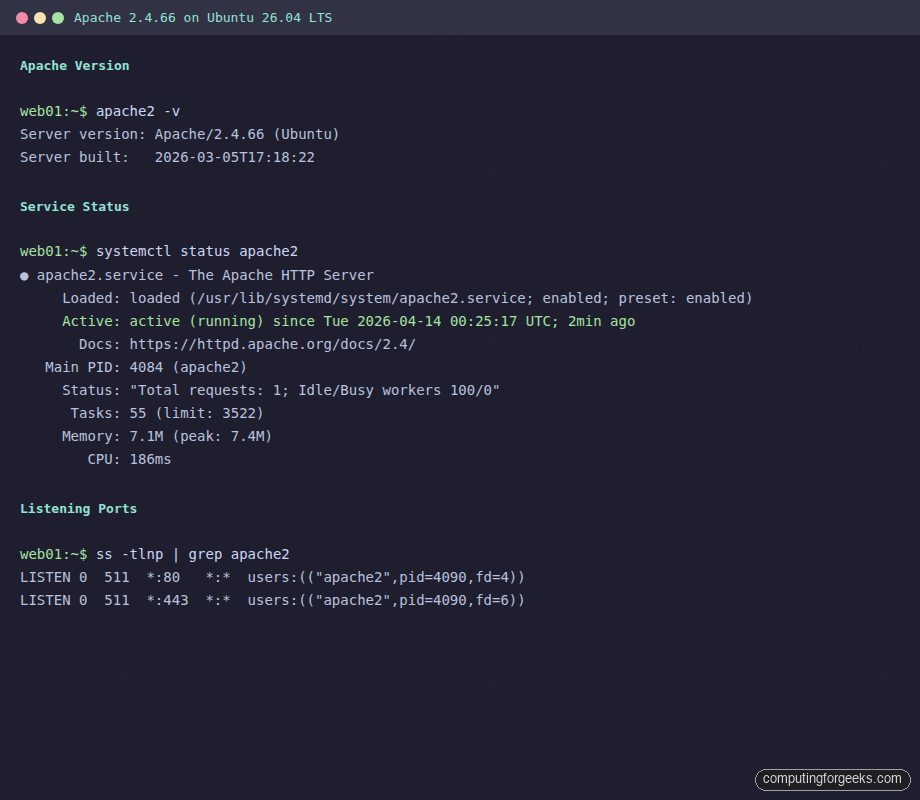
After installation completes, Apache starts automatically and is enabled to start on boot. Verify the installed version:
apache2 -vThe output confirms Apache 2.4.66 built for Ubuntu:
Server version: Apache/2.4.66 (Ubuntu)
Server built:   2026-03-05T17:18:22
Check the service status:
systemctl status apache2You should see active (running):
● apache2.service - The Apache HTTP Server
     Loaded: loaded (/usr/lib/systemd/system/apache2.service; enabled; preset: enabled)
     Active: active (running) since Tue 2026-04-14 00:25:17 UTC; 10s ago
       Docs: https://httpd.apache.org/docs/2.4/
   Main PID: 2755 (apache2)
     Status: "Total requests: 0; Idle/Busy workers 100/0;Requests/sec: 0; Bytes served/sec:   0 B/sec"
      Tasks: 55 (limit: 3522)
     Memory: 5.7M (peak: 5.9M)
        CPU: 98ms
Configure the Firewall
Ubuntu 26.04 ships with UFW (Uncomplicated Firewall). Apache registers three UFW application profiles during installation. List them:
sudo ufw app listThe available Apache profiles are:
Available applications:
  Apache
  Apache Full
  Apache Secure
  OpenSSH
Apache opens port 80 only, Apache Secure opens port 443 only, and Apache Full opens both. Allow Apache Full since you’ll want HTTPS later:
sudo ufw allow OpenSSH
sudo ufw allow 'Apache Full'
sudo ufw enable
Confirm the rules are active:
sudo ufw statusBoth OpenSSH and Apache Full should show ALLOW:
Status: active

To                         Action      From
--                         ------      ----
OpenSSH                    ALLOW       Anywhere
Apache Full                ALLOW       Anywhere
OpenSSH (v6)               ALLOW       Anywhere (v6)
Apache Full (v6)           ALLOW       Anywhere (v6)
Apache Directory Structure on Ubuntu
Ubuntu organizes Apache’s configuration differently from upstream. Understanding the layout saves time when troubleshooting:
/etc/apache2/
├── apache2.conf          # Main config (includes everything below)
├── ports.conf            # Listen directives (80, 443)
├── mods-available/       # All available module configs
├── mods-enabled/         # Symlinks to active modules
├── conf-available/       # Extra config snippets
├── conf-enabled/         # Symlinks to active configs
├── sites-available/      # All virtual host configs
└── sites-enabled/        # Symlinks to active virtual hosts
The a2ensite / a2dissite commands manage symlinks in sites-enabled/, and a2enmod / a2dismod do the same for modules. This is Debian/Ubuntu-specific. RHEL-based distros use a flat config layout instead.
Enable Essential Modules
A fresh Apache install on Ubuntu 26.04 comes with 30+ modules loaded. Three common ones that aren’t enabled by default are mod_rewrite (URL rewriting), mod_ssl (HTTPS), and mod_headers (custom response headers). Enable all three:
sudo a2enmod rewrite
sudo a2enmod ssl
sudo a2enmod headers
sudo systemctl restart apache2
Verify they’re loaded:
apache2ctl -M | grep -E 'rewrite|ssl|headers'All three should appear in the output:
 headers_module (shared)
 rewrite_module (shared)
 ssl_module (shared)
To see every loaded module, run apache2ctl -M without the grep filter.
Set Up Virtual Hosts
Virtual hosts let you run multiple websites on a single server. Each site gets its own configuration file. Here’s how to set one up from scratch.
Create the document root for your site:
sudo mkdir -p /var/www/example.com/html
sudo chown -R www-data:www-data /var/www/example.com
sudo chmod -R 755 /var/www/example.com
Drop a test page in the document root:
echo '<html><head><title>Example Site</title></head><body><h1>Welcome to example.com</h1></body></html>' | sudo tee /var/www/example.com/html/index.htmlNow create the virtual host configuration file:
sudo vi /etc/apache2/sites-available/example.com.confAdd the following configuration:
<VirtualHost *:80>
    ServerName example.com
    ServerAlias www.example.com
    ServerAdmin [email protected]
    DocumentRoot /var/www/example.com/html

    <Directory /var/www/example.com/html>
        Options -Indexes +FollowSymLinks
        AllowOverride All
        Require all granted
    </Directory>

    ErrorLog ${APACHE_LOG_DIR}/example.com-error.log
    CustomLog ${APACHE_LOG_DIR}/example.com-access.log combined
</VirtualHost>
Key directives in this config:
- ServerName and ServerAlias match incoming requests by hostname
- Options -Indexes disables directory listing (security measure)
- AllowOverride All enables
.htaccessfiles for per-directory config - Separate log files per virtual host make troubleshooting easier
Enable the new site and test the configuration syntax:
sudo a2ensite example.com.conf
sudo apache2ctl configtest
You should see “Syntax OK”:
Enabling site example.com.
To activate the new configuration, you need to run:
  systemctl reload apache2
AH00558: apache2: Could not reliably determine the server's fully qualified domain name, using 127.0.1.1. Set the 'ServerName' directive globally to suppress this message
Syntax OK
The AH00558 warning is harmless. To suppress it, add ServerName localhost to /etc/apache2/apache2.conf. Reload Apache to activate the virtual host:
sudo systemctl reload apache2Verify the virtual host is registered:
sudo apache2ctl -SThe output lists all configured virtual hosts and their source files:
VirtualHost configuration:
*:80                   is a NameVirtualHost
         default server 127.0.1.1 (/etc/apache2/sites-enabled/000-default.conf:1)
         port 80 namevhost 127.0.1.1 (/etc/apache2/sites-enabled/000-default.conf:1)
         port 80 namevhost example.com (/etc/apache2/sites-enabled/example.com.conf:1)
                 alias www.example.com
ServerRoot: "/etc/apache2"
Main DocumentRoot: "/var/www/html"
Main ErrorLog: "/var/log/apache2/error.log"
Check Apache Configuration Syntax
Always validate your config before restarting Apache. A syntax error in any config file will prevent Apache from starting, taking all your sites offline. Two commands do the same thing:
sudo apache2ctl configtestOr equivalently:
sudo apache2ctl -tA clean config returns Syntax OK. Make this a habit before every systemctl restart apache2.
Manage Apache: Start, Stop, Restart, Reload
Apache on Ubuntu 26.04 uses systemd. Here are the essential management commands:
sudo systemctl start apache2      # Start the service
sudo systemctl stop apache2       # Stop the service
sudo systemctl restart apache2    # Full restart (drops active connections)
sudo systemctl reload apache2     # Graceful reload (no downtime)
sudo systemctl enable apache2     # Start on boot
sudo systemctl disable apache2    # Don't start on boot
Use reload instead of restart whenever possible. A reload applies configuration changes without dropping active connections. The only time you need a full restart is when loading or unloading modules, since module changes require the main process to be replaced.
For a graceful stop that waits for active requests to finish:
sudo apachectl graceful-stopSecurity Hardening
Apache’s defaults are designed for convenience, not security. A few quick changes reduce your attack surface significantly.
Hide Server Version Information
By default, Apache broadcasts its version number and OS in HTTP response headers and error pages. This gives attackers free reconnaissance. Lock it down in the security config:
sudo vi /etc/apache2/conf-available/security.confChange these two directives:
ServerTokens Prod
ServerSignature Off
ServerTokens Prod reduces the Server header from Apache/2.4.66 (Ubuntu) to just Apache. ServerSignature Off removes version info from error pages. The existing TraceEnable Off line is already set correctly (prevents TRACE request abuse). Apply the changes:
sudo systemctl restart apache2Verify the header now shows only “Apache” with no version:
curl -sI http://localhost | grep ServerThe response should show a clean header:
Server: ApacheDisable Directory Listing
If a directory has no index.html, Apache will show a listing of all files by default. This is a security risk. Disable it globally in /etc/apache2/apache2.conf by changing:
# Change this:
Options Indexes FollowSymLinks

# To this:
Options -Indexes +FollowSymLinks
The virtual host config we created earlier already has -Indexes set, but doing it globally catches any site that forgets to set it.
Add Security Headers
With mod_headers enabled, add basic security headers. Create a new config snippet:
sudo vi /etc/apache2/conf-available/security-headers.confAdd the following lines:
Header always set X-Content-Type-Options "nosniff"
Header always set X-Frame-Options "SAMEORIGIN"
Header always set Referrer-Policy "strict-origin-when-cross-origin"
Enable the config and reload:
sudo a2enconf security-headers
sudo systemctl reload apache2
For a detailed look at Apache security best practices, see the official Apache security tips.
Logging: Access Logs, Error Logs, and Rotation
Apache stores its logs under /var/log/apache2/. The two main log files are:
access.logrecords every request (client IP, URL, status code, user agent)error.logcaptures errors, warnings, and startup messages
When you configure per-virtual-host logging (as we did earlier), each site gets its own pair of log files. Check what’s in the log directory:
ls -la /var/log/apache2/You should see separate logs for each virtual host:
-rw-r-----  1 root adm      81 Apr 14 00:26 access.log
-rw-r-----  1 root adm    2182 Apr 14 00:26 error.log
-rw-r--r--  1 root root      0 Apr 14 00:26 example.com-access.log
-rw-r--r--  1 root root      0 Apr 14 00:26 example.com-error.log
-rw-r-----  1 root adm       0 Apr 14 00:25 other_vhosts_access.log
Log Rotation
Ubuntu configures log rotation for Apache automatically via /etc/logrotate.d/apache2. The default rotates daily, keeps 14 days of history, and compresses old logs:
cat /etc/logrotate.d/apache2The default configuration:
/var/log/apache2/*.log {
	daily
	missingok
	rotate 14
	compress
	delaycompress
	notifempty
	create 640 root adm
	sharedscripts
	postrotate
		if pgrep -f ^/usr/sbin/apache2 > /dev/null; then
			invoke-rc.d apache2 reload 2>&1 | logger -t apache2.logrotate
		fi
	endscript
}
The wildcard *.log automatically picks up per-virtual-host log files, so no extra rotation config is needed when you add new sites. For high-traffic servers, consider adjusting rotate to keep more history or adding maxsize 100M to rotate large files mid-day.
Verify Apache Ports
With mod_ssl enabled, Apache listens on both port 80 and 443. Confirm with:
ss -tlnp | grep apache2Both ports should appear:
LISTEN 0  511  *:80   *:*  users:(("apache2",pid=4090,fd=4),("apache2",pid=4087,fd=4),("apache2",pid=4084,fd=4))
LISTEN 0  511  *:443  *:*  users:(("apache2",pid=4090,fd=6),("apache2",pid=4087,fd=6),("apache2",pid=4084,fd=6))
The port configuration lives in /etc/apache2/ports.conf. By default, port 443 only activates when mod_ssl is loaded.
Ubuntu 26.04 vs 24.04: Apache Comparison
If you’re upgrading from Ubuntu 24.04 or running both in your environment, here are the key differences:
| Item | Ubuntu 26.04 LTS | Ubuntu 24.04 LTS |
|---|---|---|
| Apache version | 2.4.66 | 2.4.58 |
| Kernel | 7.0 | 6.8 |
| OpenSSL | 3.4.x | 3.0.x |
| MPM default | event | event |
| Config path | /etc/apache2/ | /etc/apache2/ |
| Log path | /var/log/apache2/ | /var/log/apache2/ |
| PHP default | PHP 8.4 | PHP 8.3 |
| Systemd preset | enabled | enabled |
| TLS 1.3 support | Yes (default) | Yes |
| HTTP/2 support | mod_http2 available | mod_http2 available |
The config paths and management commands are identical between releases. The main benefits of 26.04 are a newer Apache with security patches, OpenSSL 3.4 with stronger defaults, and kernel 7.0. If you’re building a LAMP stack, check out the Apache, PHP, and MariaDB on Ubuntu guide for the full stack setup. For container-based deployments, see Docker CE on Ubuntu 26.04. The full Apache 2.4 documentation is available at httpd.apache.org.
