Debian 13 (Trixie) landed on August 9, 2025 and it is the release every Debian 12 admin should move to. Bookworm drops out of full security support in mid-2026 and moves to LTS community support after that, which is fine for non-critical machines but not where you want a production fleet sitting. The upgrade path itself is simple, the trap is in the details: the cloud images now use the deb822 sources format, /etc/apt/sources.list may not even exist, and skipping the minimal upgrade step is the fastest way to brick a running server.
This guide walks through a full Debian 12 Bookworm to Debian 13 Trixie upgrade on a live VM, with the exact commands run during testing, real command output, and the gotchas that hit on a fresh cloud image (deb822 sources, kept sources.list, services that need a restart mid-upgrade, old kernels you should clean up). The same flow applies to bare metal and physical desktops because apt does the work.
Tested April 2026 on a Debian 12.12 Bookworm cloud VM upgraded to Debian 13.4 Trixie, kernel 6.1.0-44 to 6.12.74+deb13+1, apt 2.6.1 to 3.0.3.
Prerequisites
Before touching apt, get the machine into a known-good state. The upgrade itself is straightforward, recovery from a half-applied upgrade is not.
- A running Debian 12 (Bookworm) system, fully patched
- Root or sudo access
- At least 10 GB free on
/and 500 MB free on/boot(the new initramfs and kernel need room) - Console access if this is a remote server. SSH usually survives the upgrade, but a stuck dpkg prompt with no console access is a painful place to end up
- A backup or snapshot. On a VM that means a cloud snapshot, on a Proxmox guest a snapshot, on bare metal a restic or borgbackup run against
/etcand any application state
If this is the first upgrade you are running on this box, read the official Debian 13 release notes first. The chapter on incompatible changes is short and skimming it takes five minutes that can save an hour later.
Confirm the current release
Start with a sanity check. Running this against the wrong release (Debian 11 or an already-upgraded 13) makes the rest of the guide fail in confusing ways.
cat /etc/os-release | head -5
uname -r
cat /etc/debian_version
You should see Bookworm on the current kernel series:
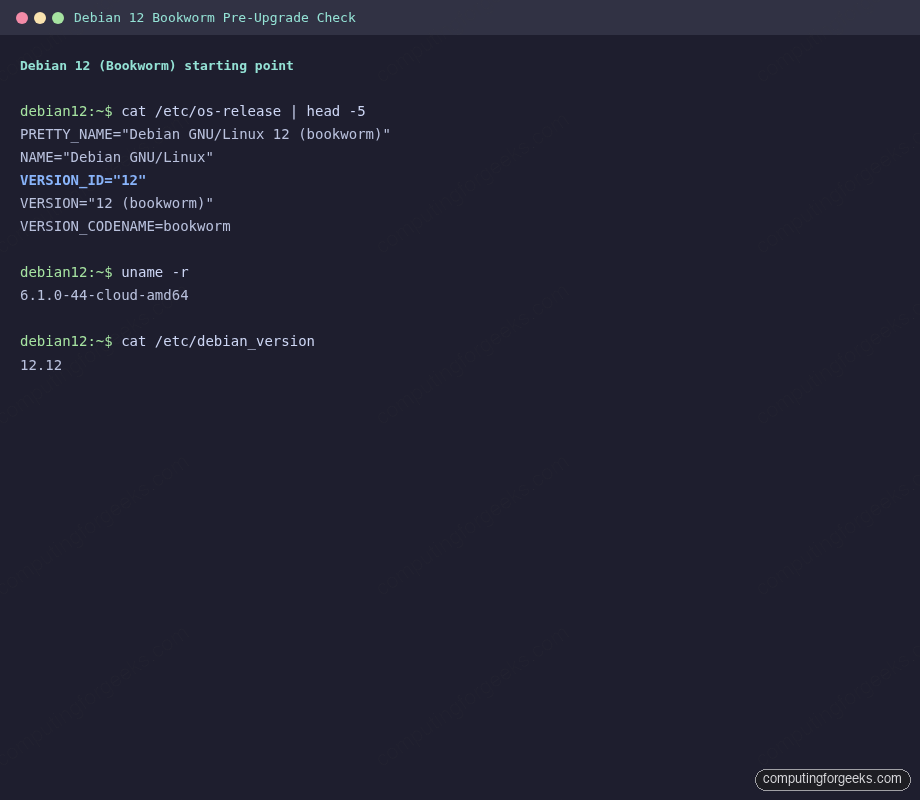
Any output that already says trixie means the machine has already been moved, stop here.
Step 1: Fully update Debian 12 first
The official Debian upgrade guidance is firm: the dist-upgrade starts from a fully patched Bookworm. Any half-applied updates become conflicts during the trixie upgrade.
sudo apt update
sudo apt upgrade
sudo apt full-upgrade
Clean up anything the fresh upgrade left behind and reboot if a new kernel was pulled:
sudo apt --purge autoremove
sudo apt clean
sudo reboot
Rebooting even when the command line does not say it is required is a good habit before a release upgrade. You want the running kernel to match the kernel on disk, not a version that was replaced on disk but never loaded.
Step 2: Audit non-Debian packages and on-hold packages
Third-party APT repositories (Docker, PostgreSQL PGDG, Grafana, Node.js, Kubernetes) are usually the packages that stall a dist-upgrade. Their repos often ship bookworm paths only, and the trixie upgrade will pull mixed versions or just refuse.
apt list '?narrow(?installed, ?not(?origin(Debian)))' 2>/dev/nullIf that command lists packages, you have a decision for each one: either temporarily remove them and reinstall after the upgrade (safest for things like Docker or a Node.js repo that already publishes a trixie path), or hold them through the upgrade and hand-update the repository after. The release notes recommend removing where possible.
Now surface any packages frozen with apt-mark hold. A hold on a core package (glibc, systemd, kernel) stops the upgrade cold with cryptic dependency errors:
sudo apt-mark showhold
# to release a hold if needed
sudo apt-mark unhold package_name
You cannot unhold what you do not know about. Run the check even on machines you built yourself.
Step 3: Back up APT sources before editing them
The next step rewrites every suite name. If anything goes wrong, you want the original sources back. Copy both the legacy and deb822 locations because modern Debian 12 cloud images ship only the deb822 file:
sudo mkdir -p /root/apt-backup-$(date +%F)
sudo cp -a /etc/apt/sources.list /root/apt-backup-$(date +%F)/ 2>/dev/null || true
sudo cp -a /etc/apt/sources.list.d /root/apt-backup-$(date +%F)/
The || true on the first copy is deliberate. Debian 12 cloud images do not populate /etc/apt/sources.list at all, everything lives under /etc/apt/sources.list.d/ in the deb822 format. The backup command runs on both layouts and does not fail on the missing file.
Step 4: Point APT at the Debian 13 (Trixie) repositories
Change every bookworm reference to trixie across both the legacy file and the deb822 files. The single sed pattern covers the main suite, security, updates, and backports in one pass:
sudo sed -i 's/bookworm/trixie/g' /etc/apt/sources.list 2>/dev/null || true
sudo sed -i 's/bookworm/trixie/g' /etc/apt/sources.list.d/*.list 2>/dev/null || true
sudo sed -i 's/bookworm/trixie/g' /etc/apt/sources.list.d/*.sources 2>/dev/null || true
Confirm the result. On the tested cloud image the active sources file is /etc/apt/sources.list.d/debian.sources in deb822 format:
cat /etc/apt/sources.list.d/debian.sourcesThe file now shows the rewritten suite names against the trixie main and security archives:
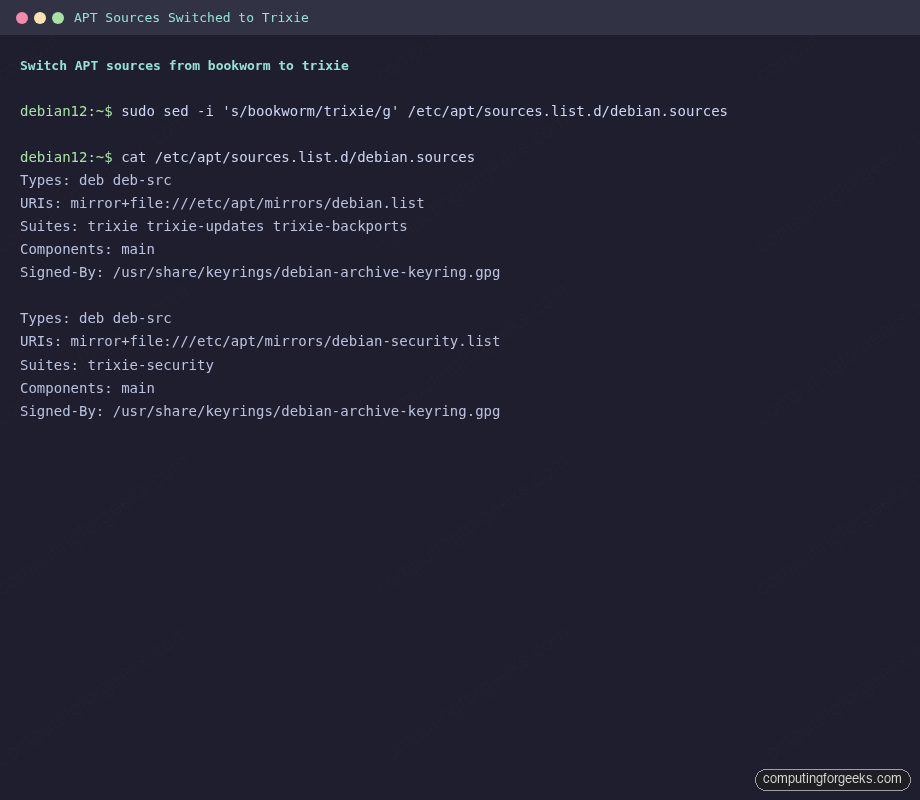
Every Suites: line should now read trixie, trixie-updates, trixie-backports, or trixie-security. If a third-party repo still points at bookworm, either update that vendor’s URL by hand or disable the file until the vendor ships a trixie release.
Step 5: Refresh package lists against Trixie
With the suite names rewritten, pull the new indexes. This is the first point where a broken third-party repo reveals itself:
sudo apt updateapt fetches the new InRelease files and reports the number of upgradable packages:
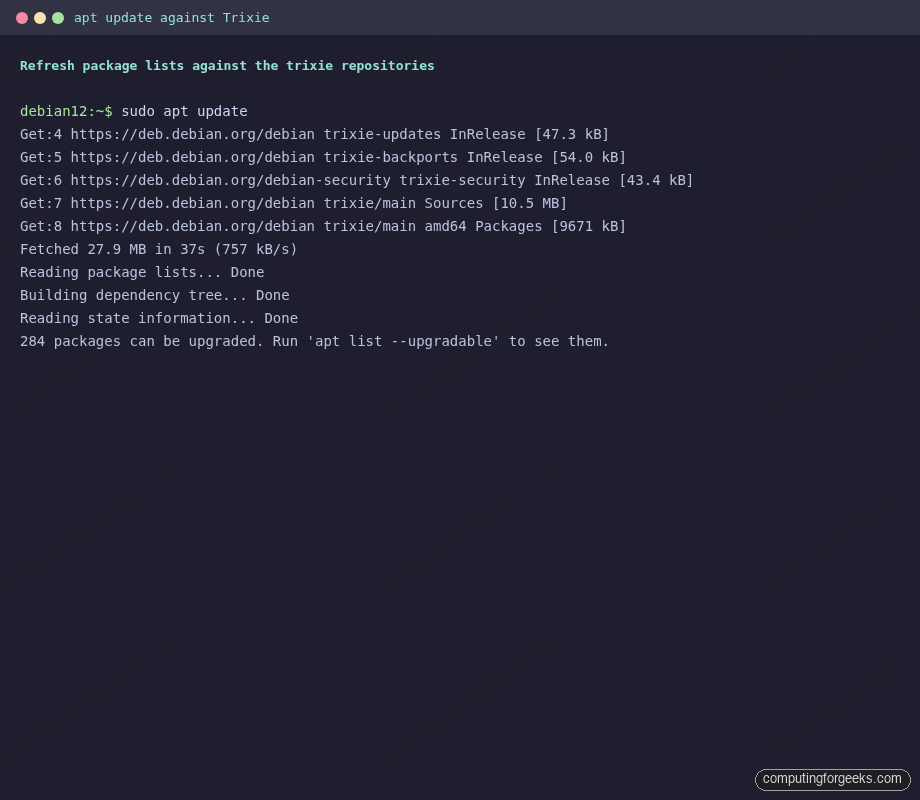
On the tested VM, apt reported 284 packages upgradable. Your number will vary based on desktop vs server, installed services, and whether the machine was freshly patched. If apt prints a NO_PUBKEY or Release file changed its Suite value error, see the troubleshooting section before continuing.
Step 6: Run the minimal upgrade
The minimal upgrade moves already-installed packages to their trixie versions without pulling new dependencies or removing anything. It protects you from a full-upgrade that would rip out a package you actually need. The --without-new-pkgs flag is what makes it minimal:
sudo apt upgrade --without-new-pkgsExpect interactive prompts during this phase:
- Services to restart: select Yes so apt restarts daemons (ssh, systemd-journald, etc.) as libraries update
- Config file conflicts (
***prompt): keep the local version with N unless you know the maintainer default is what you want; you can diff and merge later - Release notes / changelog pager: press q to exit and let the upgrade continue
To answer service-restart prompts non-interactively (useful for automated upgrades), prefix the command:
sudo DEBIAN_FRONTEND=noninteractive \
  apt -y -o Dpkg::Options::='--force-confold' \
         -o Dpkg::Options::='--force-confdef' \
         upgrade --without-new-pkgs
The two Dpkg::Options flags tell dpkg to keep your existing config files when conflicts appear. Do this only if you are comfortable reconciling configs after the fact.
Step 7: Run the full distribution upgrade
The minimal upgrade leaves you on a half-trixie system. The full upgrade pulls in new dependencies, removes obsolete packages, and installs the trixie kernel:
sudo apt full-upgradeThe tail of the run shows initramfs and GRUB being rebuilt for the new kernel:
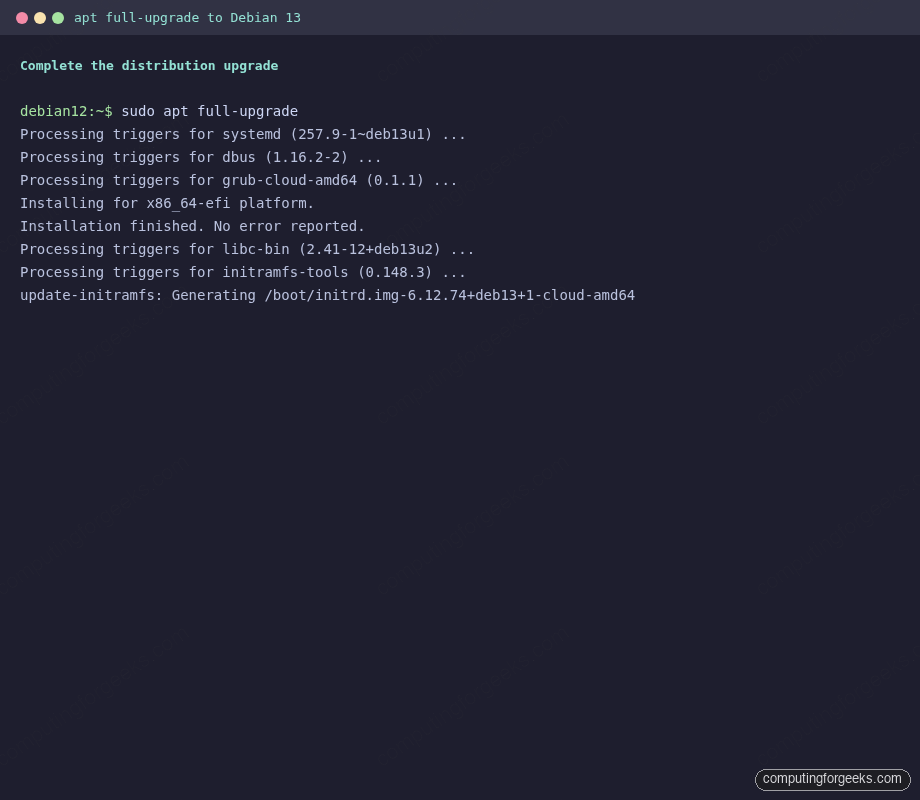
The tail of a successful run shows initramfs regenerating against the new kernel (6.12.74+deb13+1-cloud-amd64 on the tested cloud image). Do not reboot yet, clean up first.
Step 8: Remove obsolete packages and reboot
Trixie drops, renames, or supersedes a lot of bookworm packages. Clear the leftovers and the downloaded archives:
sudo apt --purge autoremove
sudo apt clean
On the tested VM autoremove purged Python 3.11 minimal packages (trixie ships Python 3.13 as default). That is expected and healthy, not a warning.
Now reboot into the new kernel:
sudo rebootStep 9: Verify the Debian 13 Trixie upgrade
After the box comes back, confirm the release, the running kernel, and the point release number:
cat /etc/os-release | head -6
uname -r
cat /etc/debian_version
lsb_release -a 2>/dev/null
All three outputs should now reference trixie, 13, and the 6.12 kernel series:
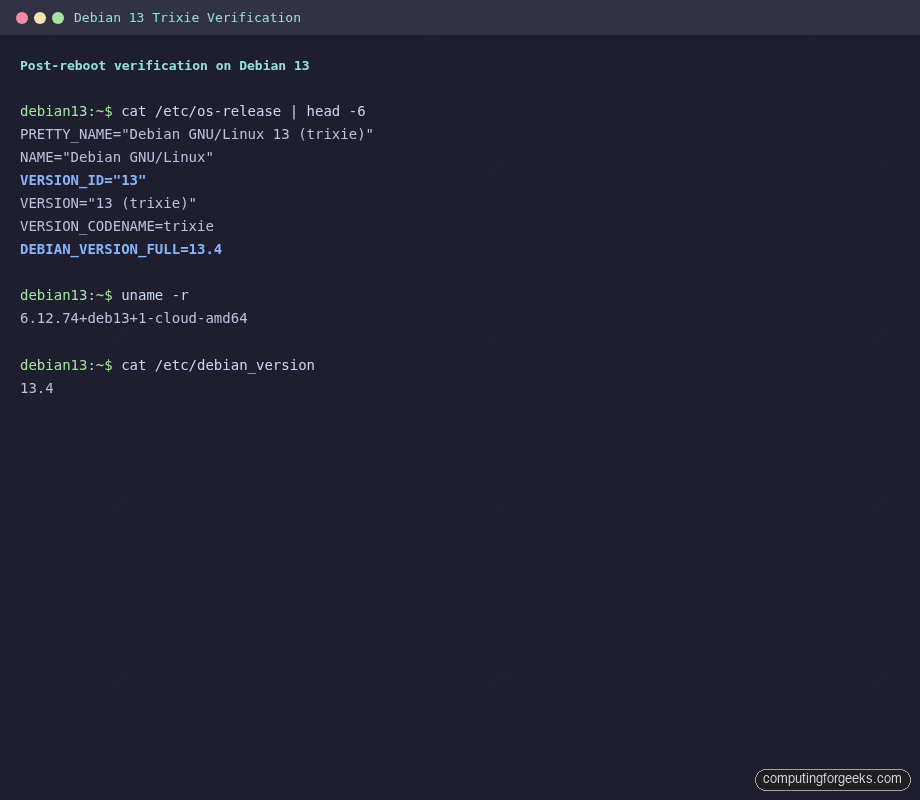
Also sweep /boot for the old kernel. The full-upgrade keeps the previous image as a fallback, which is the behavior you want for the first boot after an upgrade. A week later, once you are confident trixie is stable, you can remove it:
dpkg --list | grep linux-image
# once trixie is stable
sudo apt --purge autoremove
Troubleshooting common upgrade failures
apt update fails with “Release file changed its Suite value”
The trixie archive changed suite naming conventions from the old Debian conventions. Run apt with the explicit accept flag:
sudo apt update --allow-releaseinfo-changeThird-party repo has no trixie release (Docker, Grafana, Kubernetes)
Most major vendors now ship a trixie suite. Where they do not yet, two options: comment out the vendor’s .list file and re-enable after the vendor publishes a trixie release, or swap the suite to the current stable the vendor still supports (frequently bookworm or stable). Never leave an apt error unresolved and run the upgrade anyway, it will roll back package transactions mid-upgrade.
Stuck at a dpkg config file prompt over SSH
If apt hangs waiting for input on a Configuration file '/etc/...' has changed prompt and you cannot see the prompt, the upgrade is alive, your terminal buffer is just lagging. Press Enter a few times, then answer N to keep the local config. If stdin is truly dead, open a second SSH session, find the dpkg PID, and kill -SIGCONT is not the fix, instead attach to the session with tmux attach or screen -x. Always run release upgrades inside tmux or screen on remote servers, full stop.
Error: “The following packages have unmet dependencies”
This usually traces back to a held package or a third-party repo conflict. Check holds first, then inspect the specific package apt is complaining about:
sudo apt-mark showhold
sudo apt-cache policy package_name
sudo apt install -f
If apt cannot auto-resolve, pin the version you want explicitly or remove the conflicting package and reinstall it post-upgrade.
Boot fails after reboot
Boot from the GRUB menu into the old kernel (Advanced options for Debian GNU/Linux). If that works, the trixie kernel has a driver issue with your hardware, check dmesg and file a bug. If neither kernel boots, you need rescue media. This is why the snapshot in the prerequisites matters.
Rolling back to Debian 12
apt does not support a clean downgrade from trixie to bookworm. The supported recovery path is restore from the pre-upgrade snapshot or backup. If you do not have either, a fresh Debian 12 install and /etc restore is the realistic option. This is why the prerequisites list the snapshot first.
The practical lesson: for any server you cannot afford to reimage, take the snapshot, run the upgrade, let it run a full day, only then delete the snapshot.
What changed in Debian 13 worth knowing
A full rundown lives in the Debian 13 features and install guide, and a practical checklist for fresh installs is covered in things to do after installing Debian 13. The highlights that most immediately affect an upgraded box:
- Kernel 6.12 LTS as the default series (from 6.1 on bookworm), with newer hardware drivers and io_uring improvements
- Python 3.13 as default, Python 3.11 removed from the archive (Python 2 is long gone, do not look for it)
- systemd 257.x with softer defaults around
oomdandjournaldcompression - APT 3.0 with a cleaner solver output and better deb822 support (worth installing
apt-transport-httpsexplicitly if you run custom repos) - 64-bit time_t transition complete, which is why so many libraries bumped minor version during the upgrade
After verifying the upgrade, if Docker, Python, or another runtime is part of your stack, re-test them deliberately. The Docker install and upgrade guide for Debian 13 and the Python 3.13 on Debian 13 setup cover the specific post-upgrade steps for those runtimes.
If this guide helped on Debian, the same release-upgrade discipline applies on the other major distributions. We cover upgrading Ubuntu 24.04 to 26.04 and FreeBSD 14 to 15 with the same tested, end-to-end approach.