

A directory server is one docker compose up away. Two containers, one network, and OpenLDAP answers queries on port 389 with a web admin interface sitting in front of it. No host packages, no slapd.conf by hand, and you can throw the whole thing away with one command when the test is done.
This guide runs an OpenLDAP server in Docker with a current, maintained image, loads a working directory, then manages it two ways: from the command line with the standard ldap* tools, and through the phpLDAPadmin web interface. It also covers which image to actually pick, because the one most older guides reach for has been frozen for years and ships an end-of-life server. Everything below was run end to end and the commands are copied from that run, not from memory.
Tested in June 2026 on Ubuntu 24.04.4 with Docker 29.5 and Compose v5.1, running OpenLDAP 2.6.10 (vegardit/openldap) behind phpLDAPadmin 2.3.11.
Pick a maintained OpenLDAP image first
Running an OpenLDAP server in Docker is only as solid as the image behind it, and this is where most guides go wrong. The image they reach for stopped getting updates years ago. Before writing a single command, look at what each option actually ships today.
| Image | Status (2026) | OpenLDAP shipped |
|---|---|---|
osixia/openldap | Frozen since Feb 2021; latest still points at 1.5.0 | 2.4.57 (end of life) |
bitnami/openldap | Free image retired after the Broadcom change; moved to bitnamilegacy with no further updates | 2.6.x (frozen archive) |
symas/openldap | Referenced in docs but not actually published on Docker Hub | n/a |
vegardit/openldap | Actively maintained, regular releases | 2.6 (current LTS line) |
This guide uses vegardit/openldap. It tracks the current OpenLDAP 2.6 line, bootstraps a base DN and an admin account straight from environment variables, runs on a slim Debian base, and gives a clean directory on first boot. For the web interface it pairs with the phpLDAPadmin 2.x rewrite, which is the only actively maintained build of that tool. If your stack already runs the old osixia or Bitnami images, the steps below double as a migration target.
Step 1: Install Docker and the LDAP client tools
You need the Docker Engine, the Compose v2 plugin, and the LDAP command-line utilities on the host. The ldap* tools let you query and load the directory without entering the container. Install Docker first if it is not already present. The distro-specific steps live in the dedicated guides for Docker CE on Ubuntu and Docker CE on Rocky and AlmaLinux.
Add the LDAP client package. It is ldap-utils on Debian and Ubuntu:
sudo apt update
sudo apt install -y ldap-utils
On RHEL, Rocky, AlmaLinux, or Fedora the same tools come from openldap-clients:
sudo dnf install -y openldap-clientsConfirm Docker, the Compose plugin, and the client are all in place:
docker --version
docker compose version
ldapsearch -VV
The ldapsearch banner reports the client version, which should be on the 2.6 line to match the server you are about to run.
Step 2: Set the directory parameters
Three values drive everything that follows: the base DN, the admin password, and the organization name. Keeping them in one place means you change a single block and paste the rest of the guide unchanged. Create a working directory:
mkdir -p ~/openldap && cd ~/openldapCompose reads variables from a .env file in the same directory. Create one with your values:
LDAP_ORG_DN=dc=example,dc=org
LDAP_ORG_NAME=Example Inc
LDAP_ADMIN_PASSWORD=StrongAdminPass2026
Swap dc=example,dc=org for your own domain (a company at example.org maps to dc=example,dc=org) and pick a real admin password. The ldap* commands later in the guide run on the host, not inside Compose, so export the same three values into your shell as well:
export LDAP_ORG_DN="dc=example,dc=org"
export LDAP_ADMIN_DN="cn=admin,${LDAP_ORG_DN}"
export LDAP_ADMIN_PASSWORD="StrongAdminPass2026"
These hold only for the current shell session. Re-run the export lines if you reconnect or open a new terminal.
Step 3: Write the Docker Compose file
One file describes both containers, a shared network, and named volumes for persistence. Compose v2 no longer needs a top-level version key, so leave it out. Create compose.yaml in the project directory:
services:
  openldap:
    image: vegardit/openldap:latest
    container_name: openldap
    restart: unless-stopped
    ports:
      - "389:389"
      - "636:636"
    environment:
      LDAP_INIT_ORG_DN: "${LDAP_ORG_DN}"
      LDAP_INIT_ORG_NAME: "${LDAP_ORG_NAME}"
      LDAP_INIT_ROOT_USER_DN: "cn=admin,${LDAP_ORG_DN}"
      LDAP_INIT_ROOT_USER_PW: "${LDAP_ADMIN_PASSWORD}"
      LDAP_TLS_ENABLED: "false"
    volumes:
      - ldap_data:/var/lib/ldap
      - ldap_config:/etc/ldap/slapd.d
    networks:
      - ldap-net

  phpldapadmin:
    image: phpldapadmin/phpldapadmin:latest
    container_name: phpldapadmin
    restart: unless-stopped
    ports:
      - "8080:8080"
    environment:
      LDAP_HOST: "openldap"
      LDAP_PORT: "389"
      LDAP_BASE_DN: "${LDAP_ORG_DN}"
      LDAP_USERNAME: "cn=admin,${LDAP_ORG_DN}"
      LDAP_PASSWORD: "${LDAP_ADMIN_PASSWORD}"
      LDAP_LOGIN_ATTR: "DN"
      LDAP_LOGIN_OBJECTCLASS: "inetOrgPerson"
      LDAP_ALERT_ROOTDN: "false"
    depends_on:
      - openldap
    networks:
      - ldap-net

volumes:
  ldap_data:
  ldap_config:

networks:
  ldap-net:
A few of those settings matter more than they look. The OpenLDAP service publishes 389 for plain LDAP and 636 for LDAPS, and persists both the database (/var/lib/ldap) and the runtime config (/etc/ldap/slapd.d) to named volumes so the directory survives a restart. The phpLDAPadmin service talks to the server by its Compose name, openldap, over the internal network, so the two never need to expose LDAP to the host to reach each other. The three LDAP_LOGIN_* and LDAP_ALERT_ROOTDN lines fix a login quirk in phpLDAPadmin 2.x that is covered in Step 7. Leave them as shown.
Step 4: Start the OpenLDAP server in Docker
Pull the images and bring both containers up in the background:
docker compose up -dCheck that both containers report a running state with the right ports mapped:
docker compose psBoth services should report a running state, with 389 and 636 published for OpenLDAP and 8080 for the web UI:
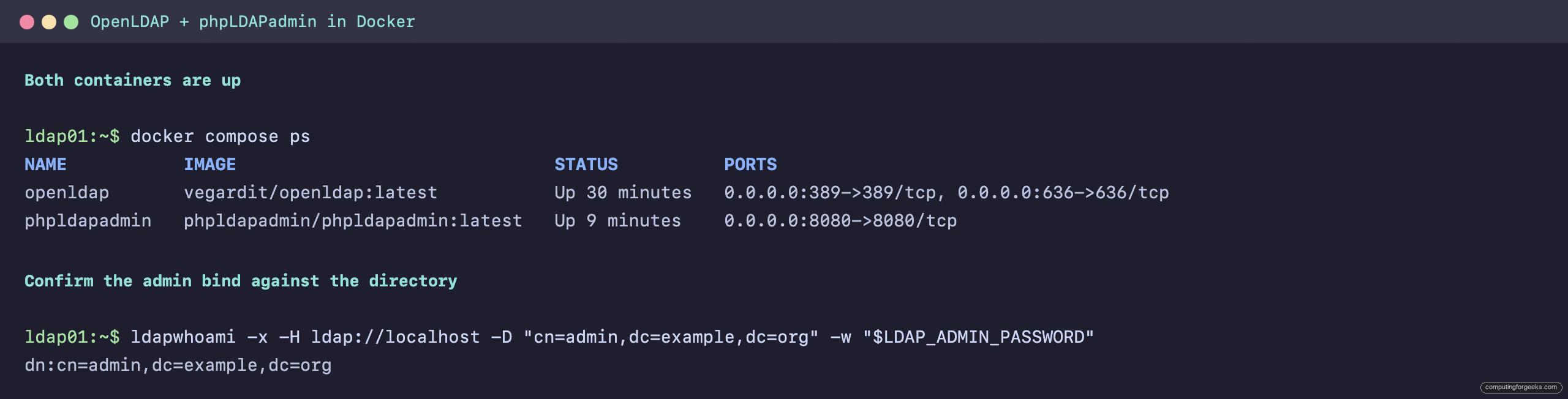
The OpenLDAP container creates the base DN, the admin account, and a starter set of organizational units on first boot, all from the environment variables in the Compose file. Nothing else to configure before the directory is queryable.
If a host firewall is active, open the LDAP ports. On Ubuntu with UFW:
sudo ufw allow 389/tcp
sudo ufw allow 636/tcp
On a firewalld host (Rocky, AlmaLinux, Fedora) the equivalent is:
sudo firewall-cmd --add-service=ldap --add-service=ldaps --permanent
sudo firewall-cmd --reload
Expose 389 and 636 only on a trusted network. Plain LDAP is clear text, and you do not want it reachable from the public internet.
Step 5: Query the directory from the command line
Before touching the web UI, confirm the server works with the tools every LDAP integration actually uses. Start with ldapwhoami, which binds and reports the identity it bound as:
ldapwhoami -x -H ldap://localhost -D "${LDAP_ADMIN_DN}" -w "${LDAP_ADMIN_PASSWORD}"A successful bind echoes the admin DN back:
dn:cn=admin,dc=example,dc=orgNow list the whole tree under the base DN to see what the image seeded:
ldapsearch -x -LLL -H ldap://localhost -b "${LDAP_ORG_DN}" \
  -D "${LDAP_ADMIN_DN}" -w "${LDAP_ADMIN_PASSWORD}" dn
The output lists an ou=Users and ou=Groups branch plus a couple of sample entries. That is your starting structure. The -x flag selects simple authentication and -LLL trims the comments and LDIF version lines so the result is easy to read.
Step 6: Add users and groups with LDIF
LDIF is the native format for loading directory data, and it scales far better than clicking through a UI when you have more than a handful of entries. Create a file called directory.ldif describing a group and two users:
dn: cn=developers,ou=Groups,dc=example,dc=org
objectClass: posixGroup
cn: developers
gidNumber: 5000
memberUid: jdoe
memberUid: asmith

dn: uid=jdoe,ou=Users,dc=example,dc=org
objectClass: inetOrgPerson
objectClass: posixAccount
objectClass: shadowAccount
uid: jdoe
cn: John Doe
sn: Doe
givenName: John
uidNumber: 10000
gidNumber: 10000
homeDirectory: /home/jdoe
loginShell: /bin/bash

dn: uid=asmith,ou=Users,dc=example,dc=org
objectClass: inetOrgPerson
objectClass: posixAccount
objectClass: shadowAccount
uid: asmith
cn: Alice Smith
sn: Smith
givenName: Alice
uidNumber: 10001
gidNumber: 10001
homeDirectory: /home/asmith
loginShell: /bin/bash
Note that each user has its own gidNumber rather than sharing the group’s 5000. That is deliberate. This image enables a uniqueness overlay on uidNumber and gidNumber inside ou=Users, so two accounts cannot share a primary GID. Give each user a private primary group and express shared membership through the group’s memberUid attribute, which is the cleaner POSIX pattern anyway. Load the file:
ldapadd -x -H ldap://localhost -D "${LDAP_ADMIN_DN}" \
  -w "${LDAP_ADMIN_PASSWORD}" -f directory.ldif
The user entries carry no password yet. Set one with ldappasswd, which hashes it server-side and stores it in userPassword:
ldappasswd -x -H ldap://localhost -D "${LDAP_ADMIN_DN}" \
  -w "${LDAP_ADMIN_PASSWORD}" -s "Jdoe#Secret2026" \
  "uid=jdoe,ou=Users,${LDAP_ORG_DN}"
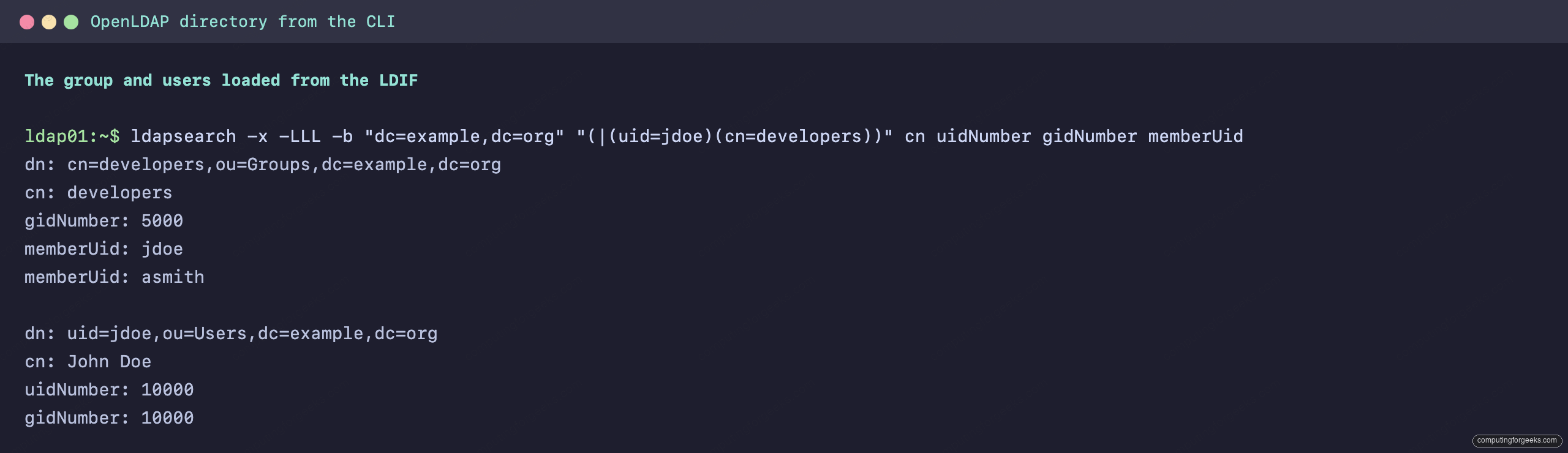
Read back the group and the user you just created to confirm both landed, including the group membership:
ldapsearch -x -LLL -H ldap://localhost -b "${LDAP_ORG_DN}" \
  -D "${LDAP_ADMIN_DN}" -w "${LDAP_ADMIN_PASSWORD}" \
  "(|(uid=jdoe)(cn=developers))" cn uidNumber gidNumber memberUid
The group lists both members and the user carries its own primary GID, exactly as defined in the LDIF:
To verify the new password actually works, bind as the user instead of the admin:
ldapwhoami -x -H ldap://localhost \
  -D "uid=jdoe,ou=Users,${LDAP_ORG_DN}" -w "Jdoe#Secret2026"
It returns dn:uid=jdoe,ou=Users,dc=example,dc=org, which means the account can authenticate. That is the same bind any LDAP-aware application performs when a user logs in.
Step 7: Manage the directory in phpLDAPadmin
The web interface is already running on port 8080 from the Compose file. Open it in a browser:
http://SERVER_IP:8080The login screen asks for a user ID and password. There is a catch here that trips up almost everyone moving from the old phpLDAPadmin to the 2.x rewrite, so it is worth getting right before you try to sign in.
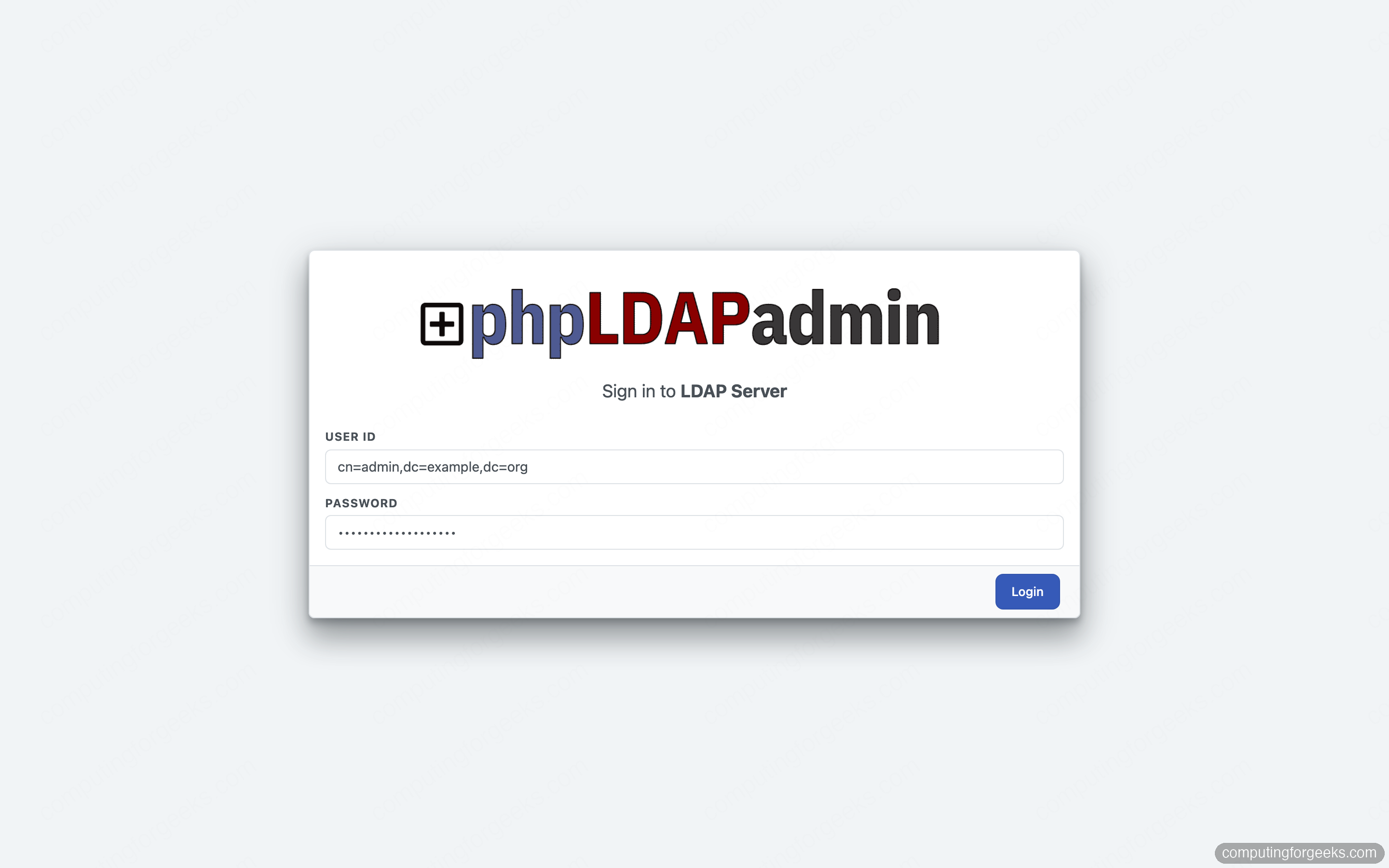
Why the admin login is rejected at first
phpLDAPadmin 2.x refuses to log in as the slapd rootdn. Bind as cn=admin,dc=example,dc=org and it returns 501: LDAP USER ERROR, Authentication succeeded, but the DN doesn't exist. The bind itself works, but the tool insists the login DN exists as a real entry in the tree, and the rootdn is a virtual identity defined in the server config, not an entry under the base.
The fix is to create a matching entry at the admin DN. Because that DN is still the configured rootdn, the bind keeps full administrative rights; the entry only exists to satisfy phpLDAPadmin’s check. Create admin-entry.ldif:
dn: cn=admin,dc=example,dc=org
objectClass: inetOrgPerson
cn: admin
sn: Administrator
description: Directory administrator entry for the web UI
Load it as the admin:
ldapadd -x -H ldap://localhost -D "${LDAP_ADMIN_DN}" \
  -w "${LDAP_ADMIN_PASSWORD}" -f admin-entry.ldif
Two settings already in the Compose file make this work alongside the new entry. LDAP_ALERT_ROOTDN: "false" stops the tool from blocking a rootdn login, and LDAP_LOGIN_OBJECTCLASS: "inetOrgPerson" overrides the default, which only accepts posixAccount entries and would otherwise reject the admin. With the entry loaded and those two values set, sign in with the full DN and the admin password:
User ID:  cn=admin,dc=example,dc=org
Password: StrongAdminPass2026
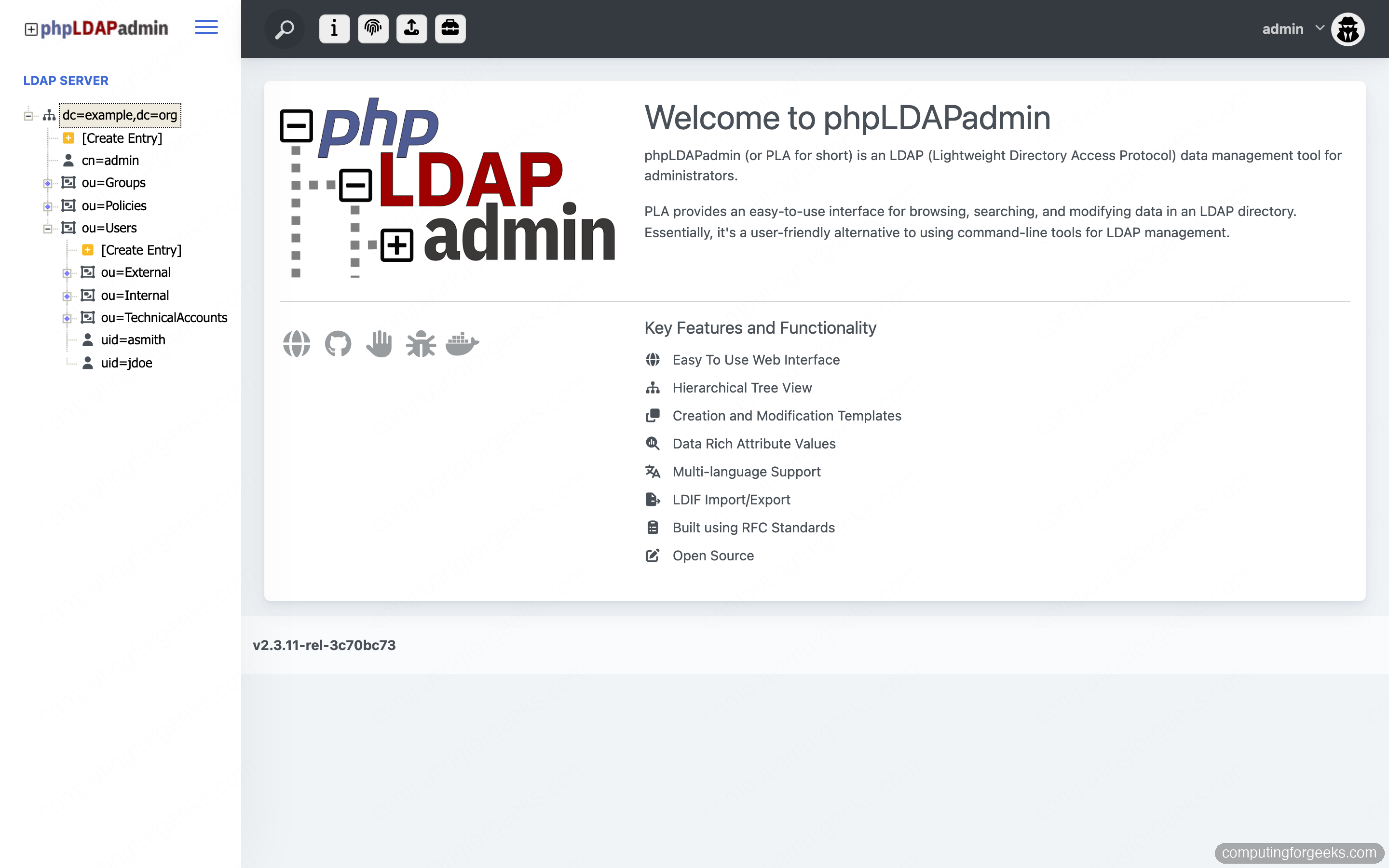
The dashboard loads with the directory tree in the left panel.
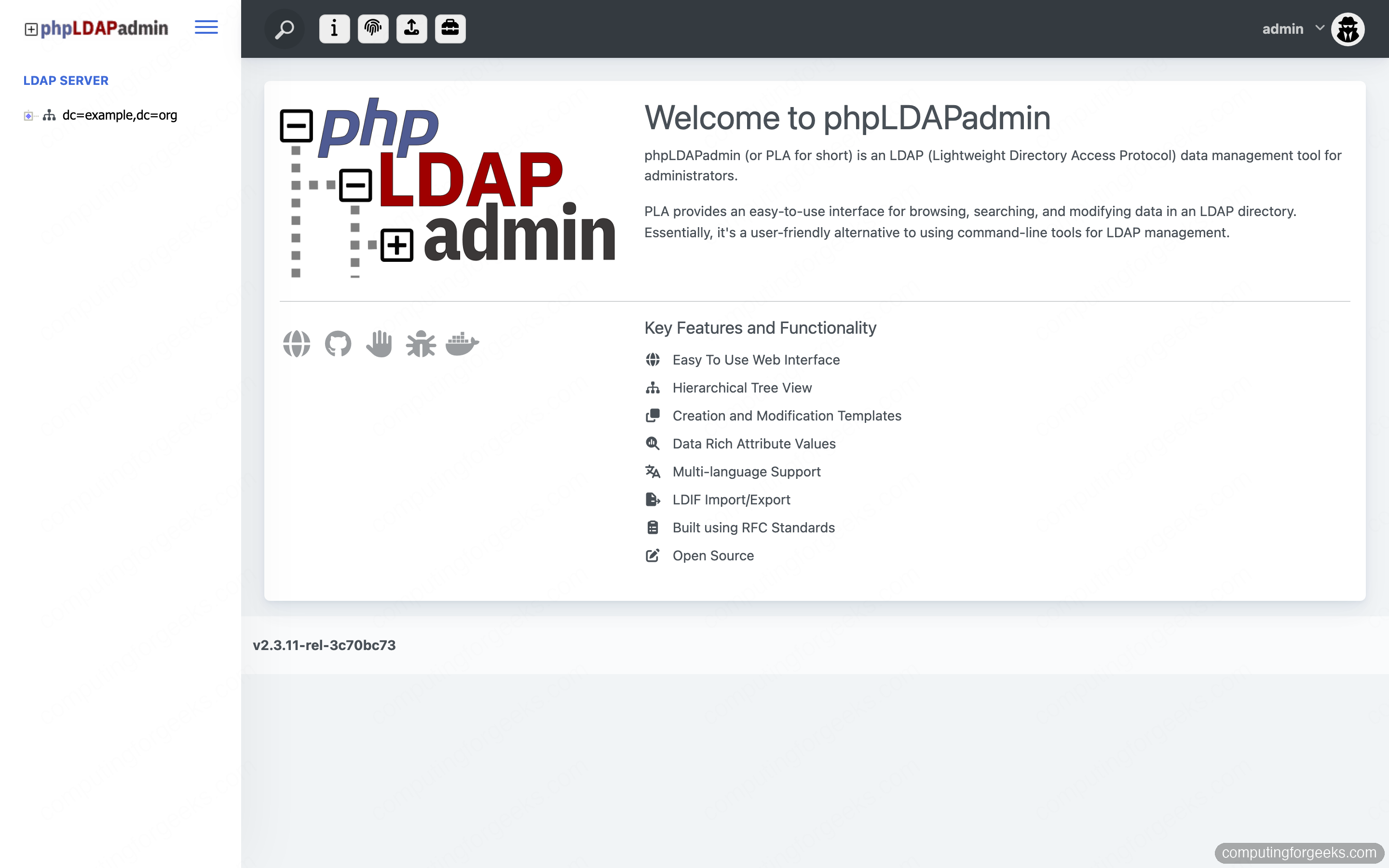
Browse and edit the tree
Expand dc=example,dc=org in the sidebar to walk the structure: the ou=Groups branch holds the developers group you loaded, and ou=Users holds jdoe and asmith alongside the seeded accounts.
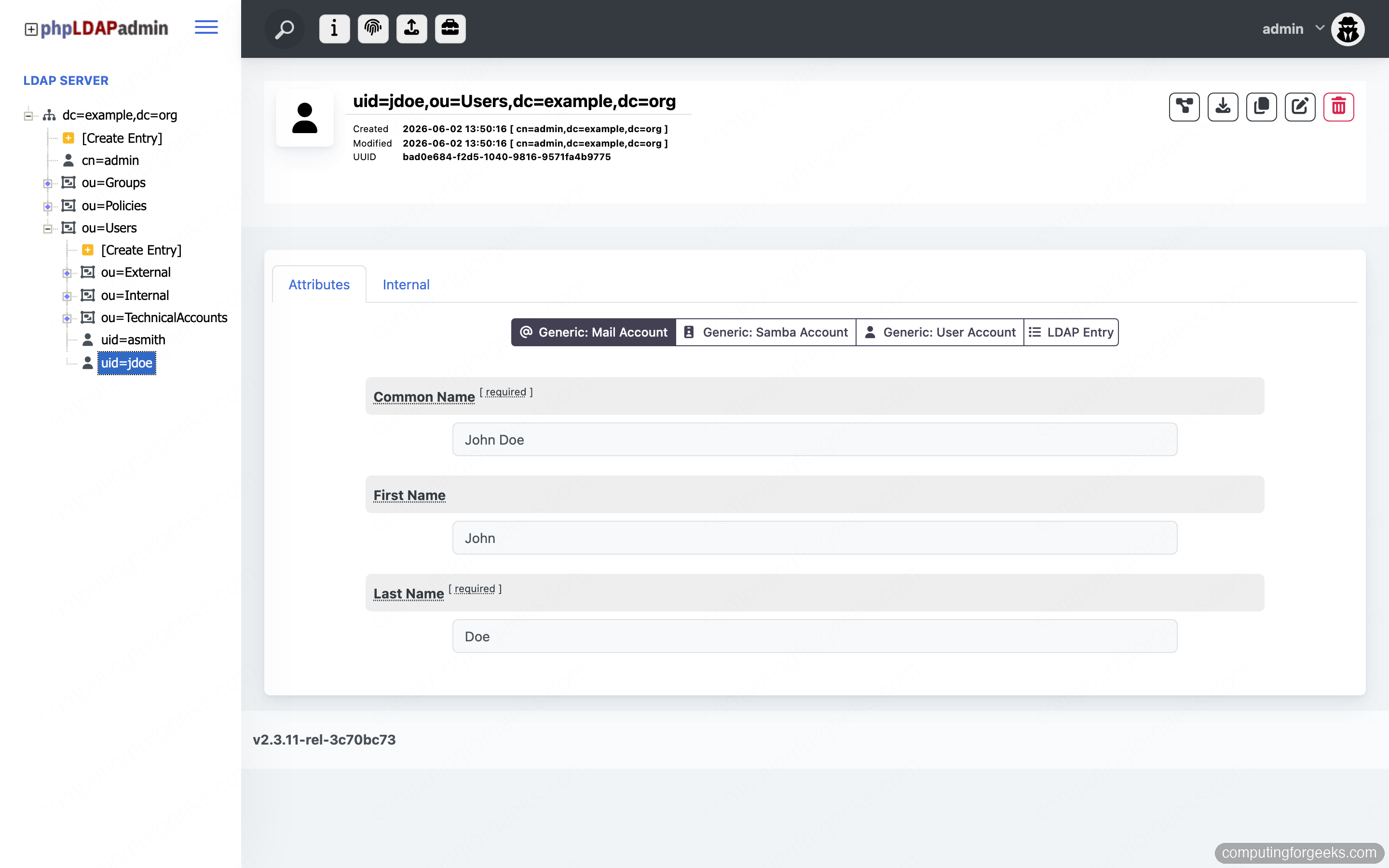
Click an entry to see and edit its attributes. The user record for jdoe shows the common name, surname, and the POSIX attributes from the LDIF, each editable in place with templates for adding mail, Samba, or account attributes.
The same Create Entry action on any branch builds new users and groups through templates, which is handy for one-off additions. For anything repeatable, the LDIF approach from Step 6 is faster and version-controllable. If you would rather manage accounts through a purpose-built front end, the LDAP Account Manager drops into the same stack as a second web container.
Step 8: Put the web UI behind HTTPS
Port 8080 serves plain HTTP, which means the admin password crosses the network in the clear. On anything past a local test, terminate TLS in front of phpLDAPadmin with Nginx and a Let’s Encrypt certificate. Install Nginx and certbot on the host:
sudo apt install -y nginx certbot python3-certbot-nginxPoint an A record for a name like ldap.example.com at the server, then create a reverse-proxy site. Open the file:
sudo vi /etc/nginx/sites-available/phpldapadminAdd a server block that forwards to the container on 8080:
server {
    listen 80;
    server_name ldap.example.com;

    location / {
        proxy_pass http://127.0.0.1:8080;
        proxy_set_header Host $host;
        proxy_set_header X-Real-IP $remote_addr;
        proxy_set_header X-Forwarded-For $proxy_add_x_forwarded_for;
        proxy_set_header X-Forwarded-Proto $scheme;
    }
}
Enable the site, test the config, and reload:
sudo ln -s /etc/nginx/sites-available/phpldapadmin /etc/nginx/sites-enabled/
sudo nginx -t
sudo systemctl reload nginx
Issue and install the certificate with the Nginx plugin. This uses the HTTP-01 challenge, which works with any DNS provider as long as port 80 is reachable:
sudo certbot --nginx -d ldap.example.com --redirect \
  --non-interactive --agree-tos -m [email protected]
Certbot rewrites the server block for TLS and adds the HTTP-to-HTTPS redirect. phpLDAPadmin is now reachable over https://ldap.example.com with a valid certificate.
When port 80 is not reachable
If the host sits on a private network or behind NAT, the HTTP-01 challenge cannot complete. Use the DNS-01 challenge instead, which proves ownership through a TXT record and needs no inbound traffic. Certbot ships plugins for most providers, including Cloudflare, Route 53, DigitalOcean, Google Cloud DNS, and any RFC2136 server. With the Cloudflare plugin, for example, you supply an API token file and run certbot certonly --dns-cloudflare, then reference the issued certificate in the Nginx server block by hand. Substitute your provider’s plugin if you are on something else.
Taking it to production
The stack above is a solid base, but a directory that other services depend on needs a few deliberate choices before it carries real accounts.
- Pin the image tag. Replace
vegardit/openldap:latestwith a specific release tag so a surprise pull does not change the server under a running directory. Check the image’s release page for the current tag. - Encrypt the LDAP port too. The reverse proxy only protects the web UI. Mount a certificate into the OpenLDAP container and set
LDAP_TLS_ENABLEDtotrueso applications can bind overldaps://on 636 or with StartTLS on 389. - Back up the volume, not just the container. Every entry lives in the
ldap_datavolume. A scheduledldapsearchdump to LDIF, or adocker runthat tars the volume, is your recovery path. The container is disposable; the volume is not. - Plan for a second node. A single container is a single point of failure for authentication. When the directory becomes load-bearing, stand up a second OpenLDAP instance and connect the two with syncrepl so either can answer binds if the other goes down.
For a non-containerized directory on the host itself, the native OpenLDAP and phpLDAPadmin setup covers the package-based route and the same directory concepts apply once the server is answering on 389.




How do I login using username@domain instead of cn=admin,dc=computingforgeeks,dc=com?
The problem that osixia/docker-openldap repository is not maintained for more than 2 years on the GitHub
I agree we hope someone will take the initiative of keeping it recent.
on my ubuntu, I have tried exactly the instruction commands said, and was able to bring these 2 docker containers up, but I was not able to login for such error:
”
Unable to connect to LDAP server ldap.computingforgeeks.com
Error: Invalid credentials (49) for user
error Failed to Authenticate to server
Invalid Username or Password.
”
thanks,
Jack
Hello @Jack,
Did you use the creds as set during the installation?
Login DN = cn=admin,dc=computingforgeeks,dc=comPassword = StrongAdminPassw0rd
Hey, where do we set the cn=admin as the login for phpadmin interface? i don’t get this part i’m getting invalid credentials evety time i try to login. i also has the impression that it would happen once we set the admin password but not the admin dn
The default admin user has the name “admin”, so we just set the password for this user when running the docker commnads. To logijn, use the correct password as set in your command. Ypu also need to provide the set domain name here “Login DN = cn=admin,dc=computingforgeeks,dc=com”
You mean when i’m creating the docker container? i should priovide a ‘–env Password’ and a ‘–env Login DN’? this is the part i’m not understanding.
sudo docker run \
–name openldap-server \
-p 389:389 \
-p 636:636 \
–hostname ldap.test-local.com \
–env LDAP_ORGANISATION=”Test Ldap local” \
–env LDAP_DOMAIN=”ldap.test-local.com” \
–env LDAP_ADMIN_PASSWORD=”petzzz” \
\–env LDAP_BASE_DN=”dc=ldap,dc=test-local,dc=com” \
–volume /data/slapd/database:/var/lib/ldap \
–volume /data/slapd/config:/etc/ldap/slapd.d \
–detach osixia/openldap:latest
i runned this command but when i try to authenticate with:
login: cn=admin,dc=ldap,dc=test-local,dc=com
pwd: petzzz
in phpadmin interface i get invalid credentials
same thing when i try to run a query from terminal like:
ldapsearch -x -H ldap://localhost -b “dc=ldap,dc=test-local,dc=com” -D “cn=admin,dc=ldap,dc=test-local,dc=com” -w petzzz
console returns:
ldap_bind: Invalid credentials (49)
and i don’t know why
Delete these two rows and all will be fine!
–volume /data/slapd/database:/var/lib/ldap \
–volume /data/slapd/config:/etc/ldap/slapd.d \
Data persistence works great. Unless if container is deleted, then directories will need to be removed as well.