Helm gets Redpanda running on Kubernetes, but it stops there. Change a cluster config? Run helm upgrade and hope the rolling restart goes smoothly. Add a topic? Shell into a pod and run rpk. Create a SASL user? Edit the values file and upgrade again. The Redpanda Operator replaces all of that with Kubernetes-native custom resources that the operator controller watches and reconciles continuously.
This guide covers deploying and managing Redpanda on Kubernetes using the official Redpanda Operator. We walk through the Operator installation, CRD-based cluster creation, declarative topic and user management, dynamic configuration updates, and production hardening. If you prefer the Helm-only approach, see Deploy Redpanda on Kubernetes Using Helm Charts.
Verified April 2026 | Redpanda Operator v26.1.2, Redpanda v26.1.1, Kubernetes 1.32.13, Ubuntu 24.04 LTS
What the Operator Adds Over Helm
The Operator wraps the Helm chart and adds a reconciliation loop. You declare the desired state in a Custom Resource, and the Operator makes it happen. The key differences:
| Capability | Helm Only | With Operator |
|---|---|---|
| Install cluster | Yes | Yes (via Redpanda CR) |
| Topic management | rpk CLI | Topic CRD (declarative, drift-corrected) |
| User/ACL management | Helm values | User CRD with Secret-backed passwords |
| Config changes | helm upgrade + rolling restart | kubectl patch, auto-applied |
| Self-healing | Manual intervention | Controller reconciliation every 3s |
| Schema management | External tooling or API | Schema CRD |
| Cross-cluster replication | Manual setup | ShadowLink CRD |
The Operator installs 8 CRDs: Redpanda (cluster), Topic, User, Schema, Group, RedpandaRole, Console, and ShadowLink. Each is reconciled independently, so you can manage topics without touching the cluster spec.
Prerequisites
You need the same infrastructure as the Helm deployment:
- A Kubernetes cluster with at least 3 nodes (4 vCPU, 8 GB RAM each)
kubectland Helm 3.10+ configured- cert-manager installed (see the Helm article for installation steps)
- A default StorageClass with dynamic provisioning
- SSE4.2 CPU support on all nodes
- No existing Redpanda Helm release in the target namespace. The Operator manages its own Helm release internally. If you followed the Helm article, uninstall first with
helm uninstall redpanda -n redpanda
Install the Redpanda Operator
The Operator is packaged as a separate Helm chart in the same repository.
Add the Redpanda repo if you have not already:
helm repo add redpanda https://charts.redpanda.com
helm repo update
Install the Operator with CRDs enabled:
helm install redpanda-operator redpanda/operator \
  --namespace redpanda \
  --create-namespace \
  --set crds.enabled=true \
  --version 26.1.2
The crds.enabled=true flag is critical. Without it, the Operator starts but immediately crashes because the CRD definitions are missing. This is the most common installation mistake.
Verify the Operator pod is running:
kubectl get pods -n redpandaYou should see a single Operator pod in Running state:
NAME                                 READY   STATUS    RESTARTS   AGE
redpanda-operator-76dcf8c8cd-jknjp   1/1     Running   0          30s
List the installed CRDs to confirm all 8 are registered:
kubectl get crds | grep redpandaAll custom resources are available:
consoles.cluster.redpanda.com
groups.cluster.redpanda.com
redpandaroles.cluster.redpanda.com
redpandas.cluster.redpanda.com
schemas.cluster.redpanda.com
shadowlinks.cluster.redpanda.com
topics.cluster.redpanda.com
users.cluster.redpanda.com
Deploy a Redpanda Cluster via CRD
Instead of running helm install with a values file, you define a Redpanda custom resource. The Operator reads the spec and manages the underlying Helm release for you.
Create the cluster manifest:
sudo vi /tmp/redpanda-cluster.yamlAdd the full cluster specification:
apiVersion: cluster.redpanda.com/v1alpha2
kind: Redpanda
metadata:
  name: redpanda
  namespace: redpanda
spec:
  chartRef: {}
  clusterSpec:
    statefulset:
      replicas: 3
      initContainers:
        setDataDirOwnership:
          enabled: true
    resources:
      cpu:
        cores: "1"
      memory:
        container:
          max: "2Gi"
    storage:
      persistentVolume:
        size: "20Gi"
    tls:
      enabled: true
    auth:
      sasl:
        enabled: true
        users:
          - name: admin
            password: changeme123
            mechanism: SCRAM-SHA-256
    console:
      enabled: true
    monitoring:
      enabled: false
    config:
      cluster:
        auto_create_topics_enabled: true
        default_topic_replications: 3
    rackAwareness:
      enabled: true
      nodeAnnotation: "topology.kubernetes.io/zone"
The spec.clusterSpec section accepts the same values as the Helm chart’s values.yaml. The chartRef: {} tells the Operator to use its bundled chart version.
Apply the manifest:
kubectl apply -f /tmp/redpanda-cluster.yamlThe Operator creates the StatefulSet, services, PVCs, and TLS certificates. Watch the cluster come up:
kubectl get pods -n redpanda -wWithin about a minute, all brokers reach 2/2 Ready:
NAME                                 READY   STATUS    RESTARTS   AGE
redpanda-0                           2/2     Running   0          31s
redpanda-1                           2/2     Running   0          31s
redpanda-2                           2/2     Running   0          31s
redpanda-console-bb77885cc-xw5bg     1/1     Running   0          31s
redpanda-operator-76dcf8c8cd-jknjp   1/1     Running   0          54s
Check the Redpanda custom resource status:
kubectl get redpanda -n redpandaThe cluster reports ready and licensed:
NAME       READY   STATUS                              LICENSE
redpanda   True    Cluster ready to service requests   Cluster has a valid license
Verify the cluster health from inside a broker:
kubectl exec redpanda-0 -n redpanda -c redpanda -- rpk cluster healthAll nodes are up with no issues:
CLUSTER HEALTH OVERVIEW
=======================
Healthy:                          true
Unhealthy reasons:                []
Controller ID:                    0
All nodes:                        [0 1 2]
Nodes down:                       []
Leaderless partitions (0):        []
Under-replicated partitions (0):  []
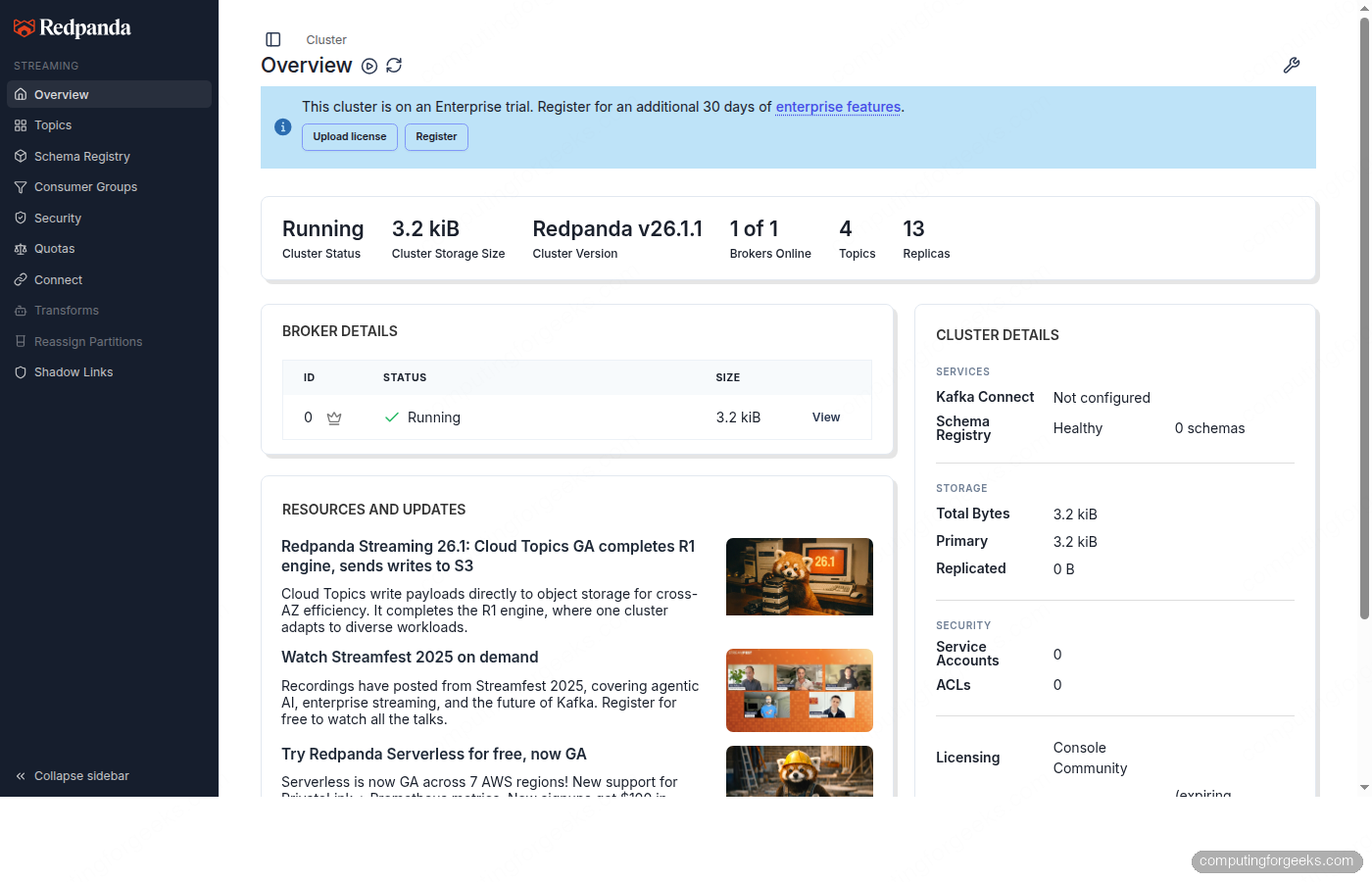
The Redpanda Console (deployed as part of the cluster) provides a web UI for browsing topics, messages, and broker details. Access it via port-forward:
kubectl port-forward svc/redpanda-console 8080:8080 -n redpandaThe overview page shows the cluster status, broker count, and Redpanda version at a glance.
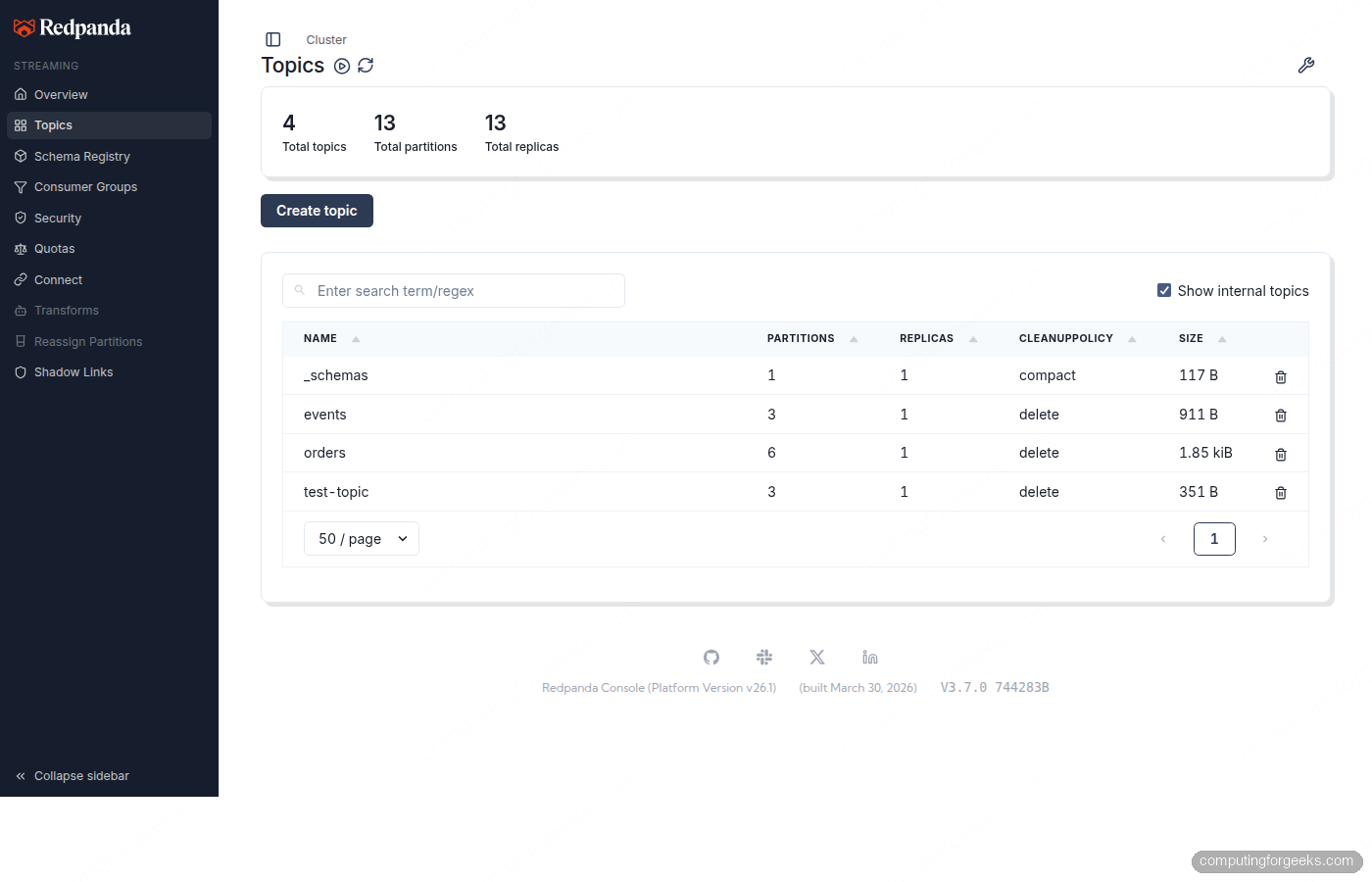
The Topics page shows all CRD-managed topics with their partition layout and sizes.
Declarative Topic Management
With the Operator, topics become Kubernetes resources. You create them with kubectl apply, and the Operator’s Topic controller reconciles them every 3 seconds. Manual changes made via rpk get reverted to match the CRD spec.
Create a topic manifest for an orders stream:
sudo vi /tmp/topic-orders.yamlDefine the topic with partitions, replication, and additional config:
apiVersion: cluster.redpanda.com/v1alpha2
kind: Topic
metadata:
  name: orders
  namespace: redpanda
spec:
  cluster:
    clusterRef:
      name: redpanda
  partitions: 6
  replicationFactor: 3
  additionalConfig:
    cleanup.policy: "delete"
    retention.ms: "86400000"
    compression.type: "snappy"
The clusterRef points to the Redpanda CR by name. The additionalConfig section accepts any Kafka topic-level config property. This topic uses snappy compression and 24-hour retention.
Apply it:
kubectl apply -f /tmp/topic-orders.yamlCreate a second topic for events with compaction enabled:
sudo vi /tmp/topic-events.yamlCompacted topics retain only the latest value per key, which is useful for changelog or state-store patterns:
apiVersion: cluster.redpanda.com/v1alpha2
kind: Topic
metadata:
  name: events
  namespace: redpanda
spec:
  cluster:
    clusterRef:
      name: redpanda
  partitions: 3
  replicationFactor: 3
  additionalConfig:
    cleanup.policy: "compact"
    min.compaction.lag.ms: "3600000"
Apply it and check both topics:
kubectl apply -f /tmp/topic-events.yaml
kubectl get topics -n redpanda
Both topics are reconciled and ready:
NAME     READY   STATUS
events   True    Topic reconciliation succeeded
orders   True    Topic reconciliation succeeded
Confirm they exist in the Redpanda cluster via rpk:
kubectl exec redpanda-0 -n redpanda -c redpanda -- \
  rpk topic list -X user=admin -X pass=changeme123 -X sasl.mechanism=SCRAM-SHA-256
The topics show up with their configured partitions and replicas:
NAME      PARTITIONS  REPLICAS
events    3           3
orders    6           3
One important behavior to note: if you delete a topic using rpk topic delete orders, the Topic controller detects the drift and recreates it within 3 seconds. The CRD is the source of truth. To actually remove a topic, delete the Kubernetes resource with kubectl delete topic orders -n redpanda.
Declarative User and ACL Management
The User CRD creates SASL users and assigns ACLs in a single manifest. Passwords must be stored in Kubernetes Secrets (inline passwords are rejected by the CRD validation).
Create a Secret for the user password:
kubectl create secret generic app-producer-password \
  -n redpanda \
  --from-literal=password=producer-secret-123
Now create the User resource with SCRAM authentication and ACLs that grant read, write, and describe on the orders topic:
sudo vi /tmp/user-producer.yamlDefine the user with authentication and authorization:
apiVersion: cluster.redpanda.com/v1alpha2
kind: User
metadata:
  name: app-producer
  namespace: redpanda
spec:
  cluster:
    clusterRef:
      name: redpanda
  authentication:
    type: scram-sha-256
    password:
      valueFrom:
        secretKeyRef:
          name: app-producer-password
          key: password
  authorization:
    type: simple
    acls:
      - type: allow
        resource:
          type: topic
          name: orders
        operations:
          - Write
          - Describe
          - Read
Apply it and check the status:
kubectl apply -f /tmp/user-producer.yaml
kubectl get users -n redpanda
The user is synced with both authentication and ACL management active:
NAME           SYNCED   MANAGING USER   MANAGING ACLS
app-producer   True     false           true
Test producing with the CRD-created user:
echo "order-001" | kubectl exec -i redpanda-0 -n redpanda -c redpanda -- \
  rpk topic produce orders \
  -X user=app-producer -X pass=producer-secret-123 -X sasl.mechanism=SCRAM-SHA-256
The message is produced successfully:
Produced to partition 5 at offset 0 with timestamp 1776116611344.Consuming also works because the ACL grants Read access:
kubectl exec redpanda-0 -n redpanda -c redpanda -- \
  rpk topic consume orders --num 1 \
  -X user=app-producer -X pass=producer-secret-123 -X sasl.mechanism=SCRAM-SHA-256
The message comes back with partition, offset, and timestamp:
{
  "topic": "orders",
  "value": "order-001",
  "timestamp": 1776116611849,
  "partition": 0,
  "offset": 0
}
Dynamic Configuration Updates
One of the Operator’s strongest features is applying config changes without a full helm upgrade cycle. You patch the Redpanda CR, and the Operator applies the change through the Admin API.
Change the log retention to 3 days and increase the Kafka batch max size:
kubectl patch redpanda redpanda -n redpanda --type=merge -p \
  '{"spec":{"clusterSpec":{"config":{"cluster":{"log_retention_ms":259200000,"kafka_batch_max_bytes":2097152}}}}}'
The Operator applies the config change within seconds. No rolling restart needed for most cluster-level properties. Verify the new values:
kubectl exec redpanda-0 -n redpanda -c redpanda -- rpk cluster config get log_retention_ms
kubectl exec redpanda-0 -n redpanda -c redpanda -- rpk cluster config get kafka_batch_max_bytes
Both return the updated values, confirming the patch was applied without downtime.
Compare this to the Helm-only workflow, where the same change requires editing a values file, running helm upgrade, and waiting for a rolling restart of all brokers. With the Operator, it is a single kubectl patch command.
Scaling the Cluster
Adding brokers is a one-line patch. The Operator handles broker registration and triggers partition rebalancing.
kubectl patch redpanda redpanda -n redpanda --type=merge -p \
  '{"spec":{"clusterSpec":{"statefulset":{"replicas":5}}}}'
The Operator creates new pods, and Redpanda automatically starts rebalancing partitions across the new brokers. You can monitor the rebalancing progress with rpk cluster health.
Scaling down is more involved because removing a broker requires decommissioning it first (draining partitions to other brokers). The Operator handles this automatically when you decrease the replica count, but the process takes time depending on how much data needs to move.
Monitoring the Operator
The Operator exposes its own metrics endpoint and logs every reconciliation cycle. For quick status checks, the Redpanda CR status field is the most useful:
kubectl get redpanda -n redpanda -o wideShows the cluster readiness, status message, and license state in a single line:
NAME       READY   STATUS                              LICENSE
redpanda   True    Cluster ready to service requests   Cluster has a valid license
For deeper debugging, check the Operator controller logs:
kubectl logs -n redpanda -l app.kubernetes.io/name=operator -c manager --tail=20The logs show every reconciliation cycle for each CRD type (Topic, User, Redpanda) with timestamps and durations. A healthy Operator typically completes each reconciliation in under 200ms.
Check the conditions on individual resources for detailed status:
kubectl get topic orders -n redpanda -o jsonpath='{.status.conditions[0].message}'Returns Topic reconciliation succeeded when healthy.
Production Hardening
The configuration above works for testing. Before running in production, make these changes to the Redpanda CR.
Use SCRAM-SHA-512 instead of SHA-256 for stronger authentication. Change the mechanism in both the cluster spec and all User CRDs.
Pin the chart version in the Redpanda CR to prevent the Operator from automatically upgrading the cluster when you update the Operator itself:
spec:
  chartRef:
    chartVersion: "26.1.2"
Set explicit resource requests and limits. The testing config uses 1 CPU and 2 GiB RAM per broker. Production clusters should allocate at least 4 cores and 10 GiB per broker, with a ratio of 2 GiB per CPU core:
clusterSpec:
  resources:
    cpu:
      cores: "4"
    memory:
      enable_memory_locking: true
      container:
        max: "10Gi"
Use NVMe-backed StorageClass. Redpanda needs at least 16,000 IOPS for production workloads. Local-path provisioner is fine for testing, but production should use the LVM CSI driver or cloud provider NVMe volumes (gp3 on AWS, pd-ssd on GCP).
Enable rack awareness with real zone labels. Cloud providers set topology.kubernetes.io/zone automatically. On bare-metal, label your nodes manually before deploying. This ensures topic replicas are spread across failure domains.
Deploy one broker per node. The default pod anti-affinity rule handles this. Do not disable it in production. Run at least 3 dedicated worker nodes (5 is better for clusters handling more than 1 GB/s).
For a complete reference of all Helm values accepted in spec.clusterSpec, see the common customizations table in the Helm article.
Cleanup
Remove the Redpanda cluster and Operator in order:
kubectl delete redpanda redpanda -n redpanda
kubectl delete topics,users --all -n redpanda
kubectl delete pvc --all -n redpanda
helm uninstall redpanda-operator -n redpanda
kubectl delete ns redpanda
Delete the Redpanda CR first so the Operator can cleanly tear down the StatefulSet and services before you remove the Operator itself. Deleting PVCs is required to avoid stale data on reinstall.