Running Kafka in production means managing the JVM, ZooKeeper (or KRaft), and a pile of configuration that fights you at every turn. Redpanda eliminates all of that with a single binary written in C++, Kafka API compatibility, and no external dependencies. On Kubernetes, Redpanda fits naturally into the StatefulSet model because each broker is a self-contained process with its own data directory.
This guide walks through deploying a 3-broker Redpanda cluster on Kubernetes using the official Helm chart. We cover TLS encryption, SASL authentication with multiple users, rack awareness, common production customizations, and the real errors you will hit on VM-based clusters. If you have already tested Redpanda locally with Docker Compose, this is the natural next step toward production.
Tested April 2026 | Kubernetes 1.32.13, Redpanda v26.1.1, Helm v3.20.2, Ubuntu 24.04 LTS
Prerequisites
Before you begin, make sure you have the following in place:
- A Kubernetes cluster with at least 3 nodes (4 vCPU, 8 GB RAM each). Redpanda uses pod anti-affinity by default, so each broker lands on a separate node
kubectlconfigured to talk to your cluster- Helm 3.10 or later (avoid v3.18.0, which has known bugs)
- A default StorageClass with dynamic provisioning (local-path, LVM CSI, or cloud provider volumes)
- SSE4.2 CPU support: Redpanda requires this instruction set. On Proxmox or QEMU VMs, set the CPU type to
hostinstead of the defaultkvm64. Without this, Redpanda crashes at startup withsse4.2 support is required to run
Install cert-manager
Redpanda uses cert-manager to generate and rotate TLS certificates automatically. Install it before deploying Redpanda.
Add the Jetstack Helm repository:
helm repo add jetstack https://charts.jetstack.io
helm repo update
Install cert-manager with CRDs enabled:
helm install cert-manager jetstack/cert-manager \
  --set crds.enabled=true \
  --namespace cert-manager \
  --create-namespace
Verify all three cert-manager pods are running:
kubectl get pods -n cert-managerYou should see the controller, webhook, and CA injector all in Running state:
NAME                                       READY   STATUS    RESTARTS   AGE
cert-manager-6c6cd69dc5-6zk9h              1/1     Running   0          56s
cert-manager-cainjector-75cbd9fd8d-pjngw   1/1     Running   0          56s
cert-manager-webhook-6868c4c4fc-6jnsr      1/1     Running   0          56s
Add the Redpanda Helm Repository
The official Redpanda chart is hosted at charts.redpanda.com.
helm repo add redpanda https://charts.redpanda.com
helm repo update
Check available versions:
helm search repo redpanda/redpanda --versions | head -5At the time of writing, the latest chart version is 26.1.2 which deploys Redpanda v26.1.1.
Deploy a 3-Broker Redpanda Cluster
Create a values file that defines the cluster size, resource limits, storage, and TLS settings. This is a good starting point for testing before tuning for production.
Create the values file:
vim /tmp/redpanda-values.yamlAdd the following configuration:
statefulset:
  replicas: 3
  initContainers:
    setDataDirOwnership:
      enabled: true
resources:
  cpu:
    cores: "1"
  memory:
    container:
      max: "2Gi"
storage:
  persistentVolume:
    size: "20Gi"
tls:
  enabled: true
console:
  enabled: true
The setDataDirOwnership init container ensures the data directory has the correct permissions, which is required when using certain storage provisioners like local-path. The Console subchart deploys the Redpanda web UI alongside the brokers.
Deploy the cluster with version pinning:
helm install redpanda redpanda/redpanda \
  --namespace redpanda \
  --create-namespace \
  -f /tmp/redpanda-values.yaml \
  --version 26.1.2 \
  --timeout 10m
The --timeout 10m gives enough time for image pulls on the first deployment. Helm runs a post-install configuration job that applies cluster settings after all brokers are up.
Watch the pods come up:
kubectl get pods -n redpanda -wOnce all brokers show 2/2 Ready, the cluster is operational:
NAME                                READY   STATUS    RESTARTS   AGE
redpanda-0                          2/2     Running   0          46s
redpanda-1                          2/2     Running   0          46s
redpanda-2                          2/2     Running   0          46s
redpanda-console-69b888f7d5-kc8dh   1/1     Running   0          46s
Each Redpanda pod runs two containers: the Redpanda broker and a sidecar that handles configuration.
Verify the Cluster
Use rpk (Redpanda’s CLI, bundled in the broker container) to check cluster health:
kubectl exec redpanda-0 -n redpanda -c redpanda -- rpk cluster healthA healthy cluster shows all nodes up with no leaderless or under-replicated partitions:
CLUSTER HEALTH OVERVIEW
=======================
Healthy:                          true
Unhealthy reasons:                []
Controller ID:                    0
All nodes:                        [0 1 2]
Nodes down:                       []
Nodes in recovery mode:           []
Nodes with high disk usage:       []
Leaderless partitions (0):        []
Under-replicated partitions (0):  []
List the brokers to confirm each one is registered and alive:
kubectl exec redpanda-0 -n redpanda -c redpanda -- rpk cluster infoThe output shows all three brokers with their internal DNS names:
CLUSTER
=======
redpanda.742b6563-eef6-46d4-8f3f-945148a1fec6

BROKERS
=======
ID    HOST                                             PORT
0*    redpanda-0.redpanda.redpanda.svc.cluster.local.  9093
1     redpanda-1.redpanda.redpanda.svc.cluster.local.  9093
2     redpanda-2.redpanda.redpanda.svc.cluster.local.  9093
Create a Topic and Test Produce/Consume
Create a topic with 3 partitions and a replication factor of 3:
kubectl exec redpanda-0 -n redpanda -c redpanda -- \
  rpk topic create test-topic --partitions 3 --replicas 3
The topic is created immediately:
TOPIC       STATUS
test-topic  OK
Produce a few test messages:
echo -e "hello-redpanda-1\nhello-redpanda-2\nhello-redpanda-3" | \
  kubectl exec -i redpanda-0 -n redpanda -c redpanda -- rpk topic produce test-topic
Each message gets an offset and timestamp:
Produced to partition 1 at offset 0 with timestamp 1776116095522.
Produced to partition 1 at offset 1 with timestamp 1776116095522.
Produced to partition 1 at offset 2 with timestamp 1776116095522.
Consume the messages back:
kubectl exec redpanda-0 -n redpanda -c redpanda -- \
  rpk topic consume test-topic --num 3
All three messages come back with their partition, offset, and payload:
{
  "topic": "test-topic",
  "value": "hello-redpanda-1",
  "timestamp": 1776116095522,
  "partition": 1,
  "offset": 0
}
{
  "topic": "test-topic",
  "value": "hello-redpanda-2",
  "timestamp": 1776116095522,
  "partition": 1,
  "offset": 1
}
{
  "topic": "test-topic",
  "value": "hello-redpanda-3",
  "timestamp": 1776116095522,
  "partition": 1,
  "offset": 2
}
Check TLS Certificates and Services
The Helm chart creates four TLS certificates via cert-manager, covering both internal (broker-to-broker) and external (client-to-broker) communication:
kubectl get certificates -n redpandaAll certificates should show READY=True:
NAME                                 READY   SECRET                               AGE
redpanda-default-cert                True    redpanda-default-cert                85s
redpanda-default-root-certificate    True    redpanda-default-root-certificate    85s
redpanda-external-cert               True    redpanda-external-cert               85s
redpanda-external-root-certificate   True    redpanda-external-root-certificate   85s
The chart also creates two Kubernetes services. The headless service handles internal discovery, while the NodePort service exposes the cluster externally:
kubectl get svc -n redpandaThe service list includes the Redpanda brokers, Console, and external access endpoints:
NAME                TYPE        CLUSTER-IP     EXTERNAL-IP   PORT(S)
redpanda            ClusterIP   None           <none>        9644/TCP,8082/TCP,9093/TCP,33145/TCP,8081/TCP
redpanda-console    ClusterIP   10.98.223.48   <none>        8080/TCP
redpanda-external   NodePort    10.98.65.151   <none>        9645:31644/TCP,9094:31092/TCP,8083:30082/TCP,8084:30081/TCP
Access Redpanda Console
Redpanda Console is a web UI for managing topics, viewing consumer groups, and browsing messages. It deploys alongside the brokers when console.enabled: true is set in the values file.
Port-forward the Console service to your local machine:
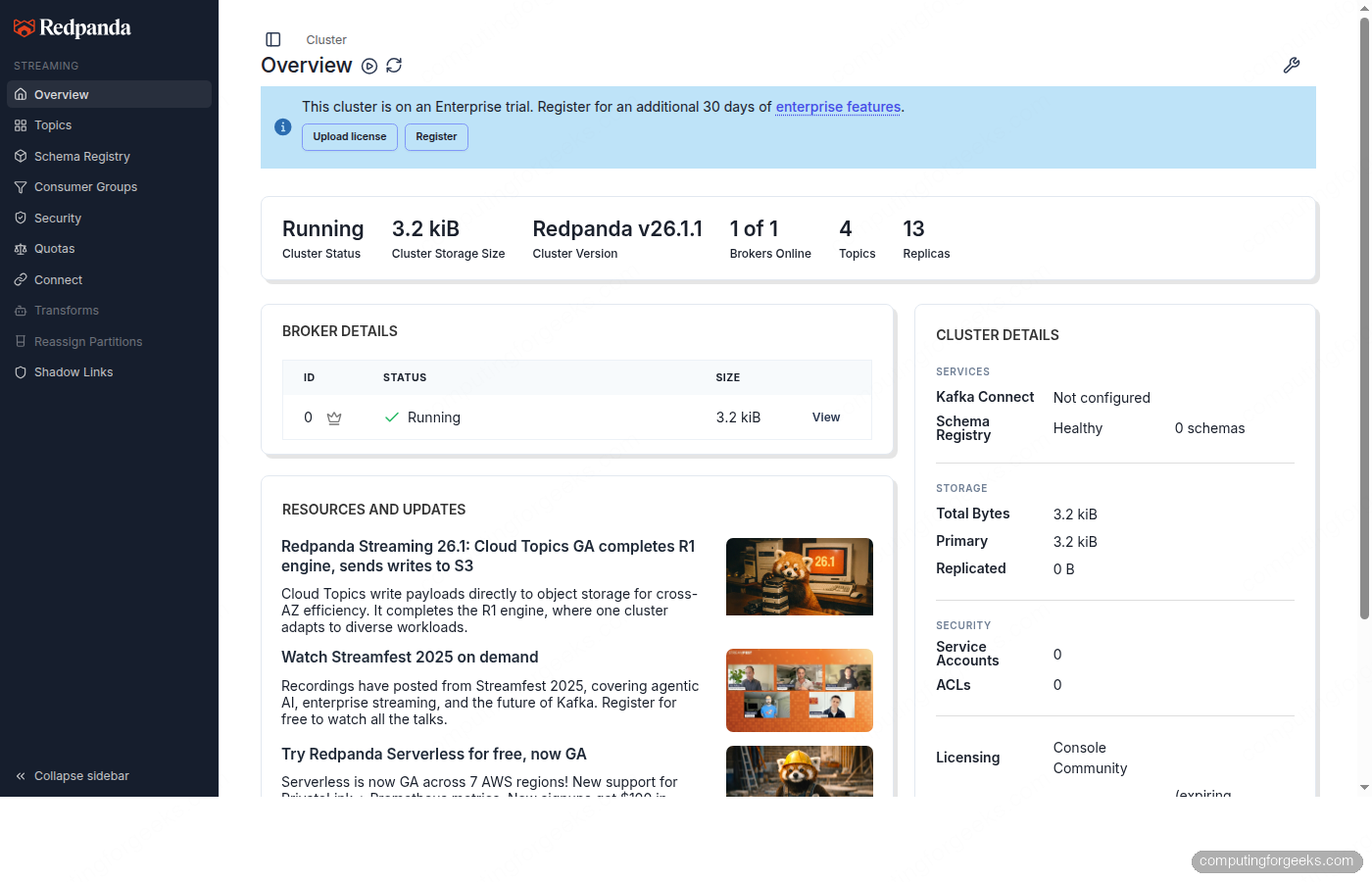
kubectl port-forward svc/redpanda-console 8080:8080 -n redpandaOpen http://localhost:8080 in your browser. The Console shows the cluster overview with broker status, resource usage, and cluster details.
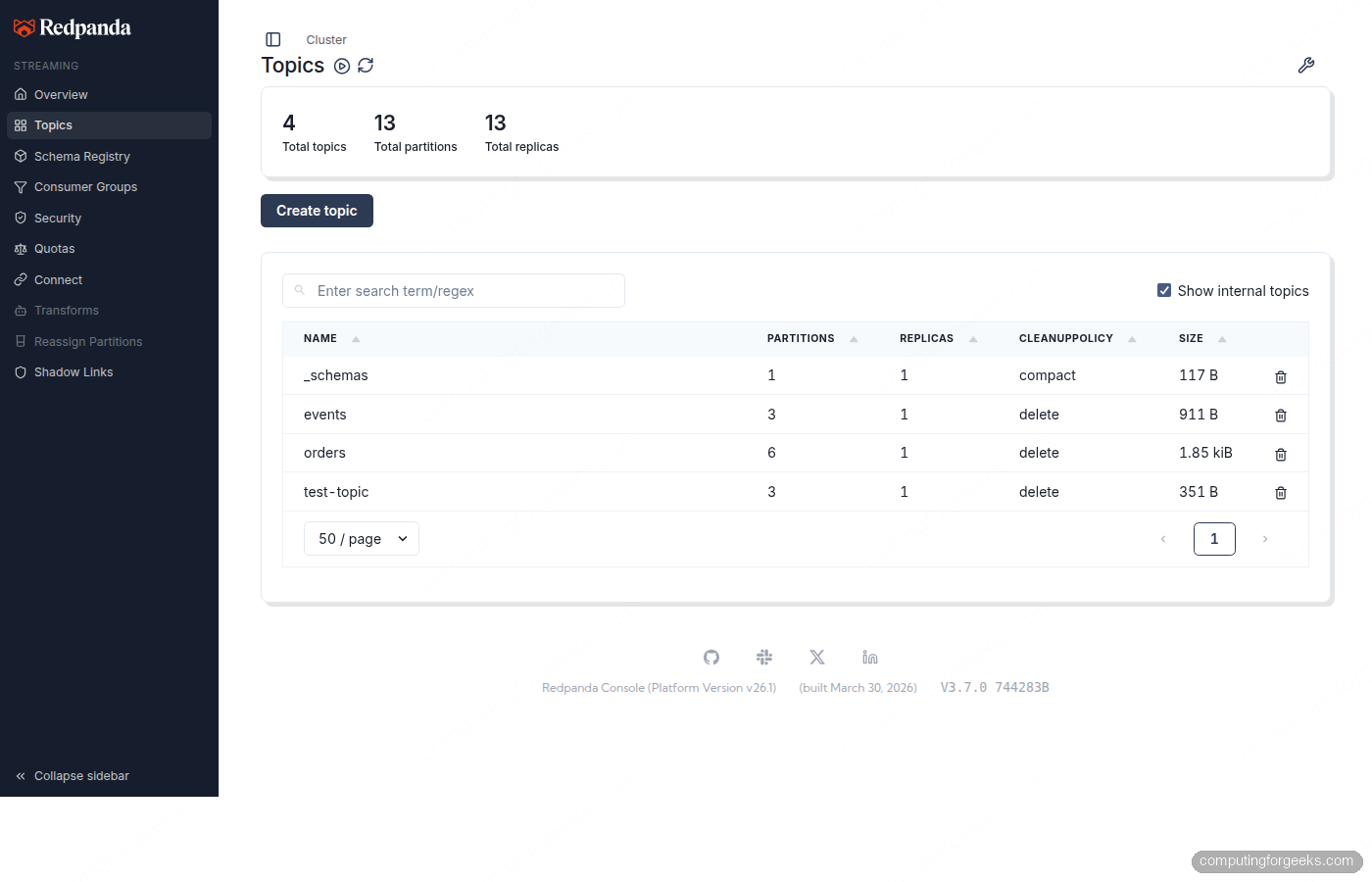
The Topics page lists all topics with their partition count, replica count, cleanup policy, and current size.
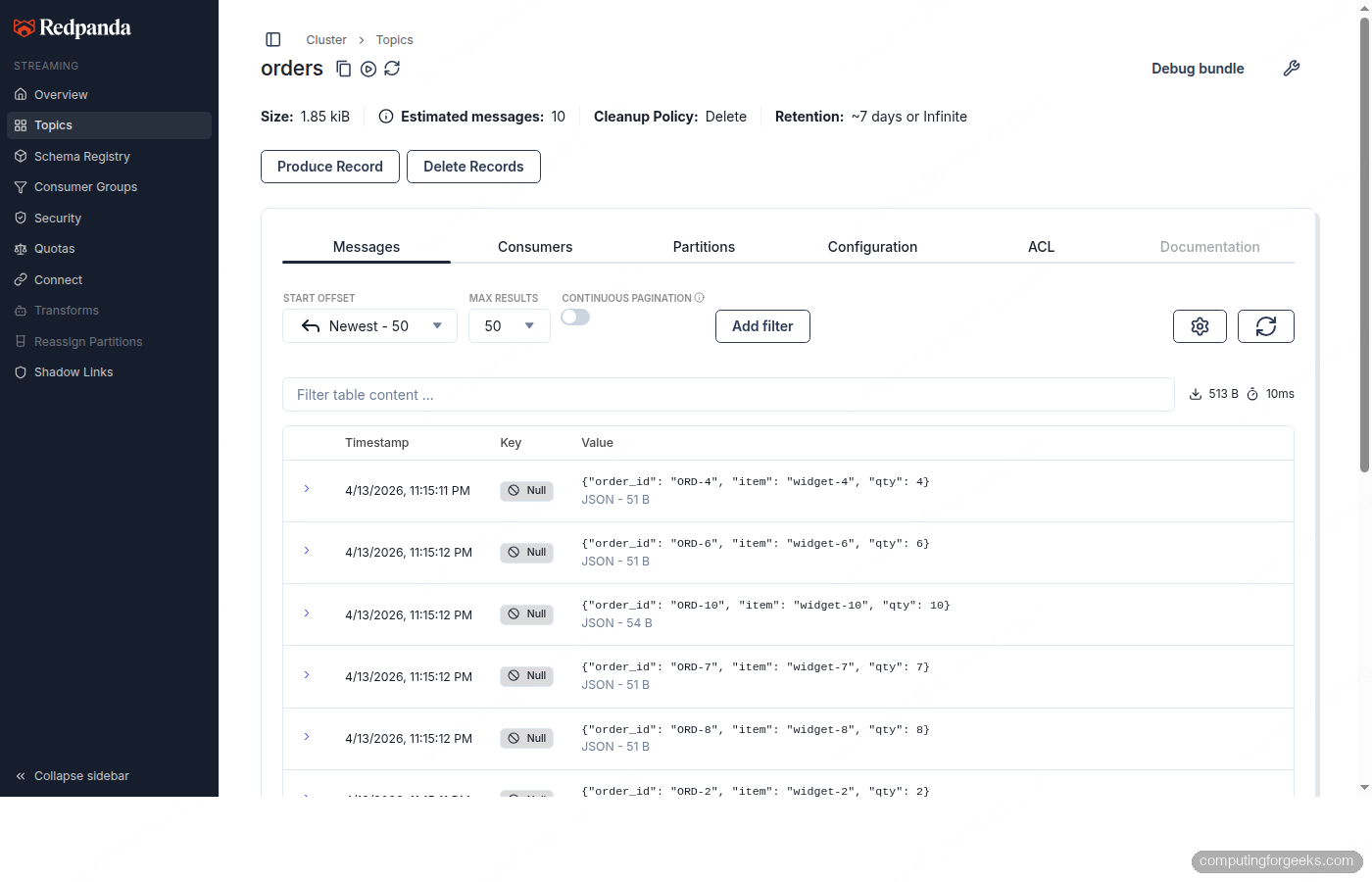
Clicking into a topic shows the Messages tab where you can browse individual records with their partition, offset, timestamp, and payload.
Enable SASL Authentication
By default the Redpanda cluster accepts unauthenticated connections. For anything beyond local testing, enable SASL to require credentials. Redpanda supports SCRAM-SHA-256 and SCRAM-SHA-512.
Create an updated values file with SASL enabled and multiple users:
sudo vi /tmp/redpanda-sasl-values.yamlAdd the SASL configuration alongside the existing settings:
statefulset:
  replicas: 3
  initContainers:
    setDataDirOwnership:
      enabled: true
resources:
  cpu:
    cores: "1"
  memory:
    container:
      max: "2Gi"
storage:
  persistentVolume:
    size: "20Gi"
tls:
  enabled: true
auth:
  sasl:
    enabled: true
    users:
      - name: admin
        password: changeme123
        mechanism: SCRAM-SHA-256
      - name: producer
        password: prodpass123
        mechanism: SCRAM-SHA-256
      - name: consumer
        password: conspass123
        mechanism: SCRAM-SHA-256
console:
  enabled: true
monitoring:
  enabled: false
config:
  cluster:
    auto_create_topics_enabled: true
    default_topic_replications: 3
rackAwareness:
  enabled: true
  nodeAnnotation: "topology.kubernetes.io/zone"
This configuration creates three SASL users (admin, producer, consumer), enables rack awareness for zone-aware replica placement, and sets the default replication factor to 3.
Apply the upgrade:
helm upgrade redpanda redpanda/redpanda \
  --namespace redpanda \
  -f /tmp/redpanda-sasl-values.yaml \
  --version 26.1.2 \
  --timeout 10m
The upgrade triggers a rolling restart of all brokers. Each broker enters maintenance mode, drains leadership, restarts with the new config, and then exits maintenance mode. During the rollout, the cluster remains available because only one broker restarts at a time.
After the rolling restart completes, verify SASL is active by producing with credentials:
echo "sasl-authenticated-message" | kubectl exec -i redpanda-0 -n redpanda -c redpanda -- \
  rpk topic produce test-topic \
  -X user=admin -X pass=changeme123 -X sasl.mechanism=SCRAM-SHA-256
The message is produced successfully:
Produced to partition 1 at offset 4 with timestamp 1776116321657.Confirm the cluster config reflects the changes:
kubectl exec redpanda-0 -n redpanda -c redpanda -- rpk cluster config get enable_sasl
kubectl exec redpanda-0 -n redpanda -c redpanda -- rpk cluster config get enable_rack_awareness
kubectl exec redpanda-0 -n redpanda -c redpanda -- rpk cluster config get auto_create_topics_enabled
All three return true, confirming SASL, rack awareness, and auto-topic creation are active.
Common Customizations
The table below shows key Helm values and their recommended production settings. The defaults are designed for development and testing.
| Setting | Default | Production | Description |
|---|---|---|---|
statefulset.replicas | 3 | 3 or 5 | Number of brokers (must be odd) |
resources.cpu.cores | “1” | “4” or higher | CPU cores per broker |
resources.memory.container.max | “2.5Gi” | “10Gi” or higher | Memory per broker (2 GiB per core minimum) |
storage.persistentVolume.size | “20Gi” | “100Gi” or higher | Data volume per broker |
tls.enabled | true | true | TLS for all listeners |
auth.sasl.enabled | false | true | Require client authentication |
auth.sasl.mechanism | SCRAM-SHA-256 | SCRAM-SHA-512 | Stronger hash for production |
rackAwareness.enabled | false | true | Spread replicas across zones |
config.cluster.default_topic_replications | 1 | 3 | Replication factor for new topics |
monitoring.enabled | false | true | Prometheus ServiceMonitor (requires Prometheus Operator) |
For production, Redpanda recommends NVMe-backed PersistentVolumes with at least 16,000 IOPS. The LVM CSI driver is a good choice for bare-metal clusters. Cloud providers typically meet this with gp3 (AWS), pd-ssd (GCP), or Premium SSD (Azure).
Enable Rack Awareness
Rack awareness ensures topic replicas are spread across different failure domains (zones, racks, or hosts). Redpanda reads the zone from a node label and assigns each broker a rack ID.
First, label your nodes with their topology zone (skip this if your cloud provider already sets topology.kubernetes.io/zone):
kubectl label node k8s-worker01 topology.kubernetes.io/zone=zone-a
kubectl label node k8s-worker02 topology.kubernetes.io/zone=zone-b
kubectl label node k8s-cp01 topology.kubernetes.io/zone=zone-c
The values file from the SASL section already includes rackAwareness.enabled: true. Verify it took effect:
kubectl exec redpanda-0 -n redpanda -c redpanda -- \
  rpk cluster config get enable_rack_awareness
Returns true. New topics will now distribute replicas across zones automatically.
Rolling Restart and Upgrades
Before triggering any restart, check that the cluster is healthy and all topics have a replication factor greater than 1. Topics with a single replica become unavailable during a broker restart.
kubectl exec redpanda-0 -n redpanda -c redpanda -- rpk cluster healthIf healthy, trigger a rolling restart:
kubectl rollout restart statefulset redpanda -n redpandaMonitor the rollout progress:
kubectl rollout status statefulset redpanda -n redpanda --watchKubernetes restarts pods one at a time (the default maxUnavailable: 1 in the update strategy). Each pod’s preStop hook puts the broker into maintenance mode, transferring leadership before shutdown. The postStart hook removes maintenance mode after the broker rejoins.
After the rollout completes, confirm all brokers are back:
kubectl exec redpanda-0 -n redpanda -c redpanda -- rpk redpanda admin brokers listAll brokers show as active and alive:
ID  HOST                                             PORT   CORES  MEMBERSHIP  IS-ALIVE  VERSION
0   redpanda-0.redpanda.redpanda.svc.cluster.local.  33145  1      active      true      26.1.1
1   redpanda-1.redpanda.redpanda.svc.cluster.local.  33145  1      active      true      26.1.1
2   redpanda-2.redpanda.redpanda.svc.cluster.local.  33145  1      active      true      26.1.1
For version upgrades, change the chart version in helm upgrade but do not use --reuse-values when upgrading chart versions. The chart may introduce new defaults that --reuse-values would silently skip.
Troubleshooting
These are real errors encountered while deploying Redpanda v26.1.1 on a 3-node kubeadm cluster running on Proxmox VMs.
Error: “sse4.2 support is required to run”
Redpanda requires the SSE4.2 instruction set. If your VMs use the default kvm64 CPU type in QEMU/Proxmox, this instruction set is not exposed to the guest OS. The broker crashes immediately after starting with this error in the logs.
The fix is to change the CPU type to host on each VM, which passes through the physical CPU features:
qm set VMID --cpu hostThis requires stopping and restarting each VM. On cloud providers (AWS, GCP, Azure), this is not an issue because instances expose the full CPU feature set.
PersistentVolumeClaims Stuck in Pending
If the Redpanda pods stay in Pending and the PVCs show no bound volume, there is likely no default StorageClass configured. Check with kubectl get sc. For bare-metal clusters, the local-path-provisioner is a quick solution for testing:
kubectl apply -f https://raw.githubusercontent.com/rancher/local-path-provisioner/v0.0.30/deploy/local-path-storage.yaml
kubectl patch storageclass local-path -p '{"metadata": {"annotations":{"storageclass.kubernetes.io/is-default-class":"true"}}}'
For production, use NVMe-backed volumes with at least 16,000 IOPS.
Pod Anti-Affinity Prevents Scheduling
The Helm chart sets pod anti-affinity so no two Redpanda brokers land on the same node. If you have exactly 2 worker nodes and a tainted control plane, the third broker stays Pending. Either add a third worker node or remove the control-plane taint:
kubectl taint nodes CONTROL_PLANE_NODE node-role.kubernetes.io/control-plane:NoSchedule-In production, always run at least 3 worker nodes dedicated to Redpanda.
PostStartHookError on New Pods
Occasionally a Redpanda pod shows PostStartHookError during initial deployment. This happens when the postStart lifecycle hook runs before the broker is fully initialized. The pod restarts automatically and succeeds on the next attempt. If it persists beyond 2-3 restarts, check the broker logs with kubectl logs redpanda-0 -n redpanda -c redpanda.
Cleanup
To remove the Redpanda deployment completely:
helm uninstall redpanda -n redpanda
kubectl delete pvc --all -n redpanda
kubectl delete ns redpanda
The PVC deletion is important because Helm does not remove PersistentVolumeClaims when uninstalling a release. If you reinstall without deleting PVCs, the new cluster may pick up stale data from the previous deployment.