Red Hat put a generative AI assistant directly in the RHEL command line. You ask a question in plain English, and an answer comes back in your terminal, scoped to Red Hat Enterprise Linux instead of generic Linux trivia. The piece that ties this together is RHEL Lightspeed: the c command on your machine hands your question to a small local daemon, the daemon forwards it to Red Hat’s Lightspeed service, and the response prints right where you are working.
This guide wires up that assistant end to end on a registered RHEL system, then shows the three ways Red Hat exposes it: the supported command-line-assistant (the c command), the optional goose agent that talks to the same backend, and a fully offline build that runs a local model with no cloud round trip. Every command below was run on a real system, so you can follow along and see the same output.
Confirmed working on RHEL 10.2 (Coughlan) in June 2026, with command-line-assistant 0.5.0 and goose 1.23.2.
How the assistant is wired
Three components do the work, and it helps to name them before installing anything:
- The
ccommand is the client you type into. It is shipped by thecommand-line-assistantpackage. - The
claddaemon (Command Line Assistant Daemon) runs in the background and brokers every request. The client never talks to the network directly. - RHEL Lightspeed is Red Hat’s hosted AI service. It is included with your RHEL subscription, so there is no separate API key and no third-party account.
The flow is c → clad → Lightspeed → back to your terminal. Because the daemon is the only part that reaches out, the assistant only works on a system that is registered to Red Hat. That registration is also what gates the package itself, so it is the first thing to sort out.
Prerequisites
- RHEL 10 (10.0 or later) or RHEL 9 (9.6 or later). The steps here were run on RHEL 10.2.
- A system registered with an active subscription. A no-cost Red Hat Developer subscription covers a lab machine. If you have not installed RHEL yet, the step-by-step RHEL 10 install guide gets you to a working desktop.
- Outbound HTTPS to
cert.console.redhat.comon port 443 so the daemon can reach Lightspeed. - A user with
sudorights.
This assistant is a RHEL feature tied to your subscription, so the community rebuilds do not include it. If you are still choosing a distribution, the Rocky, AlmaLinux and RHEL comparison covers where they differ.
One thing worth deciding up front: this is generative AI, and your questions (plus anything you attach or pipe into it) leave the machine and go to Red Hat. That is fine for “how do I check a service” but not for production secrets. The offline build later in this guide closes that gap for sensitive environments.
Register the system, if it is not already
Skip this if subscription-manager status already reads Overall Status: Current. Otherwise register the box:
sudo subscription-manager registerEnter your Red Hat login when prompted. On RHEL 10 this enables the BaseOS and AppStream repositories under Simple Content Access, which is where the assistant lives. Confirm the repos are live with dnf:
dnf repolistYou should see the AppStream and BaseOS repositories enabled:
repo id                           repo name
rhel-10-for-x86_64-appstream-rpms Red Hat Enterprise Linux 10 for x86_64 - AppStream (RPMs)
rhel-10-for-x86_64-baseos-rpms    Red Hat Enterprise Linux 10 for x86_64 - BaseOS (RPMs)
Install the command-line assistant
The client and daemon ship in a single package from AppStream:
sudo dnf install -y command-line-assistantThat installs the c client (with a cla alias), the clad daemon, and a config file at /etc/xdg/command-line-assistant/config.toml. Start and enable the daemon so it is ready on boot:
sudo systemctl enable --now cladNow check the version and confirm the daemon is live:
c --version
systemctl is-active clad
The version prints and the daemon reports active:
0.5.0
active
Ask your first question with the c command
The chat subcommand is where you spend most of your time. Pass a question as a quoted string:
c chat "How do I check if SELinux is in enforcing mode on RHEL?"The daemon shows a short “Asking RHEL Lightspeed” status, then prints the answer. RHEL 10.2 and 9.8 added color-coded output, so commands and snippets are visually separated from the explanation. A one-line disclaimer leads the response and a “review before use” reminder closes it:
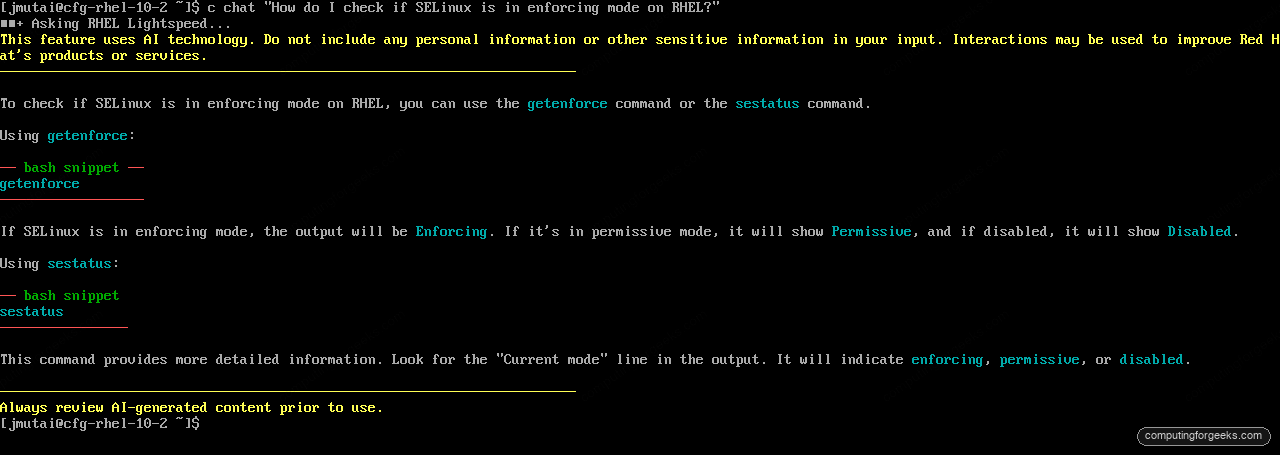
The answer is RHEL-specific: it reaches for getenforce and sestatus rather than generic advice. If you want plain text for piping or logging, add -p to drop the colors and the spinner animation:
c -p chat "How do I find which process is using the most memory?"Feed it real context: pipe output and attach files
The assistant is far more useful when it can see what your system actually said. The c chat command reads from standard input automatically, so you can pipe a command’s output straight into a question:
echo "nginx: [emerg] bind() to 0.0.0.0:80 failed (98: Address already in use)" | c chat "what causes this error and how do I fix it?"It explains the port conflict, then walks through finding the offending process with ss -tulnp and the choices for resolving it. For longer context, attach a file with -a. Here it reads the current boot’s error journal and summarizes it:
sudo journalctl -p err -b --no-pager | tail -12 | sudo tee /tmp/errs.log
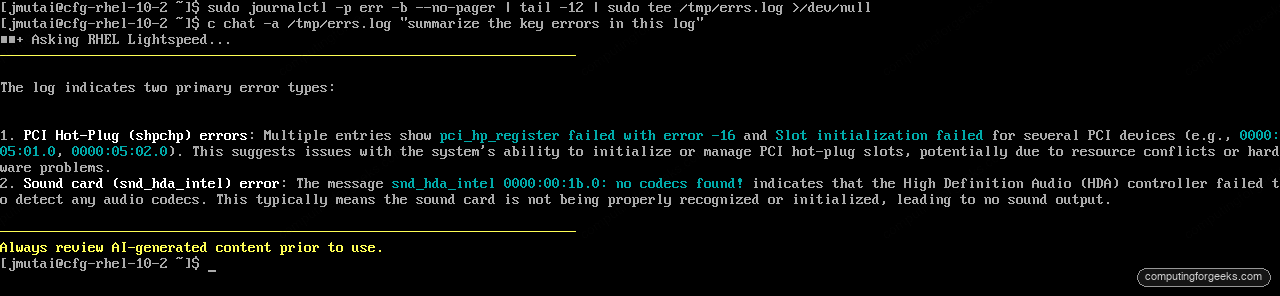
c chat -a /tmp/errs.log "summarize the key errors in this log"
The summary is grounded in the actual log, not a generic example. On this lab box it picked out the PCI hot-plug and audio-codec messages and explained each:
Capture terminal output and go interactive
Typing or piping context every time gets old. The shell integration solves that. Enable capture for your current terminal, and the assistant can pull in the output of commands you have already run:
c shell --enable-captureWith capture on, you can run a command that fails and then ask about it with -w, which pulls in the most recent captured output as context:
c chat -w 1 "explain what went wrong and how to fix it"There is also a hands-on interactive mode. Enable the bash integration once, open a new shell, and a hotkey drops you into a chat without leaving your prompt:
c shell --enable-interactiveSource the new shell and press Ctrl+G to toggle interactive mode. For a one-off back-and-forth without the shell hook, c chat -i starts an interactive session directly.
Keep and reuse conversations
Every exchange is saved, so you can come back to a useful answer later. List your chats and read the history:
c chat -l
c history
The history prints each question and answer with a timestamp and the chat it belongs to. You can also work in named sessions to keep topics apart, which is handy when you are troubleshooting two unrelated things at once:
c chat -n storage "how do I grow an XFS filesystem online?"When you want a clean slate, clear everything:
c chat --delete-allAdd goose, the agent that runs alongside
The c command answers questions. goose is a step up: an open-source AI agent that can chain steps and call tools, and Red Hat ships a build that points at the same Lightspeed backend. It lives in the Extensions repository rather than AppStream. Much like turning on the CRB repository, you enable it with subscription-manager first:
sudo subscription-manager repos --enable rhel-10-for-x86_64-extensions-rpmsInstall goose together with the Red Hat glue package that wires it to the assistant backend:
sudo dnf install -y goose goose-redhatThe goose-redhat package is the piece that ties goose to Lightspeed. It drops a login script in /etc/profile.d that, on your next shell, copies a custom provider named rhel_cla into ~/.config/goose. A companion goose-proxy service (socket-activated, so it starts on demand) bridges goose to the assistant backend. The result is that goose uses your subscription, with no external model API key to manage.
Open a fresh login shell so the provider is set up, then run a one-shot task. The run -t form is headless, which is ideal for a quick answer:
goose run -t "How do I check firewalld status on RHEL?"goose prints the session details, including the provider and model it resolved to, then answers. The provider: rhel_cla line confirms it is going through the Red Hat backend rather than a public model:

Run goose with no arguments for the full interactive agent session. Where goose goes further than c is tool use: Red Hat ships a developer-preview Linux MCP server that goose can load as an extension, letting the agent inspect logs and system state through a controlled interface instead of just talking about commands. The provider config ships with that extension commented out, so you opt in deliberately.
Run it fully offline with a local model
The cloud assistant sends your questions to Red Hat. For disconnected or data-sensitive systems, Red Hat offers a developer-preview build that runs a model on the host itself, so nothing leaves the machine. Two things to know before you start: this preview targets the containerized path introduced in RHEL 10.1, so use 10.1 or later for it, and Red Hat gates the offline container images to Red Hat Satellite subscribers, so the image pull can return an entitlement error on a plain Developer subscription. With an entitled login, authenticate to the registry:
podman login registry.redhat.ioRun the installer image once. It drops a small control script, rhel-cla, into ~/.local/bin:
podman run -u : --rm \
  -v $HOME/.config:/config:Z \
  -v $HOME/.local/bin:/config/.local/bin:Z \
  registry.redhat.io/rhel-cla/installer-rhel10:latest
Make sure ~/.local/bin is on your PATH, then start the local stack. The first run pulls the model and the inference runtime, so give it a few minutes:
rhel-cla startThis brings up a small pod: a ramalama model server running Microsoft’s Phi-4-mini (a quantized Q4_K_M GGUF build), plus a pgvector database for retrieval. On a host without a GPU it falls back to CPU automatically. Check that the pod is healthy:
rhel-cla statusThe whole stack runs on the host. A quick podman ps shows the model server (rhel-cla-llamacpp-model) and the API container (rhel-cla-rlsapi) up next to the retrieval database, all local:

Once the API reports healthy, the assistant is ready to answer from the local model instead of the cloud, with no outbound traffic. Manage its lifecycle with the same helper, and enable a user service if you want it to come up on login:
rhel-cla enable-service
rhel-cla stop
rhel-cla uninstall
The trade-off is honest: a small local model on CPU is slower and less capable than the hosted service, but for an air-gapped fleet or a box that handles regulated data, keeping every query on the host is the point.
What leaves the box, and how to keep it private
The disclaimer on every cloud answer is not boilerplate to scroll past. With the standard c command and the Red Hat goose build, your question and any piped output or attached file are sent to RHEL Lightspeed. So treat the input like anything else you would not paste into a hosted service: no passwords, no private keys, no customer data. Two practical controls follow from that. Use the offline build above for anything sensitive, and review every generated command before running it, because the assistant is confident even when it is wrong. The footer says it plainly: always review AI-generated content prior to use.
c, goose, or the offline model: which to reach for
All three talk to the same idea, but they fit different jobs. This is how they line up once everything is wired:
| Tool | What it is | Backend | Best for |
|---|---|---|---|
c (command-line-assistant) | Supported Q&A client | Lightspeed (cloud) | Quick, RHEL-specific answers; piping logs and attaching files |
goose + goose-redhat | Optional agent that can use tools | Lightspeed (cloud) | Multi-step tasks, MCP tool use, interactive agent sessions |
Offline build (rhel-cla) | Developer-preview local model | Phi-4-mini on the host | Air-gapped or sensitive systems where nothing can leave the box |
For day-to-day work, the c command is the one you will keep. It is supported, it is one package, and it gives RHEL-aware answers without leaving your prompt. Reach for goose when you want an agent that can act, and switch to the offline model when the data cannot. If you are weighing this against the rest of the release, the rest of what is new across RHEL 10.2 and 9.8 is worth a read, and the same assistant is available on RHEL 9.6 and later if you are not on 10 yet.