Driving KVM from the command line with virsh and virt-install is fast once you know the flags, but it stops being pleasant the moment you are juggling a dozen guests, handing access to teammates, or trying to read a console over SSH. WebVirtCloud puts a clean web UI in front of libvirt. You create and resize instances, manage storage pools and virtual networks, take snapshots, and reach a noVNC console in the browser, all from one dashboard that can drive several KVM hosts at once.
This guide shows how to manage KVM with WebVirtCloud on Ubuntu: you install the web UI from source, secure it with a real TLS certificate, connect it to a libvirt host over SSH, then build a virtual machine and open its console in the browser. Everything below was run in June 2026 on Ubuntu 24.04 with KVM, inside a nested-virtualization Proxmox lab, so every screenshot comes from an install that genuinely boots guests. The same steps apply to Ubuntu 26.04 and 22.04 and to Debian.
Build the test lab with nested virtualization
You can install WebVirtCloud straight onto a physical KVM server. To rehearse the whole stack first, run it inside a virtual machine that is allowed to run its own guests. That is nested virtualization: the outer hypervisor exposes the CPU virtualization extensions to the VM, and the VM then behaves like a real KVM host. The lab here is a single Ubuntu VM on Proxmox with 4 vCPUs, 8 GB RAM, and a 40 GB disk.
Expose the CPU extensions to the VM
On Proxmox, the lab VM must use the host CPU type so the Intel VT-x or AMD-V flags pass through. Set it from the Proxmox node (replace the VM ID with yours):
qm set 156 --cpu hostOn a plain KVM/QEMU hypervisor instead of Proxmox, load the kernel module with nesting enabled and confirm it stuck:
echo "options kvm_intel nested=1" | sudo tee /etc/modprobe.d/kvm-nested.conf
sudo modprobe -r kvm_intel
sudo modprobe kvm_intel
cat /sys/module/kvm_intel/parameters/nested
A value of Y means the guests on this host can run their own accelerated VMs. AMD systems use kvm_amd in place of kvm_intel.
Confirm acceleration inside the lab VM
Inside the Ubuntu VM, the cpu-checker package answers the only question that matters before going further:
sudo apt install -y cpu-checker
sudo kvm-ok
A working nested setup reports that the device exists and acceleration is available:
INFO: /dev/kvm exists
KVM acceleration can be used
If it reports that KVM acceleration cannot be used, the CPU flags are not reaching the VM. Fix the CPU type on the hypervisor before continuing, because libvirt will otherwise fall back to painfully slow software emulation.
Prerequisites
- Ubuntu 24.04 (also tested on 26.04 and 22.04) with a sudo-enabled user
- KVM and libvirt installed on the host (covered in the next step)
- A hostname or domain pointing at the server, with port 443 reachable for the dashboard
- At least 2 GB RAM free for WebVirtCloud plus whatever the guests need
Step 1: Install KVM and libvirt
WebVirtCloud is a front end for libvirt, so the host needs a working KVM stack first. Install the hypervisor packages and start the daemon:
sudo apt update
sudo apt install -y qemu-kvm libvirt-daemon-system libvirt-clients \
  bridge-utils virtinst libguestfs-tools
sudo systemctl enable --now libvirtd
Check that libvirt sees the hypervisor and the default NAT network is active:
sudo virsh nodeinfo
sudo virsh net-list --all
The default network should show as active and autostart. If it is missing, start it with sudo virsh net-start default and mark it persistent with sudo virsh net-autostart default. For a deeper reference on the underlying commands, keep the virsh command cheatsheet nearby.
Step 2: Set reusable shell variables
A few values repeat across the settings file, the Nginx vhost, and the certificate request. Export them once so you edit a single block and paste the rest of the guide as-is. For an all-in-one install, the host IP is the server’s own address.
export SITE_DOMAIN="webvirtcloud.example.com"
export HOST_IP="10.0.1.50"
export ADMIN_EMAIL="[email protected]"
Confirm they are set before running anything that depends on them:
echo "Domain: ${SITE_DOMAIN} | Host IP: ${HOST_IP}"These variables live only in the current shell. Re-run the export block if you reconnect or switch to a root shell with sudo -i.
Step 3: Install the WebVirtCloud dependencies
WebVirtCloud is a Django application served by Gunicorn behind Nginx, with Supervisor keeping the worker processes alive. Pull in the build tools, the Python toolchain, and the web server:
sudo apt install -y git nginx supervisor \
  python3 python3-pip python3-venv python3-dev \
  libvirt-dev libxml2-dev libxslt1-dev zlib1g-dev libffi-dev libssl-dev \
  gcc pkg-config libsasl2-dev libldap2-dev
The libsasl2-dev and libldap2-dev packages are what let the build compile the optional LDAP authentication backend later, so install them now even if you start with local accounts.
Step 4: Download and configure WebVirtCloud
Clone the project, then generate the settings file from the bundled template:
git clone https://github.com/retspen/webvirtcloud.git
cd webvirtcloud
cp webvirtcloud/settings.py.template webvirtcloud/settings.py
Django needs a unique secret key. The project ships a generator, and a single sed drops the result into place:
SECRET=$(python3 conf/runit/secret_generator.py)
sed -i "s|SECRET_KEY = \"\"|SECRET_KEY = \"$SECRET\"|" webvirtcloud/settings.py
Django also rejects form posts whose origin it does not trust. Add your hostname to the trusted list, including the HTTPS origin you will serve once the certificate is in place:
sed -i "s|CSRF_TRUSTED_ORIGINS = .*|CSRF_TRUSTED_ORIGINS = ['http://localhost','https://${SITE_DOMAIN}']|" webvirtcloud/settings.pyCopy the bundled Nginx and Supervisor configs into place, then point the Nginx vhost at your hostname:
sudo cp conf/nginx/webvirtcloud.conf /etc/nginx/conf.d/
sudo cp conf/supervisor/webvirtcloud.conf /etc/supervisor/conf.d/
sudo sed -i "s|server_name .*|server_name ${SITE_DOMAIN};|" /etc/nginx/conf.d/webvirtcloud.conf
sudo rm -f /etc/nginx/sites-enabled/default
Move the project into /srv and build an isolated Python environment for it:
cd ..
sudo mv webvirtcloud /srv/
cd /srv/webvirtcloud
python3 -m venv venv
source venv/bin/activate
pip install --upgrade pip setuptools wheel
pip install -r conf/requirements.txt
With the dependencies in the virtual environment, initialise the database and collect the static assets:
python3 manage.py migrate
python3 manage.py collectstatic --noinput
deactivate
sudo chown -R www-data:www-data /srv/webvirtcloud
The web server user owns the tree because Gunicorn and the helper daemons run as www-data.
Step 5: Start the WebVirtCloud services
Enable Nginx and Supervisor, then have Supervisor pick up the new program group:
sudo systemctl enable --now nginx supervisor
sudo supervisorctl reread
sudo supervisorctl update
Three processes should report as running: the Gunicorn app, the noVNC proxy, and the Socket.IO bridge that streams console traffic.
sudo supervisorctl statusThe output confirms all of the WebVirtCloud workers are up:
novncd                           RUNNING   pid 25877, uptime 0:00:05
socketiod                        RUNNING   pid 25878, uptime 0:00:05
webvirtcloud                     RUNNING   pid 25879, uptime 0:00:05
At this point the dashboard answers over plain HTTP on the host. Do not log in yet. A virtualization control panel has no business running without TLS, so add a certificate first.
Step 6: Secure the dashboard with HTTPS
The default flow uses Certbot with the Nginx plugin and an HTTP-01 challenge, which works with any DNS provider as long as the server has a public A record and port 80 is reachable. Install Certbot and request the certificate:
sudo apt install -y certbot python3-certbot-nginx
sudo certbot --nginx -d "${SITE_DOMAIN}" --non-interactive --agree-tos \
  --redirect -m "${ADMIN_EMAIL}"
Certbot rewrites the vhost to listen on 443 and adds the HTTP-to-HTTPS redirect. The WebVirtCloud vhost has one detail the plugin does not handle on its own: the console runs over a WebSocket, and behind a TLS reverse proxy the browser must reach that socket on 443, not on the internal port 6080. Open the vhost and confirm it carries the WebSocket locations and the right forwarded headers:
sudo nano /etc/nginx/conf.d/webvirtcloud.confThe HTTPS server block should proxy the app and upgrade the console sockets like this:
upstream wsnovncd { server 127.0.0.1:6080; }
upstream wssocketiod { server 127.0.0.1:6081; }

server {
    listen 443 ssl http2;
    server_name SITE_DOMAIN_HERE;

    ssl_certificate     /etc/letsencrypt/live/SITE_DOMAIN_HERE/fullchain.pem;
    ssl_certificate_key /etc/letsencrypt/live/SITE_DOMAIN_HERE/privkey.pem;

    location /static/ {
        root /srv/webvirtcloud;
        expires max;
    }

    location / {
        proxy_pass http://127.0.0.1:8000;
        proxy_set_header Host $host;
        proxy_set_header X-Real-IP $remote_addr;
        proxy_set_header X-Forwarded-For $proxy_add_x_forwarded_for;
        proxy_set_header X-Forwarded-Proto https;
        proxy_set_header X-Forwarded-Ssl on;
        proxy_read_timeout 1800;
        client_max_body_size 1024M;
    }

    location /novncd/ {
        proxy_pass http://wsnovncd;
        proxy_http_version 1.1;
        proxy_set_header Upgrade $http_upgrade;
        proxy_set_header Connection "upgrade";
        proxy_set_header Host $host;
    }
    location /socket.io/ {
        proxy_pass http://wssocketiod;
        proxy_http_version 1.1;
        proxy_set_header Upgrade $http_upgrade;
        proxy_set_header Connection "upgrade";
        proxy_set_header Host $host;
    }
    location /websockify {
        proxy_pass http://wsnovncd;
        proxy_http_version 1.1;
        proxy_set_header Upgrade $http_upgrade;
        proxy_set_header Connection "upgrade";
        proxy_set_header Host $host;
    }
}
Replace the SITE_DOMAIN_HERE placeholder with your real hostname so the listener and certificate paths match. A static config file is not a shell, so the variable will not expand on its own. Substitute it with one command:
sudo sed -i "s/SITE_DOMAIN_HERE/${SITE_DOMAIN}/g" /etc/nginx/conf.d/webvirtcloud.confNow tell WebVirtCloud that the public WebSocket port is 443, otherwise the console tries to connect on 6080 and fails. Edit the public port in the settings file and restart the services:
sudo sed -i 's/^WS_PUBLIC_PORT = .*/WS_PUBLIC_PORT = 443/' /srv/webvirtcloud/webvirtcloud/settings.py
sudo nginx -t
sudo systemctl reload nginx
sudo supervisorctl restart all
Verify the origin now serves a valid certificate:
curl -sI "https://${SITE_DOMAIN}/" | head -1
echo | openssl s_client -connect "${SITE_DOMAIN}:443" 2>/dev/null | openssl x509 -noout -issuer
A redirect-aware 200 or 302 and a Let’s Encrypt issuer line mean the dashboard is ready to use over HTTPS.
Alternative: DNS-01 for a private or NAT’d host
KVM hosts often live on a private LAN with no inbound port 80, which rules out the HTTP-01 challenge. In that case prove domain ownership through DNS instead. Certbot ships plugins for the common providers (Cloudflare, Route 53, DigitalOcean, Google Cloud DNS, Linode, OVH, RFC2136); swap in the one that matches your DNS. Using Cloudflare as the worked example:
sudo apt install -y python3-certbot-dns-cloudflare
echo "dns_cloudflare_api_token = YOUR_API_TOKEN" | sudo tee /etc/letsencrypt/cloudflare.ini
sudo chmod 600 /etc/letsencrypt/cloudflare.ini
sudo certbot certonly --dns-cloudflare \
  --dns-cloudflare-credentials /etc/letsencrypt/cloudflare.ini \
  -d "${SITE_DOMAIN}" --non-interactive --agree-tos -m "${ADMIN_EMAIL}"
With certonly the certificate lands in /etc/letsencrypt/live/ but the vhost is not rewritten, so you add the HTTPS server block from the previous step by hand. This is also the approach to use when you want a wildcard certificate. For a fuller treatment of the Nginx side, see the guide on Nginx with Let’s Encrypt on Ubuntu.
Step 7: Sign in and change the admin password
Browse to https://${SITE_DOMAIN}/ and the sign-in page loads over TLS.
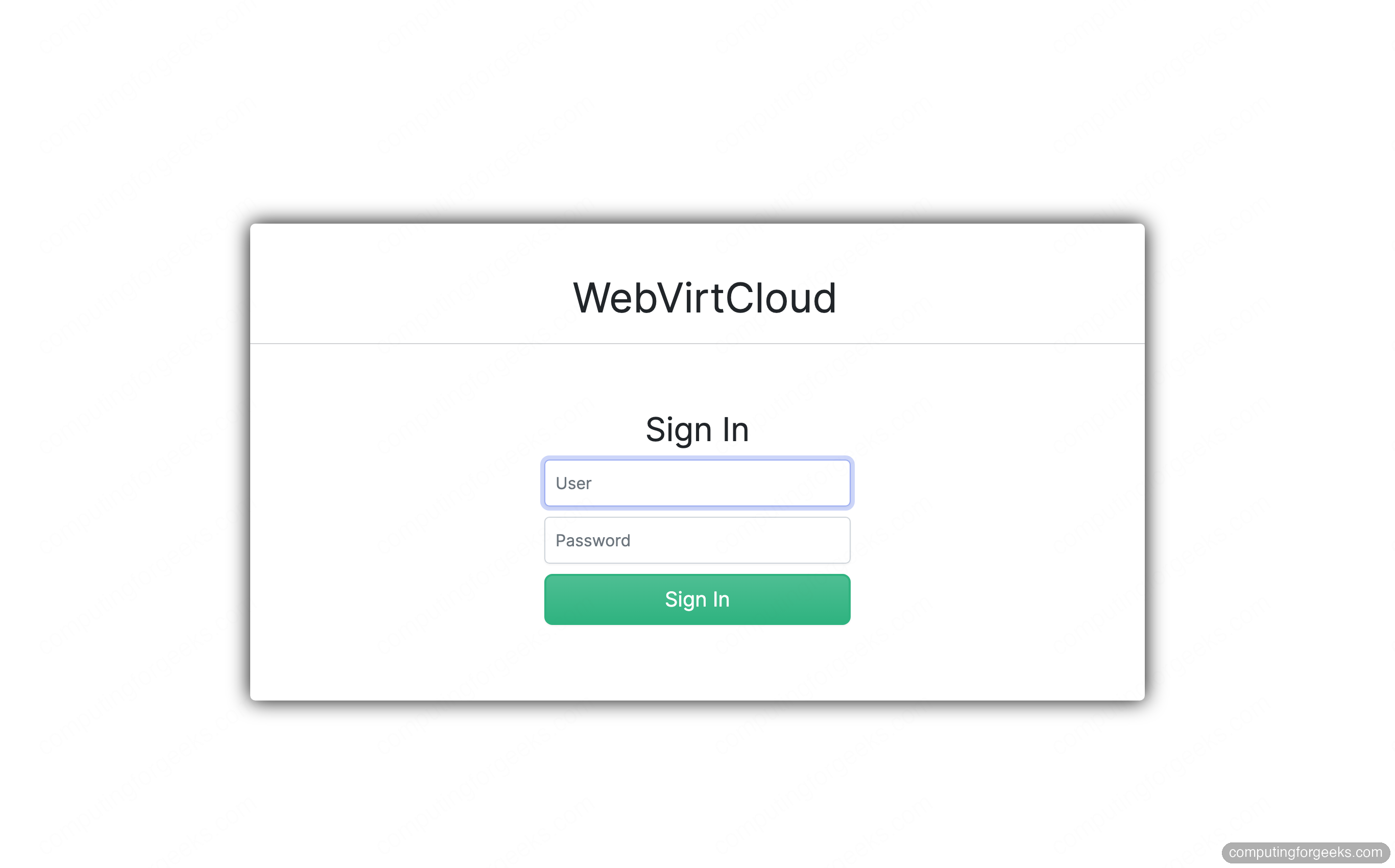
The first login uses the built-in credentials admin / admin. Change that password immediately. Click the admin menu at the top right, open Profile, then set a strong password and save. Log out and back in to confirm the new password works before you attach any real hosts.
Step 8: Add your KVM host
WebVirtCloud talks to libvirt over one of four transports: SSH, TCP, TLS, or a local socket. SSH is the most robust and works whether libvirt sits on this same machine or on a remote server, so use it. WebVirtCloud connects as the www-data user, which means that account needs an SSH key trusted by the target host.
Generate a key for www-data and authorise it on the KVM host. For an all-in-one install the target is the server’s own address:
sudo mkdir -p /var/www/.ssh
sudo chown -R www-data:www-data /var/www/.ssh
sudo chmod 700 /var/www/.ssh
sudo -u www-data ssh-keygen -t rsa -b 2048 -N "" -f /var/www/.ssh/id_rsa
sudo -u www-data ssh-copy-id -i /var/www/.ssh/id_rsa.pub "root@${HOST_IP}"
Seed the known-hosts file so the non-interactive connection does not stall on a host-key prompt, then prove the path works end to end:
sudo -u www-data ssh-keyscan -H "${HOST_IP}" | sudo -u www-data tee /var/www/.ssh/known_hosts
sudo -u www-data ssh -i /var/www/.ssh/id_rsa "root@${HOST_IP}" "virsh -c qemu:///system version"
Seeing the libvirt and QEMU versions print back means WebVirtCloud will be able to drive the host. Image operations such as setting a password on a cloud image rely on a small helper daemon called gstfsd. Install it on the host being managed:
sudo apt install -y python3-guestfs
sudo cp /srv/webvirtcloud/conf/daemon/gstfsd /usr/local/bin/gstfsd
sudo chmod +x /usr/local/bin/gstfsd
sudo cp /srv/webvirtcloud/conf/supervisor/gstfsd.conf /etc/supervisor/conf.d/
sudo supervisorctl reread && sudo supervisorctl update
With the plumbing ready, add the host in the UI. Open Computes, click SSH, and fill in a label, the host IP, and the login user.
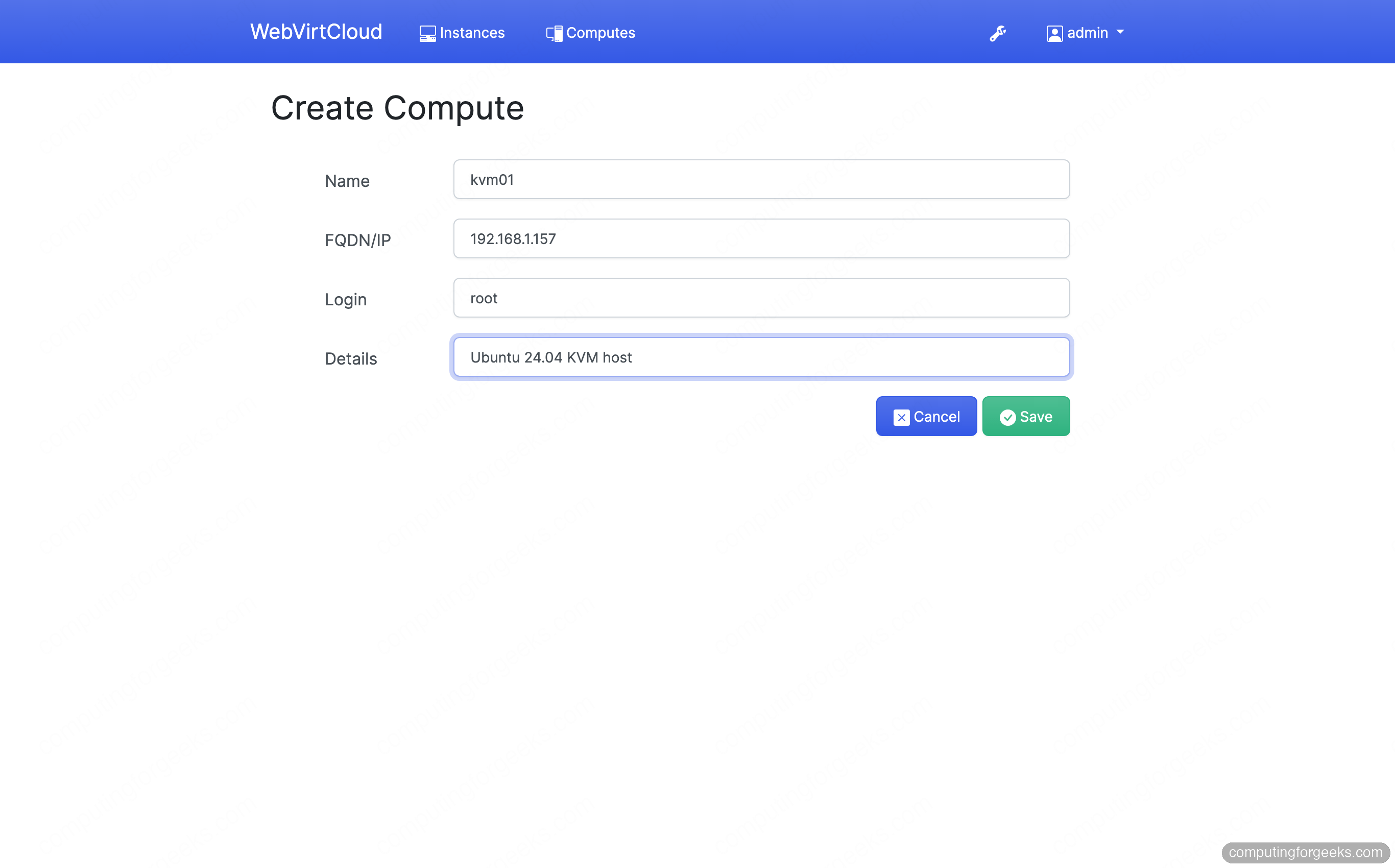
Save the form and the host appears in the Computes list. A healthy connection shows the green Connected status.
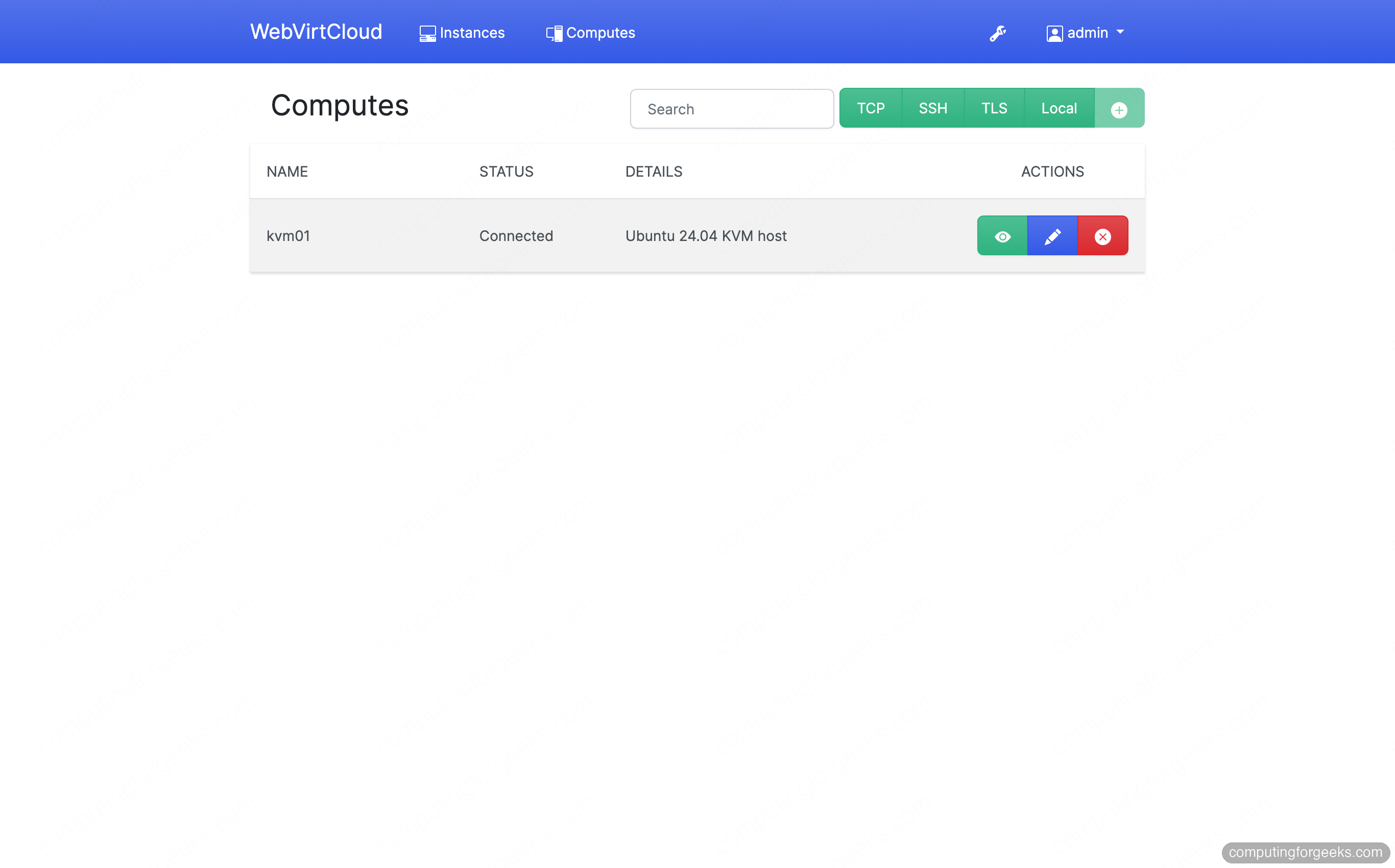
Adding a second or third hypervisor later is the same form with a different IP, which is how WebVirtCloud ends up managing a small fleet from one screen. Running on RHEL instead? The host side differs slightly, and the steps live in the guide on running WebVirtCloud on RHEL-based systems.
Step 9: Prepare an OS image
A new VM needs an operating system to clone from. Drop a cloud image or ISO into the host’s default storage pool, which lives at /var/lib/libvirt/images. The tiny CirrOS image is perfect for proving the stack boots; a regular Ubuntu cloud image works the same way for real workloads.
cd /var/lib/libvirt/images
sudo wget https://download.cirros-cloud.net/0.6.2/cirros-0.6.2-x86_64-disk.img
sudo wget https://cloud-images.ubuntu.com/noble/current/noble-server-cloudimg-amd64.img
sudo virsh pool-refresh default
After the refresh the images show up as volumes in the pool, ready to clone. WebVirtCloud lists the same volumes under Computes → the host → Storages → default.
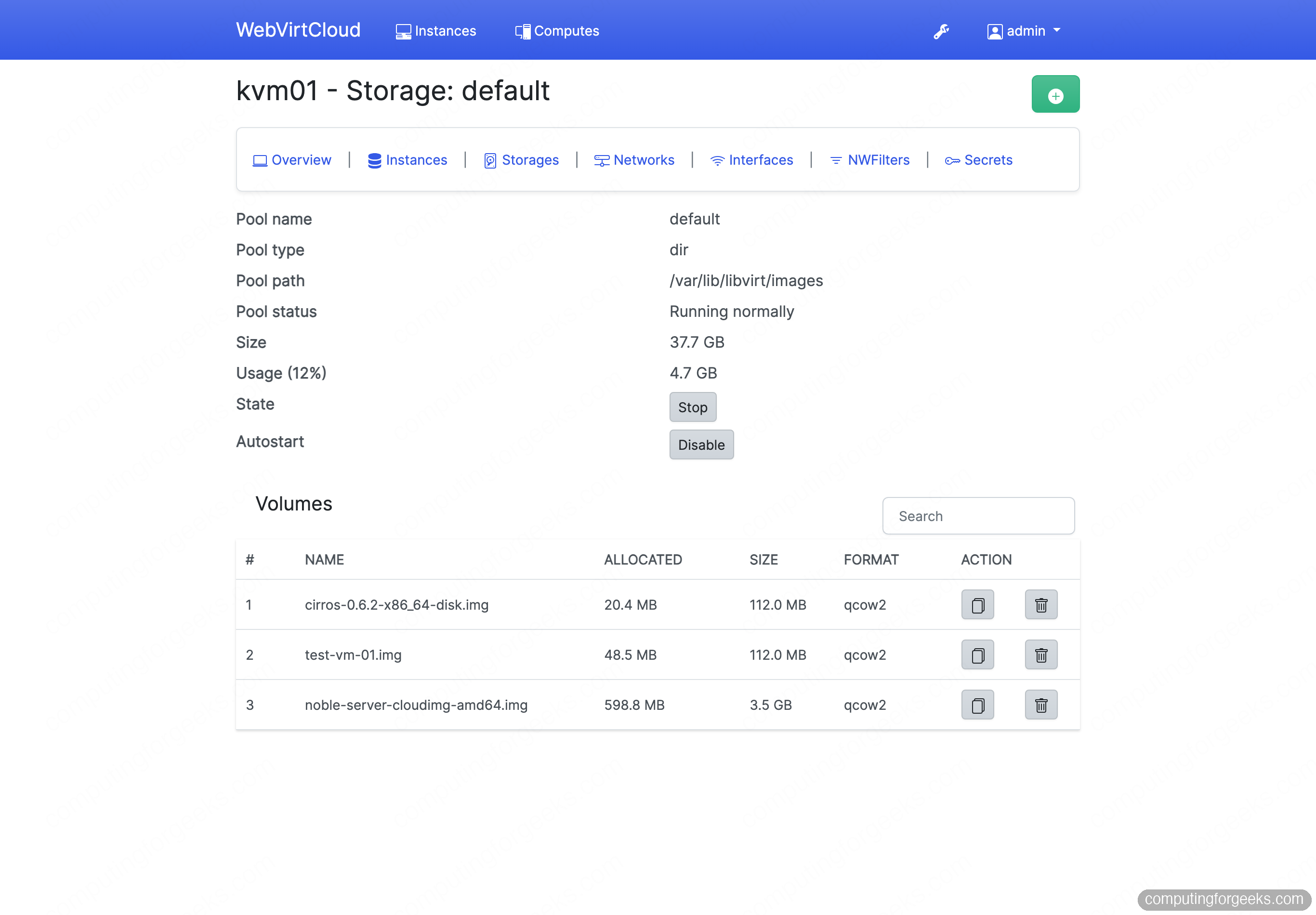
This is also where you create extra pools on directories, LVM, NFS, or Ceph. For dedicated walkthroughs of each backend, see configuring KVM storage pools in WebVirtCloud.
Step 10: Create a virtual machine
From the host’s Instances tab, start a new instance. The wizard first asks for the architecture and chipset; x86_64 with the q35 chipset is the right default for modern guests. On the next screen, choose the Template method, which clones one of the images you just staged into a fresh disk.
Give the instance a name, set the vCPU count and memory, then pick the pool and the template image to clone. Leave storage and network on default for a first run.
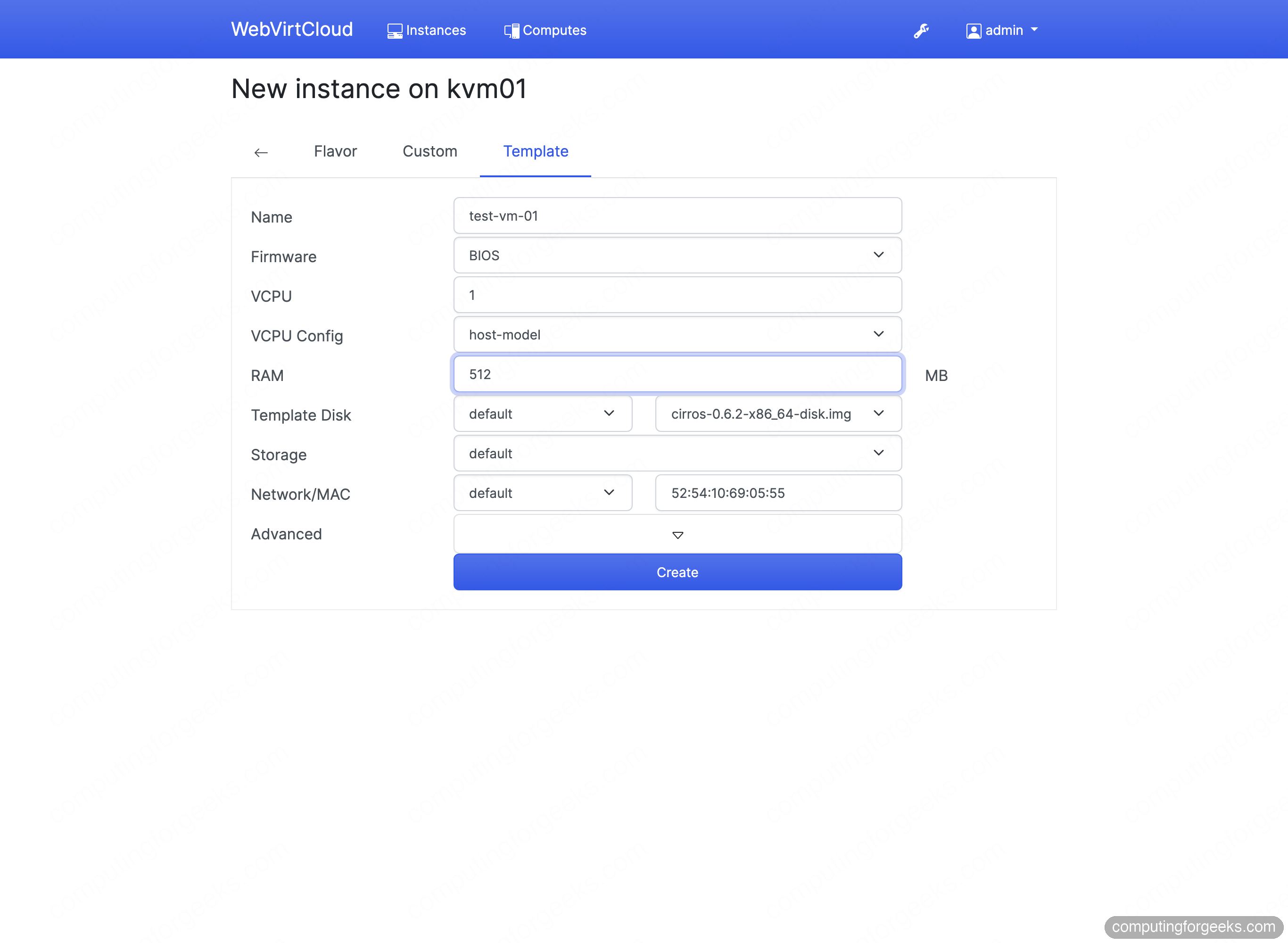
Click Create and WebVirtCloud clones the disk, defines the domain, and drops you on the instance page. The new VM also shows in the global Instances list alongside the host it runs on, with inline power controls.
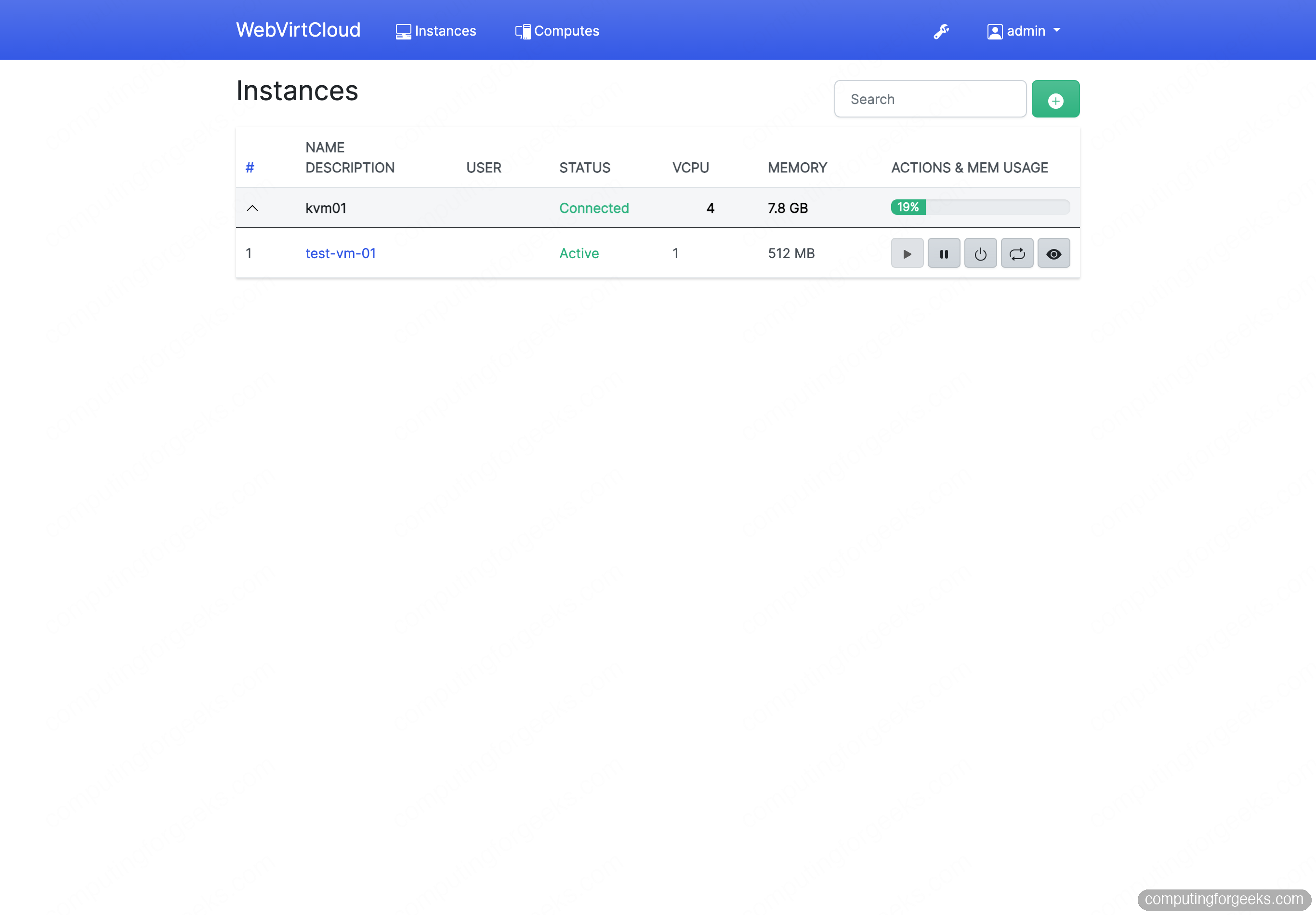
Press the play button to power it on. Because the host has nested acceleration, the guest boots in seconds rather than crawling under emulation.
Step 11: Open the VM console
The instance page is the cockpit for a single VM: power actions, resize, snapshots, settings, live stats, and console access all sit on one row.
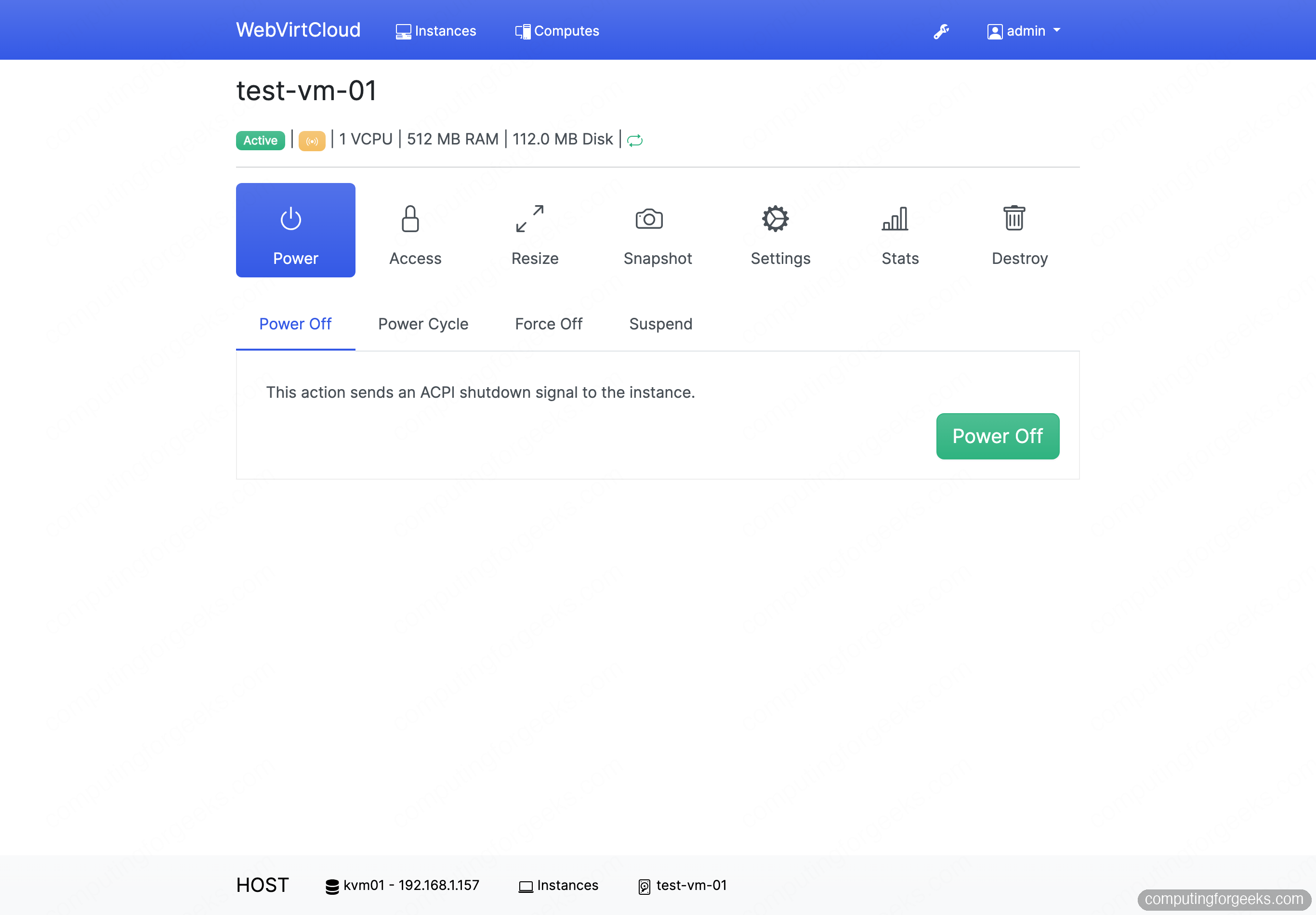
Click Access and then Console to open the in-browser noVNC session. The console connects straight to the guest’s display, so you watch it boot and interact with it without any client install.
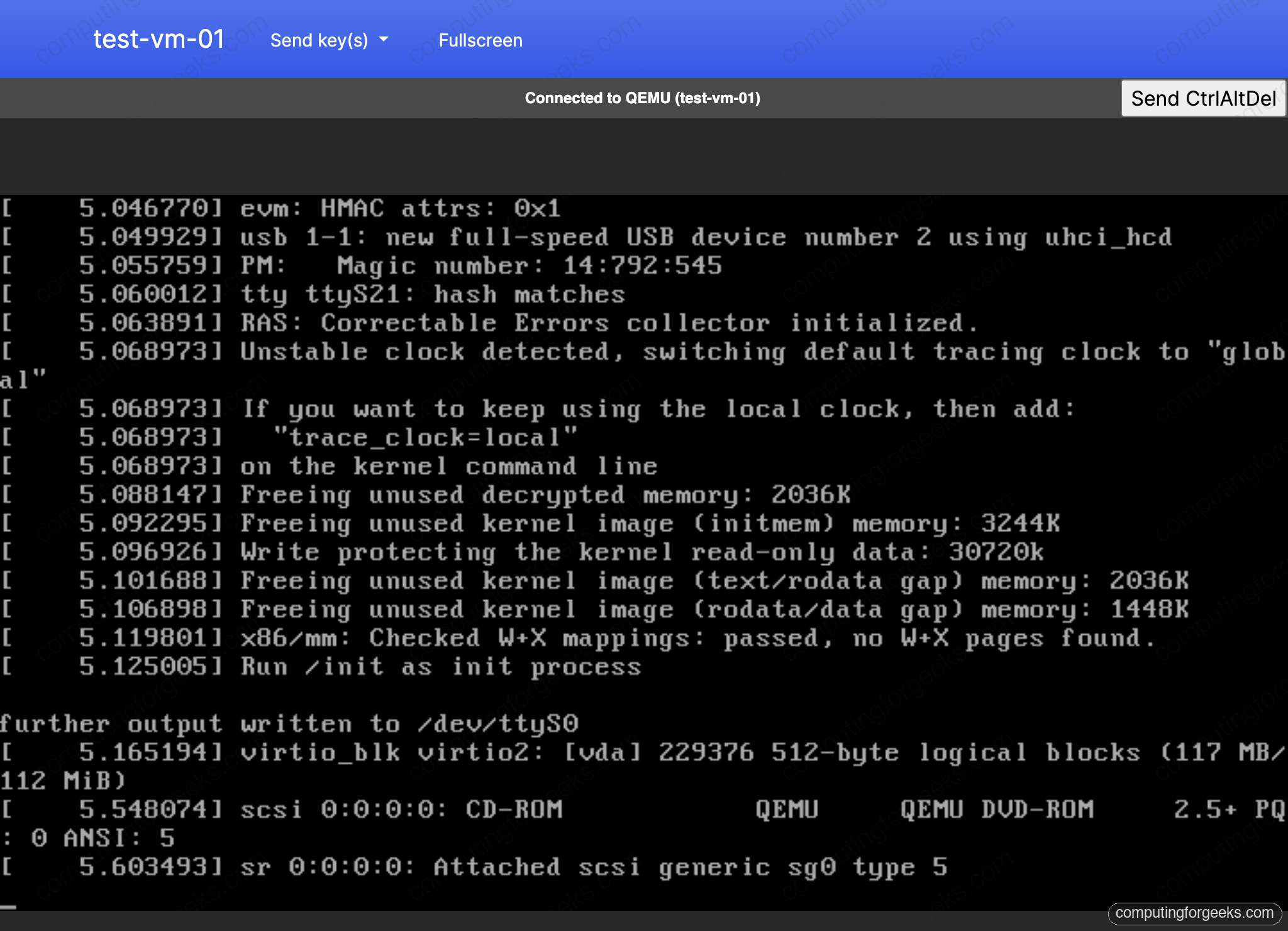
The banner reads Connected to QEMU, and the kernel boot output proves this is a genuine guest running on the nested host, not a mock-up. If the console shows “connection closed” instead, jump to the troubleshooting notes below; it is almost always the WebSocket port.
Step 12: Manage the VM lifecycle
Day-to-day operations stay in the same UI. The power dropdown offers a graceful ACPI shutdown, a power cycle, a hard force-off, and suspend. Snapshot captures point-in-time disk state you can roll back to, Resize adjusts vCPU and memory, and Stats graphs CPU, memory, disk, and network in real time.
Everything WebVirtCloud does maps onto ordinary libvirt objects, so the CLI and the UI stay in sync. A VM you create here shows up under virsh list, and one you define with virt-install appears in the dashboard. That two-way visibility is what makes the web panel safe to layer on top of an existing KVM host. Here is the lab confirming the running guest, its DHCP lease, and the TLS certificate from the shell:
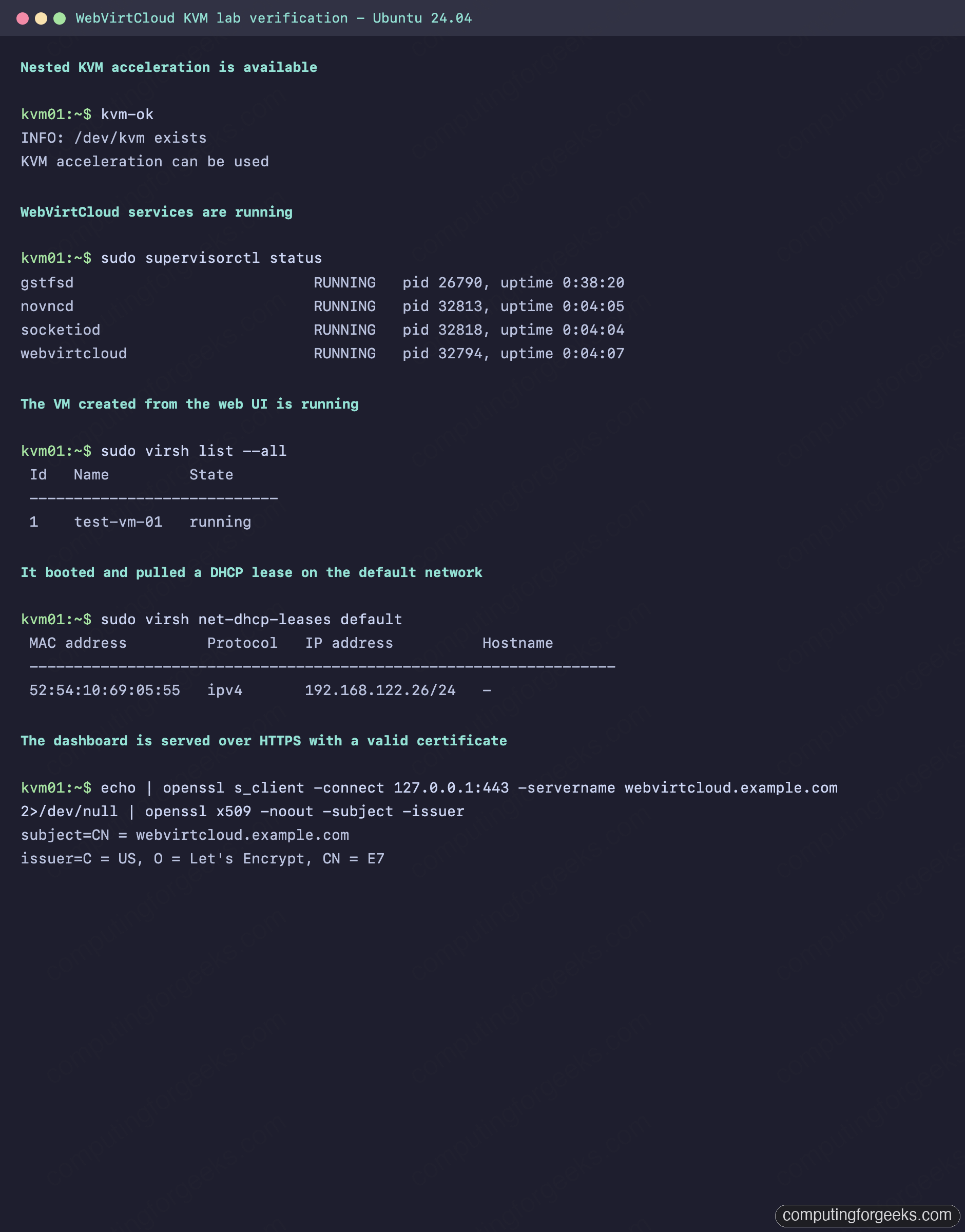
The guest powered on from the web UI is the same test-vm-01 domain virsh reports as running, and it has already pulled an address on the default network.
Troubleshooting
Console shows “Something went wrong, connection is closed”
This is the WebSocket failing to reach the noVNC proxy. Behind an SSL reverse proxy the browser must connect on 443, but WebVirtCloud defaults to advertising port 6080. Set WS_PUBLIC_PORT = 443 in settings.py, make sure the Nginx vhost has the /novncd/, /socket.io/, and /websockify locations with the Upgrade headers, then restart with sudo supervisorctl restart all and reload Nginx.
The template image dropdown stays empty
When the create wizard cannot list pool volumes, the browser request for them is returning a server error. The volumes endpoint expects a trailing slash, and depending on the middleware order it can fail rather than redirect. Add a small rewrite to the HTTPS vhost so the request is normalised before it reaches the app:
location ~ ^/computes/\d+/storage/[^/]+/volumes$ {
    rewrite ^(.*)$ $1/ last;
}
Drop that block just above location / in the vhost, reload Nginx, and reopen the create page. The pool’s images then populate the dropdown.
The compute host will not connect
A host stuck on a non-connected state almost always means the www-data SSH key is not trusted by the target, or its known-hosts entry is missing. Re-run the verification command from Step 8 as www-data; if it prompts for a password or a host key, fix that first. The UI only succeeds once that exact command does.
Guests are slow or fail to start
Slow guests point back to acceleration. Run sudo kvm-ok on the host; if it cannot use KVM, the CPU virtualization flags are not present, which on a nested setup means the outer hypervisor is not passing them through. Fix the CPU type on the physical or outer host and reboot the VM. On bare metal, enable VT-x or AMD-V in the firmware.
With the dashboard secured and a host attached, WebVirtCloud becomes the place you hand to teammates who need to spin up a VM without learning libvirt. If you would rather stay closer to the system tooling, Cockpit and virt-manager cover the same ground with a different trade-off between simplicity and depth.