

KVM is the standard Linux hypervisor and Ubuntu 26.04 LTS makes it five commands to a working host. The kernel modules are already in tree, the QEMU 10.2 packages are in main, libvirt 12.0 is the management plane, and virt-install wraps the lot so you can spin up a guest from the command line in under a minute. This guide walks through every step on a fresh 26.04 server: hardware check, package install, libvirt service, group membership, the default NAT network, your first guest, and the bridge config you need when guests must be reachable on the LAN.
Everything below was tested on a real Ubuntu 26.04 server with kernel 7.0.0-10-generic, libvirt 12.0.0, and QEMU 10.2.1. Wherever a command needs to be run as root, it carries the sudo prefix.
Prerequisites
- Ubuntu 26.04 LTS server with sudo access
- x86_64 CPU with hardware virtualization (Intel VT-x or AMD-V) exposed in BIOS/UEFI
- At least 4 GB RAM and 20 GB free disk for the host plus headroom for guest disks
- Internet access for package downloads and any cloud guest images you plan to import
Step 1: Confirm hardware virtualization is available
The CPU must expose vmx (Intel) or svm (AMD). On a virtualized 26.04 guest (a VM-on-a-VM scenario), this means the host has to enable nested virtualization first; without it KVM falls back to QEMU’s TCG software emulation, which is roughly 10x slower.
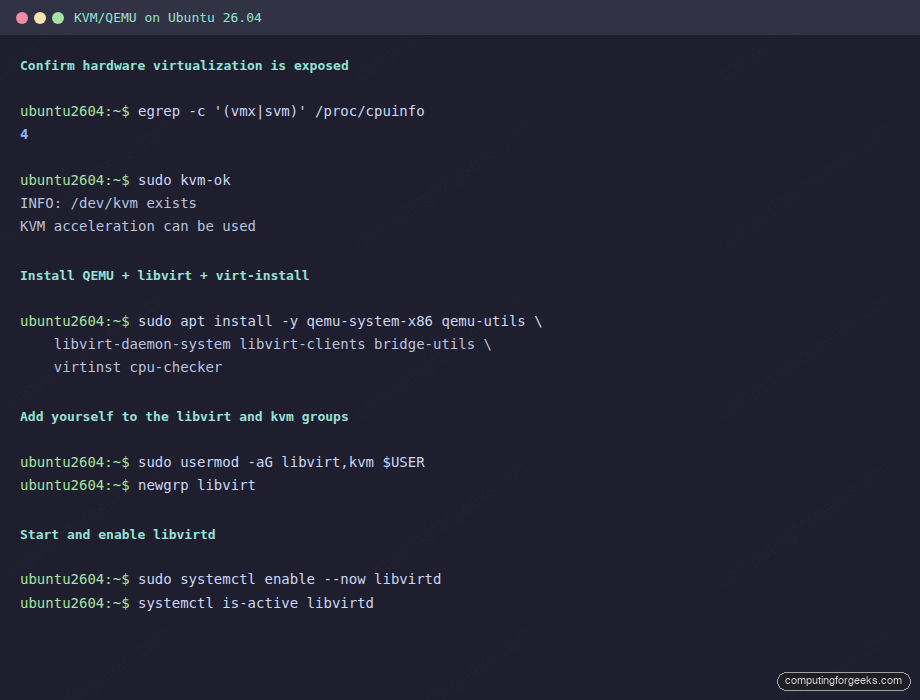
egrep -c '(vmx|svm)' /proc/cpuinfo
lscpu | grep 'Model name'
The first command should return a positive integer (one per CPU thread that supports the extension). Zero means either virtualization is disabled in firmware or the parent hypervisor (Proxmox, ESXi, Hyper-V) is not exposing it. Reboot into firmware and toggle “Intel VT-x” or “SVM” before continuing.
Step 2: Install KVM, QEMU, libvirt, and virt-install
One apt command pulls every package the host actually needs. cpu-checker is small and useful for the post-install verification:
sudo apt update
sudo apt install -y qemu-system-x86 qemu-utils \
    libvirt-daemon-system libvirt-clients bridge-utils \
    virtinst cpu-checker
The packages do five things. qemu-system-x86 is the actual hypervisor binary. qemu-utils ships qemu-img for disk image manipulation. libvirt-daemon-system brings up the libvirtd service that brokers VM lifecycles. libvirt-clients installs virsh. virtinst ships virt-install and friends. bridge-utils is needed only if you build a real bridge in Step 7.
Step 3: Verify KVM acceleration
kvm-ok is a sanity check that confirms both the CPU support and that the kernel module is loaded:
sudo kvm-okThe expected output:
INFO: /dev/kvm exists
KVM acceleration can be used
Confirm the kernel modules are loaded:
lsmod | grep -E '^kvm'You should see kvm and the architecture-specific module (kvm_intel on Intel, kvm_amd on AMD).
Step 4: Start libvirt and join the libvirt group
The package install enables libvirtd by default. Confirm the daemon is up and add your user to the libvirt and kvm groups so you can run virsh without sudo every time:
sudo systemctl enable --now libvirtd
sudo systemctl is-active libvirtd
sudo usermod -aG libvirt,kvm $USER
Group membership only takes effect on the next login. Either log out and back in, or run newgrp libvirt to apply it to the current shell:
newgrp libvirt
groups | tr ' ' '\n' | grep -E 'libvirt|kvm'
Verify libvirt is reachable from your unprivileged shell:
virsh version
virsh list --all
The version block should report libvirt 12.0.0, the API set to QEMU, and the running hypervisor as QEMU 10.2.1.
Step 5: Inspect the default NAT network
libvirt ships a default network called default on the 192.168.122.0/24 subnet, attached to a host bridge called virbr0. It uses NAT so guests can reach the internet but are not addressable from the LAN. For most lab work this is exactly what you want:
sudo virsh net-list --all
sudo virsh net-info default
ip a show virbr0 | grep inet
If for any reason the default network is inactive, start it and mark it autostart:
sudo virsh net-start default
sudo virsh net-autostart default
Step 6: Boot your first guest with virt-install
The fastest possible smoke test uses CirrOS, a 21 MB cloud image that boots in seconds. Download it into the libvirt boot directory:
sudo mkdir -p /var/lib/libvirt/boot
cd /var/lib/libvirt/boot
sudo wget -q https://download.cirros-cloud.net/0.6.2/cirros-0.6.2-x86_64-disk.img -O cirros.img
sudo ls -lh cirros.img
Boot it through virt-install. The --import flag tells virt-install the disk is already a complete bootable image:
sudo virt-install \
  --name cfg-cirros \
  --memory 256 --vcpus 1 \
  --disk path=/var/lib/libvirt/boot/cirros.img,bus=virtio \
  --import --os-variant linux2024 \
  --network network=default \
  --graphics none --noautoconsole
Within seconds the domain is up. Confirm and pull its DHCP-assigned IP:
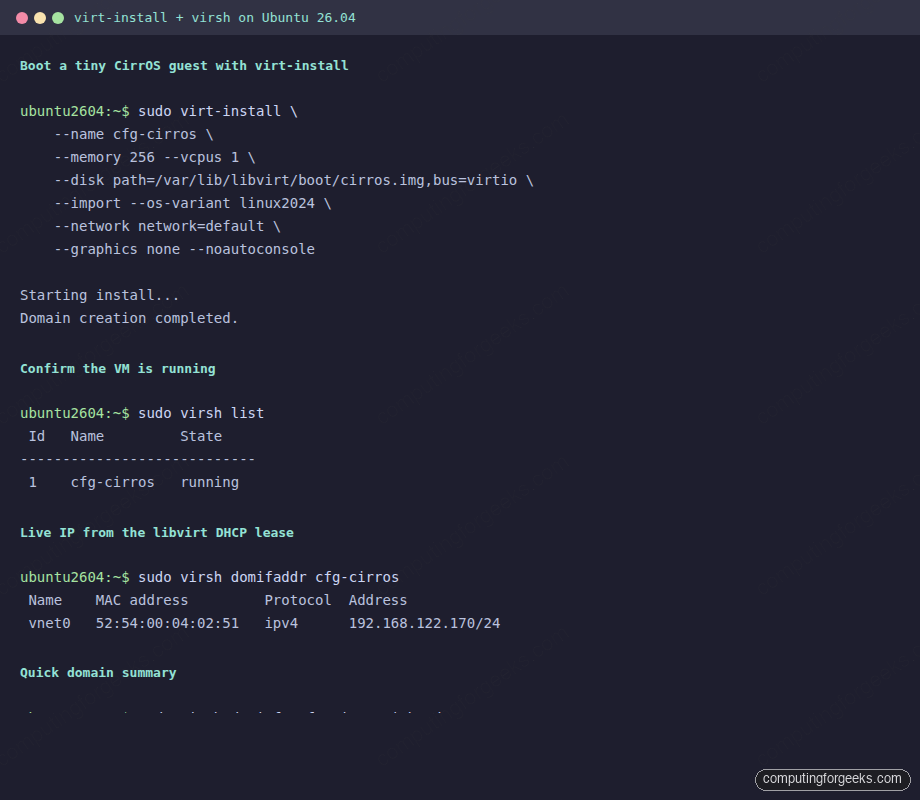
From the host you can ping the guest on its NAT IP. To get a console, attach via virsh (escape with Ctrl+]):
sudo virsh console cfg-cirrosDefault cirros credentials are cirros / gocubsgo. To shut down and remove the guest cleanly:
sudo virsh destroy cfg-cirros
sudo virsh undefine cfg-cirros --remove-all-storage
Step 7: Install Ubuntu 26.04 as a guest from ISO
For a real workload guest, you want a full ISO install with a virtio disk. Download the Ubuntu 26.04 server ISO and a matching cloud-init seed if you want fully unattended provisioning:
cd /var/lib/libvirt/boot
sudo wget -q https://releases.ubuntu.com/26.04/ubuntu-26.04-live-server-amd64.iso
sudo ls -lh ubuntu-26.04-live-server-amd64.iso
Provision a 20 GB virtio disk and boot the installer with VNC graphics so you can attend it from any machine on the LAN:
sudo virt-install \
  --name ubuntu2604-guest \
  --memory 4096 --vcpus 2 \
  --disk size=20,bus=virtio,format=qcow2 \
  --cdrom /var/lib/libvirt/boot/ubuntu-26.04-live-server-amd64.iso \
  --os-variant ubuntu26.04 \
  --network network=default,model=virtio \
  --graphics vnc,listen=0.0.0.0 \
  --noautoconsole
Find the VNC port assigned by libvirt and connect from your workstation:
sudo virsh vncdisplay ubuntu2604-guestThe output is something like :0, which maps to TCP 5900. Connect with any VNC client to HOST_IP:5900 and walk through the installer.
Step 8: Bridge networking for LAN-reachable guests
The default NAT network keeps guests private. To put guests on the same L2 segment as the host (so they get DHCP from your router and become directly reachable), build a bridge and tell libvirt to use it.
Identify the host’s primary interface (likely eth0 or enp1s0):
ip -br link
ip -br addr
Create a netplan file that builds br0 on top of the physical NIC. Replace eth0 with your real interface name:
sudo vi /etc/netplan/60-bridge.yamlPaste the following content. The dhcp4: true on the bridge means the host gets its IP from the bridge instead of the bare NIC:
network:
  version: 2
  renderer: networkd
  ethernets:
    eth0:
      dhcp4: false
  bridges:
    br0:
      interfaces: [eth0]
      dhcp4: true
      parameters:
        stp: false
        forward-delay: 0
Lock the file’s permissions, validate the config, then apply:
sudo chmod 600 /etc/netplan/60-bridge.yaml
sudo netplan generate
sudo netplan apply
ip -br addr show br0
Tell libvirt about a network that uses this bridge. Save the XML to a file and define it:
sudo tee /tmp/bridged-net.xml <<'EOF'
<network>
  <name>bridged</name>
  <forward mode='bridge'/>
  <bridge name='br0'/>
</network>
EOF

sudo virsh net-define /tmp/bridged-net.xml
sudo virsh net-start bridged
sudo virsh net-autostart bridged
sudo virsh net-list --all
From now on you can attach guests to the bridged network instead of default by passing --network network=bridged,model=virtio to virt-install.
Step 9: Storage pools
libvirt ships zero storage pools by default on Ubuntu, which surprises people coming from Fedora. Define one so disks land in a predictable place:
sudo mkdir -p /var/lib/libvirt/images
sudo virsh pool-define-as default dir --target /var/lib/libvirt/images
sudo virsh pool-build default
sudo virsh pool-start default
sudo virsh pool-autostart default
sudo virsh pool-list --all
From here, disks created via virt-install --disk size=N without a path land under /var/lib/libvirt/images/<guest-name>.qcow2.
Day-2 virsh cheatsheet
The commands you will reach for repeatedly. Run as a libvirt-group user (or with sudo):
| Operation | Command |
|---|---|
| List all defined VMs | virsh list --all |
| Start a VM | virsh start NAME |
| Graceful shutdown | virsh shutdown NAME |
| Force off (cut power) | virsh destroy NAME |
| Reboot | virsh reboot NAME |
| Save state to disk | virsh save NAME state.bin |
| Restore state | virsh restore state.bin |
| Edit XML config | virsh edit NAME |
| Snapshot | virsh snapshot-create-as NAME snapshot1 |
| List snapshots | virsh snapshot-list NAME |
| Live migrate to host2 | virsh migrate --live NAME qemu+ssh://host2/system |
| Get guest IP | virsh domifaddr NAME |
| Console attach | virsh console NAME (Ctrl+] to detach) |
Common errors and how to read them
Error: Could not access KVM kernel module: Permission denied
Your user is not yet in the kvm or libvirt group, or the membership has not taken effect in the current shell. Run newgrp libvirt or log out and back in.
Error: error: failed to connect to the hypervisor: Failed to connect socket to '/var/run/libvirt/libvirt-sock'
The libvirtd service is not running. Start it with sudo systemctl start libvirtd and confirm with systemctl status libvirtd. If the unit is failing, check the journal: sudo journalctl -u libvirtd -n 50.
Error: KVM is not available, falling back to TCG
The CPU does not expose virtualization extensions, or the /dev/kvm device is missing. On bare metal, enable VT-x or SVM in firmware. On a VM, ensure the parent hypervisor exposes vmx or svm through CPU passthrough.
Error: Network 'default' is not active
libvirt’s default NAT network was either stopped manually or failed to start because another service holds the 192.168.122.0/24 range. Run sudo virsh net-start default. If it fails, check for a stray Docker bridge or another libvirt instance binding the same range.
Backup and disaster recovery
A KVM host with five guests has six things to back up: the host itself, plus each guest’s disk image and XML definition. The minimum nightly cron looks like this:
#!/bin/bash
# /usr/local/bin/kvm-backup.sh
set -euo pipefail
BACKUP_ROOT="/var/backups/kvm"
DATE=$(date +%Y%m%d-%H%M)
mkdir -p "${BACKUP_ROOT}/${DATE}"

for VM in $(virsh list --all --name); do
  [ -z "${VM}" ] && continue
  virsh dumpxml "${VM}" > "${BACKUP_ROOT}/${DATE}/${VM}.xml"
  virsh domblklist "${VM}" | awk '/disk/ {print $2}' | while read DISK; do
    cp -an "${DISK}" "${BACKUP_ROOT}/${DATE}/"
  done
done
Schedule it under cron and rotate the dated directories. Restore is the inverse: copy the qcow2 files back, run virsh define on the XML.
For graphical management of the same host, install virt-manager on a workstation and connect over qemu+ssh://. Pair this guide with the Vagrant on 26.04 walkthrough if you prefer declarative provisioning, the Docker CE setup for container workloads on the same host, and the server hardening guide to lock down the SSH and libvirt surface.
That is everything you need to run KVM in production on Ubuntu 26.04: hardware verified, packages installed, libvirt up, default network running, a guest booted with virt-install, and a bridge waiting for guests that need LAN reachability. Day-two operations are virsh the rest of the way.






Thank You, works great
Glad the KVM setup worked for you.