

Converting HTML to PDF from the command line or a backend job is the bread-and-butter use case for wkhtmltopdf. It renders a page with the WebKit engine, honours your CSS, and writes a print-quality PDF. No browser. No GUI. No desktop session. Ideal for Ubuntu and Debian servers that generate invoices, receipts, monthly reports, shipping labels, audit exports, or any HTML template that has to land on disk as a PDF.
This guide walks through installing wkhtmltopdf on Ubuntu and Debian, converting HTML files and live URLs, styling output with page-size and margin flags, rendering HTML to PNG with the bundled wkhtmltoimage, and wiring it into a Python script with pdfkit. It also covers the catch readers should know about upstream: the wkhtmltopdf project is archived and has not shipped a release since 2020, so the install path is a static .deb that includes its own patched Qt. We’ll also call out modern alternatives (WeasyPrint, headless Chromium, Puppeteer/Playwright) at the end so you can pick the right tool if your requirements push past what a frozen Qt 5.4 build can do.
Verified April 2026 on Debian 13 (trixie) with wkhtmltopdf 0.12.6.1 (with patched qt). The same .deb installs cleanly on Ubuntu 24.04 LTS, Ubuntu 22.04 LTS, and Debian 12.
A quick note on upstream status. The wkhtmltopdf project announced archival in early 2023, with 0.12.6 (and the 0.12.6.1 build that ships in the static .deb) as the last release. The tool still works reliably for invoice, report, and document-export workloads, and the packages continue to function on current distro kernels. The trade-off: no new Qt/WebKit features, no modern JavaScript support beyond what WebKit 5.4 handled, and no upstream security fixes. For anything public-facing or anything that renders untrusted HTML, see the Alternatives section below.
Prerequisites
- An Ubuntu 24.04 / 22.04 LTS or Debian 13 / 12 server (x86_64 or arm64) with
sudoaccess. Tested on Debian 13 (trixie), kernel 6.12. - Outbound HTTPS to
github.comto fetch the release .deb. - Roughly 200 MB free disk space for the package and its bundled Qt runtime.
- If you plan to generate long PDFs or render image-heavy pages, give the box at least 1 GB RAM. The headless WebKit renderer does hold the full page in memory.
Step 1: Set reusable shell variables
The install URL contains the upstream release codename and the distro codename, which repeats across three or four commands. Export them at the top of your SSH session so you change one block and the rest of the guide pastes as-is:
export WKHTML_VERSION="0.12.6.1-3"
export DISTRO_CODENAME="$(lsb_release -cs)"
export WKHTML_DEB="wkhtmltox_${WKHTML_VERSION}.${DISTRO_CODENAME}_amd64.deb"
export WKHTML_URL="https://github.com/wkhtmltopdf/packaging/releases/download/${WKHTML_VERSION}/${WKHTML_DEB}"
Confirm the values resolved correctly before downloading anything:
echo "Version:  ${WKHTML_VERSION}"
echo "Distro:   ${DISTRO_CODENAME}"
echo "Package:  ${WKHTML_DEB}"
echo "URL:      ${WKHTML_URL}"
On Debian 13 the codename is trixie, on Debian 12 it is bookworm, on Ubuntu 24.04 it is noble, and on Ubuntu 22.04 it is jammy. The packaging repo on GitHub publishes a matching .deb for each of those codenames.
Step 2: Download and install the .deb package
First, install the small set of runtime libraries wkhtmltopdf’s patched Qt depends on. These are pulled automatically by apt install in the next step, but installing them up front keeps the error output cleaner if anything is missing:
sudo apt update
sudo apt install -y wget fontconfig libfontconfig1 libjpeg62-turbo libxrender1 xfonts-75dpi xfonts-base
Pull the release .deb that matches your distro codename:
wget -q --show-progress "${WKHTML_URL}" -O "/tmp/${WKHTML_DEB}"
ls -lh "/tmp/${WKHTML_DEB}"
Install the package. apt install resolves any missing dependencies from the distro repos, which is the reason to prefer it over a bare dpkg -i:
sudo apt install -y "/tmp/${WKHTML_DEB}"Verify the binary is on PATH and reports the expected version:
wkhtmltopdf --version
which wkhtmltopdf
On the test Debian 13 box the output reads:
wkhtmltopdf 0.12.6.1 (with patched qt)
/usr/local/bin/wkhtmltopdf
The (with patched qt) suffix matters. The vanilla Qt 5.4 tree dropped support for some features wkhtmltopdf relied on (headers, footers, table-of-contents, custom page breaks); the patched build keeps them alive. If you ever see wkhtmltopdf 0.12.5 (not patched) installed from Ubuntu 24.04’s own repos, uninstall that and use the static .deb instead. The unpatched build silently ignores half the flags you’ll want.
Step 3: Convert your first HTML file to PDF
Drop a sample invoice into /tmp/invoice.html so the next few steps have something real to convert. Open the file:
nano /tmp/invoice.htmlPaste the following markup, then save and exit:
<!DOCTYPE html>
<html>
<head>
  <meta charset="utf-8">
  <title>Invoice 2026-042</title>
  <style>
    body { font-family: sans-serif; padding: 24px; }
    h1 { color: #2c3e50; }
    table { border-collapse: collapse; width: 100%; }
    th, td { border: 1px solid #ccc; padding: 8px; text-align: left; }
    th { background: #f4f4f4; }
  </style>
</head>
<body>
  <h1>Invoice #2026-042</h1>
  <p>Billed to: Acme Ltd: 2026-04-18</p>
  <table>
    <tr><th>Item</th><th>Price</th></tr>
    <tr><td>Web hosting (1 year)</td><td>$120.00</td></tr>
    <tr><td>Domain renewal</td><td>$12.00</td></tr>
    <tr><td><strong>Total</strong></td><td><strong>$132.00</strong></td></tr>
  </table>
</body>
</html>
Now convert it. The simplest form takes an input HTML path and an output PDF path:
wkhtmltopdf /tmp/invoice.html /tmp/invoice.pdfwkhtmltopdf walks through six internal phases (load, count, resolve, headers, print, done) and writes the PDF. The progress bars on stdout mean it’s working:
Loading pages (1/6)
Counting pages (2/6)
Resolving links (4/6)
Loading headers and footers (5/6)
Printing pages (6/6)
Done
Confirm the file exists and actually parses as a PDF:
ls -lh /tmp/invoice.pdf
file /tmp/invoice.pdf
You should see something similar to this:
-rw-r--r-- 1 root root  14K Apr 18 23:15 /tmp/invoice.pdf
/tmp/invoice.pdf: PDF document, version 1.4
Here is the same flow captured on the Debian 13 test box, showing the version string, the conversion, and a quick file check on the resulting PDF:
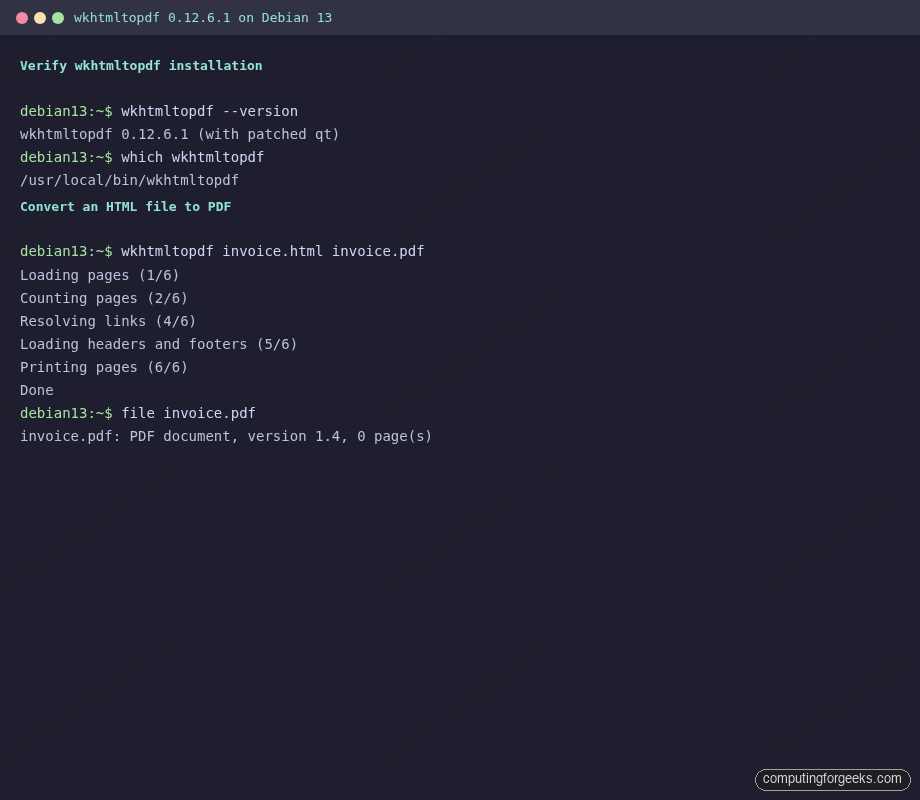
The PDF is 14 KB for a trivial page. Real-world invoices with logos and several tables usually land between 40 KB and 200 KB.
Step 4: Render a live URL to PDF
wkhtmltopdf also accepts a URL as input. This is useful for scraping public HTML dashboards, snapshotting a rendered invoice from a web app, or archiving a public page as a one-off PDF:
wkhtmltopdf https://example.com /tmp/example.pdf
ls -lh /tmp/example.pdf
The render finishes in under a second for a static page:
-rw-r--r-- 1 root root 7.5K Apr 18 23:15 /tmp/example.pdfTwo catches when pointing at live URLs:
- The bundled WebKit engine is from 2015. Sites that require modern JavaScript (React apps that fetch data on mount, pages behind CSP with inline-script blocks, anything using fetch with AbortSignal.timeout) will render empty or partial. Add
--javascript-delay 2000to give async scripts a chance to settle. Beyond that, headless Chromium is the right tool (see Alternatives). - Pages behind a login need a session cookie. Use
--cookie name valueone or more times to pass the auth cookie your app issued, or--custom-header Authorization "Bearer TOKEN"for token-based APIs that return HTML.
Step 5: Common flags for page layout
The default page size is A4. Orientation is portrait. Margins are 10 mm. That covers most invoice and report layouts, but you’ll want to tune three things often enough to memorise the flags:
| Flag | What it does | Example |
|---|---|---|
--page-size | Paper size (A4, A3, Letter, Legal, Tabloid) | --page-size Letter |
--orientation | Portrait or Landscape | --orientation Landscape |
--margin-top | Top margin in mm, cm, or in | --margin-top 20mm |
--margin-bottom | Bottom margin | --margin-bottom 20mm |
--header-center | Text in the centre of every page header | --header-center "Acme Ltd" |
--footer-center | Text in the footer (use [page], [topage]) | --footer-center "Page [page] of [topage]" |
--title | PDF metadata title | --title "Invoice 2026-042" |
--grayscale | Render in grayscale (smaller file) | --grayscale |
--zoom | Zoom factor, useful when content is too small | --zoom 1.2 |
A realistic invoice render with margins, a title, and automatic page numbering in the footer:
wkhtmltopdf \
  --page-size A4 \
  --orientation Portrait \
  --margin-top 20mm --margin-bottom 20mm \
  --title "Invoice 2026-042" \
  --footer-center "Page [page] of [topage]" \
  /tmp/invoice.html /tmp/invoice-styled.pdf
Verify the output and open it in a PDF viewer on your workstation to confirm the footer shows the page number. For programmatic checks, pdfinfo (from the poppler-utils package) dumps the metadata so you can grep for the title and page count.
Step 6: Render HTML to a PNG with wkhtmltoimage
The static .deb ships a second binary, wkhtmltoimage, which writes PNG, JPG, BMP, or SVG instead of PDF. This is the fast path for generating social-card previews, email banners, or email-safe rasterised tables:
wkhtmltoimage --format png --width 1024 /tmp/invoice.html /tmp/invoice.png
file /tmp/invoice.png
The output confirms a real PNG with the expected dimensions:
/tmp/invoice.png: PNG image data, 1024 x 285, 8-bit/color RGBA, non-interlacedHeight is computed from the rendered content; width you control with --width. For Open Graph images, --width 1200 combined with a fixed-height CSS container on the source HTML gives you exactly the 1200 × 630 preview most platforms expect.
Step 7: Drive wkhtmltopdf from Python (pdfkit)
Most real deployments don’t call the binary from a shell. They call it from a web app that needs to spit out an invoice on checkout or a nightly report on cron. The pdfkit Python wrapper is the usual front door:
sudo apt install -y python3-venv
python3 -m venv ~/pdfkit-env
source ~/pdfkit-env/bin/activate
pip install pdfkit
Save this script as render.py in the same virtualenv:
import pdfkit

options = {
    "page-size": "A4",
    "margin-top": "20mm",
    "margin-bottom": "20mm",
    "footer-center": "Page [page] of [topage]",
    "encoding": "UTF-8",
    "title": "Invoice 2026-042",
}

pdfkit.from_file("/tmp/invoice.html", "/tmp/invoice-python.pdf", options=options)
print("Wrote /tmp/invoice-python.pdf")
Run it and confirm the file lands where you expect:
python render.py
ls -lh /tmp/invoice-python.pdf
pdfkit.from_string() and pdfkit.from_url() accept HTML strings and URLs respectively, so you can render templates straight out of Jinja2, Django, or Flask without hitting the filesystem. The same options dict maps one-to-one onto wkhtmltopdf CLI flags.
If you’re standing up Python from scratch, see the Python install guide for Ubuntu or install Python on Debian. For securely storing API keys your PDF renderer might need (Stripe, SendGrid, database credentials for report jobs), 1Password Secrets Automation keeps them out of your render.py and out of .env files that land in Git.
Alternatives to wkhtmltopdf
wkhtmltopdf is a frozen project. Installs work, and the existing feature set is stable, but there are four modern tools worth knowing about. Pick based on what your HTML looks like:
WeasyPrint is the cleanest replacement for simple, CSS-driven PDFs (invoices, reports, styled documents). It does not use a browser engine; it parses HTML and CSS directly in Python, which means CSS Paged Media, flexbox, and grid work correctly and you don’t ship a 100 MB Qt bundle. Trade-off: no JavaScript support at all. If your template is server-rendered HTML with static CSS, WeasyPrint is the better fit in 2026.
Headless Chromium (via google-chrome --headless --print-to-pdf or Chrome DevTools Protocol) handles every CSS feature and every JavaScript framework that runs in a real browser. Heavier to install (~350 MB), but it’s the only tool that renders a React or Vue dashboard into a PDF correctly. The usual install path on Debian/Ubuntu is via the Chromium install guide or the official Google Chrome .deb.
Puppeteer (Node.js) and Playwright (Node, Python, .NET, Java) wrap headless Chromium with a programmatic API. They add automation primitives wkhtmltopdf never had: wait for a specific DOM element, click a button before printing, fill a login form, evaluate JavaScript in the page context. If your “PDF generation” is really “log in, navigate, print”, these are the right tools.
LibreOffice headless (soffice --headless --convert-to pdf input.docx) is the answer when the source format is DOCX, ODT, XLSX, or PPTX rather than HTML.
A practical rule: HTML with static CSS and no JS goes to WeasyPrint. HTML with modern JavaScript goes to Puppeteer or Playwright. Existing integrations that already work with wkhtmltopdf can stay on wkhtmltopdf, provided you’re not asking it to render anything new the frozen WebKit can’t handle.
Troubleshooting
“QXcbConnection: Could not connect to display”
The binary is trying to use the X server even though you passed a file or URL. This happens on older Ubuntu/Debian versions where the libqt5webkit5 from the distro (unpatched) is installed alongside the static .deb and resolves first. Fix by uninstalling the distro package and keeping only the static build:
sudo apt purge -y wkhtmltopdf
sudo apt install -y "/tmp/${WKHTML_DEB}"
which wkhtmltopdf
The which output should point at /usr/local/bin/wkhtmltopdf, not /usr/bin/wkhtmltopdf.
“ContentNotFoundError” on https URLs
The remote URL is returning something the WebKit build can’t negotiate, usually a TLS 1.3 handshake against a Qt that predates TLS 1.3 on some Debian builds. Two workarounds: render the page with curl or wget into a local file first and point wkhtmltopdf at the file, or pass --load-error-handling ignore --load-media-error-handling ignore so the render continues past soft errors. If the site lives behind a CDN that aggressively terminates old clients, you’ve hit the wkhtmltopdf ceiling and should move that specific URL to headless Chromium.
Custom fonts render as boxes or fall back to the wrong face
wkhtmltopdf reads fonts from fontconfig. If your template references “Inter” or “Roboto”, the font has to be installed system-wide:
sudo apt install -y fonts-inter fonts-roboto
fc-cache -fv > /dev/null
fc-list | grep -iE 'inter|roboto' | head
After that, the rendered PDF uses the right glyphs. For custom corporate fonts shipped as .ttf files, drop them in /usr/local/share/fonts/ and run fc-cache -fv.
Going further
Once the binary works and your script is rendering real PDFs, there are two knobs most production deployments turn next. First, run wkhtmltopdf inside a dedicated systemd service or container with a CPU quota so a runaway render from a 400-page report doesn’t starve the rest of the box. Second, cache rendered PDFs by the hash of their input HTML; regenerating the same invoice on every download is a waste of CPU, and a simple SHA-256 key on the template output makes cache invalidation trivial. See also the Debian 13 post-install checklist and the pip on Debian guide if you’re standing up the Python side fresh.
If you’d rather have someone else stand up your HTML-to-PDF pipeline end to end (Nginx reverse proxy, cron-scheduled renders, S3 upload, cache layer, monitoring), get in touch via the contact page. We’ve shipped this pattern for invoicing, compliance reports, and long-form dashboard exports on Ubuntu, Debian, and RHEL servers.






Thanks for a nice explanation. it helped me a lot
was facing an issue while installing the lib.
The following packages have unmet dependencies:
wkhtmltox : Depends: libpng12-0 but it is not installed
Depends: libssl1.0.0 but it is not installed
Depends: xfonts-75dpi but it is not installed
Depends: xfonts-base but it is not installed
but fixed it by running
apt –fix-broken install
When I run that I get E: Invalid operation –fix-broken
just replace ‘–’ to ‘–‘
Thanks, was looking for this everywhere!
really help me, thanks a lot
THANKS
Gracias por la ayuda, lo solucione en Odoo 13 con servidor Debian, el eror era, que al imprimir no mostraba el encabezado ni el pie de pagina, ademas de no ostrar el logo.
Gracias
wkhtmltopdf can be installed with apt in ubuntu 20.04