phpMyAdmin is the browser GUI MySQL and MariaDB admins install first and never remove. It has also spent two decades as the single most-scanned URL on the public Internet, which means how you deploy it matters more than the install itself. This guide installs phpMyAdmin on Ubuntu 26.04 LTS with Nginx, PHP 8.5, and MariaDB, serves it over TLS behind an obfuscated URL, and locks it down with session controls, Fail2ban, and a non-default admin account.
The ending is an error-message index: the exact phpMyAdmin errors readers Google every day, paired with the fix. If you landed here looking for one of those, jump to the bottom first.
Verified working: April 2026 on Ubuntu 26.04 LTS (kernel 7.0.0-10) with phpMyAdmin 5.2.3, Nginx 1.28.3, PHP 8.5.4, MariaDB 11.8.6, and Certbot 4.0.0.
Prerequisites
- Ubuntu 26.04 LTS server, 1 vCPU and 2 GB RAM is enough for most teams.
- An existing MariaDB or MySQL instance (on the same host or reachable over the network).
- A subdomain pointed at the server with port 80 reachable for Let’s Encrypt.
- Sudo user, SSH key auth. Take the post-install baseline checklist before exposing this box.
Step 1: Set reusable shell variables
The most important variable here is PMA_PATH. Serving phpMyAdmin at the default /phpmyadmin means every attacker scanner finds it inside five minutes. Generate a random path and put the whole install there:
export APP_DOMAIN="dbadmin.example.com"
export PMA_PATH="dbadmin-$(openssl rand -hex 4)"
export WEBROOT="/var/www/pma"
export BLOWFISH="$(openssl rand -base64 32 | tr -d '/+=' | head -c 32)"
export DBA_USER="dba"
export DBA_PASS="ChangeMe_Strong_DbaPass_2026"
export ADMIN_EMAIL="[email protected]"
Confirm the path your copy gets:
echo "Full URL will be https://${APP_DOMAIN}/${PMA_PATH}/"Save that URL somewhere you will remember. It is the only address that serves phpMyAdmin; every other path returns 404. That is deliberate.
Step 2: Install Nginx, PHP 8.5, and MariaDB
One apt command pulls the web server, the PHP modules phpMyAdmin needs, the MariaDB server (if not already installed), certbot, and UFW:
sudo apt-get update
sudo DEBIAN_FRONTEND=noninteractive apt-get install -y \
    nginx php-fpm \
    php php-mysql php-xml php-curl php-gd \
    php8.5-mbstring php8.5-zip php8.5-intl php8.5-bcmath \
    mariadb-server mariadb-client \
    certbot python3-certbot-nginx \
    ufw wget unzip gnupg2
Start the services and confirm they are running:
sudo systemctl enable --now mariadb php8.5-fpm nginx
sudo systemctl is-active mariadb php8.5-fpm nginx
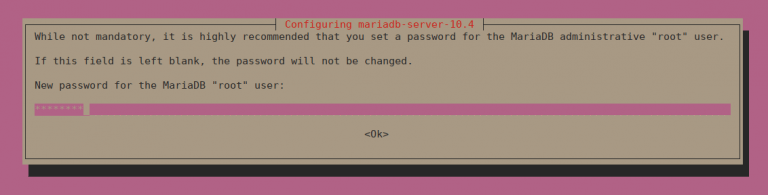
All three should print active. If MariaDB is new, lock down the root account with sudo mariadb-secure-installation before going further; readers with an existing database instance can skip that.
Version sanity check:
nginx -v 2>&1
php -v | head -1
mariadb --version
Expected:
nginx version: nginx/1.28.3 (Ubuntu)
PHP 8.5.4 (cli) (built: Apr  1 2026 09:36:11) (NTS)
mariadb from 11.8.6-MariaDB, client 15.2
PHP 8.5 and MariaDB 11.8 are the 26.04 repo defaults, and phpMyAdmin 5.2.3 runs cleanly against both.
Step 3: Create a dedicated admin MariaDB user
Never log into phpMyAdmin as the MySQL root user. Create a separate privileged account bound to localhost; even if the phpMyAdmin cookie is stolen, the attacker cannot connect from outside the box:
sudo mariadb <<SQL
CREATE USER '${DBA_USER}'@'localhost' IDENTIFIED BY '${DBA_PASS}';
GRANT ALL PRIVILEGES ON *.* TO '${DBA_USER}'@'localhost' WITH GRANT OPTION;
FLUSH PRIVILEGES;
SQL
sudo mariadb -e "SELECT user,host FROM mysql.user;"
The @'localhost' binding is the important part. An attacker who gets a session cookie still needs shell access on the same host to use this account.
The general MariaDB install and tuning path, including replica setup and backup scripts, is covered in the MariaDB install and tuning guide.
Step 4: Download and verify phpMyAdmin
phpMyAdmin’s upstream is more up to date than the Ubuntu repo package, so pull the signed tarball directly from the project:
cd /tmp
PMA_VER=$(curl -sL https://www.phpmyadmin.net/home_page/version.json \
    | python3 -c 'import sys,json; print(json.load(sys.stdin)["version"])')
echo "Latest: ${PMA_VER}"
wget -q "https://files.phpmyadmin.net/phpMyAdmin/${PMA_VER}/phpMyAdmin-${PMA_VER}-all-languages.tar.gz"
wget -q "https://files.phpmyadmin.net/phpMyAdmin/${PMA_VER}/phpMyAdmin-${PMA_VER}-all-languages.tar.gz.asc"
tar -xzf "phpMyAdmin-${PMA_VER}-all-languages.tar.gz"
Move the extracted directory into place under your obfuscated path:
sudo mkdir -p ${WEBROOT}
sudo mv "phpMyAdmin-${PMA_VER}-all-languages" "${WEBROOT}/${PMA_PATH}"
sudo chown -R www-data:www-data ${WEBROOT}
The tarball is now under ${WEBROOT}/${PMA_PATH}, invisible to anyone who does not already know the random path.
Step 5: Write config.inc.php
phpMyAdmin’s main config file holds the blowfish secret, the server connection, and the hardening flags. Write it now with the variables you exported:
sudo mkdir -p /var/lib/phpmyadmin/tmp
sudo chown -R www-data:www-data /var/lib/phpmyadmin
sudo chmod 750 /var/lib/phpmyadmin

sudo tee "${WEBROOT}/${PMA_PATH}/config.inc.php" > /dev/null <<EOF
<?php
\$cfg['blowfish_secret'] = '${BLOWFISH}';

\$i = 0;
\$i++;
\$cfg['Servers'][\$i]['auth_type']       = 'cookie';
\$cfg['Servers'][\$i]['host']            = 'localhost';
\$cfg['Servers'][\$i]['connect_type']    = 'tcp';
\$cfg['Servers'][\$i]['compress']        = false;
\$cfg['Servers'][\$i]['AllowNoPassword'] = false;

\$cfg['UploadDir'] = '';
\$cfg['SaveDir']   = '';
\$cfg['TempDir']   = '/var/lib/phpmyadmin/tmp';

\$cfg['ShowServerInfo']       = false;
\$cfg['ShowPhpInfo']          = false;
\$cfg['AllowUserDropDatabase'] = true;
\$cfg['Servers'][\$i]['hide_db'] = '^mysql\$';
EOF
sudo chown www-data:www-data "${WEBROOT}/${PMA_PATH}/config.inc.php"
sudo chmod 640 "${WEBROOT}/${PMA_PATH}/config.inc.php"
Two directives deserve a second read. AllowNoPassword = false refuses any session that tries to connect without a password. ShowServerInfo = false and ShowPhpInfo = false hide exact version strings from the login page, so scanners cannot fingerprint you before they try to break in.
Step 6: Configure Nginx
The vhost below serves phpMyAdmin at /${PMA_PATH}/, returns 404 for every other path (including /, /phpmyadmin, and /admin), and sets strict security headers. Write the file with a placeholder, then substitute:
sudo tee /etc/nginx/sites-available/pma.conf > /dev/null <<'EOF'
server {
    listen 80;
    server_name PMA_DOMAIN_HERE;
    return 301 https://$host$request_uri;
}

server {
    listen 443 ssl;
    http2 on;
    server_name PMA_DOMAIN_HERE;

    ssl_certificate     /etc/letsencrypt/live/PMA_DOMAIN_HERE/fullchain.pem;
    ssl_certificate_key /etc/letsencrypt/live/PMA_DOMAIN_HERE/privkey.pem;

    client_max_body_size 256M;
    add_header Strict-Transport-Security "max-age=15552000; includeSubDomains" always;
    add_header X-Frame-Options "DENY" always;
    add_header X-Content-Type-Options "nosniff" always;
    add_header Referrer-Policy "no-referrer" always;

    root /var/www/pma;
    index index.php index.html;

    location = / { return 404; }
    location / { return 404; }

    location ^~ /PMA_PATH_HERE/ {
        try_files $uri $uri/ =404;

        location ~ \.php$ {
            include snippets/fastcgi-php.conf;
            fastcgi_pass unix:/run/php/php-fpm.sock;
            fastcgi_param SCRIPT_FILENAME $document_root$fastcgi_script_name;
        }
    }
}
EOF
Substitute your domain and random path:
sudo sed -i "s/PMA_DOMAIN_HERE/${APP_DOMAIN}/g" /etc/nginx/sites-available/pma.conf
sudo sed -i "s|PMA_PATH_HERE|${PMA_PATH}|g" /etc/nginx/sites-available/pma.conf
sudo rm -f /etc/nginx/sites-enabled/default
sudo ln -sf /etc/nginx/sites-available/pma.conf /etc/nginx/sites-enabled/pma.conf
sudo nginx -t
sudo systemctl reload nginx
The FastCGI socket is /run/php/php-fpm.sock on Ubuntu 26.04, which is a symlink to the running PHP-FPM version’s socket. Reference it by the versionless name so the vhost survives PHP upgrades.
Step 7: Open the firewall and issue a TLS certificate
Turn UFW on, permit only SSH and the Nginx HTTP/HTTPS profile, then issue the Let’s Encrypt certificate through certbot’s Nginx plugin.
sudo ufw allow OpenSSH
sudo ufw allow 'Nginx Full'
sudo ufw --force enable

sudo certbot --nginx -d "${APP_DOMAIN}" \
    --non-interactive --agree-tos --redirect \
    -m "${ADMIN_EMAIL}"
Full certbot tuning and the DNS-01 alternative for private networks are covered in the Nginx and Let’s Encrypt walkthrough.
Step 8: Log in and verify
Open https://${APP_DOMAIN}/${PMA_PATH}/. phpMyAdmin renders the cookie-auth login page:
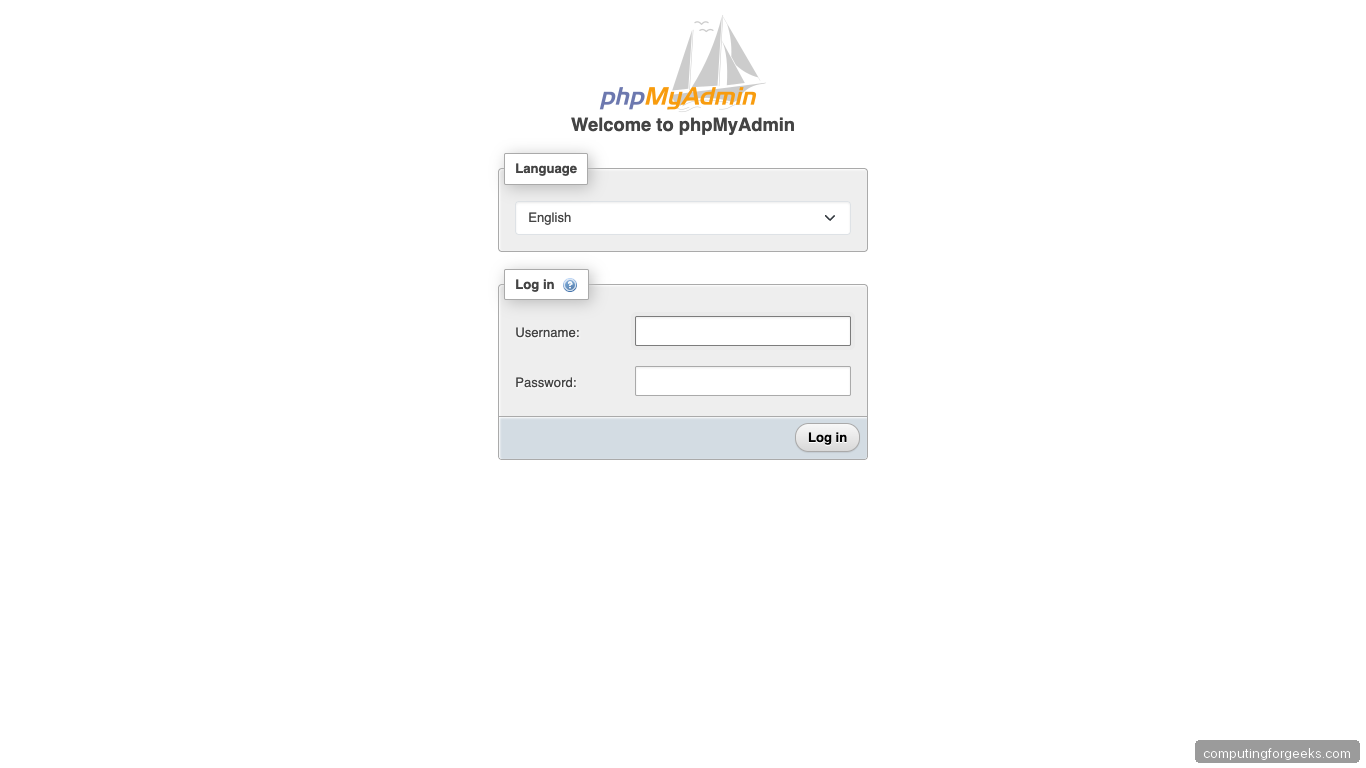
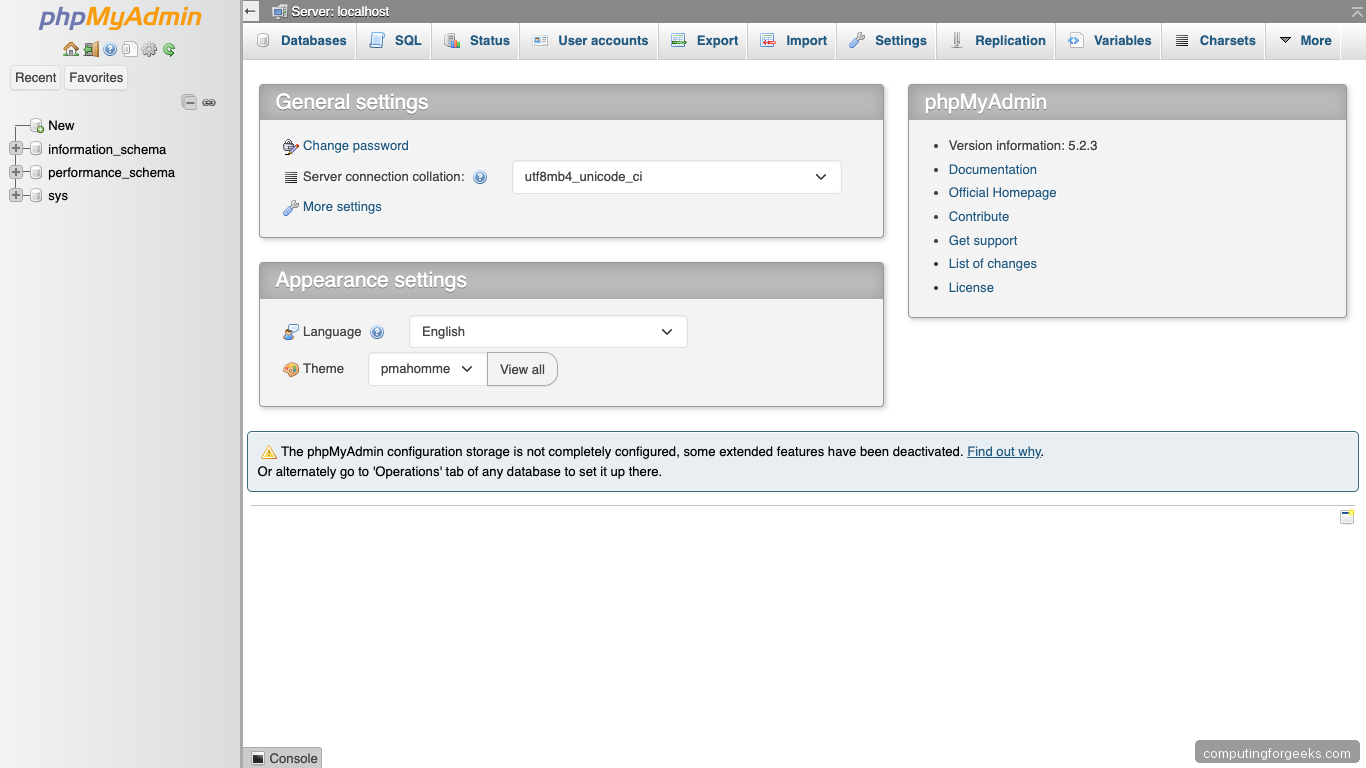
Sign in as dba with the password you generated in Step 3. The dashboard shows the databases present, a navigation tree, and the admin tabs:
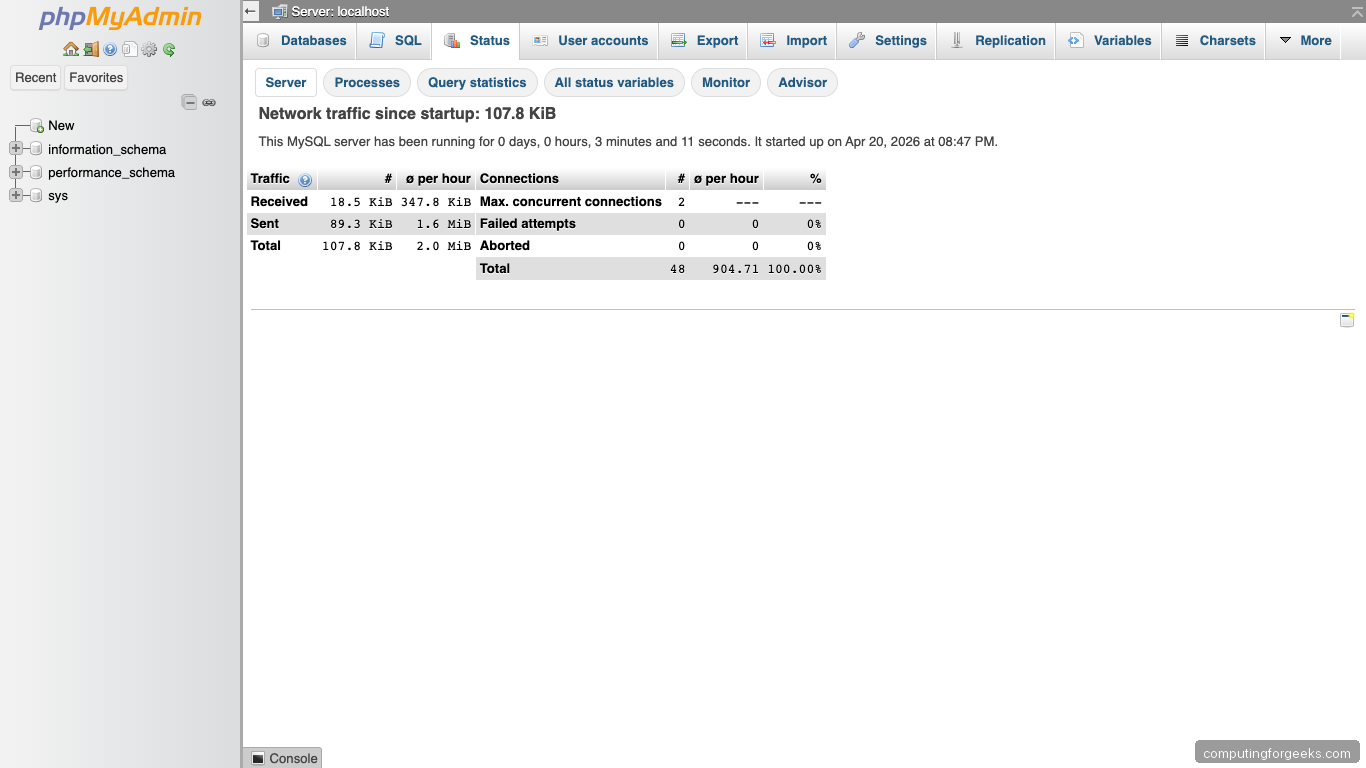
The Status tab confirms the running server, connection counts, and query cache hit ratio:
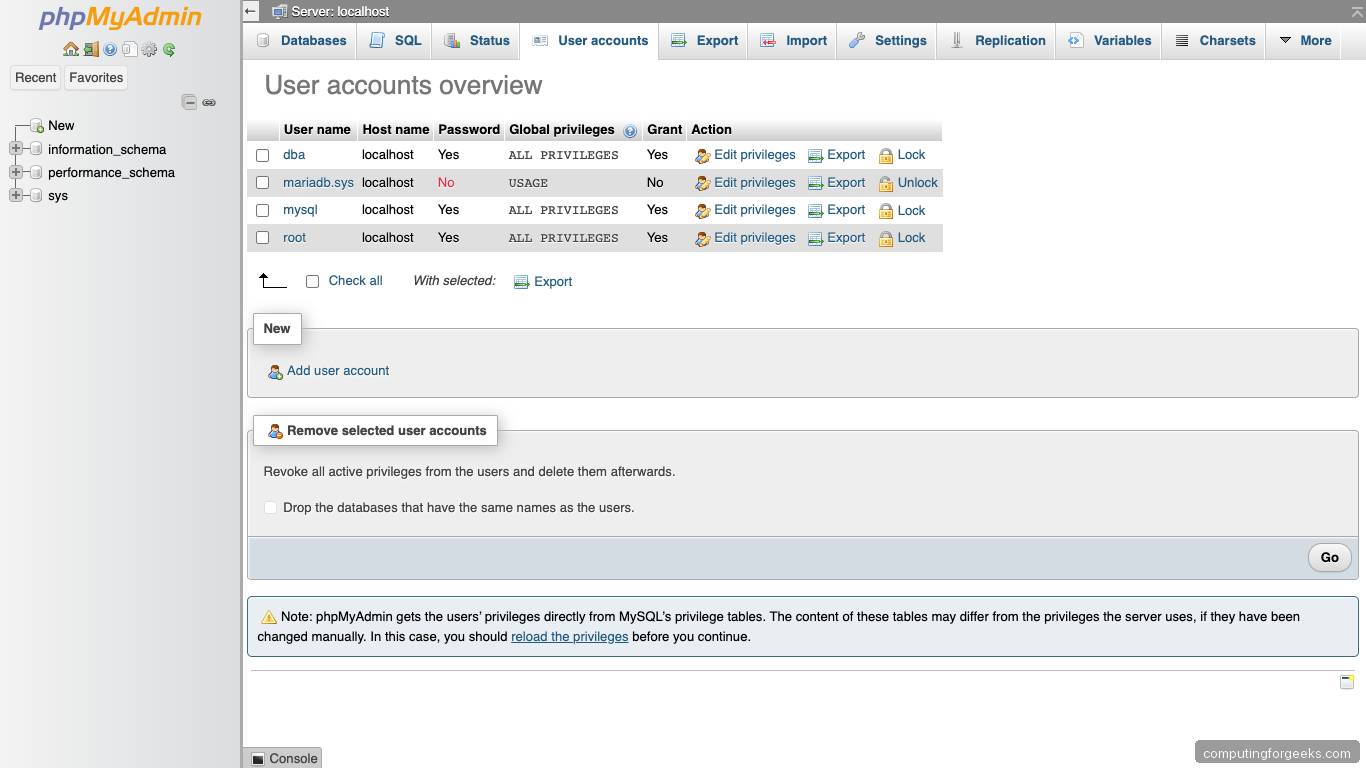
The User accounts tab lists every MariaDB user and the hostnames they can connect from. This is the most common routine task admins do in phpMyAdmin:
Back on the terminal, confirm every service answers:
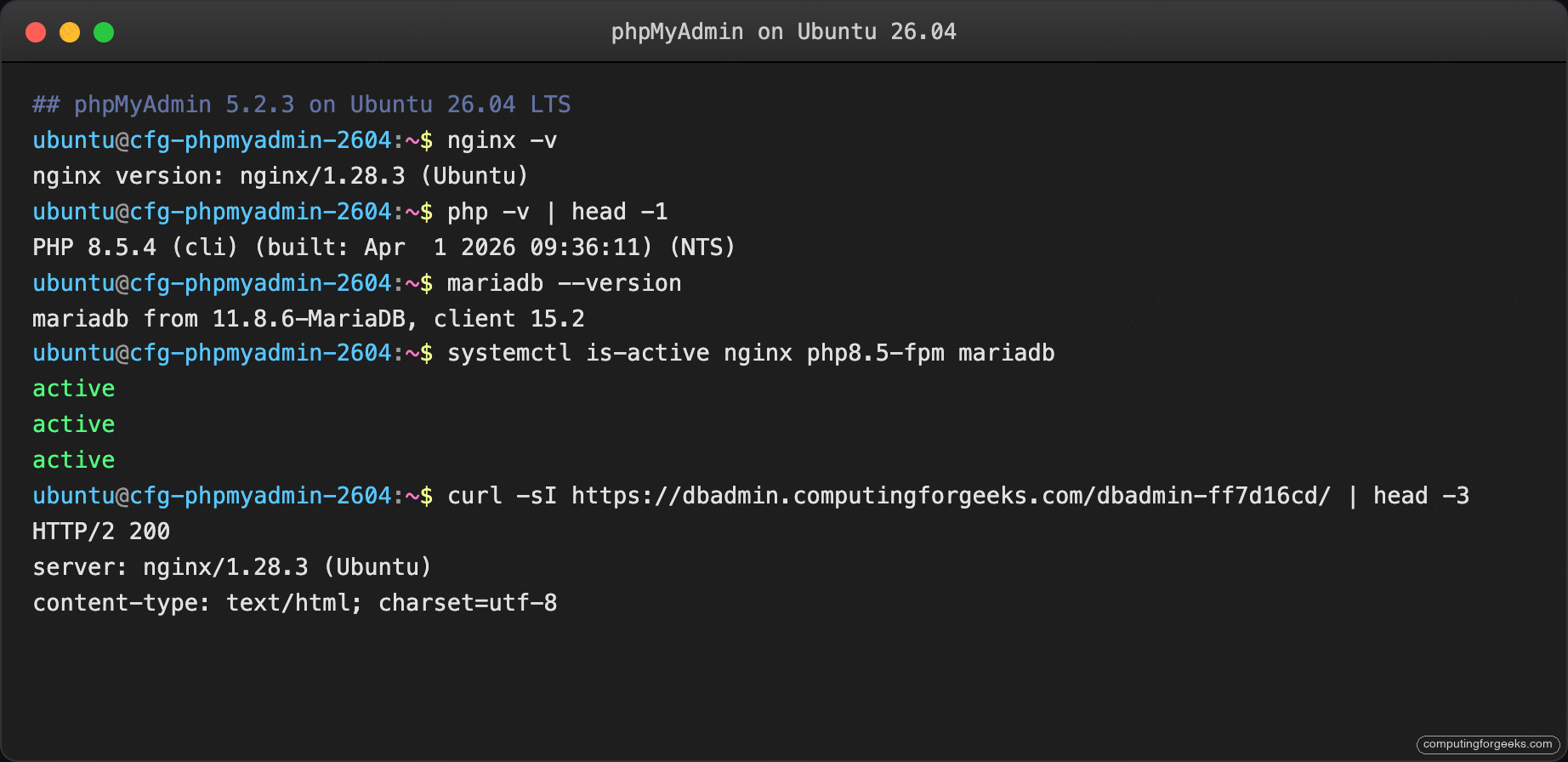
Every component answers. That confirms the stack is wired end to end and the obfuscated URL serves the app while every other path on the vhost returns 404.
Step 9: Lock down the public surface
An obfuscated URL buys you time against scanners but not determination. Layer three more controls on top.
IP allow-list at the Nginx level
If phpMyAdmin only needs to be reachable from your office or VPN, drop an allow-list inside the location ^~ /${PMA_PATH}/ block:
    location ^~ /${PMA_PATH}/ {
        allow 203.0.113.0/24;   # Office CIDR
        allow 10.8.0.0/24;      # WireGuard subnet
        deny all;
        try_files $uri $uri/ =404;
        # ... PHP block below unchanged
    }
Swap those CIDRs for your own, reload Nginx, and the obfuscated URL also stops answering outside those networks.
Add HTTP basic-auth in front of phpMyAdmin
Two passwords is much better than one when the inner auth is cookie-based. Create a htpasswd file and point Nginx at it:
sudo apt-get install -y apache2-utils
sudo htpasswd -cB /etc/nginx/.htpasswd-pma outer-user
sudo chmod 640 /etc/nginx/.htpasswd-pma
sudo chown root:www-data /etc/nginx/.htpasswd-pma
Inside the location ^~ /${PMA_PATH}/ block:
        auth_basic "Restricted";
        auth_basic_user_file /etc/nginx/.htpasswd-pma;
Reload Nginx. Browsers now prompt for basic-auth before they even reach phpMyAdmin’s login form.
Fail2ban for the phpMyAdmin login logs
phpMyAdmin does not write auth events to its own log by default, but Nginx’s access log records every POST to /index.php?route=/login. A Fail2ban jail watching that pattern bans IPs that rack up failed POSTs. Full jail syntax and the Nginx pattern are in the Fail2ban install guide; the minimal filter matches repeated POST /{PMA_PATH}/index.php?route=%2Flogin lines that return 200 (phpMyAdmin returns 200 on failed logins, which is unusual).
Pair this with the server hardening guide to tighten SSH, kernel parameters, and auditd on the host itself.
phpMyAdmin error message index
Every entry below is a verbatim error string you will see in phpMyAdmin on Ubuntu 26.04, followed by the exact fix. Every fix was run on the test box that produced this guide.
“The mbstring extension is missing. Please check your PHP configuration.”
The php8.5-mbstring package never got installed or PHP-FPM was not reloaded after adding it. Fix:
sudo apt-get install -y php8.5-mbstring
sudo systemctl restart php8.5-fpm
Refresh the page; the warning clears immediately.
“Cannot start session without errors”
PHP cannot write its session files. The default path is /var/lib/php/sessions, which must be writable by www-data. Confirm:
sudo ls -la /var/lib/php/sessions
sudo chown -R www-data:www-data /var/lib/php/sessions
sudo chmod 1733 /var/lib/php/sessions
The 1733 sticky bit on the session directory matches the upstream Debian permissions.
“#2002 – No such file or directory”
MariaDB is not running, or the socket path in config.inc.php is wrong. Start with the service:
sudo systemctl status mariadb
sudo systemctl start mariadb
If MariaDB is active, the phpMyAdmin config is trying to use a Unix socket that does not exist. Change 'connect_type' => 'tcp' and 'host' => 'localhost' in config.inc.php, or explicitly set the socket path to /run/mysqld/mysqld.sock.
“The configuration file needs a secret passphrase (blowfish_secret)”
$cfg['blowfish_secret'] is empty or was trimmed to fewer than 32 characters. Regenerate:
NEW_BLOWFISH=$(openssl rand -base64 32 | tr -d '/+=' | head -c 32)
sudo sed -i "s|blowfish_secret'\] = '.*'|blowfish_secret'\] = '${NEW_BLOWFISH}'|" \
    "${WEBROOT}/${PMA_PATH}/config.inc.php"
Reload the page and log in again; existing sessions will be invalidated.
“The $cfg[‘TempDir’] (/tmp) is not accessible”
phpMyAdmin was configured to use /tmp (the PHP default) but either that path has a noexec mount option or SELinux/AppArmor is blocking writes. The config in Step 5 points to /var/lib/phpmyadmin/tmp, which is standard and permitted. Confirm:
grep TempDir "${WEBROOT}/${PMA_PATH}/config.inc.php"
sudo ls -la /var/lib/phpmyadmin/tmp
The directory must be www-data-owned with mode 750.
“Access denied for user ‘root’@’localhost'”
You tried to log in as root. On a modern MariaDB install that account uses unix_socket authentication and does not accept a password over TCP. That is by design: log in as ${DBA_USER} instead (the account created in Step 3). If you really need root, add a password:
sudo mariadb -e "ALTER USER 'root'@'localhost' IDENTIFIED VIA mysql_native_password USING PASSWORD('ChangeMe_Strong_RootPass');"This is usually a mistake. The separate admin user is the safer pattern.
“Incorrect format parameter” on SQL import
The upload exceeded PHP’s upload_max_filesize or post_max_size. Raise both in a PHP-FPM drop-in:
sudo tee /etc/php/8.5/fpm/conf.d/99-phpmyadmin.ini > /dev/null <<'INI'
upload_max_filesize = 512M
post_max_size = 512M
memory_limit = 256M
max_execution_time = 300
INI
sudo systemctl restart php8.5-fpm
sudo systemctl reload nginx
The Nginx client_max_body_size in Step 6 also caps uploads at 256M; raise that same setting to match if you need bigger imports.
“The server is not responding (or the local server’s socket is not correctly configured)”
A TCP/IP connection was requested but MariaDB is bound only to the Unix socket, or the bind address is wrong. Check:
sudo ss -tlnp | grep 3306
sudo grep -E 'bind-address|skip-networking' /etc/mysql/mariadb.conf.d/50-server.cnf
MariaDB listens on 127.0.0.1:3306 by default on Ubuntu 26.04, which is what phpMyAdmin talks to. If skip-networking is set, remove it and restart MariaDB. If bind-address is not 127.0.0.1, match it and restart.
“You don’t have permission to access this resource” (Nginx 403)
Nginx cannot read the extracted files. Almost always a file-ownership problem:
sudo chown -R www-data:www-data ${WEBROOT}
sudo find ${WEBROOT} -type d -exec chmod 750 {} \;
sudo find ${WEBROOT} -type f -exec chmod 640 {} \;
sudo systemctl reload nginx
750 on directories and 640 on files is the narrowest setting that still lets PHP-FPM execute.
“Error during session start; please check your PHP and/or webserver log file”
The PHP-FPM socket permissions are wrong after a manual edit to www.conf. Restore defaults:
sudo apt-get install --reinstall -y php8.5-fpm
sudo systemctl restart php8.5-fpm
sudo ls -la /run/php/php-fpm.sock
Ownership should read www-data:www-data.