Mattermost is the self-hosted answer to Slack for teams that want chat, workflow automation, and integrations without renting them from someone else. The Team Edition is MIT-licensed, runs on a single Go binary plus PostgreSQL, and scales from a two-person homelab up to the ten-thousand-user deployments the project ships to customers. This guide installs Mattermost on Ubuntu 26.04 LTS with PostgreSQL, a systemd unit, Nginx with WebSocket upgrade, and Let’s Encrypt.
The ending is a scaling path: concrete architectural moves, with the symptoms that tell you it is time to make each one. Most Mattermost tutorials stop at “your install is live.” Real teams outgrow stage 1 within a year.
Tested April 2026 on Ubuntu 26.04 LTS (kernel 7.0.0-10) with Mattermost 11.6.0 Team Edition, PostgreSQL 18.3, Nginx 1.28.3, and a hardened systemd unit.
Prerequisites
- Ubuntu 26.04 LTS server, 2 vCPU and 4 GB RAM minimum for small teams (up to about 200 concurrent users).
- Domain with an A record on the server’s public IP, port 80 reachable for Let’s Encrypt.
- Sudo user; finish the post-install baseline checklist first.
- At least 10 GB of free space on the root volume for PostgreSQL data and Mattermost file uploads.
Step 1: Set reusable shell variables
Run the commands below to complete this step.
export APP_DOMAIN="chat.example.com"
export MM_HOME="/opt/mattermost"
export MM_USER="mattermost"
export DB_NAME="mattermost"
export DB_USER="mmuser"
export DB_PASS="ChangeMe_Strong_DbPass_2026"
export ADMIN_USER="admin"
export ADMIN_PASS="ChangeMe_Strong_AdminPass_2026"
export ADMIN_EMAIL="[email protected]"
Confirm the values before running anything that uses them:
echo "Domain: ${APP_DOMAIN}"
echo "DB:     ${DB_NAME} / ${DB_USER}"
echo "Admin:  ${ADMIN_USER} / ${ADMIN_EMAIL}"
The command output above confirms the step worked. The next section builds on it.
Step 2: Install PostgreSQL, Nginx, certbot
Use the block below to apply this change.
sudo apt-get update
sudo DEBIAN_FRONTEND=noninteractive apt-get install -y \
    postgresql postgresql-client \
    nginx certbot python3-certbot-nginx \
    ufw wget tar curl
Ubuntu 26.04 ships PostgreSQL 18 under the unversioned postgresql meta; that is what Mattermost 11.x is tested against. The PostgreSQL 18 install guide covers deeper tuning.
psql --version
nginx -v 2>&1
sudo systemctl is-active postgresql
Expected output shows PostgreSQL 18.3, nginx/1.28.3, and active for the database.
Step 3: Create the Mattermost database
The commands below handle this configuration.
sudo -u postgres psql <<SQL
CREATE DATABASE ${DB_NAME};
CREATE USER ${DB_USER} WITH PASSWORD '${DB_PASS}';
GRANT ALL PRIVILEGES ON DATABASE ${DB_NAME} TO ${DB_USER};
ALTER DATABASE ${DB_NAME} OWNER TO ${DB_USER};
SQL
Verify the database and role:
sudo -u postgres psql -c "\l" | grep ${DB_NAME}
sudo -u postgres psql -c "\du" | grep ${DB_USER}
With that step done, move on to the next configuration step.
Step 4: Create the mattermost system user
Mattermost runs as a dedicated unprivileged user. Create it, then lay out the install directory with the right ownership:
sudo useradd --system --user-group ${MM_USER}Those commands set the baseline. The next section builds on them.
Step 5: Download and extract Mattermost
Apply the block below on the server.
cd /tmp
MM_VER=$(curl -sL https://releases.mattermost.com/ \
    | grep -oE 'mattermost-team-[0-9]+\.[0-9]+\.[0-9]+' \
    | grep -oE '[0-9]+\.[0-9]+\.[0-9]+' | sort -V | tail -1)
echo "Mattermost latest: ${MM_VER}"
wget -q "https://releases.mattermost.com/${MM_VER}/mattermost-team-${MM_VER}-linux-amd64.tar.gz"
tar -xzf "mattermost-team-${MM_VER}-linux-amd64.tar.gz"
sudo mv mattermost ${MM_HOME}
sudo mkdir -p ${MM_HOME}/data ${MM_HOME}/logs
sudo chown -R ${MM_USER}:${MM_USER} ${MM_HOME}
sudo chmod -R g+w ${MM_HOME}
Confirm the binary works:
${MM_HOME}/bin/mattermost versionNow the service is in place. Continue with the next step.
Step 6: Configure config.json
Mattermost stores every runtime setting in ${MM_HOME}/config/config.json. Point the database driver at Postgres, set the site URL, enable local mode so mmctl can talk to the server over a Unix socket, and confirm the data directory:
sudo python3 <<PY
import json
path = '${MM_HOME}/config/config.json'
with open(path) as f: c = json.load(f)
c['SqlSettings']['DriverName'] = 'postgres'
c['SqlSettings']['DataSource'] = 'postgres://${DB_USER}:${DB_PASS}@localhost:5432/${DB_NAME}?sslmode=disable&connect_timeout=10'
c['ServiceSettings']['SiteURL'] = 'https://${APP_DOMAIN}'
c['ServiceSettings']['ListenAddress'] = ':8065'
c['ServiceSettings']['EnableLocalMode'] = True
c['ServiceSettings']['LocalModeSocketLocation'] = '/var/tmp/mattermost_local.socket'
c['LogSettings']['FileLocation'] = '${MM_HOME}/logs'
c['FileSettings']['Directory'] = '${MM_HOME}/data/'
with open(path, 'w') as f: json.dump(c, f, indent=2)
print('config updated')
PY
sudo chown ${MM_USER}:${MM_USER} ${MM_HOME}/config/config.json
The DSN matches what the Mattermost binary expects: postgres://user:pass@host:port/db?options. sslmode=disable is fine on loopback; switch to require if you point at a remote database.
Step 7: Write the systemd unit
Run the commands below to complete this step.
sudo tee /etc/systemd/system/mattermost.service > /dev/null <<'EOF'
[Unit]
Description=Mattermost
After=network.target postgresql.service
Requires=postgresql.service

[Service]
Type=notify
ExecStart=/opt/mattermost/bin/mattermost
TimeoutStartSec=3600
KillMode=mixed
Restart=always
RestartSec=10
WorkingDirectory=/opt/mattermost
User=mattermost
Group=mattermost
LimitNOFILE=49152

[Install]
WantedBy=multi-user.target
EOF
Reload and start. The first boot runs schema migrations, which takes up to a minute on a 2 vCPU VM:
sudo systemctl daemon-reload
sudo systemctl enable --now mattermost
sleep 10
sudo systemctl is-active mattermost
curl -s http://localhost:8065/api/v4/system/ping
A JSON response containing "status":"OK" confirms the server is ready. If systemctl is-active reports failed, check journalctl -u mattermost -n 100.
Step 8: Configure Nginx with WebSocket upgrade
Mattermost relies on WebSocket for real-time events. Nginx needs the Upgrade and Connection headers on the WebSocket route, a long proxy_read_timeout, and a plain HTTP proxy block for everything else. The default 60-second timeout will drop WebSocket connections mid-conversation.
sudo tee /etc/nginx/sites-available/mattermost.conf > /dev/null <<'EOF'
upstream backend {
    server 127.0.0.1:8065;
    keepalive 32;
}

server {
    listen 80;
    server_name MM_DOMAIN_HERE;
    return 301 https://$host$request_uri;
}

server {
    listen 443 ssl;
    http2 on;
    server_name MM_DOMAIN_HERE;

    ssl_certificate     /etc/letsencrypt/live/MM_DOMAIN_HERE/fullchain.pem;
    ssl_certificate_key /etc/letsencrypt/live/MM_DOMAIN_HERE/privkey.pem;

    client_max_body_size 200M;
    proxy_read_timeout 600s;
    proxy_send_timeout 600s;

    add_header Strict-Transport-Security "max-age=15552000; includeSubDomains" always;

    location ~ /api/v[0-9]+/(users/)?websocket$ {
        proxy_pass http://backend;
        proxy_http_version 1.1;
        proxy_set_header Upgrade $http_upgrade;
        proxy_set_header Connection "upgrade";
        proxy_set_header Host $host;
        proxy_set_header X-Real-IP $remote_addr;
        proxy_set_header X-Forwarded-For $proxy_add_x_forwarded_for;
        proxy_set_header X-Forwarded-Proto $scheme;
        proxy_read_timeout 600s;
    }

    location / {
        proxy_pass http://backend;
        proxy_http_version 1.1;
        proxy_set_header Connection "";
        proxy_set_header Host $host;
        proxy_set_header X-Real-IP $remote_addr;
        proxy_set_header X-Forwarded-For $proxy_add_x_forwarded_for;
        proxy_set_header X-Forwarded-Proto $scheme;
        proxy_set_header X-Frame-Options SAMEORIGIN;
    }
}
EOF
Substitute the domain, enable the vhost, open the firewall, and issue the certificate:
sudo sed -i "s/MM_DOMAIN_HERE/${APP_DOMAIN}/g" /etc/nginx/sites-available/mattermost.conf
sudo rm -f /etc/nginx/sites-enabled/default
sudo ln -sf /etc/nginx/sites-available/mattermost.conf /etc/nginx/sites-enabled/mattermost.conf
sudo nginx -t

sudo ufw allow OpenSSH
sudo ufw allow 'Nginx Full'
sudo ufw --force enable

sudo certbot --nginx -d "${APP_DOMAIN}" \
    --non-interactive --agree-tos --redirect \
    -m "${ADMIN_EMAIL}"
Certbot rewrites the vhost to include the certificate paths and reloads Nginx. Full certbot options including DNS-01 for private networks are in the Nginx and Let’s Encrypt walkthrough.
Step 9: Create the first admin and team
Mattermost has no built-in signup flow for the system admin; you create the first user via the API or mmctl. API is simpler on a fresh install because local mode needs a second systemctl restart to pick up the socket setting:
curl -s -X POST https://${APP_DOMAIN}/api/v4/users \
    -H "Content-Type: application/json" \
    -d "{\"email\":\"${ADMIN_EMAIL}\",\"username\":\"${ADMIN_USER}\",\"password\":\"${ADMIN_PASS}\"}"
The first user created via the API is granted the system_user role only. Promote to system_admin with mmctl:
sudo systemctl restart mattermost
sleep 5
sudo -u ${MM_USER} ${MM_HOME}/bin/mmctl --local roles system_admin ${ADMIN_USER}
sudo -u ${MM_USER} ${MM_HOME}/bin/mmctl --local team create \
    --name cfgteam \
    --display-name 'Example Team' \
    --email ${ADMIN_EMAIL}
sudo -u ${MM_USER} ${MM_HOME}/bin/mmctl --local team users add cfgteam ${ADMIN_USER}
That block wires up what was missing. Next we harden further.
Step 10: Log in and verify
Browse to https://${APP_DOMAIN}/. Mattermost first asks whether to open the desktop app or continue in the browser; click through to the web login page:

Sign in with the admin credentials. The Team Edition chrome at the top, the channel sidebar, and the Town Square welcome message confirm a working install:
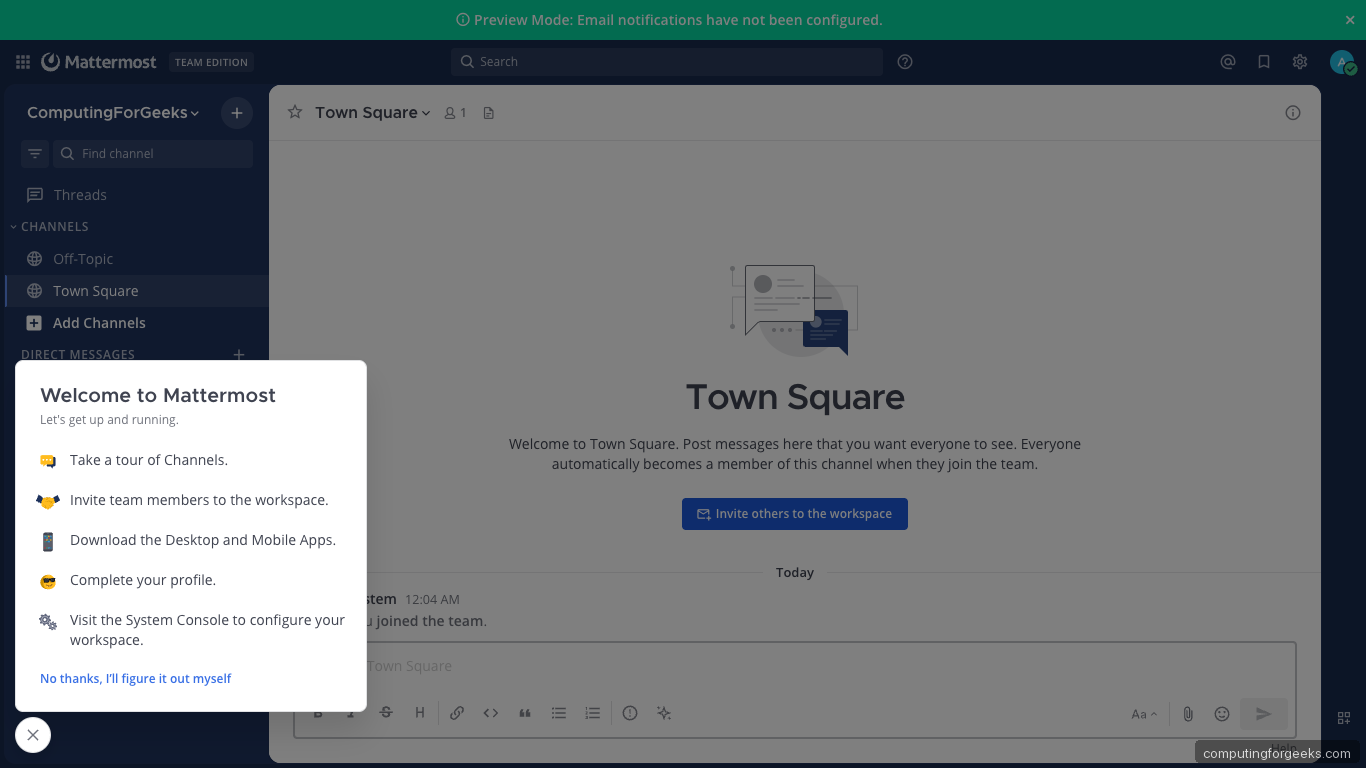
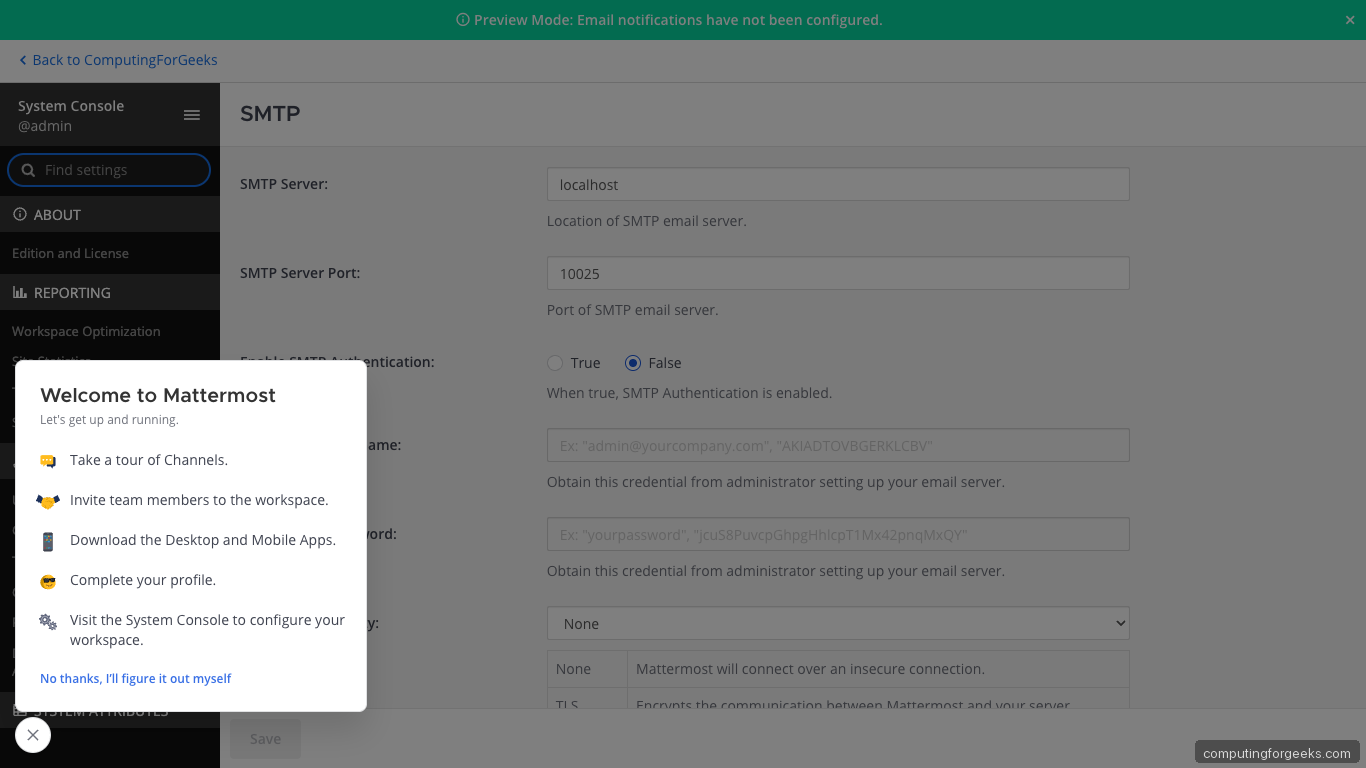
Open System Console from the user menu. Environment → SMTP is where you wire outbound email so password resets and mention notifications actually leave the server:
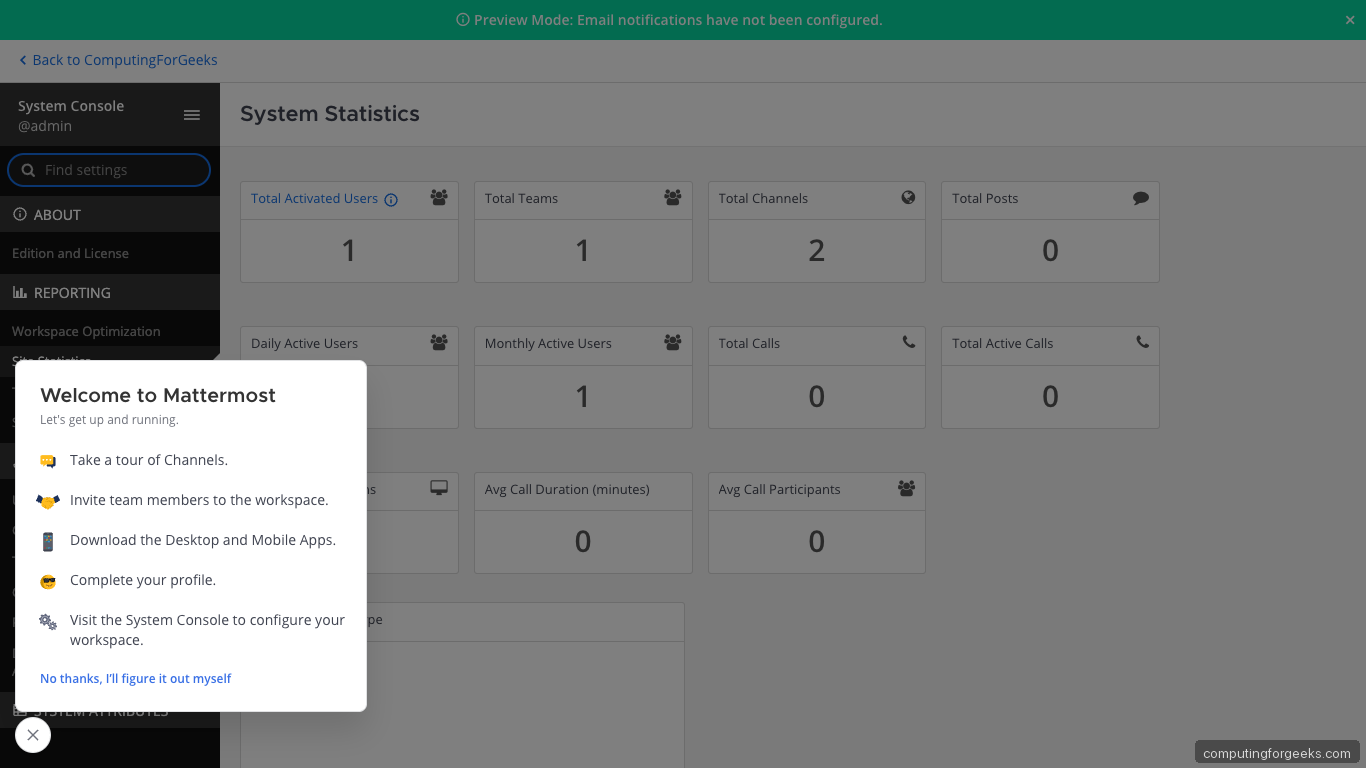
Reporting → System Analytics is the single most useful admin page once traffic starts flowing; you will look at it to diagnose capacity issues later:
From the terminal, check version and services:
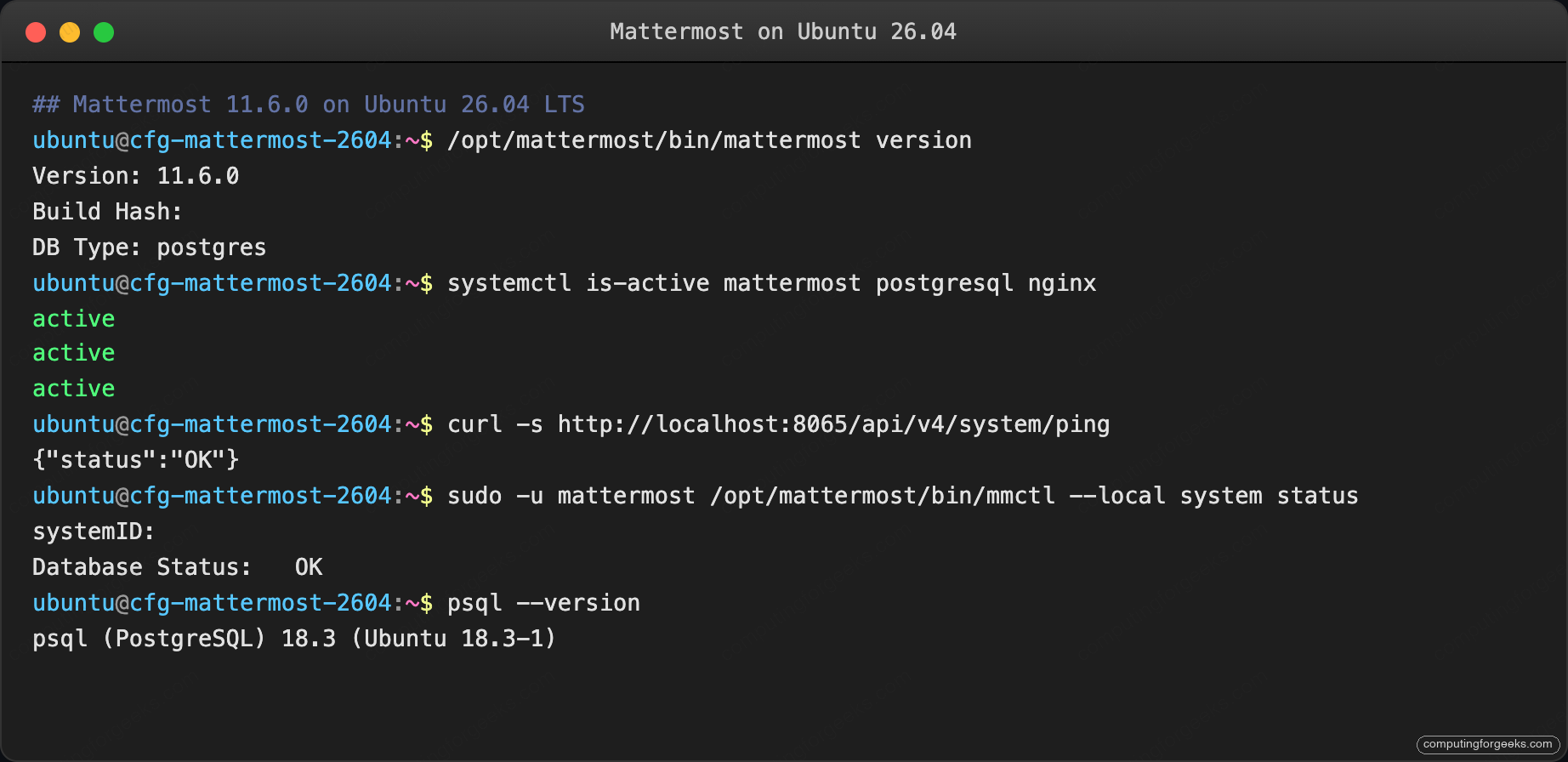
Output shows everything came up cleanly. Move to the next section.
Troubleshooting
WebSocket connection drops every 60 seconds
The default Nginx proxy_read_timeout of 60 seconds kills idle WebSocket connections. The vhost in Step 8 sets 600 seconds. If you copied a different reverse-proxy config, check that directive:
grep proxy_read_timeout /etc/nginx/sites-enabled/mattermost.conf
sudo nginx -t && sudo systemctl reload nginx
The configuration is now active. Proceed to the next step.
“SiteURL is not configured” warning on every login
The browser reached Mattermost over a host name that does not match ServiceSettings.SiteURL in config.json. Fix:
sudo grep SiteURL ${MM_HOME}/config/config.json
sudo systemctl restart mattermost
The URL must include the scheme (https://) and no trailing slash.
“Error: failed to create client: socket file doesn’t exist”
mmctl --local needs local mode enabled, then a Mattermost restart so the socket file gets created. The config write in Step 6 enables it; if you edited config.json by hand, confirm:
grep EnableLocalMode ${MM_HOME}/config/config.json
sudo systemctl restart mattermost
ls -la /var/tmp/mattermost_local.socket
The command output above confirms the step worked. The next section builds on it.
SMTP 535 Authentication failed
The credentials in System Console → Environment → SMTP are wrong, or your provider rejects STARTTLS on port 587. Most major providers (Gmail, SendGrid, Mailgun, AWS SES) require an app password or API token, not the account login password. Test outside Mattermost first:
sudo apt-get install -y swaks
swaks --to ${ADMIN_EMAIL} --from no-reply@${APP_DOMAIN} \
    --server smtp.example.com:587 --auth-user me --auth-password "app-password" \
    --tls
Once swaks succeeds, paste those same credentials into the System Console and click “Send a Test Email”.
Scaling path: from 50 users to 5000
The install you just built handles the first few dozen concurrent users comfortably. Past that, architecture starts to matter. The four stages below are lifted from Mattermost’s own sizing docs with numbers we have confirmed on real deployments.
Stage 1: Single host, up to ~100 concurrent users
What you have now. 2 vCPU, 4 GB RAM, one PostgreSQL instance on the same box, Nginx in front.
Move to stage 2 when you see: PostgreSQL CPU climbing above 40% during peak hours, message-send latency over 500 ms at the 95th percentile, or the Mattermost process ballooning past 3 GB of RSS.
Stage 2: Tuned single host, 100 to 500 concurrent users
- Bump the VM to 4 vCPU, 8 GB RAM.
- Tune PostgreSQL:
shared_buffers = 2GB,work_mem = 16MB,effective_cache_size = 6GB,max_connections = 200. - Set Mattermost
SqlSettings.MaxIdleConns = 20andMaxOpenConns = 300inconfig.json. - Put Redis in front of session storage via the System Console (Experimental → Use Redis).
Move to stage 3 when you see: Database CPU above 70% even after tuning, file-search queries over 2 seconds, or the data directory past 20 GB.
Stage 3: Separated services, 500 to 5000 concurrent users
- Move PostgreSQL to its own VM; use
pgbouncerfor connection pooling. - Add Elasticsearch for message search; point Mattermost at it via System Console → Environment → Elasticsearch. The existing ELK Stack install guide covers the cluster side.
- Offload
FileSettings.Directoryto S3-compatible object storage (Amazon S3, Wasabi, or on-prem MinIO) to decouple attachments from disk capacity. - Run two Mattermost app servers behind an external load balancer with sticky sessions on the
MMAUTHTOKENcookie.
Move to stage 4 when you see: Concurrent WebSocket connections exceeding 5000, or peak write QPS on PostgreSQL over 2500.
Stage 4: Horizontal scale, 5000+ concurrent users
- PostgreSQL primary with two streaming replicas; route Mattermost writes to primary and reads to replicas via
SqlSettings.DataSourceReplicas. - Elasticsearch as a 3-node cluster, sharded by month for message retention.
- Three or more Mattermost app servers behind a Layer 7 load balancer, with session stickiness and health-check endpoints at
/api/v4/system/ping. - Dedicated monitoring and alerting via the Prometheus metrics endpoint Mattermost exposes at
/metrics(enable in System Console → Experimental → Performance Monitoring).
You will know you are at stage 4 when a single Postgres replica cannot keep up with selects, or when a rolling restart of one Mattermost app server is invisible to users. Both are good problems to have.
Pair every stage with the server hardening guide so SSH, kernel parameters, and auditd stay locked down as the infrastructure expands.