MX Linux sits in an unusual spot among desktop distributions. The base is plain Debian stable, so the package set and release cadence are predictable, but on top of that the MX team layers the antiX init tooling and a suite of homegrown graphical utilities that handle the jobs people normally drop to a terminal for. That combination is why it has held the top spot on DistroWatch for years: it boots fast, runs comfortably on hardware a decade old, and almost everything you would otherwise script is a checkbox in a GUI.
This guide walks through how to install MX Linux end to end: choosing an edition, downloading and verifying the ISO, writing it to a USB stick, booting the live system, and running the installer screen by screen. It also covers the new text-mode installer and the first things to set up after the first boot. Everything here was run on MX-25.2 “Infinity” (the Xfce edition, built on Debian 13) in June 2026.
Which MX Linux edition to install
MX ships three desktop editions from the same Debian base, and the difference is almost entirely the desktop environment and the kernel they ride on. Picking the right one up front saves a reinstall later.
| Edition | Desktop | Kernel | Best for |
|---|---|---|---|
| Xfce (flagship) | Xfce 4.20 | Debian 6.12.x | The default choice. Light, stable, the most documented |
| Xfce AHS | Xfce 4.20 | Liquorix 7.0.x + Mesa 26 | Recent hardware (newer GPUs, Wi-Fi, laptops) that the standard kernel does not fully support |
| KDE | Plasma 6.3 | Liquorix 7.0.x (AHS) | Users who want the full Plasma desktop, shipped AHS-based for modern hardware |
| Fluxbox | Fluxbox | Debian 6.12.x | Very old or very low-RAM machines where even Xfce feels heavy |
The practical rule: install the standard Xfce edition unless your machine is newer than the hardware support in Debian’s 6.12 kernel. “AHS” stands for Advanced Hardware Support, and it exists precisely for the gap where a laptop’s Wi-Fi chip or GPU shipped after the stable kernel froze. If a standard install boots to a black screen or has no network, the AHS image usually fixes it. This guide uses the Xfce edition, and every step is identical on the others.
One thing that makes MX different from most systemd-only distributions: it lets you choose the init system at boot. An installed MX system boots sysVinit by default, the lighter classic init, and the boot menu offers a systemd option under Advanced options for the occasional package that demands it. You do not decide this at install time, so it does not affect the steps below.
System requirements
MX is deliberately undemanding. These are the realistic figures, not just the absolute floor:
- A 64-bit Intel or AMD processor (the 32-bit images were retired with the move to Debian 13)
- 1 GB RAM to boot, 2 GB to be comfortable on Xfce, 4 GB if you choose KDE or run a browser with many tabs
- Around 8.5 GB of disk for a minimal install; 20 GB or more for real day-to-day use
- A 4 GB or larger USB stick (or a DVD) to write the installer to
If you only want to try MX before committing a disk, you do not need any of this. The live USB runs the full desktop from RAM, and MX supports persistence so your changes survive reboots. Many people run MX from a USB stick for weeks before installing it.
Step 1: Download and verify the MX Linux ISO
Grab the ISO from the official MX Linux download page, which lists mirrors plus a torrent for each edition. Download three files from the same directory: the .iso, its .sha256 checksum, and the .sig signature. The last two are what let you prove the image is intact and genuinely from the MX team, which matters for something you are about to give root on your machine.
The commands below repeat the ISO name several times, so set it once as a shell variable and paste the rest as-is. Adjust the filename to match the edition and version you downloaded:
export MXISO="MX-25.2_Xfce_x64.iso"
cd ~/Downloads
First check the SHA256 sum. This confirms every byte downloaded correctly and the file is not truncated or corrupted:
sha256sum -c "${MXISO}.sha256"A matching file prints OK:
MX-25.2_Xfce_x64.iso: OKThe checksum only proves the file is unchanged since whoever wrote that checksum. The signature goes one step further and proves the MX team produced it. Import the MX signing key, then verify the signature against the ISO:
gpg --keyserver keyserver.ubuntu.com --recv-keys F62EDEAA3AE70A9C99DAC4189B68A1E8B9B6375C
gpg --verify "${MXISO}.sig" "${MXISO}"
A valid signature reports a good signature from the MX release manager. The “WARNING: This key is not certified with a trusted signature” line is expected and harmless: it only means you have not personally signed the MX key in your own web of trust. What matters is the “Good signature” line and that the primary key fingerprint matches the one above:
gpg: Good signature from "Dolphin Oracle (mxlinux) <[email protected]>"
Primary key fingerprint: F62E DEAA 3AE7 0A9C 99DA  C418 9B68 A1E8 B9B6 375C
Step 2: Write the ISO to a USB drive
The installer runs from a live USB stick. Writing the ISO is a raw block copy, not a file copy, so the tool you use has to write the image to the whole device, not to a partition. Pick the method that matches the OS you are on right now.
On Linux
First identify the USB device. Plug it in, then list block devices and find the one matching your stick’s size:
lsblk -o NAME,SIZE,MODEL,TRANThe USB stick shows up with TRAN of usb, for example a 16 GB device at /dev/sdb. Be certain you have the right device before the next command, because it overwrites the target completely. Set it as a variable so you only name it once:
export USBDEV="/dev/sdX"   # replace sdX with your real device, e.g. sdb
sudo dd if="${MXISO}" of="${USBDEV}" bs=4M status=progress oflag=sync
When dd finishes it prints the bytes written and the average speed. The stick is now bootable:
3001024512 bytes (3.0 GB, 2.8 GiB) copied, 142 s, 21.1 MB/sIf you would rather not retype the device path for every distro you try, a multi-boot tool is the better long-term answer. Our guide to creating a bootable USB with Ventoy lets you drop several ISOs onto one stick and pick at boot, and the same bootable USB walkthrough covers graphical writers if you prefer not to touch dd.
On Windows or macOS
On Windows, use Rufus: select the ISO, leave the partition scheme on the default, and write in “DD Image” mode if it asks. On macOS, balenaEtcher is the simplest path, since it handles raw image writing and refuses to touch system disks. Both produce the same bootable stick the dd command does.
Step 3: Boot the live environment
Insert the USB stick, reboot, and open the firmware boot menu. The key is usually F12, F10, F9, or Esc depending on the vendor, and on a UEFI machine you may need to disable Secure Boot first. Choose the USB device, and MX greets you with its own boot menu.
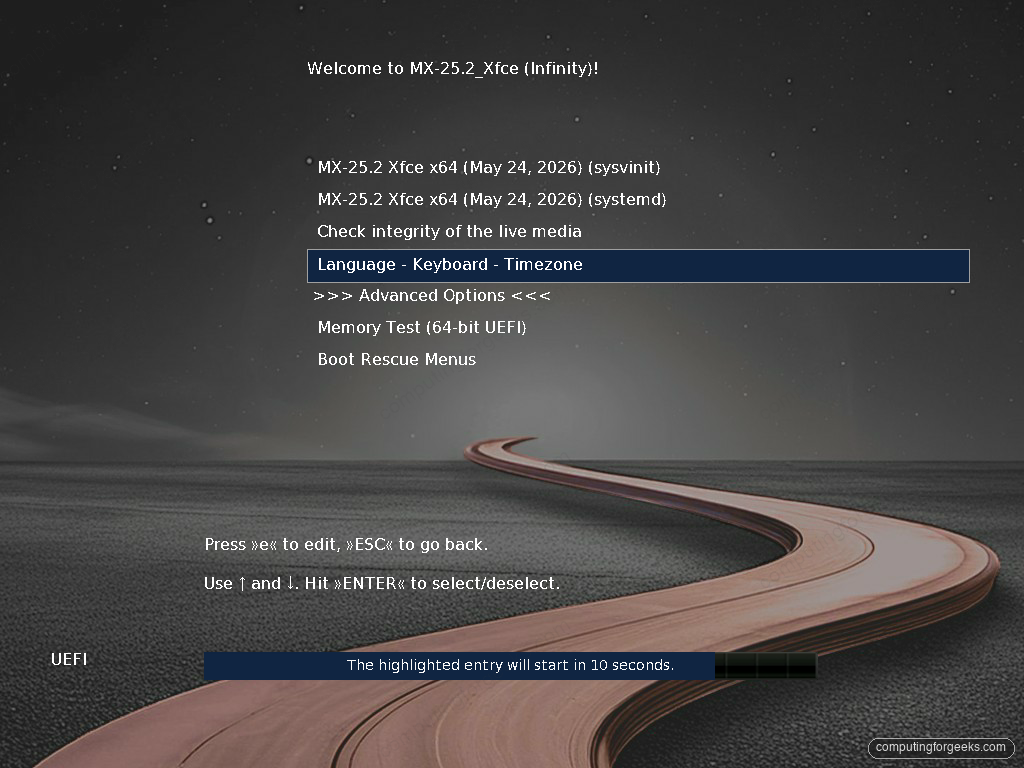
This menu is where the init-system choice lives. The default entry boots with sysvinit, the classic init MX uses by default; the entry just below it boots the same system with systemd. For a first look, take the default and press Enter. MX loads the desktop straight into a live session without asking for a login.
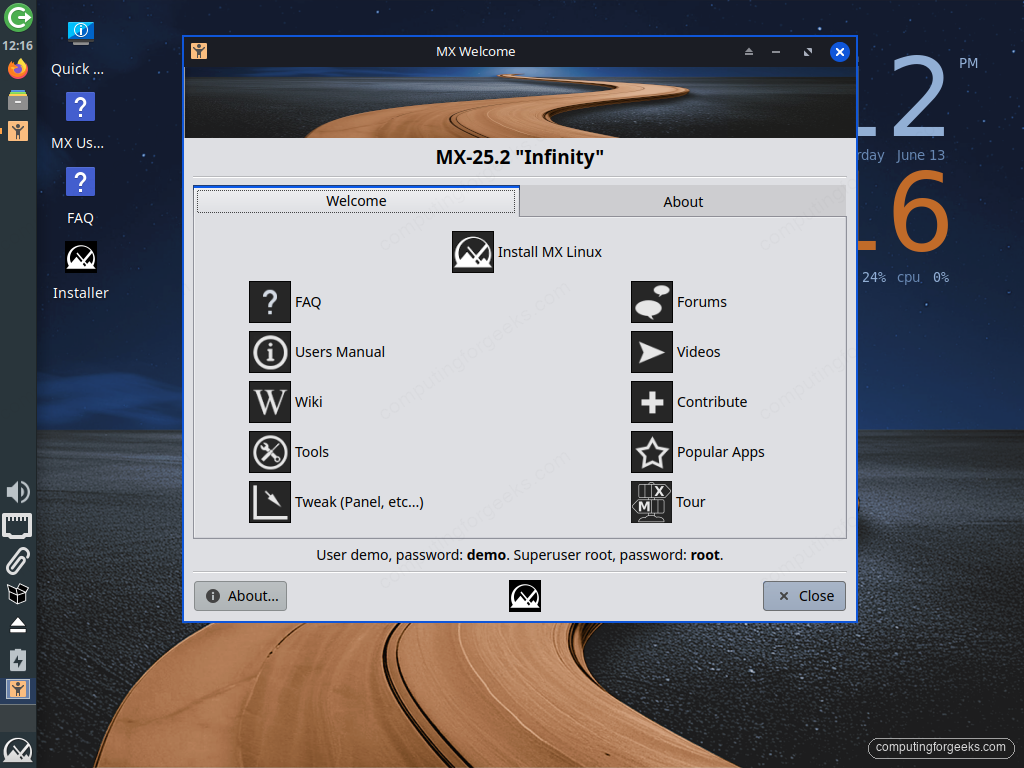
You are now running the complete desktop from RAM. Nothing has touched your disk yet, so this is the moment to confirm Wi-Fi works, the screen resolution is right, and your trackpad behaves. If anything hardware-related is broken here, reboot with the AHS image before installing rather than after. The live user is demo with password demo, and the root password is root, which you will need if you open a terminal for anything privileged.
Trying MX in a virtual machine first
If you just want to evaluate MX without rebooting your machine, the live ISO boots cleanly in any hypervisor. Create a VM with 2 GB of RAM and a 20 GB disk, attach the ISO as a virtual CD, and follow the exact same installer steps below. Our VirtualBox install guide covers setting up the hypervisor if you do not have one yet.
Step 4: Run the MX Linux installer
Launch the installer from the icon in the top-left of the live desktop, labelled “Installer”. If you cannot find it, open a terminal and run it directly:
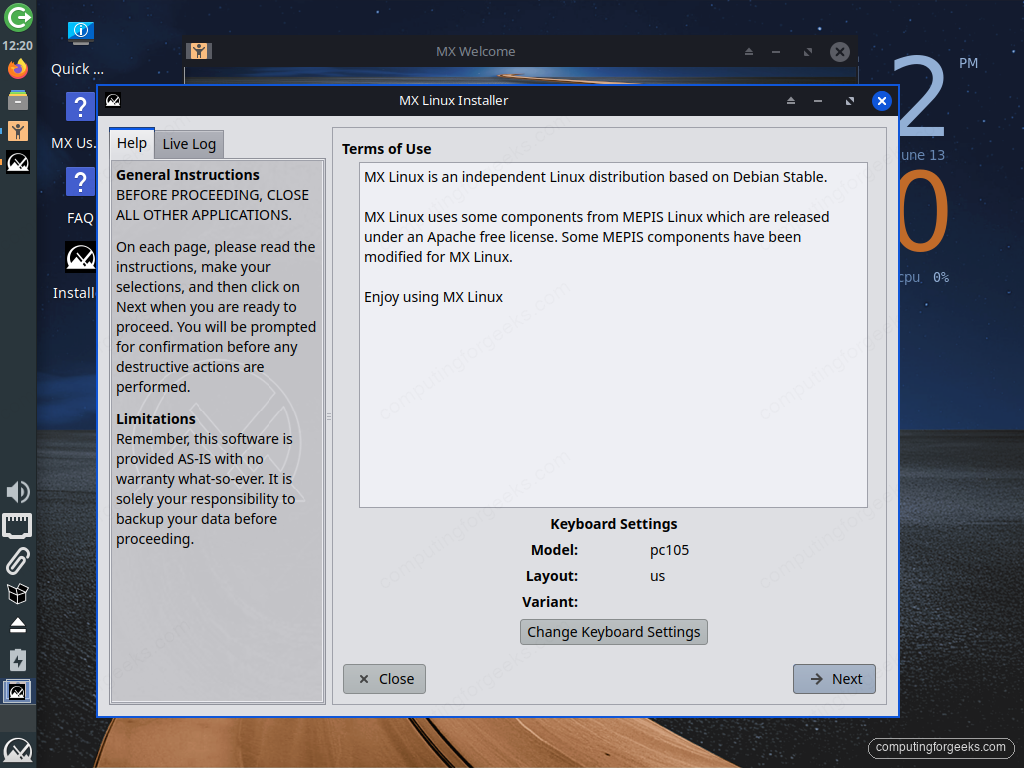
sudo minstallThe installer opens on a welcome screen that explains it will not write anything until the final confirmation. Read it and click Next to begin.
Partitioning the disk
This is the only screen where you can lose data, so it gets the most attention. You have two paths. Auto-install takes a whole disk and lays out the partitions for you, which is the right choice on an empty drive or a machine you are dedicating to MX. Custom lets you point root and home at existing partitions, which is what you want for a dual-boot or a layout you have planned yourself.
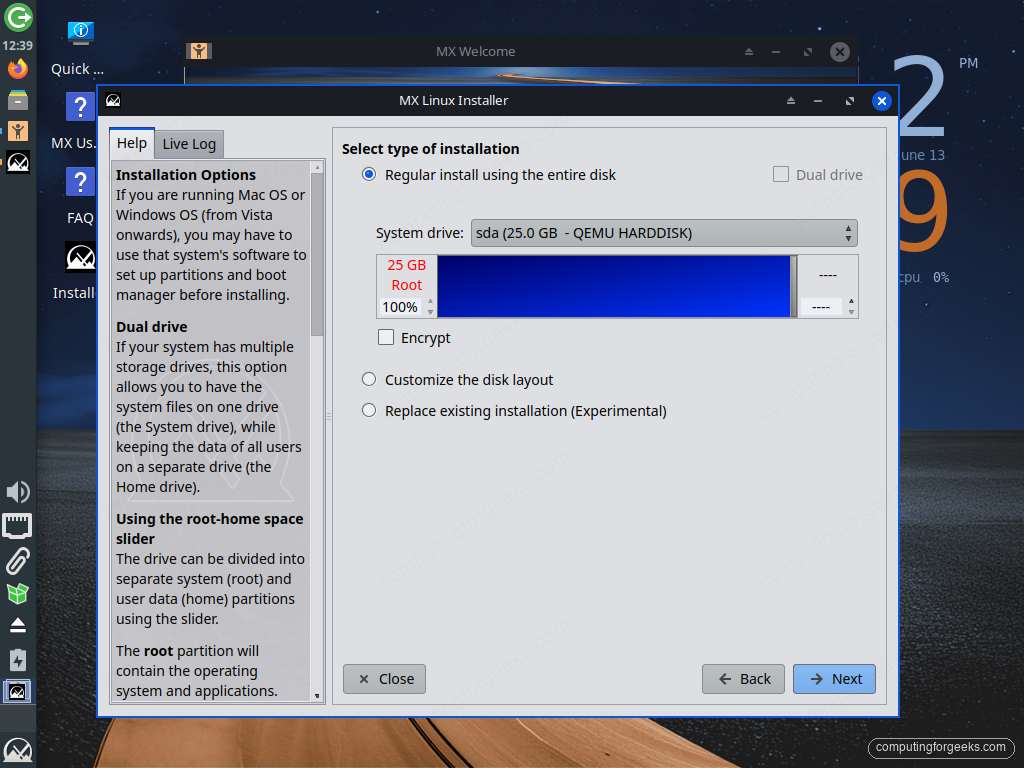
For a clean single-OS install, select the target disk, choose to use the entire disk, and decide whether to put /home on its own partition. A separate home partition is worth the click: it lets you reinstall or change the system later without wiping your files. The installer also offers full-disk encryption here. If this is a laptop, turn it on and set a strong passphrase, because disk encryption is the one protection that survives the machine being stolen.
On a UEFI machine the installer detects the EFI System Partition and installs the GRUB bootloader there automatically, so there is no separate bootloader screen to click through on a standard layout. The 25.2 installer is more careful about this than older releases: it will not write an ESP bootloader entry when no ESP is defined, which is what used to break installs on unusual partition layouts.
Locale, keyboard, and accounts
While the files copy in the background, the installer collects the rest of the configuration so the install finishes without further prompts. Set your timezone and keyboard layout first.
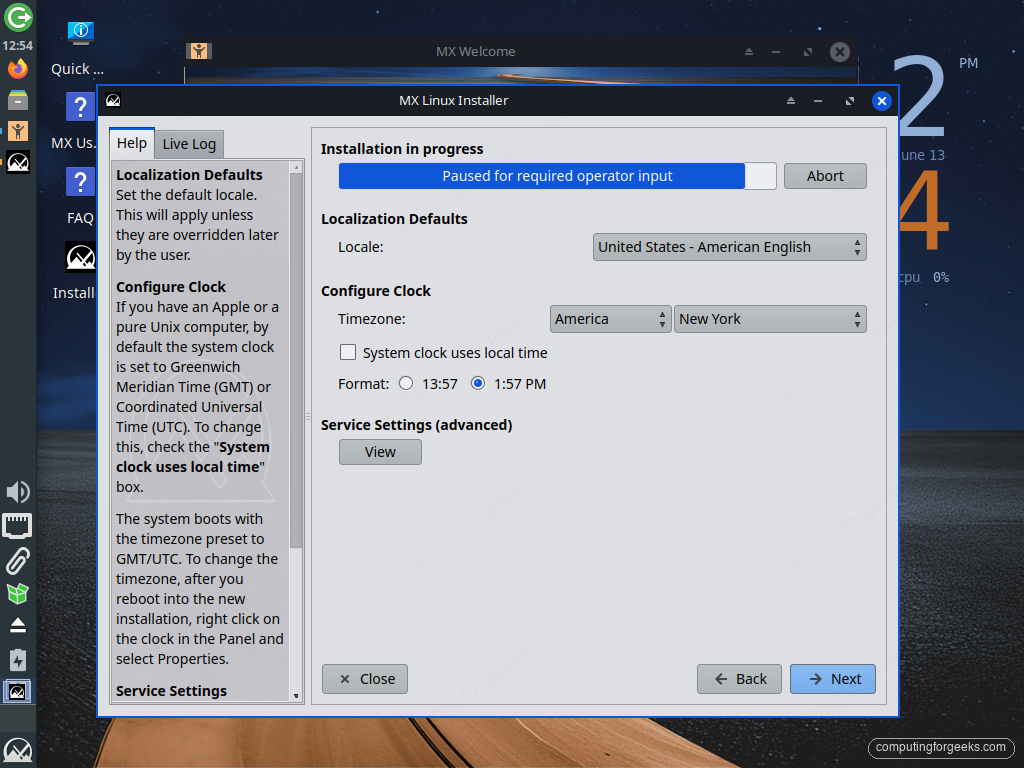
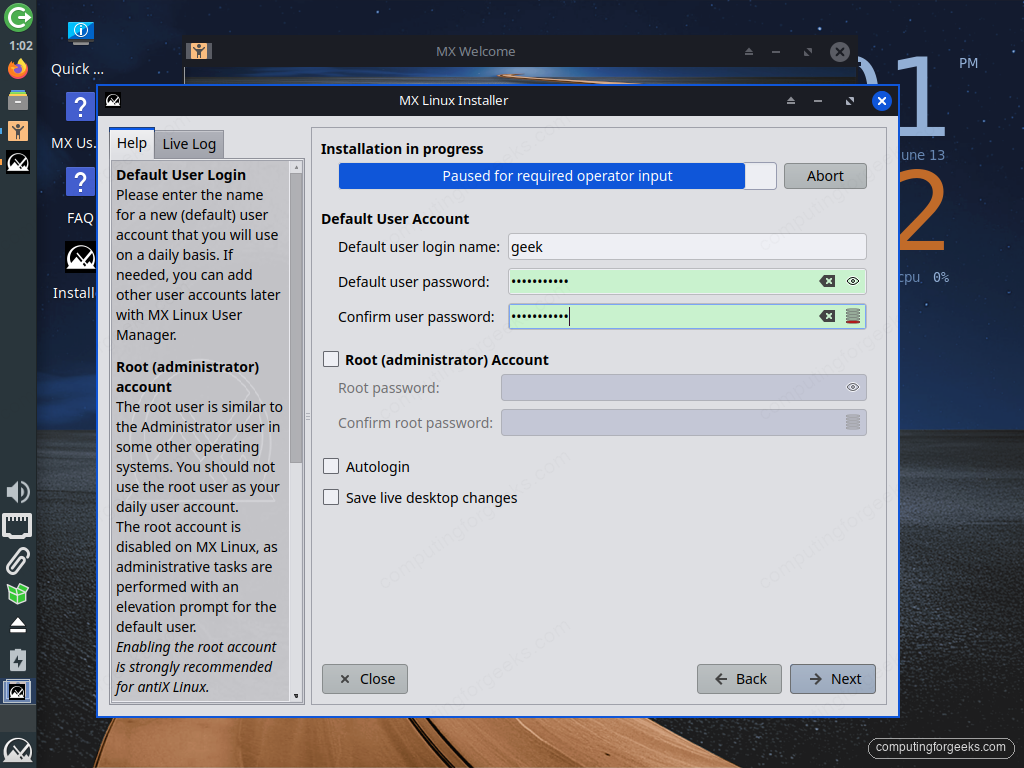
Then create your account: a login name and a password, entered twice (the fields turn green once the password and its confirmation match). On MX the root account is disabled by default and administration goes through sudo, so the separate “Root (administrator) Account” password fields below are greyed out. Leave them blank and let your user account handle administrative tasks through an elevation prompt; the installer itself flags enabling a root account as strongly discouraged. There is also an auto-login option, convenient on a personal laptop but best left off on anything that leaves the house.
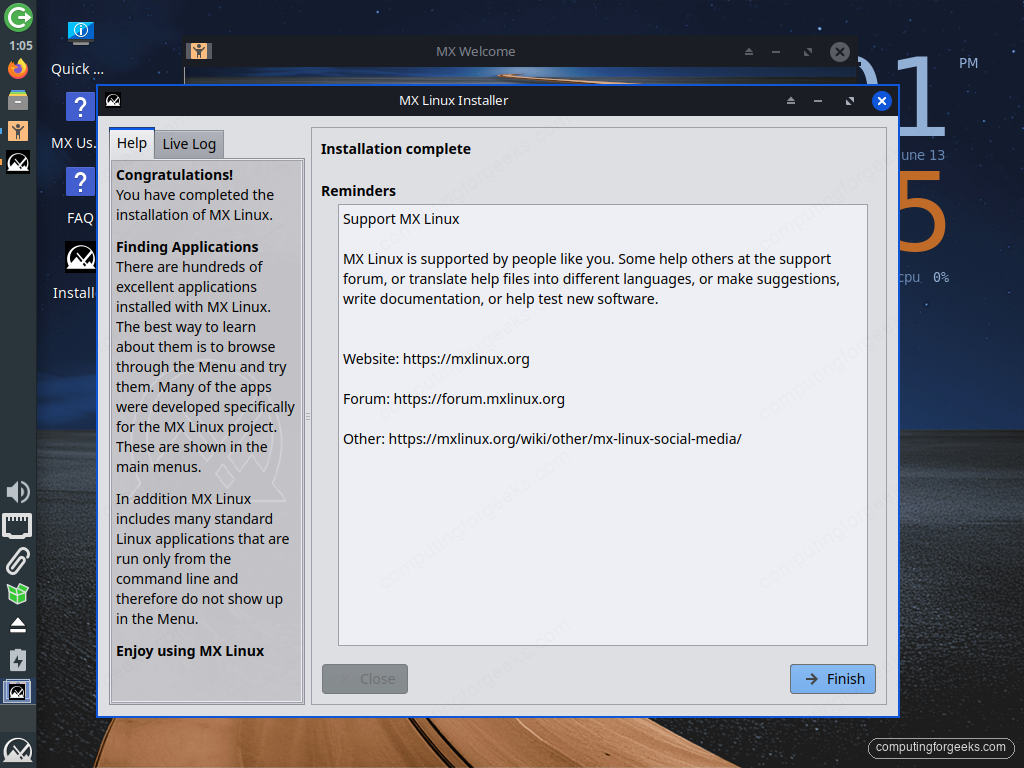
Once the file copy and your answers are both done, the installer writes the bootloader and reports success. Remove the USB stick when prompted and reboot.
Installing from the text-mode (TUI) installer
New in 25.2 is a full text-mode installer that carries the same logic as the graphical one. It matters in two situations: a machine whose graphics do not come up in the live session, and a low-RAM box where loading the full desktop just to run the installer is wasteful. Boot the live menu and pick a text-mode or failsafe entry, or from a console in the live session launch it directly:
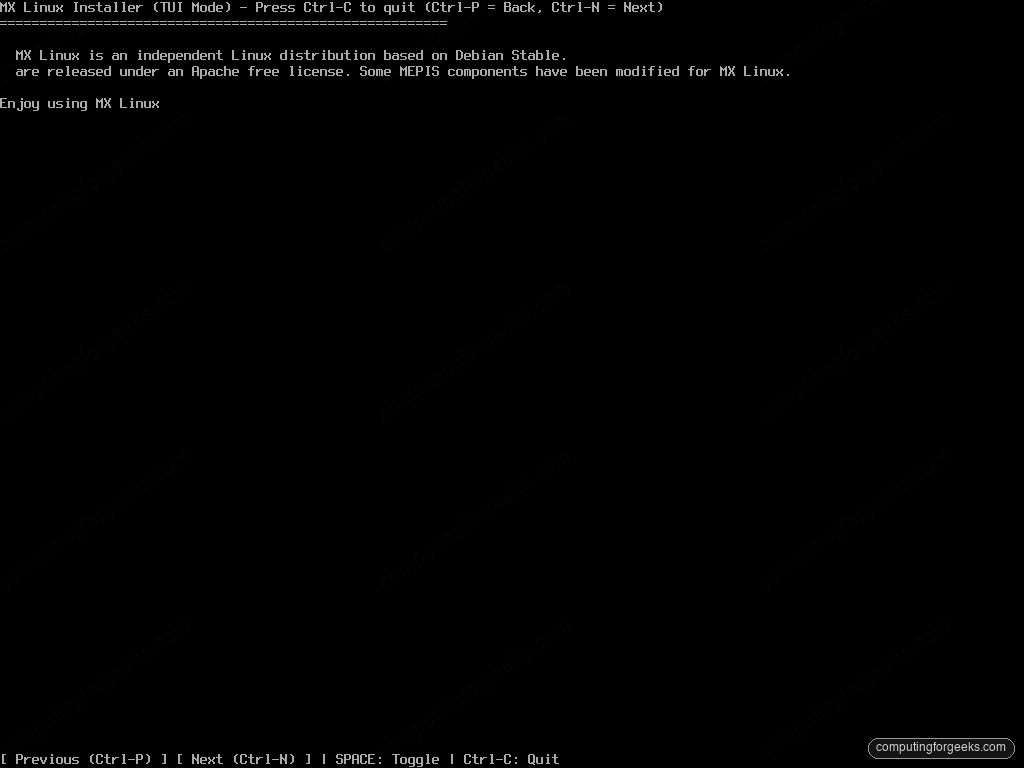
sudo minstall-launcherIt launches as “MX Linux Installer (TUI Mode)” and walks the same steps as the graphical one (partitioning, locale, accounts, bootloader) using a keyboard-driven menu. The navigation legend sits at the bottom of every screen: Ctrl-N moves to the next step, Ctrl-P steps back, Space toggles an option, and Ctrl-C quits. It is not a stripped-down version; the disk-format editing and drive selection are all present, which is what makes it a genuine fallback rather than an emergency-only tool.
Step 5: First boot and essential setup
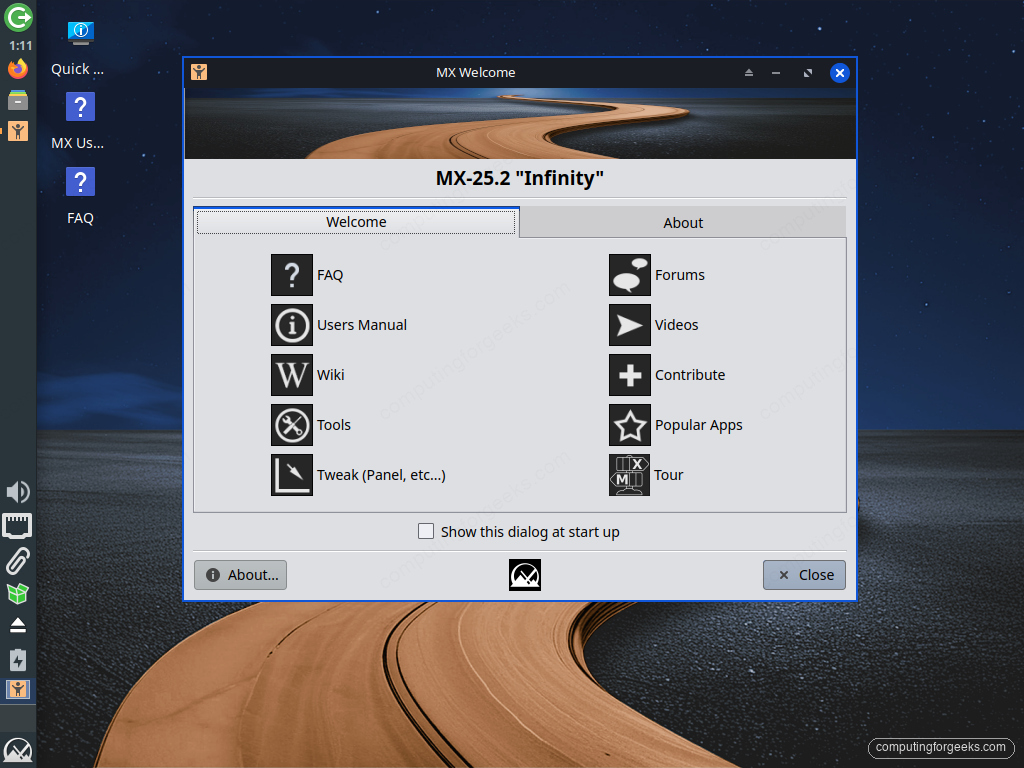
After the reboot you land at the login screen, then the Xfce desktop. Three things are worth doing before you start installing applications.
Update the system. The ISO was built weeks or months ago, so the first job is to pull current packages. The MX Updater icon in the system tray does this graphically, or from a terminal:
sudo apt update && sudo apt full-upgrade -yOpen MX Tools. This is the suite that sets MX apart, and it is worth a tour before you reach for the command line. It collects the jobs that are normally manual into one window: managing repositories, installing extra kernels, adding proprietary drivers, taking system snapshots, and setting up the live-USB tools.
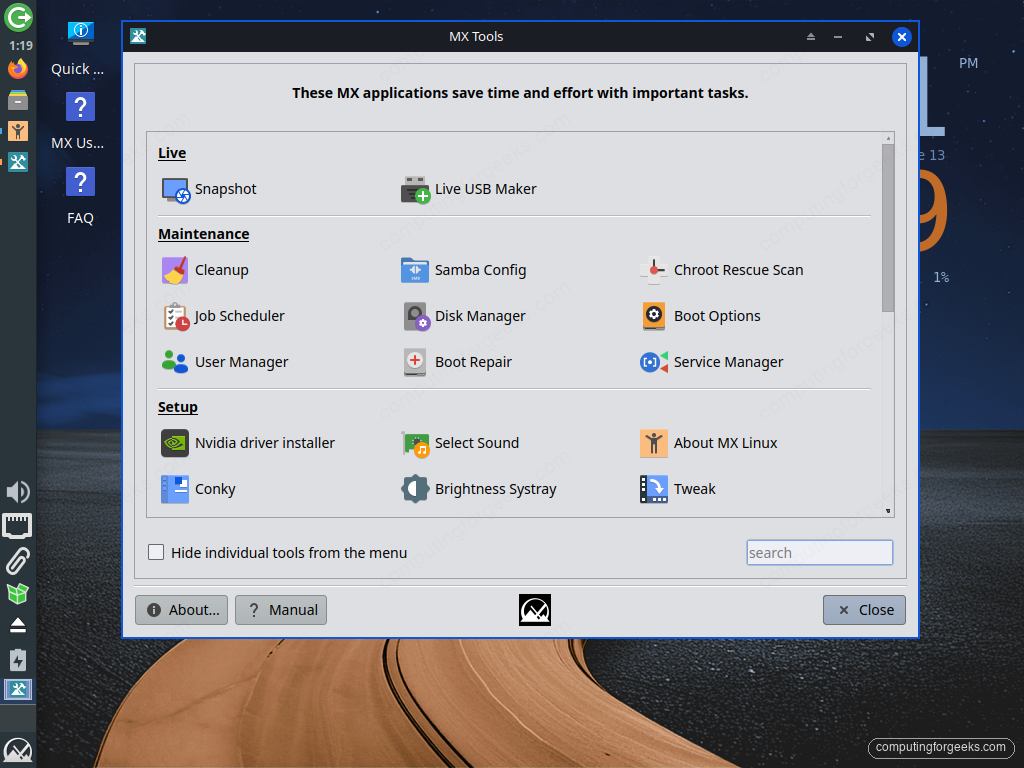
Install codecs and the apps you need. MX provides its own curated installer, MX Package Installer, alongside standard apt. It exposes the Debian repositories, the MX test repos, and Flatpak from one interface, with one-click entries for common picks like browsers, media codecs, and proprietary fonts. Use it for the popular desktop software and fall back to apt install for anything server-side.
Common MX Linux install problems and fixes
A few issues come up often enough to be worth naming, with the fix for each.
The USB stick will not boot
On a UEFI machine this is almost always Secure Boot rejecting the image. Enter the firmware setup, disable Secure Boot, and boot again. If the stick still does not appear in the boot menu, the ISO was likely written to a partition instead of the whole device; rewrite it with dd targeting the device (/dev/sdb), not a partition (/dev/sdb1).
Black screen or no network in the live session
This is the hardware-support gap the AHS edition exists to close. The standard image rides Debian’s 6.12 kernel, and a GPU or Wi-Fi chip newer than that kernel may not have a driver. Download the Xfce AHS image, which carries the newer Liquorix kernel and a fresher Mesa stack, and the hardware usually works without any further steps.
Windows disappeared from the boot menu after install
If you installed alongside Windows and only MX boots, GRUB has not picked up the Windows entry yet. Boot into MX, then update the GRUB configuration so it scans for other operating systems:
sudo update-grubThe output lists each operating system it finds. A line mentioning Windows Boot Manager confirms the entry is back, and it reappears in the GRUB menu on the next reboot. On a UEFI dual-boot, also confirm both systems are in the same firmware mode, since a UEFI MX install cannot chainload a legacy-BIOS Windows.
That is the whole path from a downloaded ISO to a running, updated MX Linux desktop. The pieces that trip people up are almost always the same two: verifying and writing the USB correctly, and reaching for the AHS image when recent hardware needs a newer kernel. With those handled, MX is one of the lowest-maintenance desktops you can run, and the MX Tools suite means most of what you would otherwise script stays a click away. If you are still weighing your options, the same screenshot-by-screenshot approach covers installing Zorin OS, and our roundup of the best Linux desktop distributions puts MX in context against the alternatives.