Zorin OS is a Linux distribution built to make switching from Windows or macOS feel painless. The desktop is familiar, the panel sits at the bottom, the menu looks like a Start menu, and the system understands Windows EXE installers. Version 18.1 ships with the Linux 6.17 kernel on the Ubuntu 24.04 LTS base, gets security updates through June 2029, and now detects over 240 popular Windows applications to suggest Linux alternatives.
This guide walks through every step of a Zorin OS 18.1 Core install, captured on a real lab VM, then covers the post-install tasks that actually matter: updates, drivers, the Zorin Appearance switcher, Flatpak, firewall, and Timeshift snapshots. Every command was tested on the running system.
Tested May 2026 on Zorin OS 18.1 Core, Linux kernel 6.17.0-39-generic, Flatpak 1.14.6, Ubuntu 24.04 LTS (noble) base.
Prerequisites
Before starting, line up the following:
- 64-bit Intel or AMD processor, 1 GHz dual-core minimum (anything from the last twelve years works)
- 2 GB RAM minimum, 4 GB or more for a smooth experience
- 15 GB free disk space for Core, 35 GB for Education, 45 GB for Pro
- A USB flash drive with at least 8 GB capacity (the ISO is 3.6 GB)
- Display capable of 800×600 resolution or higher
- Internet connection during the install for codecs and language packs (optional but recommended)
Download Zorin OS 18.1
Grab the ISO from the official Zorin OS download page. Four editions are available:
| Edition | Price | Best for |
|---|---|---|
| Core | Free | Everyday desktop on modern hardware |
| Pro | Paid | Extra layouts, creative apps, more pre-installed software |
| Lite | Free | Older or low-RAM machines (XFCE 4.20 desktop) |
| Education | Free | Schools and students, includes pre-installed educational apps |
Core is the right starting point for most people on modern hardware. Lite is the new addition in 18.1, replacing GNOME with XFCE 4.20 for a lighter footprint. After downloading, verify the ISO integrity. The SHA256 checksums are listed on the Zorin help docs. On Linux or macOS:
sha256sum Zorin-OS-18.1-Core-64-bit.isoThe expected hash for 18.1 Core is 44649b97bd307fc4c8529205d098ebbf98575a1e1ba2ee7d7005b697af1721d5. If the output matches, the download is intact.
Create a Bootable USB
Three tools cover most situations. Pick whichever fits how you work.
balenaEtcher (Windows, macOS, Linux)
Download balenaEtcher and open it. Click Flash from file, select the Zorin ISO, pick the USB drive as the target, then click Flash!. Etcher verifies the write after flashing.
Ventoy (multi-boot USB)
If you test Linux distros often, Ventoy is a better long-term option. Install Ventoy on the USB drive once, then copy any number of ISO files onto it. The full walkthrough is in our Ventoy bootable USB guide.
dd on Linux or macOS
For terminal users, identify the USB device name first:
lsblk -d -o NAME,SIZE,TRAN,MODEL | grep -i usbOnce you know the device (usually /dev/sdb or /dev/sdc), unmount any existing partitions and write the ISO:
sudo umount /dev/sdX*
sudo dd if=Zorin-OS-18.1-Core-64-bit.iso of=/dev/sdX bs=4M status=progress oflag=sync
Replace /dev/sdX with the real device. Picking the wrong one wipes the disk you meant to keep, so double-check before pressing Enter. Coming from Windows? Use our Windows-to-Linux bootable USB notes for the other direction.
Boot from the USB
Plug the USB drive in and reboot. Press the boot-menu key as the manufacturer logo appears. The key varies:
| Manufacturer | Boot menu key | UEFI/BIOS key |
|---|---|---|
| Dell | F12 | F2 |
| HP | F9 or Esc | F10 or Esc |
| Lenovo | F12 or Fn+F12 | F1 or F2 |
| ASUS | F8 or Esc | F2 or Delete |
| Acer | F12 | F2 or Delete |
| MSI | F11 | Delete |
Select the USB entry. On UEFI systems, prefer the entry prefixed with UEFI. Zorin OS works with Secure Boot enabled on most hardware, but if the live USB refuses to boot, drop into UEFI settings and turn Secure Boot off.
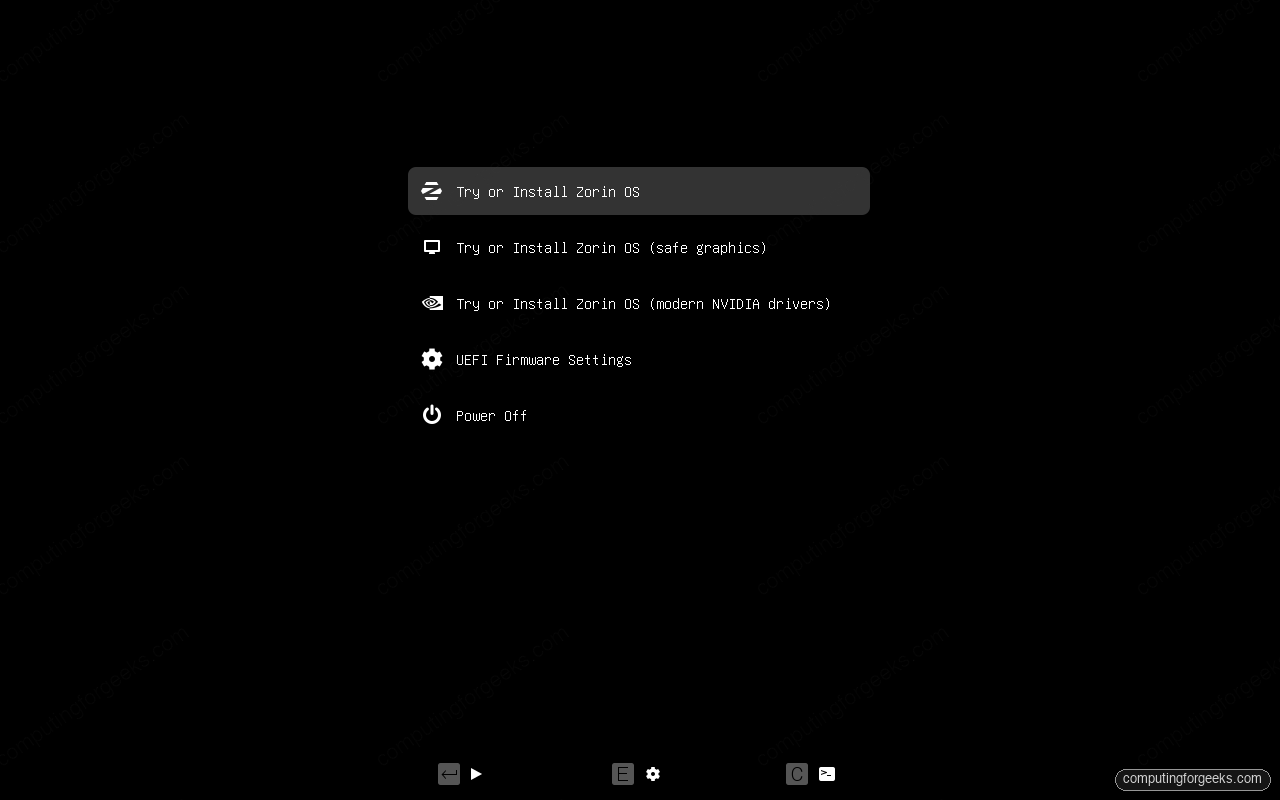
The Zorin boot menu appears with five entries. Try or Install Zorin OS is the default. Two fallbacks are useful when graphics misbehave: safe graphics drops to a basic VESA driver, and modern NVIDIA drivers preloads the proprietary kernel module for recent NVIDIA cards. Press Enter or wait ten seconds.
Try the Live Session First
Zorin OS boots straight into a full live desktop. Wi-Fi, trackpad, sound, and graphics all work from this session, so it is the right place to confirm hardware compatibility before touching the disk. Open Firefox, play a YouTube video, connect to Wi-Fi. If everything works in live mode, the installed system will work too.
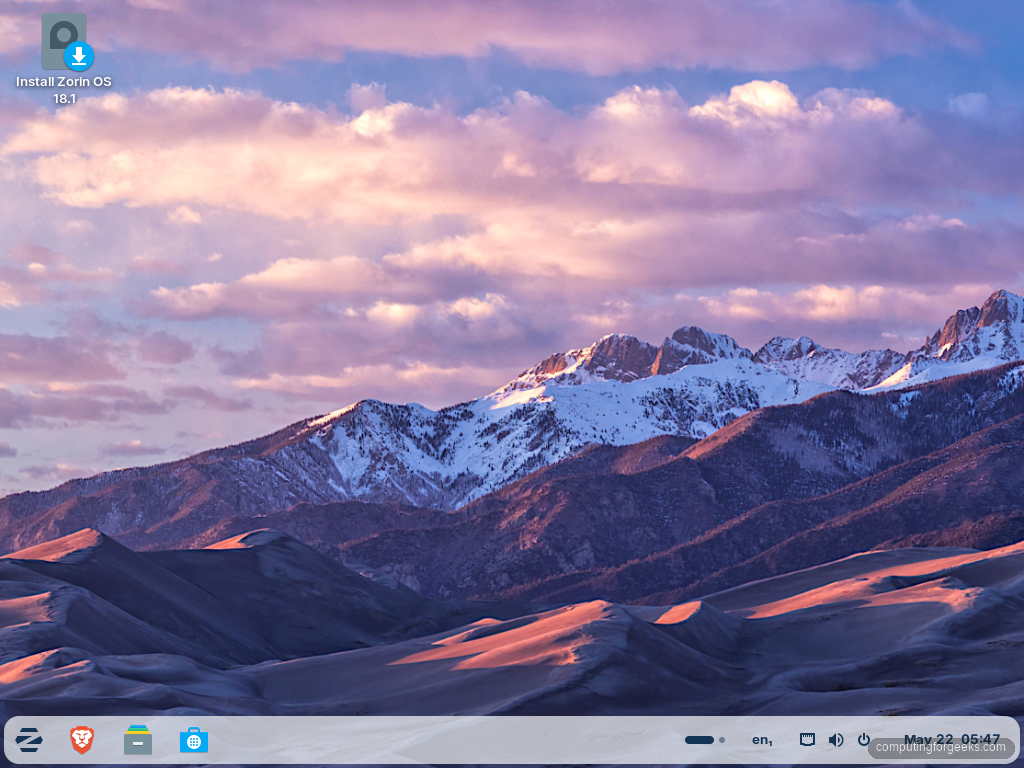
The desktop opens with the Zorin Z icon at the bottom-left, a floating rounded panel pinned to the bottom, and an Install Zorin OS launcher in the top-left of the wallpaper. Double-click it when you are ready to commit to disk.
Step 1 – Welcome and Language
The first installer screen offers two paths side by side: Try Zorin OS keeps you in the live session for further exploration, and Install Zorin OS writes the system to disk. The language list on the left covers every supported locale, and the right pane shows a brief welcome message in the selected language.
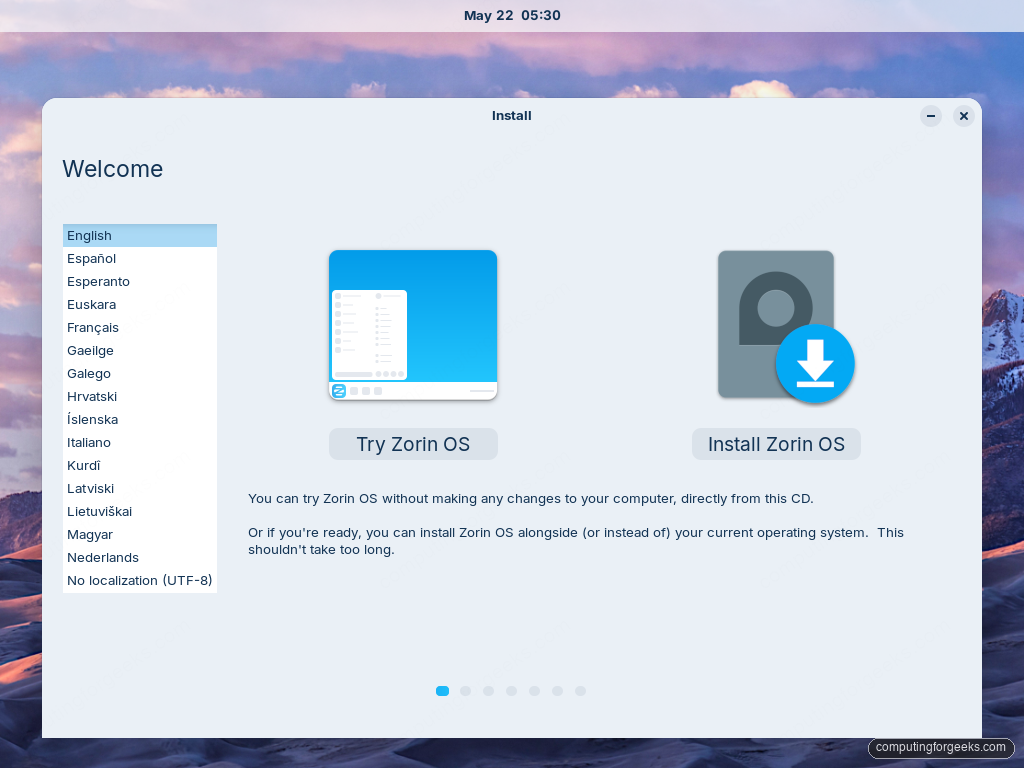
Pick the language that matches your keyboard and click Install Zorin OS. The next screens cover keyboard layout, network choice, install scope, partitioning, time zone, and the first user.
Step 2 – Keyboard Layout
The installer detects the keyboard from the language choice. Two columns appear: the language family on the left and the specific variant on the right. The text box at the bottom is for testing. Type the special characters that matter to you (slashes, brackets, the at sign) and confirm they appear correctly.
If the layout looks wrong, click Detect Keyboard Layout and follow the prompts. Click Continue when the test box looks correct.
Step 3 – Wireless and Updates
If the machine has Wi-Fi and is not already on Ethernet, the installer prompts to join a network. Connecting is optional, but doing so lets the installer pull updates and language packs during the install rather than after first boot.
The next screen offers two install scopes:
- Normal installation – the standard desktop set: Firefox, LibreOffice, media players, basic games. Choose this on a new machine
- Minimal installation – just Firefox and the basic utilities. Choose this on small SSDs or when planning to install only specific apps
Two checkboxes also appear:
- Download updates while installing – tick this if Internet is available; saves time after first boot
- Install third-party software – tick this for Wi-Fi firmware, NVIDIA drivers, and MP3/H.264 codecs. Required on most consumer hardware
Step 4 – Installation Type
This is the most important screen. The options that appear depend on what is already on the disk.
Install alongside Windows (dual boot)
When Windows is detected, the installer offers to shrink the Windows partition. A slider lets you allocate the freed space to Zorin OS. The dual-boot menu appears at every startup so you can pick which OS to boot. This is the lowest-risk option for keeping a Windows fallback. Take a backup of the Windows partition first, resize operations are reliable but disks fail at the worst moments.
Erase disk and install Zorin OS
Wipes the disk completely and gives all space to Zorin OS. Pick this when the machine will run Zorin OS only. An Advanced features button on this screen exposes LVM and full-disk encryption (LUKS). Encryption is the right call for laptops and any machine that stores work or sensitive data; you set the encryption passphrase here, and the system prompts for it at every boot.
Something else (manual partitioning)
For full control over the partition layout. A safe scheme for a UEFI system with one disk:
| Mount point | Size | Filesystem |
|---|---|---|
| /boot/efi | 512 MB | EFI system partition (FAT32) |
| / | 30 to 50 GB | ext4 |
| /home | Remaining space | ext4 |
| swap | Equal to RAM, up to 8 GB | linux-swap |
If a previous Linux install left an EFI partition behind, reuse it: select it, set the mount point to /boot/efi, and do not format. A separate /home partition is the single biggest win when reinstalling later, your files and settings survive a fresh root install.
When the layout is correct, click Install Now. A confirmation dialog lists every change about to happen. Read it carefully. If anything looks wrong, click Go Back. Otherwise Continue.
Step 5 – Time Zone
The installer auto-detects the time zone from your IP address. A world map with a highlighted city appears. If the city is wrong, click closer to your location or type a city name into the text field.
Step 6 – User Account
Create the first user account. Five fields show up:
- Your name – full name on the login screen
- Your computer’s name – hostname on the network (e.g.,
zorin-laptop) - Pick a username – login name and the name of your home directory
- Choose a password – also the sudo password
- Confirm your password – retype the same string
Two radio buttons sit below: Log in automatically and Require my password to log in. Always pick the second on laptops or any shared machine.
Click Continue. The installer starts copying files in the background while you finish the screens.
Step 7 – Installation Runs
A progress bar tracks the copy and a slideshow walks through Zorin OS features. On modern SSDs the install completes in 10 to 15 minutes. Spinning disks and older USB drives can stretch it to 30 minutes. Leave the machine plugged in if it is a laptop.
When the copy completes, a dialog announces Installation Complete and offers Restart Now. Click it. Pull the USB drive when the system prompts you to do so, then press Enter.
First Boot and the Welcome Screen
The bootloader (GRUB on dual-boot setups, systemd-boot on single-disk setups) loads, then Zorin OS lands on the login screen with the username pre-selected. Enter the password and the desktop loads.
A small Welcome dialog opens on first login. It walks through enabling automatic updates, choosing privacy options, and registering for the Zorin newsletter. None of the steps is mandatory; pick what you want and close it.
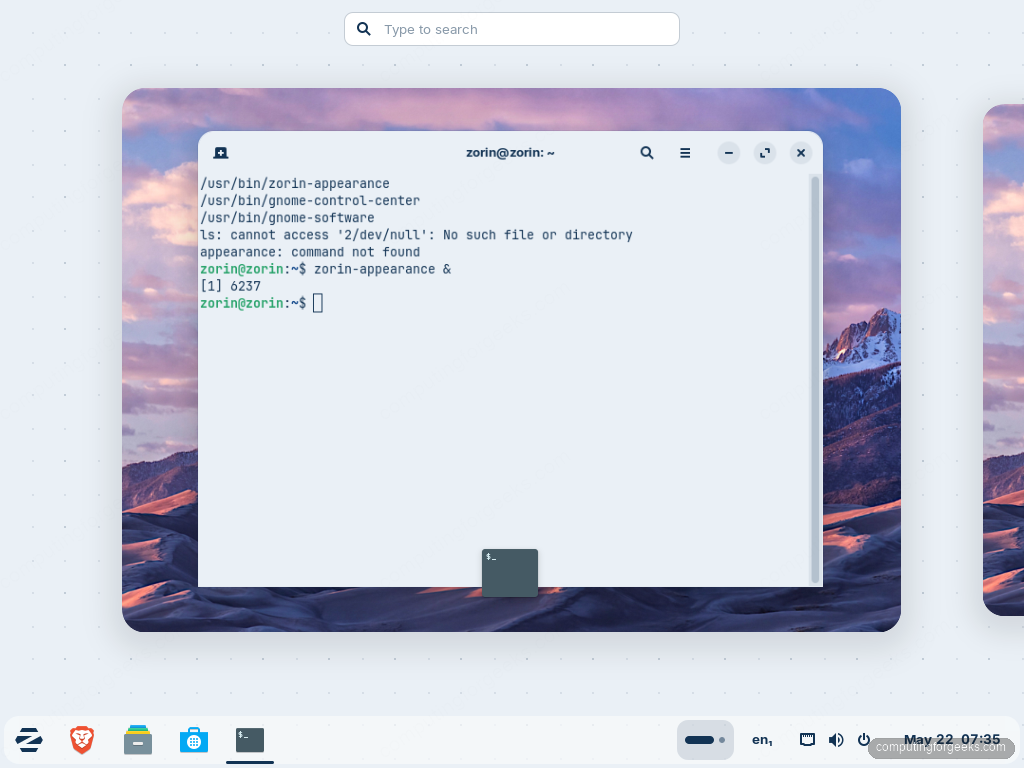
The default desktop puts a floating, rounded panel at the bottom. The Zorin menu sits on the left, pinned apps in the middle, system tray and clock on the right. Tap the Super key (Windows key) to open the Activities overview and search; type the first few letters of an app name to launch it.
Confirm the Version After Login
Once on the desktop, open the Terminal with Ctrl+Alt+T and confirm the install. Two short checks tell you everything important.
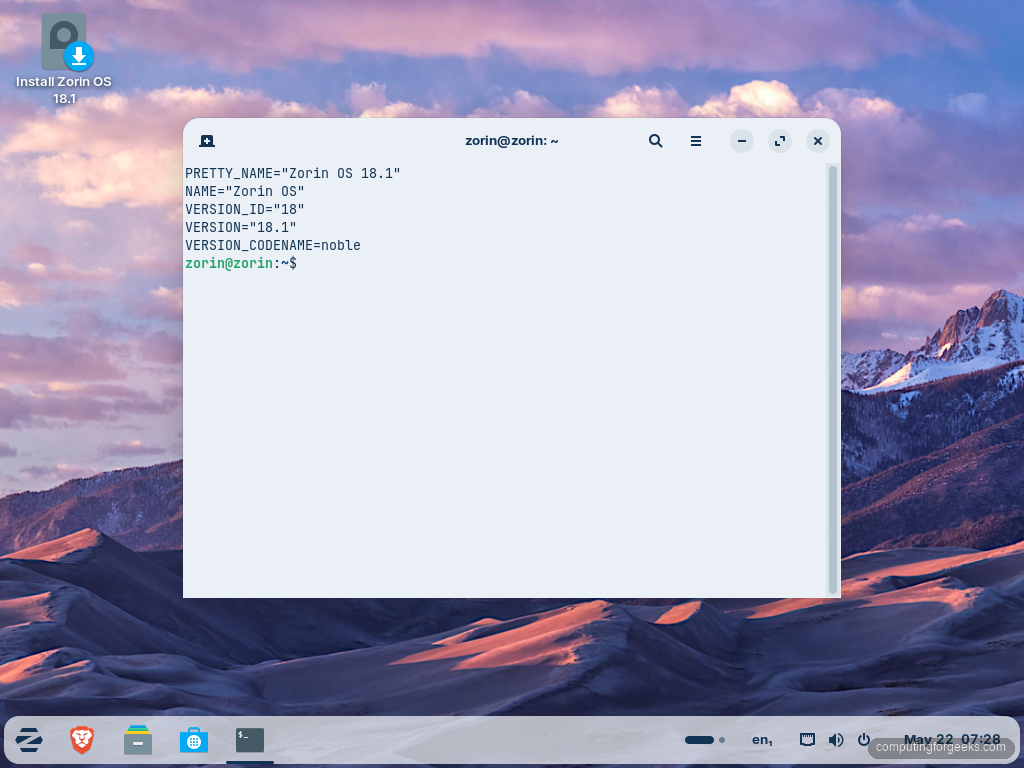
cat /etc/os-release | head -5The output shows the Zorin OS release name, version, and the Ubuntu codename that backs it (noble for 24.04 LTS):
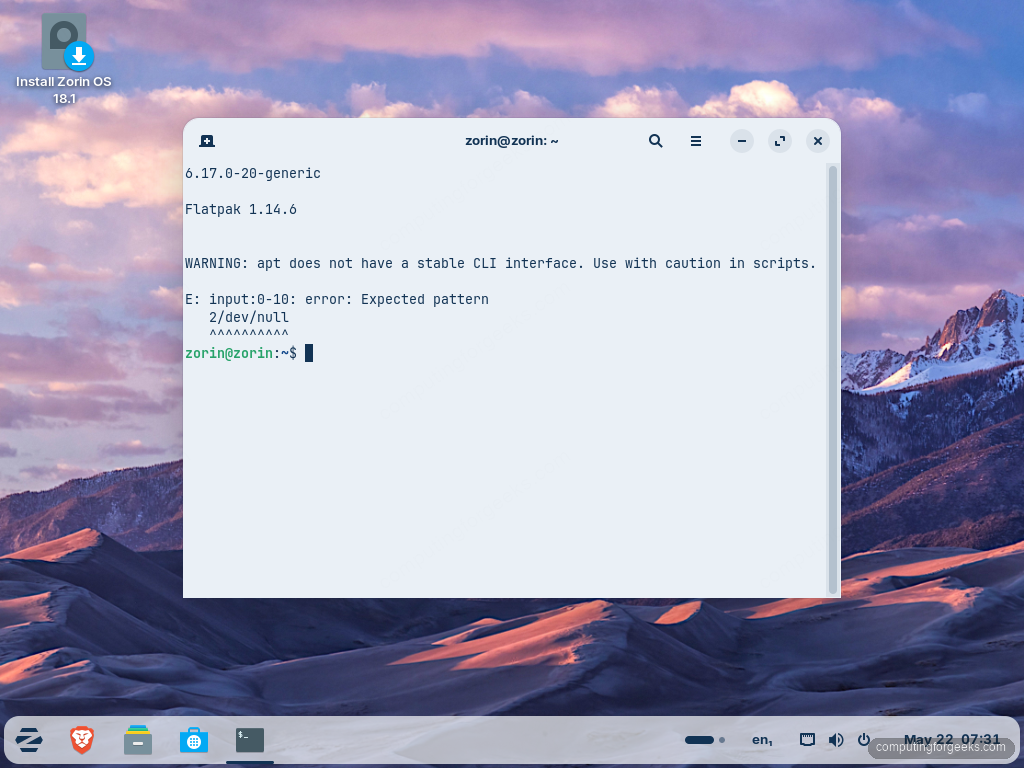
Next, check the kernel and Flatpak runtime. These are the two pieces that decide what hardware and apps the system can run:
uname -r
flatpak --version
Kernel 6.17 picks up driver support for recent NVIDIA, Intel Xe3, and AMD GPUs, plus better laptop power management for ThinkPad and Galaxy Book hardware. Flatpak 1.14 is current stable, and Flathub is pre-configured.
Post-Install: Update Everything
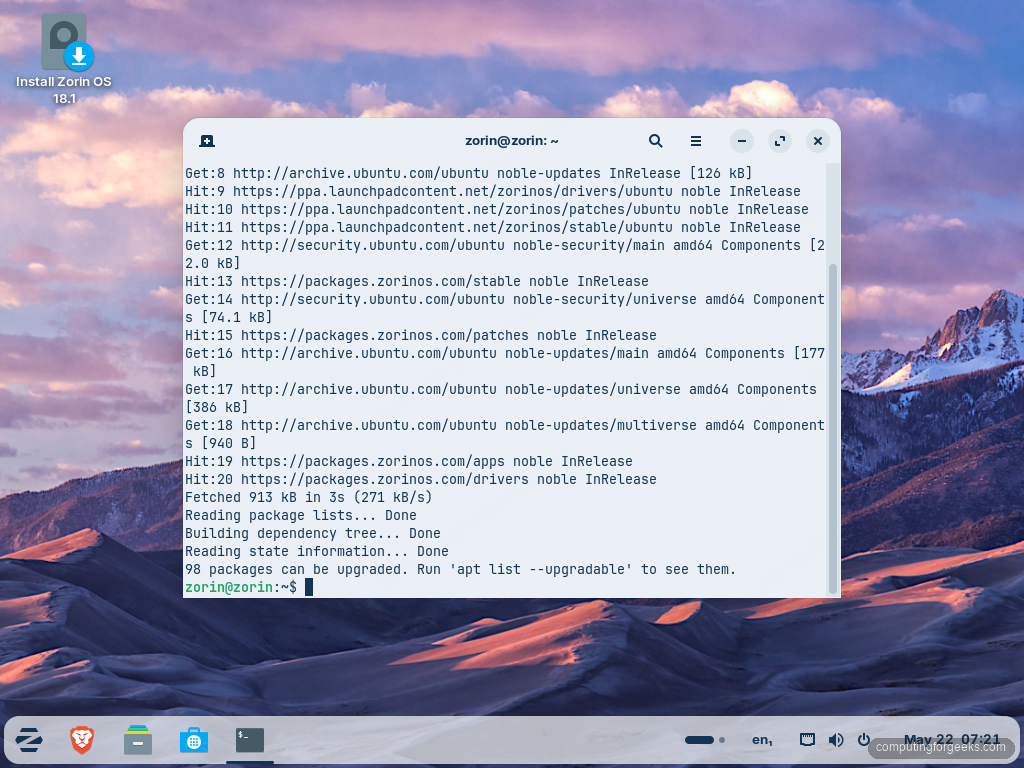
The first thing every new install needs is a full update. Pull the latest package lists and upgrades:
sudo apt update && sudo apt upgrade -yUpdates land from both the Ubuntu 24.04 LTS repository and the Zorin OS pocket. The output looks like this on a fresh install:
Reboot afterwards if the kernel or systemd was upgraded:
[ -f /var/run/reboot-required ] && sudo rebootPost-Install: Proprietary Drivers
NVIDIA cards, some Wi-Fi chipsets, and Broadcom radios need proprietary drivers. Zorin OS ships a graphical driver manager. Open the Zorin menu, type Additional Drivers, and launch it. The window lists devices that have non-default options available.
Tick the recommended driver for each device and click Apply Changes. A reboot is needed after installing graphics drivers, the new kernel module loads at next startup.
From the command line:
ubuntu-drivers list
sudo ubuntu-drivers autoinstall
The first command shows what is available; the second installs the recommended set. For NVIDIA specifically, check our manual driver cleanup notes if a previous distro left orphaned NVIDIA bits behind.
Post-Install: Zorin Appearance
The Zorin Appearance app is what sets Zorin apart from stock Ubuntu. Open the menu, type Zorin Appearance, and launch it. Six layout presets show up as live previews:
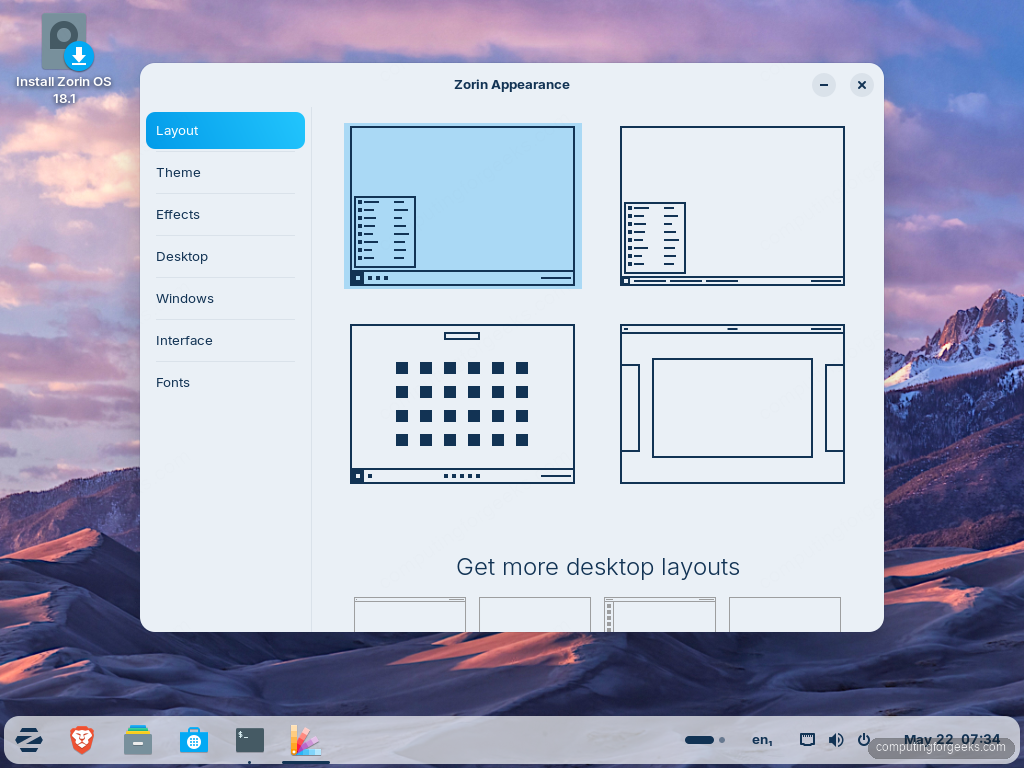
- Zorin – the default, taskbar at the bottom
- Windows-like – menu button in the bottom-left, system tray in the bottom-right
- macOS-like – top bar with menus, bottom dock for app launchers
- GNOME – the upstream GNOME layout with Activities Overview
- Touch – large icons for touchscreen laptops
- Classic – traditional two-panel layout, top bar with menu, bottom taskbar
The Pro edition adds six more layouts including Ubuntu-style and ChromeOS-style. Click any layout to apply it instantly. Other tabs let you switch accent colors (Yellow and Brown are new in 18), toggle dark mode, change the icon theme, and resize fonts.
Post-Install: Files, Software, Flatpak, and Snap
The Files application (GNOME Nautilus, redesigned in 18) is the default file manager. The home folder pre-populates with Desktop, Documents, Downloads, Music, Pictures, Public, Templates, and Videos. Online accounts that you connect from Settings show up in the sidebar.
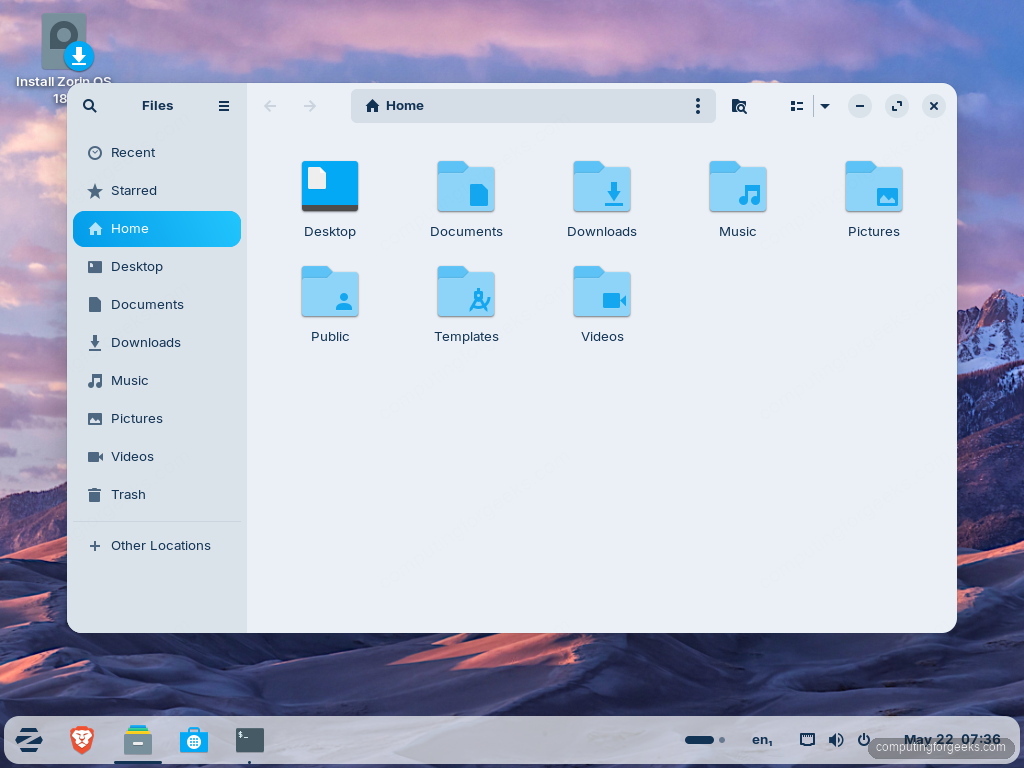
The Software store is the primary install path for new apps. It pulls from APT, Flatpak (Flathub), and Snap in one interface. Open it from the menu or run gnome-software. Search for any app, click Install, enter the password.
From the terminal, a small set of must-haves on most desktops:
sudo apt install -y vlc gimp audacity transmission-gtk htop curl gnupgFlatpak is preconfigured. If an app is missing from the Software store, search Flathub directly:
flatpak search bitwarden
flatpak install flathub com.bitwarden.desktop
See our Flatpak basics for permissions, runtime cleanup, and the difference between user and system installs.
Post-Install: Windows App Support
Zorin OS 18.1 ships Windows App Support powered by WINE 10. The database recognises over 240 Windows applications and suggests Linux-native alternatives where one exists. Double-click any .exe or .msi file in Files and the support layer offers to install or run it.
From the command line, confirm WINE is installed:
wine --versionIf the command is missing, install WINE from the Ubuntu pool or follow our WINE on Ubuntu and Debian walkthrough for the WineHQ repository, which carries fresher releases.
Post-Install: Firewall
UFW is preinstalled but not enabled. Turn it on with sensible defaults: deny incoming, allow outgoing.
sudo ufw default deny incoming
sudo ufw default allow outgoing
sudo ufw enable
sudo ufw status verbose
If you SSH into this machine from elsewhere, allow port 22 first:
sudo ufw allow OpenSSHThe deeper firewall reference is in our UFW command cheatsheet.
Post-Install: Timeshift Snapshots
Before you start customising and installing software, set up Timeshift. Snapshots make rollback a one-click operation when an experiment breaks the system. Install it:
sudo apt install -y timeshift
sudo timeshift --create --comments "fresh install" --tags D
The full setup with retention, scheduled runs, and restore-from-USB is documented in our Timeshift backup and restore guide.
What to Look At Next
Zorin OS is installed, drivers are loaded, the firewall is up, Timeshift took a baseline. A few extras worth checking before you call the setup done:
- Power and battery: open Settings – Power on laptops and pick a profile. Balanced is the default; Power Saver extends battery life noticeably
- Online accounts: Settings – Online Accounts integrates Google, Microsoft, and Nextcloud calendars, contacts, and OneDrive files
- Window tiling: drag any window to a screen edge and the new tiling assistant suggests half-screen and quarter-screen drops. New in 18.1, custom layouts can now be reordered
- Browser choice: Firefox is preinstalled. If you prefer Chrome, install it from the Software store under Google Chrome (the Flatpak builds work fine here)
- Read our Zorin OS review for context on how it stacks up against other beginner-friendly distros
Zorin OS 18.1 is supported with software and security updates until June 2029. The 18.x line picks up every Ubuntu 24.04 LTS update plus Zorin-specific desktop and Windows-app-support improvements. Run sudo apt update && sudo apt upgrade once a week and the system stays current with zero further configuration.