

A fresh MongoDB install trusts whoever can reach it. The server ships with authentication switched off, and every few months another exposed MongoDB instance gets scraped, wiped, or held for ransom because someone left it listening on a public interface with no password. The install itself takes two minutes. Closing that gap is the part that matters, and it is the part most guides skip.
This guide installs MongoDB 8.0 on Debian from the official apt repository, then locks it down before it ever faces the network: a real administrative user, authorization enforced in mongod.conf, the bind address pinned, and the firewall restricted to a trusted subnet. It covers both Debian 13 (trixie) and Debian 12 (bookworm), including a repository detail on Debian 13 that trips up almost every other write-up. Running Ubuntu instead? The MongoDB on Ubuntu steps differ on a couple of paths. You also get tested mongosh CRUD, a least privilege application user, and a verified backup and restore.
Tested in June 2026 on Debian 13 (trixie) and Debian 12 (bookworm) with MongoDB 8.0.23, authentication enforced, and UFW restricting port 27017 to the local subnet.
Prerequisites
Before you start, confirm the box meets MongoDB’s hard requirements. The CPU one is not optional and is the most common reason a fresh install refuses to start.
- A Debian 13 or Debian 12 server with a sudo-capable user.
- At least 2 GB of RAM. The WiredTiger storage engine reserves roughly half of available memory for its cache.
- An AVX-capable CPU. MongoDB 5.0 and later require the AVX instruction set. On a bare-metal server this is a non-issue, but on a VM you must pass the host CPU through (on Proxmox, set the CPU type to
host), ormongoddies on startup withIllegal instruction (core dumped)and nothing useful in the log.
Check for AVX in one line:
grep -o avx /proc/cpuinfo | head -1If that prints avx, you are clear. An empty result means the CPU (or the VM’s CPU profile) does not expose AVX, and MongoDB 8.0 will not run on it.
Step 1: Add the MongoDB apt repository
Debian’s own repositories do not carry MongoDB, so the packages come from MongoDB’s apt repository. Install the two helpers needed to fetch and trust the signing key first:
sudo apt update
sudo apt install -y gnupg curl
Import the official signing key into its own keyring file. Keeping it out of the global trust store means this key can only validate this one repository:
curl -fsSL https://www.mongodb.org/static/pgp/server-8.0.asc | sudo gpg --dearmor -o /usr/share/keyrings/mongodb-server-8.0.gpgNow add the repository definition. The codename in the URL is the important part, and it differs from what you might expect on Debian 13:
echo "deb [ arch=amd64,arm64 signed-by=/usr/share/keyrings/mongodb-server-8.0.gpg ] https://repo.mongodb.org/apt/debian bookworm/mongodb-org/8.0 main" | sudo tee /etc/apt/sources.list.d/mongodb-org-8.0.listThat line pins both Debian releases to the same bookworm component. On Debian 13 that looks wrong, and it is the single detail worth understanding before you reach for the obvious alternative.
Why Debian 13 uses the bookworm component
MongoDB recently published a trixie path in its apt repository, so it is tempting to point Debian 13 at trixie/mongodb-org/8.0. Do not. That component exists, and apt will happily fetch its index, but it currently carries only the mongodb-mongosh shell, not the server. Point Debian 13 at it and the install fails with E: Unable to locate package mongodb-org after a perfectly clean apt update, which is a maddening way to lose ten minutes.
The server packages for Debian 13 live in the bookworm component, and they install and run cleanly on trixie. The binaries even report their build target as debian12, confirming that the bookworm build is what MongoDB ships for both releases today. So the single repository line above is correct for Debian 13 and Debian 12 alike. On Debian 12 it is the native codename; on Debian 13 it is the supported path until a full trixie server build lands.
Choosing a MongoDB version
This guide installs the current stable line, MongoDB 8.0, which is the right default for a new deployment. To install a different line, change the version in two places: the signing-key URL and the repository line. MongoDB 7.0 is still supported and installs on both Debian 12 and Debian 13 through the same bookworm component, so swap server-8.0.asc for server-7.0.asc and mongodb-org/8.0 for mongodb-org/7.0. Everything after the repository step is identical.
One line you cannot install here: MongoDB 6.0 and earlier. MongoDB never shipped a Debian 12 (bookworm) build for the 6.0 series, so it has no package on Debian 12 or Debian 13, and 6.0 reached end of life in 2025. On current Debian, 7.0 is the oldest line you can run and 8.0 is the one to pick unless an application pins you to 7.0.
Refresh the package index so apt picks up the new repository:
sudo apt updateWith the repository registered and its key trusted, the install is a single package.
Step 2: Install MongoDB
The mongodb-org meta-package pulls in the server, the mongosh shell, the database tools, and the mongos router:
sudo apt install -y mongodb-orgConfirm the version. This is the build that actually installed, not what a release page claims:
mongod --versionThe build info names the version, the linked OpenSSL, and the distmod target:
db version v8.0.23
Build Info: {
    "version": "8.0.23",
    "openSSLVersion": "OpenSSL 3.5.6 7 Apr 2026",
    "environment": { "distmod": "debian12", "distarch": "x86_64" }
}
That confirms the server is on disk and reports its build target as debian12 even on trixie. It is not running yet.
Step 3: Start and enable the service
The package installs a systemd unit but leaves it stopped. Start it and enable it so it survives a reboot in one command:
sudo systemctl enable --now mongodCheck that the service came up and is holding the port:
sudo systemctl status mongod --no-pager
sudo ss -tlnp | grep 27017
You want active (running) and a listener on 127.0.0.1:27017. By default, MongoDB binds to localhost only, which is the one safe default it ships with. The version check and service status both confirmed on the test box:
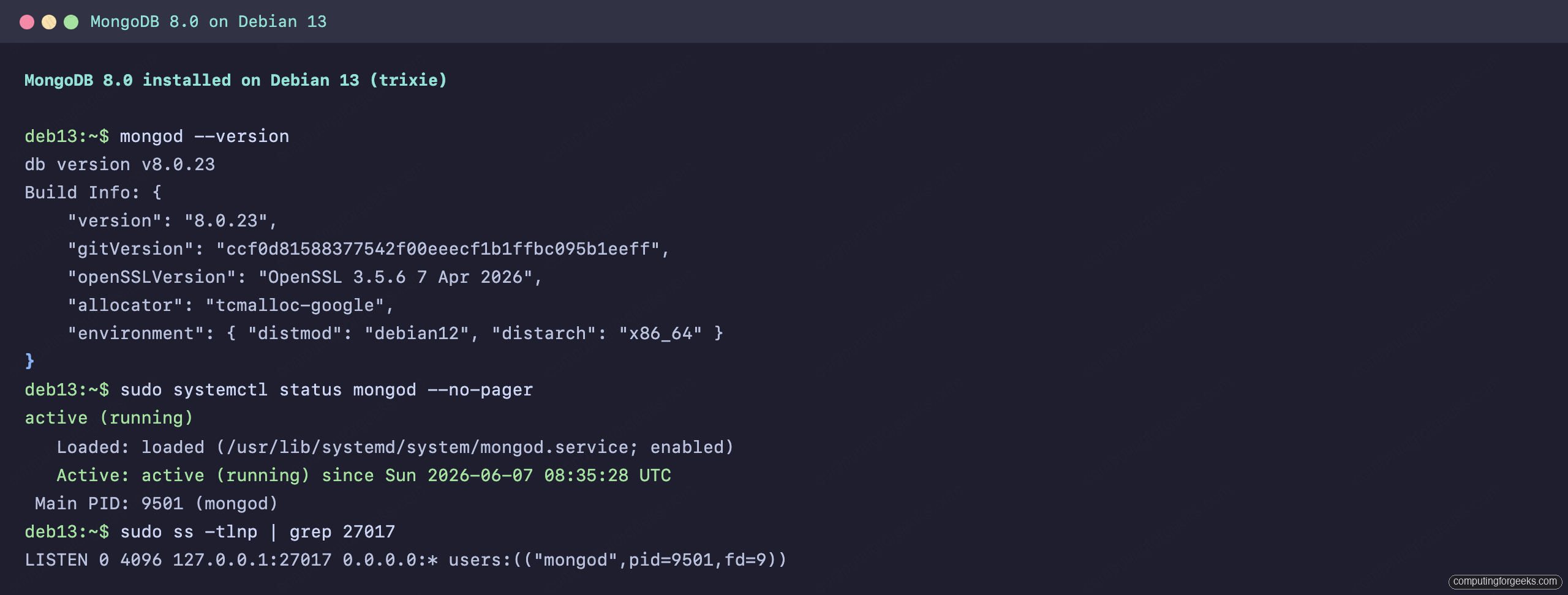
The database is up, reachable on the loopback, and accepting connections from anyone on the box with no password. That is the gap to close, starting now.
Step 4: Create an administrative user
Authentication is off right now, so anyone who can reach the socket has full control. The fix is a two-stage move: create an admin user while you still can connect without credentials, then turn authorization on. Connect with the shell:
mongoshSwitch to the admin database and create the user. Pick a real password here, not the example below:
use admin
db.createUser({
  user: "mongoAdmin",
  pwd: "Str0ng!AdminPass#2026",
  roles: [
    { role: "userAdminAnyDatabase", db: "admin" },
    { role: "readWriteAnyDatabase", db: "admin" }
  ]
})
A clean creation returns { ok: 1 }. Type exit to leave the shell. The roles above give this account user management plus read and write across databases, which is enough to administer the instance without being the built-in root.
Step 5: Enable authentication
Do not skip this. Creating an admin user changes nothing until you tell mongod to enforce it. Open the configuration file:
sudo nano /etc/mongod.confFind the commented #security: line and replace it with an explicit authorization block:
security:
  authorization: enabled
Restart the service so the new policy takes effect:
sudo systemctl restart mongodProve that it worked. An unauthenticated command now gets refused outright, and the same command succeeds once you supply the admin credentials with -p so the password is prompted instead of sitting in your shell history:
mongosh --quiet --eval 'db.adminCommand({ listDatabases: 1 })'The failure mode is clear and is exactly what you want to see:
MongoServerError: Command listDatabases requires authenticationReconnect as the admin user and the server answers:
mongosh -u mongoAdmin -p --authenticationDatabase adminAuthorization rejecting an anonymous client and accepting the admin, side by side:
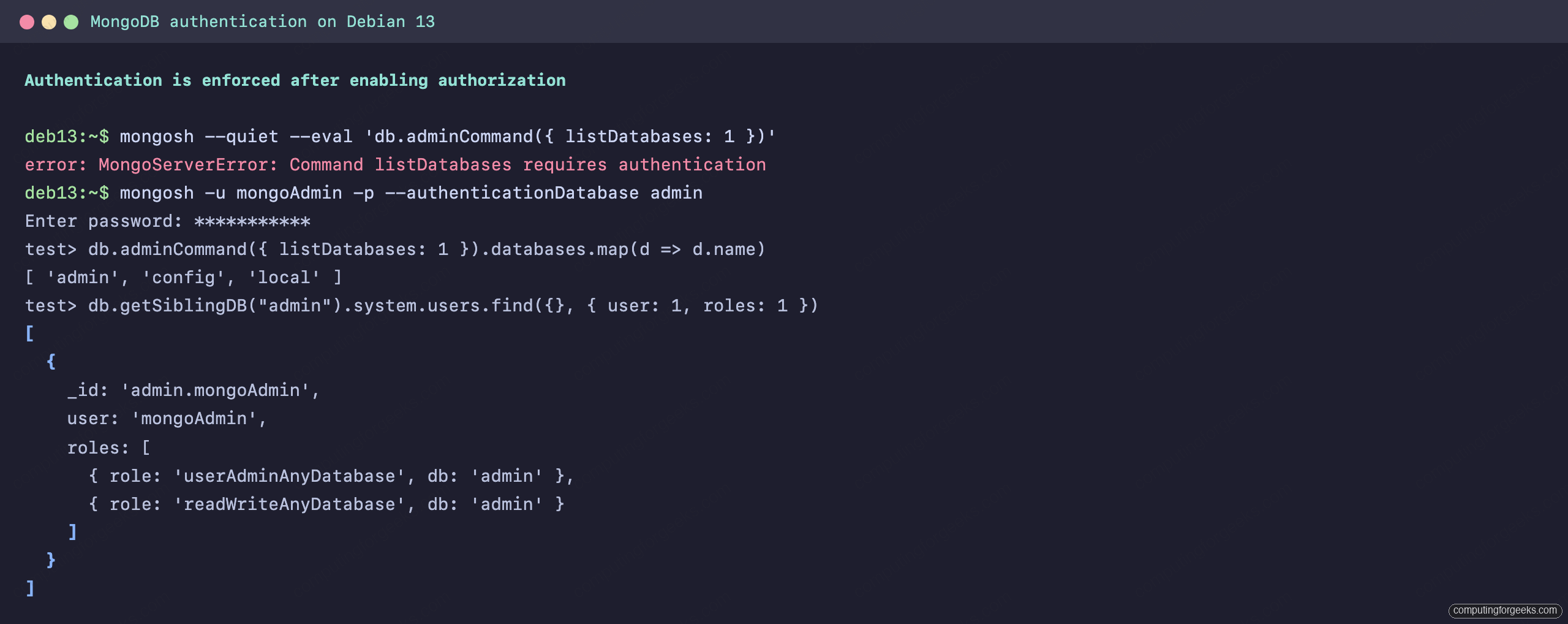
For a deeper treatment of roles, custom privileges, and SCRAM mechanics, the dedicated guide on MongoDB authentication picks up where this leaves off.
Step 6: Create a least privilege application user
The admin account is for administration, not for your application. Give each application its own user, scoped to its own database with the narrowest role that works. Connect as the admin:
mongosh -u mongoAdmin -p --authenticationDatabase adminCreate a user with readWrite on a single database. MongoDB creates the database lazily on first write, so naming it here is enough:
db.getSiblingDB("storedb").createUser({
  user: "storeUser",
  pwd: "App!StorePass#2026",
  roles: [ { role: "readWrite", db: "storedb" } ]
})
Now reconnect as that application user and run some real work against storedb:
mongosh -u storeUser -p --authenticationDatabase storedb storedbInsert a few documents, then read and update them. This is the standard create, read, update loop with mongosh:
db.products.insertMany([
  { sku: "KB-114", name: "Mechanical Keyboard", price: 79.99, stock: 120 },
  { sku: "MS-220", name: "Wireless Mouse", price: 24.50, stock: 340 },
  { sku: "HD-870", name: "NVMe SSD 1TB", price: 92.00, stock: 75 }
])
db.products.find({ price: { $lt: 80 } }, { _id: 0, sku: 1, name: 1, price: 1 })
db.products.updateOne({ sku: "KB-114" }, { $inc: { stock: -5 } })
The insert acknowledges three documents, the filtered query returns the two under 80, and the update decrements stock from 120 to 115:
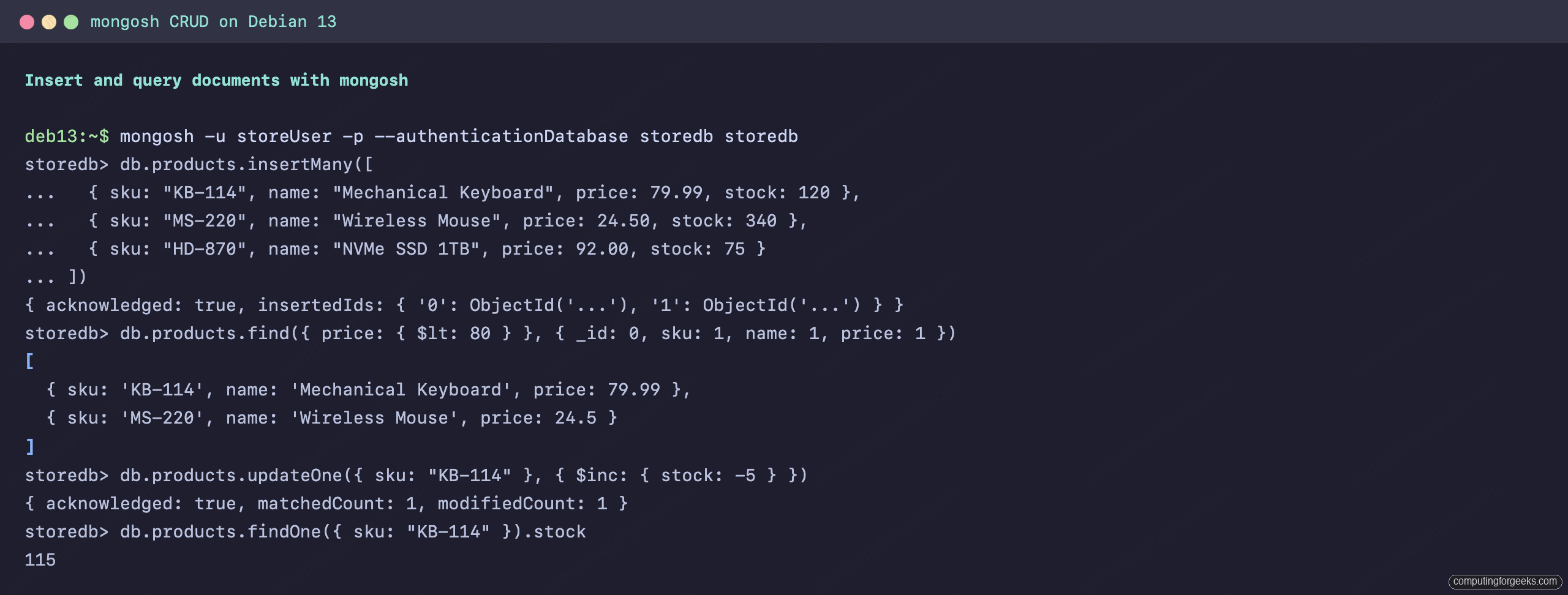
Least privilege is doing its job here. If storeUser tries to read another database, the server refuses:
MongoServerError: not authorized on admin to execute command { find: "system.users" }That is the whole point of scoping the role to one database. A leaked application credential cannot read the user table or touch unrelated data. If you prefer a graphical client for browsing collections, MongoDB Compass connects to the same authenticated instance.
Step 7: Restrict the bind address and firewall the port
If your application runs on a different host, MongoDB has to listen on more than localhost. This is the step where exposed instances get created, so do it deliberately. Pull the two values that change per environment into shell variables so you set them once:
export SERVER_IP="192.168.1.50"
export TRUSTED_SUBNET="192.168.1.0/24"
Edit mongod.conf again and add the server’s private IP to bindIp. Keep 127.0.0.1 so local tooling still works, and never replace the list with 0.0.0.0 on an internet-facing box:
net:
  port: 27017
  bindIp: 127.0.0.1,192.168.1.50
Restart and confirm it is now listening on both addresses:
sudo systemctl restart mongod
sudo ss -tlnp | grep 27017
Binding to an interface is only half the job. Port 27017 must be reachable by your application hosts and nobody else. Install UFW, allow SSH before you enable the firewall so you do not lock yourself out, then permit MongoDB only from the trusted subnet:
sudo apt install -y ufw
sudo ufw allow OpenSSH
sudo ufw allow from "${TRUSTED_SUBNET}" to any port 27017 proto tcp
sudo ufw enable
Check the resulting rules. MongoDB should be reachable from the subnet only, never from Anywhere:
sudo ufw status verboseFrom an allowed host you can now connect over the network. One catch worth knowing: special characters in the password must be percent-encoded inside a connection string, so a # becomes %23:
mongosh "mongodb://mongoAdmin:Str0ng!AdminPass%232026@${SERVER_IP}:27017/storedb?authSource=admin"If that connects and reports the server version, you have remote access, authentication, and a firewall all working together. A host outside TRUSTED_SUBNET gets nothing, which is the result you are after.
Step 8: Back up and restore
A database without a tested restore is a liability, not an asset. The mongodump and mongorestore tools came in with the mongodb-org package. Dump a single database, authenticating with a prompted password:
mongodump -u mongoAdmin -p --authenticationDatabase admin --db storedb --out /backup/mongoVerify the restore actually works before you ever need it. Drop the collection, then bring it back from the dump:
mongorestore -u mongoAdmin -p --authenticationDatabase admin /backup/mongoThe restore reports the document count it brought back, which should match what you dumped:
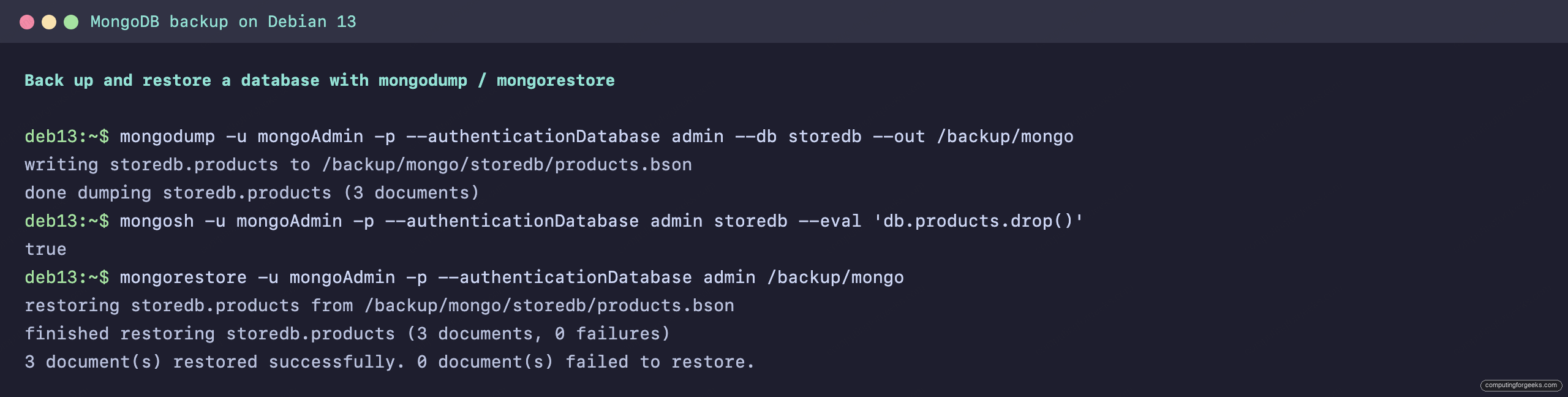
Wire the mongodump command into a cron job writing to off-box storage, and you have a recovery path. For a single-node setup this is your safety net; for anything carrying real traffic, pair it with a MongoDB replica set so a dead node does not mean downtime.
Post-install security checklist
Before you call this server done, walk the list. Every item here is something an attacker checks for, and every one of them has been the root cause of a real MongoDB breach.
- Authorization is enabled.
security.authorization: enabledis set and an unauthenticated command returnsrequires authentication. - The bind address is restricted.
bindIplists localhost plus a private interface only, never0.0.0.0on a public host. - The firewall is scoped. Port 27017 is reachable from your application subnet, not from
Anywhere. Confirm withufw status verbose. - Application users are least privilege. Each app has its own user with
readWriteon its own database, not the admin account. - Passwords are not in shell history. Use
-pto prompt, and percent-encode special characters in connection strings. - Backups are scheduled and tested. A
mongodumpcron job to off-box storage, with a restore you have actually run.
That is a MongoDB instance on Debian that is not waiting to become a headline. From here, the usual next steps are wiring up MongoDB monitoring with Prometheus and Grafana and, once a single node stops being enough, moving to a replica set for high availability.






Hi Klinsmann Öteyo, a very nice and detailed article, unfortunately this does not work on our Raspberry Pi 4B Rev 1.4 with 8GB, SSD and with an ARMv7 Processor rev 3 (v7l).
We get the error message when running the update command that our Processor is not supported by the repo.
Do you know or have of any practical solution?
Greetings Heinz
Hi Heinz Ruetschi,
Kindly check the MongoDB 6 system requirements and see if your system meets them.