MongoDB installs with authentication turned off. Anyone who can reach port 27017 gets full read and write access to every database, no password asked. A Lynis or Nessus scan flags this immediately as “No MongoDB authorization“, and it is the single most common way self-hosted MongoDB instances end up wiped or ransomed. This guide shows how to configure MongoDB authentication properly: enable access control, create an admin user, and hand each application a user that can touch only its own database.
The steps were run on Ubuntu 24.04 and Rocky Linux 9 with MongoDB 8.0 in June 2026. They apply unchanged to Debian, AlmaLinux, and RHEL, since the authentication layer lives entirely in mongod.conf and the mongosh shell, both of which are identical across distributions.
How MongoDB authentication actually works
MongoDB separates two ideas that older guides blur together. Authentication proves who you are. Authorization decides what you can do once you are in. Turning on security.authorization enables both: clients must log in, and every action is checked against the roles granted to that user.
The default mechanism is SCRAM-SHA-256, a salted challenge-response scheme. Passwords never cross the wire in clear text and are never stored in a reversible form. You do not configure any of that. It is on by default the moment a user exists and access control is enabled.
There is one bootstrap problem: if you enable access control before any user exists, you would lock yourself out. MongoDB solves this with the localhost exception. While zero users exist, a connection from the same machine over localhost is allowed to create the first administrative user, and nothing else. Create that admin, then enable authorization. That order matters, and it is the part old tutorials get wrong.
Prerequisites
You need a running MongoDB 8.0 instance and the mongosh shell. MongoDB 8.0 is the current major release for self-managed deployments. The 8.2 and 8.3 “rapid releases” exist but are supported only on MongoDB Atlas, so 8.0 is the version you install on your own server. If MongoDB is not installed yet, the install command differs by distribution. On Ubuntu and Debian:
curl -fsSL https://pgp.mongodb.com/server-8.0.asc | sudo gpg -o /usr/share/keyrings/mongodb-server-8.0.gpg --dearmor
echo "deb [ arch=amd64,arm64 signed-by=/usr/share/keyrings/mongodb-server-8.0.gpg ] https://repo.mongodb.org/apt/ubuntu noble/mongodb-org/8.0 multiverse" | sudo tee /etc/apt/sources.list.d/mongodb-org-8.0.list
sudo apt update
sudo apt install -y mongodb-org
Use jammy in place of noble on Ubuntu 22.04, and the debian bookworm repo on Debian 12. MongoDB has not published a resolute component for Ubuntu 26.04 yet, so on 26.04 point the same line at noble until it does. On RHEL, Rocky, and AlmaLinux, create the repository file instead:
sudo vi /etc/yum.repos.d/mongodb-org-8.0.repoAdd the repository definition. The $releasever variable resolves to the major version automatically:
[mongodb-org-8.0]
name=MongoDB Repository
baseurl=https://repo.mongodb.org/yum/redhat/$releasever/mongodb-org/8.0/x86_64/
gpgcheck=1
enabled=1
gpgkey=https://pgp.mongodb.com/server-8.0.asc
Then install the package and start the service:
sudo dnf install -y mongodb-org
sudo systemctl enable --now mongod
On the RHEL family, MongoDB 8.0 ships server packages for version 9 (el9), not yet for version 10, so use a Rocky, Alma, or RHEL 9 host for the server. Full per-distro install walkthroughs live in the MongoDB on Ubuntu and Debian guide and the Rocky Linux and AlmaLinux guide. Confirm the service is up and check the versions before going further:
mongod --version
mongosh --version
systemctl is-active mongod
The server reports its build, the shell reports its own version, and the service shows active:
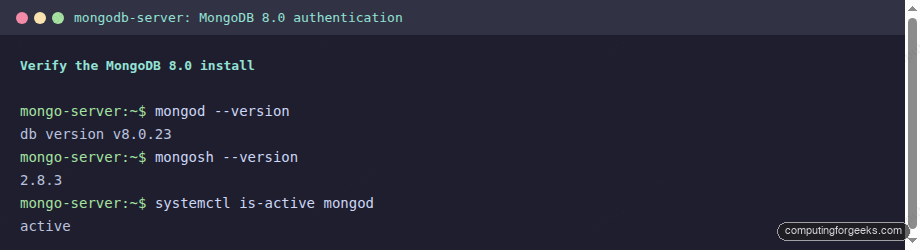
Note the shell here is mongosh. The old mongo shell was removed from the server distribution in MongoDB 6.0. If a guide tells you to run mongo, it predates 6.0 and the rest of its advice is suspect.
Create the administrative user
Connect with no credentials while the localhost exception still applies:
mongoshThe shell connects and prints a startup warning that says it all: Access control is not enabled for the database. Read and write access to data and configuration is unrestricted. That warning is the reason you are here. Switch to the admin database and create the first user:
use admin
db.createUser({
  user: "mongoAdmin",
  pwd: passwordPrompt(),
  roles: [
    { role: "userAdminAnyDatabase", db: "admin" },
    { role: "readWriteAnyDatabase", db: "admin" }
  ]
})
Pick your own username and a strong password. passwordPrompt() makes the shell ask for the password interactively instead of leaving it in your shell history. The two roles give this account the ability to manage users across all databases and to read and write data anywhere, which is what an administrator needs. MongoDB confirms the user with a short acknowledgement:
{ ok: 1 }If you want a true superuser that can also run cluster operations like backups and shard administration, grant the built-in root role instead of the two roles above. For most single-server deployments, userAdminAnyDatabase plus readWriteAnyDatabase is the cleaner choice because it stops short of cluster-level powers you rarely use. Type exit to leave the shell.
Enable authorization
The admin exists, but access control is still off. Open the MongoDB config file:
sudo vi /etc/mongod.confA fresh install has no security section at all. Add one. The file is YAML, so indentation is significant: two spaces before authorization, and no tabs.
security:
  authorization: enabled
Save the file and restart the service so the change takes effect:
sudo systemctl restart mongodVerify access control is enforced
This is the step that proves the lock actually closed. Try a privileged command with no credentials and MongoDB now refuses it:
mongosh --quiet --eval 'db.adminCommand({listDatabases:1})'The server rejects the request because nobody is logged in:
MongoServerError: Command listDatabases requires authenticationNow connect as the admin you created. The -p flag with no value tells the shell to prompt for the password, which keeps it out of your history and the process list:
mongosh -u mongoAdmin -p --authenticationDatabase adminThe --authenticationDatabase admin part tells MongoDB which database holds the user record. Once authenticated, the same command that was refused a moment ago returns the database list. The before-and-after sits side by side:

Authentication is now mandatory. Every client, application, and admin tool must present valid credentials.
Create least-privilege database users
Applications must never connect as the admin. Give each application a user scoped to exactly the one database it owns, with only the roles it needs. Connect as the admin, switch to the application’s database, and create the user there:
use appdb
db.createUser({
  user: "appuser",
  pwd: passwordPrompt(),
  roles: [ { role: "readWrite", db: "appdb" } ]
})
The database a user is created in becomes its authentication database. Here appuser authenticates against appdb and can read and write only appdb. That scoping is the whole point. To see it work, log in as appuser and try to read its own collection, then try to reach into the admin database:
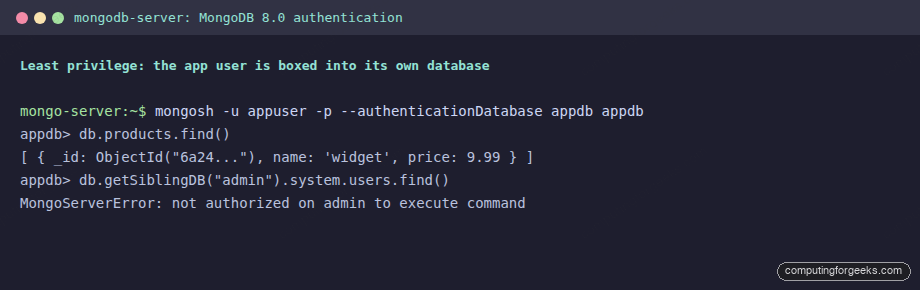
The read on appdb succeeds. The reach into admin returns not authorized on admin to execute command. If this user’s credentials leak, the blast radius is one database, not the whole server. That is least privilege, and it is the difference between an incident and a catastrophe.
Three ways to authenticate
You will hit all three of these depending on whether you are at a shell, inside the shell already, or wiring up an application.
The first is the command-line form shown above, passing the user and authentication database as flags. The second is authenticating after you are already connected, useful when you opened the shell without credentials:
use admin
db.auth("mongoAdmin", passwordPrompt())
A successful login returns { ok: 1 }. The third is the connection string, which is what your application’s driver uses. The username and password go in the URI, and authSource names the authentication database:
mongosh "mongodb://appuser:AppPass%[email protected]:27017/appdb?authSource=appdb"One gotcha worth flagging: any reserved character in the password must be percent-encoded in a URI. A # becomes %23, an @ becomes %40, and a / becomes %2F. This catches people out constantly, because the same password works fine with the -p flag but fails in a connection string until it is encoded.
Manage users and roles
Day-to-day user administration runs through a handful of commands, executed as the admin against the database the user belongs to. List the users in a database:
use appdb
db.getUsers()
Grant an additional role to an existing user, for example letting the app user also manage indexes on its database:
db.grantRolesToUser("appuser", [ { role: "dbAdmin", db: "appdb" } ])Change a password, then revoke a role or drop a user entirely:
db.changeUserPassword("appuser", passwordPrompt())
db.revokeRolesFromUser("appuser", [ { role: "dbAdmin", db: "appdb" } ])
db.dropUser("appuser")
Each command targets the current database, so always use the right one first. Running db.getUsers() from admin shows admin-database accounts, not your application users.
Built-in roles worth knowing
MongoDB ships a fixed set of roles. You almost never need custom roles for a single application. Grant the narrowest role that does the job:
| Role | Scope | Grants |
|---|---|---|
read | One database | Read-only access to all collections |
readWrite | One database | Read and write to all collections |
dbAdmin | One database | Indexes, stats, schema operations (no user management) |
userAdmin | One database | Create and manage users on that database |
readWriteAnyDatabase | All databases | Read and write everywhere (admin db only) |
userAdminAnyDatabase | All databases | Manage users everywhere (admin db only) |
clusterMonitor | Cluster | Read-only monitoring, for tools like Prometheus exporters |
root | Everything | Full superuser, including cluster operations |
The AnyDatabase and root roles can only be granted on the admin database. Application users get a single-database role like readWrite and nothing more.
Restrict network access
Authentication is the lock on the door. Network binding decides who can even reach the door. By default MongoDB binds to 127.0.0.1, so it listens only on localhost. To let a trusted application server connect, add that interface to bindIp in /etc/mongod.conf, never 0.0.0.0:
net:
  port: 27017
  bindIp: 127.0.0.1,10.0.1.50
Then restrict port 27017 at the firewall so only your application subnet can reach it. On Ubuntu and Debian that is UFW:
sudo ufw allow from 10.0.1.0/24 to any port 27017 proto tcp
sudo ufw reload
On RHEL, Rocky, and AlmaLinux, firewalld does the same with a rich rule. The UFW command reference and the firewalld guide cover the syntax for each. For anything crossing an untrusted network, also enable TLS with net.tls so credentials and data are encrypted in transit, not just hashed at rest.
Internal authentication for replica sets
A single server uses SCRAM for client logins and nothing else. A replica set has a second problem: the member nodes must also prove their identity to each other. That is handled by a shared keyfile. Generate one, lock its permissions, and set the owner to the user that runs MongoDB:
openssl rand -base64 756 | sudo tee /etc/mongodb-keyfile > /dev/null
sudo chmod 400 /etc/mongodb-keyfile
sudo chown mongodb:mongodb /etc/mongodb-keyfile
The service user is mongodb on Ubuntu and Debian, but mongod on RHEL, Rocky, and AlmaLinux. Set the owner to match, or the service refuses to start. Copy the same keyfile to every member, then reference it in each node’s config:
security:
  keyFile: /etc/mongodb-keyfile
replication:
  replSetName: rs0
Setting keyFile enables client authorization at the same time, so you do not also need the authorization: enabled line on a replica set. The full multi-node walkthrough is in the MongoDB replication guide.
Common authentication errors and fixes
Command requires authentication
Seeing Command X requires authentication means access control is working and you connected without credentials. Reconnect with -u, -p, and the right --authenticationDatabase.
Authentication failed
An Authentication failed error is almost always the wrong --authenticationDatabase. A user created in appdb authenticates against appdb, not admin. If you authenticate against the wrong database, MongoDB cannot find the user record and the login fails even with the correct password.
Not authorized on db to execute command
This means you logged in successfully but the user lacks the role for that action. It is least privilege doing its job. If the action is legitimate, grant the specific role with db.grantRolesToUser rather than escalating the user to root.
Locked out with no admin user
If you enabled authorization before creating any user, the localhost exception is your way back in only while zero users exist. If a user does exist but you lost its password, comment out the security block, restart mongod, create or reset the user, then re-enable authorization. Do this on a host that is not exposed to the network.
That is a fully locked-down MongoDB: access control enforced, an admin account for management, scoped users for each application, and the network surface trimmed to what you actually use. The work that pays off most over time is the least-privilege habit. Every application gets its own user on its own database, and root stays reserved for the rare task that genuinely needs it.