Debian’s stable kernel is deliberately old. A Debian release freezes its kernel and then only takes security and bugfix backports, which is the rock-solid behavior Debian is known for. The downside shows up when you put Debian on newer hardware or want a feature that only exists in a later kernel. You do not have to compile anything to fix that: Debian’s own backports repository carries a much newer kernel, packaged and ready to install.
This guide installs a newer kernel on Debian straight from backports, the supported Debian way, on both Debian 13 and Debian 12. Every command here was run on Debian 13 in June 2026, where backports ships the 7.0.x kernel; the same steps pull the 6.12.x backports kernel on Debian 12. We also cover rolling back and what to do when even backports is not new enough.
Before you begin
You need a Debian 13 or 12 system you can reboot, a user with sudo, and console access in case you want to pick the previous kernel from the GRUB menu. Backports kernels are official Debian packages, signed and supported on a best-effort basis, so unlike third-party builds they work with Secure Boot and receive updates through apt. The stock kernel stays installed as a fallback the whole time.
Step 1: Check your current kernel
Record what you are on now so you can compare and know your fallback. The command to check the kernel version is uname -r:
uname -rOn a stock Debian 13 install this is the frozen 6.12 LTS kernel:
6.12.74+deb13+1-amd64Step 2: Enable the backports repository
Add the backports line for your release. On Debian 13 the suite is trixie-backports; on Debian 12 it is bookworm-backports. Write it to its own file under sources.list.d:
echo "deb http://deb.debian.org/debian trixie-backports main contrib non-free-firmware" | sudo tee /etc/apt/sources.list.d/backports.listOn Debian 12, swap trixie-backports for bookworm-backports in that line. This one-line format still works everywhere; Debian 13 also accepts the newer deb822 .sources style that the official backports page now documents, if you prefer it. Either way, refresh the package lists so apt sees the new suite:
sudo apt updateStep 3: Install the backports kernel
Confirm which kernel backports is offering before you install, so you know what you are getting:
apt-cache policy -t trixie-backports linux-image-amd64On Debian 13 the candidate is the 7.0.x series:
linux-image-amd64:
  Installed: (none)
  Candidate: 7.0.10-1~bpo13+1
  Version table:
     7.0.10-1~bpo13+1 100
Install the metapackage from backports. The -t flag tells apt to pull linux-image-amd64 and its dependencies from the backports suite rather than stable:
sudo apt install -t trixie-backports linux-image-amd64The metapackage drags in the matching versioned image and modules, and the install ends by setting them up:
Setting up linux-image-7.0.10+deb13-amd64 (7.0.10-1~bpo13+1) ...
Setting up linux-image-amd64 (7.0.10-1~bpo13+1) ...
On Debian 12 the exact same command (with bookworm-backports) installs the 6.12.x backports kernel instead, a large jump from bookworm’s stock 6.1 LTS.
Step 4: Reboot and verify
Installing the kernel package already regenerated GRUB with both the new kernel and your old one, so just reboot:
sudo rebootDebian boots the highest version by default. Once it is back, confirm the new kernel is live:
uname -rIt reports the backports kernel, with the +deb13 tag marking it as the Debian build:
7.0.10+deb13-amd64The screenshot below shows the backports install and the running kernel on Debian 13:
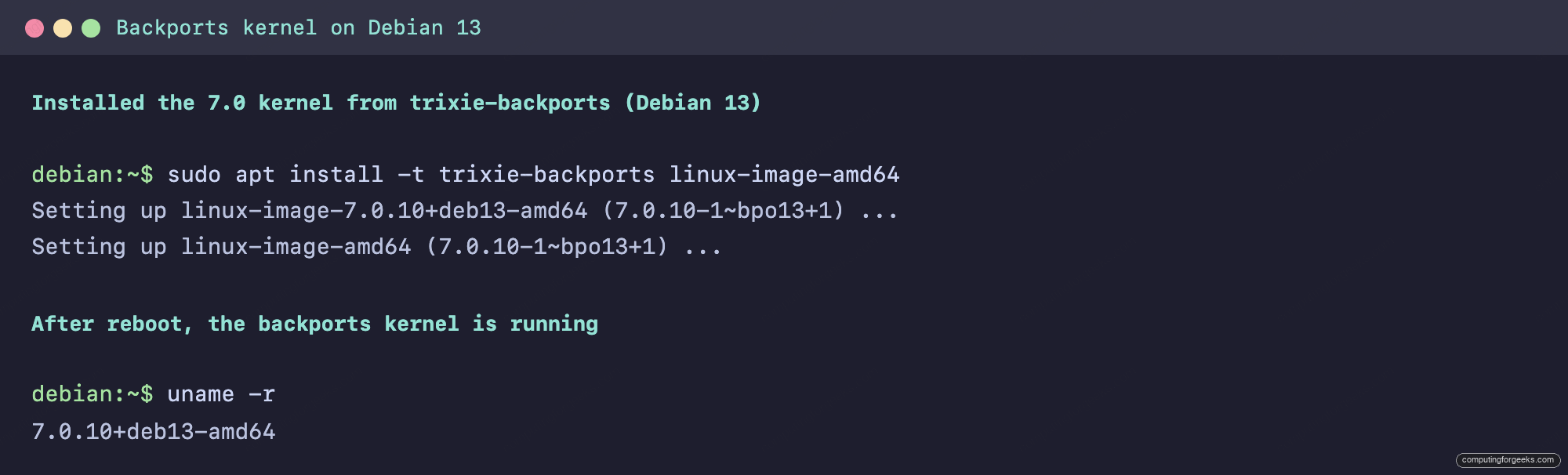
Because the backports kernel is a normal apt package, future apt upgrade runs keep it patched, and a new backports kernel installs the same way when one lands.
Rolling back to the stock kernel
If the backports kernel misbehaves, reboot and choose the stock kernel from “Advanced options for Debian” in the GRUB menu. To make it permanent, remove the backports kernel once you are booted on the one you want to keep. List the installed image packages first:
dpkg -l | grep '^ii.*linux-image'Then purge the backports metapackage and its versioned image, matching the version you saw above:
sudo apt purge linux-image-amd64 linux-image-7.0.10+deb13-amd64
sudo update-grub
That drops you back to the stock Debian kernel with the boot menu cleaned up. Nothing else changes, because backports only touched the kernel.
When backports is not new enough
Backports tracks the kernel from the next Debian release, so it is newer than stable but still trails the absolute latest upstream. If you need a kernel newer than backports offers, you have two routes. The first is to use Ubuntu’s prebuilt mainline .deb packages, which install on Debian too, the same way they do on Ubuntu in the mainline kernel install guide, though they are unsigned and unsupported on Debian. The second, and the only way to get an exact upstream version with your own options, is to build it yourself from source. On Red Hat based systems the equivalent of this whole job is the kernel install on Rocky Linux and AlmaLinux, which uses ELRepo instead of backports.