elementary OS is the Linux desktop that the rest of the Linux desktop quietly borrows from. The latest stable release ships a Wayland-first session by default, fractional display scaling, a kernel new enough for current laptops, and an official ARM64 build for Apple Silicon Macs and Raspberry Pi 4/5. This guide walks the whole install with real screenshots from a clean UEFI machine, then sets up the things every fresh elementary install needs before it feels finished. If you only want the desktop environment on top of an existing Ubuntu install, there is a separate guide to put Pantheon on Ubuntu instead.
The walkthrough covers checksum verification, writing the ISO to a USB drive, the elementary OS installer end to end (language, keyboard, Erase Disk vs Custom partitioning, full-disk encryption, additional drivers), the first-boot account setup, and a practical post-install checklist: Flathub for the missing apps, codec install, fractional scaling, scheduled dark mode, and unattended security updates. Everything was tested on a UEFI virtual machine and the commands match what you would run on bare metal.
Prerequisites
elementary’s published minimums are modest, but the installer assumes UEFI and a 64-bit CPU. The Wayland session is comfortable on a 5+ year old laptop; X11 was retired as the default in this release.
- CPU: 64-bit Intel or AMD, or Apple M-series / ARM64 (separate ISO).
- RAM: 4 GB minimum, 8 GB comfortable for browsing and code.
- Disk: 15 GB for a bare install, 30 GB recommended so AppCenter and Flatpak runtimes have room.
- Firmware: UEFI. The installer fails cleanly on legacy BIOS-only hardware.
- USB drive: 8 GB or larger, since the ISO is around 3.2 GB.
- Network: a wired or wireless connection during install for AppCenter to refresh on first boot.
Step 1: Download elementary OS and verify the checksum
elementary publishes the ISO as pay-what-you-want. Type 0 in the custom amount box to download for free, or pick a real amount if the project is useful to you. The download lands as elementaryos-8.1-stable-amd64.20260219.iso (about 3.2 GB).
Verify the SHA256 before writing it to a USB drive. A truncated download will boot far enough to embarrass you mid-install:
sha256sum elementaryos-8.1-stable-amd64.20260219.isoThe expected checksum for the build tested here is:
bda93040d08c05911fb159f8150bf8f4ef2db6567ef6e2acd197cb6f395d3446 elementaryos-8.1-stable-amd64.20260219.isoIf the hash differs by even one character, redownload. Don’t try to “fix” the file.
Step 2: Write the ISO to a USB drive
Pick whichever flasher you already trust. All three of these produce a bootable elementary stick. Etcher is the safest for first-timers because it refuses to write to anything that looks like a system disk:
- Linux / macOS / Windows: balenaEtcher. Drag the ISO in, pick the USB, click Flash.
- Windows: Rufus. Pick GPT + UEFI partition scheme; leave file system as FAT32.
- Linux (terminal):
ddif you know your way around it:
lsblk
sudo dd if=elementaryos-8.1-stable-amd64.20260219.iso of=/dev/sdX bs=4M status=progress oflag=sync
Replace /dev/sdX with your USB device, not a partition (no number suffix). Triple-check with lsblk. Writing to the wrong device wipes whatever was there.
Step 3: Boot the live session
Plug the USB into the target machine and reboot. Tap the boot menu key as the firmware splash appears (commonly F12 on Lenovo, F9 on HP, F11 or Esc on Dell and ASUS) and pick the USB drive. On bare metal, disable Secure Boot in the UEFI settings first if elementary refuses to boot. Ubuntu’s signed shim usually works, but custom OEM keys sometimes don’t.
The live ISO drops you straight into the Pantheon desktop with the installer already running on top. There is no separate GRUB pick or “try the live session” step on the current build. If you want to look around first, close the installer window with the X in the top-right and the live Pantheon session is yours to poke. To start installing, just keep the installer open and continue.
Step 4: Pick your language
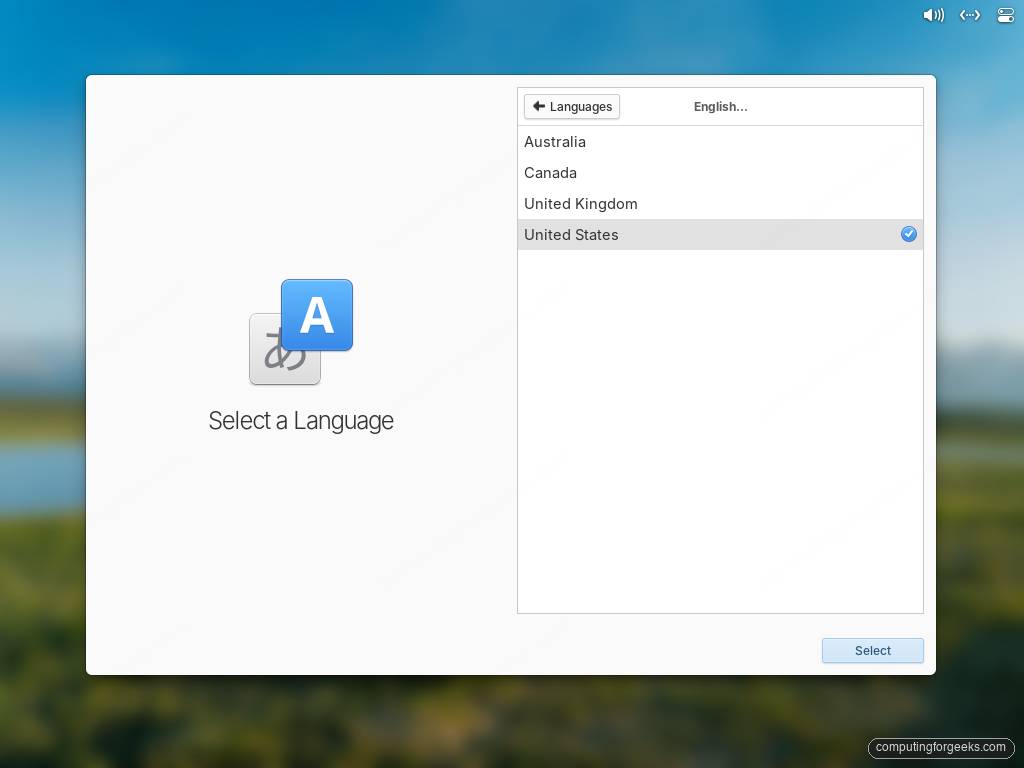
The installer’s first screen is the language selector. The list is the same one used by the running session, so the system locale and the installer locale always match. Pick the language you want the installed system to use, then click Select.
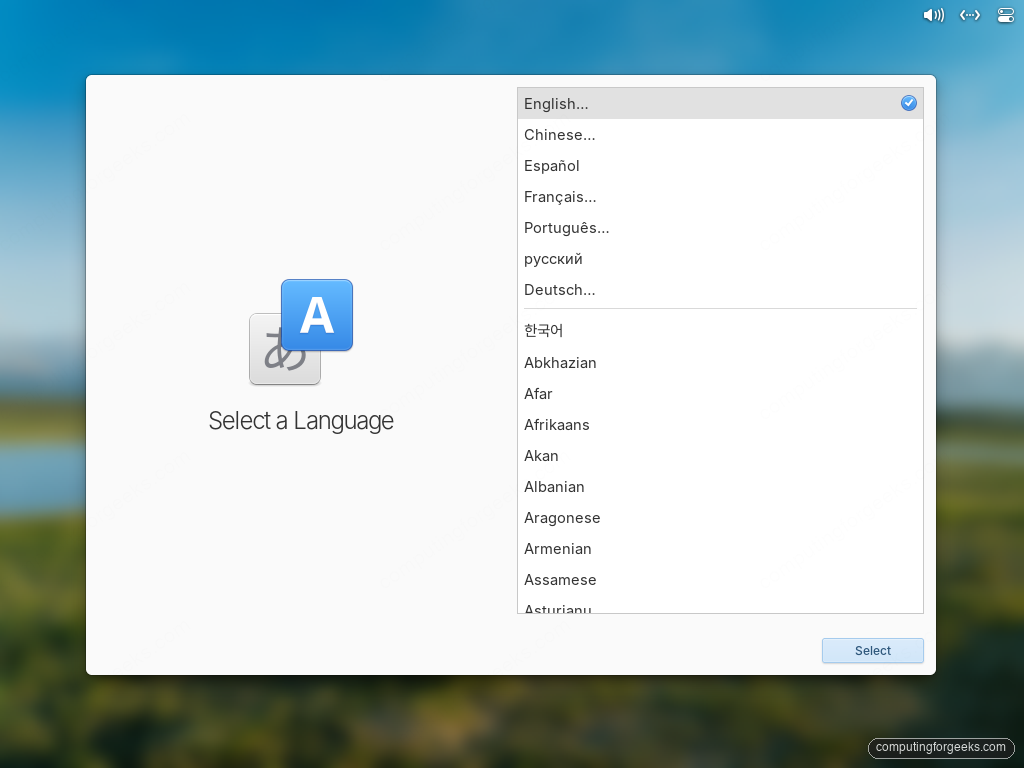
If you pick an English variant, a follow-up screen asks for the regional dialect (US, UK, Canada, Australia). Pick the one that matches your locale for date and currency formatting, then click Select again.
Step 5: Set the keyboard layout
Choose the keyboard layout that matches your physical hardware. The Try typing field at the bottom tests it before you commit. Type a few special characters (@, #, |) to confirm the layout produces what’s printed on the keys.
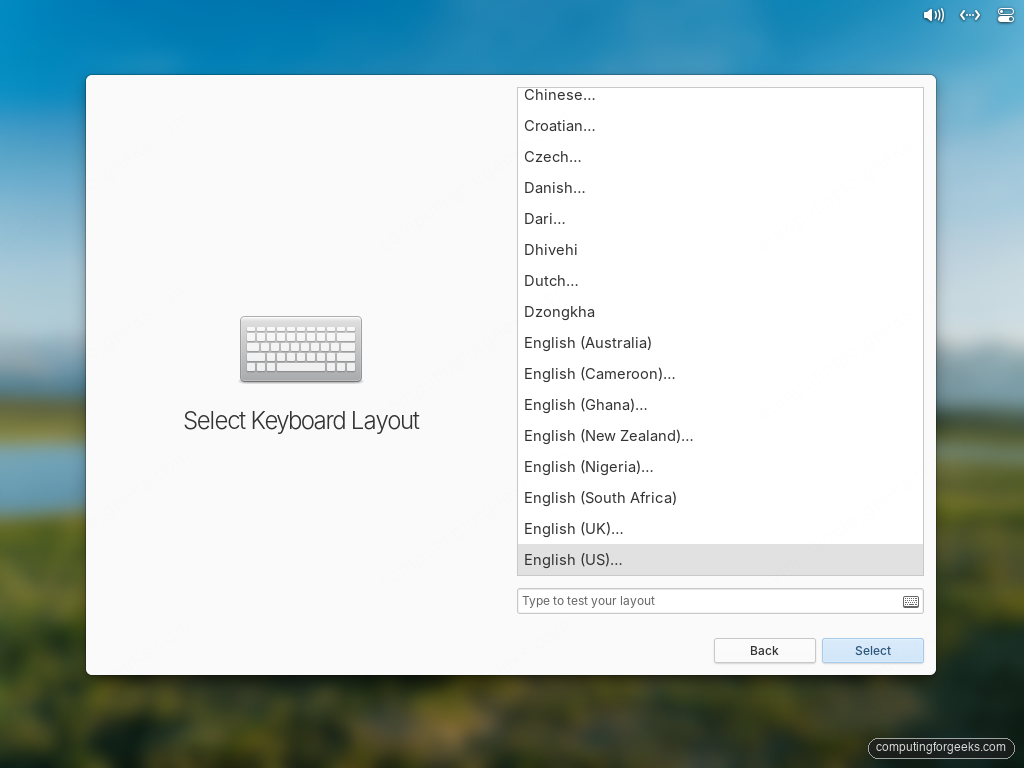
For most US keyboards, leave the variant at Default on the next screen. Pick Dvorak, Colemak, or another variant only if that is what is actually printed on your keys.
Step 6: Pick the install type
The Try or Install screen offers three paths. This is where you decide what happens to the disk.
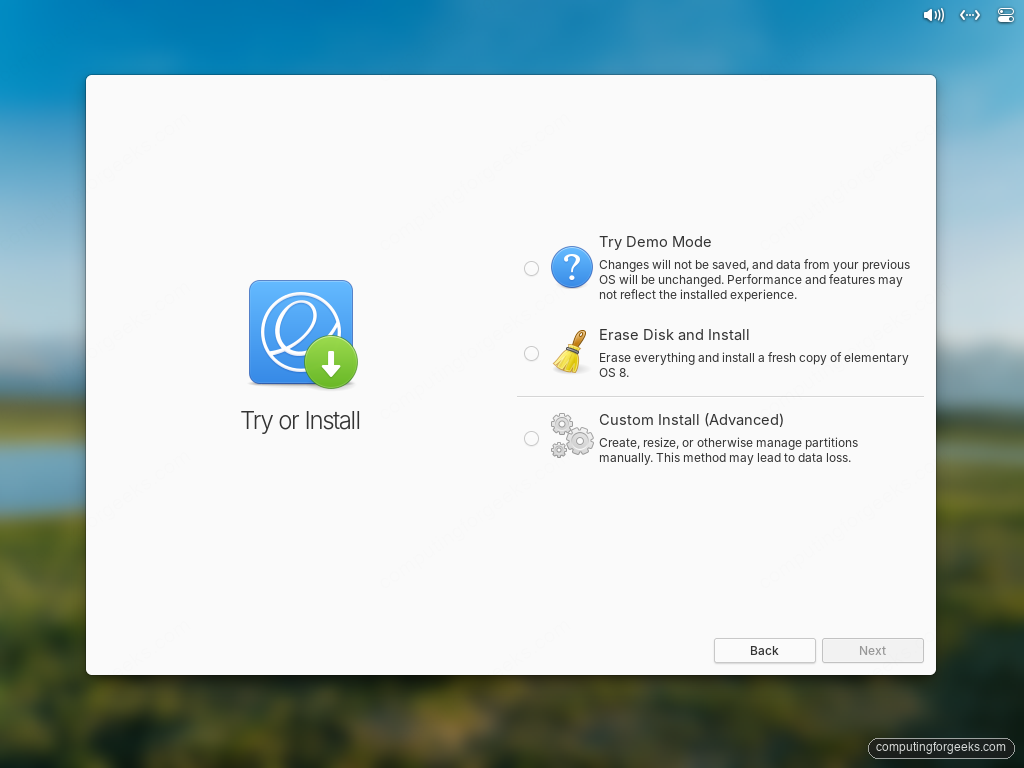
- Try Demo Mode: boots straight to a live Pantheon session with no install. Nothing is written to disk. Use this only to test hardware support; performance on a Live USB does not reflect an installed system.
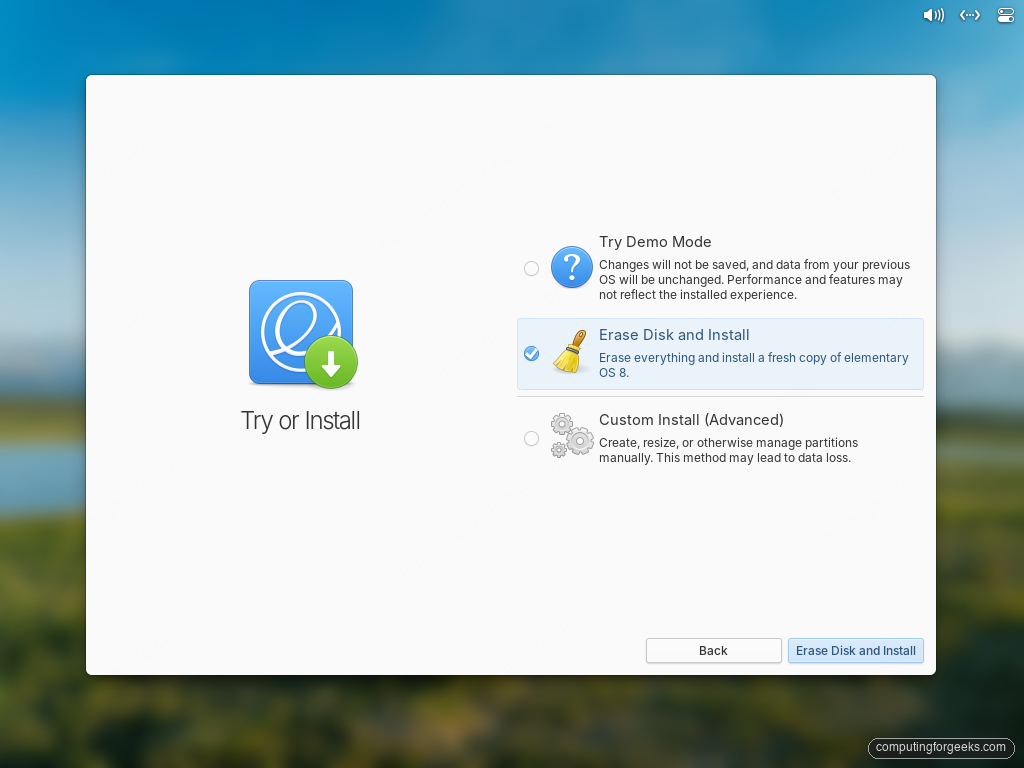
- Erase Disk and Install: wipes the selected disk and uses the whole thing for a fresh elementary install. Right answer when the machine is dedicated to elementary or you have nothing to preserve.
- Custom Install (Advanced): launches a GNOME Disks-style partitioner. Use when you need a separate
/home, want to dual-boot, or are reusing existing partitions.
Click the Erase Disk and Install radio for a typical laptop or fresh-machine install. The button on the bottom-right relabels to match your choice once a radio is selected.
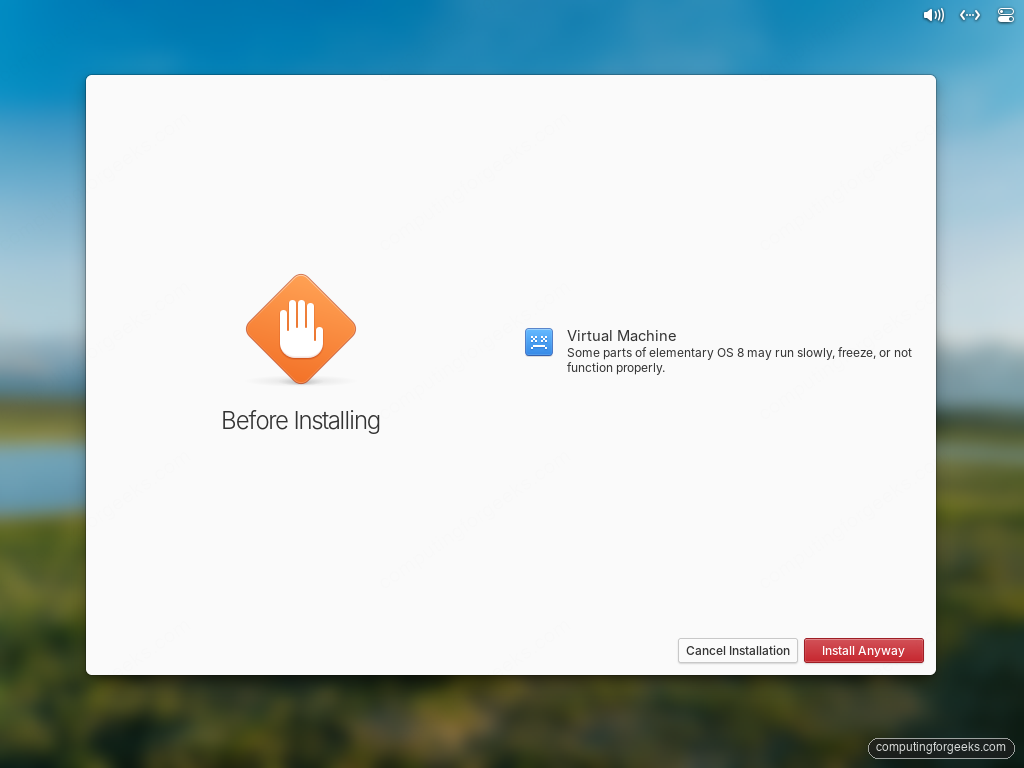
If you are testing on a virtual machine, the installer pops a one-time warning that parts of elementary may run slowly. That is true (no GPU acceleration in QEMU), but the install still completes. Click Install Anyway on real hardware or in a VM where you accept the performance caveat.
Step 7: Select the drive
The disk picker lists every drive the installer can see. On a single-disk laptop the choice is obvious; on a multi-drive box (NVMe + spinner), pick the SSD as the install target. The warning at the top is honest: every byte on this drive is about to disappear.
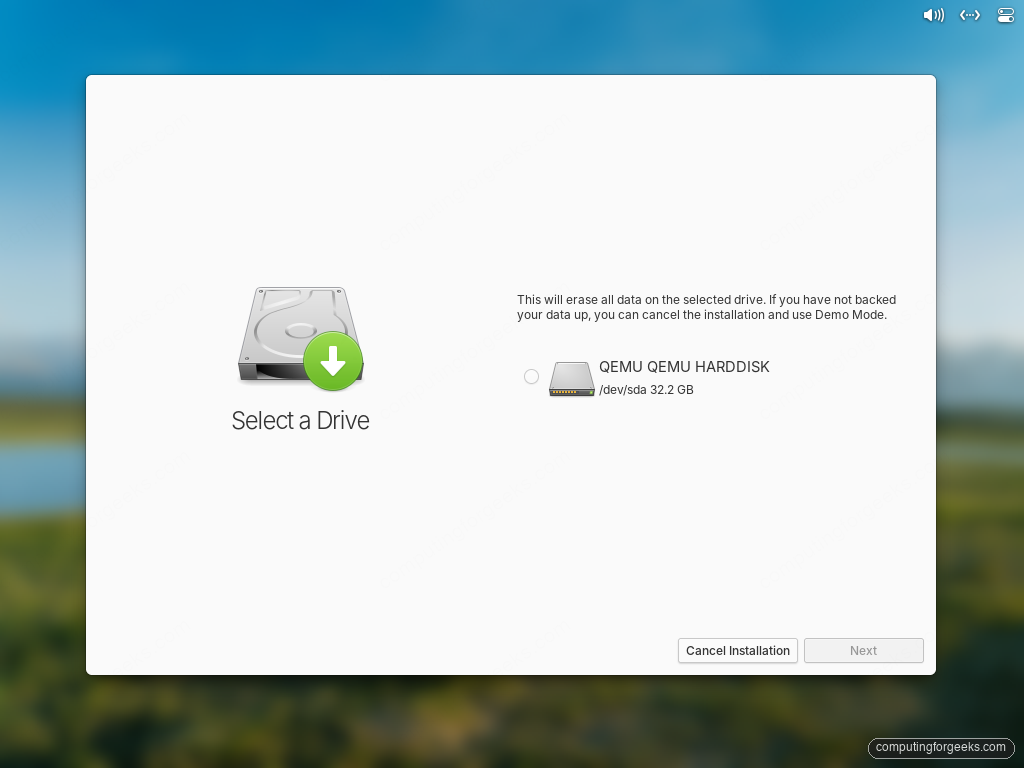
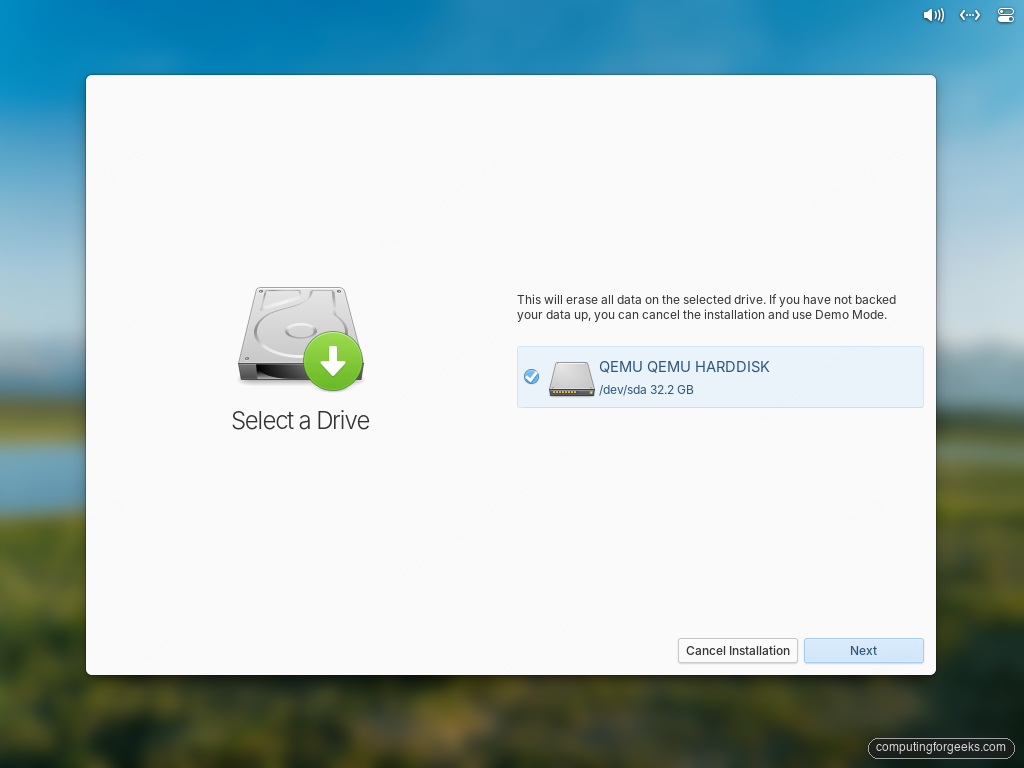
Click the drive’s radio button to select it. The Next button turns from grey to active once a drive is picked.
Step 8: Enable encryption (recommended on laptops)
The Enable Drive Encryption screen offers LUKS full-disk encryption with a passphrase you pick. Three things to know before you choose:
- Encryption protects data only when the laptop is powered off. Once you log in, the disk is unlocked until shutdown.
- The passphrase is asked once per boot, before the user login. There is no recovery key; a forgotten passphrase means a wiped disk.
- An attached keyboard is required at boot. If your laptop relies on an external USB keyboard, plug it in before powering on.
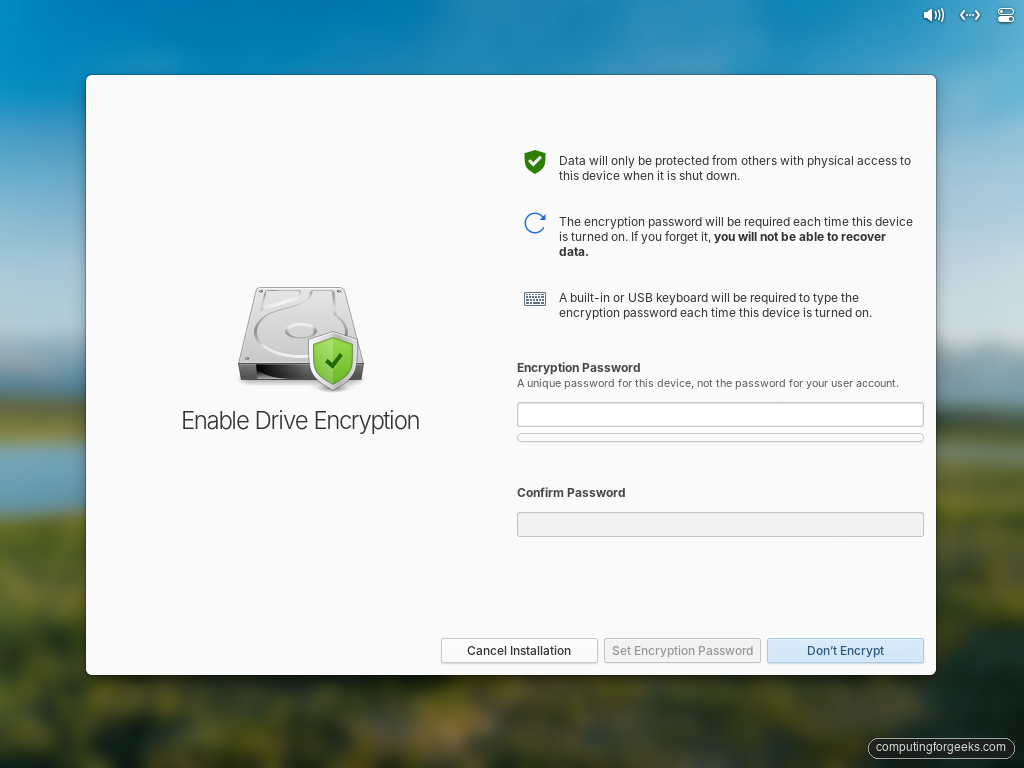
Type a passphrase you can actually remember, confirm it in the second field, and click Set Encryption Password. To skip encryption on a desktop or test machine, click Don’t Encrypt instead.
Step 9: Choose additional drivers
The next screen offers to bundle proprietary drivers for Broadcom Wi-Fi adapters and NVIDIA graphics during the install. This requires an active internet connection on the install media.
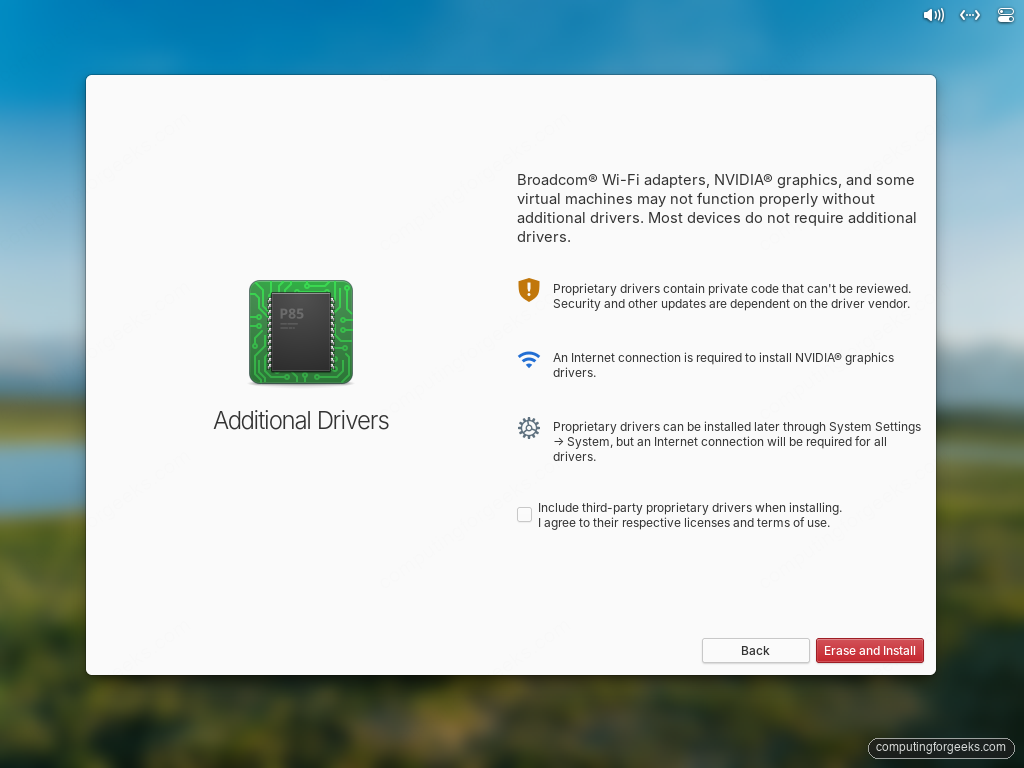
Tick the box if you have a Broadcom card or an NVIDIA GPU and want the desktop to be usable on first boot. Leave it unchecked on Intel-only or AMD-only hardware. You can still add proprietary drivers later from System Settings → System.
Step 10: Wait through the install
The installer copies the system to disk while showing a progress screen with feature highlights. On an NVMe SSD this takes roughly 5 to 8 minutes; on a SATA SSD, 10 to 15. The progress bar is honest. When it reaches 100%, the work is done, not 90% of the way done.
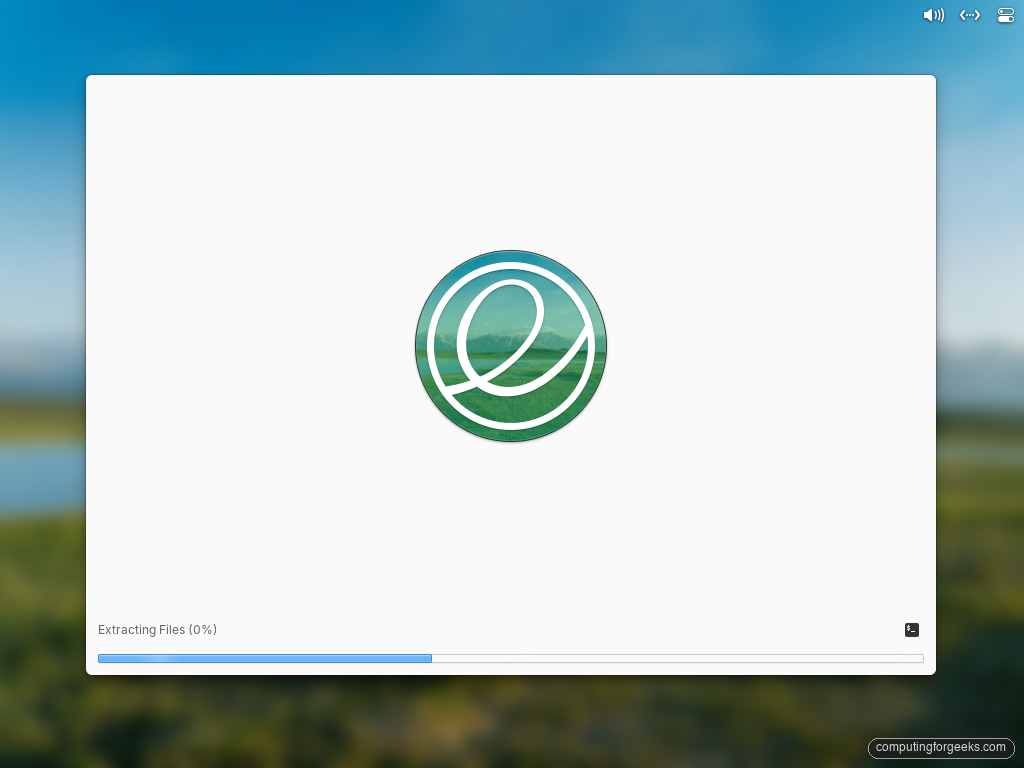
The two phases are Extracting Files (writes the squashfs payload to disk) and Finishing the Installation (regenerates initramfs, installs GRUB, syncs filesystems). The second phase is faster than the first.
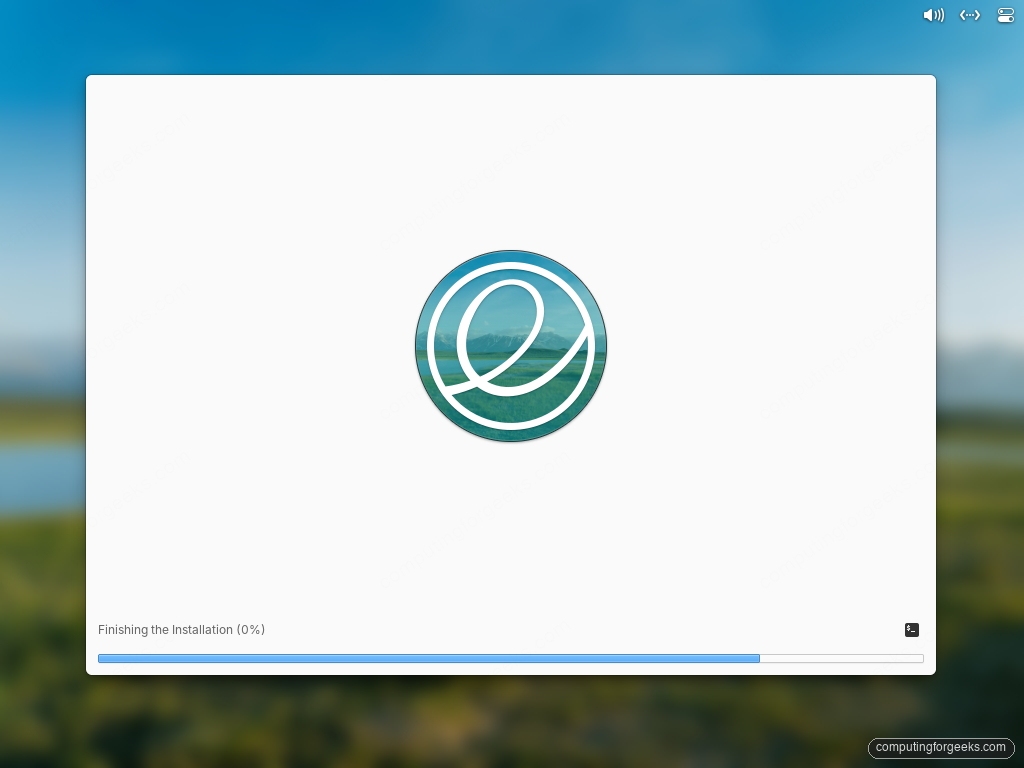
When it finishes, the installer shows a single button: Restart Device. Click it, remove the USB drive when prompted, and let the machine boot back into the installed system.
Step 11: Create your account on first boot
The first boot drops you into the initial-setup flow. Encrypted installs ask for the LUKS passphrase first, then the setup wizard launches. It re-asks for the language and keyboard, then lands on the account form.
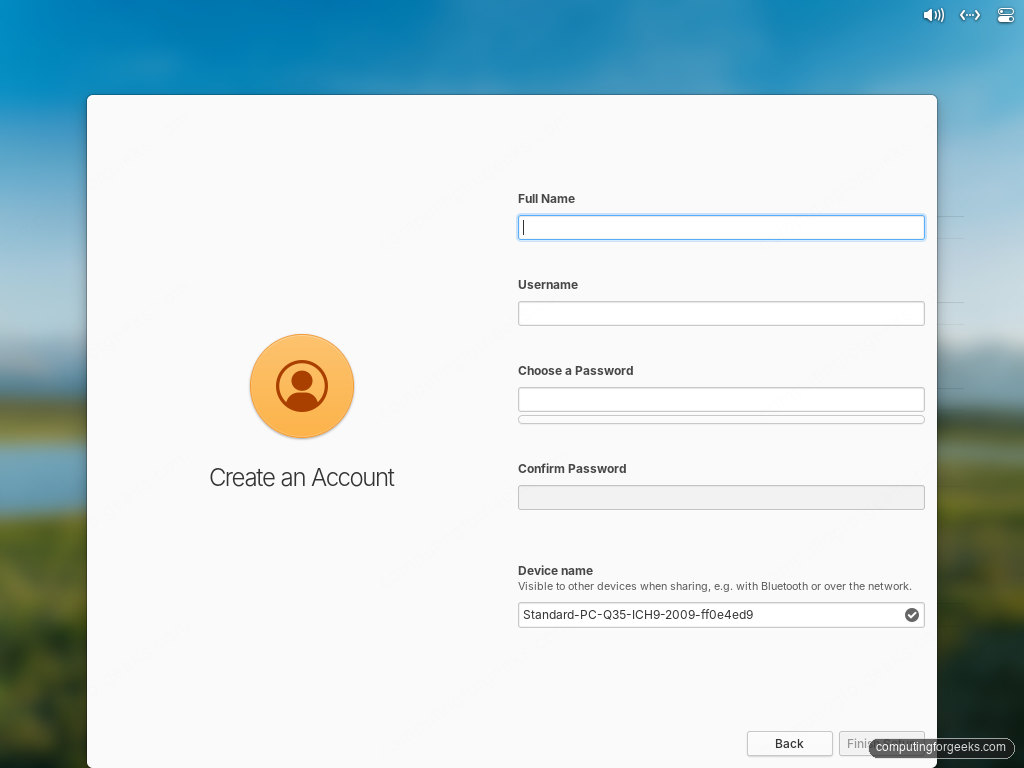
Fill the four fields and the device name. The avatar circle previews your initials in real time. The password strength bar warns when the password is too short or based on a dictionary word; long phrases with mixed characters trip the bar to green:
- Full Name: shown on the login greeter and in About.
- Username: becomes your home directory name. Lowercase, no spaces.
- Choose a Password and Confirm Password: unlocks the screen and grants sudo.
- Device name: visible to other devices over Bluetooth and the local network. Change it from the auto-generated default to something memorable.
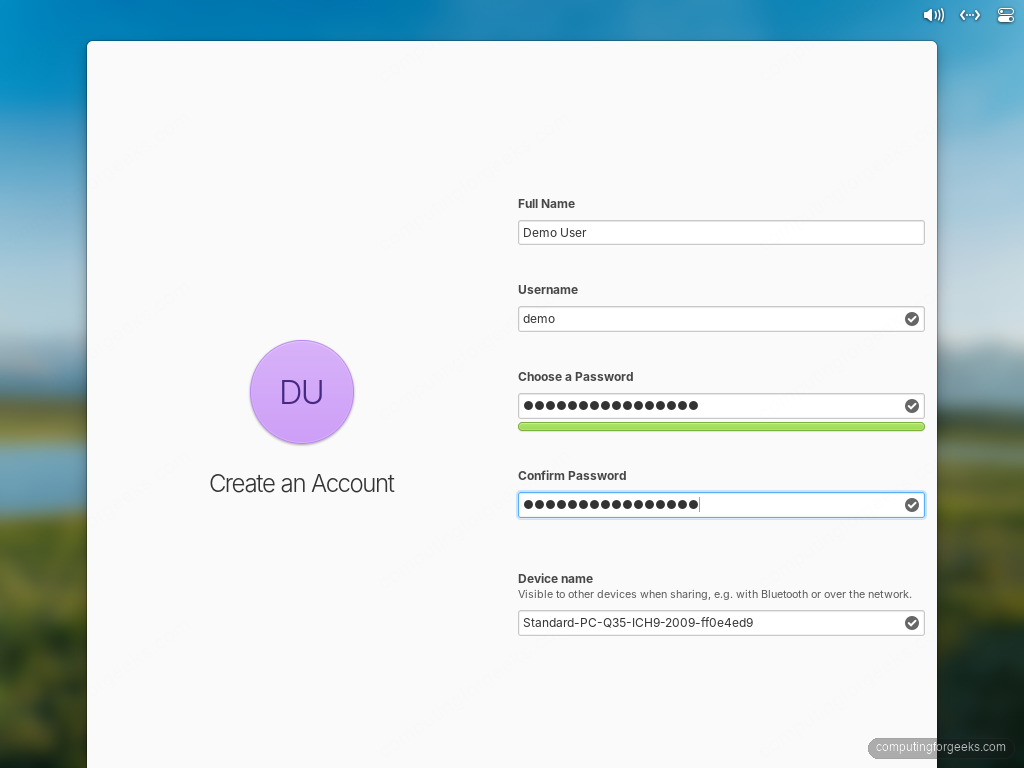
Click Finish Setup when the strength bar turns green. The system finalises the account and drops to the login greeter.
Step 12: Log in
The greeter shows your name, your avatar (generated from the initials of your full name), and the password field. Type the password you set in Step 11 and press Enter.
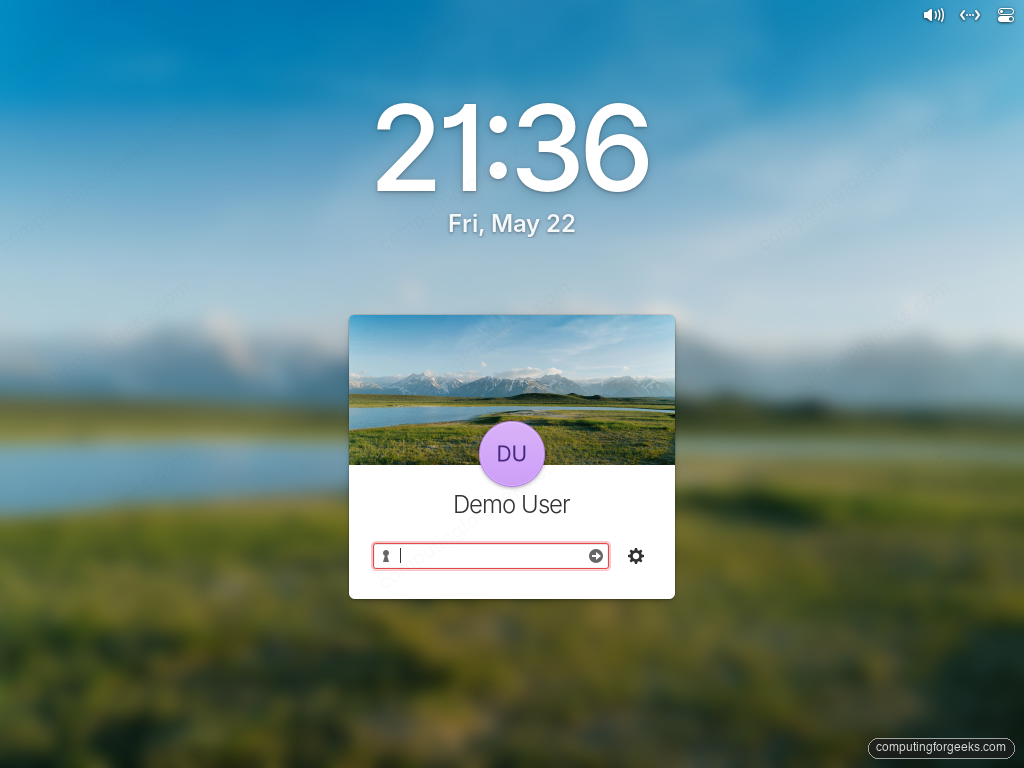
The first login takes a few extra seconds while the user profile is created. Subsequent logins land on the desktop in under a second on real hardware.
Step 13: Update everything before doing anything else
The ISO is frozen at build time, so the installed system is always at least a few weeks behind. Pull the current security updates and package versions before you start installing apps. Open Terminal (search for it in Applications or pin it to the dock) and run:
sudo apt update
sudo apt full-upgrade -y
If the kernel or systemd updated, reboot. The Wayland session does not survive a kernel mismatch:
sudo systemctl rebootPost-install: the practical setup checklist
The default install is intentionally light. AppCenter curates a small list of native apps with a pay-what-you-want store; outside that, the practical path is Flathub. The next sections set up the things every fresh elementary install needs.
Enable Flathub for the rest of the apps
elementary ships with Flatpak support but no remotes configured. Add Flathub once and AppCenter starts showing the full catalog: Firefox, LibreOffice, GIMP, Discord, OBS, VS Code, and every other common Linux desktop app. If you’ve never used Flatpak before, the general Flatpak management guide covers permissions, overrides, and the flatpak run CLI.
flatpak remote-add --if-not-exists flathub https://flathub.org/repo/flathub.flatpakrepoRestart AppCenter (close it from the dock, reopen it). Searches now include Flathub results, marked with the Flathub icon.
Install the apps elementary doesn’t ship
The fastest path to a usable desktop is one batch of flatpak install. The ID list below covers the apps most people miss in the first week:
flatpak install -y flathub \
  org.mozilla.firefox \
  org.libreoffice.LibreOffice \
  org.gimp.GIMP \
  com.spotify.Client \
  org.videolan.VLC \
  com.visualstudio.code
Drop any IDs you don’t want. flatpak search <name> finds the exact ID for anything else.
Install media codecs
elementary ships without patent-encumbered codecs by default. Streaming sites and most local video files still work in Firefox, but local MP4/H.264 playback in elementary’s own Videos app needs the extras package:
sudo apt install -y \
  ubuntu-restricted-extras \
  libavcodec-extra \
  gstreamer1.0-plugins-bad \
  gstreamer1.0-plugins-ugly \
  gstreamer1.0-libav
Accept the Microsoft fonts EULA when prompted. After install, MP4 files play in Videos without the “missing codec” dialog.
Turn on fractional scaling for small laptop screens
On 1080p displays under 14 inches, 100% is too small and 200% is too large. The current elementary release ships fractional scaling in the Secure (Wayland) session. Open System Settings → Displays and pick 125%, 150%, or 175% to taste.
Log out and back in if the change makes the cursor look fuzzy. A fresh session re-renders every Pantheon component at the new scale.
Schedule Dark Mode
Open System Settings → Appearance. The Dark Mode section has three options: Always On, Always Off, and Schedule. The schedule follows sunset/sunrise by default; toggle Custom to pick specific times. The current release also added a snooze button, useful when you’re projecting a slide deck and don’t want the screen to flip mid-presentation.
Configure the Dock’s workspace switcher
The current dock integrates a workspace switcher and the background apps portal. Right-click any open window’s dock icon to send it to another workspace; click the workspace indicator (the small dots at the dock edge) to jump between them. Power users can rebind workspace shortcuts under System Settings → Keyboard → Shortcuts.
Turn on unattended security updates
elementary inherits Ubuntu’s unattended-upgrades, but it’s only configured for security updates by default, and only when AppCenter is open. To make it apply security updates automatically without depending on the GUI being launched:
sudo dpkg-reconfigure --priority=low unattended-upgradesPick Yes at the prompt. Confirm the systemd timer is active:
systemctl status unattended-upgrades.service
systemctl list-timers apt-daily-upgrade.timer
Security updates land daily without you doing anything. Full-version upgrades stay manual, which is the right tradeoff on a personal machine.
Set up online accounts
Open System Settings → Online Accounts to wire up Google, Microsoft 365, or Nextcloud. The integration flows feed Calendar, Mail, and Tasks. Nextcloud is the most useful one if you self-host. It makes ~/Nextcloud a synced folder without extra desktop clients. If you want a wider post-install pattern checklist that maps cleanly to other distros, the post-install Fedora Workstation guide covers the same themes from a different angle.
Common things people get wrong about elementary
Three patterns show up over and over in reviews and forums. None of them are accurate on the current release.
“It’s just macOS for Linux”
The desktop borrows the global menu and dock conventions, but the underlying stack is GTK 4 with libadwaita, Mutter for the compositor, and Pantheon-specific apps written in Vala. None of those exist on macOS. The reason it feels familiar is the design discipline, not lineage. If you want a side-by-side, the Zorin OS vs elementary OS comparison walks through the actual feel differences.
“You can’t install real apps”
AppCenter ships ~70 curated apps, but Flatpak from Flathub adds thousands more, and apt works exactly like on Ubuntu underneath. Once Flathub is enabled, anything in the Linux desktop ecosystem is one click away. The curation is a guarantee about the AppCenter list, not a constraint on the system. Fedora users following along can compare against the parallel Flathub setup on Fedora.
“It doesn’t ship Snap, so it’s hostile to Ubuntu users”
Snap is not installed by default, but you can add it in a single command if you need it for a specific app:
sudo apt install -y snapdNothing in elementary blocks Snap. The default is Flatpak because elementary’s curation effort is built around Flatpak sandboxing, not Snap’s confinement model. Both work side by side on the same install if you need them.