Dia is The Browser Company’s second swing at the browser. Their first, Arc, won a loyal niche by reinventing tabs around vertical sidebars and Spaces. Their second goes further: every URL bar is also a chat, every page can be fed to an AI, and the browser remembers what you read so you can ask it things tomorrow that you forgot today. It is the most aggressive expression yet of “the browser as a personal AI assistant.”
This guide walks through installing Dia on macOS, signing in, and then spends most of its length on the features that make Dia different from Chrome and from its older sibling Arc: the ask-anything chat box, Skills, the Memory layer, app integrations for Gmail, Slack, GitHub and Notion, sidebar tabs, splits, and the Personalization controls. A keyboard shortcut reference at the end consolidates the moves you will reach for most.
What Dia is and where it sits
Dia is built on top of Chromium, so every Chrome extension works inside it. What’s wrapped around the Chromium engine is the interesting part: a chat interface that defaults to having full context of your open tabs, a Memory feature that summarizes your browsing so an AI can recall it later, and Skills, which are small prompt templates you trigger by typing /skillname in the chat box.
The Browser Company made a clear public bet on Dia. They said in late 2025 that Arc was going into maintenance mode and Dia was the future of their company. Dia gets weekly releases (the version that ships in this guide is App v1.32), while Arc gets only security patches and Chromium upgrades. If you came here from the Arc Browser install guide and are weighing the move, the short answer is yes for the AI-first workflow and no if you specifically loved Arc’s Spaces. If you want the team’s active attention, Dia is now the right place to be.
Dia is currently free during its beta phase. A paid tier called Dia Plus is expected to arrive later in 2026 for the heavier AI features; until then you get everything in the free build with sensible rate limits.
Prerequisites
- macOS 14 Sonoma or later (macOS 15 Sequoia and macOS 26 Tahoe also supported)
- An Apple Silicon Mac (M1, M2, M3, M4, or later). Intel Macs are not supported in the current build.
- An email address. Dia requires creating a free account to enable sync, Memory, and app integrations.
- About 1 GB of free disk space for the app plus user data.
- An internet connection for the AI features; chat will not work offline.
Install Dia on macOS
There is no Mac App Store build and no Homebrew cask at the time of writing, so the install is a direct download from diabrowser.com/download. Set a couple of shell variables so the rest of this section reads cleanly:
export DIA_DMG="${HOME}/Downloads/Dia.dmg"
export DIA_APP="/Applications/Dia.app"
export DIA_URL="https://releases.diabrowser.com/release/Dia-latest.dmg"
Download the latest signed disk image. The file is around 720 MB because Dia ships a full Chromium build plus its own native UI layer:
curl -L --progress-bar -o "${DIA_DMG}" "${DIA_URL}"Mount the dmg, copy the app to /Applications, and detach the disk image. Doing it from the terminal avoids the slower drag-and-drop dance in Finder:
hdiutil attach "${DIA_DMG}" -nobrowse -quiet
cp -R "/Volumes/Dia/Dia.app" /Applications/
hdiutil detach "/Volumes/Dia" -quiet
Confirm the install landed and check the version. The bundle is signed and notarized by Apple, so Gatekeeper does not interrupt the first launch:
ls -d "${DIA_APP}"
defaults read "${DIA_APP}/Contents/Info.plist" CFBundleShortVersionString
Launch Dia with open -a Dia, or click the icon from /Applications in Finder. On first launch Dia will offer to import bookmarks, history, and passwords from Chrome, Safari, Brave, or Firefox; accept it if you want continuity, skip if you want a clean slate.
First launch and account setup
Dia opens to a New Tab page that is unlike anything Chrome ships. The center of the page is an “Ask anything” chat box, the only widget on an otherwise empty canvas:
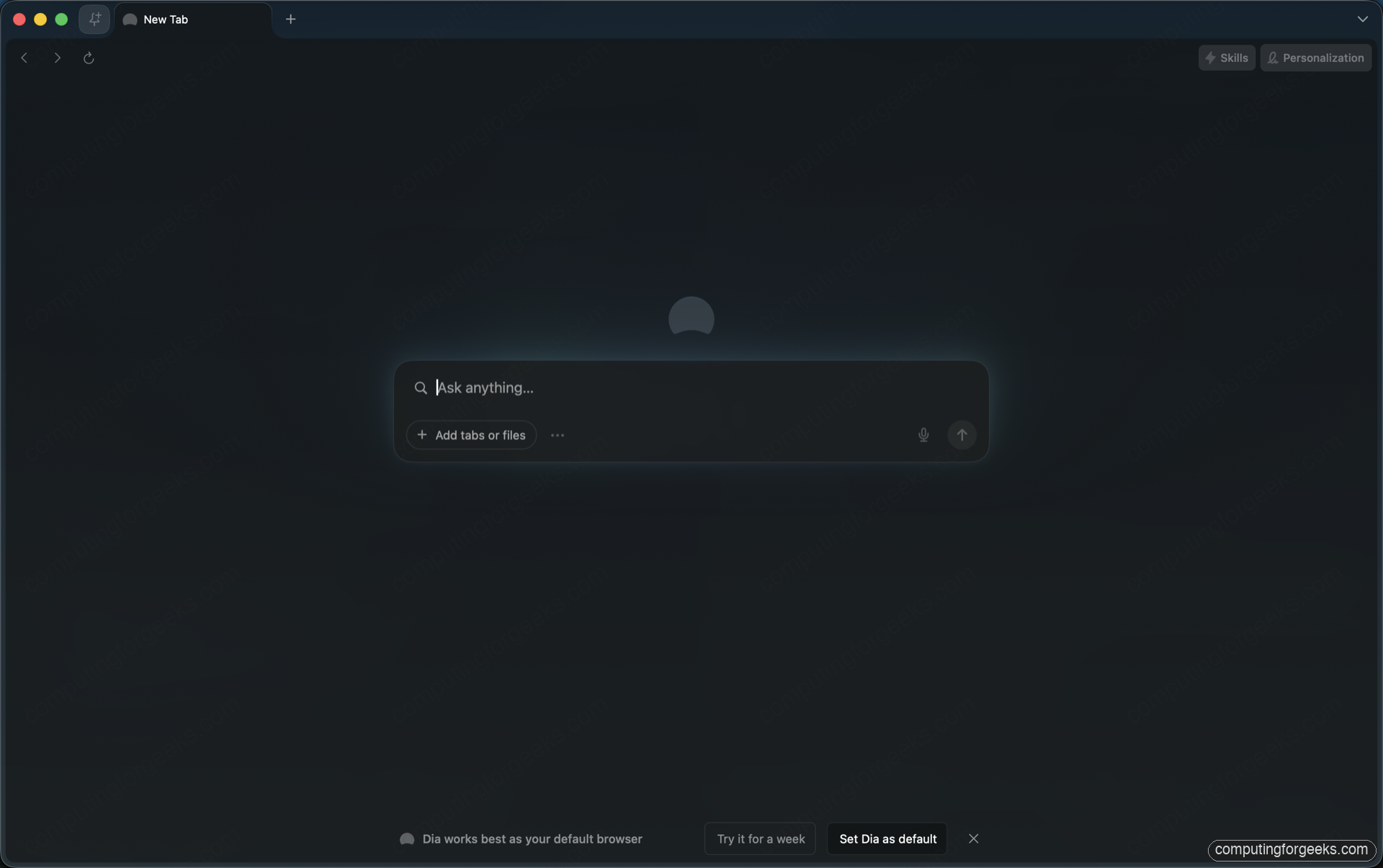
Sign in or sign up using the prompt Dia surfaces on first launch. Dia accepts email-and-password accounts or Sign in with Google. Once you are signed in, the top-right corner gains two pills: Skills opens the Skills picker, and Personalization opens the panel where Dia stores facts it has learned about you to bias future answers.
The Ask anything box: search and chat together
Dia’s central design choice is that the URL bar, the search bar, and the AI chat input are the same field. Whatever you type, the box offers both interpretations side by side: search the web on Google, or send the same query as a Chat to Dia’s AI. You pick which one runs by either clicking the result row or hitting the keyboard shortcut shown next to it.
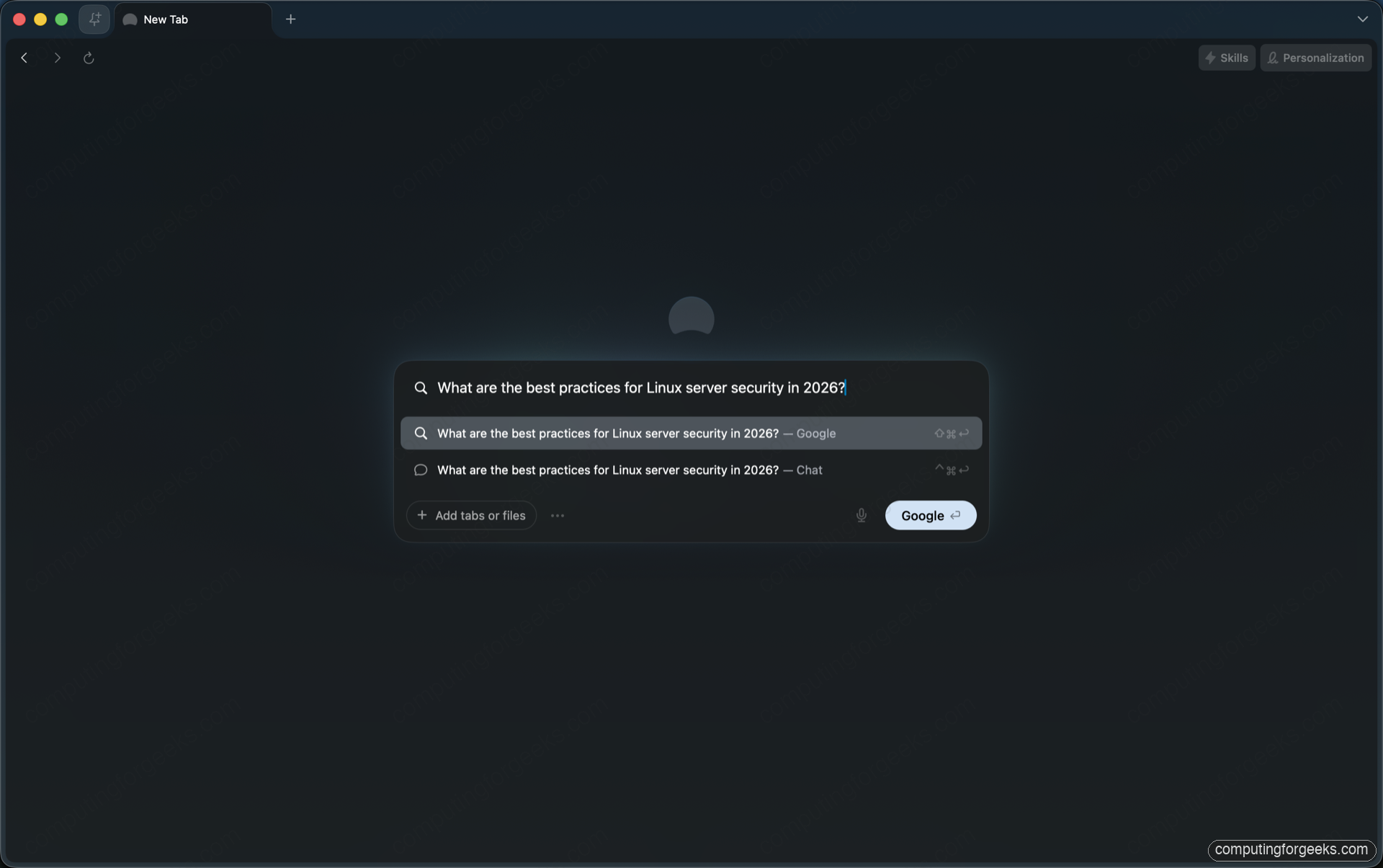
In practice the muscle memory becomes: type the question, hit Ctrl + Cmd + Return for Chat, hit Shift + Cmd + Return for Google search, or plain Return for whichever Dia picks by default (Google for short queries, Chat for longer ones).
If the question is about a page already open in another tab, Dia automatically pulls that tab’s content into the chat context. Open the docs for a tool in one tab, then ask “summarize how this tool handles authentication” in a new tab; Dia answers using the first tab’s content as source material. You can also explicitly attach a tab or a file with the Add tabs or files button under the ask box.
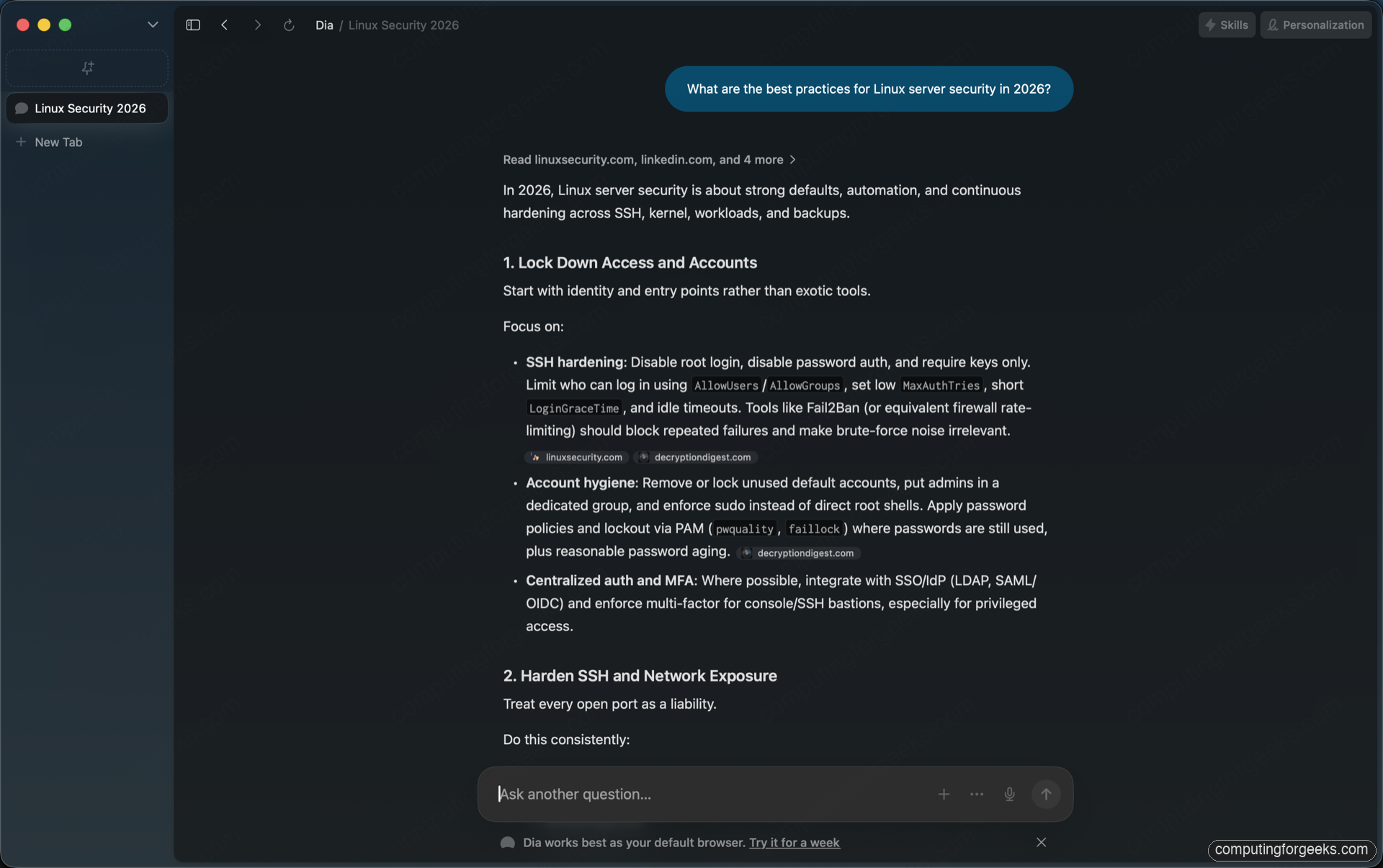
Below is what a real chat answer looks like. The question I asked was about Linux server hardening, and Dia first surfaced the sources it read before writing the answer:
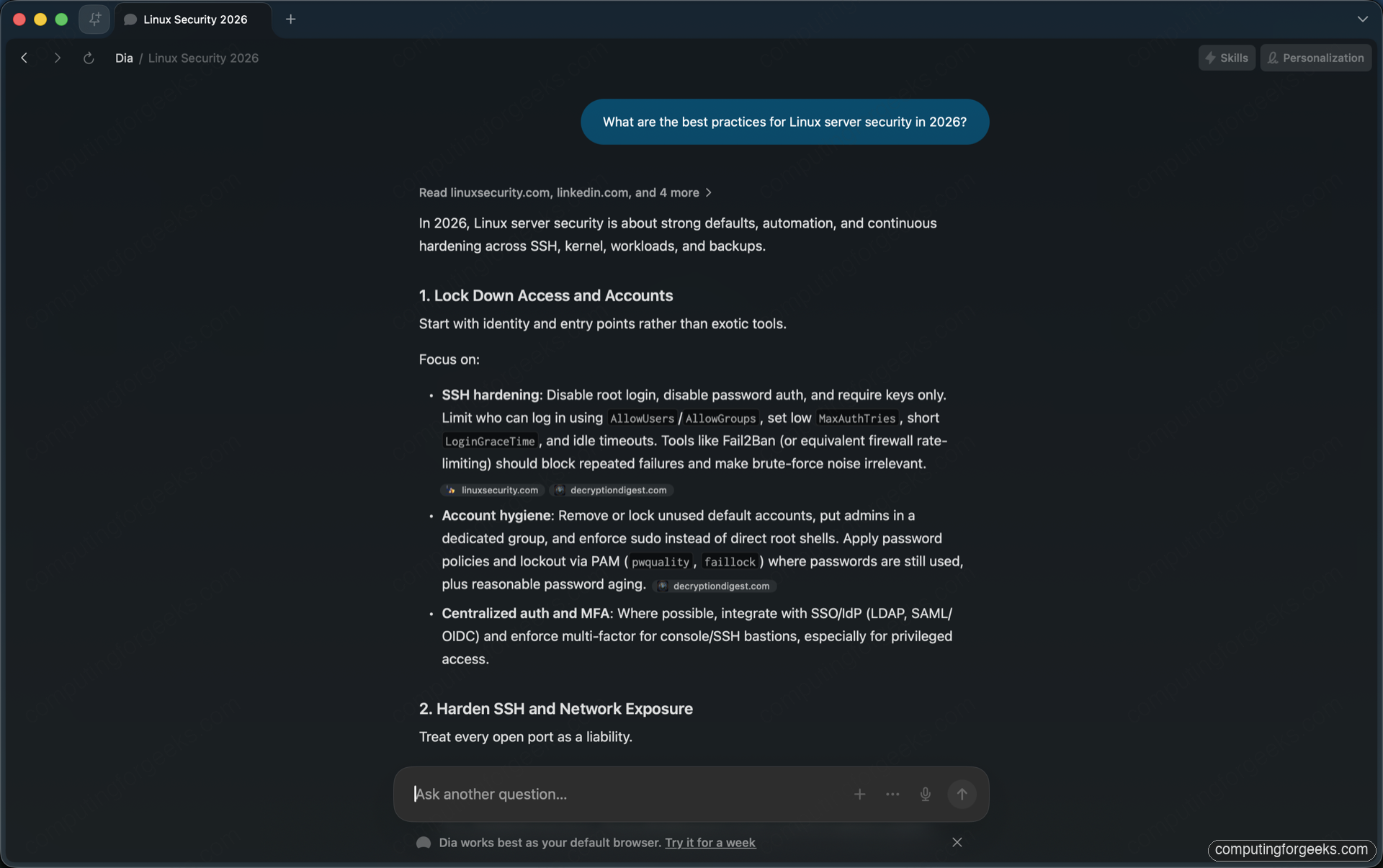
Cite-and-then-answer is the right behavior for a tech browser. You can click any of the cited source chips at the top to open the original article in a new tab, which makes Dia useful for research without the usual fear that the AI is making things up.
Skills: reusable prompts triggered with a slash
Skills are templated prompts you call by typing /skillname in the ask box. Each Skill is a short instruction that wraps around whatever content is currently in scope: the active tab, a highlighted selection, or a set of attached tabs. Dia ships about a dozen Skills by default, and the team plus the community publishes more at diabrowser.com/skills.
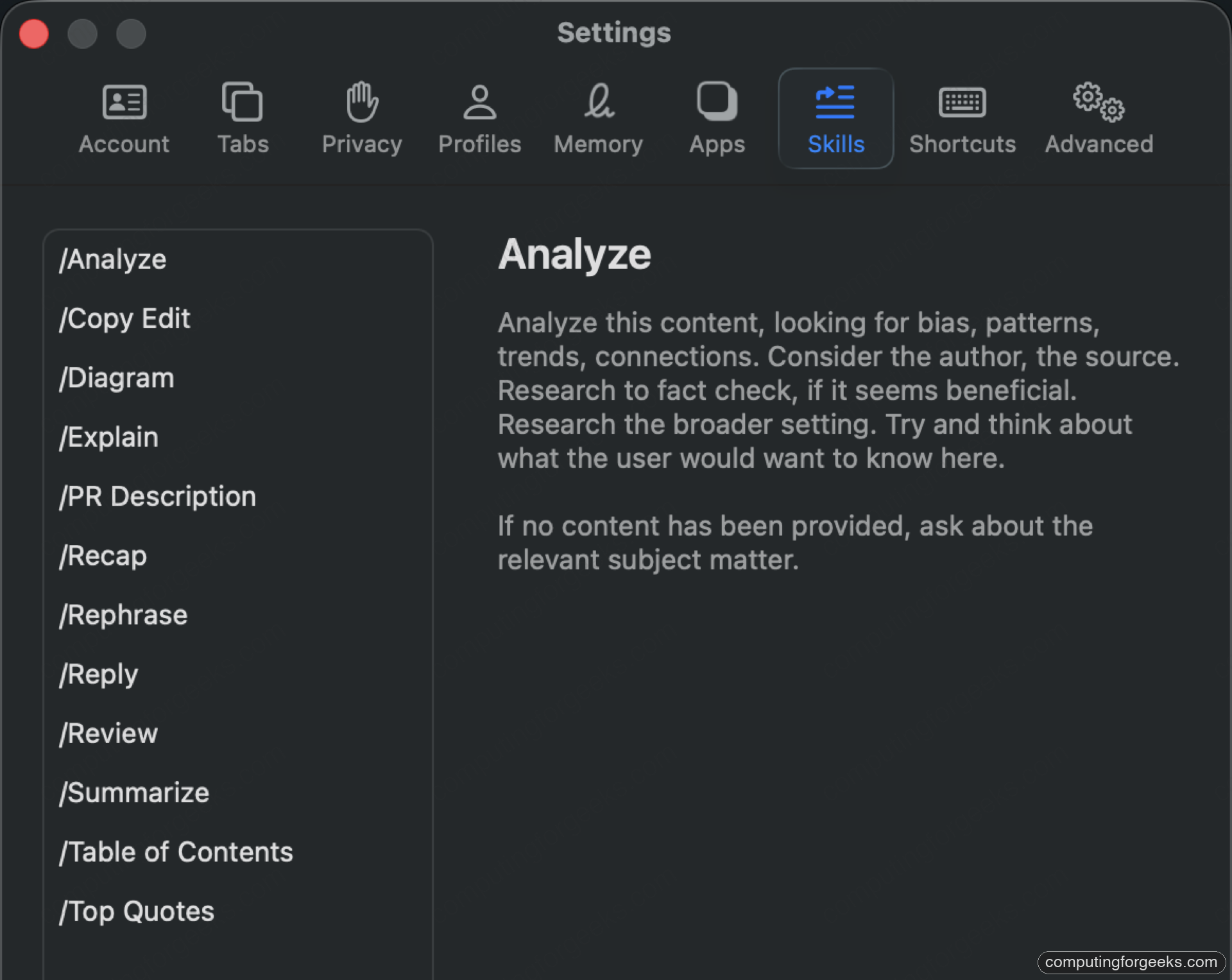
The built-in set covers the situations you actually run into during a work day:
/Analyze: look for bias, patterns, trends, and connections in the active tab/Copy Edit: tighten the prose without changing the voice/Diagram: turn a process description into a Mermaid or ASCII diagram you can paste into a doc/Explain: explain the page the way a knowledgeable friend would, with assumptions checked/PR Description: turn a GitHub diff into a clean PR body with summary, test plan, and risk notes/Recap: summarize what you read across a set of tabs/Rephrase: rewrite a selection for clarity/Reply: draft a reply that matches the tone of the conversation in the active Gmail or Slack tab/Review: code review the diff on the page/Summarize: one-paragraph summary of the active tab/Table of Contents: pull headings into a clickable TOC/Top Quotes: extract the most quotable lines
You write your own Skill by clicking the + in the Skills panel and pasting the prompt. The template language is plain English with a couple of variables: {tab} for the active tab, {selection} for highlighted text, {tabs} for everything attached. The same Skill works on a YouTube video, a docs page, an email, or a code diff because Dia normalizes the input behind the scenes.
Apps: Gmail, Slack, GitHub, Notion, and friends
Connecting Dia to your work apps unlocks the more useful Skills, especially /Reply, /PR Description, and the Memory queries discussed below. The full app catalog at the time of writing includes Amplitude, Atlassian (Jira and Confluence), Atlassian Rovo, GitHub, Gmail, Google Calendar, Google Docs, Google Drive, Linear, Notion, Slack, and several smaller integrations.
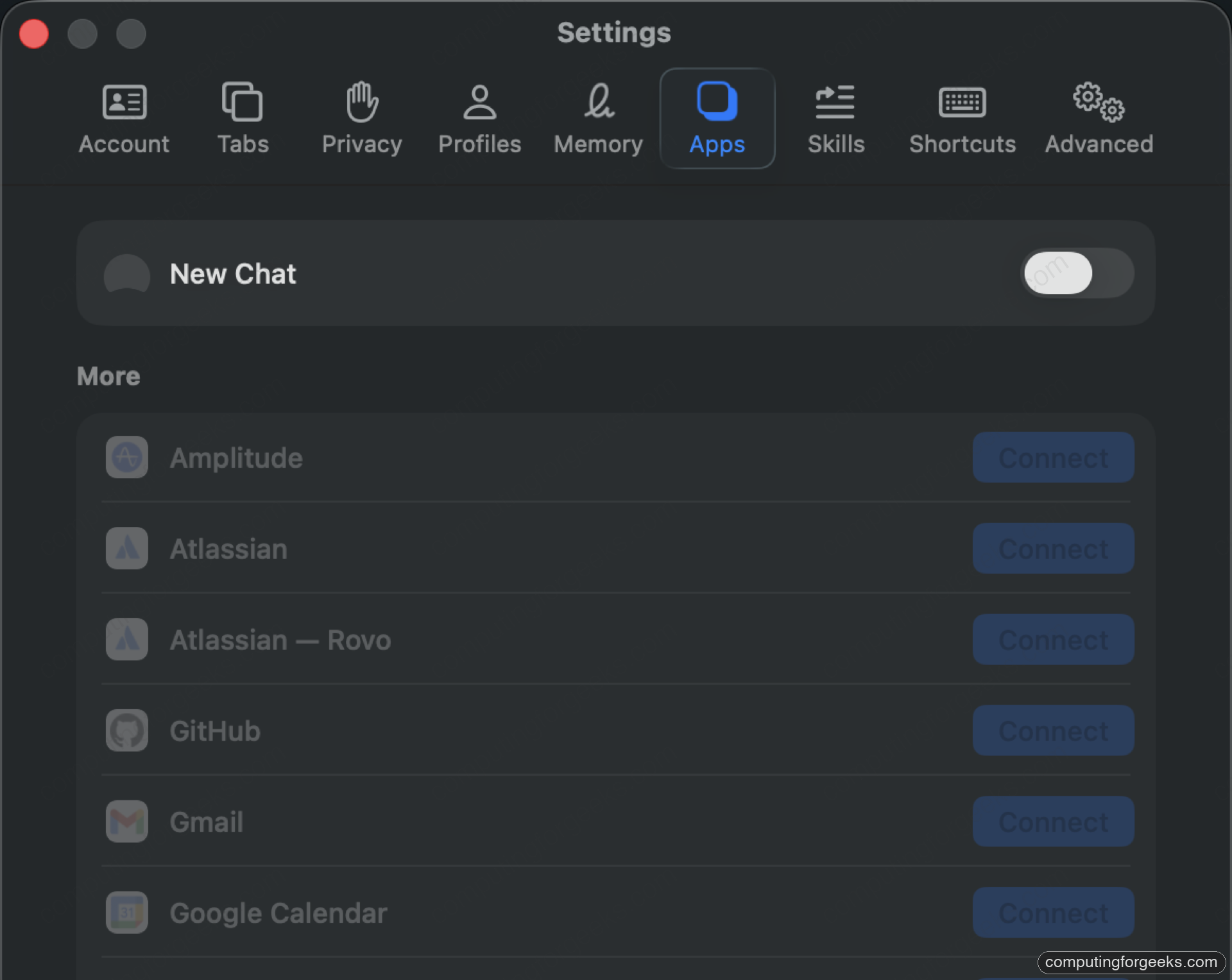
Each integration uses OAuth scopes that Dia explicitly lists before you grant access. GitHub asks for read access to your repos; Gmail asks for read and compose; Slack asks for channel history and message-write. The token is stored encrypted in your Dia account and Dia’s servers use it only when you trigger a Skill that needs it. You can revoke any connection from the same Apps page with one click.
Real workflows once Apps are connected:
- In a GitHub PR, run
/PR Description: Dia pulls the diff and any linked Jira tickets, then drafts the body. You paste it into the PR. - In Gmail, run
/Replyon a thread: Dia drafts a response that matches the tone of the conversation. It does not send; you review and click Send. - In a Notion doc, run
/Recapacross the doc plus the related Slack threads (attach Slack as a tab): Dia produces a one-page status summary you can paste into the meeting agenda.
The pattern is consistent: Dia never autonomously acts inside your apps. It drafts, you review and ship.
Memory: the AI remembers what you read
Memory is the feature that separates Dia from “Chromium with a chat sidebar.” When enabled, Dia summarizes your recent browsing on its servers and on your device, then lets you query that summary later via @Search memory ... in the ask box.
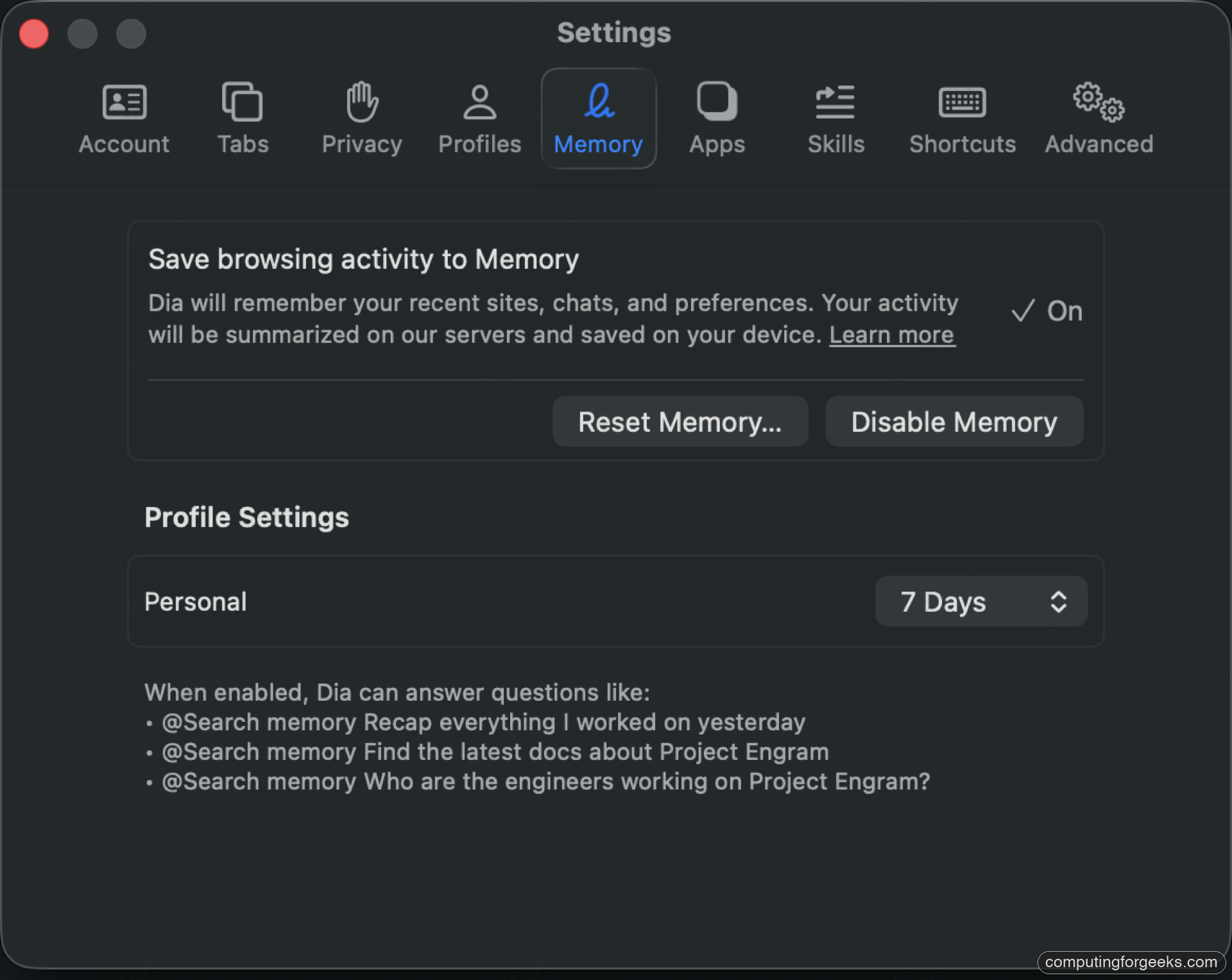
The example queries Dia surfaces in the Memory settings page are the right mental model:
@Search memory Recap everything I worked on yesterday@Search memory Find the latest docs about Project Engram@Search memory Who are the engineers working on Project Engram?
The retention window is configurable. The default is 7 days, with options to extend to 30 or 90. Anything outside the window rolls off automatically. You can also wipe everything with Reset Memory at any time.
Memory is encrypted in transit and at rest, and Dia’s privacy notes mention that the summarized content sits inside your encrypted account, not a global model training set. If you do not trust this with sensitive work, the feature is opt-out and the toggle is clearly labeled in Settings > Memory.
Sidebar tabs and Splits
If you came from Arc and miss the vertical sidebar, Dia has it too. Toggle it on with Cmd + Shift + S, or via View > Show Tabs in Sidebar. The layout is more minimal than Arc’s: there are no Spaces, no colored themes, no Today bucket. Just a vertical list of tabs grouped by Profile.
Splits put two tabs side by side in the same window. Open the second tab, then choose View > Open Split Pane or press Cmd + Option + S. Useful pairings on Dia specifically:
- The page you are reading on the left, a Dia chat about that page on the right
- API docs on the left, a GitHub PR diff on the right (run
/Reviewin the chat) - A Notion doc on the left, the Slack thread it references on the right (run
/Recapacross both)
The split is resizable. View > Focus Next Split Pane moves keyboard focus across panes without touching the mouse.
Profiles: work and personal in one app
Dia Profiles separate cookies, history, bookmarks, and extensions into independent containers. You set up a Work profile and a Personal profile (and as many more as you need), then switch between them from the top-right avatar menu or with Cmd + Shift + M. Each profile keeps its own Memory; nothing leaks between them.
This is the canonical solution to “I want to be signed in to two Google accounts at once” without the Chrome profile picker dance. Once you set it up, your work Gmail lives in the Work profile and your personal Gmail lives in the Personal profile and Dia never confuses them.
Personalization and Memory hygiene
The Personalization pill at the top-right opens a panel where Dia surfaces what it has learned about you: cities you mention, projects you work on, tools you use, writing tone preferences. You can edit or delete each entry. This is the file the AI uses to make its answers feel like they know you, rather than reading every page from scratch every time.
Practical advice on Personalization:
- Add your timezone and your usual writing length preference (“concise, no preamble”) explicitly. Dia listens to those across every Chat.
- Add the names of projects or codebases you work on, so
@Search memoryqueries about them are sharper. - Delete anything sensitive that crept in. The list is fully editable.
Privacy and tracker controls
Dia inherits the standard Chromium privacy model and adds a layer of its own:
- HTTPS upgrades and third-party tracker blocking are on by default
- You can enable Memory or disable it entirely; the feature flag is binary
- You can disconnect any app integration without uninstalling Dia
- End-to-end encrypted sync is opt-in; if you sync across devices, the cross-device data is encrypted with a key Dia’s servers cannot read
- The private window mode is the standard Chrome incognito, not a Dia-specific variant. Memory does not record incognito browsing.
If you want the longer policy detail, the Dia trust center at trust.diabrowser.com lists exactly which data is stored where, retention periods, and the data-processing subprocessors Dia uses.
Keyboard shortcut cheat sheet
The shortcuts you will hit most:
Cmd + L: focus the ask-anything box in the current tabCmd + T: open a new tab (lands on the ask box)Cmd + W: close the current tabCmd + Z: undo close (rescue a tab)Cmd + Shift + T: reopen the last closed tabCmd + Shift + S: toggle sidebar tabs viewCmd + Option + S: open a split paneCmd + Shift + M: switch profileReturn: in the ask box, run the default action (search or chat)Ctrl + Cmd + Return: in the ask box, force ChatShift + Cmd + Return: in the ask box, force Google searchCmd + ,: open SettingsCmd + Q: quit Dia
Plus the slash Skills: type / inside the ask box and Dia surfaces the Skill picker so you can browse and pick.
Update and uninstall
Dia auto-updates on launch and through a weekly background channel. To force an immediate check, choose Dia > Check for Updates from the menu bar, or relaunch the app from the terminal:
osascript -e 'tell application "Dia" to quit'
sleep 2
open -a Dia
To uninstall, drag Dia.app from /Applications to the Trash, then remove the user data and cache to fully reclaim the disk space:
rm -rf "${HOME}/Library/Application Support/Dia"
rm -rf "${HOME}/Library/Caches/com.thebrowser.dia"
rm -rf "${HOME}/Library/Preferences/com.thebrowser.dia.plist"
If you decide to keep Dia but switch back to Chrome or Safari as the default browser, the toggle lives in System Settings > Desktop & Dock > Default web browser. Dia’s own banner at the bottom of the New Tab page will still ask to be default; the dismiss X hides the prompt for the rest of the session.
Troubleshooting common issues
“Sign in failed” on first launch
The most common cause is a clock skew between your Mac and Dia’s auth servers. Open System Settings > General > Date & Time, enable Set time and date automatically, then quit and relaunch Dia.
The AI says it cannot read the current page
Some sites set Content-Security-Policy headers that block the in-page script Dia uses to read the DOM. If you trust the site, attach it explicitly via Add tabs or files instead of relying on auto-context. Banking and email sites are the most common ones that need explicit attach.
Memory has not picked up a page I just read
Memory indexes in batches every few minutes, not in real time. If you need to query something you just read, give it about five minutes, or use Chat with the tab attached for an immediate answer.
The chat answer keeps citing one specific blog you do not trust
Open Personalization and add a note like “Avoid citing example-site.com.” Dia respects negative preferences for source ranking on subsequent answers. This is one of the more underrated features.
Where to go from here
Dia rewards a couple of weeks of deliberate use. The ask-anything-or-search habit takes a few days to feel natural after years of separate URL bars and search boxes. Skills are easy to dismiss as “prompt templates with a friendly name” until you write your first one for a workflow you do five times a week, at which point they start saving real minutes per day.
If Dia’s tight Browser-Company-only AI stack does not appeal to you, there are three reasonable adjacent picks. Zen Browser is a Firefox-based take on the calmer-internet idea with vertical sidebars and workspaces, actively developed and free of AI features unless you bring your own. Vivaldi goes the other way and gives you maximum control over the chrome and tab management without the AI layer. Brave matches Dia on the Chromium engine but leads with privacy and ad blocking, with optional AI on the side. And for the standalone-engine path, Firefox remains the credible non-Chromium choice. The right call usually comes down to whether you want the AI baked into the URL bar, which is Dia’s bet, or as a separate panel you open when you ask for it, which is the Brave and Vivaldi posture.