Arc is a browser from The Browser Company built around a different premise from Chrome and Firefox. Tabs live in a vertical sidebar, every workspace is a separate Space with its own color and pinned tabs, and most of the chrome you would normally see hides itself until you ask for it. The result is closer to a launcher with a web view attached than to a traditional tabbed browser. If you have ever ended a session with sixty open tabs and no idea which one held the doc you were reading, Arc is built to solve exactly that.
This guide walks through installing Arc on macOS (the primary platform), then on Windows, and finishes with a hands-on tour of the features that earn Arc its loyal following: Spaces, the Command Bar, Split View, Little Arc, Easels, and Boosts. A keyboard shortcut cheat sheet at the end covers the moves you will use every day.
About Arc and its current status
Arc is free, built on top of Chromium (so every Chrome extension works), and ships under a closed-source license from The Browser Company of New York. The Mac build has been generally available since 2023; the Windows build followed in 2024. There is also an iPhone companion called Arc Search.
One thing to know upfront: The Browser Company put Arc into maintenance mode in 2025 to focus on their newer browser, Dia. In the company’s own words, “we do regular Chromium upgrades, fix security vulnerabilities, related bugs, and more” but “we are not actively developing the core product experience like we used to.” Translation: Arc still gets security patches and Chromium updates, but no new features are landing. For a calm, ready-to-use browser that already does what you need today, that is fine. If you specifically want a tool that will keep gaining features over the next year, you may prefer Dia or another actively developed option.
Prerequisites
- macOS 13 Ventura or later (Apple Silicon and Intel both supported), or Windows 11 / Windows 10 22H2 or later
- An email address for the Arc account; Arc requires an account to enable cross-device sync and the Easel sharing features
- About 500 MB of free disk space for the app, plus space for cache and your profile
- Homebrew on macOS if you prefer installing from the command line
Install Arc on macOS
There are two clean install paths on macOS: a direct download from arc.net, or a one-line Homebrew install. Both pull the same signed app bundle from The Browser Company. There is no Mac App Store build.
Direct download from arc.net
Open arc.net/download in any browser, click the macOS download button, and let the disk image arrive. Open it, drag Arc.app to Applications, and eject the disk image. The bundle is signed and notarized by Apple, so Gatekeeper does not interrupt the first launch.
Install with Homebrew (recommended)
If you already manage your Mac apps with Homebrew, this is the version-aware, scripted way to install Arc. Set a couple of shell variables so the install and any later update share the same commands:
export ARC_CASK="arc"
export ARC_APP="/Applications/Arc.app"
Install the cask. Homebrew downloads the latest dmg, mounts it, copies Arc.app into /Applications, and registers the cask for upgrades. If you want to control when these upgrades happen, the prevent Homebrew auto-update guide covers the env var and config knobs:
brew install --cask "${ARC_CASK}"Verify the install landed and check the installed version:
ls -d "${ARC_APP}"
defaults read "${ARC_APP}/Contents/Info.plist" CFBundleShortVersionString
The second command prints the version string. Launch Arc with open -a Arc from any terminal, or click the Arc icon in /Applications from Finder.
Install Arc on Windows
Download the Windows installer from arc.net/download. The site detects the operating system and offers Arc-Setup.exe for Windows 10 and 11. Run the installer; it places Arc under %LocalAppData%\Microsoft\Arc and adds a Start menu entry plus an optional taskbar pin.
Sign in with the same account you use on the Mac and your Spaces, pinned tabs, and Easels sync over automatically. Windows-specific quirks worth knowing:
- Arc on Windows uses Mica acrylic effects, so it looks better with Windows 11 than Windows 10
- The default keyboard shortcuts swap
CmdforCtrlacross the board; everything else is the same - System tray integration is limited compared to the Mac build (no Little Arc on Windows yet)
Updates apply automatically when Arc launches, the same as on the Mac.
First launch and account setup
Open Arc. The welcome screen greets you with the company’s brand promise:
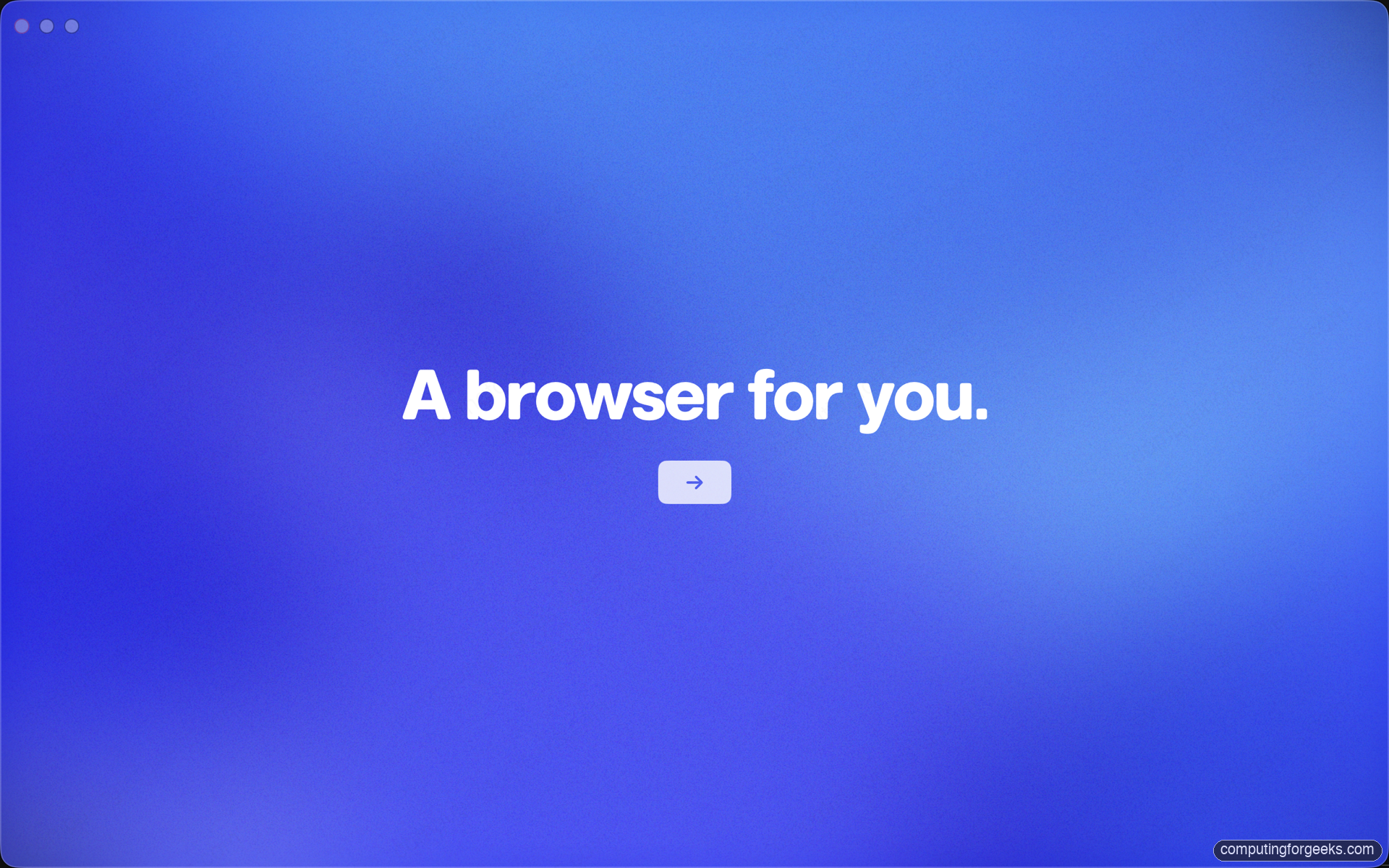
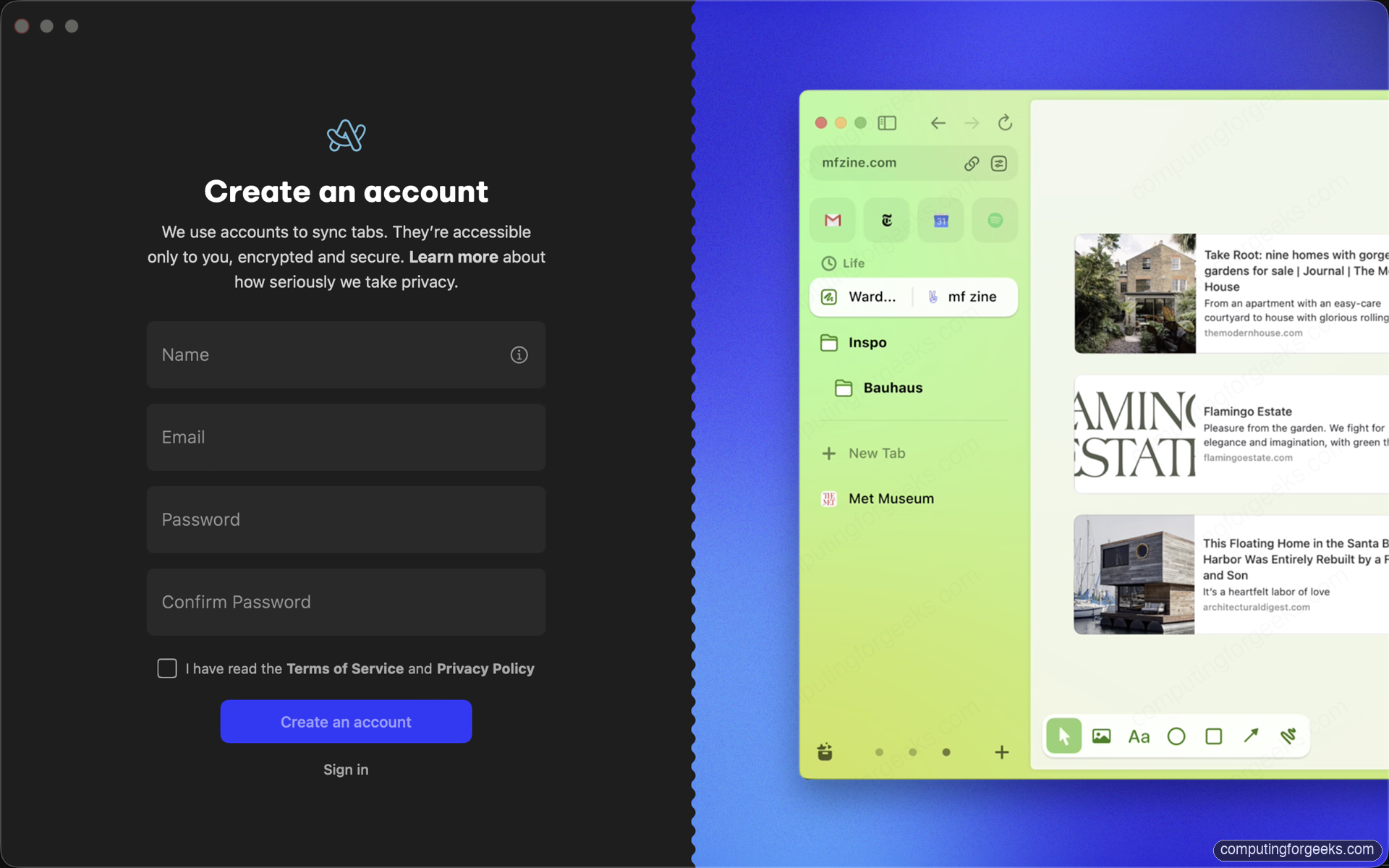
Click the arrow and you land on the account screen. Arc requires creating a free account because everything in Arc syncs across your devices: Spaces, pinned tabs, Boosts, and Easels all live on their servers. While you go through the form, Arc previews different Spaces on the right side of the window so you can see the workspace concept before you commit. The first preview shows a green Space focused on art and inspiration, with pinned folders for moodboarding work:
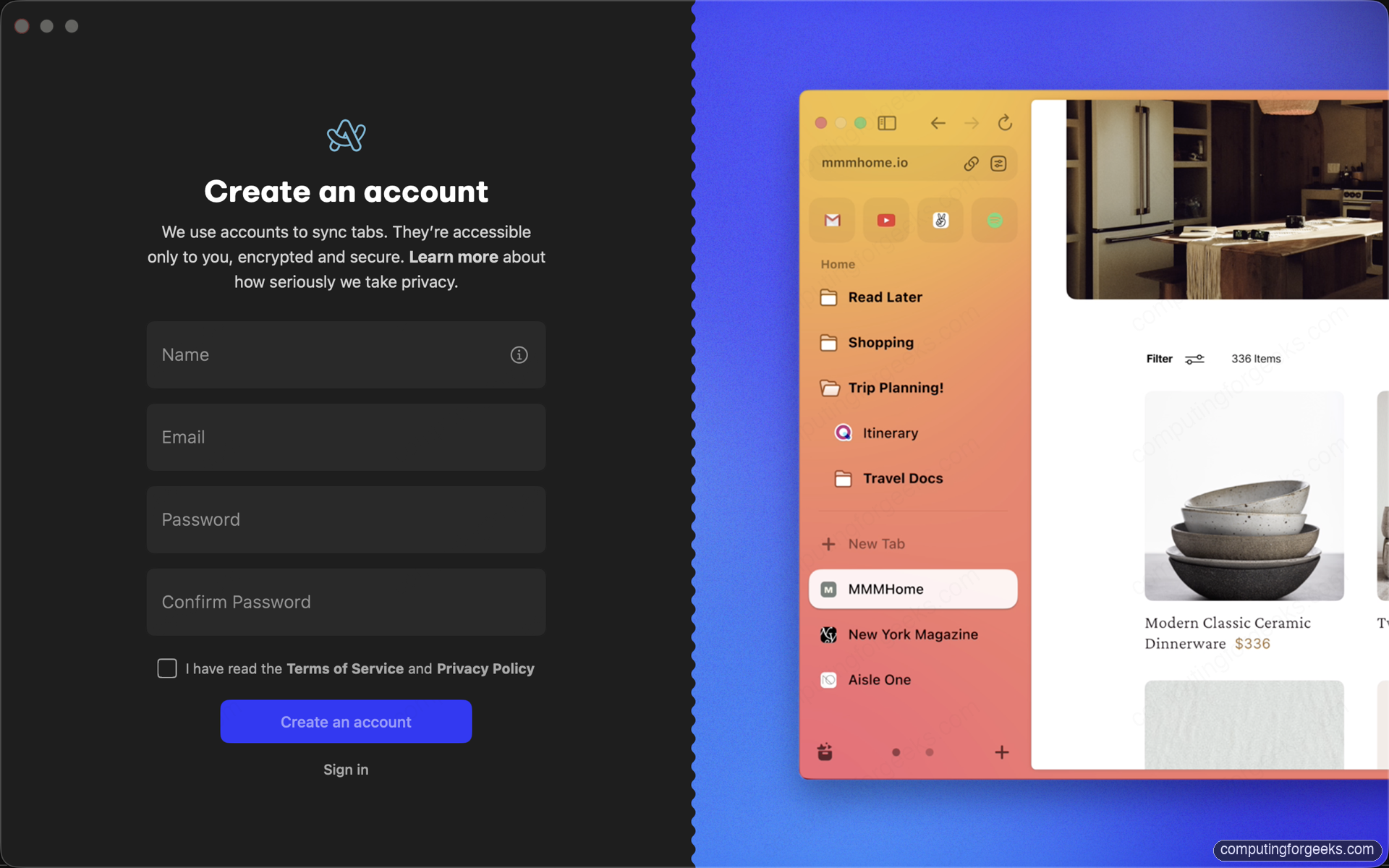
A few seconds later it rotates to a coral travel-planning Space showing the same sidebar pattern with completely different content and color, which is the point of Spaces:
Fill in the form, accept the Terms of Service and Privacy Policy, and Arc finishes the account creation. The onboarding then walks through importing bookmarks from Safari, Chrome, or Firefox (skip if you want a clean slate), picking a default search engine, and choosing whether Arc should be your system default browser.
The sidebar, pinned tabs, and Today tabs
After onboarding you land in your first Space with the sidebar on the left. Three regions stack vertically inside that sidebar, top to bottom:
- Favorites at the top: tiny app-style icons for sites you use every single day. Gmail, Calendar, GitHub, Linear, anything you always want one click away. Favorites span every Space, so they are always visible.
- Pinned tabs in the middle: per-Space folders and tabs that you want to keep around but not necessarily always open. A pinned tab survives across browser restarts.
- Today tabs at the bottom: ephemeral tabs that you opened today. After twelve hours of inactivity Arc archives them automatically. This is the killer feature for tab hoarders: the browser cleans up after you.
The mental model is “keep the things you care about pinned, and let everything else expire on its own.” Right-click any tab and choose Pin Tab to promote it, or Favorite Tab to move it all the way to the top. To send a tab to its grave manually, press Cmd + W (Mac) or Ctrl + W (Windows) and Arc closes and archives it.
Spaces: one browser, many contexts
A Space is a self-contained set of pinned tabs, Today tabs, color theme, and (optionally) a separate cookie jar. Press Cmd + S to open the Spaces switcher, or click the colored pill at the bottom of the sidebar. Create a new Space with + at the bottom; Arc asks for a name, an emoji, and a color theme.
Typical Spaces setups people land on after a few weeks:
- Work with pinned tabs for the project management tool, the company wiki, the on-call dashboard, and the shared design system
- Personal with pinned tabs for Gmail, banking, calendar, and a few news sites
- Project Foo with the GitHub repo, the staging URL, and the Notion docs for a specific in-flight project; you delete this Space when the project ships
- Research with academic search engines, arxiv, and a tab group of papers in progress
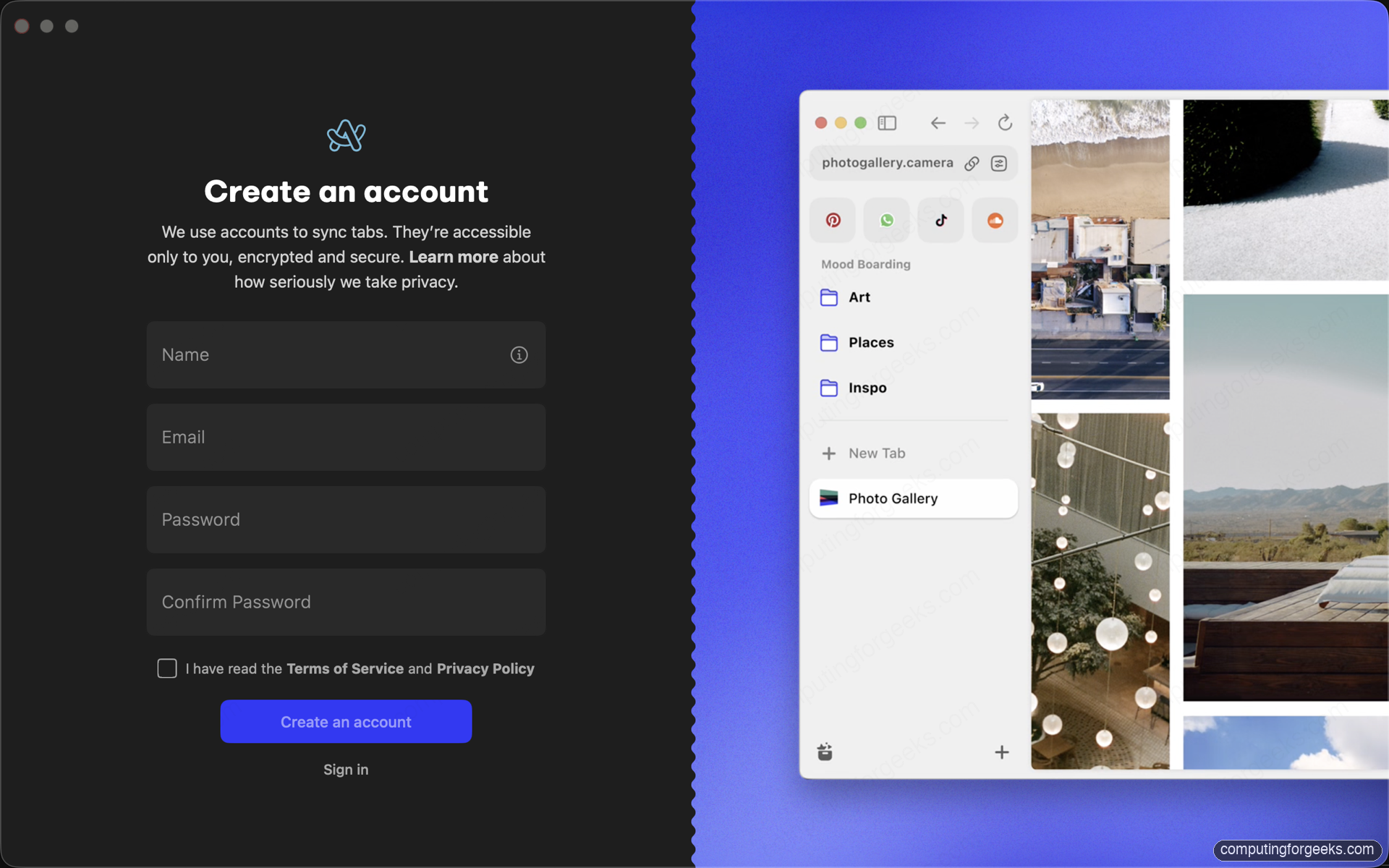
The color theme is more useful than it sounds. Once you have three or four Spaces, the color is the fastest cue for “am I in the right context?”: orange for personal, blue for work, green for research, and so on. Below is the photo-gallery Space variant Arc shows in its own onboarding, which uses a blue gradient and a single pinned Photo Gallery tab inside a Mood Boarding folder:
Switch between Spaces with Ctrl + Tab (yes, that shortcut is overloaded with tab switching on every other browser, which takes a week to get used to), or with Cmd + Option + arrow on Mac to jump in a specific direction.
The Command Bar
Arc’s Command Bar is the single feature you will miss most when you go back to another browser. It replaces both the URL bar and the omnibox with a Spotlight-like overlay that you call with Cmd + T (Mac) or Ctrl + T (Windows) from anywhere in the app. It searches:
- Your open tabs across every Space
- Your archived tabs from the last few weeks
- Your bookmarks and pinned tabs
- The web (Google by default, configurable)
- Arc actions and settings (Pin Tab, New Space, Toggle Dark Mode)
Typing the first three or four letters of a tab title is usually enough to find it. The Command Bar also accepts the same keyboard motion as the rest of Arc: arrow keys to move through results, Enter to open, Cmd + Enter to open in a new Little Arc window (see below). For deep usage, learn Cmd + L too. That shortcut focuses the address-bar version of the same overlay scoped to the current tab.
Split View: two tabs, one window
Split View is exactly what it sounds like. Pick any two (or three or four) open tabs, choose Split View from the right-click menu, and Arc lays them out side by side in the same window. Useful pairings:
- API docs on the left, a Notion or Linear ticket on the right
- A YouTube video on the left, the timestamps doc on the right
- GitHub PR on the left, the staging URL on the right for visual diff checks
- The shared design Figma on the left, the implemented page on the right
The split is resizable: drag the divider to weight one side more than the other. Press Cmd + . (Mac) to toggle split for the currently focused tab and the one immediately above it in the sidebar.
Little Arc: the popup browser
When you click a link in another macOS app (Slack, Mail, Notes), Arc opens it in a Little Arc window, a stripped-down popup with no sidebar and no Spaces. It is meant for one-off reads. You can promote a Little Arc tab into the main window with Cmd + Shift + O, or just close the popup when you are done.
Little Arc is the answer to a real frustration with traditional browsers: every link click adds another tab to your already overloaded window. Arc keeps the link clicks separate from the main browsing session by default, which dramatically cuts down on tab clutter over a workday.
This feature is currently Mac-only. The Windows build does not have Little Arc yet.
Boosts: per-site CSS and JavaScript
A Boost is a tiny override that Arc applies to a specific site whenever you visit. Two flavors:
- Zap: hide an element on the page. Inspect the element, click it, and Arc adds a CSS rule that removes it on every visit. Use it to nuke a sticky cookie banner, a chat widget that refuses to close, or a sidebar of recommendations you never click.
- Theme: change colors and fonts on a site. Want GitHub in solarized dark with a serif font? A Boost can do that.
- Custom CSS/JS: for the technically inclined, full CSS and JavaScript overrides. Inject a stylesheet that fixes a layout bug on a site you visit daily, or add a script that auto-clicks a “load more” button.
Boosts are stored per-account so they sync to your other Arc installs. The Boost gallery at arc.net/boosts hosts community-built Boosts: minimal X (Twitter), Reddit without the AI summary, distraction-free Wikipedia.
If you write a font Boost and want to use the same monospace font in your terminal and editor for consistency, the Nerd Fonts install guide covers JetBrains Mono, Fira Code, and Cascadia Code with the patched glyphs needed for terminal-style typography.
Easels: a whiteboard inside the browser
An Easel is an infinite canvas inside Arc where you can paste screenshots, sketch with the pen tool, drop in live website embeds, and lay out content visually. Open one with Cmd + Option + N, or from the + menu in the sidebar.
The trick that makes Easels different from Figma or Miro is the live web preview: drag any tab onto an Easel and the page renders inside the canvas as a live, interactive embed. You can scroll it, click into it, and it stays fresh. Useful for design reviews where you want to drop three competing landing pages side by side, or for documenting a workflow where each screenshot is actually a live page.
Easels are shareable via a public URL with read-only or comment access, so they double as lightweight wiki pages or status dashboards.
Notes inside Arc
Notes is Arc’s built-in markdown editor. Press Cmd + Option + N in the sidebar to start one, or right-click any pinned folder and choose New Note. Notes support headings, lists, checkboxes, and embedded links, and they sync with your account just like everything else.
Treat Notes as scratchpads, not as Notion replacement. They are perfect for jotting down a five-line meeting summary or a Q&A list while watching a webinar in another tab. They are not where you should write a long document.
Keyboard shortcut cheat sheet
Arc rewards keyboard usage. Memorize this short list and the rest of the app feels twice as fast. Shortcuts shown for Mac; on Windows, swap Cmd for Ctrl.
Cmd + T: open the Command Bar (search, new tab, open action)Cmd + L: focus the URL bar in the current tabCmd + W: close and archive the current tabCmd + Z: undo the last close (rescue a tab you just killed)Cmd + Shift + T: reopen the last closed tabCmd + S: open the Spaces switcherCtrl + Tab: cycle through SpacesCmd + Option + arrow: jump between Spaces in a directionCmd + .: toggle the sidebarCmd + /: toggle Split View on the current tabCmd + Shift + C: copy the current page URLCmd + D: pin the current tab (promote from Today to Pinned)Cmd + Shift + D: unpin and send back to TodayCmd + Option + N: new EaselCmd + Shift + N: new Little Arc windowCmd + ,: open Settings
The full keyboard map is at Help > Keyboard Shortcuts inside Arc, or at Arc’s keyboard shortcut reference.
Privacy, tracking, and AI features
Arc enables HTTPS upgrades, blocks third-party trackers by default, and supports the standard private window mode under Cmd + Shift + N (which conflicts with Little Arc; pick one). Cookie containment between Spaces is opt-in: enable it in Settings > Profiles by giving each Space its own profile. Useful for keeping a work Google account separate from a personal one without juggling Chrome’s profile picker.
Arc Max is the bundle name for the LLM-powered features: tab title rewriting (long titles get summarized into 2-3 word names), page summarization on hover (hold Shift over a link and Arc shows a generated 5-second-read summary), and “Ask on page” which runs a question over the current page’s content. Arc Max calls OpenAI’s API for completions and is free for now. Toggle it on or off entirely in Settings > Max.
Update and uninstall
Arc updates automatically on launch. The update channel is the same in-app whether you installed via dmg or Homebrew. To force a check, click the Arc menu and choose Check for Updates.
For the Homebrew install, you can also pull updates from the terminal alongside your other casks:
brew upgrade --cask "${ARC_CASK}"Uninstalling on macOS requires removing the app and the user data. The Homebrew cask command handles both the app and the support folder if you pass the right flag:
brew uninstall --cask --zap "${ARC_CASK}"If you did not install via Homebrew, drag Arc.app from /Applications to the Trash, then remove the support directories by hand:
rm -rf "${HOME}/Library/Application Support/Arc"
rm -rf "${HOME}/Library/Caches/company.thebrowser.Browser"
rm -rf "${HOME}/Library/Preferences/company.thebrowser.Browser.plist"
On Windows, uninstall through Settings > Apps > Installed apps, find Arc, and click Uninstall. Profile data lives under %LocalAppData%\Microsoft\Arc; delete it manually if you want a fully clean removal.
Troubleshooting common issues
Gatekeeper blocks Arc on first launch
This should not happen on a fresh download, but if your Mac is on a managed MDM profile that hardens Gatekeeper, you may see “Arc cannot be opened because Apple cannot check it for malicious software.” Open System Settings > Privacy & Security, scroll to the security section, and click Open Anyway. Reopen Arc and the warning is replaced by a confirm dialog you can accept.
The sidebar disappeared
Press Cmd + . (Mac) or Ctrl + . (Windows). The sidebar can be hidden entirely as a focus aid; the same shortcut brings it back. If the shortcut does nothing, check Settings > General to confirm the sidebar layout is set to Sidebar visible.
Extensions installed in Chrome do not appear in Arc
Arc supports every Chrome extension but does not import them automatically from a Chrome profile. Install each extension manually from the Chrome Web Store; once added, the extension’s data is per-Arc-profile and does not sync from Chrome.
Sync stuck or out of date
Sign out and back in from Settings > Account. If that does not resolve it, the company status page at status.arc.net is the first place to check for an active sync incident before you spend time debugging.
Where to go from here
Arc rewards a couple of weeks of deliberate use. The Spaces concept and the auto-archiving Today tabs both take a few days to feel natural, and the Command Bar replaces muscle memory that other browsers spent years training into you. Push through the first week and the productivity story usually clicks.
If Arc’s maintenance-mode status worries you, there are a few reasonable alternatives worth comparing. Vivaldi is another Chromium-based browser with a customizable sidebar and tab-stacking that lands closest to Arc’s vertical-tabs philosophy. Brave is the same Chromium engine as Arc, also actively developed, but with a more conventional UI and a strong privacy focus. And Firefox remains the standalone engine choice if you want to avoid Chromium entirely. Pick the one whose tradeoffs fit your workflow and run it in production for two weeks before deciding.