Google is switching off the Gemini CLI on 18 June 2026 and moving everyone to its replacement, the Antigravity CLI. If you have been driving Gemini from your terminal, that is a hard deadline to migrate, and the new tool is a different binary with a different sign-in flow and a much heavier focus on running agents in the background.
This guide shows how to install Antigravity CLI on Linux, macOS, and Windows, sign it in with a free Google account, and run a real coding task so you can see what the agent actually does on its own. It also covers the one error that stops the binary cold on virtual machines, exactly where the tool caches its OAuth token, and how the move from the Gemini CLI works in practice. Every command was run on a clean Ubuntu 26.04 server and on macOS, not copied from the docs.
Coming from the Gemini CLI? Keep our Gemini CLI cheat sheet and Gemini CLI install guide open while you move across. The command names and sign-in flow differ, and a paid Gemini API key still keeps the old gemini binary alive if you would rather not switch yet.
Antigravity CLI vs Antigravity, the desktop app
The Antigravity brand covers two separate products, and mixing them up wastes an afternoon. Antigravity, sometimes labelled Antigravity 2.0, is a desktop IDE, a graphical application you install and open like an editor. The Antigravity CLI is a terminal tool whose binary is called agy, and that is what this article installs. They share an account and some configuration, but you install and run them independently.
The CLI exists because Google is retiring the Gemini CLI. After 18 June 2026 the Gemini CLI stops serving requests for free, Pro, and Ultra accounts. Teams on a paid Gemini Code Assist Standard or Enterprise licence keep the old tool with continued model updates, so this deadline mainly hits individual developers. If you are one of them, the fastest path is to set up the Gemini CLI knowledge you already have and carry it over, because the workflow concepts map across closely.
Prerequisites
You need very little to get started:
- A 64-bit Linux, macOS, or Windows machine with outbound HTTPS access
- A Google account. A free account works during the preview with generous rate limits, so you do not need a paid Gemini plan
curlon Linux and macOS, or PowerShell on Windows- A modern CPU that exposes AES hardware instructions (every recent physical CPU does, but virtual machines need one extra setting, covered below)
Install the Antigravity CLI on Ubuntu 26.04
Forget anything you read about an npm package. The old gemini-cli npm package is deprecated, and the Antigravity CLI ships as a single native binary through an official installer script. On Linux and macOS the whole install is one line:
curl -fsSL https://antigravity.google/cli/install.sh | bashThe script detects your platform, pulls the matching build, verifies a checksum, and drops a binary called agy into ~/.local/bin. On a minimal server that directory is often missing from your PATH, which is the first thing that trips people up. Add it for the current shell:
export PATH="$HOME/.local/bin:$PATH"Now confirm the binary runs and prints a version string:
agy --versionThe installer adds the same PATH line to your shell profile, so new terminals pick it up automatically. The full install plus version check looks like this on a fresh Ubuntu 26.04 box:
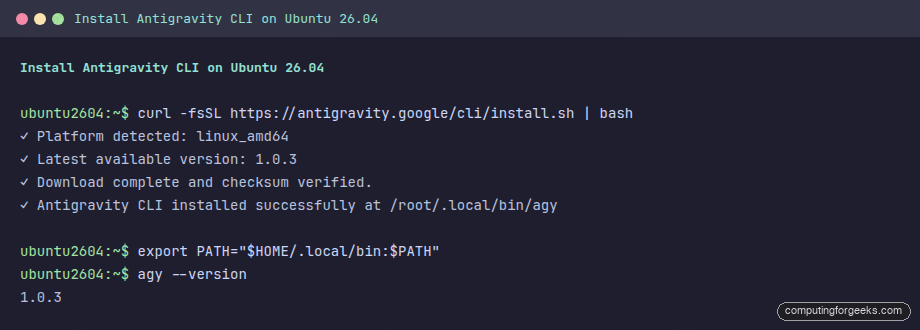
That single binary is around 180 MB because the whole agent runtime is compiled in. There is also a separate Python package, google-antigravity, but that is the SDK for building on top of the agent, not the CLI. Install the SDK only if you are writing code against it.
Fix the “Illegal instruction” AES error
If your very first agy command dies instantly with a fatal error and a core dump, you are almost certainly on a virtual machine. The binary is compiled with hardware AES enabled, and it refuses to start when the CPU it sees does not expose the AES instruction set:
FATAL ERROR: This binary was compiled with aes enabled, but this feature is not available on this processor (go/sigill-fail-fast).
Illegal instruction (core dumped)
Physical machines with any recent Intel or AMD CPU never hit this. Virtual machines do, because the default emulated CPU model masks host features like AES. The fix is to expose the host CPU to the guest. On Proxmox or plain KVM, set the CPU type to host and cold-boot the VM so the new model attaches:
qm set 151 --cpu host
qm stop 151 && qm start 151
A plain reboot is not enough, because the CPU model only changes when the VM process restarts. After the cold boot, check that the AES flag is now visible inside the guest, then run the version command again. It should return cleanly:
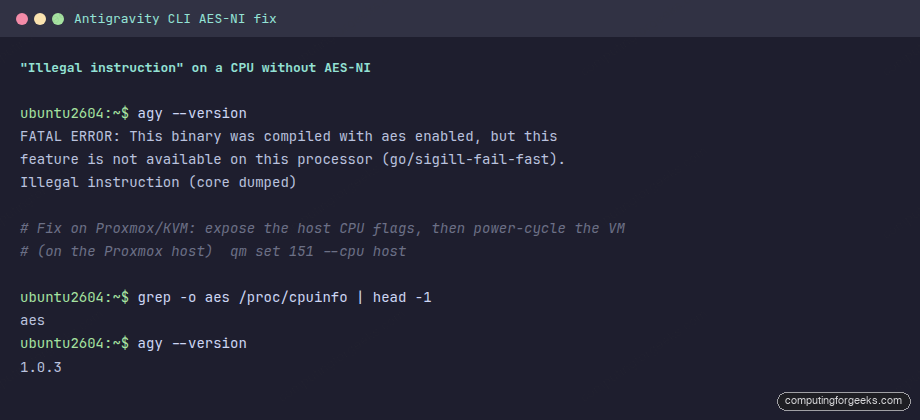
On other hypervisors the idea is identical even if the command differs. In VMware set the guest to pass through the host CPU, and in cloud VMs pick an instance type whose vCPUs expose AES, which nearly all of them do.
Sign in with your Google account
There is no login subcommand. Authentication fires the first time you run anything that needs the model. Trigger it with a throwaway prompt:
agy -p "say hi"On a desktop the tool opens your browser. Over SSH it prints an authorization URL and waits. Open that URL in a browser signed into the Google account you want to use, approve the consent screen, and the callback page hands you an authorization code. Paste that code back into the terminal and the CLI exchanges it for a token. A free account is enough during the preview, so this works without any paid subscription.
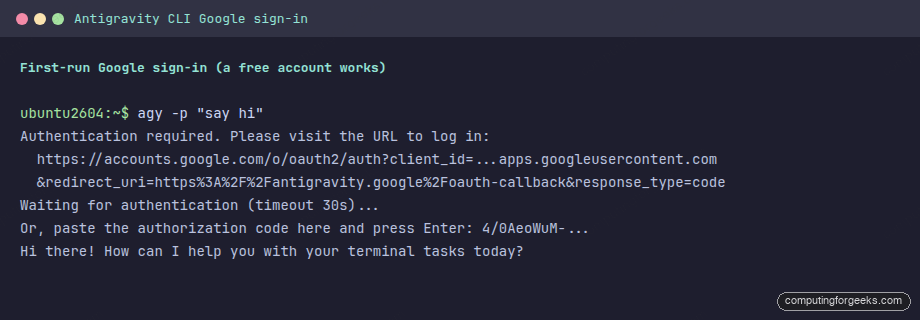
This is a real change from the Gemini CLI, which read a GEMINI_API_KEY environment variable. Any scripts or CI jobs that exported that variable need rethinking, because the Antigravity CLI keeps credentials in the system keyring or a token file instead.
Where the token and config actually live
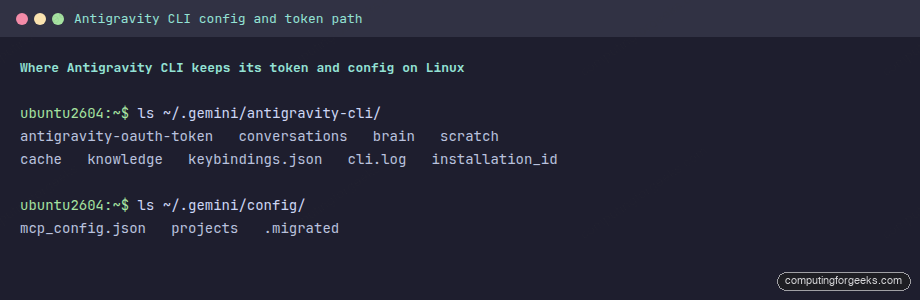
Several early write-ups claim the credentials sit in ~/.config/agy/credentials.json. They do not. On Linux the OAuth token is a plain file at ~/.gemini/antigravity-cli/antigravity-oauth-token, and the rest of the configuration lives under ~/.gemini as well, including the MCP server config and your saved conversations. On macOS the token goes into the Keychain under an entry named “Antigravity Safe Storage” rather than a file.
ls ~/.gemini/antigravity-cli/
ls ~/.gemini/config/
That token file is the piece you copy to reuse a session on a headless server or in CI, so it is worth knowing the real path:
One practical warning for unattended servers. The interactive paste prompt closes after roughly thirty seconds, which is too short to relay a human sign-in through a chat or a ticket. Authenticate in a shell where you can paste the code yourself within seconds, or sign in once on a workstation and copy the token file across. The official guidance for CI is exactly that: cache the token and mount it on the runner.
Install on macOS and Windows
macOS uses the same installer. On an Apple Silicon Mac the script detects the darwin_arm64 build and drops agy into ~/.local/bin just as it does on Linux:
curl -fsSL https://antigravity.google/cli/install.sh | bashIf your shell profile is managed by a tool like nix-darwin or Home Manager, the installer cannot edit the read-only profile and prints a non-fatal warning. The binary still works; just call it by its full path ~/.local/bin/agy or add the directory to your managed config yourself. Windows uses a PowerShell one-liner instead:
irm https://antigravity.google/cli/install.ps1 | iexWindows installs the same native binary, so there is no Node.js or npm in the loop. The sign-in flow is identical to the desktop path on macOS, with the browser opening automatically.
Run your first agentic task
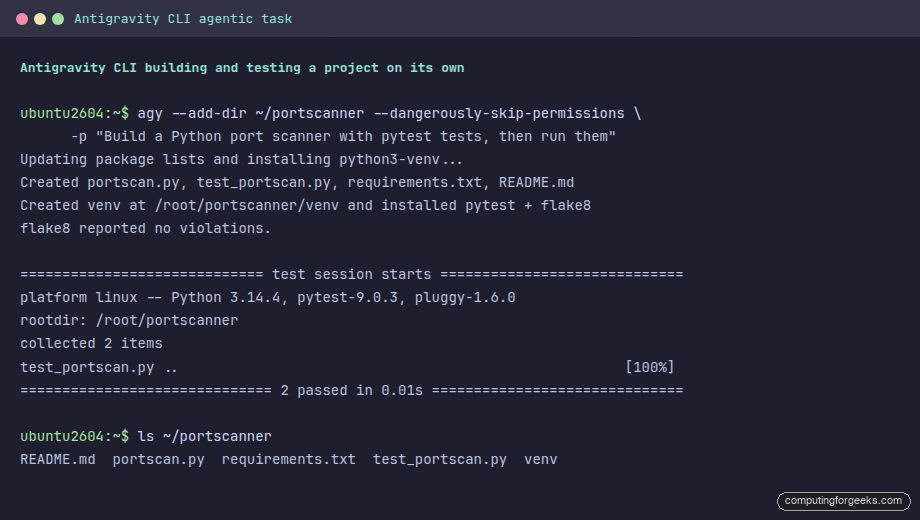
The point of the Antigravity CLI is not chatting, it is letting an agent do multi-step work on its own. Print mode runs a single prompt non-interactively and lets the agent use tools to reach the goal. Two flags matter here. --add-dir points the agent at a real working directory, and --dangerously-skip-permissions auto-approves the shell and file actions so the run does not stop to ask. Only use that second flag in a throwaway directory or a disposable VM.
mkdir -p ~/portscanner
agy --add-dir ~/portscanner --dangerously-skip-permissions \
    -p "Build a Python port scanner with pytest tests, then run them"
From that single sentence the agent installed the python3-venv package, wrote a clean port-scanner module and an argparse CLI, added a pytest file with an open-port and a closed-port case, created a virtual environment, installed pytest and flake8 into it, checked the formatting, and ran the suite. The tests passed and the files landed in the directory we pointed it at:
Skip the --add-dir flag and you get a surprise. In print mode the agent defaults to a scratch workspace under ~/.gemini/antigravity-cli/scratch/ rather than your current directory, so your new files appear to vanish. Always name the directory you want the agent to work in, and the output stays where you expect.
The async, multi-agent orchestration is the headline difference from the Gemini CLI. Larger jobs run in the background while you keep using the terminal, which is the same model that terminal agents like Claude Code and the Codex CLI popularised. If you are weighing up the field, our comparison of open-source terminal coding agents is a useful map.
Migrate from the Gemini CLI
Treat the 18 June 2026 cutoff as real. After that date the Gemini CLI and the Gemini Code Assist IDE extensions stop answering for free, Pro, and Ultra accounts. The good news is that the concepts you built around the old tool carry over. Agent skills, hooks, subagents, and extensions all exist in the Antigravity CLI, although Google is explicit that there is no one-to-one parity at launch, so expect to re-test custom setups rather than lift them verbatim.
The migration steps are short. Install the Antigravity CLI as above, sign in once, then port your prompts and any project configuration. If you keep a command reference for the old tool, our Gemini CLI cheat sheet is a good side-by-side while you map the equivalents. Enterprise teams with a Code Assist licence can stay on the Gemini CLI for now, but everyone else should plan the switch before the deadline rather than on it.
Troubleshooting
These are the snags we actually hit while testing, with the fix for each.
“Illegal instruction (core dumped)” on first run
The CPU lacks AES instructions, which only happens on virtual machines with a masked CPU model. Set the guest CPU to pass through the host, as shown in the AES section above, and cold-boot the VM. Confirm with grep -o aes /proc/cpuinfo before retrying.
“agy: command not found” right after install
The binary is in ~/.local/bin, which is not on the PATH of a fresh shell. Run export PATH="$HOME/.local/bin:$PATH" for the session, open a new terminal so the profile change takes effect, or call the binary by its full path.
Sign-in keeps timing out over SSH
The pasted-code window is short. Complete the browser step first, have the code on your clipboard, then run the auth command and paste immediately. For servers you manage regularly, sign in once on a workstation and copy ~/.gemini/antigravity-cli/antigravity-oauth-token to the same path on the server.
The agent’s files are nowhere to be found
Without --add-dir, print mode writes to the scratch workspace under ~/.gemini/antigravity-cli/scratch/. Re-run with --add-dir /path/to/project pointed at the directory you actually want, and reference that same path in the prompt.
With the binary installed, the AES gotcha out of the way, and a token cached, the Antigravity CLI behaves like a capable background agent rather than a chat box. Point it at a directory, give it a concrete task, and let it work while you move on to the next thing.