

Running Windows software on Linux has gone from a novelty to a boring, reliable part of a Linux desktop. Wine bridges that gap without a VM, without a dual boot, and without buying a Windows license. This guide walks through installing Wine on Debian 13 trixie, either from the distro’s own package set or the upstream WineHQ repo that ships fresher releases.
We cover both paths: Debian’s bundled Wine (fast to install, one release behind upstream) and the official WineHQ APT repository (the path most readers want). You will also set up 32-bit support because most Windows installers still need it, install Winetricks for fonts and DLLs, boot a Wine prefix, and isolate apps into separate prefixes so one broken install does not take the rest down with it. Tested on Debian 13 trixie and covers Debian 12 bookworm where the steps differ.
Last verified: April 2026 | Tested on Debian 13.4 trixie (kernel 6.12) with WineHQ stable 11.0 and Debian-packaged Wine 10.0
Prerequisites
Before starting, confirm:
- A Debian 13 trixie or Debian 12 bookworm system. Kernel 6.1 or newer is fine
- Root or sudo access
- At least 4 GB free disk. A single Wine prefix with a few apps easily hits 2 GB
- Working network to
deb.debian.organd, for the upstream path,dl.winehq.org - A desktop environment if you plan to run GUI Windows apps. Headless servers work for CLI Windows binaries, but a real display is needed for installers like Notepad++
Step 1: Enable 32-bit architecture
Debian defaults to amd64 only. Most Windows installers still ship 32-bit components even when the app itself is 64-bit, so Wine needs i386 packages to link against. Add the architecture and refresh the package index:
sudo dpkg --add-architecture i386
sudo apt update
Confirm i386 is now active:
dpkg --print-foreign-architecturesThe output should list i386:
i386Skip this step and the WineHQ installer will fail with missing wine-stable-i386:i386 dependencies, which is the single most common reason a Wine install breaks on a fresh Debian box.
Step 2: Install Wine from the Debian repository (quick path)
Debian 13 trixie packages Wine 10.0 in the otherosfs section of main. It is one release behind WineHQ’s current stable, but it pulls in cleanly through APT and integrates with the rest of the system packages. Good enough for quick testing or if you prefer Debian’s release cadence over upstream’s.
Install the meta package plus both 32-bit and 64-bit runtimes, and add Winetricks while you are at it:
sudo apt install -y wine wine32 wine64 winetricksAPT pulls in several hundred i386 multiarch dependencies (GTK, FreeType, ALSA, libvulkan, and friends) on first run. Expect ~500 MB of downloads and closer to 1.5 GB installed. Check the version when it is done:
wine --versionOn Debian 13 trixie this reports:
wine-10.0 (Debian 10.0~repack-6)On Debian 12 bookworm the same command installs Wine 8.0 from the distro, which is older again. If that version is too old for the Windows app you care about, stop here, remove the Debian Wine, and use the WineHQ repository in the next section instead.
To remove the Debian Wine before switching to WineHQ:
sudo apt remove -y wine wine32 wine64
sudo apt autoremove -y
Step 3: Add the WineHQ APT repository (recommended path)
The WineHQ project publishes its own APT repository with three branches:
- Stable (
winehq-stable): what most users want. Currently 11.0 - Development (
winehq-devel): newer features, more fixes, more regressions - Staging (
winehq-staging): development plus experimental patches, mostly for games
Debian 13 trixie is supported as a first-class suite by WineHQ, so pick it directly. If you are on Debian 12 bookworm, swap trixie for bookworm in the sources file below and everything else is identical.
First, drop the WineHQ signing key into the modern /etc/apt/keyrings location. Never use the deprecated apt-key add flow, which has been disabled on Debian 12 and later:
sudo mkdir -p /etc/apt/keyrings
wget -qO- https://dl.winehq.org/wine-builds/winehq.key | sudo gpg --dearmor -o /etc/apt/keyrings/winehq.gpg
Next, create a deb822-format sources file. Debian 13 ships with a deb822-capable APT, and this format is cleaner than the old single-line style because each field is explicit. Open a new sources file for editing:
sudo nano /etc/apt/sources.list.d/winehq.sourcesPaste the following content and save:
Types: deb
URIs: https://dl.winehq.org/wine-builds/debian/
Suites: trixie
Components: main
Architectures: amd64 i386
Signed-By: /etc/apt/keyrings/winehq.gpg
Refresh the index and confirm WineHQ packages appear:
sudo apt update
apt-cache policy winehq-stable
Expect something like:
winehq-stable:
  Installed: (none)
  Candidate: 11.0.0.0~trixie-1
  Version table:
     11.0.0.0~trixie-1 500
        500 https://dl.winehq.org/wine-builds/debian trixie/main amd64 Packages
     10.0.0.0~trixie-1 500
        500 https://dl.winehq.org/wine-builds/debian trixie/main amd64 Packages
WineHQ keeps older stable releases in the repo, so rolling back to 10.0 with apt install winehq-stable=10.0.0.0~trixie-1 is always an option.
Step 4: Install WineHQ stable
With the repo in place, install the stable branch. The --install-recommends flag pulls in extra packages (Mono, Gecko, 32-bit libraries) that legitimately improve compatibility, so keep it:
sudo apt install --install-recommends -y winehq-stableThis is a bigger download than the Debian-repo route because WineHQ bundles its own binaries under /opt/wine-stable rather than sharing system libraries. Verify the install:
wine --versionThe output confirms the upstream stable release:
wine-11.0Wine also ships a Windows-style version reporter. Check what Windows build Wine pretends to be:
wine cmd /c verBy default Wine 11 reports itself as Windows 10 to apps that ask:
Microsoft Windows 10.0.19045You can change that with winecfg if an installer insists on Windows 7 or 11.
Step 5: Install Winetricks
Winetricks is a helper script that downloads and installs Windows DLLs, fonts, and runtimes that Wine cannot redistribute itself (because Microsoft forbids it). Want Arial, Tahoma, or Times New Roman to render correctly in a Windows app? That is Winetricks. Need Visual C++ 2015 redist for a game? Winetricks. .NET Framework 4.8? Same story.
If you did not install it earlier, add it now:
sudo apt install -y winetricksVerify:
winetricks --versionDebian 13 packages a January 2026 snapshot:
20250102 - sha256sum: 9df4af038f04c753f3b0b02817cf60a51d8eac32357d070c45dfd139b93bd3f5For most apps the two most useful Winetricks verbs are:
corefonts: Arial, Times New Roman, Courier New, etc. Fixes 90% of “the font looks wrong” reportsvcrun2019: Visual C++ 2015-2022 redistributable. Required by a huge share of modern Windows software
Apply both to the default prefix once it is created in the next step:
winetricks -q corefonts vcrun2019The -q flag runs installers in quiet mode. If the EULA click-through on a component is flaky, drop the flag and click through manually.
Step 6: Initialize your first Wine prefix
A Wine prefix is a fake Windows install tree: its own C:\ drive, registry, and Program Files. By default Wine creates ~/.wine the first time it runs, but it is much cleaner to create prefixes explicitly so you know where they are.
Create a dedicated prefix and boot it:
WINEPREFIX=~/wine-default wineboot -uWineboot sets up the prefix, pre-creates the Windows filesystem layout, and registers the right DLLs. First-time init takes 30 to 60 seconds. When it finishes, look inside the fake C: drive:
ls ~/wine-default/drive_c/The output shows a convincing Windows layout:
ProgramData
Program Files
Program Files (x86)
users
windows
Smoke test: run the Windows command interpreter and print a message. This proves Wine can execute a PE binary end to end:
WINEPREFIX=~/wine-default wine cmd /c "echo Hello from Wine 11 on Debian 13"If everything works:
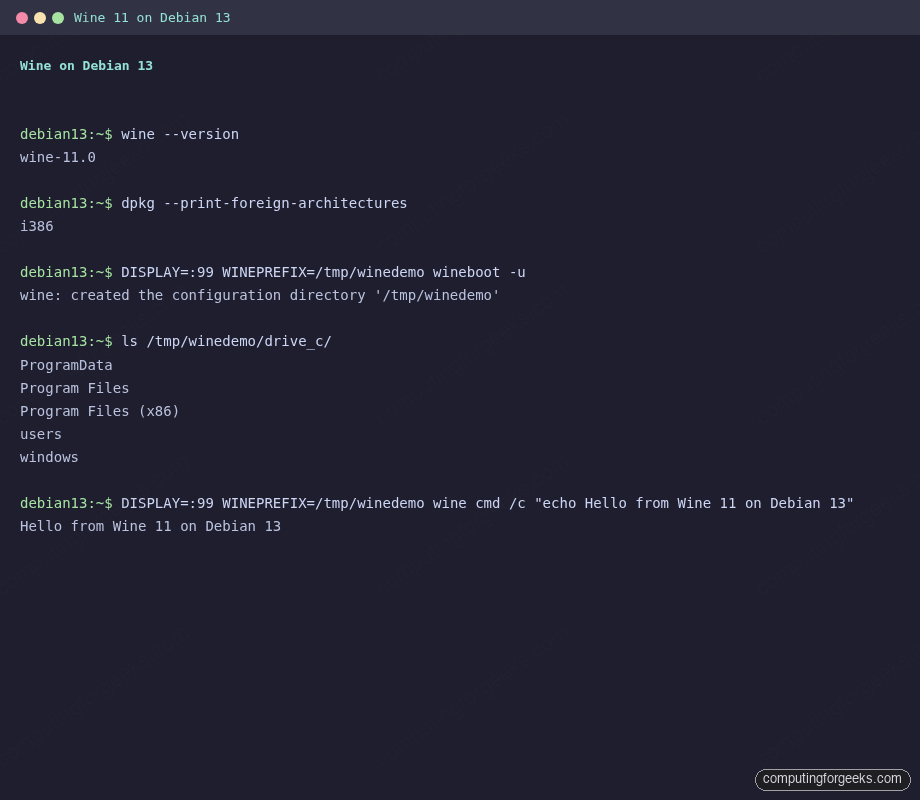
Hello from Wine 11 on Debian 13That one-line round trip through cmd.exe is a useful sanity check whenever you suspect a Wine install is partially broken. The screenshot below shows the full sequence of the same smoke test on the trixie test box, including the version check and the fake Windows layout under drive_c/:
For GUI apps, the rest of the flow is identical. Install an .exe:
WINEPREFIX=~/wine-default wine ~/Downloads/SomeInstaller.exeThe native Windows installer UI opens on your Linux desktop. Click through as you would on Windows.
If the app writes passwords or license keys anywhere, route them through a password manager rather than letting Wine store them in a prefix registry. 1Password has a native Linux client that plays well with Wine-hosted Windows apps, and recovery if a prefix corrupts beats digging through user.reg.
Step 7: Configure Wine with winecfg
The graphical settings tool for Wine is winecfg. Launch it against a specific prefix:
WINEPREFIX=~/wine-default winecfgThe useful tabs are:
- Applications: set the default Windows version (Windows 10 is the default in Wine 11, some legacy apps demand Windows 7 or XP)
- Libraries: override a DLL to use the Wine built-in or a native Windows copy. Used for troubleshooting specific apps
- Drives: map host Linux paths to fake Windows drive letters. Handy for exposing
/home/user/Documentsas a D: drive - Graphics: toggle virtual desktop mode (runs Wine apps inside a single window, avoids focus-stealing issues on tiling WMs)
Nothing here is strictly required for a working Wine. Adjust only when a specific app misbehaves.
Step 8: Isolate apps with multiple prefixes
One prefix for everything is the recipe for suffering. Winetricks installs leak across apps, registry changes accumulate, and an uninstaller that misbehaves wrecks every Windows app you have. Instead, use one prefix per app.
Create a separate prefix for a second app:
WINEPREFIX=~/wine-notepadplus wineboot -u
ls ~/wine-notepadplus/drive_c/
The new prefix is completely independent of the first. Same Windows layout, zero shared state:
ProgramData
Program Files
Program Files (x86)
users
windows
Winetricks flags installed into ~/wine-default are not present in ~/wine-notepadplus. You can run different Windows versions, different registry tweaks, even different Wine architectures (WINEARCH=win32 for apps that refuse to run 64-bit) per prefix.
A practical pattern is one prefix per app:
~/wine-office/          # Microsoft Office
~/wine-photoshop/       # Adobe Photoshop
~/wine-notepadplus/     # Notepad++
~/wine-games/           # One prefix for small games
Wrap the invocation in a shell alias if typing WINEPREFIX=~/wine-office every time is annoying:
alias wine-office='WINEPREFIX=$HOME/wine-office wine'
alias wine-np='WINEPREFIX=$HOME/wine-notepadplus wine'
Drop those lines in ~/.bashrc to persist them.
Graphical wrappers: Bottles and PlayOnLinux
If command-line prefix management feels tedious, two GUI wrappers around Wine manage prefixes for you:
- Bottles: the modern option, actively developed, Flatpak-first. Each “bottle” is a prefix with a curated set of Winetricks dependencies pre-applied for popular apps and games. Install with
flatpak install flathub com.usebottles.bottlesafter enabling Flathub - PlayOnLinux: the legacy option. Still maintained, but development has slowed. Recipes for older games, comfortable if you are migrating from an older Wine setup
Pick one or the other. Both tools manage Wine prefixes internally, so raw wine still works against prefixes they create. This guide sticks with the plain WineHQ flow because it is transferable across distros and does not hide what Wine is actually doing.
Debian 13 vs Debian 12: what actually differs
The steps above work on Debian 12 bookworm with two changes:
| Item | Debian 13 trixie | Debian 12 bookworm |
|---|---|---|
WineHQ Suites: | trixie | bookworm |
| Debian-packaged Wine | 10.0 | 8.0 |
| WineHQ stable available | 11.0 | 11.0 |
| Default APT sources format | deb822 (.sources) | single-line (.list) still common |
apt-key available | no (removed) | no (deprecated and disabled) |
If you copy a Wine install script off the internet that uses apt-key add, it is wrong for both bookworm and trixie. The /etc/apt/keyrings pattern shown in Step 3 is the only version that works on supported Debian releases.
Troubleshooting
Error: “Package winehq-stable has no installation candidate”
APT can see the repo but no matching binary. Almost always caused by missing i386 architecture. Confirm with:
dpkg --print-foreign-architecturesIf that prints nothing, redo Step 1. The WineHQ 32-bit package depends on i386 libc, which APT will not find without the architecture enabled.
Error: “wineserver crashed”
Two usual suspects. First is out-of-disk: Wine prefixes live in your home directory (or wherever WINEPREFIX points) and wineboot needs a few hundred MB. Run df -h ~. Second is a stale prefix from a crashed earlier run. Clean and retry:
pkill -9 wineserver
rm -rf ~/wine-default
WINEPREFIX=~/wine-default wineboot -u
Error: “Application tried to create a window, but no driver could be loaded”
Wine cannot find an X or Wayland display to draw into. On a headless server this is expected. For CLI-only Windows binaries, it is usually harmless noise. For real GUI apps on a headless box, either install a desktop (GNOME, XFCE, KDE Plasma) or run Wine under Xvfb with DISPLAY=:99 WINEPREFIX=~/wine-default wineboot -u after starting Xvfb :99.
Error: “Mono / Gecko installer prompts appear every time wineboot runs”
WineHQ does not bundle Mono and Gecko with the packages, so Wine offers to download them on first prefix init. If you are scripting prefix creation and want to skip the prompts (for apps that do not need HTML rendering or .NET), set WINEDLLOVERRIDES='mscoree,mshtml=' before wineboot:
WINEDLLOVERRIDES='mscoree,mshtml=' WINEPREFIX=~/wine-default wineboot -uFor everyday desktop use, accept the installers. Mono handles .NET 2.0-3.5 apps, Gecko handles embedded web views that some installers use for their welcome screen.
Error: “winetricks fails with ‘warning: You appear to be using Wine’s new wow64 mode'”
This is a notice, not an error. Wine 11 ships a rewritten 32-on-64 layer, and some Winetricks components still expect the classic wow64 path. Most verbs work fine. If a specific verb fails and the log mentions wow64, create a pure 32-bit prefix and install the component there:
WINEARCH=win32 WINEPREFIX=~/wine-32bit wineboot -u
WINEPREFIX=~/wine-32bit winetricks -q vcrun2019
Keeping Wine current
Once WineHQ is in your APT sources, routine updates are boring:
sudo apt update
sudo apt upgrade
New WineHQ stable releases (typically one major bump per year plus a couple of point releases) flow through the standard APT pipeline. No special steps. If you want to ride the development branch instead, switch the installed package:
sudo apt remove -y winehq-stable
sudo apt install --install-recommends -y winehq-devel
Expect more regressions on winehq-devel. Most desktop users should stay on stable unless a specific fix they need has not landed there yet.
Related Debian guides on this site
Keep reading:
- Things to do after installing Debian 13 trixie covers the first-boot tasks every new Debian box needs
- How to install Wine on Ubuntu Linux is the Ubuntu-focused companion for the same workflow
- Run Windows apps on Ubuntu or Debian using Winetricks goes deeper on Winetricks verbs and per-app recipes
- How to install Docker on Debian in case you would rather run a Windows container stack than a Wine prefix
- Install XAMPP on Debian for a native LAMP stack alongside your Wine-hosted Windows dev tools
Newsletter
Want more tested Linux tutorials like this one landing in your inbox? Subscribe to the newsletter at computingforgeeks.com/newsletter-signup for weekly drops on Debian, Rocky, Ubuntu, and FreeBSD sysadmin topics.
Need this set up for you?
Setting up a fleet of Debian workstations with a standardized Wine prefix for a legacy Windows app? Hire the team behind ComputingForGeeks to do it for you: scripted Wine prefix provisioning, Ansible roles for rollout, and troubleshooting guidance for the Windows app you are migrating. One-off engagements and ongoing retainers welcome.




The repository to debian 9 isn’t avaliable. Follow install process of debian 10
Sorry, my english is too bad.
Some packages could not be installed. This may mean that you have
requested an impossible situation or if you are using the unstable
distribution that some required packages have not yet been created
or been moved out of Incoming.
The following information may help to resolve the situation:
The following packages have unmet dependencies:
winehq-stable : Depends: wine-stable (= 6.0.0~buster-1)
E: Unable to correct problems, you have held broken packages.
x2 wine-stable (=8.0.1~brookworm-1)
The final command didnot work, i was completing the version 10. what did I do wrong.
Hi,
Which command in particular failed to work?
debian 9 support ended upgrade to 10
seems to work pretty sweet for Debian Buster. Thank you!
Awesome!
the ·
wine help commands did not work
Which command?
Leyendo lista de paquetes… Hecho
Creando árbol de dependencias
Leyendo la información de estado… Hecho
No se pudieron instalar algunos paquetes. Esto puede significar que
usted pidió una situación imposible o, si está usando la distribución
inestable, que algunos paquetes necesarios aún no se han creado o se
han sacado de «Incoming».
La siguiente información puede ayudar a resolver la situación:
Los siguientes paquetes tienen dependencias incumplidas:
winehq-stable : Depende: wine-stable (= 7.0.1~bookworm-1)
E: No se pudieron corregir los problemas, usted ha retenido paquetes rotos.
me pasa lo mismo
Hi, i was installing Wine 8 for Debian 10.10, Hinux 5, i proceeded to use the command ”sudo apt install –install-recommends winehq-stable” after doing all the steps carefully, and when i use it, i get an error that says ”could not find winehq-stable” or something like that, may someone know how to solve it?
Hi, today i was trying to install Wine on my Hinux 5 (Debian 10.10), and almost finishing, when i executed the command ”sudo apt install –install-recommends winehq-stable” it said something like ”could not find winehq-stable library” and i followed all the steps correctly, someone knows how to make it work?
We’ve tested the article and it works. Did you add the repo as we recommended.
hola quetal, hice todos los pasos al pie de la letra y cuando pongo el comando me aparece esto
estudiante@juanamanso:~$ sudo apt install –install-recommends winehq-stable
Leyendo lista de paquetes… Hecho
Creando árbol de dependencias
Leyendo la información de estado… Hecho
E: No se ha podido localizar el paquete winehq-stable
Los siguientes paquetes tienen dependencias incumplidas:
winehq-stable : Depende: wine-stable (= 8.0.0.0~bullseye-1)
E: No se pudieron corregir los problemas, usted ha retenido paquetes rotos.
Hola, Necesito ayuda con un error que me salta al querer usar el comando wget,
lo siguiente es el error que me sucede
estudiante@User:~$ wget -O- -q https://download.opensuse.org/repositories/Emulators:/Wine:/Debian/Debian_10/Release.key | sudo apt-key add –
gpg: no se han encontrados datos OpenPGP válidos
Que puedo hacer (?
EN-US:
Worked “first try”.
I had tried to install Wine by myself, but those attempts did not work, then I went to this tutorial and it worked PERFECTLY!
ES-AR:
Funcionó “a la primera”.
Resulta que yo había intentado instalar Wine por mi cuenta, pero me daba muchos (realmente, MUCHOS) errores. Después encontré este artículo y seguí los pasos: FUNCIONÓ AL TOQUE!
Nice happy to hear that.