

LAMP is the four-letter shorthand for the original web-app stack: Linux, Apache, MySQL or MariaDB, and PHP. On Fedora, every piece of that stack is in the default repositories at current upstream versions: Apache 2.4, PHP 8.5 (running as FPM by default rather than the old mod_php), and MariaDB 11.8 LTS as the database. No third-party repos, no Software Collections, no PPAs. One dnf install line plus a handful of SELinux booleans and you have a working web server.
This guide installs the full LAMP stack on Fedora 44, 43, and 42, walks through the PHP-FPM integration that Fedora wires up automatically, flips the right SELinux booleans so PHP can reach the database and open outbound connections, opens the firewall, and ends with a real PHP page that reads from a MariaDB table. Every command was run on a clean Fedora 44 box.
Prerequisites
A Fedora 44, 43, or 42 system with sudo access. The stack is fine on Workstation, Server, or Cloud Edition. SELinux can stay in enforcing mode (it must, for production), and the steps below cover the booleans you will need to flip. Plan for ports 80 and 443 to be reachable if you intend to serve traffic from beyond the host.
Step 1: Set reusable shell variables
Pin the variables every later step will reference: the document root, the database name, the database user, and the password:
export WEB_ROOT="/var/www/html"
export APP_DB="appdb"
export APP_USER="appuser"
export APP_USER_PW="AppPass2026!"
export MARIADB_ROOT_PW="Strong@Pass2026!"
Confirm the variables are set:
echo "Web root: ${WEB_ROOT}"
echo "DB:       ${APP_DB}"
echo "User:     ${APP_USER}"
Step 2: Install Apache, PHP, and MariaDB
One dnf transaction pulls every piece of the LAMP stack along with the common PHP extensions almost every app needs (mysqli, GD, XML, mbstring, curl, intl, zip):
sudo dnf install -y httpd \
  mariadb-server \
  php php-cli php-fpm php-mysqlnd php-opcache \
  php-gd php-xml php-mbstring php-curl php-zip php-intl
The transaction installs roughly 30 packages and around 130 MiB of payload. Fedora wires php-fpm in as the SAPI for Apache automatically through a drop-in unit file (/usr/lib/systemd/system/httpd.service.d/php-fpm.conf), so starting httpd brings up php-fpm as well.
Step 3: Verify versions
Confirm all three components installed at the expected current versions:
httpd -v
php -v
mariadb --version
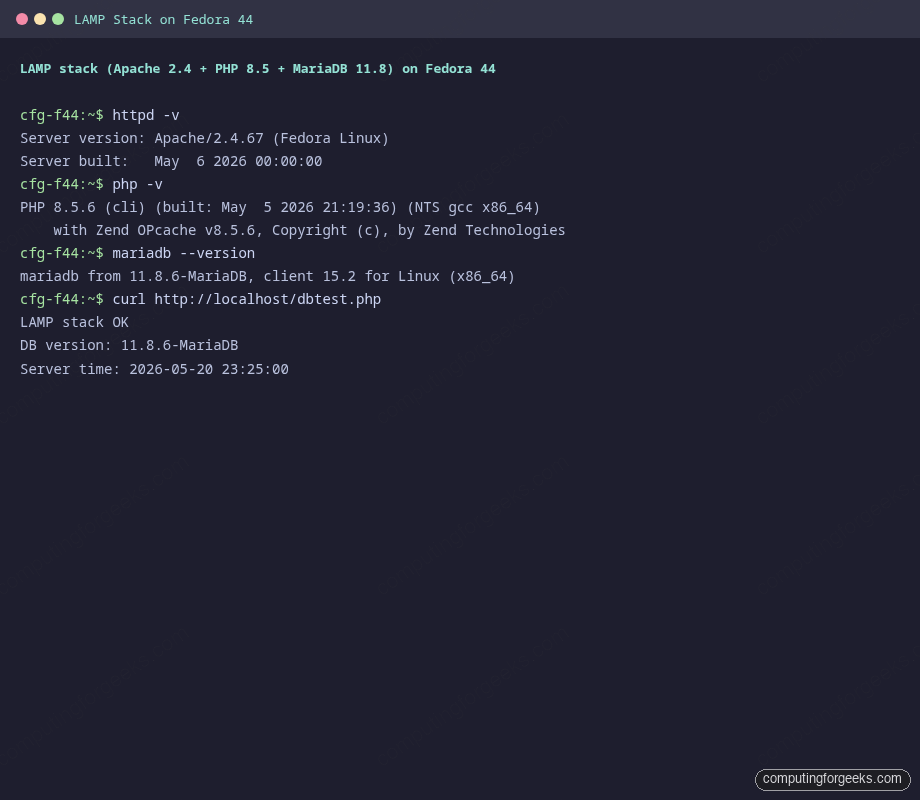
On Fedora 44, the trio looks like this:
Server version: Apache/2.4.67 (Fedora Linux)
Server built:   May  6 2026 00:00:00

PHP 8.5.6 (cli) (built: May  5 2026 21:19:36) (NTS gcc x86_64)
Copyright (c) The PHP Group
Built by Fedora Project
Zend Engine v4.5.6, Copyright (c) Zend Technologies
    with Zend OPcache v8.5.6, Copyright (c), by Zend Technologies

mariadb from 11.8.6-MariaDB, client 15.2 for Linux (x86_64) using EditLine wrapper
List the PHP modules that loaded to confirm the common extensions (mysqli, gd, intl, mbstring, etc.) are available:
php -m | grep -iE 'mysqli|mysqlnd|gd|intl|mbstring|curl|xml|zip|opcache'Step 4: Start Apache and MariaDB
Enable both services for boot and start them now. php-fpm rides along with httpd via the drop-in unit:
sudo systemctl enable --now mariadb httpdCheck both are running:
sudo systemctl is-active mariadb httpd
sudo systemctl status httpd --no-pager | head -10
The httpd status output shows the php-fpm drop-in is loaded alongside the main unit, which confirms PHP is wired in:
● httpd.service - The Apache HTTP Server
     Loaded: loaded (/usr/lib/systemd/system/httpd.service; enabled; preset: disabled)
    Drop-In: /usr/lib/systemd/system/service.d
             └─10-timeout-abort.conf
             /usr/lib/systemd/system/httpd.service.d
             └─php-fpm.conf
     Active: active (running) since Wed 2026-05-20 23:18:24 UTC; 2s ago
       Docs: man:httpd.service(8)
   Main PID: 17798 (httpd)
Step 5: Secure MariaDB and create the app database
On a fresh MariaDB install, root logs in via unix_socket with no password. Set a real root password and create the application database and user in one session:
sudo mariadb <<SQL
ALTER USER 'root'@'localhost' IDENTIFIED BY '${MARIADB_ROOT_PW}';
DELETE FROM mysql.user WHERE User='';
DROP DATABASE IF EXISTS test;
DELETE FROM mysql.db WHERE Db='test' OR Db='test\_%';
CREATE DATABASE ${APP_DB} CHARACTER SET utf8mb4 COLLATE utf8mb4_unicode_ci;
CREATE USER '${APP_USER}'@'localhost' IDENTIFIED BY '${APP_USER_PW}';
GRANT ALL PRIVILEGES ON ${APP_DB}.* TO '${APP_USER}'@'localhost';
FLUSH PRIVILEGES;
SQL
Verify the new database and user are in place:
mariadb -u"${APP_USER}" -p"${APP_USER_PW}" -e "SHOW DATABASES;"If you want a deeper walkthrough of MariaDB tuning and backups, the MariaDB on Fedora guide covers the same stack in depth. To use Oracle’s MySQL build instead of MariaDB, swap the package install and follow the MySQL on Fedora guide.
Step 6: Set SELinux booleans for PHP
SELinux ships with strict defaults that block Apache and PHP from doing things they often need: writing to user-controlled directories, opening network sockets, talking to remote databases. The booleans below loosen those rules in targeted ways without disabling SELinux.
Inspect the current state of the relevant booleans:
getsebool -a | grep -E 'httpd_can_network_connect|httpd_can_network_connect_db|httpd_unified'On a fresh install they are all off:
httpd_can_network_connect --> off
httpd_can_network_connect_db --> off
httpd_unified --> off
Flip on the ones your app actually needs. For an app that connects to a remote database or makes outbound HTTP calls (most modern PHP apps do):
sudo setsebool -P httpd_can_network_connect_db 1
sudo setsebool -P httpd_can_network_connect 1
The -P flag makes the change persistent across reboots. Skip it if you are testing temporarily.
If you need PHP to write to a user-owned directory (uploads, sessions, cache), set the correct SELinux context on it:
sudo mkdir -p "${WEB_ROOT}/uploads"
sudo chown -R apache:apache "${WEB_ROOT}/uploads"
sudo semanage fcontext -a -t httpd_sys_rw_content_t "${WEB_ROOT}/uploads(/.*)?"
sudo restorecon -Rv "${WEB_ROOT}/uploads"
The semanage command persists the type definition so a future restorecon on the system root preserves it. restorecon -Rv applies it immediately and prints what it changed.
Step 7: Open the firewall for HTTP and HTTPS
Fedora Cloud Edition ships without firewalld. Workstation and Server install it and run it by default. When firewalld is active, allow the http and https services:
sudo firewall-cmd --permanent --add-service=http
sudo firewall-cmd --permanent --add-service=https
sudo firewall-cmd --reload
Confirm the services are now listed:
sudo firewall-cmd --list-servicesFor zone-scoped rules or rich-rule filtering by source subnet, see the firewalld zones and rich-rules guide for Fedora.
Step 8: Test the LAMP stack end to end
Drop a small PHP script under the document root that confirms both PHP and the MariaDB connection are wired correctly:
sudo vi ${WEB_ROOT}/dbtest.phpPaste the following and save:
<?php
$host = '127.0.0.1';
$user = 'appuser';
$pass = 'AppPass2026!';
$db   = 'appdb';

try {
    $pdo = new PDO("mysql:host=$host;dbname=$db;charset=utf8mb4", $user, $pass);
    $pdo->setAttribute(PDO::ATTR_ERRMODE, PDO::ERRMODE_EXCEPTION);
    $row = $pdo->query('SELECT VERSION() AS ver, NOW() AS ts')->fetch();
    printf("LAMP stack OK\nDB version: %s\nServer time: %s\n", $row['ver'], $row['ts']);
} catch (PDOException $e) {
    die('DB connection failed: ' . $e->getMessage() . "\n");
}
Restore the SELinux context on the new file (Apache reads files of type httpd_sys_content_t; new files default to unconfined_u:object_r:httpd_sys_content_t only when created under /var/www):
sudo restorecon -v ${WEB_ROOT}/dbtest.phpFetch the page through Apache:
curl http://localhost/dbtest.phpA working stack returns three lines confirming the PHP-to-MariaDB path:
LAMP stack OK
DB version: 11.8.6-MariaDB
Server time: 2026-05-20 23:25:00
Side-by-side proof captured on the test box: Apache, PHP, and MariaDB all at their Fedora-shipped current versions, and the PHP page reaching MariaDB through the localhost socket without an SELinux denial:
If you instead see a “DB connection failed” error, the httpd_can_network_connect_db boolean from Step 6 was not set. Re-run the setsebool line and try again.
Step 9: Tune PHP for production
The Fedora defaults are conservative. For a real web app, edit /etc/php.ini and adjust the limits that bite first under load:
sudo vi /etc/php.iniChange these keys (search for each, uncomment if needed, then save):
memory_limit = 256M
upload_max_filesize = 64M
post_max_size = 64M
max_execution_time = 60
max_input_vars = 3000
date.timezone = "Africa/Nairobi"

; OPcache tuning
opcache.enable = 1
opcache.memory_consumption = 256
opcache.interned_strings_buffer = 32
opcache.max_accelerated_files = 20000
opcache.validate_timestamps = 1
opcache.revalidate_freq = 2
Restart Apache (which restarts php-fpm via the drop-in) to apply:
sudo systemctl restart httpdphp-fpm itself has a pool config at /etc/php-fpm.d/www.conf. The two knobs you will revisit most are pm (set to dynamic, static, or ondemand) and pm.max_children (the maximum number of PHP worker processes). Size max_children based on RAM: roughly (RAM_in_MB * 0.7) / per_worker_MB.
Step 10: Create a virtual host
The default Apache config serves everything from /var/www/html. To host multiple sites on the same server, create a per-site config under /etc/httpd/conf.d/:
sudo vi /etc/httpd/conf.d/example.com.confPaste a minimal virtual host definition:
<VirtualHost *:80>
    ServerName example.com
    ServerAlias www.example.com
    DocumentRoot /var/www/example.com
    ErrorLog /var/log/httpd/example.com-error.log
    CustomLog /var/log/httpd/example.com-access.log combined

    <Directory /var/www/example.com>
        Options -Indexes +FollowSymLinks
        AllowOverride All
        Require all granted
    </Directory>
</VirtualHost>
Create the doc root with the right ownership and SELinux context:
sudo mkdir -p /var/www/example.com
sudo chown -R apache:apache /var/www/example.com
sudo restorecon -Rv /var/www/example.com
Test the config and reload:
sudo apachectl configtest
sudo systemctl reload httpd
Step 11: Enable HTTPS with Let’s Encrypt
For any production site, TLS is non-optional. Install certbot with the Apache plugin:
sudo dnf install -y certbot python3-certbot-apacheRun certbot in apache mode. The plugin reads your virtual host, generates the cert, rewrites the vhost with the SSL block, and sets up an automatic redirect:
sudo certbot --apache -d example.com -d www.example.com \
  --non-interactive --agree-tos -m [email protected] --redirect
Certbot installs a systemd timer that renews certificates automatically before they expire. Check the timer:
systemctl list-timers | grep certbot
sudo certbot renew --dry-run
Troubleshooting
Error: DB connection failed – PDO connection refused
Three things to check, in order: (1) MariaDB is running (systemctl is-active mariadb), (2) the SELinux boolean httpd_can_network_connect_db is on (getsebool httpd_can_network_connect_db), (3) the database user exists with the right host scope (mariadb -uroot -p -e "SELECT user, host FROM mysql.user;"). For connection over TCP rather than the local socket, the host needs to be the IP literal 127.0.0.1, not localhost (which forces socket mode on the mysqli client).
Apache shows the test page but PHP files download instead of executing
php-fpm is not running, or the httpd-php drop-in is not active. Confirm both:
sudo systemctl is-active php-fpm
sudo systemctl status httpd | grep -i drop-in
If php-fpm is inactive, start it: sudo systemctl enable --now php-fpm and restart httpd.
Error: SELinux is preventing httpd from name_connect access
Some PHP module is trying to open a network socket (a remote DB, an external API, a webhook) and SELinux is blocking it. The fix is the boolean from Step 6:
sudo setsebool -P httpd_can_network_connect 1Check the audit log for the specific denial if you want to write a more targeted policy instead:
sudo ausearch -m AVC,USER_AVC -ts recent | tail -20“AH00558: Could not reliably determine the server’s fully qualified domain name”
Cosmetic Apache warning, not a failure. Apache could not auto-resolve a global ServerName. Set one in /etc/httpd/conf/httpd.conf by uncommenting and editing the ServerName line, or add ServerName localhost to silence the warning on a single-host setup.
Useful LAMP commands
A short reference of the commands you will reach for most after the install:
| Command | What it does |
|---|---|
sudo apachectl configtest | Validate Apache config without restarting |
sudo systemctl reload httpd | Reload config without dropping connections |
sudo systemctl restart httpd | Full restart (drops connections) |
sudo journalctl -u httpd -f | Tail Apache logs from systemd |
sudo tail -f /var/log/httpd/error_log | Tail the Apache error log |
sudo systemctl restart php-fpm | Reload PHP-FPM (after php.ini changes) |
php -r 'phpinfo();' | Dump full PHP config from the CLI |
php -m | List loaded PHP modules |
mariadb -uroot -p | Interactive MariaDB root login |
sudo apachectl -M | List loaded Apache modules |
sudo getsebool -a | grep httpd | List every SELinux boolean for Apache |
sudo ausearch -m AVC -ts recent | Recent SELinux denials |
To manage MariaDB databases through a browser instead of the CLI, install phpMyAdmin on Fedora. To swap MariaDB for the Oracle MySQL build, follow the MySQL on Fedora guide. For a containerised LAMP stack where each app gets its own isolated Apache/PHP/DB, run the official images under Docker on Fedora.

Tried entering Domain Name said I was not Authorized!?
I had the same problem. So I came out of VIM and reopened the file with the SUDO prefix and hey presto.
Spell Check added space in Domain Name
After the phpinfo.php file is created the command “sudo systemctl reload httpd” does not work. The proper command is “sudo systemctl restart httpd”. Then everything works like it should, and without using SUDO before launching the phpinfo.php in the browser.
Thanks for the correction.
Hi Josephat! I noticed someone on Stack Exchange referring to this answer. Rather than the somewhat-long section on disabling SELinux, why not just explain `sudo chcon -R -t httpd_sys_content_t /srv/www/root` (or whatever path to files)? Seems like that’s actually just as easy, and leaves SELinux protection in place for other things.
I agree. I would encourage people to learn how to run LAMP with SELinux protection instead of disabling SELinux.