

KDE is a very popular open community desktop environment designed to be powerful, simple and customizable to suit user demands without compromising freedom and privacy. Plasma comes with plenty of free applications that enables you to perform your day-to-day tasks without changing machines – from web surfing, messaging, music and video playing, files management to creative and productive work.
In this article we will look at how you as an end user can install KDE Plasma Desktop on Linux Mint 22. We had discussed a step by step installation of Linux Mint in our previous article. You can refer to it if you don’t have a running system already. Also check out:
Install KDE Plasma Desktop on Linux Mint 22
Since Linux Mint 22 is based on Ubuntu 24.04, we can use the repository for Kubuntu 24.04 to install Plasma Desktop on Linux Mint 22. Before we perform any installation we shall update and upgrade our system.
sudo apt update && sudo apt -y full-upgradeIf the reboot is required the system has to be restarted:
[ -f /var/run/reboot-required ] && sudo reboot -fStep 1: Add Kubuntu Backports repository
The backports repository that we’ll add contain the new versions of KDE Platform, Plasma and Applications as well as major KDE apps for Kubuntu. It should work just well for Linux Mint 22.
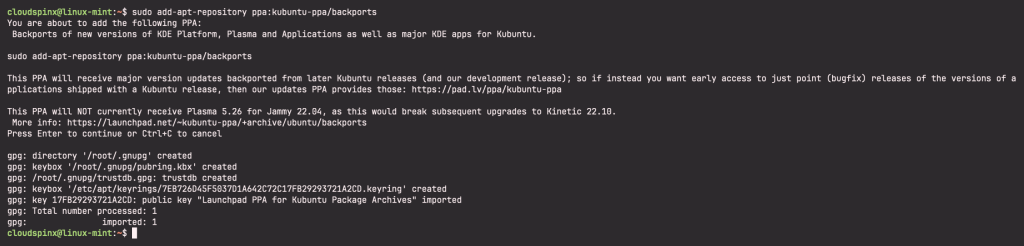
Run the command below to add the repository to your Linux Mint 22 system.
sudo add-apt-repository ppa:kubuntu-ppa/backportsExecution output:
Step 2: Install KDE Plasma Desktop
After addition of the repository, install KDE Plasma Desktop on Linux Mint with the commands below:
sudo apt update
sudo apt install kde-plasma-desktop kde-standard
Accept installation and be informed this could take a while especially if you have a weak internet connection.
...
0 upgraded, 680 newly installed, 0 to remove and 14 not upgraded.
Need to get 405 MB of archives.
After this operation, 1,494 MB of additional disk space will be used.
Do you want to continue? [Y/n] Y
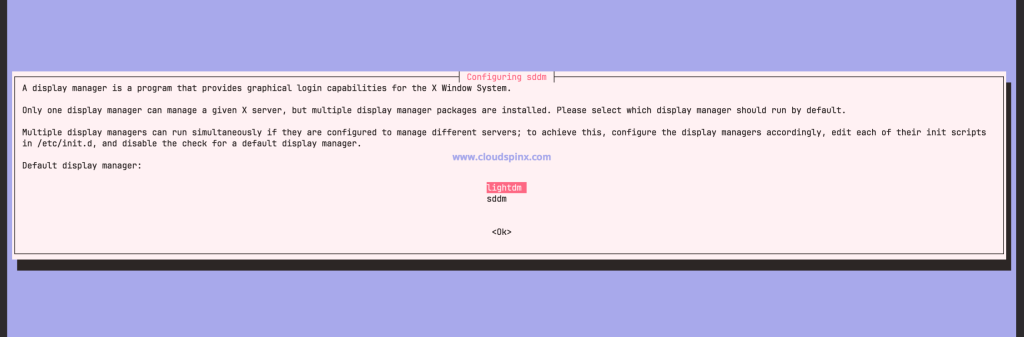
You’ll be asked to choose the default display manager to manage a given X server. Please select which display manager should run by default.
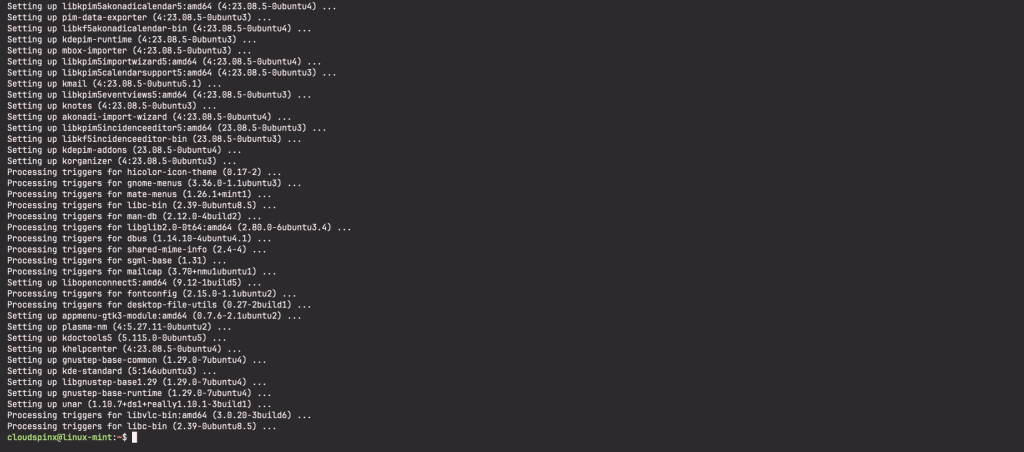
The installation should complete without any errors:
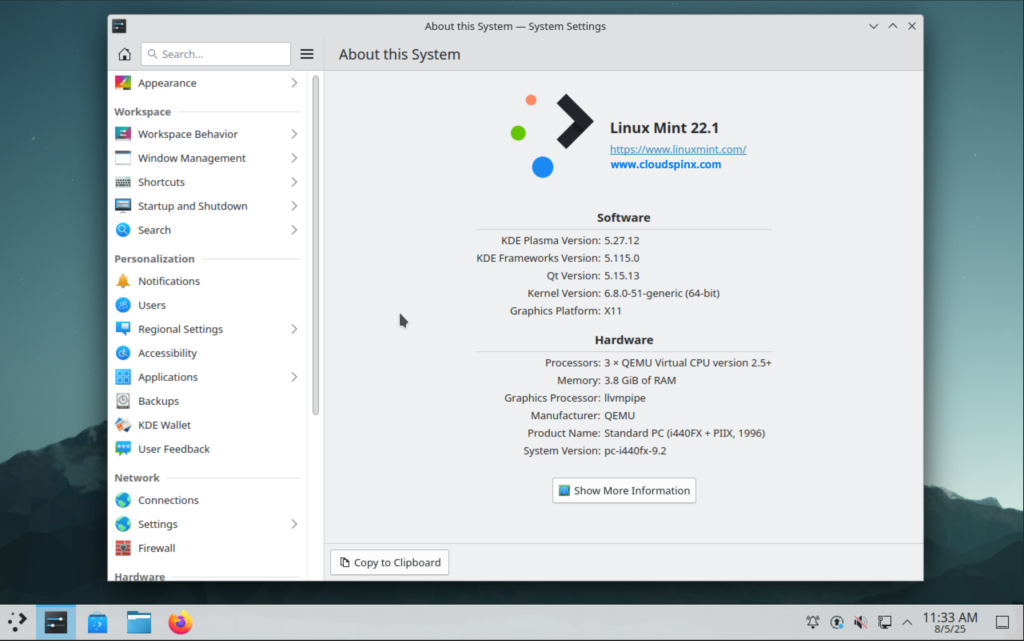
Step 3: Use KDE Plasma Desktop
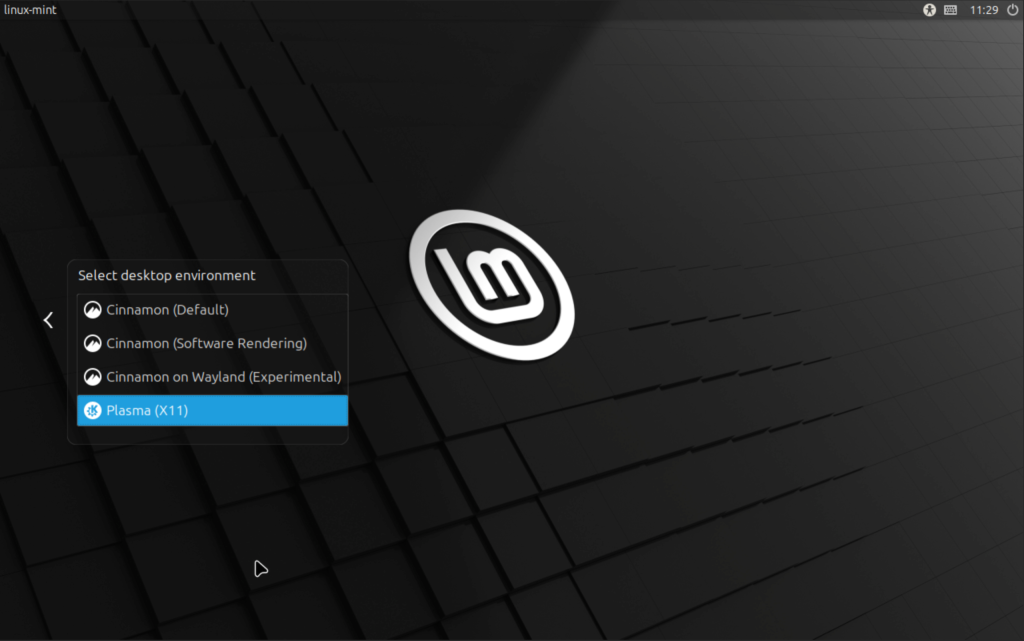
After installation reboot your machine.
sudo rebootIn the Login screen, select Plasma (X11).
That’s it for today folks, enjoy using Plasma on Linux Mint 22.
Check out this Linux Learning materials.
